How to Fix Kadence ‘Not a Valid JSON Response’ Errors
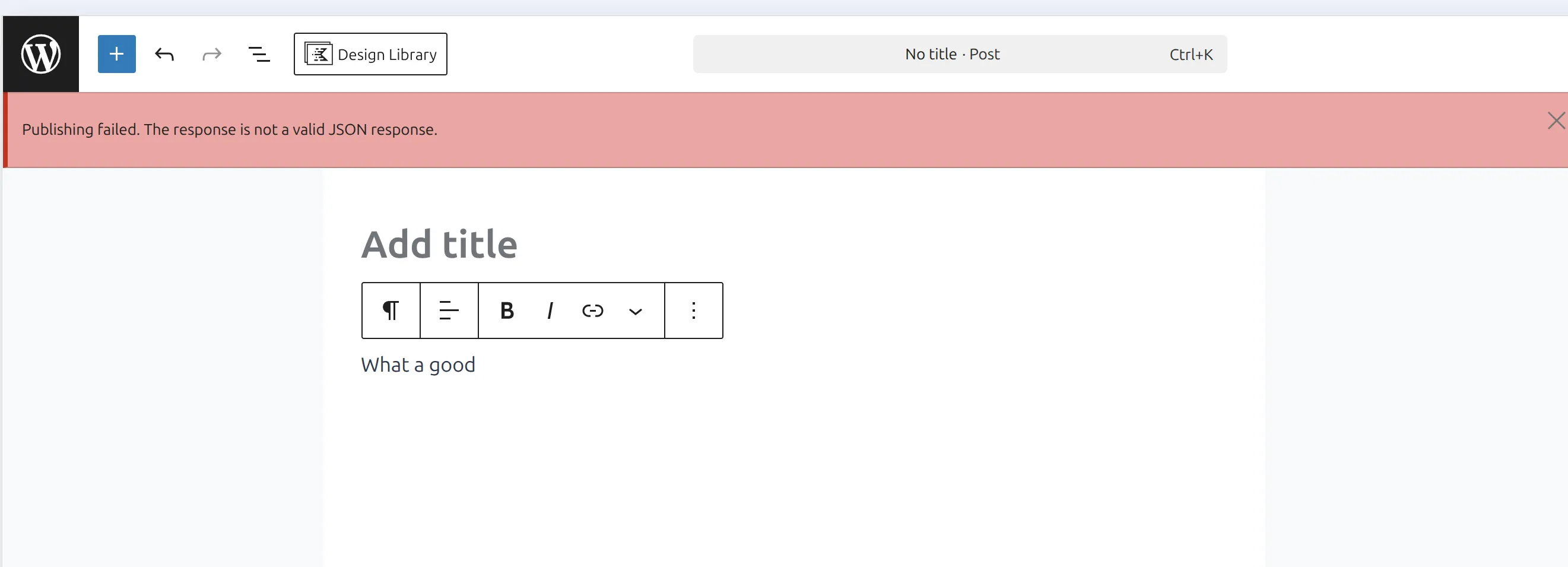
I ran into this exact red banner while working on a client site last week. You spend 45 minutes building a complex Kadence Row Layout, hit “Update,” and the block editor refuses to save, throwing a “Not a valid JSON response” error. It’s incredibly frustrating.
This is a common Kadence JSON error fix that WordPress developers have to deal with, and it usually means something is blocking the WordPress REST API. The Kadence Blocks plugin relies heavily on the REST API to talk to the server when you save a post. When that connection breaks, the WordPress block saving fails.
But don’t worry. I’ve tracked down the 4 most common culprits. Here’s how to fix Kadence ‘Not a Valid JSON Response’ errors so you can get back to building.
Why does this error happen in the block editor?
Before you start changing settings, you should know what’s happening under the hood. Kadence Blocks are dynamic. When you make a change, the editor sends a JSON package to your server via the REST API. If the server sends back HTML, a PHP warning, or a 403 Forbidden status instead of the expected JSON data, WordPress panics and throws the error.
How do you fix a Kadence JSON error?
I always run through these 4 checks in order. The first one takes 10 seconds and fixes the issue about 60% of the time.
1. Flush your Permalinks
This sounds too simple to work, but it forces WordPress to rebuild its rewrite rules, including the REST API endpoints.
- Go to Settings > Permalinks in your WordPress dashboard.
- Don’t change anything.
- Scroll to the bottom and click Save Changes.
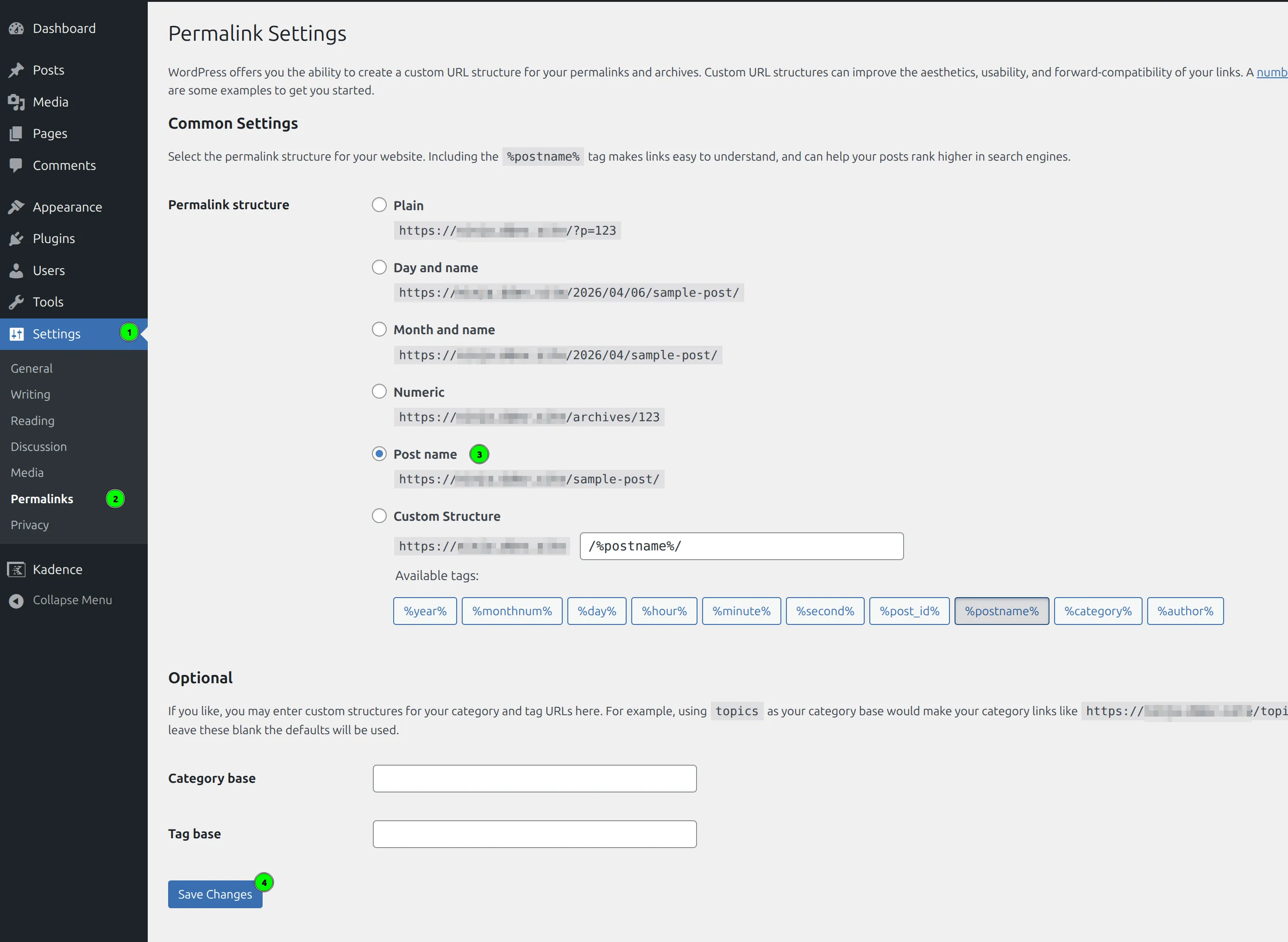
Go back to your post, refresh the page, and try saving your Kadence blocks again. If it works, you’re done.
2. Check for REST API Plugin Conflicts
If flushing permalinks didn’t work, you likely have a plugin conflict. Security plugins and caching tools are notorious for aggressively blocking REST API requests to “protect” your site.
I usually disable my caching plugin (like WP Rocket or LiteSpeed Cache) and my security plugin (like Wordfence or Solid Security) first.
- Deactivate your security and caching plugins.
- Try saving the page.
- If it saves, reactivate them one by one until the error comes back.
If a security plugin is the culprit, you need to check its settings and ensure it isn’t blocking the /wp-json/ route.
3. Check your Server Firewall (ModSecurity)
This is the one that gets most people. Some web hosts (like SiteGround or Hostinger) use ModSecurity or similar server-level firewalls. Sometimes, the complex JSON payload from a large Kadence layout triggers a false positive in the firewall, resulting in a 403 error.
If you suspect this:
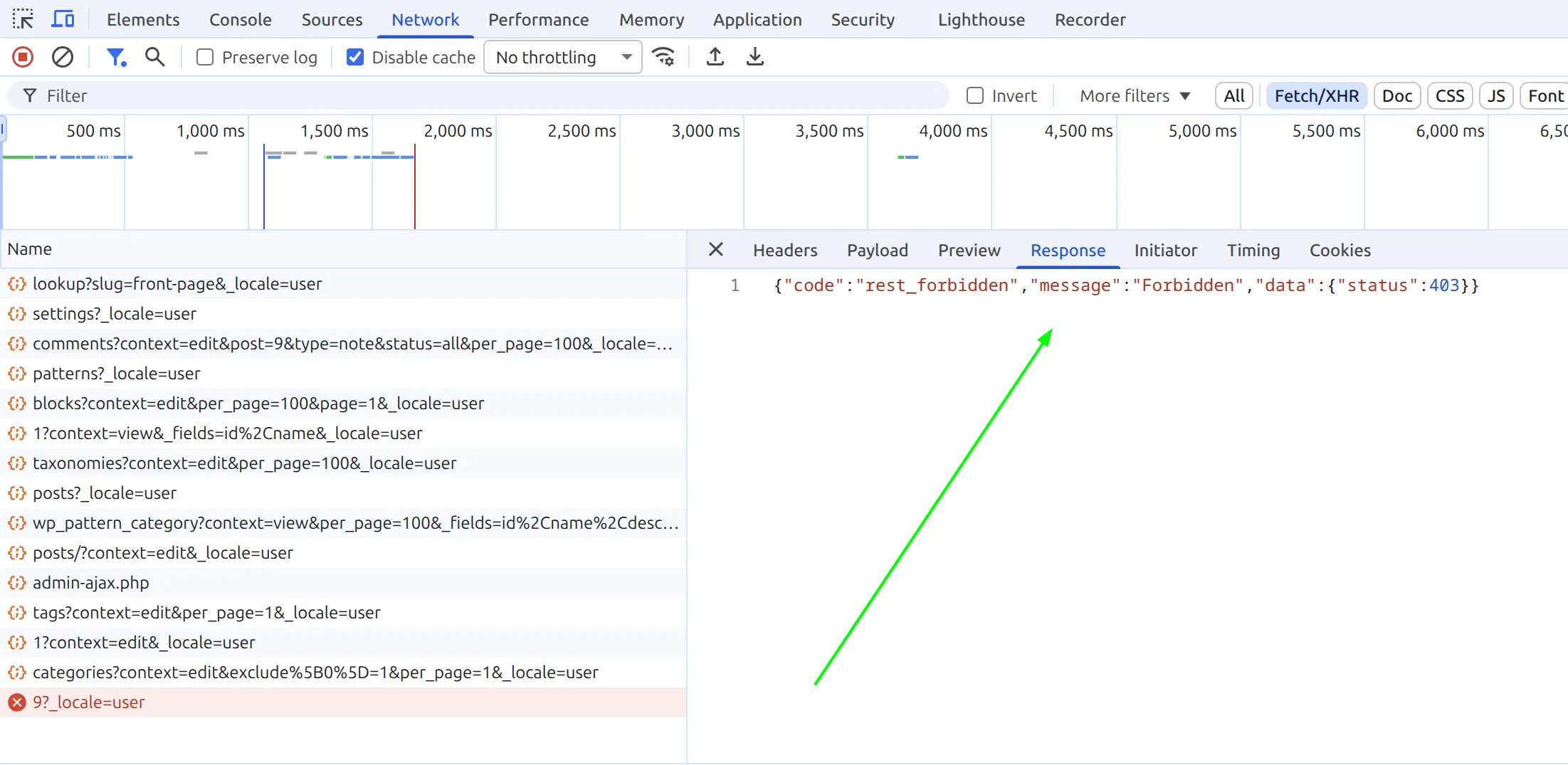
- Look at your browser’s developer console (F12 on Chrome), go to the Network tab, and hit “Update” on your post.
- Look for a failed request in red (usually
admin-ajax.phpor a/wp-json/URL) returning a 403 status. - If you see a 403, contact your hosting support. Tell them: “I’m getting a 403 error on the WordPress REST API when saving a post. Can you check the ModSecurity logs and whitelist the rule that is being triggered?”
4. Fix Mixed Content (SSL Issues)
If you recently migrated to HTTPS or changed your domain, your site might be serving a mix of HTTP and HTTPS content. The block editor requires a secure connection to save data.
- Go to Settings > General.
- Ensure both the WordPress Address (URL) and Site Address (URL) start with
https://. - If they don’t, change them and save.
You might also need to install a plugin like Really Simple SSL temporarily to force all traffic over HTTPS and fix any hardcoded HTTP links in your database.
Is there a quicker way to debug WordPress block saving failed errors?
Yes. I highly recommend checking the Site Health tool built into WordPress.
Go to Tools > Site Health. If your REST API is blocked or throwing errors, WordPress will usually flag it here with a critical warning like “The REST API encountered an error.” Expanding that warning often gives you the exact HTTP status code and a clue about what’s causing it. This same REST API issue can also cause problems like the Kadence Blocks design library not loading or starter template imports failing.
Fixing a Kadence JSON error is rarely a problem with Kadence itself. It’s almost always a server configuration, a firewall, or a conflicting security plugin stepping on the REST API. Run through the permalink flush, check your plugins, and peek at the network tab. You’ll usually have it resolved in just a few minutes.
If you’re running into other Kadence issues, check my guide on fixing the Customizer not saving changes – the troubleshooting steps overlap quite a bit.
Frequently Asked Questions
Does the JSON error mean Kadence Blocks is broken?
No. In my experience, this error is almost never caused by Kadence itself. It’s a WordPress REST API problem triggered by server firewalls, security plugins, or SSL misconfigurations. Kadence just happens to rely on the REST API more than most plugins, so it surfaces the error first.
Will I lose my page content when this error appears?
Usually not. WordPress saves a local autosave in your browser, so even if the server-side save fails, your most recent changes are typically recoverable. I always hit Ctrl+A and copy everything to a text file as a backup before I start troubleshooting, just in case.
Can a caching plugin cause the JSON response error?
Yes – this is one of the top causes I see. Plugins like WP Rocket, LiteSpeed Cache, and W3 Total Cache can cache REST API responses or block them entirely. Try disabling your caching plugin temporarily and saving the page. If it works, check the plugin’s settings for a REST API exclusion option.
Does this error only happen with Kadence?
No. The “Not a valid JSON response” error can appear with any block editor content – Kadence just makes it more noticeable because its blocks send larger JSON payloads. If you see this error, it affects your entire Gutenberg editor, not just Kadence blocks.