How to Load Google Fonts Locally in Kadence Free
Every time someone visits your site, their browser reaches out to Google’s servers to grab your fonts. That’s 2 extra connections (fonts.googleapis.com for the stylesheet, fonts.gstatic.com for the font files) before your text can show in the right font. And if your visitors are in Europe, those requests send their IP addresses to Google – which has already cost site owners in Germany money. Loading Google Fonts locally in Kadence fixes both with a single toggle.
I ran into this myself when a reader in Germany pointed out that my site was pinging fonts.googleapis.com on every page load. Switching took about 30 seconds. For this update I re-tested the whole thing on Kadence 1.4.5, including what happens when it fails, because the failure is quieter than you’d expect.
Why Should I Load Fonts Locally?
There are 3 practical reasons to stop loading fonts from Google.
Speed. With Google Fonts, the browser has to open connections to 2 Google domains before it can download a single font file. Hosted locally, the fonts come from the same server as the rest of your page, over a connection the browser already has open. It won’t turn a slow site into a fast one on its own, but it’s one less thing in the way – my guide on why a WordPress site is slow covers the bigger causes.
GDPR compliance. This is the big one for anyone with European visitors. When fonts load from Google, visitor IP addresses go to Google. In January 2022, a Munich court ruled that a breach of GDPR and ordered the website owner to pay the visitor who sued 100 euros in damages. Letters demanding 100 to 170 euros from other site owners followed within months.
Reliability. Your fonts don’t depend on a third-party service being reachable. With local fonts, your typography loads as long as your own site does.
How Do I Enable Local Fonts in Kadence?
The setting is in the Customizer’s General panel, under Performance – not with the fonts, which is where I first looked.
- Go to Appearance > Customize > General > Performance.
- Toggle Load Google Fonts Locally to on.
- Two more controls appear below it: Preload Local Fonts (already on by default – more on this in a moment) and a Flush Local Font Files button.
- Click Publish.
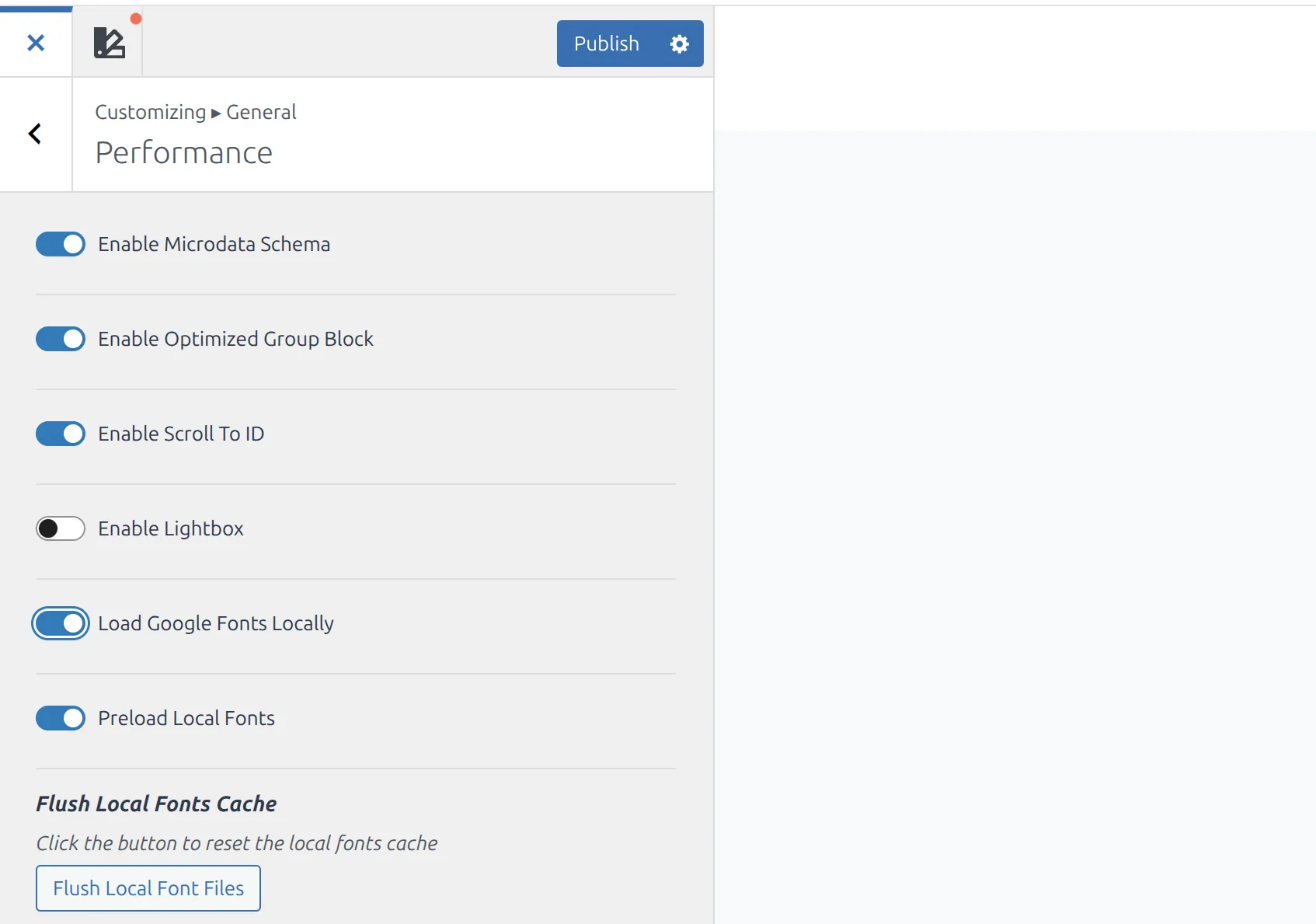
That’s the whole process. The next time a page loads, Kadence downloads the font files from Google to your server, and from then on every visitor gets them from your domain. On my test site, the homepage went from 1 request to fonts.googleapis.com to 0.
And this works in the free version of Kadence. You don’t need Pro.
The Colors & Fonts > Typography section is where you pick which Google Font to use (Inter, Merriweather, Playfair Display, whatever). The General > Performance section is where you switch on local loading. They’re 2 separate places in the Customizer, and the toggle is easy to miss if you only look in Typography. My Kadence Colors & Fonts settings reference lists every font setting with its default.
Where Does Kadence Store the Font Files?
Kadence saves everything in a fonts folder inside wp-content:
wp-content/fonts/{font-name}/So if you use Merriweather, you get wp-content/fonts/merriweather/ with the font files inside. Each Google Font gets its own subfolder, and the stylesheet that points to them sits in wp-content/fonts/ itself, with a long random-looking name ending in .css.
Don’t be surprised by the number of files. Kadence downloads every language subset the font has, not only the one you use. My Merriweather folder had 5 files: Latin, Latin Extended, Cyrillic, Cyrillic Extended and Vietnamese. The browser only downloads the one it needs for the characters on the page.
Here’s how to check. Log into your hosting via the file manager or FTP, open wp-content/, and look for the fonts folder. Inside you should see one folder per Google Font you use, each with .woff2 files in it.
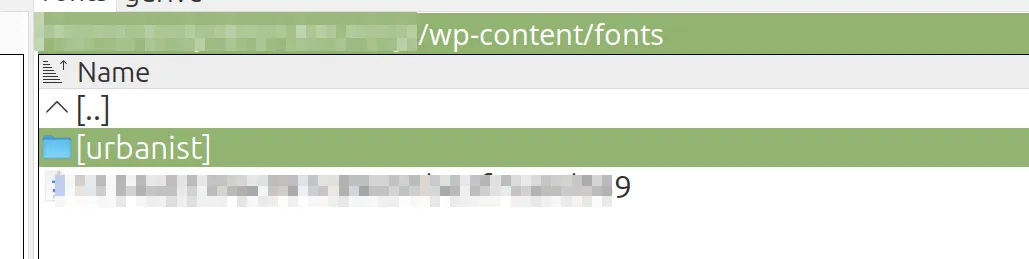
If the folder is missing or empty, Kadence couldn’t write it – and that matters more than it sounds. Kadence doesn’t fall back to system fonts when this happens. It falls back to loading the fonts from Google, exactly as if the toggle were off. I tested it by locking the wp-content/fonts/ folder so WordPress couldn’t write to it: the toggle still showed ON, and every page loaded its fonts from fonts.googleapis.com again. Your site looks perfect, so you’d never notice.

The fix is a permissions issue. Your wp-content/ folder needs to be writable by the web server so Kadence can create fonts inside it. Most managed hosts set this correctly, but on a VPS, or with a security plugin that locks down files, this is the first thing to check. Once it’s writable, press Flush Local Font Files and reload any page.
Should I Enable “Preload Local Fonts”?
Preload Local Fonts adds <link rel="preload"> tags to your page’s <head>. They tell the browser to start downloading a font file straight away, before it has even read your CSS, so text shows up in the right font sooner.
It’s switched on by default, and for most Kadence sites I’d leave it that way. Kadence is careful about what it preloads: only the Latin file of each font, not every language subset. On my test site, Merriweather in 2 weights (regular and bold) left 5 files in the folder but only 1 preload tag, because both weights live in the same file. Adding Playfair Display for headings made it 2 preload tags.
Kadence also only requests the weights you actually use. When I set headings to Playfair Display Bold, it fetched the bold weight and nothing else.
My recommendation: leave preload on. To see what it’s doing, view your page source and search for as="font" – that’s one line per preloaded file. If you’re using 4 or more different font families, preloading all of them competes with your images and CSS for the first moments of the page load, and turning preload off is worth a test. Don’t judge it by the number of files in the folder – most of those are language subsets that never get preloaded.
How Do I Verify Fonts Are Loading Locally?
Flipping the toggle is easy. Knowing it worked is the important part, especially given the silent fallback above. Here are 2 ways to check.
Method 1: View Page Source
- Visit any page on your site in an incognito window (logged out).
- Right-click anywhere and select View Page Source.
- Press Ctrl+F and search for
fonts.googleapis.com.
If you get zero results, nothing is loading fonts from Google. You’re good.
If you find a match, look at the tag. If it has id='kadence-fonts-gfonts-css', it’s Kadence itself, and your fonts folder isn’t writable (see above). If it’s any other tag, something else on your site loads Google Fonts separately – a slider, a form plugin, or a page builder can each pull in their own.
Method 2: Chrome DevTools Network Tab
This gives you more detail.
- Open your site in Chrome. Press F12 to open DevTools.
- Click the Network tab and reload the page.
- Click the Font filter button to show only font files.
- Click a file and check its Request URL. Every font file should come from your own domain, not
fonts.gstatic.com.
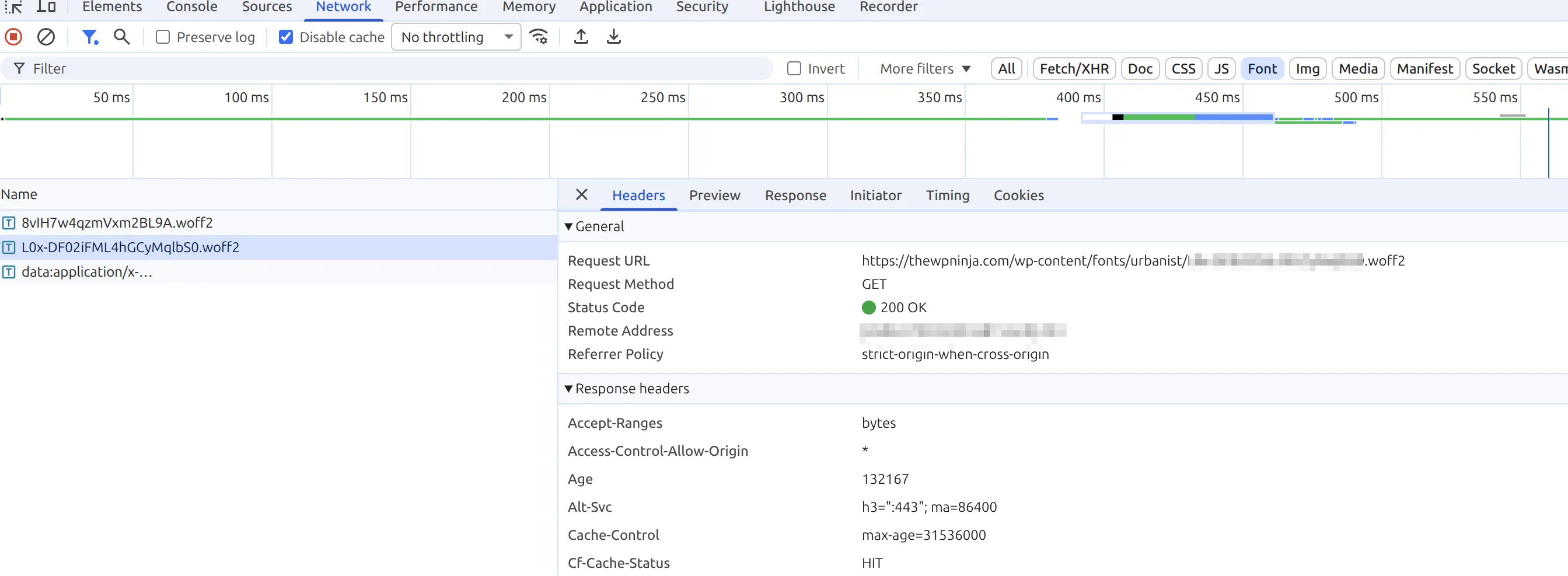
If you spot a font coming from Google, the Initiator tab for that file tells you which stylesheet asked for it.
What If Another Plugin Is Still Loading Google Fonts?
This is the gotcha that trips up most people. You enable Kadence’s toggle, run a GDPR scanner, and it still flags Google Fonts on your site.
The Kadence toggle covers the theme’s fonts and, on a Kadence site, the fonts you pick inside Kadence Blocks too – I tested an Advanced Heading in Lobster, and it downloaded locally with only the theme toggle on. Other plugins that load their own Google Fonts still go to Google.
For each one, look for a local fonts or “disable Google Fonts” option. In Elementor it’s Elementor > Settings > Performance > Load Google Fonts Locally – and Elementor switched that off by default on every site in an update, so check it even if you set it before. (The Google Fonts Load setting under Advanced is something else: it only changes how fonts display while loading.) If a plugin has no such option, the free OMGF (Optimize My Google Fonts) plugin can localize Google Fonts stylesheets that plugins add the standard WordPress way.
For the legal side and a full audit checklist, see How to Fix Google Fonts GDPR Warnings in Kadence.
Does This Affect Font Quality or My Custom Font Choices?
The font files are identical – the same .woff2 files Google would serve. Your visitors won’t see any difference. The only change is the server they come from.
And whatever you picked in Kadence’s Typography settings – say, Inter for body text and Playfair Display for headings – the toggle applies to it automatically. Kadence handles the downloading, storing, and serving, so you don’t need to upload or convert anything.
One edge case: if you added Google Fonts through custom code in a child theme or a separate fonts plugin, Kadence’s toggle won’t catch those. You’d need to handle them separately.
Don’t Forget to Clear Your Cache
After enabling local fonts, clear every caching layer on your site:
- Page cache plugin – WP Rocket, LiteSpeed Cache, W3 Total Cache, or whatever you use. Purge all pages.
- Server cache – if your host has its own caching (most managed hosts do), clear that too.
- CDN cache – Cloudflare or another CDN? Purge there as well.
Old cached pages still contain the Google Fonts link. Until you purge them, visitors keep getting it. If you’re not sure which layers you have, my guide on why WordPress changes don’t show on the live site goes through each one.
Quick Troubleshooting
| Problem | Cause | Fix |
|---|---|---|
Toggle is on but source shows kadence-fonts-gfonts-css loading from fonts.googleapis.com | Kadence couldn’t write to wp-content/fonts/ | Make wp-content writable, press Flush Local Font Files, reload a page |
wp-content/fonts/ folder doesn’t exist | Same – wp-content isn’t writable by the web server | Fix folder permissions (usually 755) or ask your host |
| GDPR scanner still flags Google Fonts | Another plugin loads its own fonts | Check that plugin’s font settings, or try OMGF |
| Page source still shows Google URLs after a fix | Cached pages serving old HTML | Clear all cache layers and check in incognito |
| Old font folders left over after changing fonts | Kadence keeps old files until the folder is cleared | Press Flush Local Font Files |
Frequently Asked Questions
Do Kadence local fonts update when Google updates a font?
Yes, eventually. Kadence runs a cleanup once a month that empties the wp-content/fonts/ folder, and the next page load downloads fresh copies from Google. Your server does that download, so no visitor data goes to Google. If you want fresh files right now, press Flush Local Font Files in General > Performance.
Will loading fonts locally slow down my site?
No. You skip the connections to 2 Google domains, and the fonts come from the same server as your HTML and CSS. The only slower moment is the very first page load after you switch it on (or after a flush), when your server downloads the files once.
Does the Kadence local fonts toggle work with custom fonts I uploaded?
No, and it doesn’t need to. The toggle only applies to Google Fonts selected in Kadence’s Typography settings. Fonts you uploaded yourself are already on your server.
Can I use Kadence local fonts with a CDN like Cloudflare?
Yes. Your CDN caches and serves the local font files like any other file on your site. Just purge the CDN cache after switching the toggle on.
Do I need Kadence Pro to load fonts locally?
No. The Load Google Fonts Locally toggle is in the free version of Kadence. I tested on Kadence 1.4.5 with no Pro license.
Wrapping Up
Loading Google Fonts locally in Kadence is a 30-second change that fixes 2 real problems – extra connections to Google on every page load and GDPR exposure from sending visitor IPs there. The toggle is in Appearance > Customize > General > Performance, it works in the free version, and it covers your Kadence Blocks fonts too.
But don’t just flip it and move on. Search your page source for fonts.googleapis.com, because if Kadence can’t write the font files it goes back to Google without telling you. Leave preload on unless you run 4 or more font families. And clear your cache so old pages stop serving the Google link.