How to Fix Kadence ‘Not a Valid JSON Response’ Errors
I ran into this exact red banner while working on a client site. You spend 45 minutes building a complex Kadence Row Layout, hit “Update,” and the block editor refuses to save, throwing a “Not a valid JSON response” error. It’s incredibly frustrating.
This is a common Kadence JSON error fix that WordPress developers have to deal with, and it usually means something is blocking the WordPress REST API. The Kadence Blocks plugin relies heavily on the REST API to talk to the server when you save a post. When that connection breaks, the WordPress block saving fails.
But don’t worry. I’ve tracked down the 5 checks that find the culprit, and I forced the failures on my own test site for the screenshots below. Here’s how to fix Kadence ‘Not a Valid JSON Response’ errors so you can get back to building.
Why does this error happen in the block editor?
Before you start changing settings, you should know what’s happening under the hood. Kadence Blocks are dynamic. When you make a change, the editor sends a JSON package to your server via the REST API. If the server sends back HTML, a PHP warning, or a 403 Forbidden status instead of the expected JSON data, WordPress panics and throws the error.
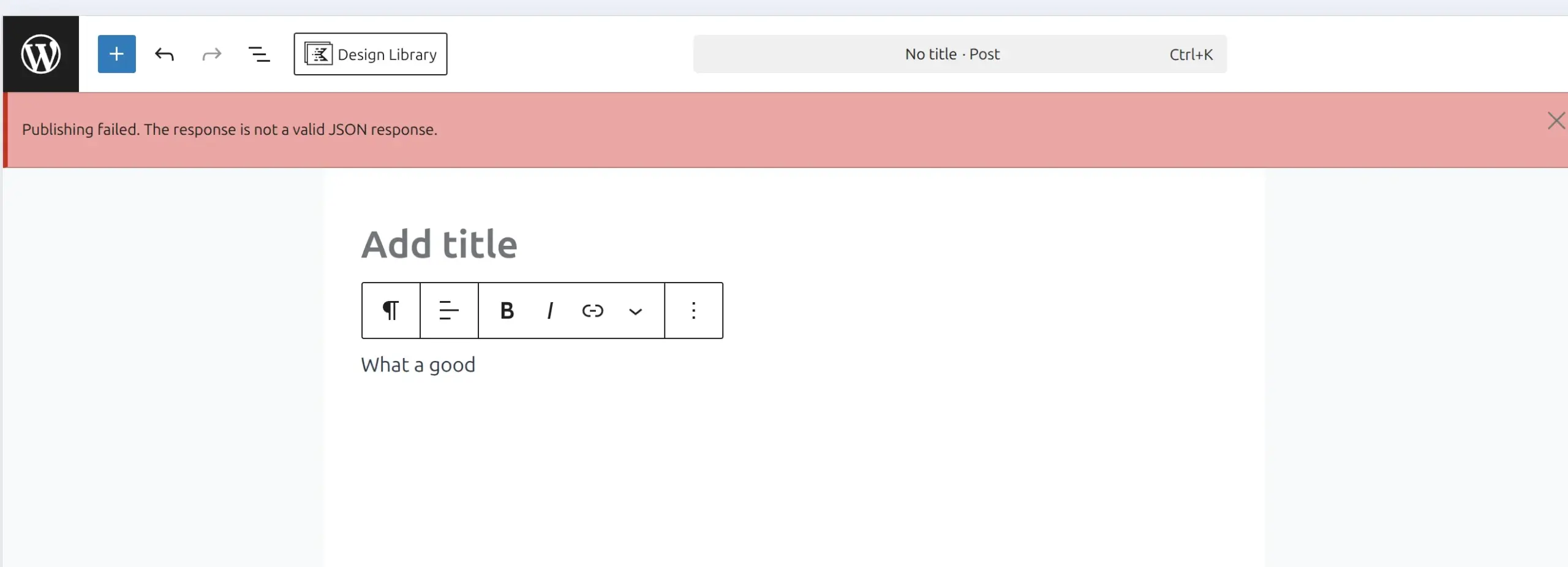
The exact wording changes with the button you pressed. You’ll see “Publishing failed” on a new post and “Updating failed” on one that’s already live. The same message can also pop up when you upload an image in the Media Library or save a template in the Site Editor, because all 3 screens talk to the server through the same REST API.
JSON is just the data format the editor expects back. Think of it like ordering a coffee and getting handed a parking ticket. The editor can’t read the answer, so it gives up and shows you the red banner.
How do you fix a Kadence JSON error?
I run through these 5 checks in order. The first one takes 10 seconds, and the second one tells you in under a minute whether your REST API is healthy at all.
Before you touch anything, copy your page content somewhere safe. Click inside the editor, press Ctrl+A twice to select every block, press Ctrl+C, and paste it into a text file.
1. Flush your Permalinks
This sounds too simple to work, but it forces WordPress to rebuild its rewrite rules, including the REST API endpoints.
- Go to Settings > Permalinks in your WordPress dashboard.
- Don’t change anything.
- Scroll to the bottom and click Save Changes.
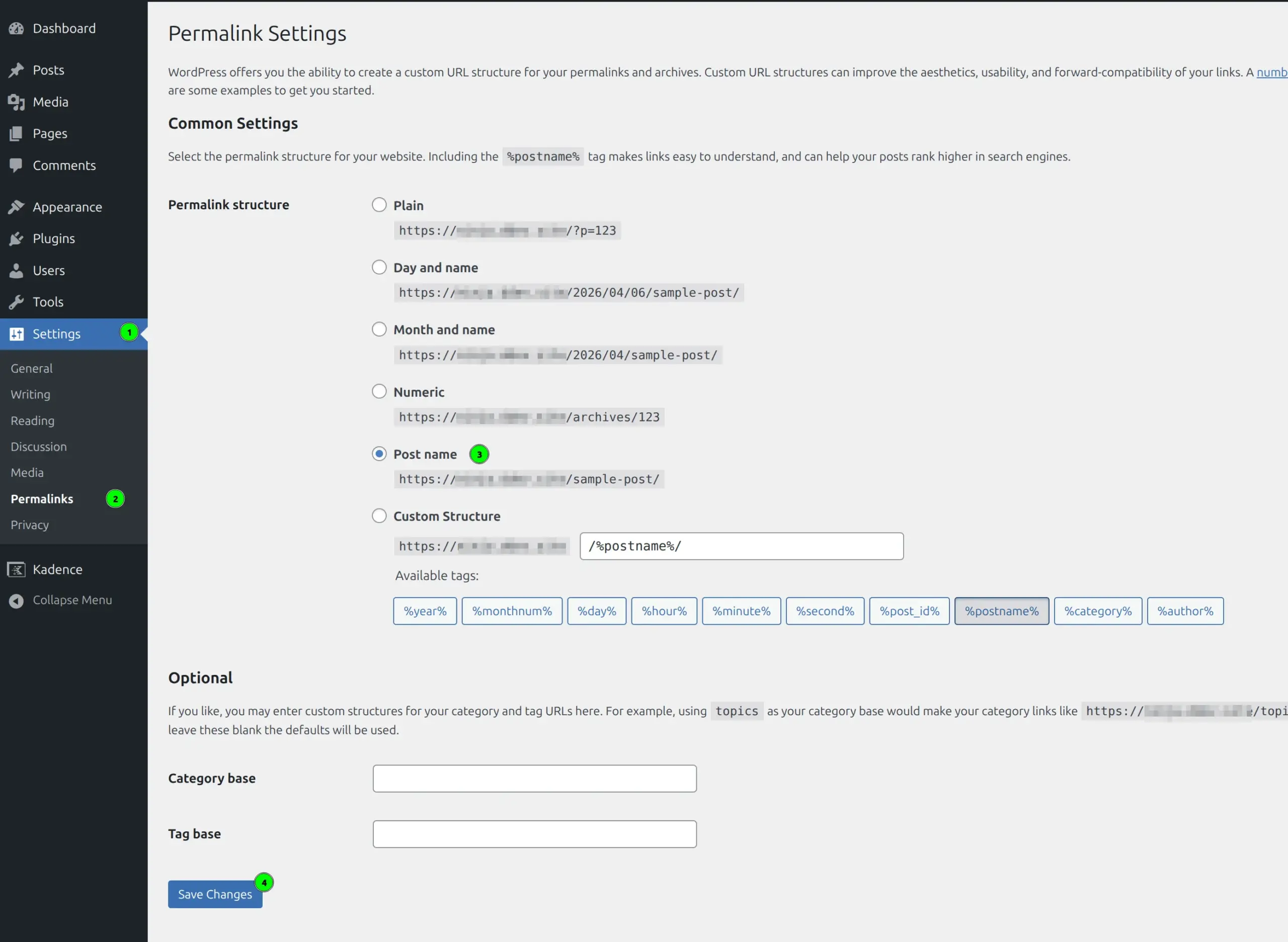
Go back to your post, refresh the page, and try saving your Kadence blocks again. If it works, you’re done.
2. Open your REST API in the browser
This is the quickest way to see what the editor sees. Open a new browser tab and type your domain followed by /wp-json/ – for example, yoursite.com/wp-json/.
A healthy site shows a wall of text that starts with {“name”: and your site title. It looks like gibberish, and that’s fine. That wall of text is JSON, which is exactly what the editor wants to get back.
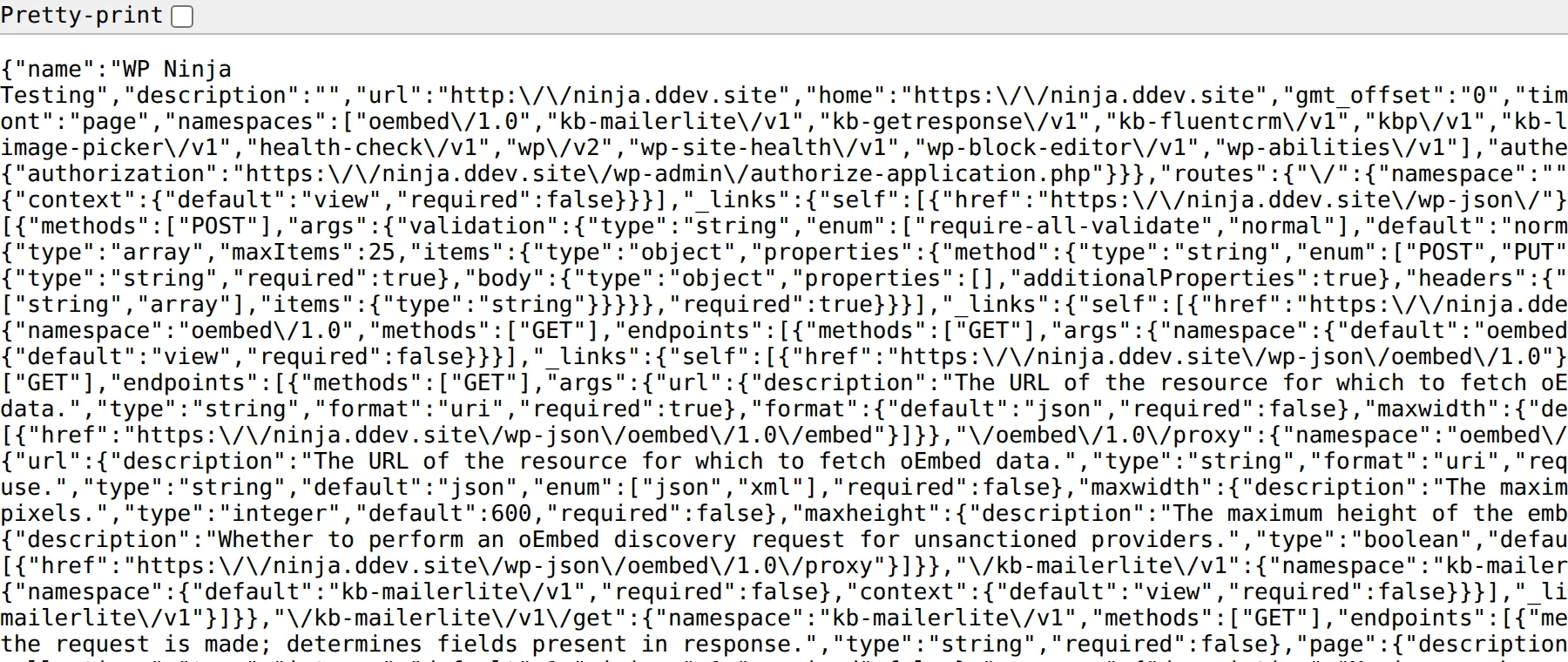
If you get an error page instead, you’ve found your problem. My test site below returns a plain “Forbidden” page, which is what a server firewall sends when it blocks the request. A white screen, a login page or your normal 404 page all mean the same thing: something is standing between the editor and WordPress.

A Forbidden page points you at checks 3 and 4. A 404 page points you back at check 1, so flush your permalinks one more time.
3. Check for REST API Plugin Conflicts
If flushing permalinks didn’t work, you likely have a plugin conflict. Security plugins and caching tools are notorious for aggressively blocking REST API requests to “protect” your site.
I usually suspect my caching plugin (like WP Rocket or LiteSpeed Cache) and my security plugin (like Wordfence or Solid Security) first. But I don’t deactivate them on a live site any more. The free Health Check & Troubleshooting plugin from the WordPress.org team turns plugins off for you only, while your visitors keep seeing the normal site.
- Go to Plugins > Add New, search for “Health Check & Troubleshooting” and install it.
- Go to Tools > Site Health and open the Troubleshooting tab.
- Click Enable Troubleshooting Mode.
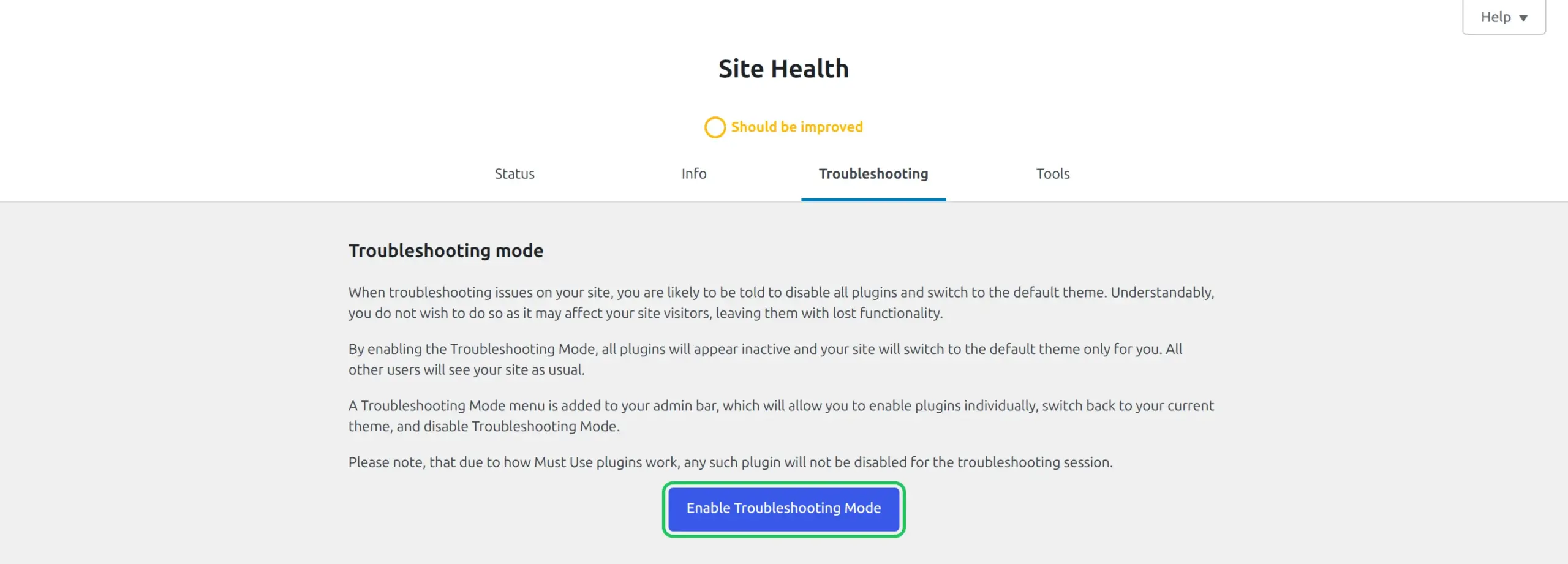
Every plugin now looks inactive, and your theme switches to a default one, but only in your browser. Open the Troubleshooting Mode menu in the admin bar, switch the theme back to Kadence and turn Kadence Blocks back on first, then try saving. Then turn the rest back on one at a time until the error returns. The last plugin you enabled is your culprit.
If a security plugin is the culprit, you need to check its settings and ensure it isn’t blocking the /wp-json/ route. When you’re finished, click Disable Troubleshooting Mode in the same admin bar menu.
4. Check your Server Firewall (ModSecurity)
This is the one that gets most people. Some web hosts (like SiteGround or Hostinger) use ModSecurity or similar server-level firewalls. Sometimes, the complex JSON payload from a large Kadence layout triggers a false positive in the firewall, resulting in a 403 error.
If you suspect this:
- Open your browser’s developer tools (F12 in Chrome), click the Network tab, and hit “Update” on your post.
- Look for a failed request in red (usually a /wp-json/ URL) returning a 403 status.
- If you see a 403, contact your hosting support. Tell them: “I’m getting a 403 error on the WordPress REST API when saving a post. Can you check the ModSecurity logs and whitelist the rule that is being triggered?”
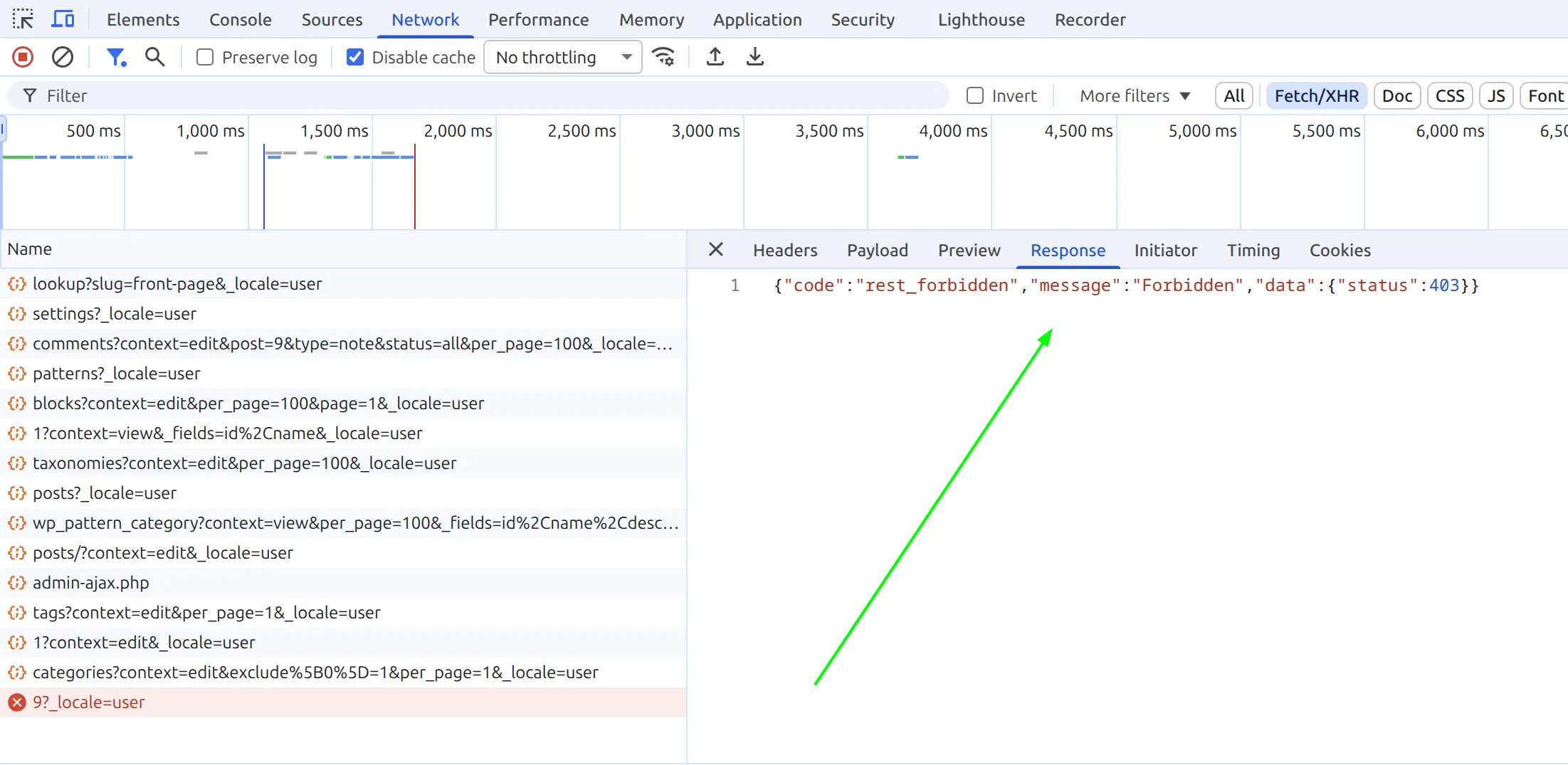
A firewall block usually only hits the save, not the page load. That’s why the editor opens fine and only complains when you click Update.
5. Fix Mixed Content (SSL Issues)
If you recently moved your site to HTTPS or changed your domain, your WordPress addresses might not match the address you actually use. When they don’t match, the editor’s save requests can get redirected, and a redirected save comes back as a web page instead of JSON.
- Go to Settings > General.
- Ensure both the WordPress Address (URL) and Site Address (URL) start with https:// and use the same www or non-www form as your site.
- If they don’t, change them and save. WordPress may log you out once, which is normal.
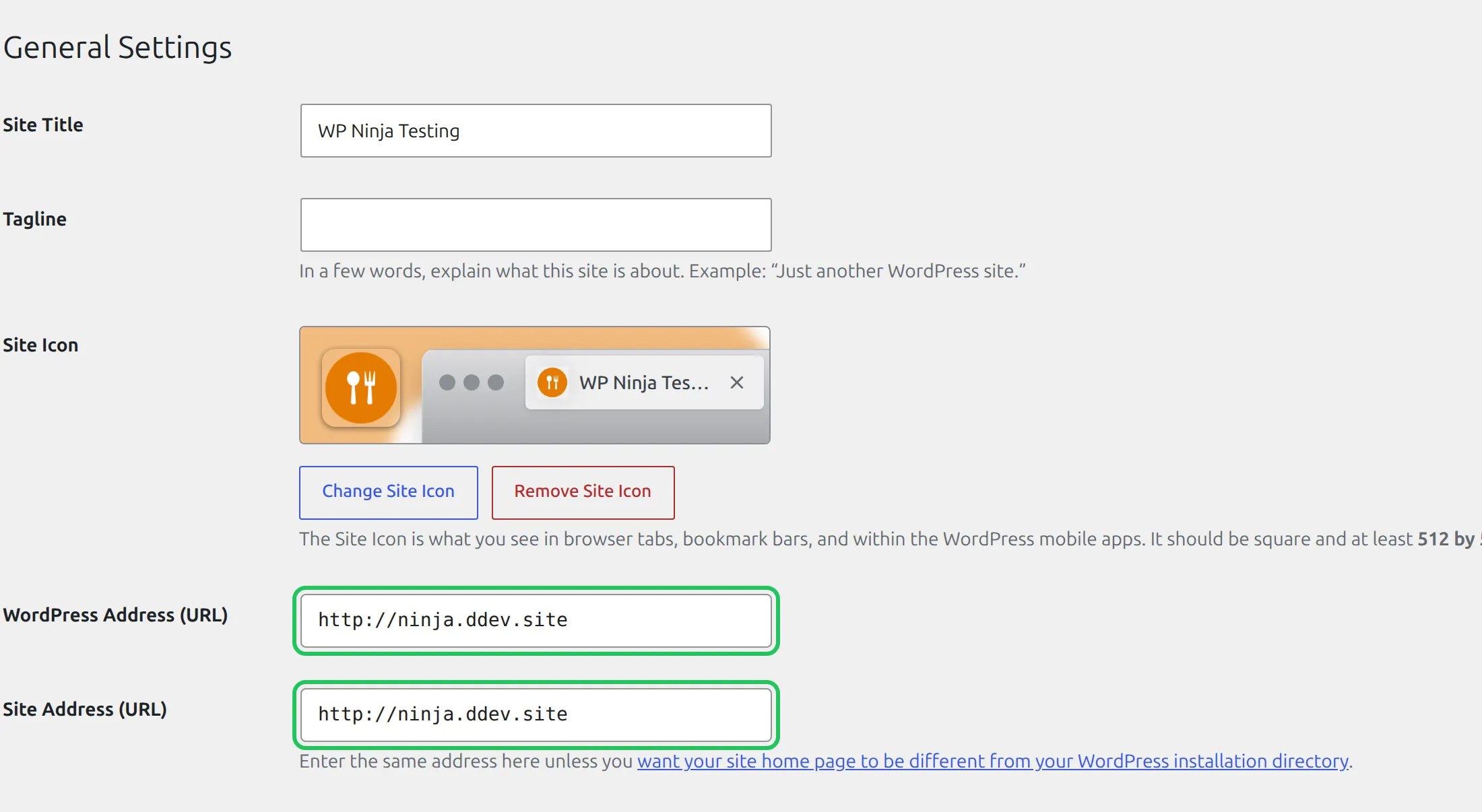
On my test site both fields still say http:// even though the site loads over https://. That’s exactly the mismatch to look for. You might also need a plugin like Really Simple SSL to force all traffic over HTTPS and fix any hardcoded http:// links in your database.
Is there a quicker way to debug WordPress block saving failed errors?
Yes. I highly recommend checking the Site Health tool built into WordPress. It tests your REST API for you and tells you the exact error code.
Go to Tools > Site Health and wait about 10 seconds for the tests to finish. If your REST API is blocked, you’ll see “The REST API encountered an unexpected result” (or “The REST API encountered an error”) in the list. It’s filed under recommended improvements rather than critical issues, so it’s easy to scroll past. Click it to expand it.
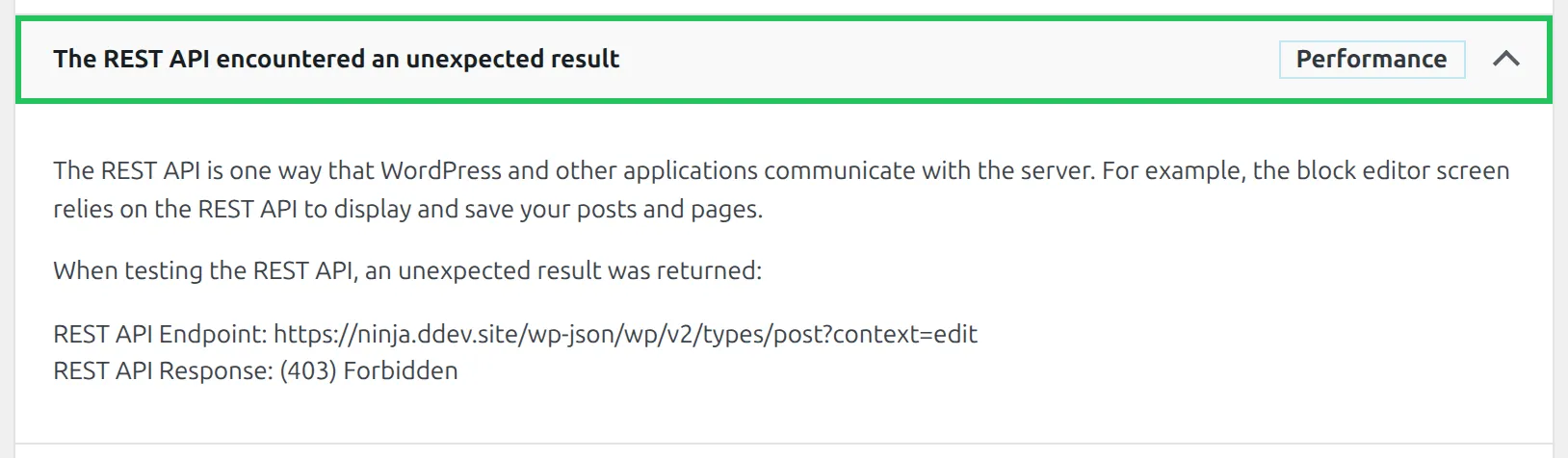
The two lines at the bottom are the useful part. “REST API Response: (403) Forbidden” means a firewall or security plugin blocked the request, so go to checks 3 and 4. A 404 means your permalinks need flushing (check 1). And a 500 means a PHP error on the server, which is a job for your host.
This same REST API issue can also cause problems like the Kadence Blocks design library not loading or starter template imports failing. So if you’ve seen those errors too, this one fix usually clears all of them.
What should I send my host if nothing works?
If all 5 checks come back clean and the error keeps coming back, it’s time for your host’s support team. They can see server logs that you can’t. Give them these 4 things in your first message and you’ll skip a round of back-and-forth questions:
- The exact error text: “The response is not a valid JSON response.”
- The URL of the page you were editing and the time it failed.
- The two lines from Site Health: the REST API Endpoint and the REST API Response code.
- What you’ve already tried: permalinks flushed, plugins tested in Troubleshooting Mode, both site addresses checked.
Fixing a Kadence JSON error is rarely a problem with Kadence itself. It’s almost always a server configuration, a firewall, or a conflicting security plugin stepping on the REST API. Run through the permalink flush, open /wp-json/, test your plugins, and check Site Health. You’ll usually have it resolved in under 15 minutes.
If you’re running into other Kadence issues, check my guide on fixing the Customizer not saving changes – the troubleshooting steps overlap quite a bit. And if a plugin update started all this, my guide on updating WordPress plugins without breaking your site shows how to avoid a repeat.
Frequently Asked Questions
Does the JSON error mean Kadence Blocks is broken?
No. In my experience, this error is almost never caused by Kadence itself. It’s a WordPress REST API problem triggered by server firewalls, security plugins, or SSL misconfigurations. Kadence just happens to rely on the REST API more than most plugins, so it surfaces the error first.
Will I lose my page content when this error appears?
Usually not. WordPress keeps a backup of your unsaved changes in your browser. If you reload the editor after a failed save, you’ll often see a yellow notice with a Restore the backup button.
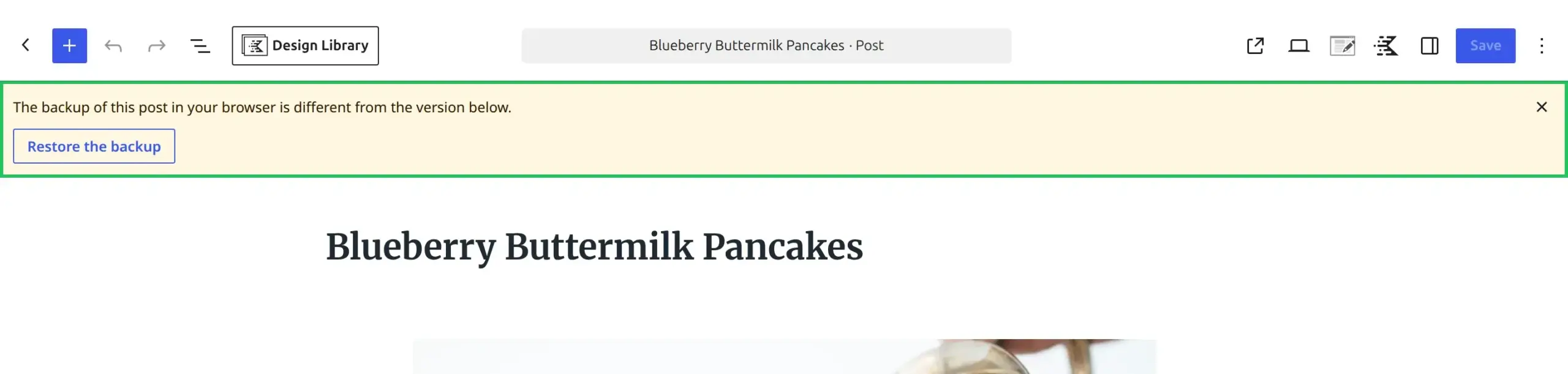
Click it and your latest changes come back. The backup lives in that one browser tab, though, so don’t close it or switch computers before you restore. I still copy everything to a text file before I start troubleshooting, just in case.
Can a caching plugin cause the JSON response error?
Yes – this is one of the top causes I see. Plugins like WP Rocket, LiteSpeed Cache, and W3 Total Cache can cache REST API responses or block them entirely. Test them in Troubleshooting Mode first. If that fixes it, check the plugin’s settings for a REST API exclusion option, then clear your cache once you’ve changed it.
Does this error only happen with Kadence?
No. The “Not a valid JSON response” error can appear with any block editor content – Kadence just makes it more noticeable because its blocks send larger JSON payloads. If you see this error, it affects your entire Gutenberg editor, not just Kadence blocks.