Why Are My WordPress Changes Not Showing Up on the Live Site?
You changed something in WordPress and hit Save, but your WordPress changes are not showing up. The dashboard says “saved”, but the live site still shows the old version – same old title, same old colors.
Take a breath. You didn’t break anything, and your work isn’t lost.
When WordPress changes are not showing up on the live site, the cause is almost always a cache: a saved copy of the page that’s handed out instead of the new one. I set up a test server with the 2 most popular free caching plugins and changed things one at a time, so I could see exactly which edits get stuck and which don’t. The answer surprised me, and it changes where you should look first.
Why are my WordPress changes not showing up?
The short answer: something between WordPress and your visitor is serving an older copy.
Cache is a saved snapshot. Instead of building your page from scratch on every visit, a caching plugin (or your host) saves the finished page and hands that copy out. How long it keeps it depends on the plugin. LiteSpeed Cache keeps a page for 7 days by default, and WP Super Cache keeps it for 30 minutes.
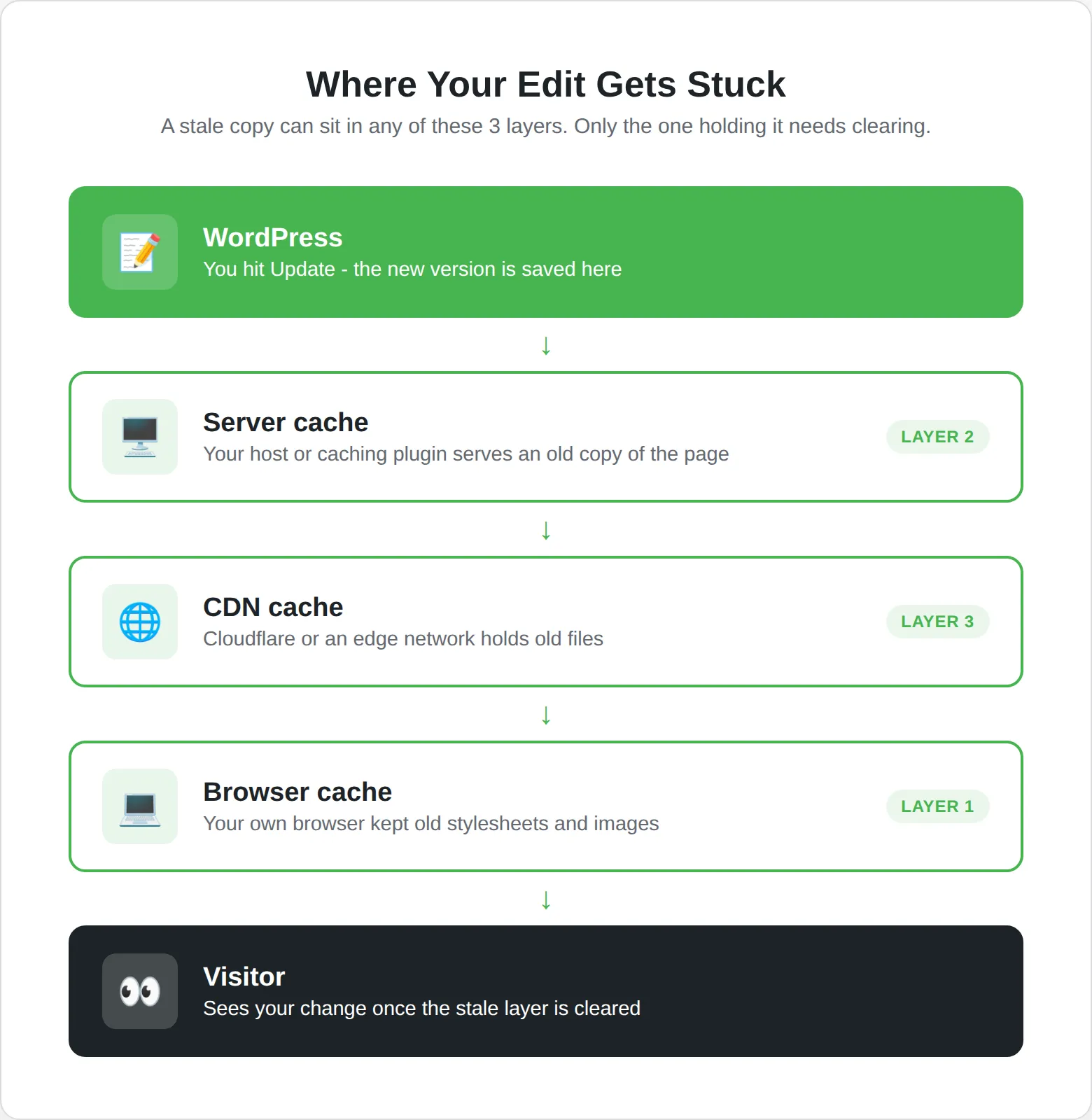
There are 3 places a stale copy can live:
- Browser cache – your own Chrome or Firefox kept old files, mostly stylesheets and images
- Server cache – your host or a caching plugin is serving an old copy of the page
- CDN cache – Cloudflare or your host’s edge network is holding old files
Only one of them has to be stale for you to see the old version. So the trick is to find which one, not to clear everything at random.
Which WordPress changes get stuck in the cache?
This is the part most guides skip. A normal caching plugin clears a page on its own when you edit that page. So the edits that get stuck are usually the ones that change your whole site: the site title, colors, custom CSS, the tagline.
I tested this on a LiteSpeed server running WordPress 7.1 and the Kadence theme, with LiteSpeed Cache 7.9.2 and then WP Super Cache 3.1.4. For each test I loaded the pages as a visitor so they were cached, made one change in the dashboard, then loaded them again as a logged-out visitor:
| What I changed | LiteSpeed Cache | WP Super Cache |
|---|---|---|
| Edited a post in the block editor | Updated at once | Updated at once |
| Changed the menu (Appearance > Menus) | Updated at once, everywhere | Updated at once, everywhere |
| Site Title in the Customizer | Homepage updated, posts kept the old title | Old title everywhere |
| Additional CSS in the Customizer | Homepage updated, posts kept the old CSS | Old CSS everywhere |
| Tagline in Settings > General | Old tagline everywhere | Old tagline everywhere |
So if you edit a blog post and it doesn’t show up, a page cache usually isn’t the reason. Both plugins cleared that post and the homepage the moment I clicked Save. But change something site-wide and the old version can sit there for 30 minutes (Super Cache) or a full week (LiteSpeed Cache) on every page the plugin didn’t clear.
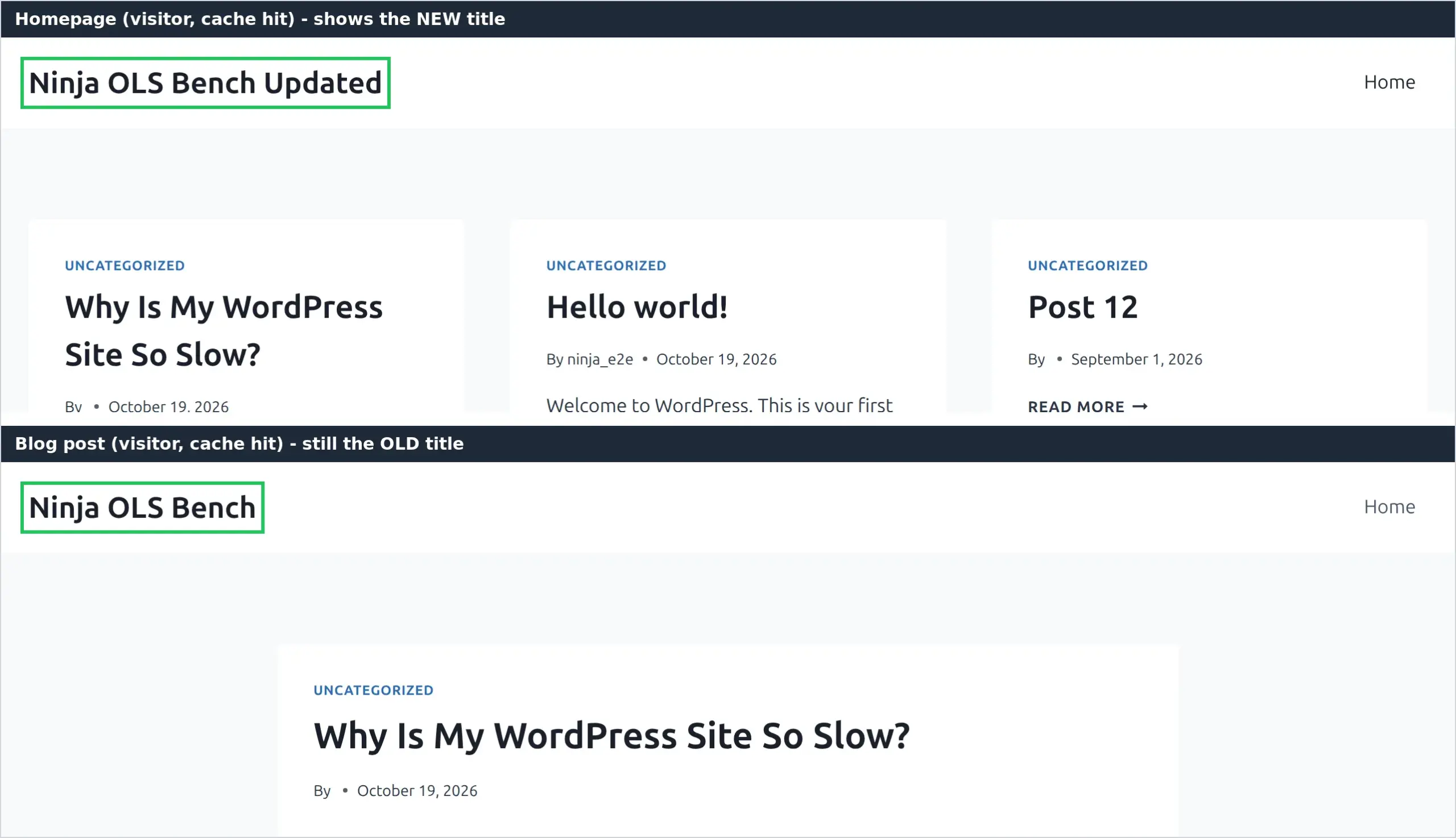
There’s one more twist. WP Super Cache never caches pages for logged-in users, so you see your change and your visitors don’t. LiteSpeed Cache keeps a separate private copy for logged-in users, and after my Settings > General change, even my own admin view stayed stale. That’s why the next test matters.
How do I do an incognito test?
This is the best first check, and it takes 10 seconds.
Open a new incognito window (Chrome: Ctrl+Shift+N, Firefox: Ctrl+Shift+P) and visit your site. Incognito starts with an empty browser cache and you’re not logged in, so you see exactly what a new visitor sees.
- New version in incognito, old version in your normal window: your browser is holding old files. Go to the browser cache section below.
- Old version in incognito too: the stale copy is coming from the server or a CDN. Skip to the server cache section.
- New version for you, old version for a friend: you’re logged in and they aren’t. That’s a server cache, not your browser.
It works on phones too – open a private tab in Safari or Chrome mobile.
How do I clear my browser cache?
Browsers rarely keep the page itself. On all 3 sites I checked (my test server, a plain nginx server and this live site), the page HTML went out with no cache time at all or a 3-second one. What browsers do keep for a long time are stylesheets, scripts and images: 7 days on my test server and a full year on thewpninja.com.
So browser cache is the usual suspect when you changed a file – edited a child theme’s style.css, or swapped an image for a new one with the same name. I tested that in Chrome: I changed a stylesheet on the server, and both clicking back to the page and a normal reload kept showing the old color. Only a hard refresh showed the new one.
On Windows or Linux, a hard refresh is Ctrl+Shift+R. On Mac, press Cmd+Shift+R. It tells the browser to ignore its saved files for that page and download fresh ones.
If that doesn’t do it, clear the cache properly. In Chrome, open the three-dot menu and choose Delete browsing data (or press Ctrl+Shift+Delete, Cmd+Shift+Delete on Mac). Set the time range to “Last hour”, tick “Cached images and files”, and click Delete data.
Each browser on each device has its own cache, which is why your phone and laptop can show different versions of the same site. Your visitors’ browsers keep old files too, and you can’t clear those for them. That’s the reason themes add a version number to their CSS files: when the number changes, every browser downloads the new file.
How do I clear my WordPress server cache?
This is where site-wide changes get stuck. Server cache comes from 2 places: your hosting company, and your caching plugin. Sometimes both at once.
How to tell if you’re seeing a cached copy
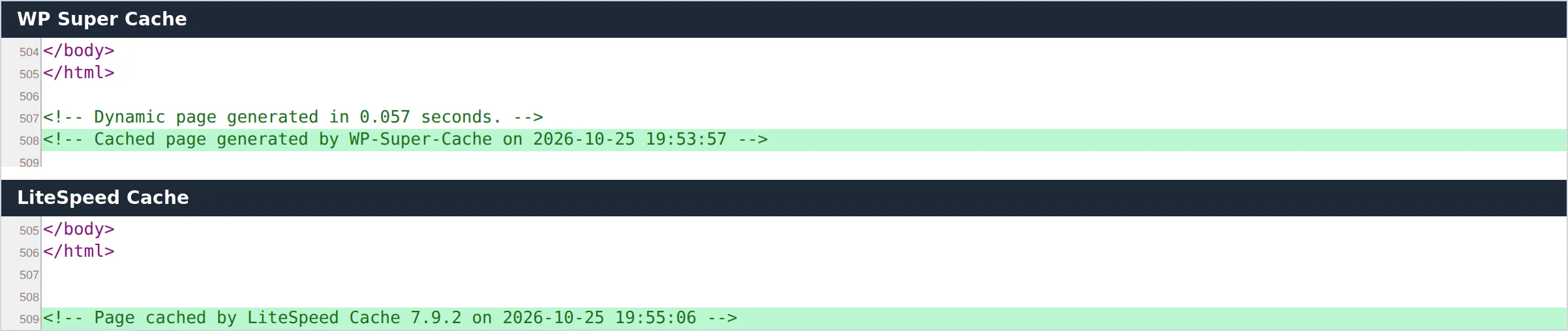
Most caching plugins sign the pages they serve. Open the page in incognito, press Ctrl+U (Cmd+Option+U on Mac) to view the source, and scroll to the very bottom. WP Super Cache adds a line that starts with “Cached page generated by WP-Super-Cache”, with the date and time it was saved. LiteSpeed Cache adds “Page cached by LiteSpeed Cache”.
If that time is older than your change, you’re looking at the stale copy. One catch: the time is in your site’s time zone (the one set under Settings > General), so on a site left at the default UTC it can look hours off from your own clock.
Your caching plugin
These are the buttons for the most common ones. All of them sit in the black admin bar at the top of the screen when you’re logged in:
- LiteSpeed Cache: LiteSpeed Cache icon > Purge All
- WP Super Cache: Delete Cache
- W3 Total Cache: Performance > Purge All Caches
- WP Rocket: WP Rocket > Clear and preload cache (it says “Clear cache” if preloading is off)
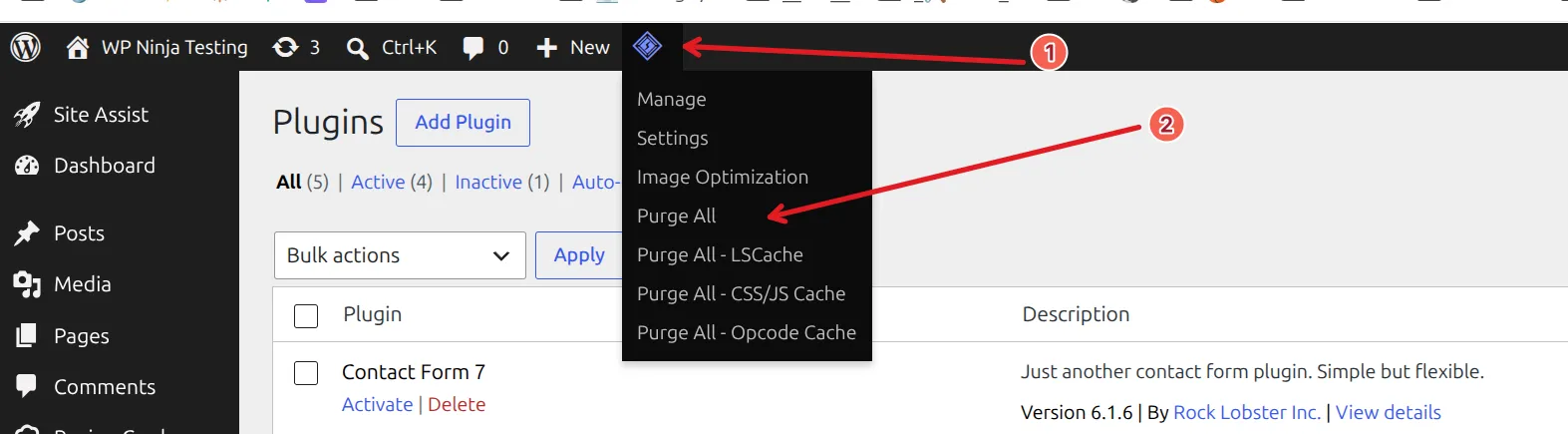

Not sure which caching plugin you have? Go to Plugins > Installed Plugins and look for anything with “cache” in the name. WP Fastest Cache and Cache Enabler work the same way: there’s a clear or delete button in the plugin’s own screen or the admin bar.
Your host’s cache
Managed WordPress hosts run their own cache layer on top of (or instead of) a plugin. Here’s where the button is, checked against each host’s own help pages in October 2026:
- SiteGround: admin bar > Purge SG Cache (from their Speed Optimizer plugin, which used to be called SG Optimizer)
- WP Engine: the WP Engine menu in your dashboard sidebar > Caching > Clear All Caches. That one button covers the page cache and their edge network.
- Kinsta: admin bar > Clear Caches. It clears the site cache and edge cache, but not the Kinsta CDN, which you clear in MyKinsta. Kinsta says the edge cache can take 2-5 minutes to clear everywhere.
- Cloudways: the Breeze plugin, Settings > Breeze > Varnish > Purge Varnish Cache
After clearing your plugin and host caches, run the incognito test again. If you still see the old page, look at layer 3.
If you’re about to make 10 site-wide tweaks in a row, there’s no need to purge after each one. Make all the changes, then purge once at the end and check in incognito.
How do I clear my CDN cache?
A CDN (Content Delivery Network) keeps copies of your files on servers around the world so they load fast everywhere. The most common one for small WordPress sites is Cloudflare.
Here’s what most guides get wrong: Cloudflare doesn’t cache your pages by default. Its own documentation says it “does not cache HTML or JSON by default”. It caches files by type – stylesheets, scripts, images, fonts.
I checked this site, which runs behind Cloudflare: the pages come back marked DYNAMIC (not cached) while the stylesheet comes back as a cache HIT. So a stale page on Cloudflare usually means someone added a cache rule or turned on a page-caching feature like APO. A stale image or stylesheet is the normal case.
Not sure whether you have a CDN? If your domain’s nameservers point to Cloudflare, you have it. Or ask your host’s support chat: “Is there a CDN or edge cache on my account?”
Clearing Cloudflare cache
- Log in at dash.cloudflare.com and pick your site
- Open Caching in the left sidebar, then Configuration
- Click Purge Everything and confirm in the popup
Cloudflare’s docs say a purge clears every data center instantly. Then run the incognito test again.
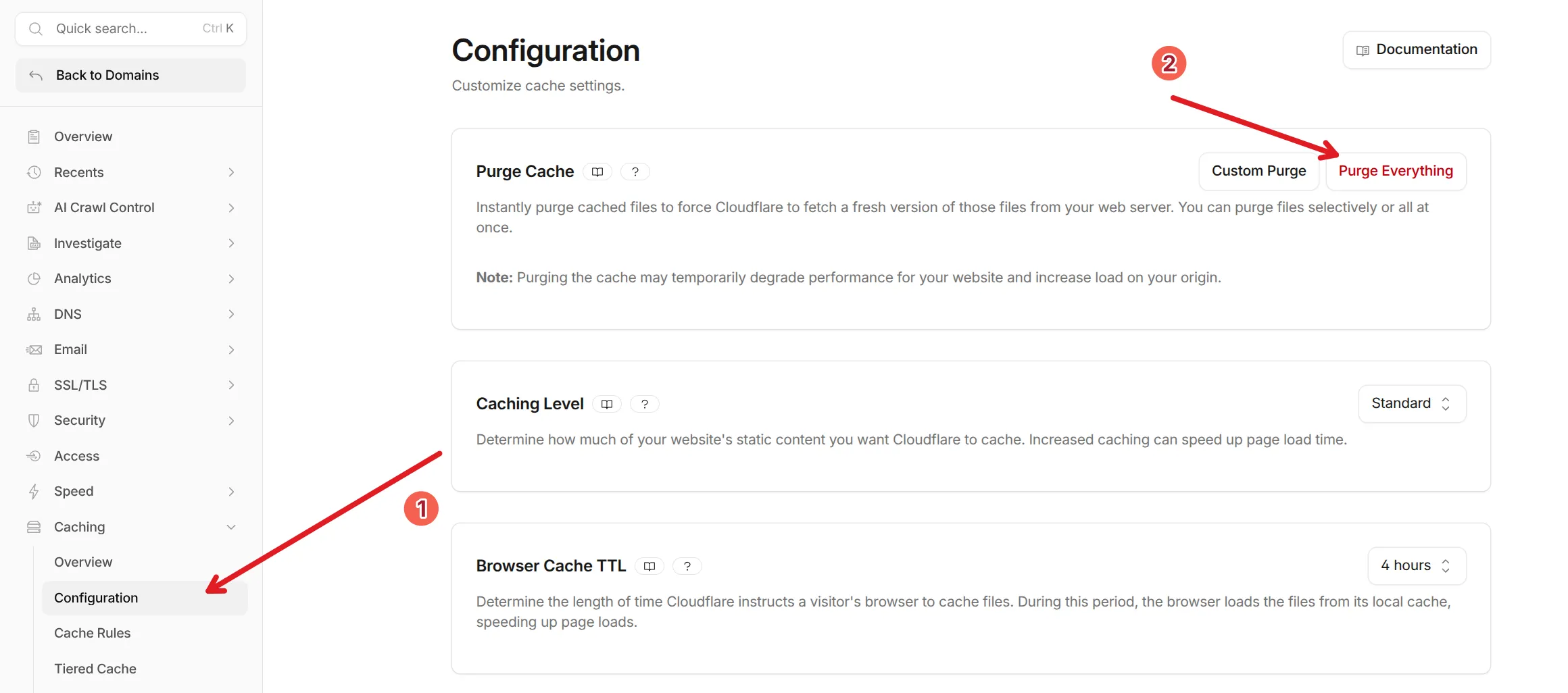
If you’re working on your design for an afternoon, the same Configuration page has a Development Mode switch. It pauses Cloudflare’s caching for 3 hours, so your CSS and image changes show up without a purge each time.
Host edge caches
Some hosts put their own edge network in front of your site. On WP Engine, Clear All Caches already includes it. On Kinsta, the Clear Caches link covers the edge cache but not the CDN. Elsewhere, look in your hosting dashboard for something called “CDN cache” or “edge cache”.
If you have a dedicated CDN plugin (Cloudflare’s official plugin, or BunnyCDN), most add a purge button to your WordPress admin bar. That’s quicker than logging into the CDN dashboard.
What if I still don’t see my changes?
If you’ve checked all 3 layers and the old version is still there, I look at 4 less common causes:
1. A plugin update didn’t clear the cache. LiteSpeed Cache’s “Purge All On Upgrade” setting is off by default, so a page that looked wrong before an update can stay wrong after it. Click Purge All after updating anything that changes how your pages look.
2. Minified CSS or JavaScript. Some caching plugins combine your stylesheets into one compressed file, and that file can lag behind a theme change. The plugin’s normal clear button usually handles it. WP Rocket’s documentation says a manual Clear Cache also deletes its minified files, and LiteSpeed Cache has a separate Purge All – CSS/JS Cache item in its admin bar menu.
3. The change never saved. If you click Save and the change is gone even in the dashboard, that’s a saving problem, not a cache problem. For Kadence, my fix for Kadence Customizer not saving changes walks through it. For the site title specifically, changing your WordPress site title covers the places it can be overridden.
4. You’re editing the wrong page. I’ve done this. You can have a page called “Home” under Pages > All Pages that isn’t actually your homepage – if Settings > Reading points to a different page, your edits go somewhere nobody sees. The same trap can hit your blog page if your posts aren’t showing up.
One more case: search results. Google shows the version it saved the last time it crawled your page, and it decides when to crawl again. So even after the live site updates, your search snippet or an old logo can stick around in Google’s results for a while. That’s not something you can fix from your dashboard.
FAQ
Why is my WordPress not updating changes?
Usually a cache is serving an older copy of the page. In my tests, edits to a single post showed up at once, while site-wide changes like the site title, tagline and custom CSS stayed stale until I purged the cache by hand.
How long does WordPress take to publish changes?
WordPress saves your change to the database the moment you click Save or Update. If a caching plugin is serving an old copy, the delay is set by the plugin: 30 minutes by default in WP Super Cache, and 7 days in LiteSpeed Cache. Purging the cache shows the change straight away.
Why do my changes appear when I’m logged in but not for visitors?
Most caching plugins skip the cache for logged-in users, so you see the live version while visitors get the saved copy. WP Super Cache works this way. Check in an incognito window, which shows what a logged-out visitor sees, and purge the cache if it’s old there.
Why is WordPress not saving my changes?
If you get an error when you click Update, or the change is gone when you reload the editor, it didn’t save – that’s a plugin conflict or server problem, not a cache. If the dashboard shows your change and only the front end is old, it’s almost certainly a cache.
Your changes are there – the cache is just hiding them
When WordPress changes are not showing up on the live site, your work isn’t lost and your site isn’t broken. There’s a saved copy somewhere between WordPress and your visitor.
Run the incognito test first. If it’s old there, purge your caching plugin and your host’s cache. If you changed a file like a stylesheet or image, do a hard refresh and check Cloudflare. And remember the pattern from my tests: editing one post clears itself, but site-wide changes are the ones that need a manual purge.
If you’re still choosing a caching plugin, I compared LiteSpeed Cache and WP Super Cache on the same server, including how each one behaves after an edit.