
Before you click “update now” or try a new theme, back up your WordPress site. It takes 4 clicks and, on my test site, 6 seconds. And if the change goes wrong, undoing it took me 2 restores of under 2 seconds each.
I didn’t want to just tell you that, though. Every guide I read before writing this one says “back up first”, but none of them broke a site and showed what the restore brings back. So I built a small test blog, backed it up, pushed a plugin update that crashed it, and restored it. Then I let WordPress try to fix the same crash on its own, and switched themes to see what switching back really undoes.
The short version: a backup right before the change got everything back, but only when I restored it in the right order. Restoring only the plugin lost a setting, so did ticking “Plugins” and “Database” together in UpdraftPlus, and so did WordPress’s own automatic rollback. Here’s the routine, and the restore order that worked every time.
Why back up right before a change?
A weekly or daily backup is great for disasters. But if your last backup is from Sunday and you update a plugin on Thursday, a restore takes you back to Sunday. Every post, comment and order since then is gone.
A backup taken one minute before the change is the one you want. It holds your site exactly as it was, so undoing the change costs you nothing else.
These are the changes I always back up before:
- Updating plugins, especially big ones like WooCommerce, page builders and SEO plugins. My guide to updating plugins safely covers the rest of that routine.
- Updating WordPress itself or your theme.
- Switching themes, even “just to try one”.
- Installing a plugin you haven’t used before.
- Bulk changes: deleting old posts, running a cleanup plugin, changing your permalinks.
How I tested this
I built a fresh WordPress 7.1.5 site on my own computer: 31 blog posts, 40 photos, a menu, a sidebar and a logo, on the free Kadence theme. It’s a small site: its full backup came to 55 MB. Here’s how I test in general.
To break it on purpose, I wrote a tiny test plugin called “Bench Gallery”. Version 1.0 shows a notice box above every post. Version 1.1 does two things real updates sometimes do: it moves its saved setting to a new place in the database, and it has a bug that crashes every page visitors see. I made it show up as a normal update on the Plugins screen.
I used UpdraftPlus 1.26.16, the free version, because it came first in my test of 6 free backup plugins, where it was the only one to restore my site exactly every time. I also ran the same job with WPvivid 0.9.140 to compare. Every scenario started from the same saved copy of the site, and I ran each one at least twice.
How to back up your WordPress site before changes
This is the whole routine. If UpdraftPlus is already installed, it’s 4 clicks from the Plugins screen.
Step 1: Install UpdraftPlus (once)
Go to Plugins > Add Plugin, search for “UpdraftPlus”, then click Install Now and Activate. It has over 4 million active installs on wordpress.org.
The first time you open it, a setup wizard appears. You can close it with Exit setup. You don’t need a schedule or cloud storage for this routine, although I’d add both later (more on that below).
Step 2: Click Backup Now
Go to Settings > UpdraftPlus Backups and click the big Backup Now button. A small window opens with 2 boxes already ticked: your database and your files. Leave both ticked and click Backup Now again.
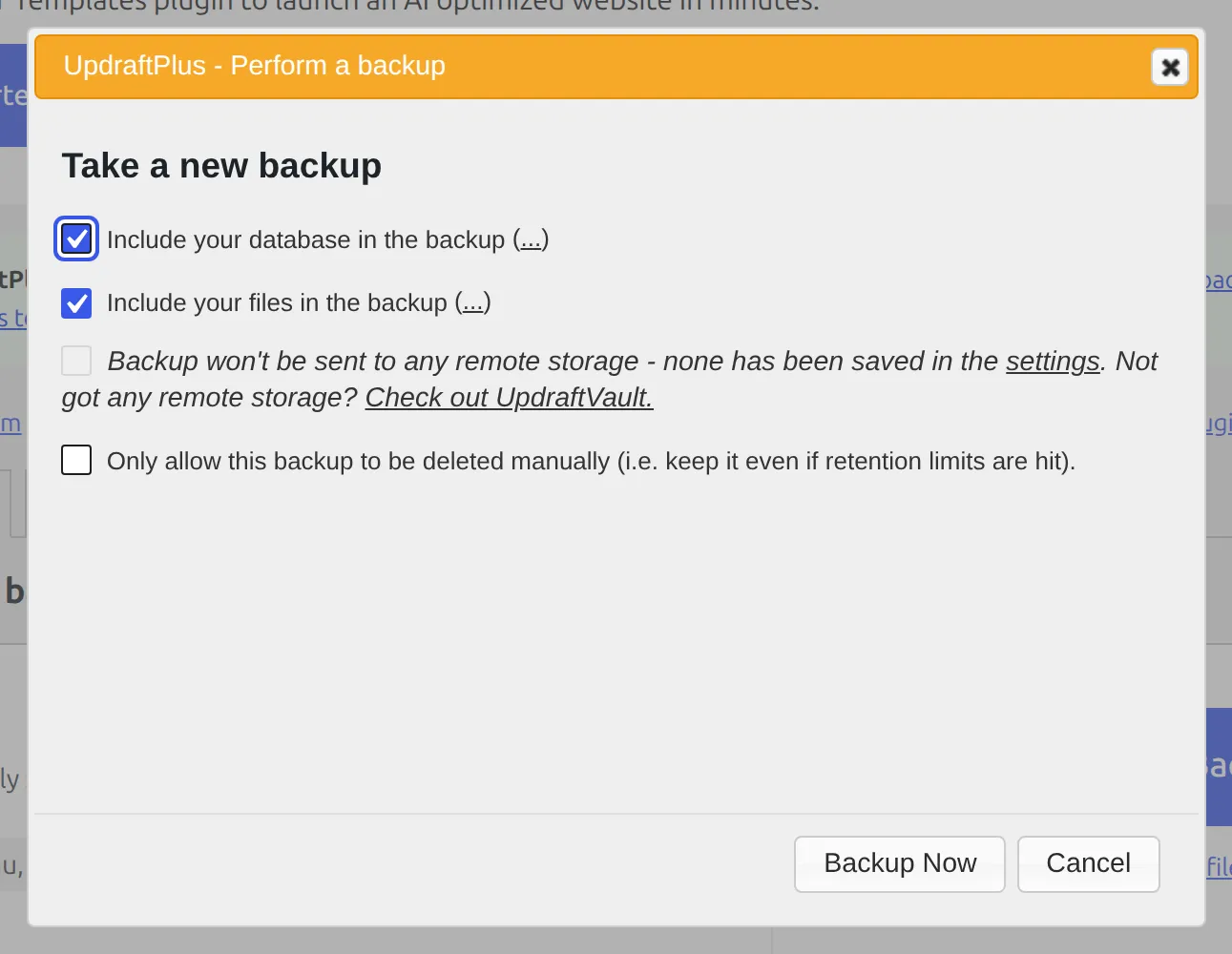
The database holds your posts, pages, comments and every setting. The files are your themes, plugins and uploaded images. A plugin update can change both, so back up both.
Step 3: Wait for it to finish
On my test site the full backup took 6.3 seconds. A bigger site takes longer: in my backup plugin test, a 933 MB site took 14 seconds with the same plugin. When it’s done, the Existing backups count goes up by 1 and your backup appears in the list below.
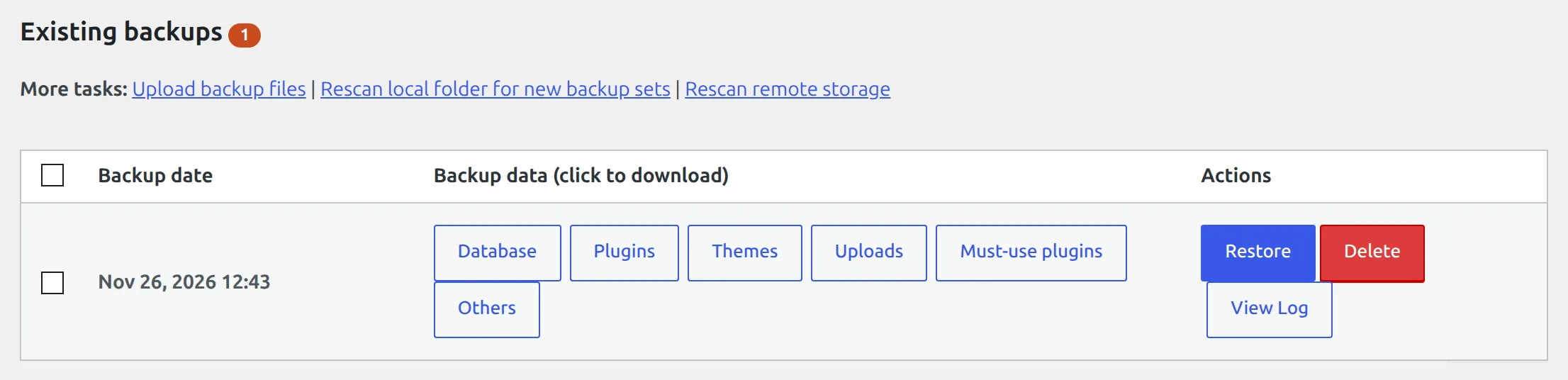
That’s it. Now make your change.
Step 4 (for later): keep a copy off your server
This backup lives on the same server as your site. That’s fine for undoing a bad update. But if your whole server fails or gets hacked, the backup goes with it. So once you have 5 spare minutes, connect Google Drive or Dropbox in the UpdraftPlus Settings tab, which the free version allows.
One more setting to know: UpdraftPlus keeps only your last 2 backups by default and deletes older ones. If you want to keep a “before the redesign” backup for a while, tick Only allow this backup to be deleted manually in the Backup Now window.
What happened when the update broke my site
On the Plugins screen, Bench Gallery showed the usual yellow bar: “There is a new version of Bench Gallery available.” This is the moment to back up.

I clicked update now, and 2.8 seconds later the row said “Updated!”. Nothing on the Plugins screen looked wrong. But every post on the site now showed this:

There were 2 things I noticed straight away:
- My dashboard still worked. The bug only ran on the pages visitors see, so I could still log in and restore. If your dashboard is broken too, my guide to the critical error message shows how to get back in first.
- WordPress didn’t email me. You may have heard WordPress sends a “technical issue” email with a recovery link. It only does that when the crash happens in your dashboard or on the login page. A crash that only hits your visitors sends nothing, so you might not notice for hours.
How to restore: plugins only, or plugins and database?
In UpdraftPlus, go to Settings > UpdraftPlus Backups, find your backup under Existing backups and click Restore. You’ll see 6 parts to choose from, and none of them are ticked:
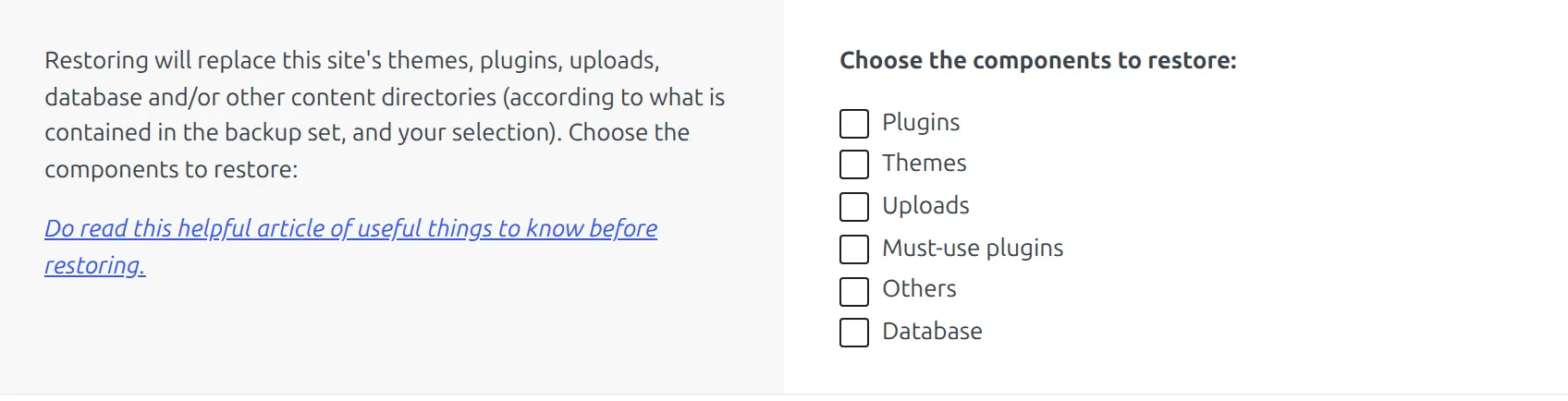
Tick what you want, click Next, wait for “The backup archive files have been successfully processed”, then click Restore. I tried 4 different choices, 4 to 7 times each. To copy a real site, some runs had a “visitor” loading a post 10 times a second during the restore:
| What I restored | Time | Setting came back? |
|---|---|---|
| Plugins only | 1.2-1.3 s | No (4 of 4 runs) |
| Plugins + Database ticked together | 1.8-1.9 s | No in 5 of 6 runs, including all 3 with visitors |
| Plugins, then Database as a second restore | 1.2-1.9 s + 1.2-1.5 s | Yes, 7 of 7 runs, including 3 with visitors |
| WPvivid’s restore (it always restores everything) | 11.9-15.4 s | Yes, 5 of 5 runs, including 3 with visitors |
The plugins-only result surprised me first. The crash was gone, but my notice box now said “Bench Gallery: no notice saved”.
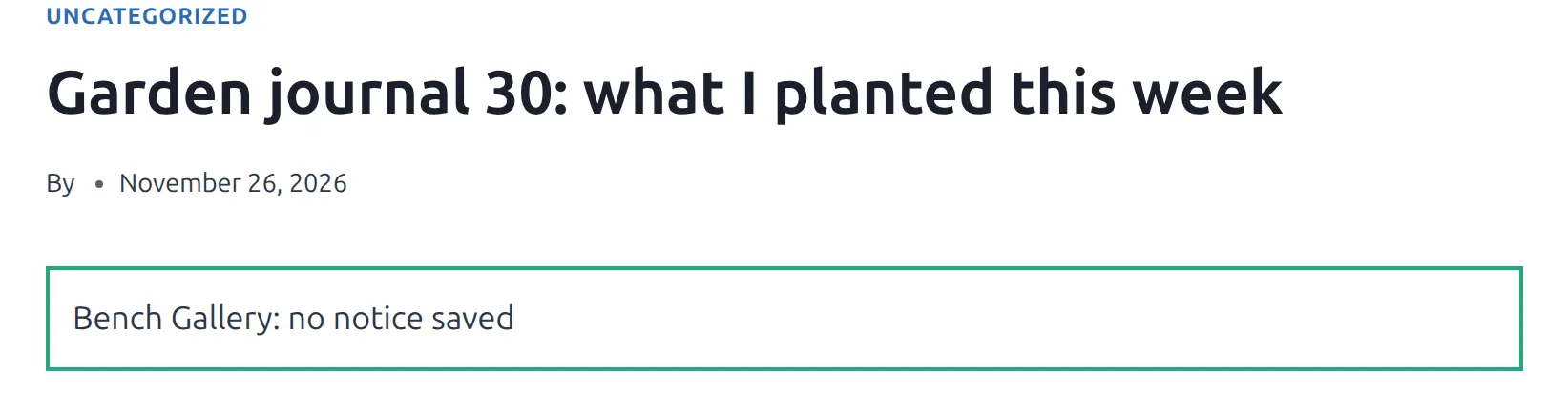
That’s because the update had already moved the setting in the database before it crashed. Putting the old plugin files back didn’t move it back. My test plugin did this on purpose, but real updates change the database too. WooCommerce, for example, shows a “WooCommerce database update required” notice after a new version that changes its tables.
The second surprise was ticking both boxes at once. UpdraftPlus’s log showed why: it restores the database first and the plugins about 0.4 seconds later. Any visit in that gap still runs the broken version, which moves the setting again. With my “visitor” running, that happened every time.
So when an update breaks your site, restore twice: first tick only Plugins (or Themes, if a theme update broke it) and restore. Then open Restore again, tick only Database and restore that. Both took under 2 seconds on my site. You’ll lose anything added to the database since the backup, which is why the backup should be from one minute before the change.
One small thing: right after “Restore successful!”, my site kept showing the error for about 1 more second. If yours does, wait 5 seconds and reload before you panic.
Doesn’t WordPress roll back bad updates on its own?
Partly. Since WordPress 6.6, if a plugin auto-update crashes your site, WordPress puts the old version back by itself. I wanted to see how well that works, so I turned on auto-updates for Bench Gallery and let WordPress update it in the background.
It caught the crash. The old version was back, the plugin was active, and my site loaded. Then WordPress sent this email:
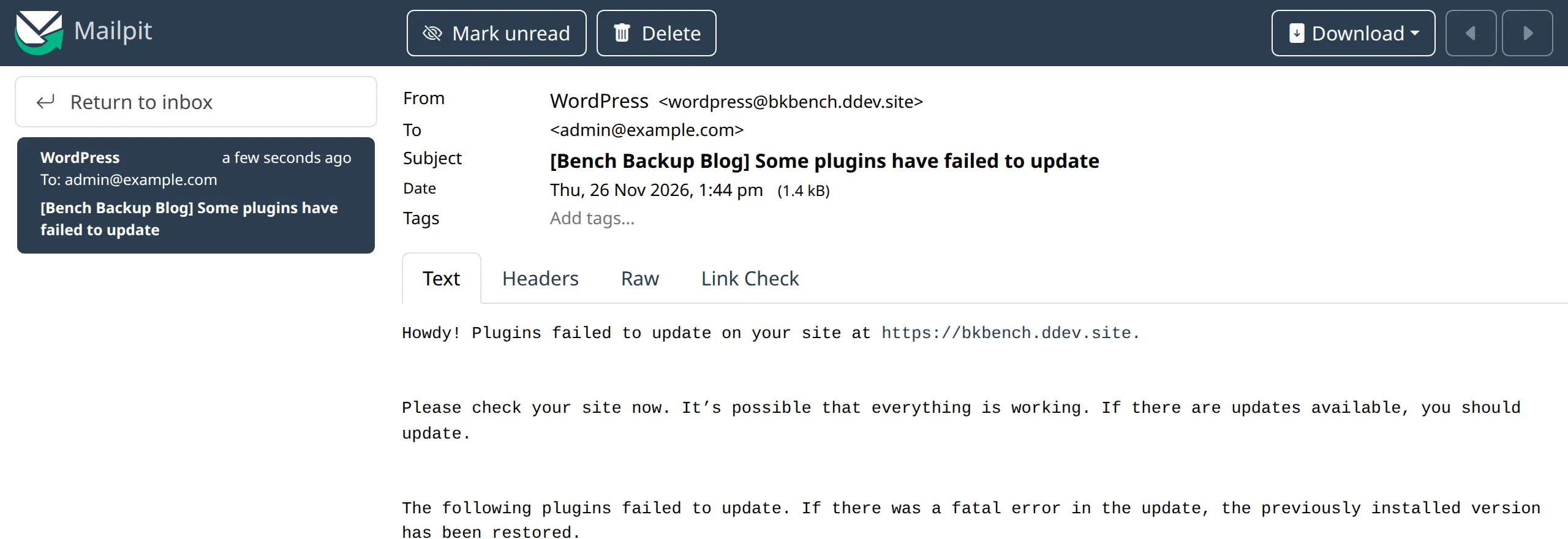
But my notice box said “no notice saved” again. WordPress’s check had to load the new version to see that it crashed, and that was enough for the update to move the setting. The rollback only puts the plugin’s files back, not your database. And the email doesn’t mention settings at all.
Two more limits:
- The rollback only covers auto-updates. When I clicked “update now” myself, nothing rolled back and the site stayed down until I restored.
- It only covers plugins. It doesn’t help with a theme switch, a bulk delete or anything else.
So treat the automatic rollback as a safety net and keep taking your own backup. And if you get that “failed to update” email, open the plugin’s settings page and check your settings are still there.
Switching themes: why switching back isn’t an undo
This is the change people skip the backup for, because “I can always switch back”. So I tried it: Kadence to Twenty Twenty-Five, then straight back to Kadence, all from Appearance > Themes.
My menu and logo came back on their own, because WordPress remembers those for each theme. My sidebar didn’t. WordPress shuffled my widgets during the switch, and 3 of WordPress’s default widgets that I had taken out came back. My sidebar now had 2 search boxes, 2 lists of recent posts and a “Recent Comments” box:
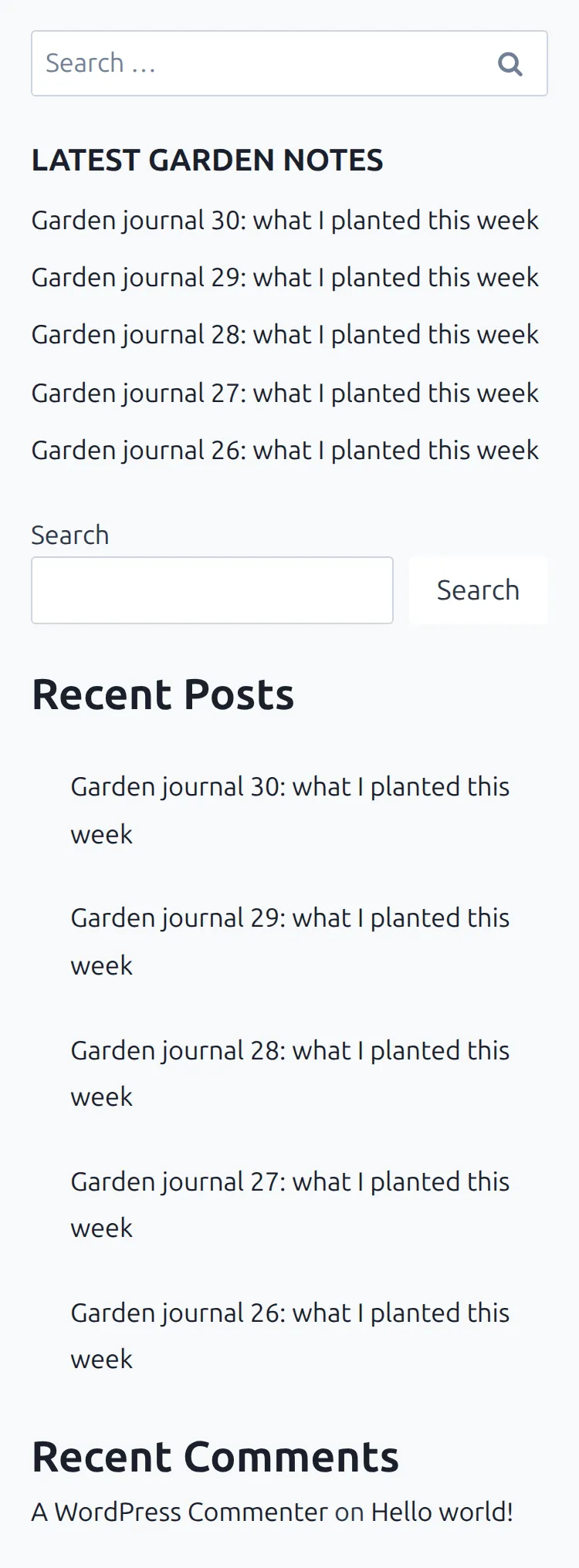
Widget and menu settings live in the database, so for a theme switch a database-only backup is enough. In UpdraftPlus, untick Include your files in the backup in the Backup Now window. Mine took 0.6 seconds. After switching back, I restored just the Database (1.3 seconds) and my sidebar was back to normal.
If you’re choosing a new theme, my guide to picking your first WordPress theme has more on what changes when you switch.
Which backup for which change?
| You’re about to… | Back up | If it goes wrong, restore |
|---|---|---|
| Update a plugin or theme | Database + files | Plugins (or Themes), then Database |
| Update WordPress itself | Database + files | Database (UpdraftPlus’s free backup doesn’t include WordPress’s own core files) |
| Switch themes | Database (files too if you edit theme files) | Database |
| Install a new plugin | Database + files | Plugins, then Database |
| Bulk delete, clean up or change permalinks | Database | Database |
When in doubt, back up both. On my site the difference was 6.3 seconds against 1.1 seconds.
What about my host’s backups?
Your host may keep automatic backups too, and may have a backup or “snapshot” button in its control panel. If it does, that works for this routine too, as long as it saves both the database and the files and you can restore it yourself.
I couldn’t test host backups on my computer, so I can’t give you numbers for them. What I’d check with your host: when the last automatic backup ran, whether you can make one on demand, and whether restoring needs a support ticket. If any answer is “no” or “I don’t know”, keep the plugin backup as well.
If something does break and you’re not sure which error you’re looking at, my list of 13 common WordPress errors shows what each one looks like and where to start.
FAQs
How do I back up my WordPress site before an update?
Install the free UpdraftPlus plugin, go to Settings > UpdraftPlus Backups, click Backup Now, leave the database and files boxes ticked and click Backup Now again. Wait until the backup appears under Existing backups, then run the update. On my test site that took 4 clicks and 6.3 seconds.
Does UpdraftPlus back up automatically before updates?
Only in the paid Premium version, where it’s an option under Expert settings. In the free version you click Backup Now yourself before each update, or set a daily schedule so your latest backup is never more than a day old.
Should I restore the database or just the plugins?
Restore both after a bad plugin update, one after the other: Plugins first, then Database. In my test, restoring only the plugins fixed the crash but lost the plugin’s saved setting. Ticking both boxes in one UpdraftPlus restore lost it too in 5 of 6 runs, because the database goes back first and the broken plugin can change it again. Two separate restores worked 7 times out of 7.
Does WordPress back up my site before updates?
No. WordPress keeps a temporary copy of a plugin’s files while it updates it, and since version 6.6 it puts that copy back if an auto-update crashes your site. But it doesn’t back up your database, and in my test the rollback left a changed setting behind.