WordPress Malware Removal: I Hid 9 Infections on a Test Site and Tried 4 Free Scanners
If your visitors are landing on a spam page, Google shows a red warning before your homepage, or your host just suspended your account, take a breath. Your posts and pages are almost certainly still there. WordPress malware removal is mostly careful file replacement plus one database search, and you can do it yourself.
All 7 top guides I read before writing this one came from companies selling a cleanup service, a security plugin or hosting. None of them infected a site and showed what their tools actually found. So I did. I built a throwaway WordPress site, planted 9 fake infections the way real ones hide, and ran 4 free scanners against it.
The short version: no free scanner found all 9. The best one found 7, the most popular one found 2 on its default settings, and one found nothing at all. Reinstalling WordPress, a step all 7 of those guides include, fixed exactly 1 of them. Below is the order that cleaned all 9.
How do you know your WordPress site has malware?
Most people find out when something obvious breaks. These are the signs I see most often:
- Visitors get sent to a spam or scam page. You click your own homepage and nothing happens, because good malware skips logged-in admins. The redirect I planted only fired for logged-out visitors arriving from Google. Typing my address straight in loaded the normal site.
- Odd results in Google. Search
site:yourdomain.comand look for pages you never wrote, often pharmacy, casino or Japanese-language spam. - A red “Deceptive site ahead” or “This site may be hacked” warning in Chrome or in search results.
- Your host suspended the account and the email mentions malware.
- An administrator you don’t recognize, or an admin count that doesn’t add up (more on that below).
That last one deserves a closer look, because attackers hide their accounts. On my test site, 3 lines of code in the theme hid the fake admin from the user list. The list showed one user. But the count above it still said “Administrator (2)”.
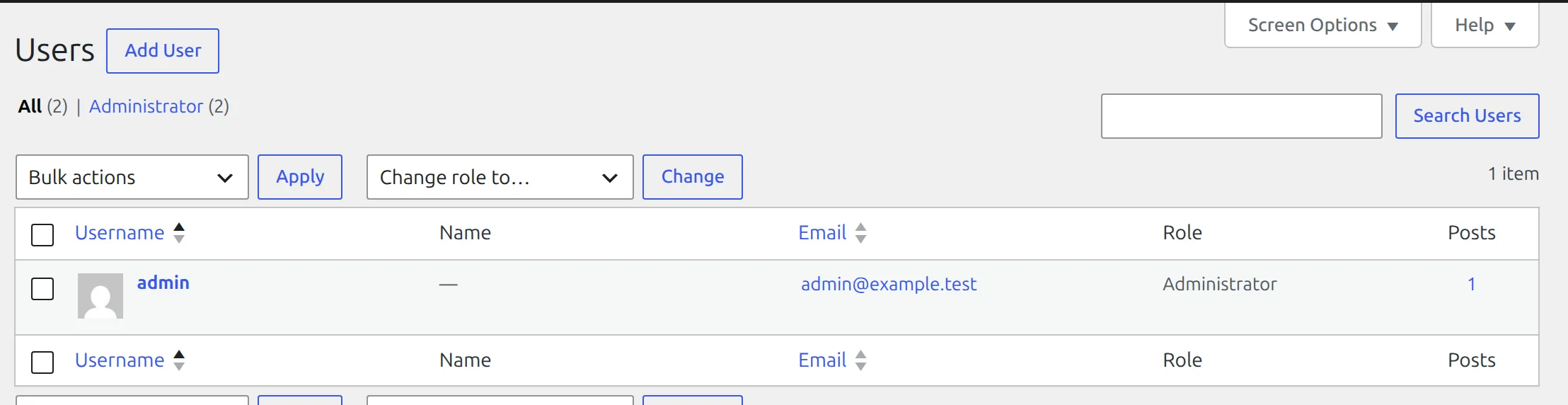
If your counts and your list don’t match, you have a hidden admin.
Before you start: stop the damage and take a backup
Put the site into maintenance mode or ask your host to take it offline, so visitors stop getting redirected while you work. Then take a full backup of files and database, even though it’s infected. If you delete the wrong file during cleanup, that backup is your undo button. My best free WordPress backup plugins roundup has the ones I tested.
Should you just restore an older backup instead? Only if you know it’s from before the infection started. A backup taken after the break-in restores the break-in too, and most people can’t say when it began. If you’re unsure, clean the site, then use the scanners below to check the result.
What I planted on my test site
I built a fresh WordPress 7.1.4 site on my own computer and added 9 infections, modelled on the patterns cleanup companies describe. Every one was harmless: the “backdoors” only printed a word, and the spam links pointed at example.com. No real malware was downloaded. Here’s how I test in general.
| # | What I planted | Where it hides |
|---|---|---|
| 1 | A backdoor file using eval(base64_decode(...)) | wp-content/uploads/2026/11/ |
| 2 | The same backdoor, disguised (split-up function name, file name starting with a dot) | wp-content/uploads/2026/11/ |
| 3 | One extra line in a WordPress core file | wp-includes/version.php |
| 4 | One extra line in a plugin file | Hello Dolly (plugins/hello.php) |
| 5 | A redirect for visitors who arrive from Google | the theme’s functions.php |
| 6 | Code that hides an admin account from the user list | the theme’s functions.php |
| 7 | A rogue administrator called wp-support-team | the users table |
| 8 | A <script> tag stored in base64 in a settings row | the options table |
| 9 | A <script> tag added to a blog post | the posts table |
Which free malware scanner finds the most?
I ran each scanner on its own, with its default settings, against the same infected site.
| Scanner (free version) | Needs | Found | Missed |
|---|---|---|---|
| NinjaScanner 3.3.1 | nothing | 7 of 9 (1-7) | 8, 9 (both database items) |
| Wordfence 9.1.1, Standard scan | free licence (email) | 2 (1, 4) | 2, 3, 5-9 |
| Wordfence 9.1.1, High Sensitivity | free licence (email) | 4 (1, 4, 5, 6) | 2, 3, 7-9 |
| Anti-Malware Security (GOTMLS) 4.23.92 | free key (email) | 2 (1, 2) | 3-9 |
| Sucuri Security 2.8.1 | nothing | 0 | all 9 |
Nobody found the two database injections. And every scanner missed something another one caught, so I always run two.
NinjaScanner: the best result, and no account
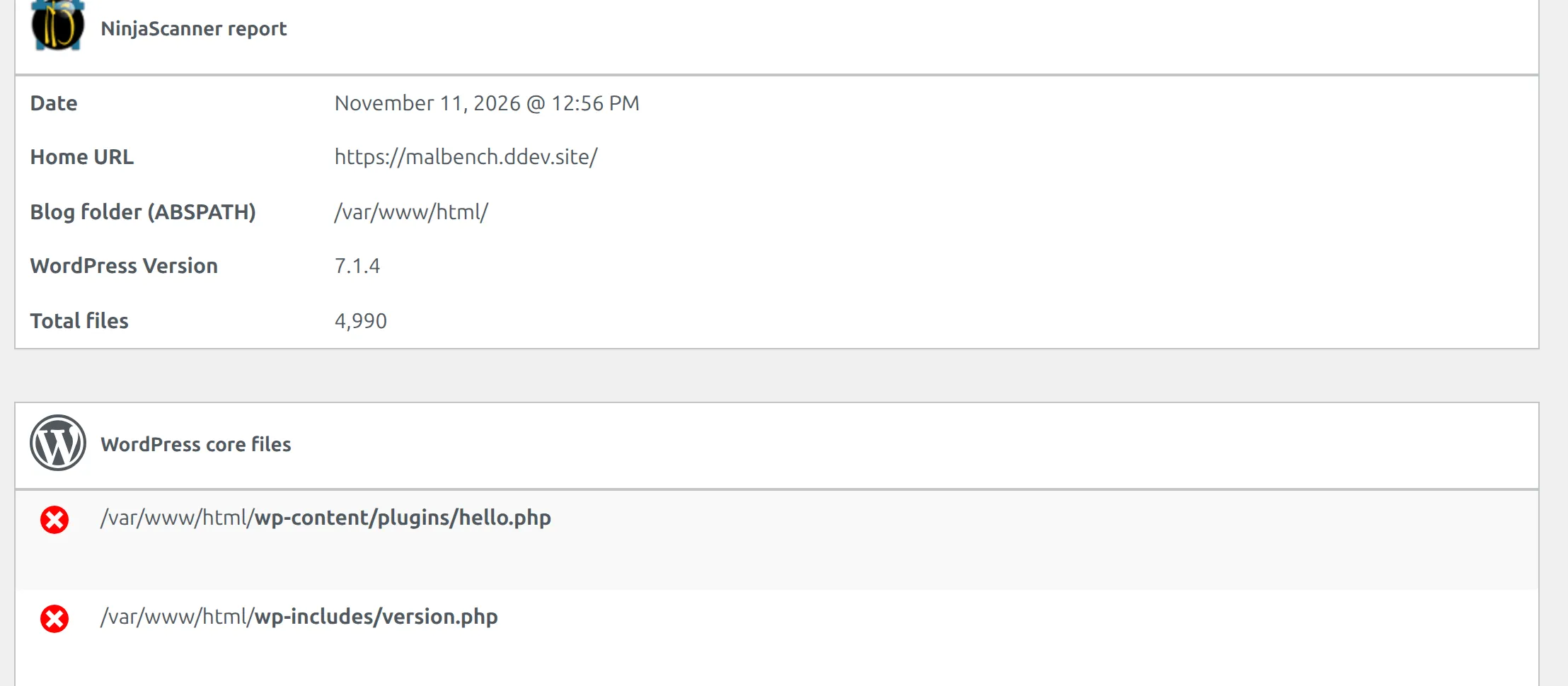
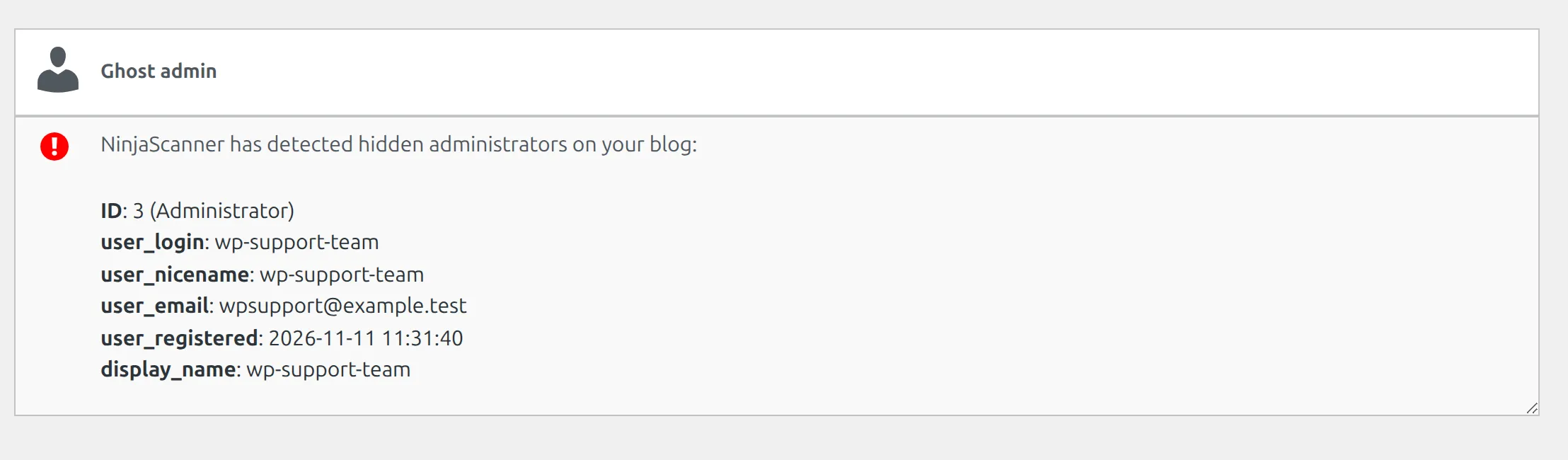
NinjaScanner found both backdoor files, the core file change, the plugin change, the theme file holding the redirect and the admin-hiding code, and the hidden admin itself. It took 7 seconds. Go to NinjaScanner > Summary and click Scan Your Blog, and the report appears on the same page.
Its “Ghost admin” check is built for exactly the hiding trick I used. It compares the administrators in the database with the ones WordPress shows, and lists the difference.
It wasn’t perfect. It flagged 3 files of the Twenty Twenty-Five theme as changed when they weren’t: WordPress ships its own copy of that theme, which differs slightly from the wordpress.org download. A “changed” file isn’t proof of malware, so use the “View changes” link before you delete anything. NinjaScanner comes from the same developer as NinjaFirewall, which I reviewed here.
Wordfence: popular, but its default scan misses a lot
The free Wordfence plugin won’t scan at all until you register a free licence with your email. Without one, the scan stops with “Your site did not send an API key when contacting the Wordfence servers.”
With the licence in, its default Standard scan took 45 seconds and flagged the plain backdoor as Critical and the Hello Dolly change as High. It also warned that my admin account had an easy password, which was true.
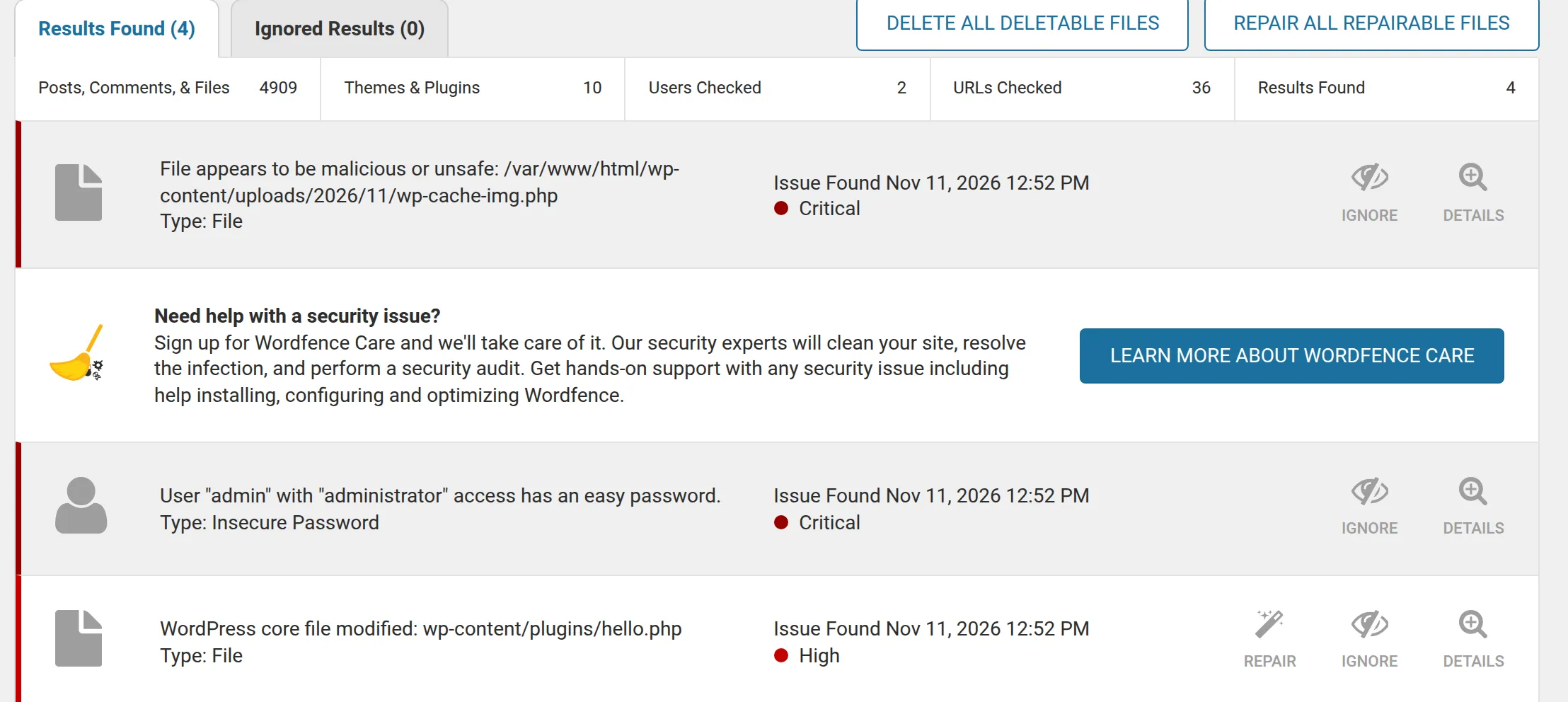
It missed the disguised backdoor, the theme redirect, the hidden admin and both database items. More surprising, it missed the line I added to wp-includes/version.php. It scanned that file, and when I added the same line to a different core file, rss.php, it flagged it straight away. So treat version.php as a file Wordfence won’t warn you about.
The Standard scan doesn’t compare your theme and plugin files with the wordpress.org originals at all. To turn that on, go to Wordfence > Scan > Manage Scan and pick High Sensitivity, which Wordfence describes as “For site owners who think they may have been hacked.”
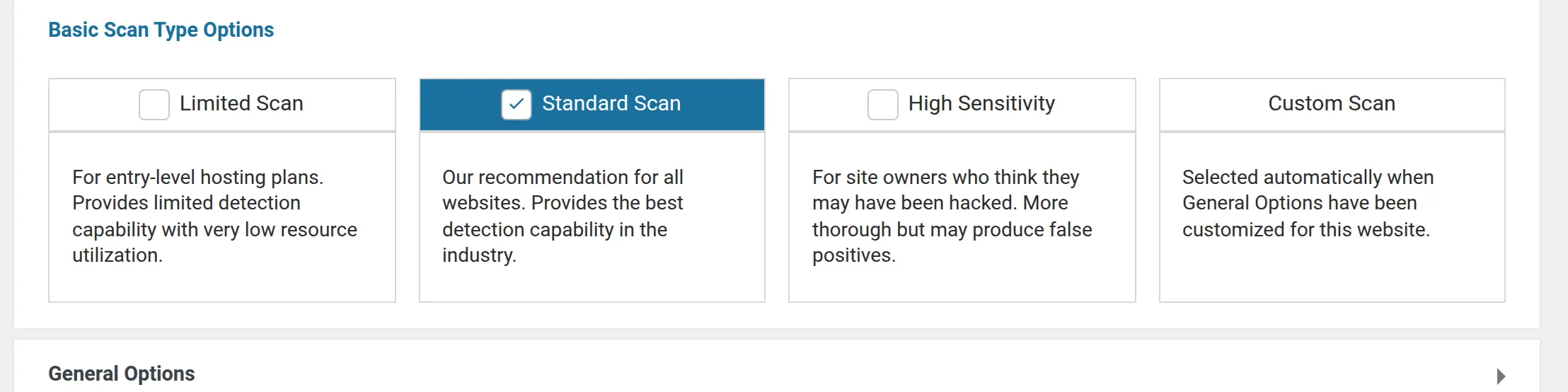
High Sensitivity flagged the theme file holding the redirect and the admin-hiding code, in 36 seconds. It also raised 2 false alarms on the bundled Twenty Twenty-Five files, like NinjaScanner did. If you’re torn between Wordfence and another security plugin for everyday protection, I compared Wordfence vs Solid Security separately.
Anti-Malware Security (GOTMLS): needs a free key
Out of the box, this plugin only runs its “Potential Threats” check. That found the plain backdoor, plus 8 files that were fine, including 6 normal WordPress core files. The plugin itself labels them “probably not malicious”.
After I registered the free key (the Get FREE Key! button on Anti-Malware > Scan Settings), the Run Complete Scan button found both backdoors, including the disguised one, with no false alarms. It took 42 seconds.
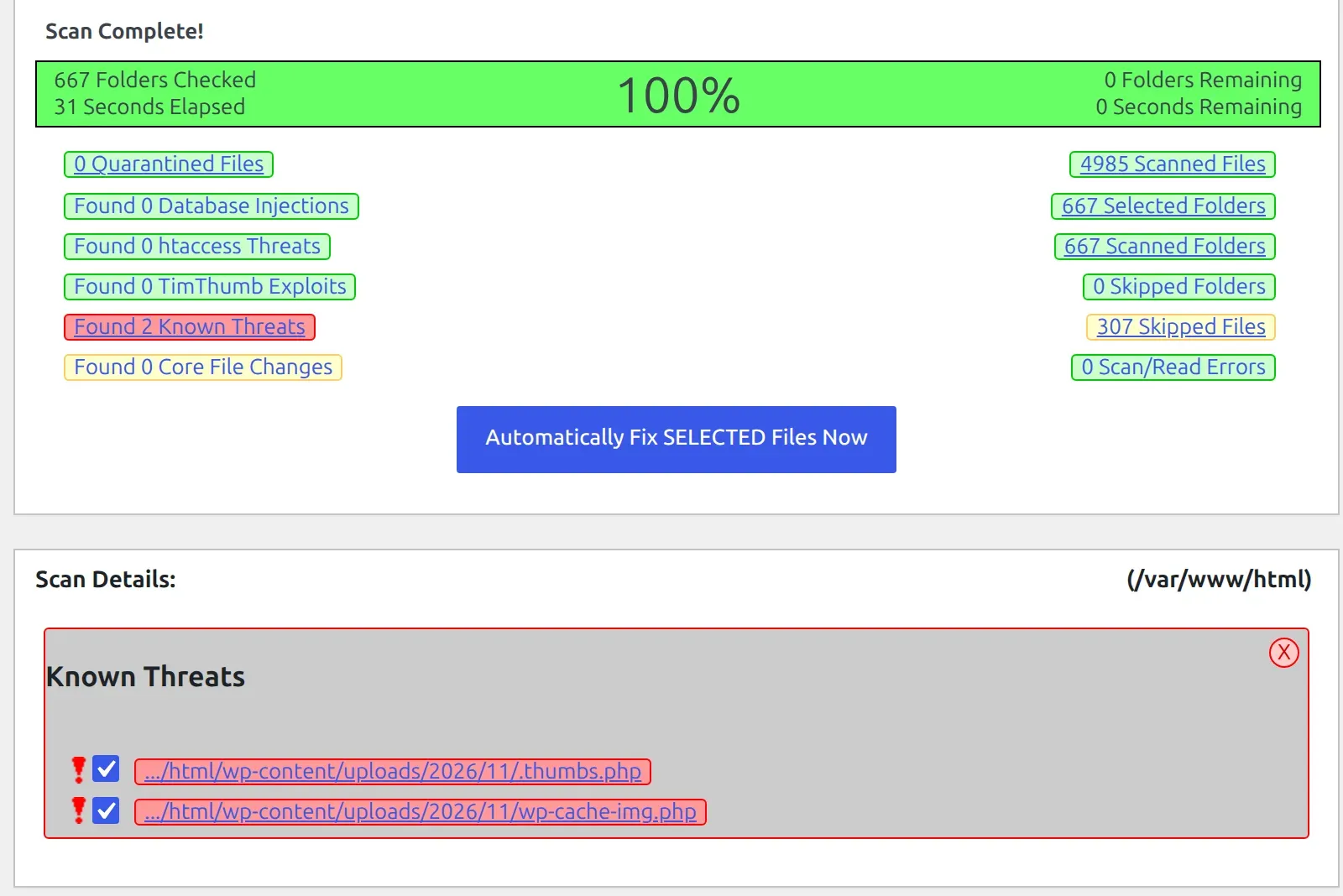
Its core file check is locked behind a $29 donation, so it couldn’t see the version.php change. And its database check, while on, found neither of my database items.
Sucuri Security: found nothing on my site
The free Sucuri plugin’s file check compares only the WordPress root, wp-admin and wp-includes with the official files. Its own code skips everything under wp-content/themes and wp-content/plugins. It also skips version.php on any site where WordPress isn’t a translated build, which includes every standard English install. So it found 0 of my 9.
Its other half is SiteCheck, a remote scanner that looks at your public pages from outside. It couldn’t reach my test site (“Host not found”), so I couldn’t test it. On a live site it sees what a visitor sees, which can include injected scripts in your pages, but never your PHP files or database.
MalCare: I couldn’t test it
MalCare’s free scanner runs on MalCare’s servers. It needs an account and a site that’s reachable from the internet, and my test site wasn’t. So I have no results for it.
How to remove malware from WordPress, step by step
After the scans, I cleaned the site in this order, checking what was left after each step.
Step 1: Reinstall WordPress core
Go to Dashboard > Updates and click Re-install version 7.1.4 (your version number will differ). This replaces every file in wp-admin, wp-includes and the root folder with a fresh copy from wordpress.org. It doesn’t touch your content, theme, plugins or wp-config.php.
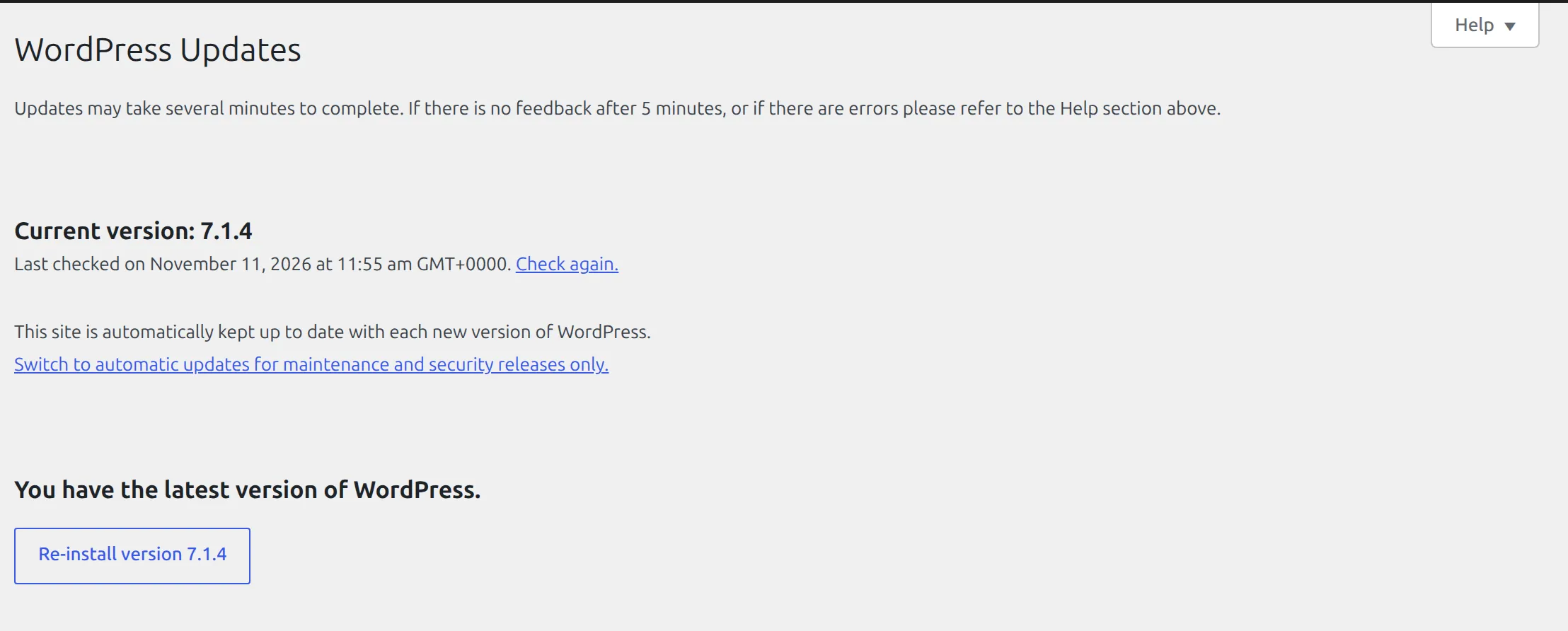
On my site this fixed exactly 1 of 9 infections: the version.php line. Both backdoors, the plugin change, the theme redirect, the fake admin and both database items survived it. Worth doing, but not the cure-all it’s often sold as.
If you can’t log in, you can do the same over FTP: upload fresh wp-admin and wp-includes folders and the root files from the wordpress.org zip, but never overwrite wp-config.php or the wp-content folder.
Step 2: Reinstall your theme and plugins from the source
Delete every plugin and theme you’re not using. Then reinstall the ones you keep from wordpress.org or from the developer’s own site, so every file is a fresh copy. A “free” copy of a paid plugin from a download site is one of the most common ways malware gets in, so replace those with the real thing or a free alternative.
You can’t delete the active theme, so switch to a default theme first, or upload a fresh zip of your theme under Appearance > Themes > Add Theme > Upload Theme and choose Replace current with uploaded when WordPress asks. Reinstalling my theme removed the Google redirect and the code hiding the admin. The fake account showed up in the user list right away.
Watch out for Hello Dolly. The copy that ships with WordPress is a single file, plugins/hello.php, but the wordpress.org version installs into its own folder. So “reinstalling” it from wordpress.org left my infected file in place.
Just delete Hello Dolly from Plugins. Nobody needs it.
Step 3: Check the uploads folder for PHP files
Your wp-content/uploads folder should hold images and documents. In your host’s File Manager, search it for .php files. On my site that turned up both backdoors.
It also turned up 7 PHP files in uploads/sucuri/ that belong to the Sucuri plugin itself. So the advice “any PHP file in uploads is malware” isn’t quite true. Open each file before you delete it, and leave alone the ones in a folder named after a plugin you installed.
Step 4: Remove rogue admin accounts
Go to Users, delete any account you didn’t create, and choose to give its content to your own account when WordPress asks. If the counts at the top don’t match the list, a hidden admin is still there. Clean your theme and plugins first (Step 2), and it usually reappears.
If it still doesn’t show, open phpMyAdmin from your hosting panel, then open the wp_users table (your prefix may differ). Every account is listed there, hidden or not.
Step 5: Clean the database
This is where none of the free scanners helped me, so you check it by hand in phpMyAdmin. Use the Search tab on the whole database and look for these strings:
<script– a script tag in a post or setting you didn’t addPHNjcmlwd– that’s how<scriptlooks once it’s base64 encoded, which is how my fake setting hid iteval(andbase64_decode
On my site the encoded setting was the first hit for PHNjcmlwd. Delete rows you’re sure are malicious, and edit posts to remove injected code. Expect harmless hits too: a search for my site name matched 3 normal settings.
One more place to check: post revisions. After I cleaned the infected post, its older revision still held the script, and the Restore This Revision button would have put it straight back.
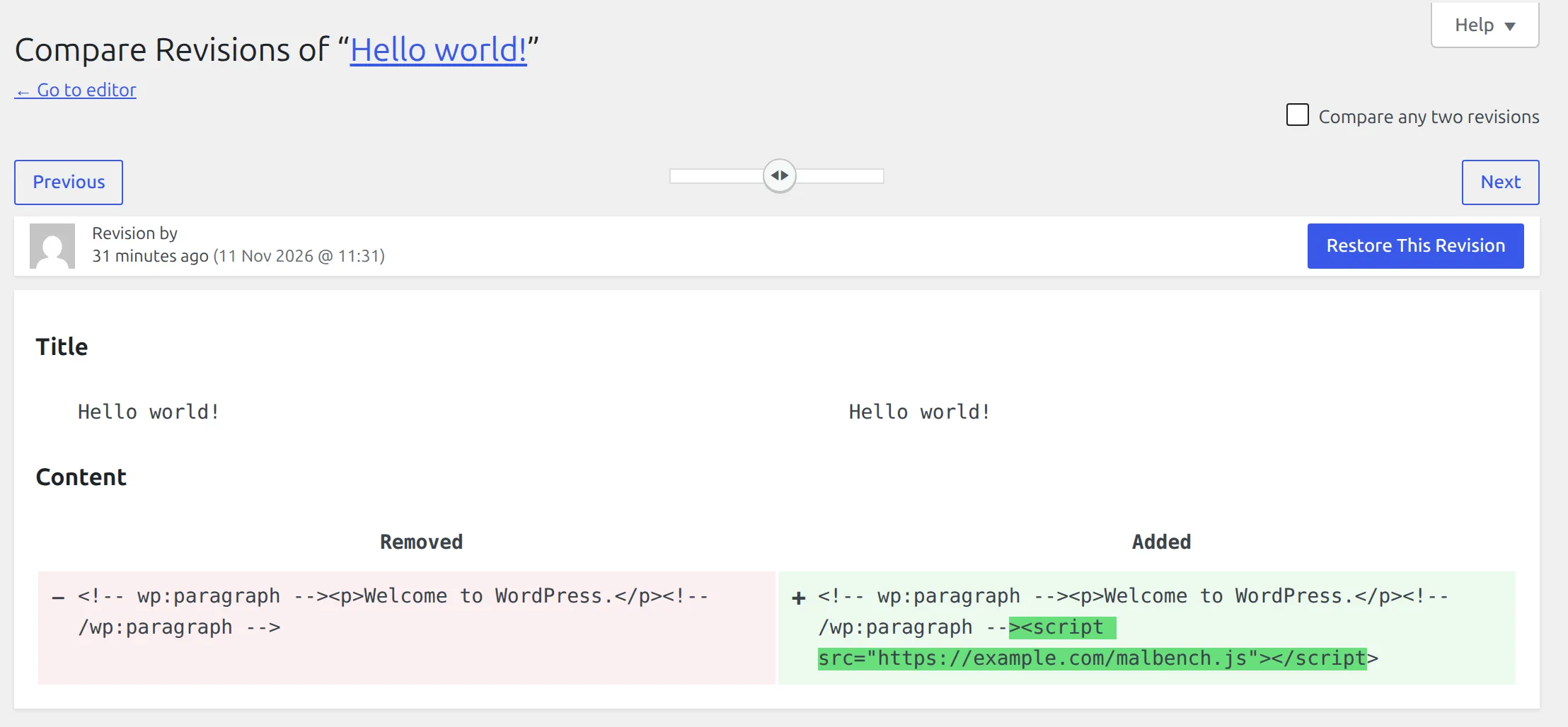
Open the post, use Revisions in the editor sidebar, and if an older version contains the injected code, delete those revisions (a cleanup plugin like WP-Optimize does it in bulk).
Step 6: Change every password and your security keys
Assume the attacker has your passwords. Change all of these:
- Every WordPress administrator password (Users > Profile > Set New Password).
- Your hosting account password.
- Your FTP or SFTP password.
- Your database password (change it in the hosting panel, then update
wp-config.phpto match). - The email account your WordPress admin address uses.
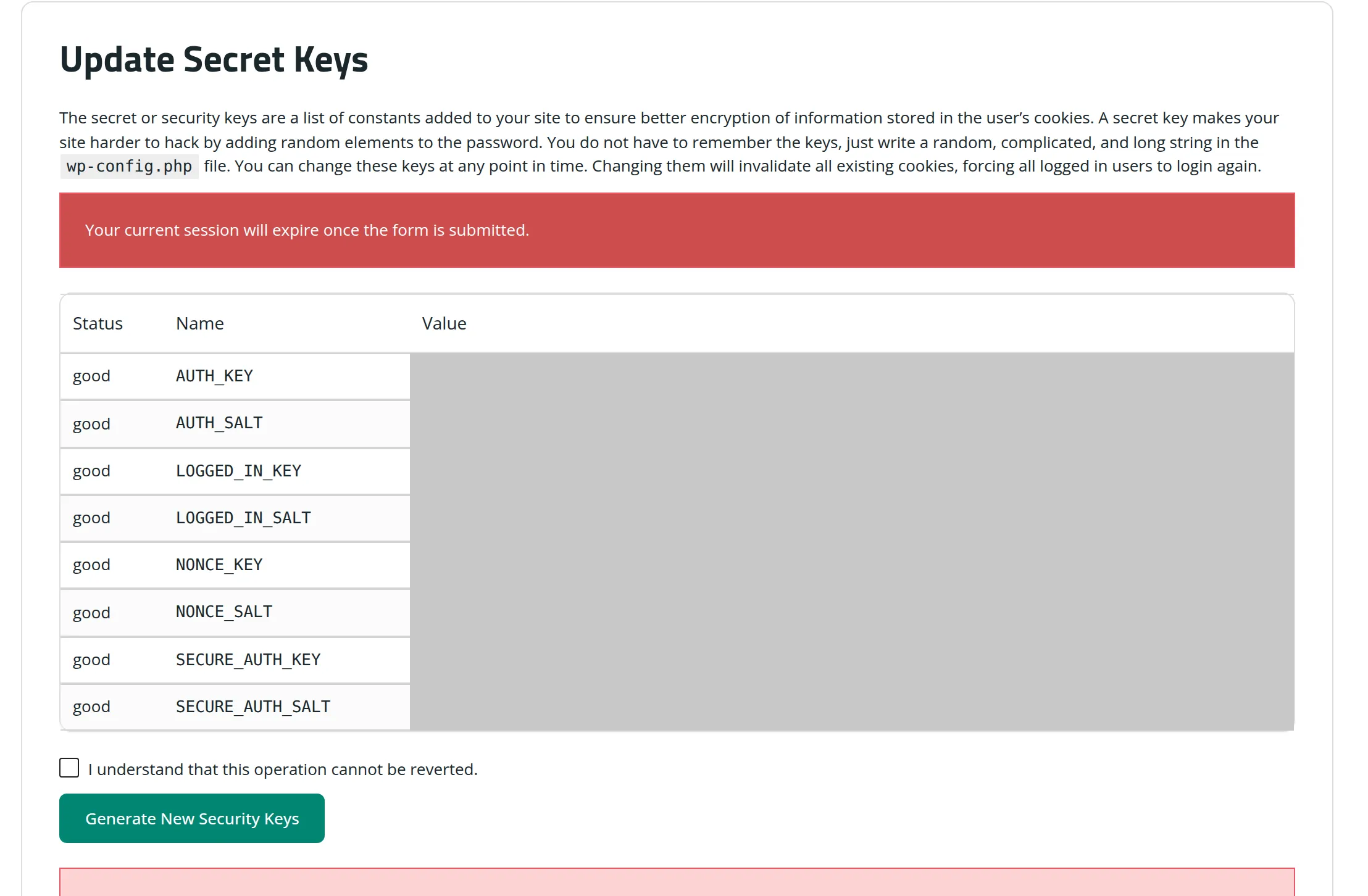
Then change your WordPress security keys, which logs everyone out, including anyone using a stolen login. The free Sucuri plugin does this without touching code: Sucuri Security > Post-Hack Actions, tick “I understand that this operation cannot be reverted” and click Generate New Security Keys.
Step 7: Scan again with two scanners
After all 6 steps, I scanned again. NinjaScanner reported the core, plugin and theme files as “O.K”, with no unsafe files and no ghost admin. Wordfence’s only remaining warning was my weak test password.
Only call the site clean when two different scanners agree. Then update everything, and keep it updated. My guide to updating plugins without breaking your site covers doing that safely.
How do I get Google to remove the warning?
Google’s red warning doesn’t go away by itself. Once the site is clean, open Google Search Console, go to the Security issues report for your site, and click the Request Review button.
Describe what you fixed, one sentence for each problem Google listed. For example: “Removed 2 backdoor files from uploads, reinstalled the theme and plugins, removed an injected script from 1 post, changed all passwords.”
Google says malware reviews take “a few days” and spam hacks can take “up to several weeks”. Don’t send a second request while the first is waiting. And make sure you’re done first: Google says asking before the problem is fully fixed can make the next review take longer.
My host suspended my site. Will they turn it back on?
Usually, yes, and you don’t have to buy their cleanup service first. If the suspension email lists infected files, start with those. When you’re done, reply with what you fixed (the same list you’d send Google) and ask them to re-scan and re-enable the site.
If their scan still finds something, ask for the file paths. That’s free information about what you missed.
What if the malware comes back?
If the site gets reinfected within a day or two, something was missed or the way in is still open. The usual causes:
- A backdoor you didn’t find, often outside the folders scanners check. My Wordfence scan noted “1 path was skipped” because “Scan files outside your WordPress installation” is off by default.
- An old plugin or theme with a known hole that you reinstalled instead of replacing.
- Another site on the same hosting account that’s still infected and reinfecting this one.
- A stolen password you didn’t change.
If you’ve cleaned it twice and it keeps coming back, that’s the time to pay a professional. Check what a cleanup service promises, including whether it covers reinfection, before you pay.
FAQs
Can I remove WordPress malware for free?
Yes. Every step above uses free tools: free scanners, the WordPress reinstall button, your host’s File Manager and phpMyAdmin. On my test site that combination removed all 9 infections.
Which free malware scanner is best for WordPress?
On my test site, NinjaScanner found the most: 7 of 9 infections, with no account needed. Wordfence’s free version found 2 on its default scan and 4 on High Sensitivity, and needs a free licence. No free scanner found my 2 database injections, so run two scanners and check the database by hand.
Does reinstalling WordPress remove malware?
Only from WordPress’s own core files. On my site it fixed 1 of 9 infections. Malware in your uploads folder, theme, plugins and database survives a core reinstall, because the reinstall never touches them.
How long does WordPress malware removal take?
The scans took between 7 and 45 seconds each on my small test site; bigger sites take longer. The cleanup itself is mostly reinstalling plugins and checking the database, so set aside an afternoon for a typical blog.
How do I find a hidden admin user in WordPress?
Compare the count next to “Administrator” on the Users screen with the number of administrators actually listed. If the count is higher, an account is hidden. NinjaScanner’s “Ghost admin” check finds it automatically, and the wp_users table in phpMyAdmin always shows every account.
Malware feels like a disaster, but on my test site every infection came out with free tools and the right order: scan, reinstall, check uploads and users, clean the database, change passwords, scan again. And if your site is showing a different error after the cleanup, my list of common WordPress errors covers what each one means.