
To move a WordPress site to a new domain, you change 2 addresses in Settings > General, then fix the old address everywhere else in your database. That second step took 1.1 seconds on my test site with a free plugin. The part that goes wrong is the order.
I followed the order most guides give: change the addresses first, sort out the new domain later. One click on Save Changes and I was locked out of my own dashboard. So I reset the test site and tried every order, a plain database find-and-replace, the rescue code, and 2 ways to redirect the old domain.
Which kind of move is yours?
There are 2 kinds of domain move:
- Same host, new domain. Your site stays where it is and only the address changes. This is the walkthrough below.
- New host and new domain at once. A backup plugin does most of the work – see “Moving to a new host at the same time” further down.
How I tested this
I built a small test blog on my own computer: WordPress 7.1.5, the free Kadence theme and the free Kadence Blocks plugin, 10 posts with 2 photos each, an About page, a menu, a sidebar widget, a logo and a header background image. It ran on an Apache web server. Here’s how I test in general.
It had 2 domains: an “old” one and a “new” one. I could switch the new domain on and off, which is what pointing your domain at your host does in real life. Every test started from the same saved copy of the site.
The old address was stored in 13 posts and pages, in the theme’s settings, in a sidebar widget and in a menu link.
The order that works to move a WordPress site to a new domain
- Back up your site.
- Point the new domain at your host first, and wait until it loads something.
- Change both addresses in Settings > General, then log in again on the new domain.
- Run Better Search Replace to swap the old address for the new one everywhere else.
- Check your pages.
- Redirect the old domain to the new one.
- Tell Google in Search Console.
Step 2 before step 3 is the whole trick. Here’s what happens when you swap them.
What happens if you change the addresses too early
I changed both addresses to a domain that didn’t reach my server yet and clicked Save Changes. 0.3 seconds later my browser was on the new domain’s login page, and this is all it showed:
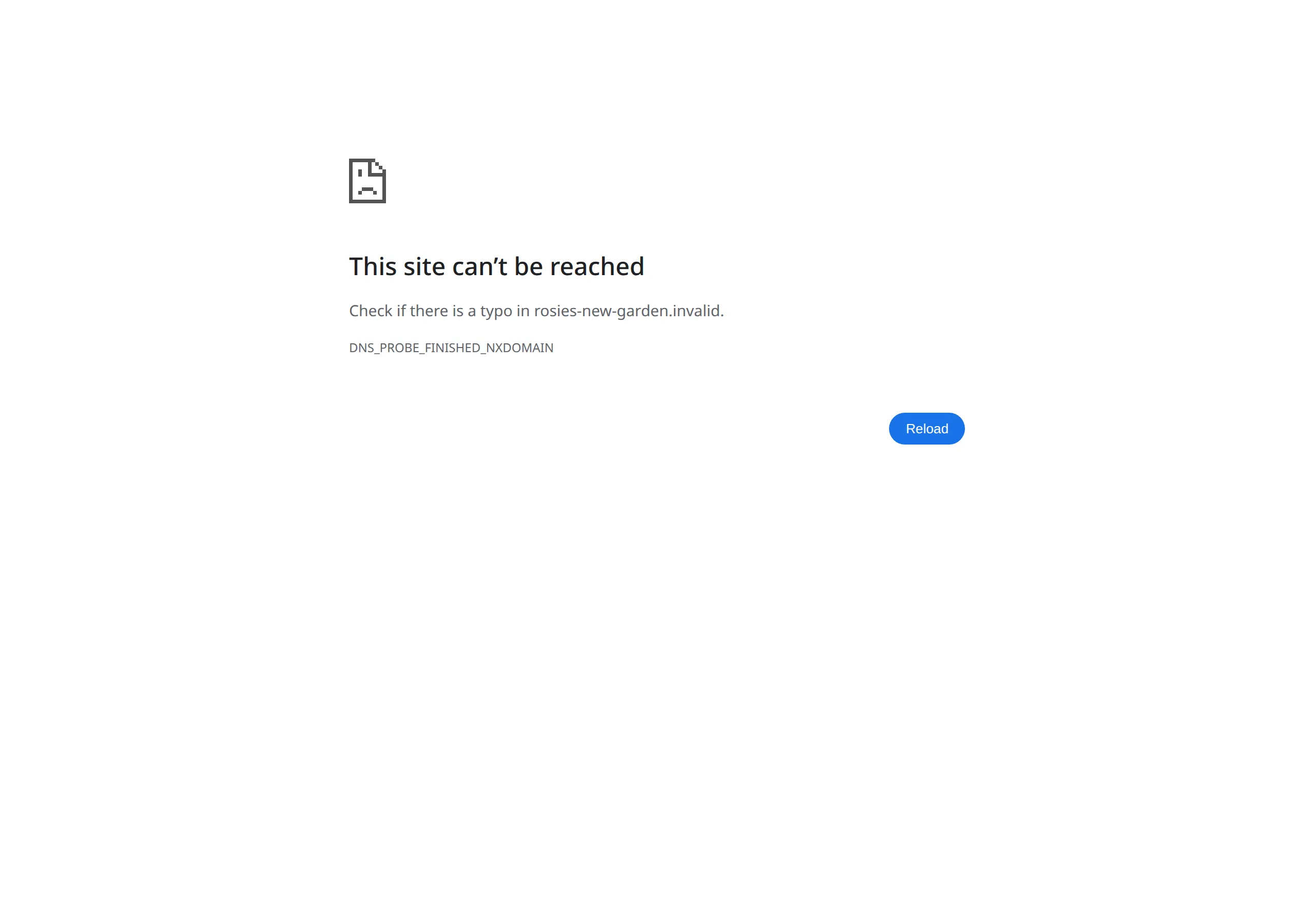
WordPress saved the change, then sent me to the new address. Going back to the old domain’s dashboard didn’t help. Every wp-admin page on the old domain now redirects to the new domain’s login page, which doesn’t load.
That’s why the order I first wrote down for this guide fails. It said to change the addresses first, then install a search-and-replace plugin in wp-admin. But by then you can’t reach wp-admin.
The surprise: the old domain’s public pages kept loading, so visitors saw nothing wrong while I couldn’t log in.
The reverse mistake locks you out too: when the new domain worked but WordPress still had the old address, the login form on the new domain sent my password to the old domain. If your old domain is already gone, that’s a dead end as well.
If you’re stuck in either spot, the “I’m locked out” section below gets you back in.
Step 1: Back up your site
Take a full backup (files and database) right before you start, and download it to your computer. If the search-and-replace step goes wrong, that backup is how you undo it.
I use UpdraftPlus, which came first in my test of 6 free backup plugins. My guide on backing up before changes walks through it in 4 clicks, plus the restore order that works.
Step 2: Point the new domain at your host
Before you touch WordPress, the new domain has to reach the server your site lives on. How you do this depends on your host, so check their help pages for “add a domain” or “addon domain”. It’s usually 2 parts:
- At your host: add the new domain to your hosting account, pointed at the same folder as your site. Ask your host to set up an SSL certificate for it so it works on
https://. - At your domain registrar (where you bought the domain): either switch the domain’s nameservers to the ones your host gives you, or add an A record with your host’s IP address.
DNS changes can take a while to spread, so give it time.
When you type the new domain in your browser, you should see your site or a page from your host. Don’t go on until you do. On my test site, the new domain showed my whole blog at this point, with every link still pointing at the old domain. That’s normal and step 4 fixes it.
Step 3: Change both addresses in Settings > General
Go to Settings > General. Below Site Title, Tagline and Site Icon you’ll see 2 fields:
- WordPress Address (URL) – where WordPress’s files live
- Site Address (URL) – the address visitors type
On most sites both hold the same address. Change both to the new domain, with https:// if the new domain has an SSL certificate.
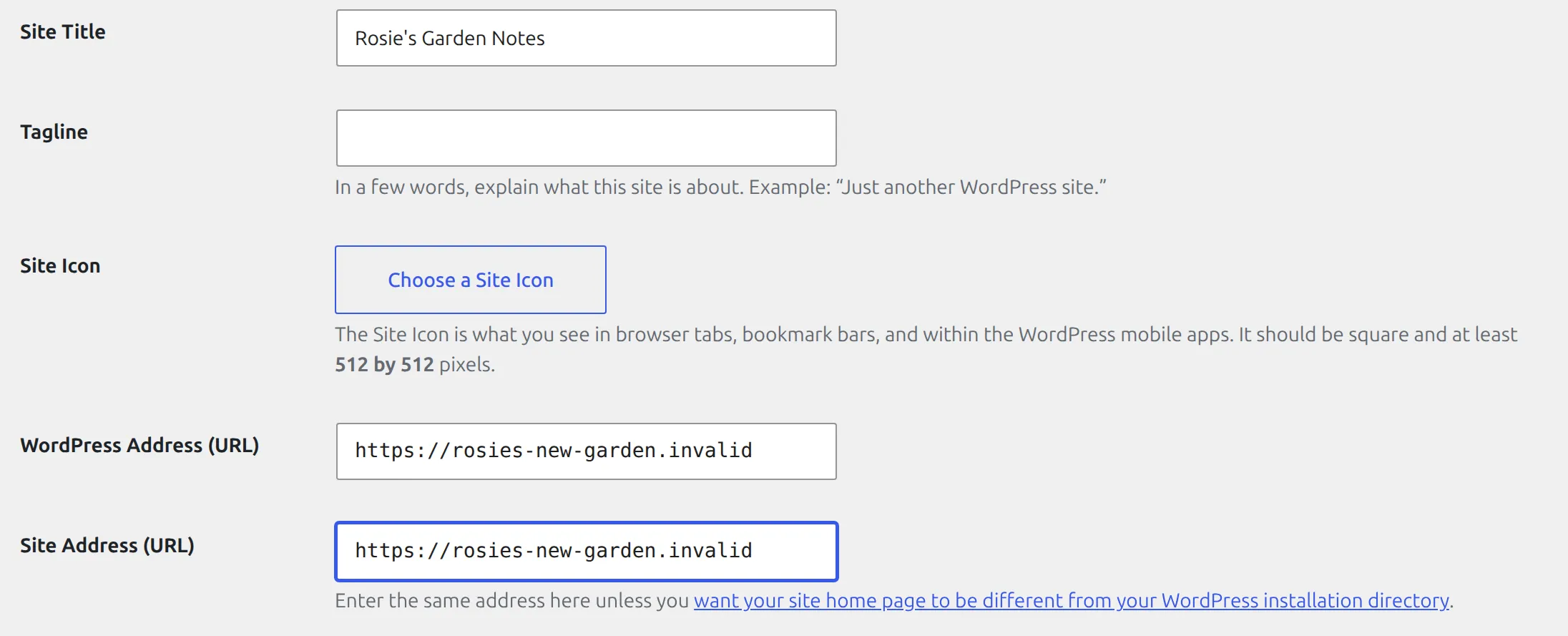
Click Save Changes. WordPress sends you to the new domain’s login page and you have to log in again, because your login belongs to the old domain. Log in on the new domain and you’re back in the dashboard.
If any of these fields are greyed out, your wp-config.php file has the addresses written into it. The “I’m locked out” section below explains what that means.
Step 4: Swap the old address everywhere else with Better Search Replace
Those 2 fields only change 2 rows in your database. After saving them, the old address was still on the front end of my site: 6 times on a blog post and 4 times on the About page.
Here’s the About page with the old domain switched off, like it would be after a real move:
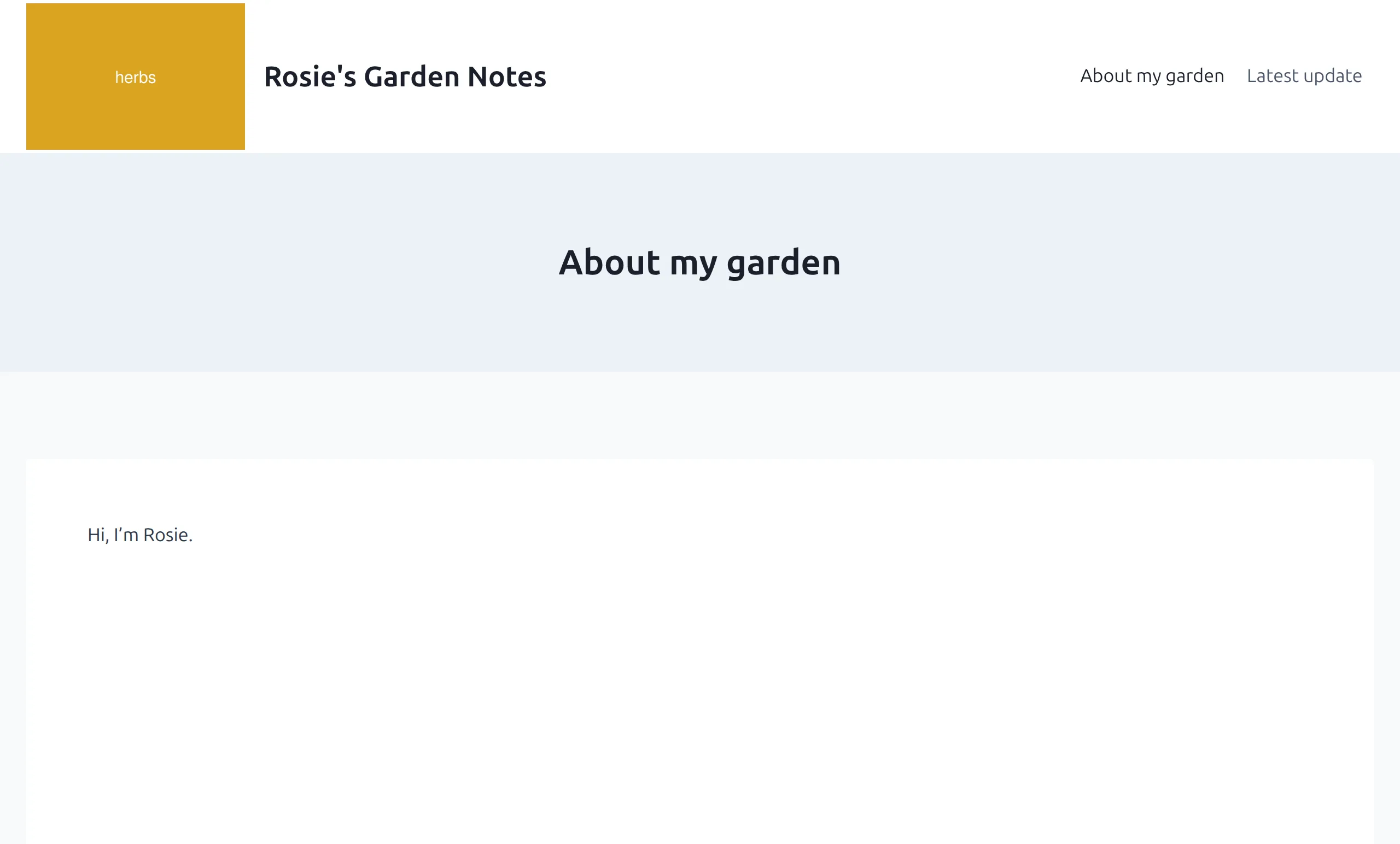
The Kadence header background image and the background of the row on the About page are gone, because both were saved with the old address. The links between my posts and a custom link in my menu pointed at the dead domain too.
Strangely, the photos inside my posts still showed. WordPress builds a list of image sizes for every library image from the current address, and browsers load one of those instead. The images’ main address was still the old one, though, so feed readers, emails and any image you pasted as HTML would still break. Don’t let the photos fool you into skipping this step.
Running Better Search Replace
- Go to Plugins > Add Plugin, search for Better Search Replace, then click Install Now and Activate. I tested version 1.4.11.
- Open Tools > Better Search Replace.
- Search for: your old address, like
https://olddomain.com. Replace with: your new address, likehttps://newdomain.com. Use the full address withhttps://and no slash at the end. - Select tables: click the first table, then hold Shift and click the last one. That selected all 16 tables on my site.
- Leave Run as dry run ticked. It’s ticked by default. Leave Replace GUIDs unticked too.
- Click Run Search/Replace.
The dry run changes nothing. It just counts. Mine took 0.9 seconds:
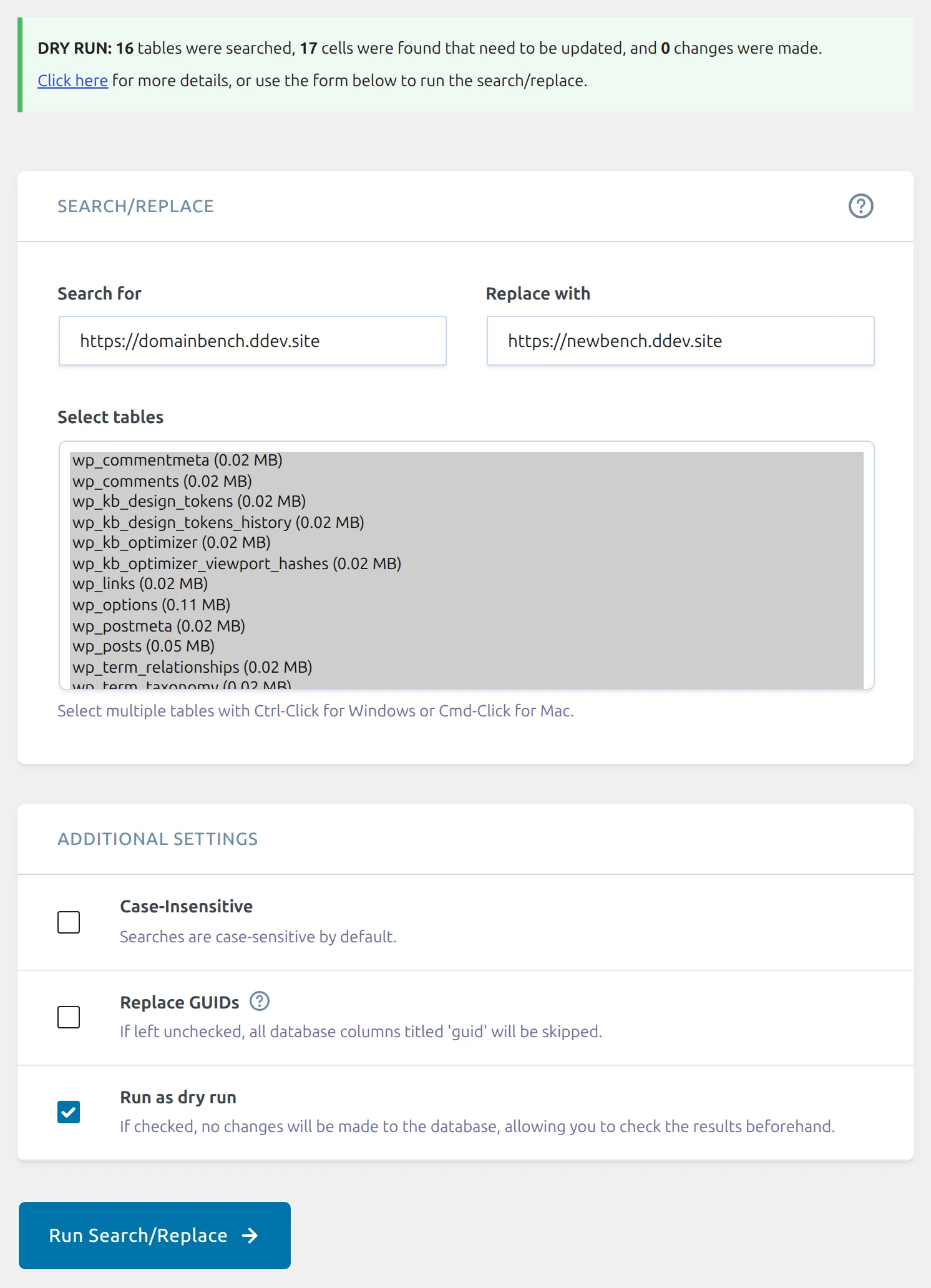
If you get 0, check for a typo or a missing https://. Then untick Run as dry run and click Run Search/Replace again. Mine reported “17 cells changed in 17 updates” in 1.1 seconds.
After that, the old address appeared 0 times on all 3 pages I checked. The header image, the row background, the menu link and the links in my posts were all back:

When you’re done, deactivate and delete Better Search Replace. It’s a one-time tool.
Why not just find-and-replace in phpMyAdmin?
Some guides tell you to run a REPLACE query in phpMyAdmin. I tried that on a fresh copy of the site, on the same 3 tables Better Search Replace changed.
It looked perfect: 0 old addresses left anywhere. Then I opened the site:

The header image was gone. My custom menu was replaced by an automatic list of pages, and its custom link had disappeared. The sidebar widget was deleted, and every other theme setting went back to default.
Here’s why. WordPress saves settings like these as “serialized” data, which records the length of every piece of text. My old and new addresses had different lengths.
The plain replace changed the text but not the lengths, so WordPress couldn’t read those settings any more and treated them as empty. Better Search Replace fixes the lengths as it goes. That’s the whole reason to use it.
Step 5: Check your pages
Log out (or open a private window) and visit:
- your homepage
- 2 or 3 blog posts with images
- a page built with your page builder or blocks
- your menu links and your logo
Then check that posts don’t show “Page not found”. Mine loaded fine, because the site stayed on the same server. If yours 404, go to Settings > Permalinks and click Save Changes, then see my guide to 404 errors on every page.
Step 6: Redirect the old domain to the new one
After my move, the old domain still showed every page, because both domains pointed at the same folder. A redirect sends visitors (and Google) from each old page to the same page on the new domain.
Option 1: .htaccess (Apache and LiteSpeed hosts)
If your host uses Apache or LiteSpeed (its help pages will say), add this to the top of the .htaccess file in your site’s main folder, above the # BEGIN WordPress line. (WordPress rewrites everything between # BEGIN WordPress and # END WordPress when you save permalinks). Use your own domains:
RewriteEngine On
RewriteCond %{HTTP_HOST} ^olddomain\.com$ [OR]
RewriteCond %{HTTP_HOST} ^www\.olddomain\.com$
RewriteRule (.*)$ https://newdomain.com/$1 [R=301,L]
On my test site, every old address got a permanent 301 redirect to the same path on the new domain. That included the homepage, posts, links with ?utm_source= tracking on the end, and image files. The new domain kept working normally.
If your host runs nginx, .htaccess files are ignored. Ask your host’s support to add a redirect, or use option 2.
Option 2: the Redirection plugin (no code)
The free Redirection plugin (I tested 5.10.1) can redirect a whole domain. After installing it, go to Tools > Redirection and click through its setup (5 clicks). Then open the Site tab, find Relocate Site, enter your new domain in Relocate to domain, and click Update.

My old domain’s pages then redirected with a 301 to the same pages on the new domain, tracking codes included. Two limits: by design it doesn’t redirect the login and admin pages, and it didn’t redirect image files. It also only works while WordPress still runs on the old domain.
If you’ve cancelled the old hosting
Then nothing on the old domain can run WordPress or read .htaccess. If your registrar offers “domain forwarding”, pick a permanent (301) forward. I couldn’t test registrar forwarding on my computer, so check that it keeps the path. Visit an old post address and see if you land on that post, not just the new homepage.
Whichever you use, keep it. Google says to keep redirects “for as long as possible, generally at least 1 year”. It also recommends paying for the old domain “for at least a year” so nobody else can buy it and use it.
Step 7: Tell Google about the move
Google Search Console has a Change of Address tool for exactly this. Before you use it:
- You must be an owner of both the old and new domains in Search Console, in the same Google account.
- Your old homepage must redirect to the new one with a 301 (step 6). The tool checks this.
Open the old domain’s property, go to Settings, then Change of address, pick the new domain and follow the checks. Google says the tool keeps forwarding signals to the new site for 180 days.
Don’t expect overnight results. Google’s own advice is that a small to medium site “can take a few weeks for most pages to move”, and rankings may move around in that time. Its guide also says permanent redirects “don’t cause a loss in PageRank” – the score Google gives a page from the links pointing at it.
I’m locked out. How do I get back in?
You can override the 2 addresses from the wp-config.php file, which sits in your site’s main folder next to wp-admin and wp-content. Open it with your host’s File Manager or FTP, and add these 2 lines just above the line that says /* That's all, stop editing! Happy publishing. */:
define( 'WP_HOME', 'https://olddomain.com' );
define( 'WP_SITEURL', 'https://olddomain.com' );
Which address goes in depends on how you got locked out:
- You changed the addresses and the new domain doesn’t load yet: use the old domain, like above. That’s what I did, and I could log in again at once.
- The new domain works but WordPress still sends you to the old one (the old domain is already gone): use the new domain.
Once you’re back in, Settings > General looks like this:
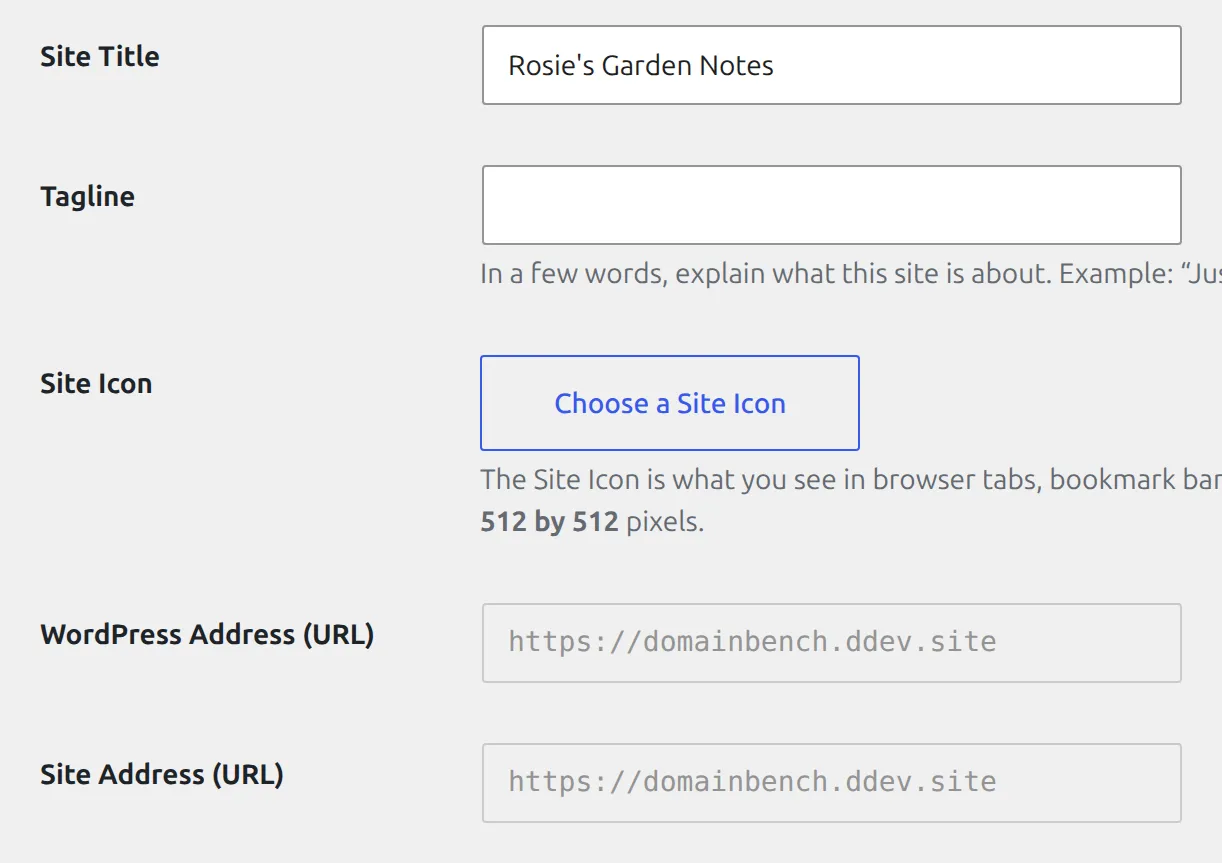
Both fields are greyed out, because the file now overrides them. So don’t leave these lines in forever. Finish the move in the right order, put the final address in Settings > General, and delete the 2 lines when you’re done.
Moving to a new host at the same time
If you’re changing host as well, let a backup plugin carry the site and change the address for you. For my backup roundup I restored a site onto a fresh WordPress at a different address:
- UpdraftPlus (free) noticed the different address on restore, said “This looks like a migration”, and had “Search and replace site location in the database (migrate)” ticked already. The restore took 7 seconds, and the site worked on the new address.
- Duplicator Lite does it too, but the free version has no import screen in wp-admin. You upload 2 files to the new site’s main folder by FTP and run its installer. It updated 2,726 rows in 8.8 seconds and left 1 plain-text mention of the old address. Its installer files stay in that folder, open to anyone, until your first wp-admin login deletes them.
- BackWPup’s address change is in the paid version only.
The order is the same as above: get the new domain pointing at the new host first, then install WordPress there and restore. Run a Better Search Replace dry run afterwards anyway, as a check. The full results are in my backup plugin test.
Frequently asked questions
Do I need a developer to move WordPress to a new domain?
No. On a same-host move it’s 2 fields in Settings > General and one free plugin. The only risky part is the order, and the rescue lines in wp-config.php get you back in if you slip. If you’re also changing host, a backup plugin like UpdraftPlus does the heavy lifting.
How long does it take to move a WordPress site to a new domain?
The WordPress part is quick: on my test site, saving the new address took 0.3 seconds and the search-and-replace 1.1 seconds. Most of your time goes into waiting for the new domain to point at your host, and into checking pages afterwards. Google then takes a few weeks to swap the old addresses for the new ones in search results.
Will I lose my Google rankings when I change domains?
Google says rankings can move around for a few weeks during a move and then settle. 301 redirects and the Change of Address tool are what carry your old domain’s standing over to the new one. Keep the redirects for at least a year.
What happens to my email when I change domains?
Email addresses on the old domain only keep working while you keep that domain and its email settings. Set up email on the new domain first, and keep the old domain registered for at least a year, which you’ll want for the redirects anyway.
The short version
Point the new domain at your host before you change anything in WordPress. Then change both addresses, run a Better Search Replace dry run and the real run, check your pages, redirect the old domain, and tell Google.
And take a backup first. It’s the only undo button a database search-and-replace has. If something else breaks along the way, my list of common WordPress errors covers the usual suspects.