13 Common WordPress Errors (I Reproduced Every One) and How to Fix Them
When a WordPress error shows up, the message itself is your best clue. Each of the common WordPress errors below has its own cause, and once you know which one you’re looking at, every fix below works without writing any code.
I didn’t copy this list from another blog. I broke my own test site (WordPress 7.1, PHP 8.3) on purpose until each error appeared, took a screenshot, then tested the fix. 3 popular fixes didn’t work when I tried them, and I’ll point those out as we go.
Start with the table to find your error, then jump to its section.
Which WordPress error do I have?
Match what’s on your screen to the first column. The error name in the second column is the one to look for below.
| What you see | The error | Usually caused by |
|---|---|---|
| “There has been a critical error on this website.” | Critical error | A plugin or theme crashed |
| “Error establishing a database connection” | Database connection error | Wrong database login, or the database server is down |
| A completely blank white page | White screen of death | A plugin that stops quietly, a broken theme, wp-config.php |
| “Internal Server Error” or “HTTP ERROR 500” | 500 error | .htaccess, a plugin, or wp-config.php |
| “Server Error (500 error).” in Elementor | Elementor 500 | Too many revisions, a plugin, memory |
| “Briefly unavailable for scheduled maintenance” | Stuck maintenance mode | An update that didn’t finish |
| Home page works, every other page says 404 | Broken permalinks | Lost link rules |
| “Allowed memory size of … bytes exhausted” | Memory error | A plugin needing more memory than allowed |
| “Another update is currently in progress.” | Update lock | An earlier update still running, or stuck |
| “The link you followed has expired.” | Upload too big (or an old page) | Your host’s upload limit |
| “Destination folder already exists.” | Leftover folder | A plugin folder left behind |
| “Missing a temporary folder.” | Temp folder error | Your host’s PHP settings |
| “This site can’t be reached” | Site not loading | Your domain or hosting, not WordPress |
What should I do first for any WordPress error?
First, check whether your dashboard still works by opening yoursite.com/wp-admin/. When my test plugin crashed only the front of the site, the dashboard kept working, so I could fix it with clicks instead of files.
Then work through these 3 steps, in this order:
1. Think about what you changed last. A plugin you installed an hour ago, an update, a new theme. Every error I caused on my test site appeared straight after a change like that, and undoing the change is the quickest fix.
2. Check your email. For crashes, WordPress emails your admin address a special recovery link with the subject “Your Site is Experiencing a Technical Issue”. It doesn’t always arrive, though. In my critical error tests, WordPress sent nothing when only the front of the site crashed, and it sends at most 1 email a day.
3. Turn on the debug log to see the real error. Add these 3 lines to wp-config.php, just above the line that says “That’s all, stop editing!”:
define( 'WP_DEBUG', true );
define( 'WP_DEBUG_LOG', true );
define( 'WP_DEBUG_DISPLAY', false );
Reload the broken page once, then open wp-content/debug.log in your host’s File Manager. The last “PHP Fatal error” line names the file that broke, and the folder name after /plugins/ tells you which plugin it was.
Delete that log when you’re done. On my test sites, anyone could open yoursite.com/wp-content/debug.log in a browser without logging in. Remove the 3 lines, then delete the file.
And if you’re about to edit files, take a backup first. My free backup plugin test shows which ones actually restored a broken site.
“There has been a critical error on this website”
This message means a plugin or your theme hit a fatal PHP error, and WordPress stopped the page before it could do more damage. Your posts and settings are safe.
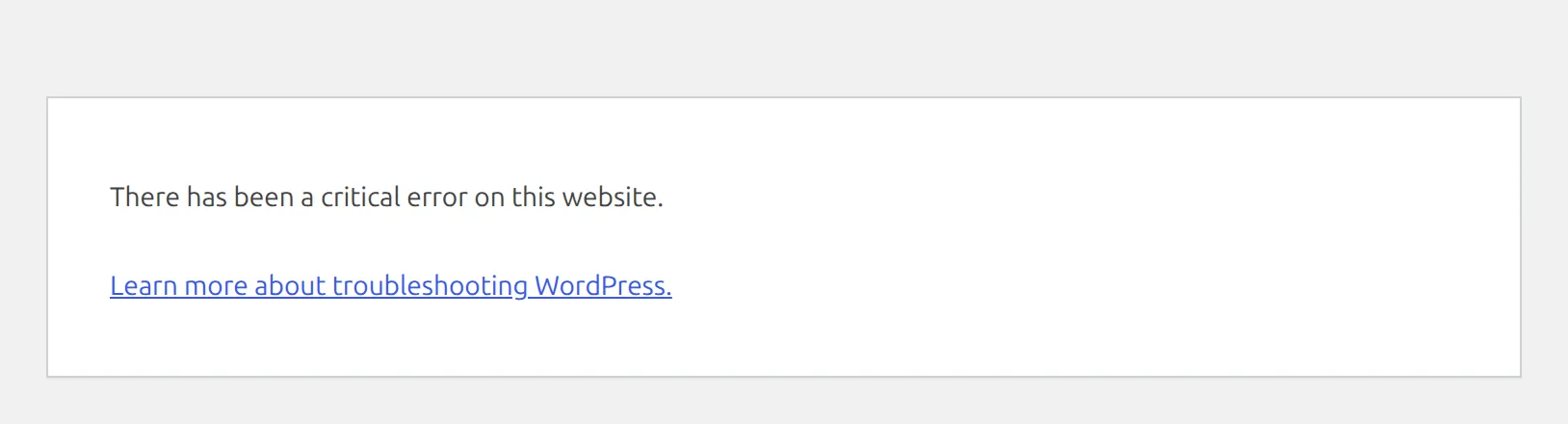
If your dashboard works, go to Plugins and deactivate the plugin you added or updated last. If the dashboard is broken too, rename that plugin’s folder in wp-content/plugins/ with File Manager, and WordPress switches it off.
The full walkthrough, including why the recovery email often never arrives, is in my guide to fixing “There has been a critical error on this website”.
“Error establishing a database connection”
This error means WordPress can’t log in to the database where your posts are stored. The data is still there. WordPress just can’t reach it.
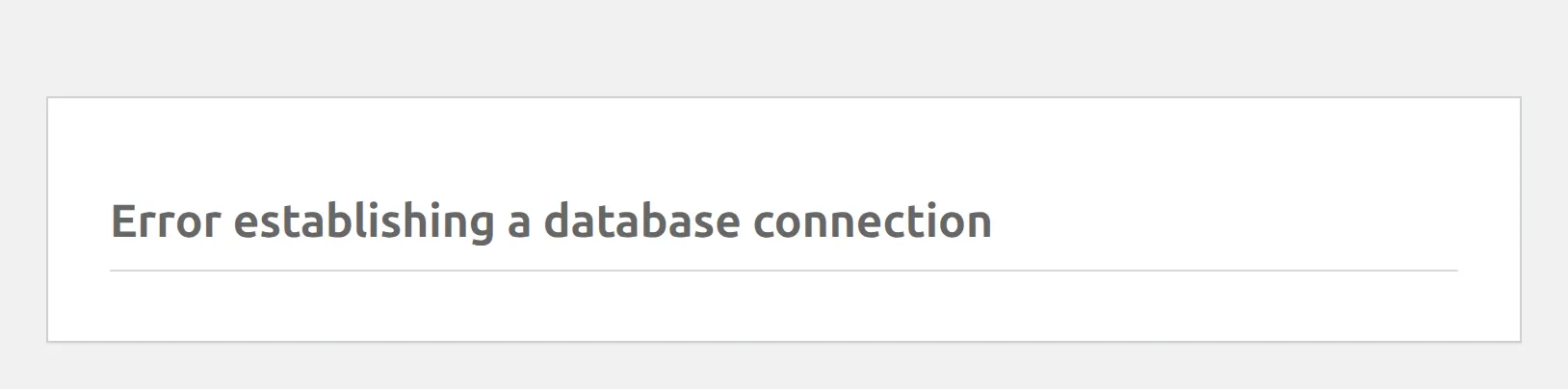
I broke my test site 7 ways for this one, and visitors saw the exact same page every time. The clue is at yoursite.com/wp-admin/, which shows a longer message. “Cannot select database” means only the database name in wp-config.php is wrong. The longer “Error establishing” text names your database server address, which you can check against what your host gave you.
And skip the WordPress repair tool. It can’t fix this error, and on my test site it showed the same error page.
Every cause and its fix is in my guide to fixing the database connection error.
WordPress white screen of death
A truly blank white page is rarer than it used to be. Since WordPress 5.2, WordPress catches crashes and shows the critical error message instead.
When I broke my test site 13 ways, only 7 gave a blank page, and they came down to 5 causes: a plugin that stops WordPress without an error, a missing theme folder, an empty theme file, a mistake in wp-config.php, and crash protection switched off. Debug mode showed the cause in just 1 of those 5, so the usual “turn on WP_DEBUG” advice often leaves you staring at the same blank page.
Here’s how to tell them apart: my white screen of death guide.
500 internal server error
A 500 means your server tried to build the page and gave up. On my 2 test sites, it looked 3 different ways, and each one points to a different fix.
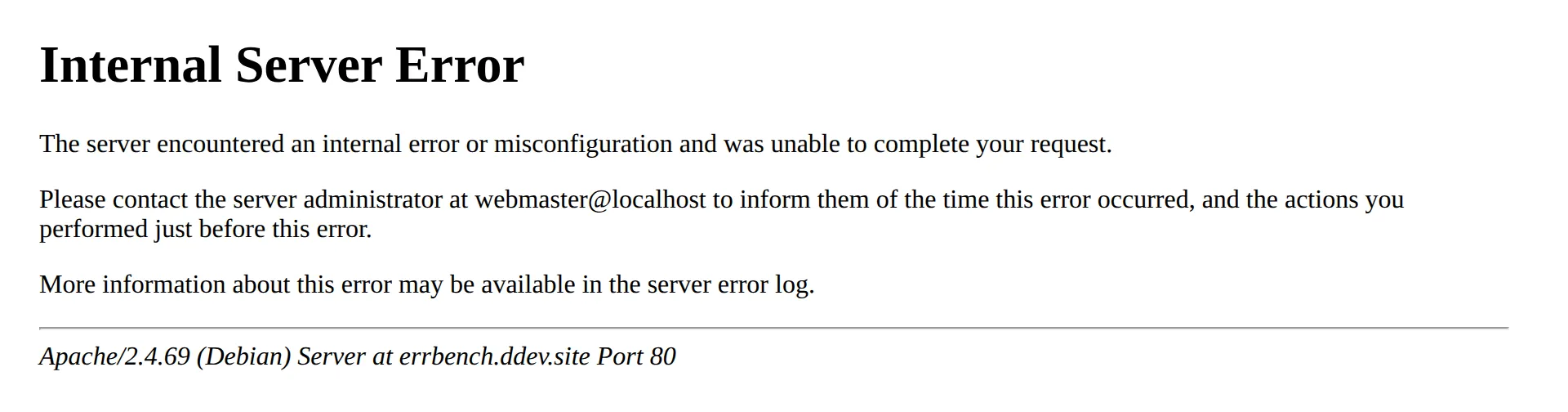
- A plain “Internal Server Error” page: a bad
.htaccessfile. Only Apache and LiteSpeed hosts read that file, so it’s never the cause on nginx. - “There has been a critical error”: that’s a 500 too, from a plugin or theme.
- Chrome’s “HTTP ERROR 500” with nothing else: a mistake in
wp-config.phpor a missing WordPress core file.
All 3 fixes are in my 500 internal server error guide.
Elementor “Server Error (500 error)”
If your site loads fine but Elementor won’t save, the problem is the save itself, not your whole site. In my tests, Elementor used only 10 MB of memory for a normal save, so Elementor itself was rarely the cause.
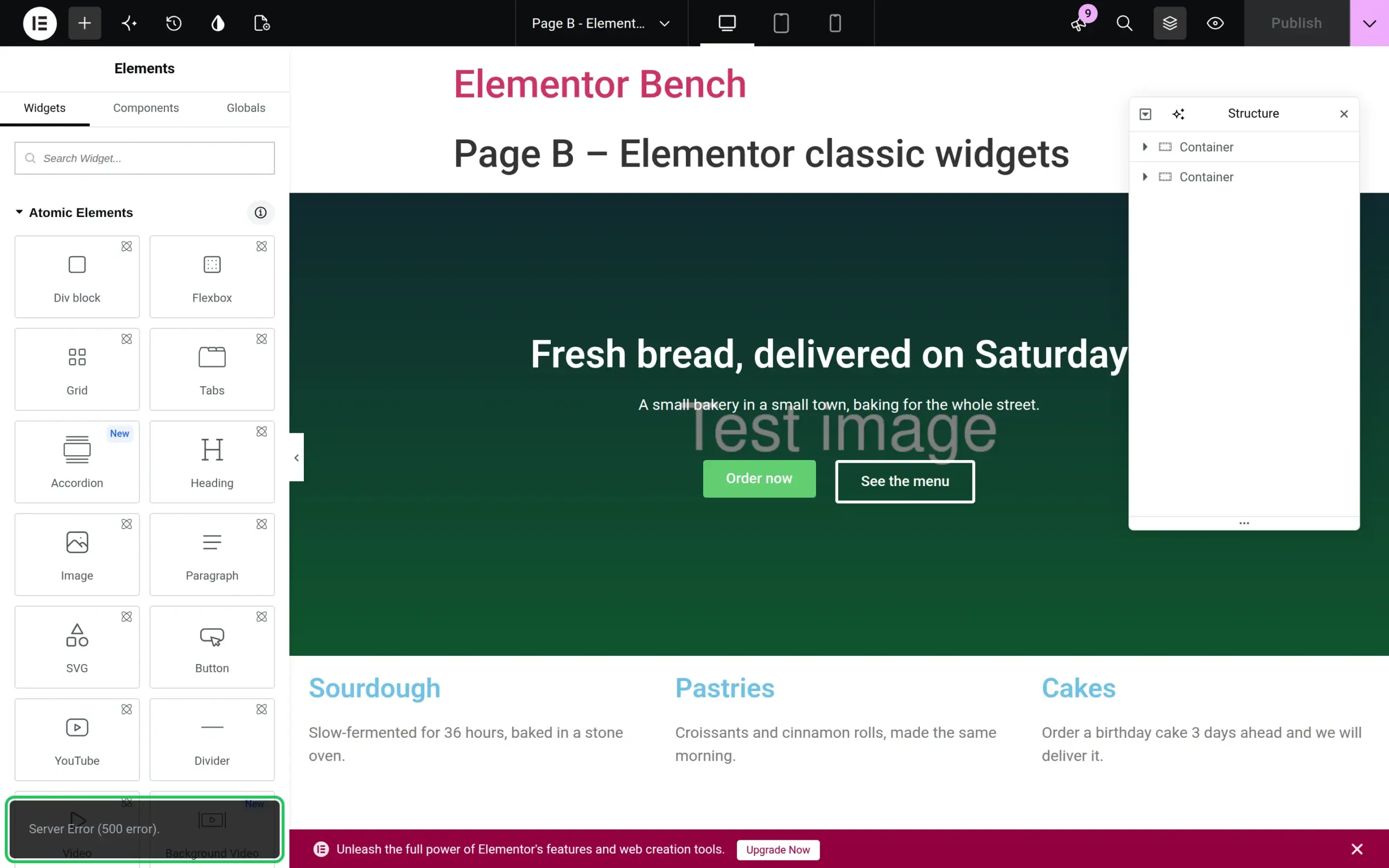
3 things broke the save on my test site: a page with 8,006 old revisions, another plugin crashing during the save, and a memory limit set too low. Clearing out the revisions fixed the first one in under 3 seconds. The steps are in my Elementor server error 500 guide.
“Briefly unavailable for scheduled maintenance”
This means an update started and didn’t finish cleanly, so WordPress is still showing its “we’re updating” notice. During every update, WordPress puts a small file called .maintenance in your main folder.
You have 2 options. Wait 10 minutes, because WordPress ignores that file after 10 minutes by itself. Or delete .maintenance with File Manager and the site comes back right away. I tested both in my guide to fixing “Briefly unavailable for scheduled maintenance”.
404 errors on every page except the home page
When your home page loads but every post and page says “404 Not Found”, your posts aren’t gone. WordPress has lost the rules that turn a web address into the right post.
The fix takes 30 seconds: go to Settings > Permalinks. Just opening that screen rebuilds the rules. When I broke them on my test site, every page came back the moment the screen loaded. My 404 errors guide covers what to do if that doesn’t work.
“Allowed memory size of … bytes exhausted”
This error means a plugin, theme, or page asked PHP for more memory than your site is allowed to use. The message ends with the path to the file that ran out, so it tells you exactly where to look.

Hosts usually hide PHP errors from visitors, so you might never see this line on screen. When I set my test site up like a typical host, visitors got “There has been a critical error on this website” instead, and the “Allowed memory size” line only showed up in the debug log.
The fix depends on what the path says:
- A folder under
/plugins/: that plugin is the problem. Deactivate it and see if the error goes away. A plugin needing hundreds of megabytes is usually a bug or a bad fit for your host. - No obvious culprit: raise WordPress’s limit by adding
define( 'WP_MEMORY_LIMIT', '256M' );towp-config.php. On my test site, raising it to 512M made the same page load normally again.
When it won’t work: your host may not let WordPress raise its own memory limit. If the line makes no difference, ask your host to raise “PHP memory_limit” for you. And raising the limit hides the problem rather than fixing it, which I explain in my Elementor 500 guide.
“Another update is currently in progress”
This message means WordPress thinks an earlier update is still running, so it refuses to start a new one. It sets a “lock” when a WordPress update starts and removes it at the end. If the update crashed, the lock stays behind.

To reproduce it, I added that lock by hand and clicked Update to version 7.1.4. WordPress stopped straight away and updated nothing.
You have 2 options:
- Wait 15 minutes. The lock on WordPress updates expires after 15 minutes, and then the Update button works again.
- Delete the lock. In your host’s phpMyAdmin, open the
wp_optionstable, search for the option namecore_updater.lock, and delete that row. Your table prefix might not bewp_, so look for the one ending in_options.
Waiting is the safer choice. If an update really is still running in another tab, deleting the lock lets 2 updates fight over the same files.
“The link you followed has expired”
This one is confusing, because nothing about the message mentions file size. But on my test site, I got it by uploading a plugin bigger than my host allowed.

Here’s what happens. My test site allowed uploads up to 64 MB. When I uploaded a 70 MB plugin zip on Plugins > Add New > Upload Plugin, PHP threw the whole upload away, including WordPress’s hidden security code for the form. WordPress then saw a form with no security code and showed this message.
To check your limit, go to Media > Add New. Under the upload box it says “Maximum upload file size”, which was “64 MB” on my test site. The Media screen checks size before uploading, so a big file there gave a clearer message: “exceeds the maximum upload size for this site.”
To fix it:
- Upload the plugin or theme another way. Unzip it on your computer and upload the folder to
wp-content/plugins/(or/themes/) with File Manager or FTP. That skips the limit. - Ask your host to raise the limit. The 2 settings are “upload_max_filesize” and “post_max_size”. Look for them under PHP settings in your hosting panel.
If you weren’t uploading anything, the cause is different. WordPress’s security codes last 1 day, so a dashboard tab left open overnight shows the same message when you click Save. Reload the page and try again.
“Destination folder already exists”
This error means WordPress tried to install a plugin or theme, but a folder with the same name is already sitting in wp-content/plugins/ (or /themes/). Usually it’s left over from an install that failed or a plugin that wasn’t fully deleted.
On my test site, I created a leftover folder with no plugin inside it and then uploaded a plugin with the same folder name. WordPress stopped with “Destination folder already exists.” and showed the folder’s location, but offered no way forward.
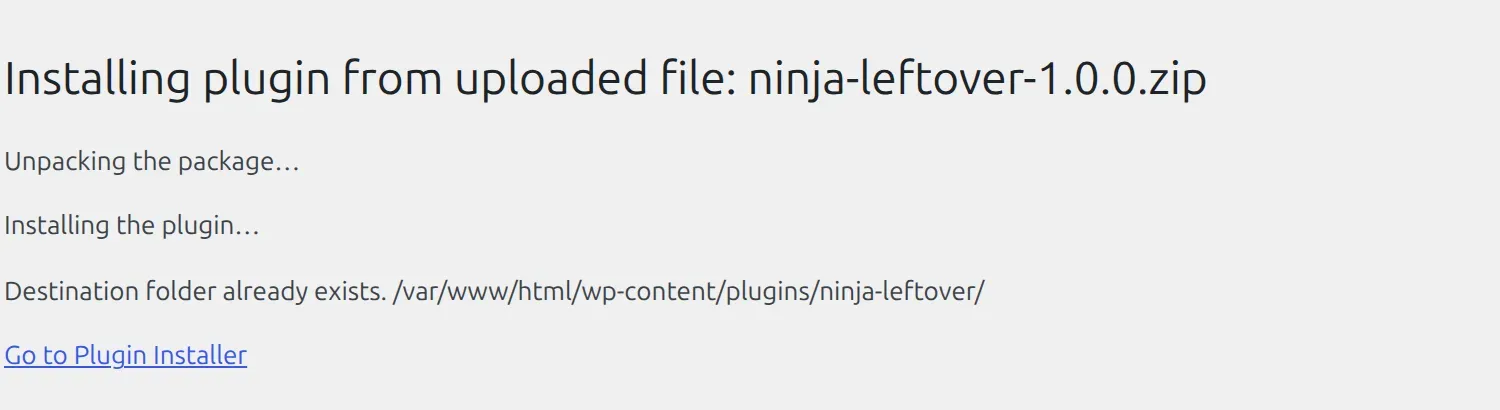
The fix: open File Manager, go to the folder named in the message, and delete it. When I deleted the leftover folder, the same zip installed normally. Don’t delete a folder that belongs to a plugin you still use. If you’re not sure, download it to your computer first as a backup.
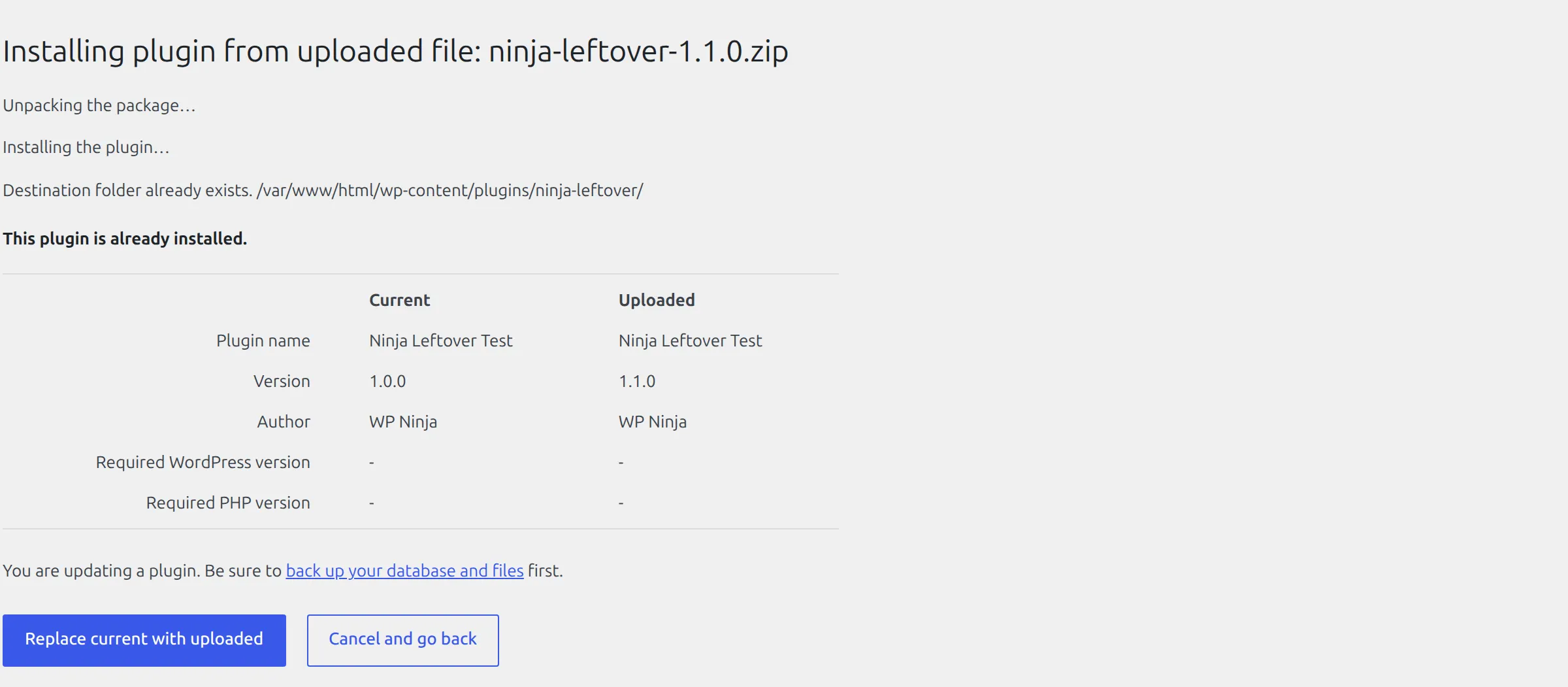
If the plugin is actually installed and you’re uploading a newer version, you get the same message plus a second screen. WordPress shows the current and uploaded versions side by side and gives you a Replace current with uploaded button. Click it to update the plugin in place.
“Missing a temporary folder”
This means your server has nowhere to store a file while it’s being uploaded, so every upload in Media > Add New fails. It’s a hosting setting, not something wrong with WordPress.
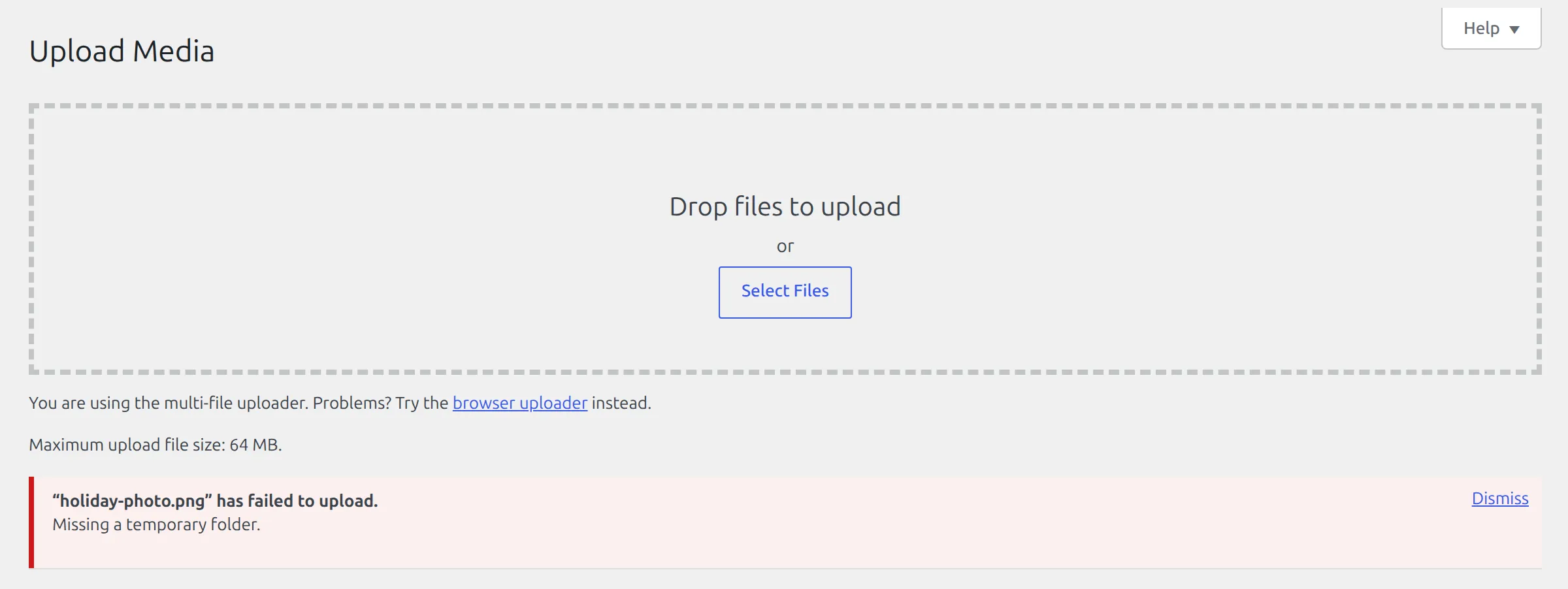
I reproduced it by pointing PHP’s upload folder setting at a folder that doesn’t exist. And here’s a popular fix that didn’t work: almost every guide tells you to add a WP_TEMP_DIR line to wp-config.php. I created the folder, added the line, and tried again. The upload failed with the same message.
That’s because PHP rejects the file before WordPress even starts, and WP_TEMP_DIR only changes where WordPress itself keeps temporary files, like plugin updates. The fix that worked was pointing PHP’s “upload_tmp_dir” setting back at a folder that exists. If your hosting panel has no setting for it, only support can change it, so send them the exact message. If you can, include that the PHP upload temp directory is missing or not writable.
Why is my WordPress site not loading at all?
If your browser says “This site can’t be reached” instead of showing any WordPress page, WordPress isn’t the problem. The browser couldn’t find or reach your server at all.
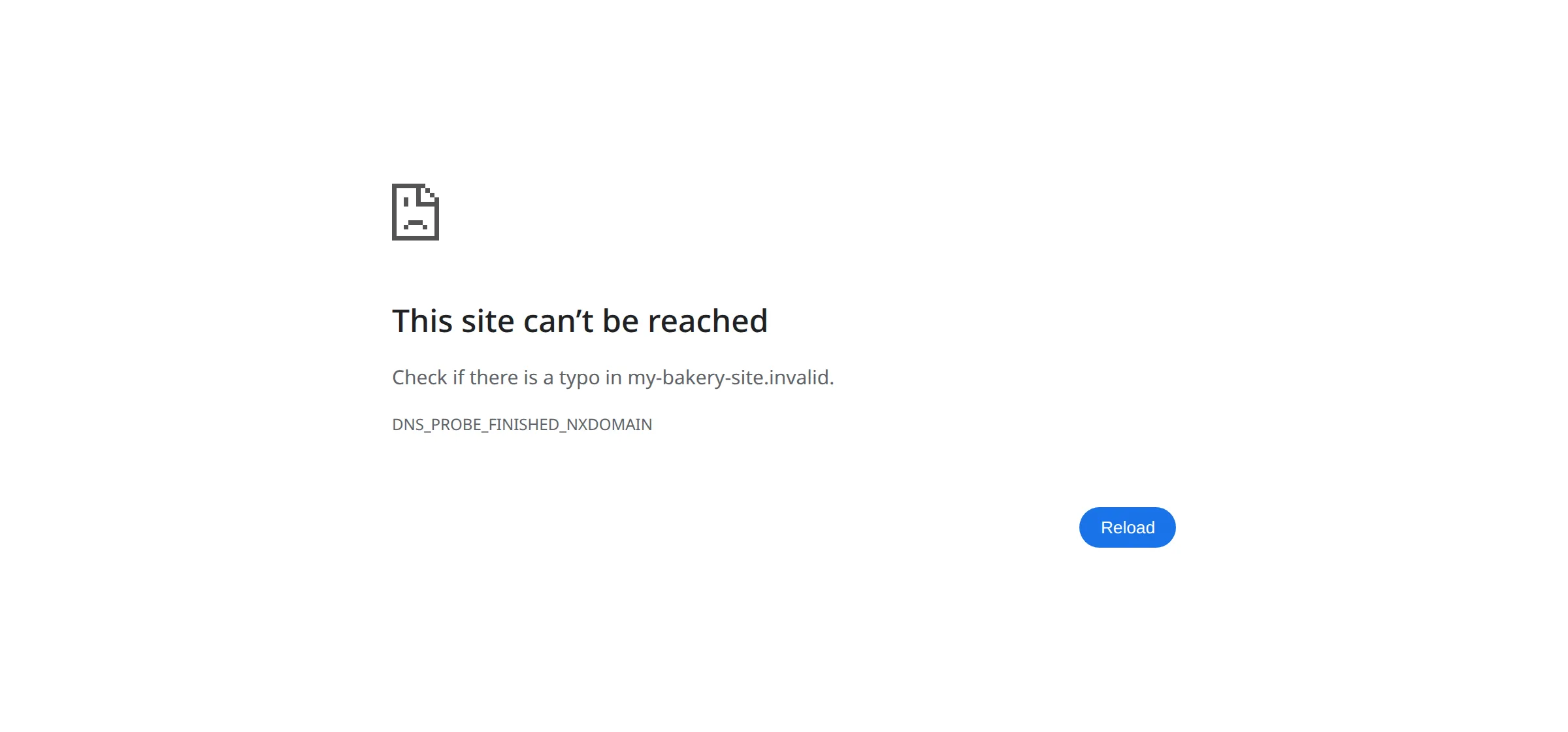
I got the page above by visiting a domain that doesn’t point to any server. The code under the message tells you which kind of problem it is:
- DNS_PROBE_FINISHED_NXDOMAIN: the domain doesn’t point anywhere. Check that your domain hasn’t expired, and that nobody changed its DNS settings at your domain company.
- ERR_CONNECTION_TIMED_OUT or ERR_CONNECTION_REFUSED: the domain is fine, but the server isn’t answering. Check your host’s status page or ask support.
Before you call anyone, open the site on your phone with Wi-Fi switched off. If it loads there, the problem is your computer or your home network, not your site. If you get one of the WordPress messages from the table above instead, use that error’s section.
How do I stop WordPress errors happening again?
Every error I reproduced started with a change: an update, a new plugin, a file edit. These 3 habits make those changes safe:
- Take a backup before every update. With one, any of these errors becomes “restore and try again” instead of an afternoon of troubleshooting.
- Update one plugin at a time. If something breaks, you know which one did it. My guide to updating WordPress plugins without breaking your site walks through it.
- Don’t leave the debug log switched on. It’s useful for finding a problem, but on my test sites anyone could read it.
FAQs
What is the most common WordPress error?
The critical error (“There has been a critical error on this website”) is the one you’re most likely to meet, because any plugin or theme crash produces it. On my test site, crashes from missing code, memory, time limits and typos all showed this message.
Will a WordPress error delete my posts?
No. None of the 13 errors I reproduced touched my posts, pages or images. They stop WordPress from showing your content, but the content stays in the database until the error is fixed.
Do I need to know code to fix WordPress errors?
No. Every fix in this guide is a click in the dashboard, deleting or renaming a file in File Manager, or pasting 1 line into wp-config.php. The only time you need help is when the cause is a hosting setting, and then your host’s support makes the change.
Why does my WordPress error only show for some people?
Usually caching. A caching plugin or your host can keep serving an old copy of a page, so visitors see the broken version while you see the fixed one, or the other way round. After any fix, clear your caching plugin’s cache and your host’s cache.
Should I contact my host or fix it myself?
Try the steps in this guide first, since 9 of these 13 errors start inside your site. Contact your host for the database connection error when your login details are right, “Missing a temporary folder”, upload limits, and a site that can’t be reached at all.