How to Fix the Elementor Server Error 500 (I Reproduced It)
The Elementor server error 500 means the server crashed while Elementor was saving or loading your page. Your page is still there. And in my tests, Elementor itself was almost never the problem: a normal save used just 10 MB of memory.
So I broke a test site on purpose until Elementor showed the error, then fixed it. 3 things broke it: a page with thousands of old revisions, a plugin that crashes during the save, and a memory limit that’s too low. The main fixes are all clicks in wp-admin, and the optional ones are a single line in wp-config.php.
What does the Elementor 500 error look like?
On my test site, the error showed up in 3 different ways, depending on which request failed.
1. A dark box at the bottom left that says “Server Error (500 error).” You click Publish or Update, and nothing saves. It’s the one the top-ranking guides I read focus on. Go to Fix 1 and Fix 2.
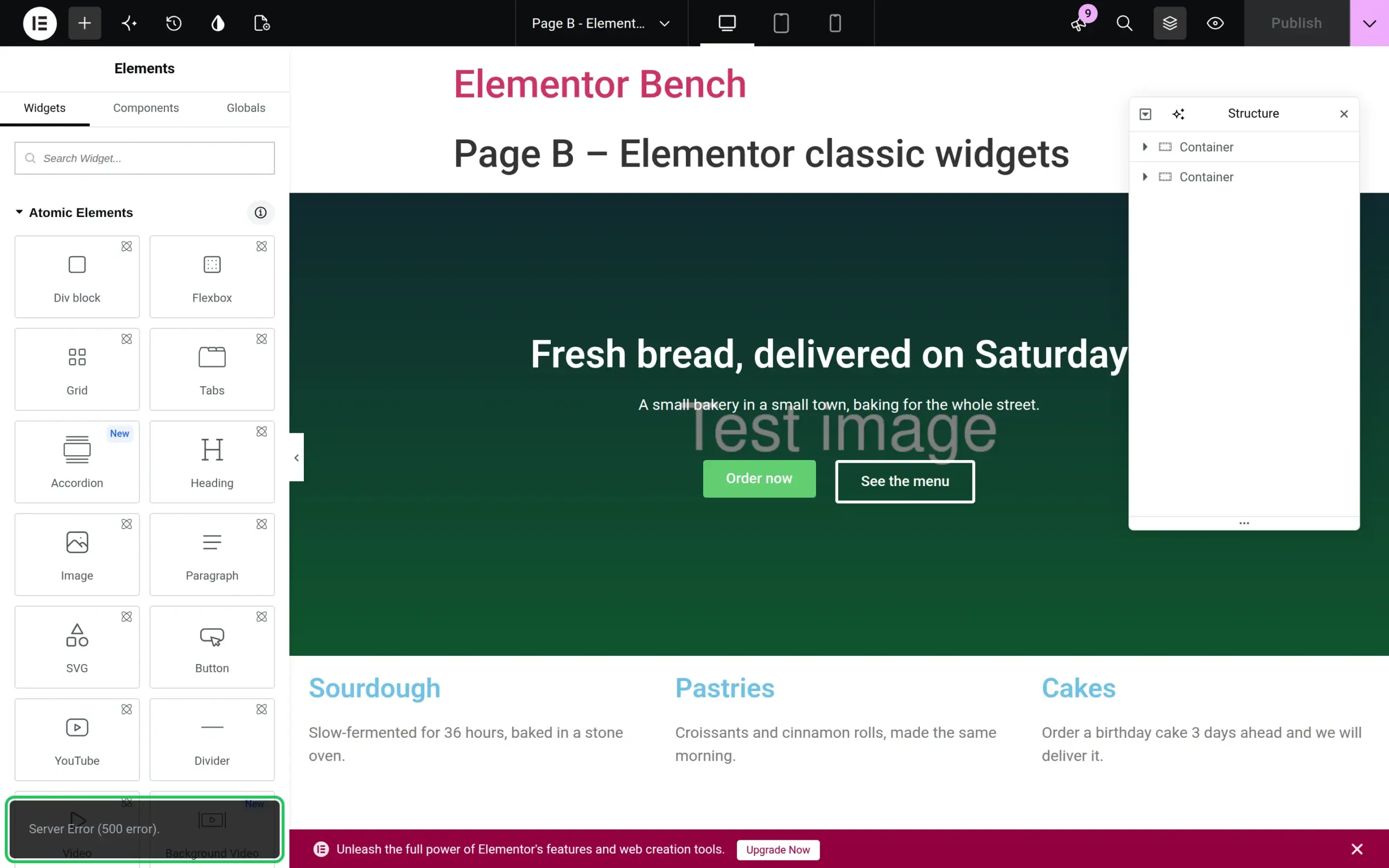
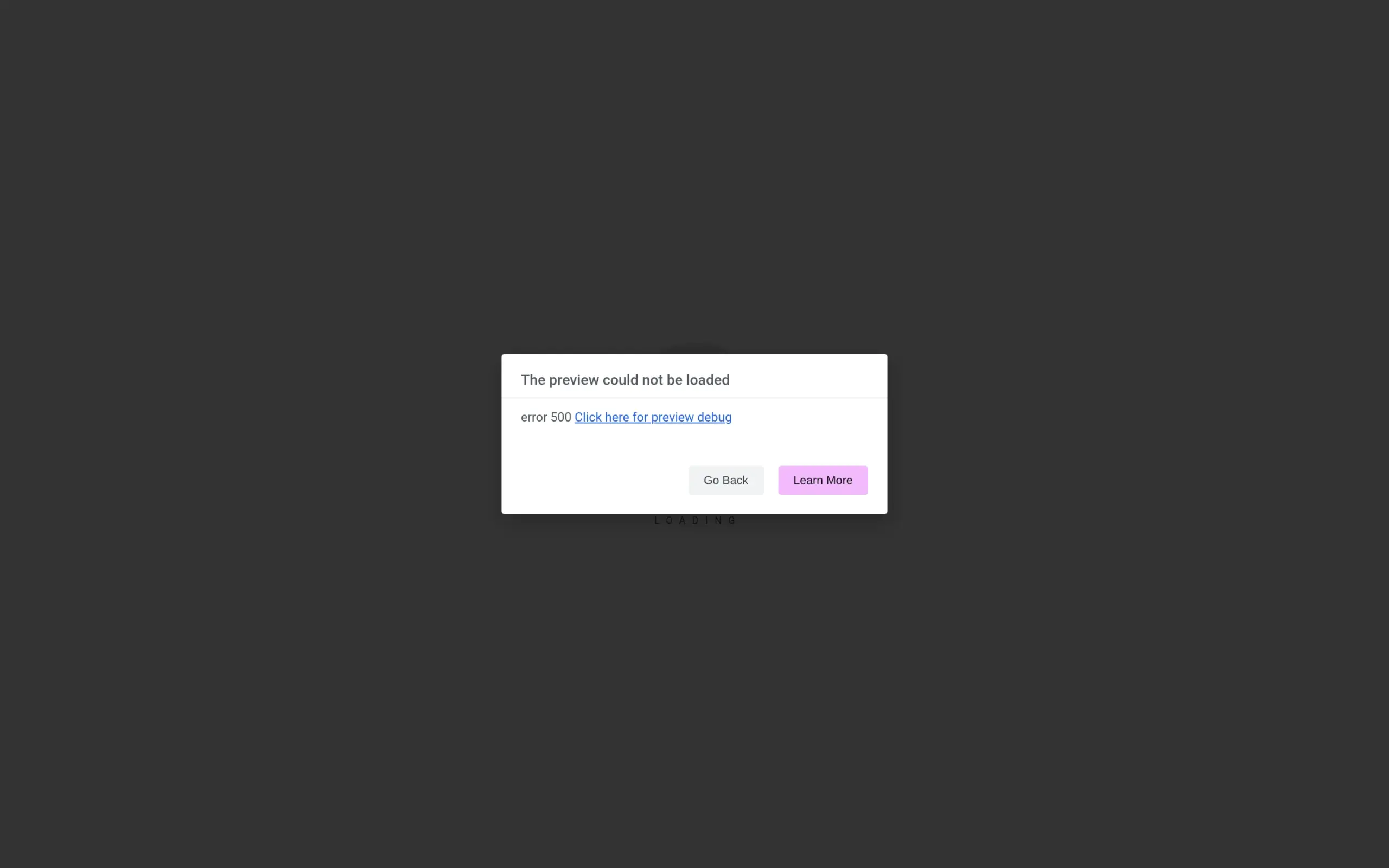
2. “The preview could not be loaded” with “error 500”. The editor opens, but the middle of the screen stays on Loading and this box appears. It means your page itself crashes when Elementor tries to show it, usually because of a plugin or your theme. Go to Fix 2.
3. “There has been a critical error on this website” instead of the editor. The whole Elementor screen is replaced by WordPress’s error page. That’s a 500 too. Fix 2 still applies, and my guide to the WordPress critical error covers the recovery email that comes with this one.
If your whole site shows the error, not just the Elementor editor, start with my WordPress 500 internal server error guide instead.
What causes the Elementor server error 500?
The 3 causes I could actually reproduce were:
- Too many revisions on one page. At 8,006 revisions, saving the page ran out of memory and failed. The editor still opened fine.
- Another plugin crashing during the save. Elementor loads every active plugin when it saves, so one broken plugin breaks the save.
- A plugin (or page) that needs more memory than your host allows. My host-style limit was 128 MB. A plugin needing 150 MB during the save killed it.
I tested on a fresh WordPress 7.1.2 site with Elementor 4.3.5 (by Elementor.com, free version) and the Hello Elementor theme. PHP was set up like a typical shared host: 128 MB memory limit, errors hidden from visitors. The full method is on my how I test page.
Fix 1: Clear out old revisions
Every time you click Update, WordPress keeps a copy of the old version, called a revision. It keeps all of them unless you tell it not to. And every save loads all of a page’s revisions into memory first.
That’s not Elementor’s code, it’s WordPress itself (the save function asks for every revision with no limit). Here’s what that did to one page on my test site:
| Revisions on the page | Memory used by one save | Result |
|---|---|---|
| 0 | 10 MB | Saved in 0.7 s |
| 500 | 16 MB | Saved |
| 5,003 | 96 MB | Saved, but close to the 128 MB limit |
| 8,006 | 128 MB | Server Error (500 error) |
So revisions are a real cause, but only on a page that’s been saved thousands of times, like a homepage you’ve tweaked for years. 500 revisions only took the save from 10 MB to 16 MB, so a normal page isn’t your problem.
How I deleted them (free, no code)
I used WP-Optimize 4.7.0, a free plugin by TeamUpdraft (the UpdraftPlus team). Take a backup first, because deleted revisions don’t come back. My backup plugin roundup compares 6 free ones I restore-tested.
- Install and activate WP-Optimize from Plugins > Add Plugin.
- Open WP-Optimize. A setup screen says “Your site is already faster!” with 3 switches turned on. They aren’t actually on yet. Click Exit setup at the bottom if you only want the revision cleanup, so it doesn’t switch on caching and image compression for you.
- Go to WP-Optimize > Database.
- Find the Clean all post revisions row. It shows how many revisions your site has.
- Click the Run optimization button on that row only.
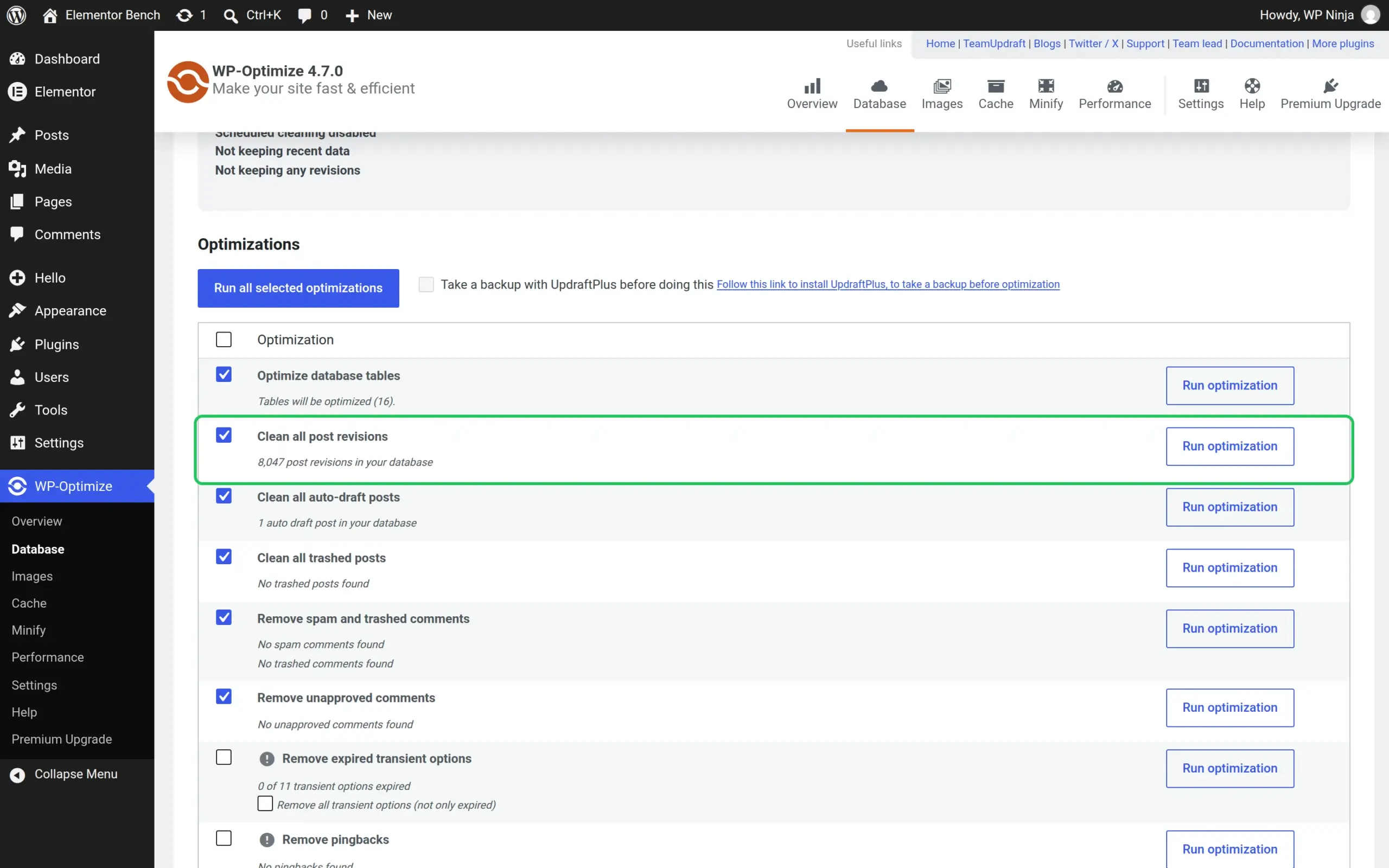
Don’t click the big blue “Run all selected optimizations” button unless you want everything ticked on that list. On my install, 6 rows came ticked by default, including comment cleanup.
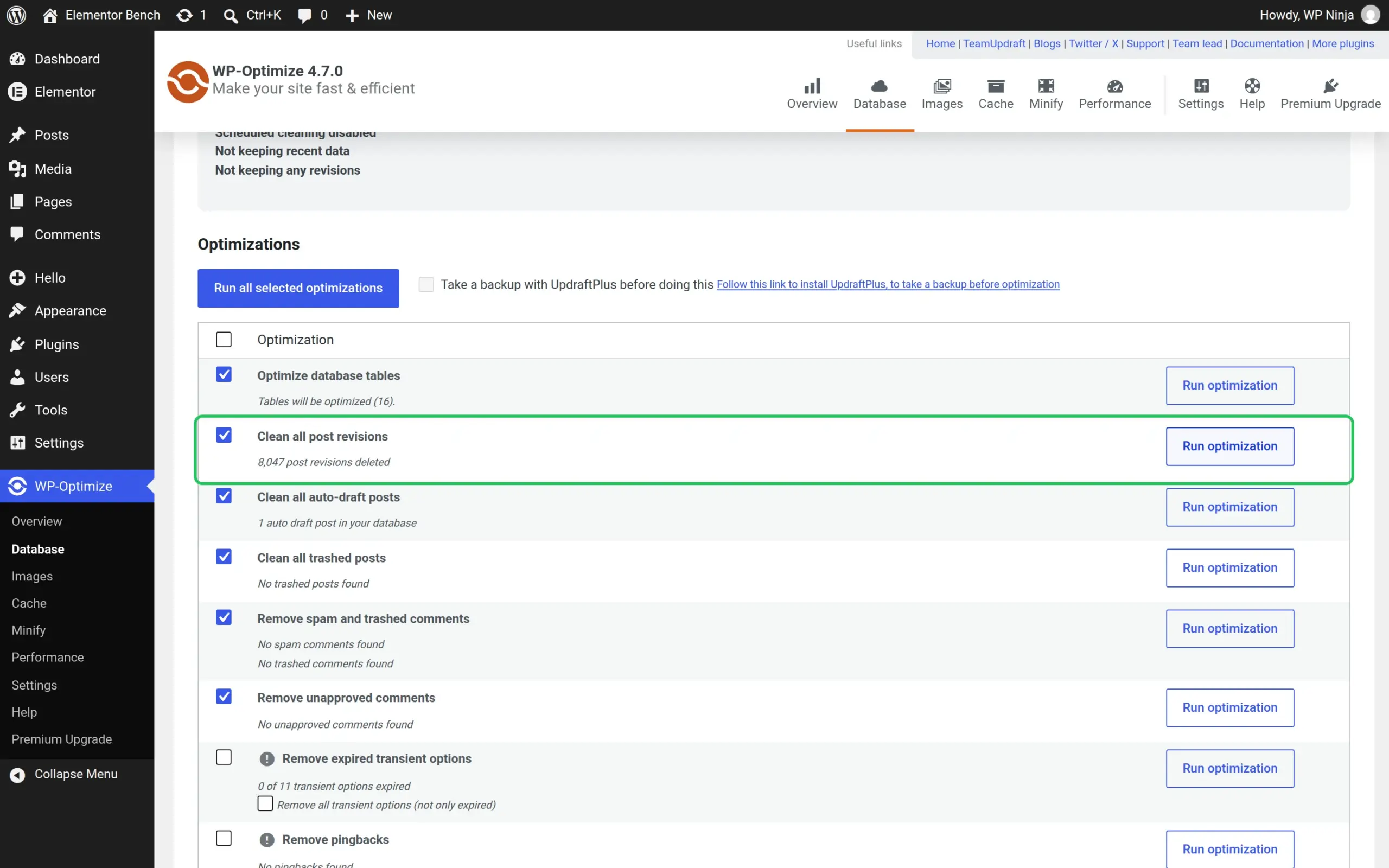
On my site, the cleanup removed 8,047 revisions in 2.9 seconds. The page that crashed at 128 MB saved again straight away, using 10 MB, with no change to any settings.
Stop it happening again
To cap revisions for the future, open wp-config.php in your host’s file manager and add one line above the one that says “That’s all, stop editing!”:
define( 'WP_POST_REVISIONS', 10 );But this line alone did NOT fix my broken page. The save crashed before WordPress got to the clean-up step, and all 8,006 revisions stayed.
With the memory limit also raised, one save did trim them to 10, but it took 27.7 seconds. PHP’s default time limit is 30 seconds, so on a host that keeps the default, that save would time out. Delete the pile with WP-Optimize first, then add the cap.
Fix 2: Find the plugin that crashes the save
Elementor’s save runs with all your other plugins loaded. If one of them has a bug, the save dies with the same “Server Error (500 error).” message. My test plugin crashed only when Elementor saved, and the editor looked completely normal until I clicked Publish.
Elementor has a built-in way to check this, called Safe Mode. It loads the editor with every other plugin and your theme switched off, only for you. Your visitors still see the normal site (I checked: same theme, page loads fine).
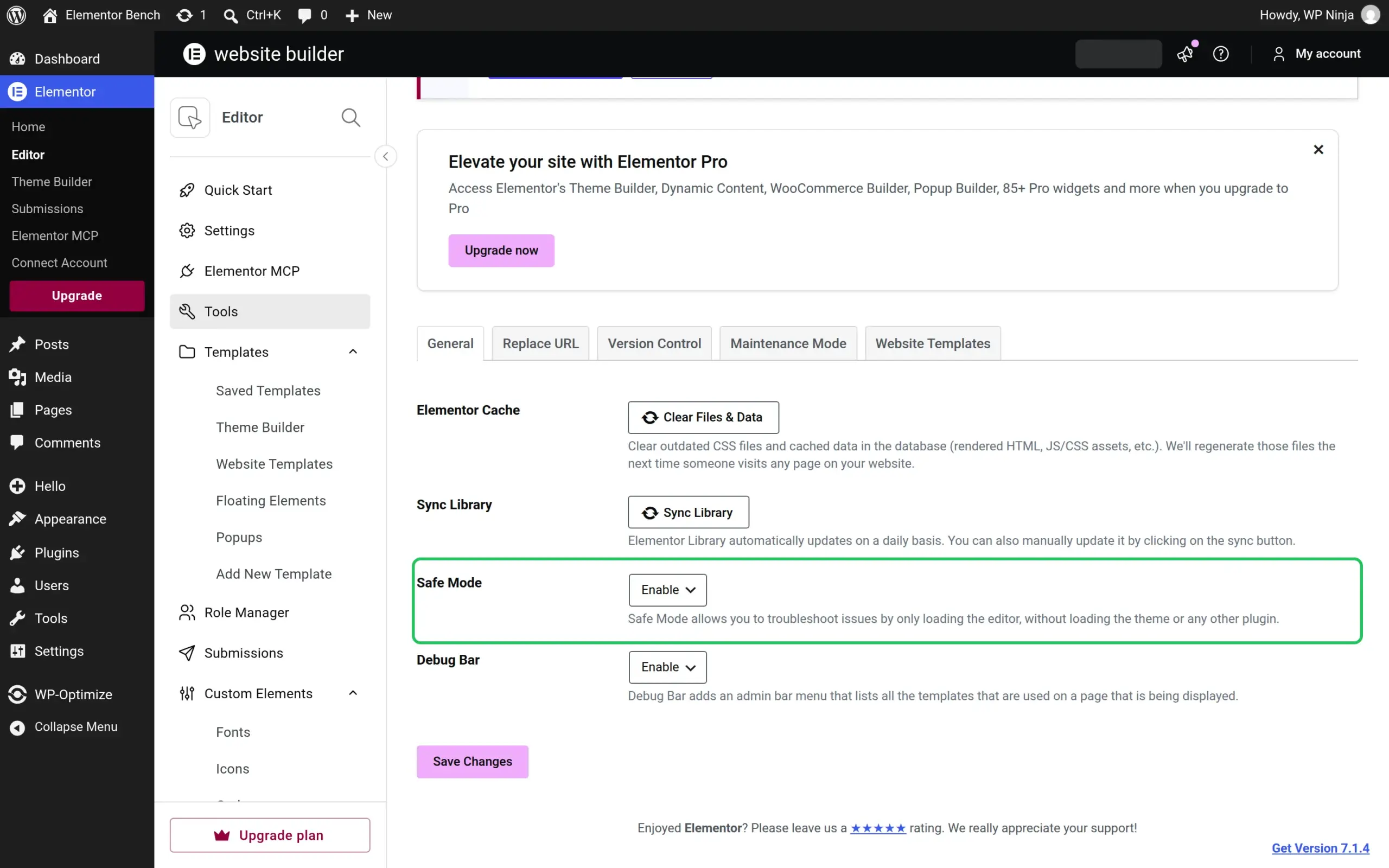
- Go to Elementor > Editor, then click Tools in Elementor’s own menu.
- On the General tab, set Safe Mode to Enable.
- Click Save Changes.
- In the same browser, open your page in Elementor and click Update.
If it saves now, a plugin or your theme was the problem. Elementor even says so in the box that appears.
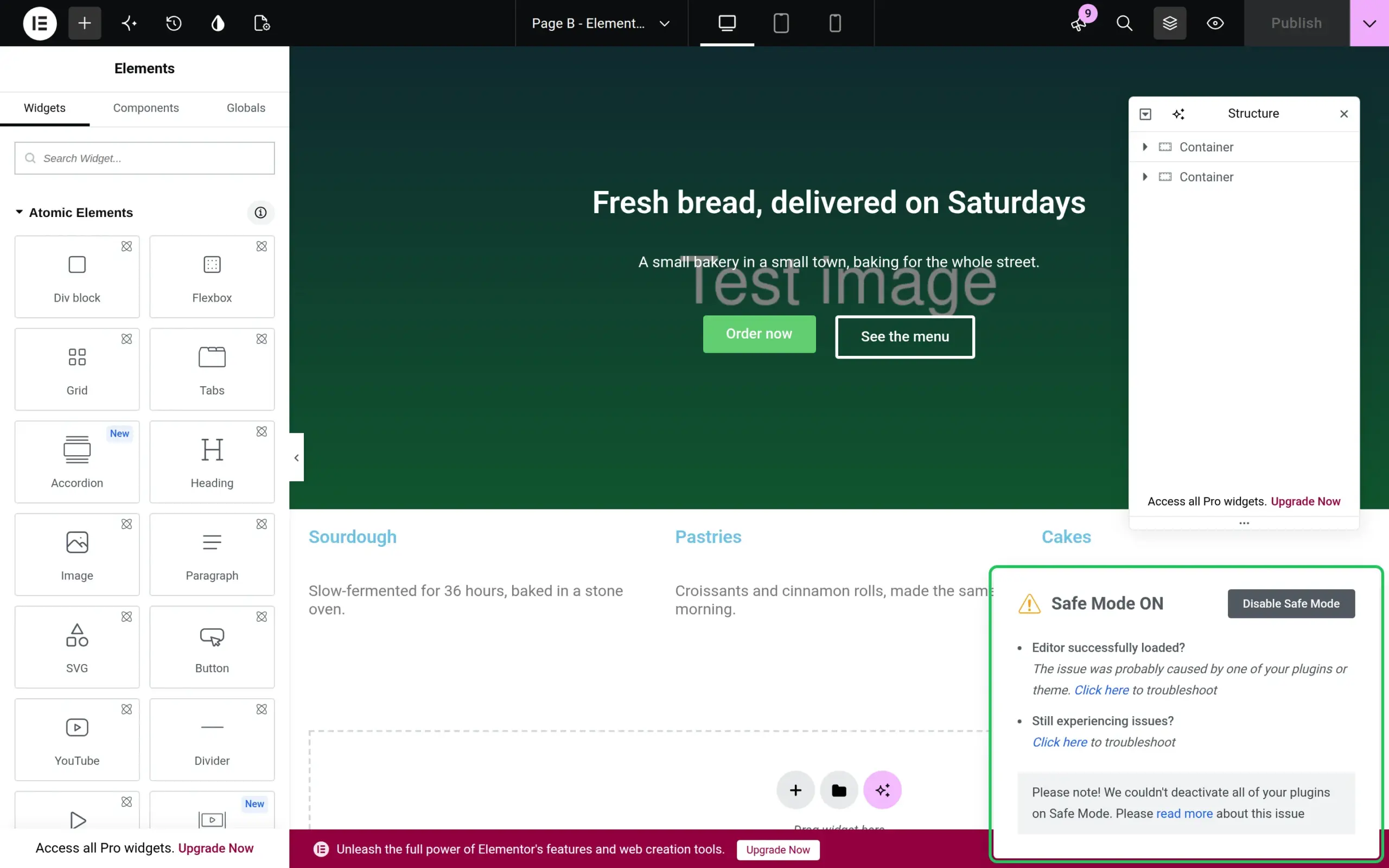
Two catches I hit while testing:
- Use the same browser. Safe Mode only works in the browser where you switched it on, for 1 hour. When I enabled it and then saved from a different browser, the save still crashed.
- Some plugins can’t be switched off. “Must-use” plugins, which some hosts install, keep running. Elementor warns “We couldn’t deactivate all of your plugins on Safe Mode” when that happens.
Once Safe Mode confirms it’s a plugin, turn Safe Mode off again (same setting, Disable). Then go to Plugins and deactivate your other plugins one at a time, trying a save after each one. The one that makes the error go away is your culprit.
Update it, swap it, or ask its developer. My plugin update guide shows how to roll an update back if a recent update caused it.
Don’t wait for WordPress to email you about this one. WordPress’s “technical issue” email only fired once on my site, for the crash that replaced the whole editor screen. The save crashes and the preview crash sent nothing.
Fix 3: Raise the memory limit (but know what it hides)
Elementor doesn’t need 512 MB, whatever some guides say. Its own System Info screen recommends at least 128 MB, with 256 MB preferred. A normal save on my site used 10 MB, and opening the editor used 26 MB.
When memory is the problem, it’s what else runs during the save: a heavy plugin, or the revision pile from Fix 1. And here’s a detail I didn’t expect. WordPress raises the limit to 256 MB on admin screens, but not for the request Elementor uses to save, which stays at your host’s limit (128 MB on my test site).
To raise it, add this line to wp-config.php, above “That’s all, stop editing!”:
define( 'WP_MEMORY_LIMIT', '256M' );On my 8,006-revision page, this line alone made the save work again, using 148 MB. But the revisions were still there and still growing. Treat it as a quick fix while you deal with the real cause, not the fix itself. Some hosts lock the limit, and then only their support can raise it.
How do I see the exact cause?
WordPress can write the real error to a log file. Turn it on by adding these 3 lines to wp-config.php, then click Update in Elementor once to trigger the error:
define( 'WP_DEBUG', true );
define( 'WP_DEBUG_LOG', true );
define( 'WP_DEBUG_DISPLAY', false );
The error lands in wp-content/debug.log, which you can open in your host’s file manager. Look at the line that says “PHP Fatal error”:
- If it names a file inside
wp-content/plugins/, the folder name afterplugins/is the plugin that crashed. On my site it pointed straight at my test plugin, down to the line number. - If it says “Allowed memory size … exhausted” and names a WordPress file (mine said
wp-includes/class-wpdb.php), no plugin is to blame. That’s the revision pile or a huge page. Go back to Fix 1.
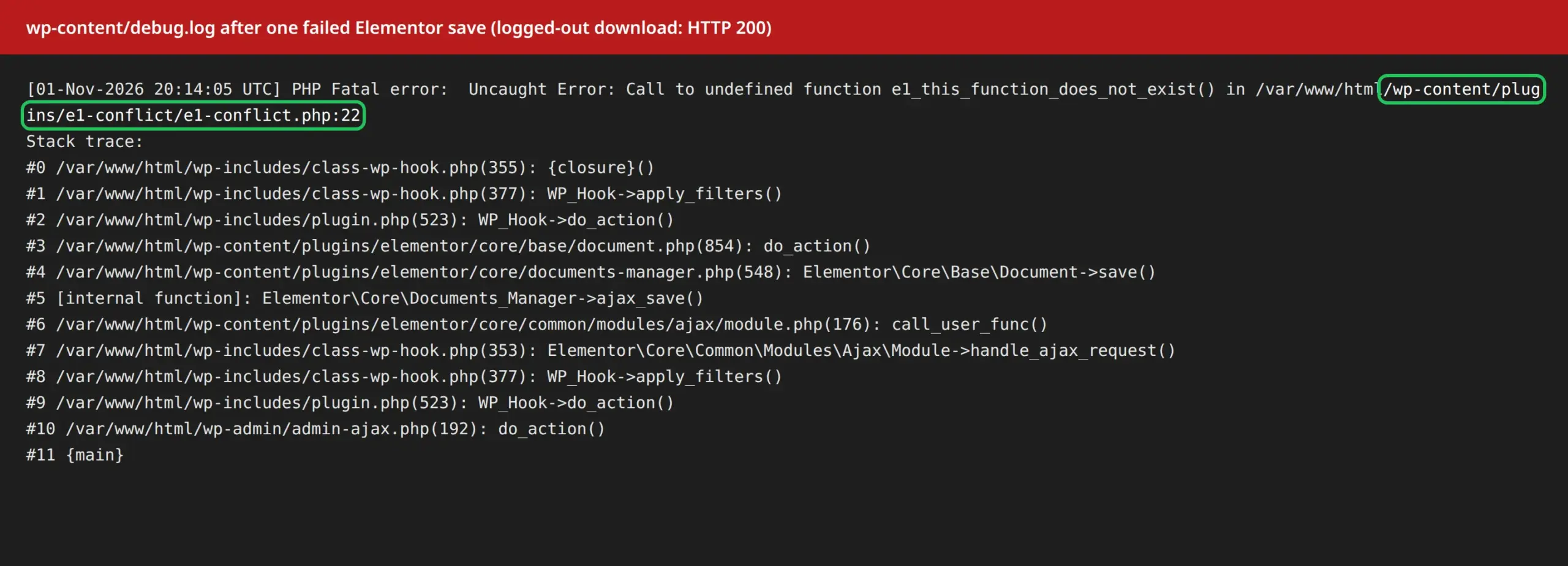
When you’re done, delete those 3 lines and the debug.log file. On my test site, anyone could download that log just by typing its address. It contains your server’s folder paths.
When these fixes won’t help
If your whole site shows the 500, the cause sits outside Elementor: a broken .htaccess file on an Apache server, or a plugin crashing every page. My white screen guide and the 500 guide linked at the top cover those.
I didn’t test server security rules (like a firewall blocking Elementor’s save request) or a host-locked memory limit. If Safe Mode doesn’t fix it, the debug log shows nothing and your revisions are low, send your host the time of the failed save and ask them to check their error log for it.
FAQs
Does Elementor need 512 MB of memory?
No. Elementor’s own System Info screen recommends at least 128 MB and prefers 256 MB. On my test site a save used 10 MB and the editor used 26 MB, so the memory goes to other plugins or a big revision pile, not to Elementor itself.
Will I lose my page if I get the server error 500?
No. The failed save just doesn’t go through, so the version you published before stays live and visitors don’t see the error. Keep the editor tab open while you fix it, because your newest changes aren’t stored on the server yet.
Does Elementor Safe Mode affect my visitors?
No. Safe Mode only changes the editor for the browser that switched it on, and it turns itself off for that browser after 1 hour. On my test site the public page loaded with the normal theme the whole time.
Is it safe to delete post revisions?
Yes, as long as you don’t need to roll a page back to an old version. Revisions are only backup copies of past edits. Take a full backup first, since deleted revisions can’t be restored.
Why does Elementor say “Server Error (500 error)” only on some pages?
Because the cause is often tied to one page. The page that crashed on my test site had 8,006 revisions, while every other page saved normally. If only one page fails and it’s one you’ve edited for years, start with Fix 1.
If you’re still deciding whether Elementor is the right builder for your site, my Elementor vs Gutenberg test and Elementor SEO test measure what it adds to every page.