Elementor vs Gutenberg (2026): I Built the Same Page 3 Ways and Measured It
Short answer on Elementor vs Gutenberg: for a blog or a simple business site, use Gutenberg (the block editor that comes with WordPress). It’s free, it’s already installed, and it was the lighter option on every test I ran. Pick Elementor when you want to design pages visually with more control, and go in knowing it adds weight even to pages you never build with it.
I didn’t want to repeat the usual “Elementor has more widgets, Gutenberg is faster” lines, so I set up a brand-new WordPress site and built the same 2 pages 3 ways: in the block editor, in Elementor with its classic widgets, and in Elementor’s new Atomic editor. Then I measured what each one costs your visitors and what it costs you in the dashboard.
Some results surprised me. The newest Elementor can build a page that’s lighter than its old version by a factor of 2.5. But just having Elementor switched on made a plain block post 5 times heavier on Elementor’s own theme.
How I tested this
Everything below came from one fresh local test site, measured on 28 October 2026.
| WordPress | 7.1.2, stock install, no other plugins active |
| PHP | 8.3 |
| Elementor | 4.3.5 (free, from wordpress.org), released 13 October 2026 |
| Elementor Pro | not installed |
| Themes | Hello Elementor 3.5.1 (Elementor’s own theme) and Twenty Twenty-Five 1.5 (the WordPress default) |
| Test content | Post A: a blog post with a heading, 4 paragraphs, an image, a 3-item list and a quote. Page B: a landing section with a full-width hero (background image, big heading, text, 2 buttons) and 3 columns underneath |
I built each page 3 times: once with blocks, once with Elementor’s classic widgets (Container, Heading, Text Editor, Image, Button), and once with Elementor’s new Atomic elements (Flexbox, Heading, Paragraph, Image, Button). I built the Elementor pages with Elementor’s own page-building tool, then opened and saved each one in the Elementor editor so the stored page is exactly what the editor saves. I activated, deactivated and deleted Elementor through the Plugins screen in a browser, the way you would. The shared method (clean baseline, restoring between tests, what gets measured) is on my how I test page.
Limits of this test: it’s one local site with no real traffic, so the timings show how the options compare to each other, not how fast they’ll feel on your host. I tested the free Elementor only. Pro adds its own widgets and files, and I’ll measure those in a separate review. I didn’t test caching or “optimization” plugins, which can change these numbers a lot.
What’s the difference between Elementor and Gutenberg?
Gutenberg is the editor built into WordPress. You build posts and pages out of blocks (paragraph, image, columns, buttons), and it’s what you see when you click Add Post on any WordPress site.
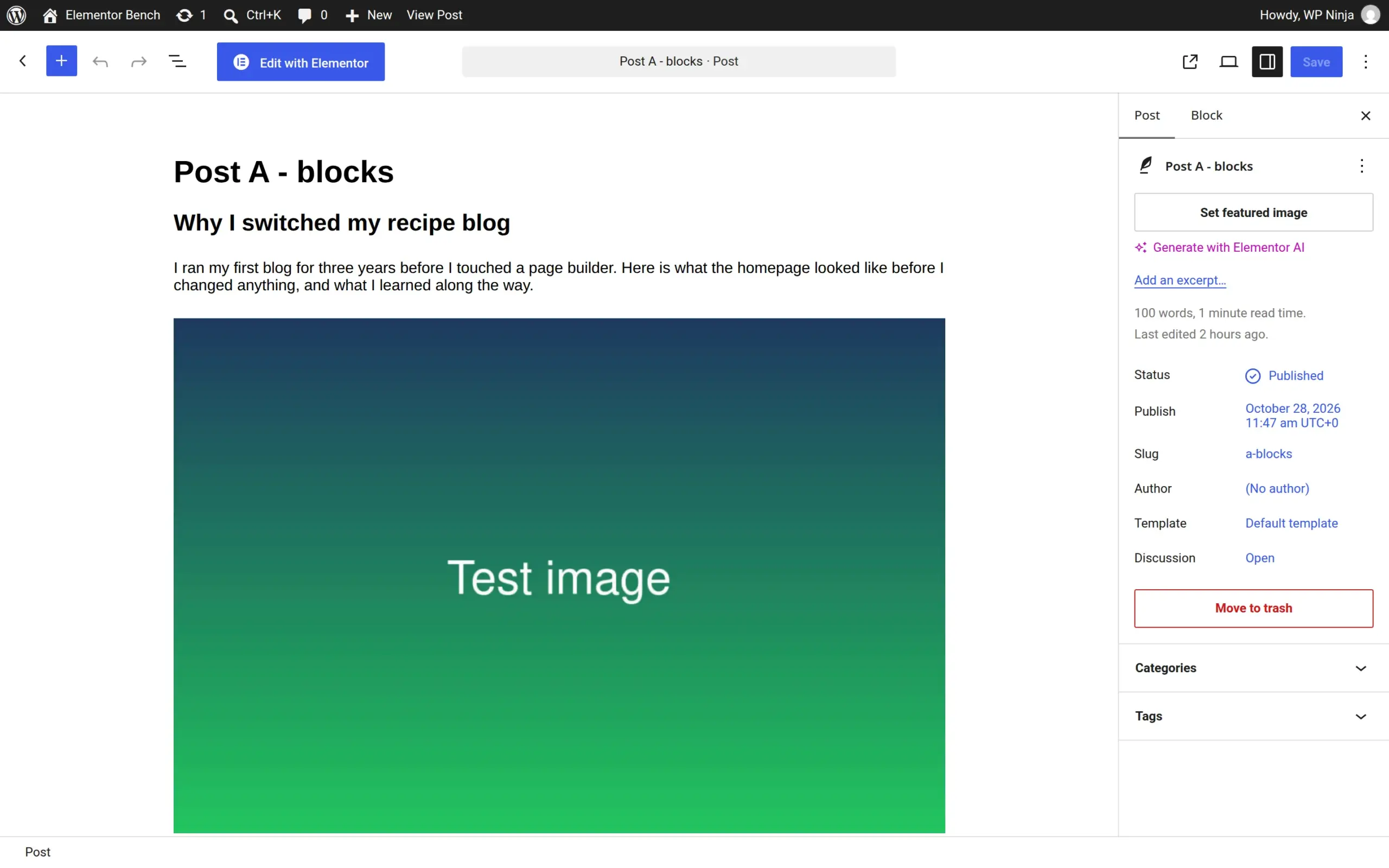
Elementor is a free plugin by Elementor Ltd that replaces that screen with its own drag-and-drop page builder. It has 10 million+ active installs on wordpress.org and a 4.5 out of 5 rating from 7,321 reviews. You drag widgets onto a live preview of your page and style each one from a side panel.
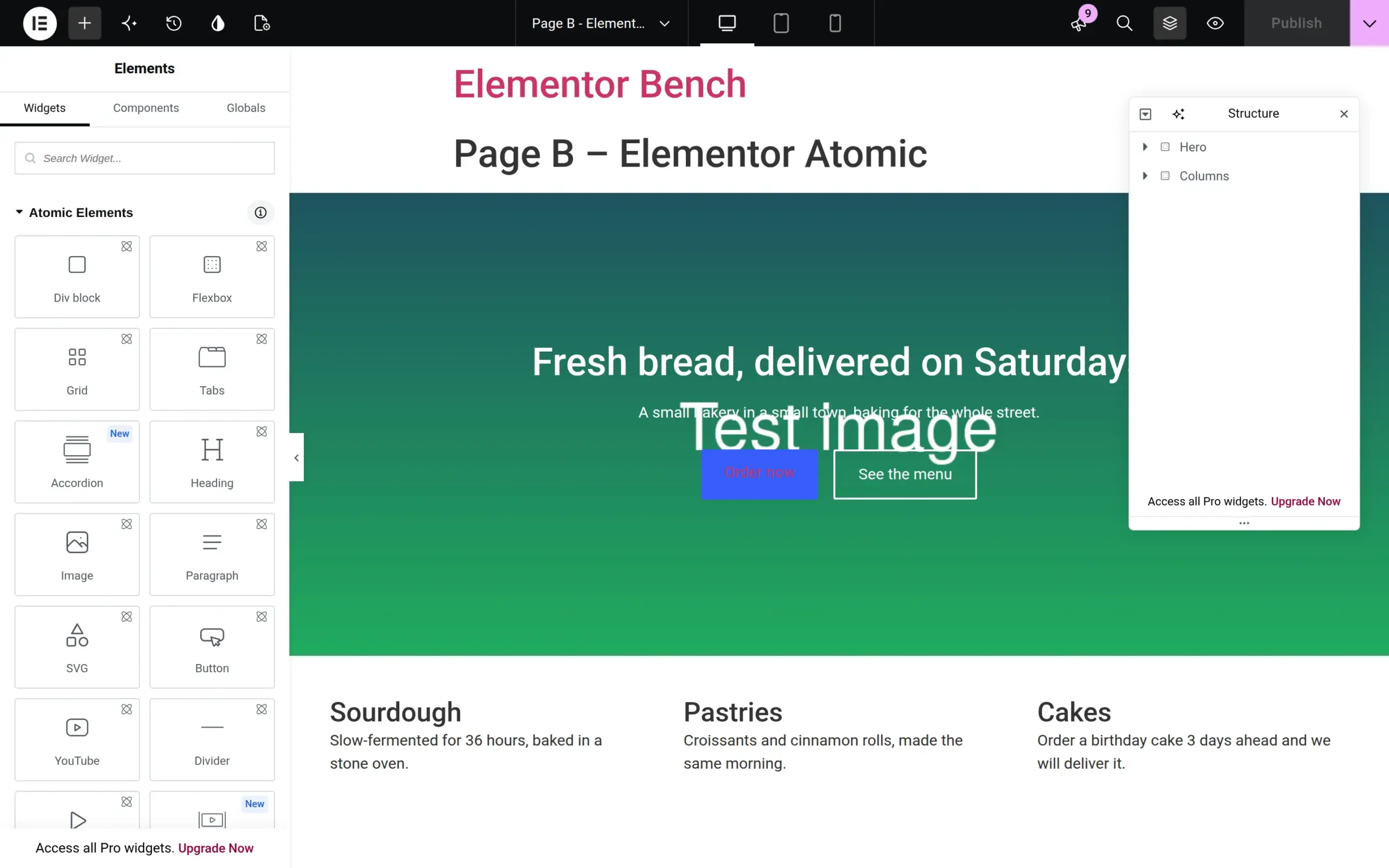
So the real question isn’t “which editor is better”. It’s whether you need Elementor’s visual design tools enough to add a second editor (and its files) on top of the one WordPress already gives you.
I’ve lived on both sides of this. I make a free Elementor add-on, AnWP Post Grid for Elementor (20,000+ active installs), so I know Elementor’s insides well. And this site is built with blocks.
Quick comparison table
| Gutenberg (block editor) | Elementor (free) | |
|---|---|---|
| Cost | Free, built into WordPress | Free plugin. Pro plans start from $60/year (Elementor’s pricing page, checked 28 Oct 2026) |
| Setup | Nothing to install | Plugin + a 4-step setup wizard that installs its Hello theme |
| Editing | Blocks in a document-style editor | Drag-and-drop on a live preview |
| Design control | Good, depends on your theme | More: spacing, backgrounds and responsive settings on every element |
| My landing page, downloaded by a visitor | 14 KB (Hello theme, no Elementor) to 85 KB (Twenty Twenty-Five) | 65 KB (Atomic) to 240 KB (classic widgets) |
| Opening the editor (local test) | 2.05 s | 3.1-3.6 s |
| If you switch it off | Nothing to switch off | Your text stays, all the design goes |
Downloads are compressed (gzip) HTML, CSS, JavaScript and fonts, without the image, which is the same 41 KB file on every version.
What happens when you install Elementor?
Elementor opens a 4-step setup wizard the moment you activate it: Elementor Account, Hello Theme, Choose Features, Good to Go. Here’s what each step actually does.
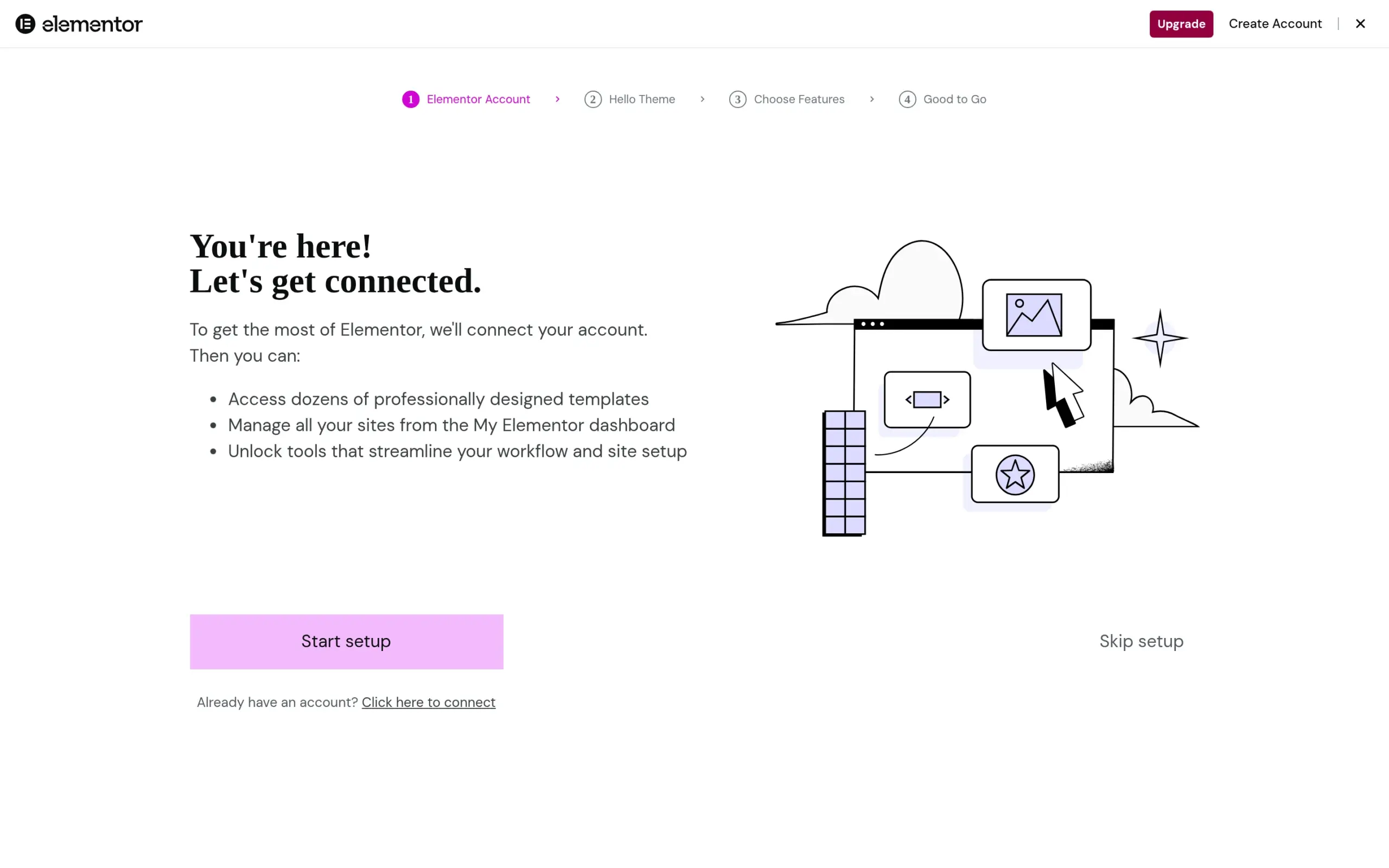
- Elementor Account. It asks you to create or connect an account. You can click Skip setup and keep going. Nothing on my site needed an account.
- Hello Theme. “Continue with Hello Theme” installs and activates Elementor’s Hello theme, replacing whatever theme you had. Skip keeps your theme.
- Choose Features. A list of 8 features, all of them Pro: Theme Builder, WooCommerce Builder, Form Builder, Dynamic Content, Popup Builder, Custom Code & CSS, Motion Effects and Notes. The only button is Upgrade Now, plus a small Skip link.
- Good to Go. Start from a blank page or pick a template.
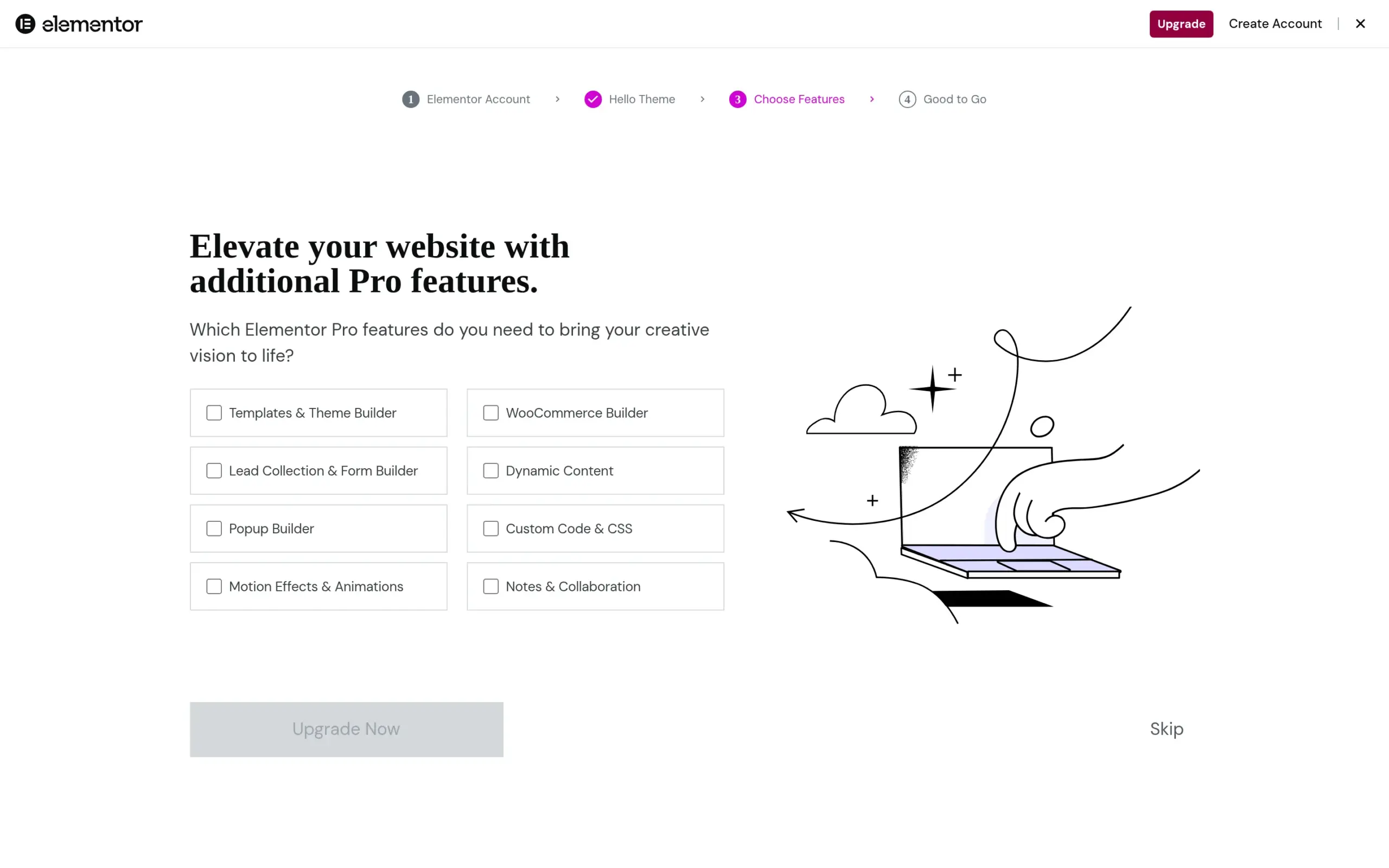
None of this is a problem, and you can skip every step. But it’s worth knowing that step 2 changes your theme. If you’re adding Elementor to a site that already looks the way you want, click Skip there.
Behind the scenes, activation added 1 database table, about 50 settings and a daily “tracker” task. That task only sends usage data if you opt in, which the wizard never asked me to do, so nothing was sent.
Which one makes a lighter page for your visitors?
The block editor did, on both themes. But the newest Elementor came much closer than I expected, and the theme you pick matters as much as the editor.
Here’s the landing page built 3 ways. They look nearly the same, so the comparison is fair.

And here’s what a visitor downloads for each version:
| Page | Hello theme, Elementor off | Hello + Elementor | Twenty Twenty-Five + Elementor |
|---|---|---|---|
| Landing page, blocks | 14 KB | 83 KB | 86 KB |
| Landing page, Elementor classic widgets | – | 168 KB | 240 KB |
| Landing page, Elementor Atomic | – | 65 KB | 94 KB |
| Blog post, blocks | 15 KB | 85 KB | 90 KB |
| Blog post, Elementor classic widgets | – | 170 KB | 245 KB |
| Blog post, Elementor Atomic | – | 153 KB | 228 KB |
Compressed bytes of HTML, CSS, JavaScript and fonts, logged-out visitor, no page cache, image not included.
The landing page in more detail, on the Hello theme:
| Landing page | Files the browser asks for | Page elements | JavaScript | CSS |
|---|---|---|---|---|
| Blocks, Elementor off | 5 | 67 | 0 KB | 19 KB in 3 files |
| Blocks, Elementor on | 12 | 74 | 2 KB | 339 KB in 8 files |
| Elementor classic widgets | 24 | 100 | 303 KB in 10 files | 206 KB in 11 files |
| Elementor Atomic | 14 | 71 | 2 KB | 202 KB in 10 files |
Uncompressed sizes, as the browser has to read them.
Elementor’s new Atomic editor builds pages 2.5 times lighter
My Atomic landing page was 65 KB against 168 KB for the same page built with classic widgets. Almost all of the difference is JavaScript. Any classic Elementor widget loads jQuery, jQuery Migrate, jQuery UI and Elementor’s own front-end scripts, about 300 KB before compression. A page built only from Atomic elements loaded none of them.
The Atomic page also had fewer page elements (71 against 100), which is what Elementor means by “single-div wrappers”. So this time the marketing line on Elementor’s settings page holds up.
But one classic widget brings all of that weight back
Atomic in Elementor 4.3.5 has no list element and no quote element. The list element exists in the code, but it’s switched off behind an unfinished feature, and the Atomic Paragraph can only be a paragraph. So to put a bulleted list on my blog post, I had to use the classic Text Editor widget, which is what you’d do too.
That one widget pulled in the whole jQuery set again. My Atomic blog post came out at 153 KB, barely lighter than the classic version at 170 KB.
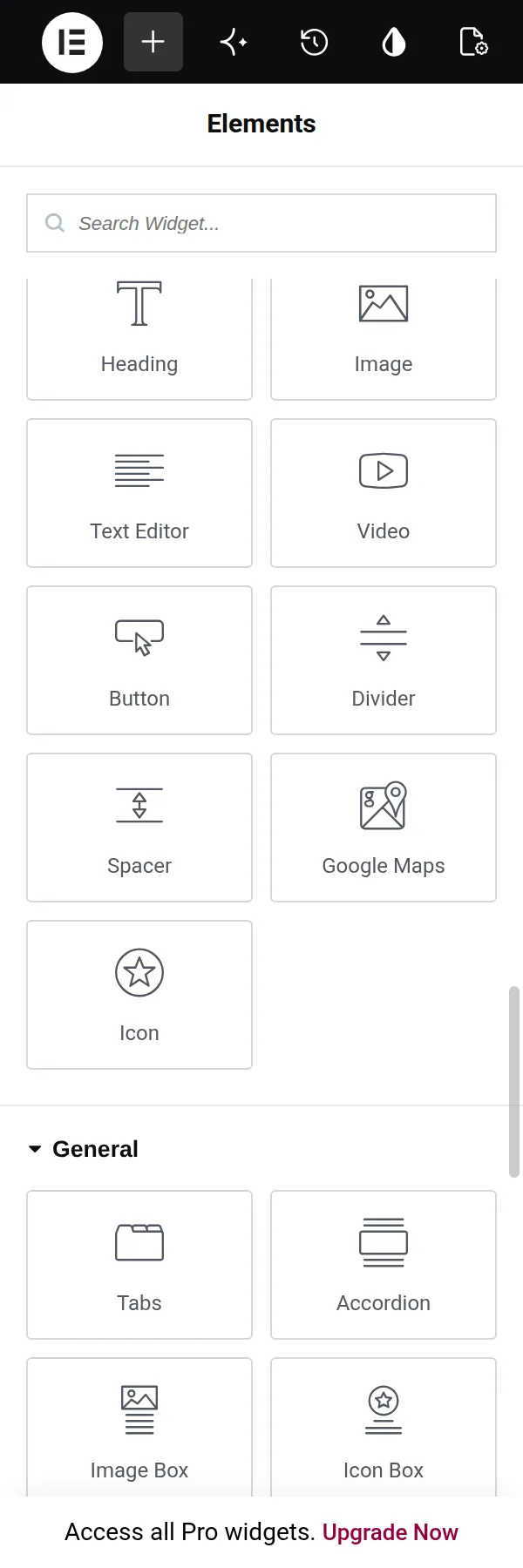
The good news is that the classic widgets haven’t gone anywhere. On a new install, Elementor shows 15 Atomic elements at the top of the panel, then 9 Basic and 21 General classic widgets underneath. Heading, Image, Button and 5 others appear twice, once in each set. If you care about page weight, pick the Atomic one whenever you have the choice.
A background image loads video code you didn’t ask for
My classic Elementor hero had a plain background image. Elementor still loaded its background-video and background-slideshow scripts (48 KB) on that page. There was no video and no slideshow.
Does Elementor slow down your site even when you’re not using it?
Yes, on the Hello theme. I measured my block post with Elementor off and on, without touching the post.
| Same block post, Hello theme | Downloaded | Files | Server response |
|---|---|---|---|
| Elementor off | 15 KB | 7 | 35 ms |
| Elementor on | 85 KB | 14 | 59 ms |
Server response is the time until the first byte arrives, middle value of 15 requests on my local server.
Three things got added to a page Elementor had nothing to do with:
- Google Fonts. Elementor’s default “kit” sets Roboto and Roboto Slab as global fonts, and loads them on every page, in all 18 weights each (about 123 KB of font CSS plus a font file), from Google’s servers.
- Elementor’s front-end stylesheet (55 KB) on every page.
- WordPress’s full block stylesheet (141 KB) instead of the small pieces it normally loads. On WordPress 6.9 and later, Elementor switches off a WordPress feature that lets classic themes like Hello load only the CSS of the blocks a page actually uses. I found the line in Elementor’s code: it does this on every page, Elementor-built or not.
On Twenty Twenty-Five, the default block theme, Elementor added half a kilobyte to my block pages. Block themes load block styles a different way, so the third problem doesn’t happen, and the theme’s own font is already in the page.
So if you want Elementor for 2 or 3 landing pages and blocks for your blog, a block theme like Twenty Twenty-Five keeps your blog posts light. There’s more on picking one in my guide to choosing your first WordPress theme.
Which editor opens faster?
The block editor, by about a second. And Elementor makes the block editor slower too.
| Screen | Typical time (middle of 5) | Files | Downloaded (uncompressed) |
|---|---|---|---|
| Dashboard, Elementor off | 0.82 s | 89 | 4.9 MB |
| Dashboard, Elementor on | 1.04 s | 120 | 7.8 MB |
| Block editor, Elementor off | 2.05 s | 148 | 15.0 MB |
| Block editor, Elementor on | 2.92 s | 214 | 26.4 MB |
| Elementor editor, classic widget page | 3.06-3.59 s | 364-366 | 20.5 MB |
| Elementor editor, Atomic page | 3.14-3.58 s | 360-361 | 20.2 MB |
Logged in, 5 cold loads each with an empty browser cache, local test server. The times show the gap between the editors, not what you’ll see on your host.
The Elementor editor asked for over 360 files, 146 of them stylesheets, and its main page alone was 2.6 MB. Atomic didn’t make the editor itself any lighter.
Elementor adds 37 files to the block editor
With Elementor active, opening an ordinary block post took 0.9 s longer and downloaded 11 MB more. Elementor adds 37 of its own files to the block editor, 5.7 MB in total, and 28 of them load twice (once for the editor, once for the editing area inside it).

Some of that is the Edit with Elementor button. But most of the weight is Elementor AI (a “Generate with Elementor AI” link even shows up under the featured image), its MCP tools for AI assistants, its icon library and its import/export code. If you write your blog posts in the block editor, you load all of it every time you open one.
Is Elementor or Gutenberg better for page speed scores?
Gutenberg, unless you build Elementor pages only from Atomic elements. The numbers above are what speed tests react to: how much a visitor downloads, how many files, and how much JavaScript the browser has to run.
A smaller page doesn’t guarantee a better ranking, and the real causes of a slow WordPress site are usually hosting, images and heavy plugins. But if speed matters to you, these 3 settings and habits made the biggest difference in my test:
- Build with Atomic elements, and avoid classic widgets where an Atomic one exists.
- Turn off Google Fonts, or set your own fonts (see the next section).
- Use a block theme if most of your site is blog posts.
What do Elementor’s Google Fonts settings actually do?
“Load Google Fonts Locally” stops the requests to Google but saves no weight. “Google Fonts: Disable” is the one that makes pages lighter.
Elementor has 2 font switches under Elementor > Settings:


| Setting | What changed on my landing page |
|---|---|
| Default (Google Fonts on, from Google) | 316 KB uncompressed, fonts from fonts.googleapis.com |
| Load Google Fonts Locally: Enable | 319 KB, the same font files served from your own site |
| Google Fonts: Disable | 150 KB, no font files at all |
Atomic landing page on the Hello theme, uncompressed. Disabling saved about 166 KB on every page I tested.
Loading fonts locally is still a good idea if you’re in the EU, because it stops your visitors’ browsers from contacting Google. It downloaded 25 font files (796 KB) to my site. With Google Fonts disabled, my text fell back to the theme’s font, so set your own fonts in Site Settings before you flip it.
One small quirk: once fonts have been downloaded locally, turning the setting back off doesn’t switch back to Google. Elementor keeps using the local copies, and “Clear Files & Data” doesn’t remove them. It’s harmless, just confusing if you’re testing.
What happens to your pages if you stop using Elementor?
Your words survive, your design doesn’t. And with Atomic, there’s a second switch that can make pages disappear completely.
Turning off the Atomic editor hides every Atomic page
Elementor lets you turn the new editor off under Elementor > Settings > Atomic Editor. I wanted to measure the classic version on its own, so I clicked Deactivate.
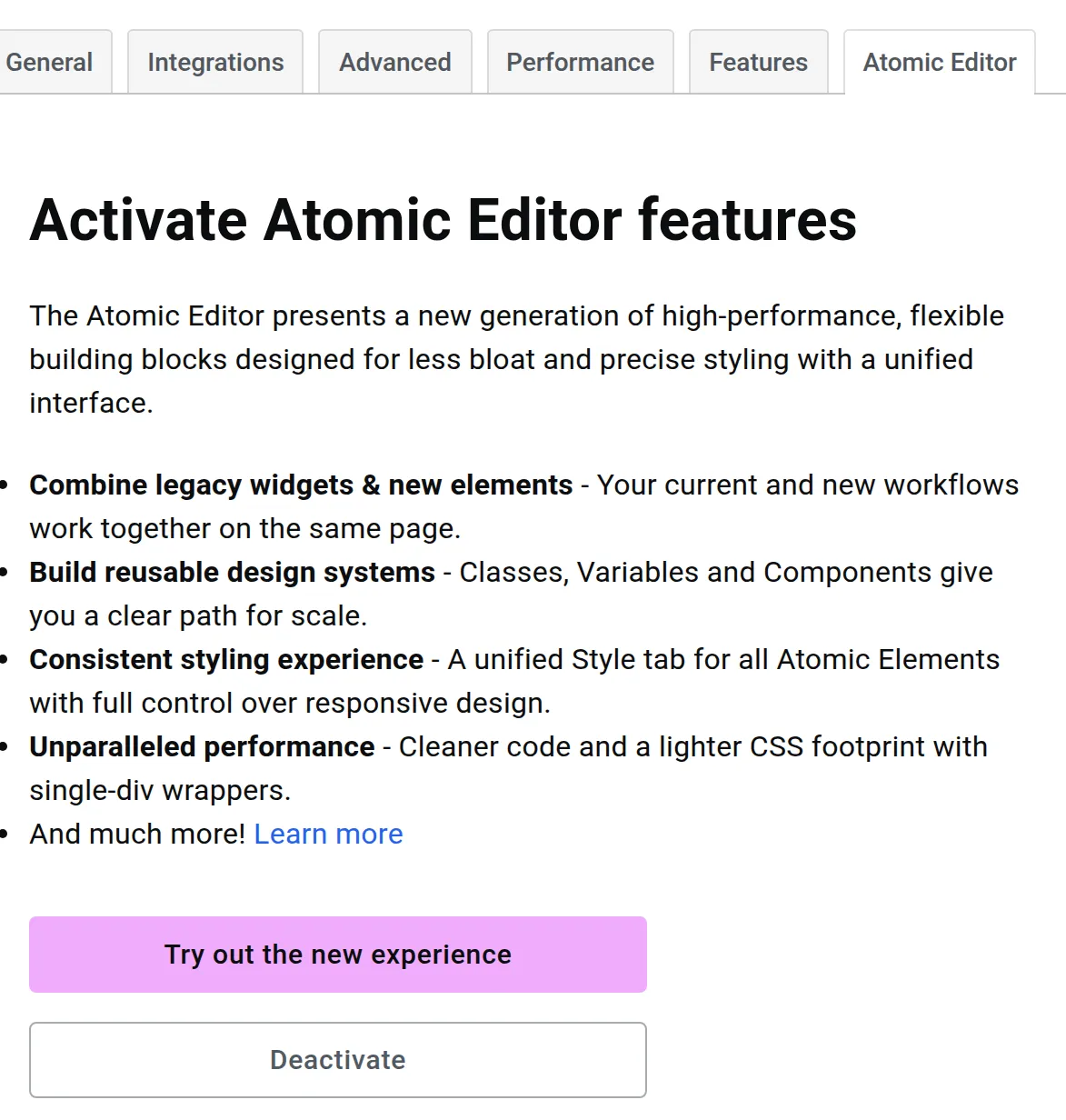
Elementor showed a clear warning first:
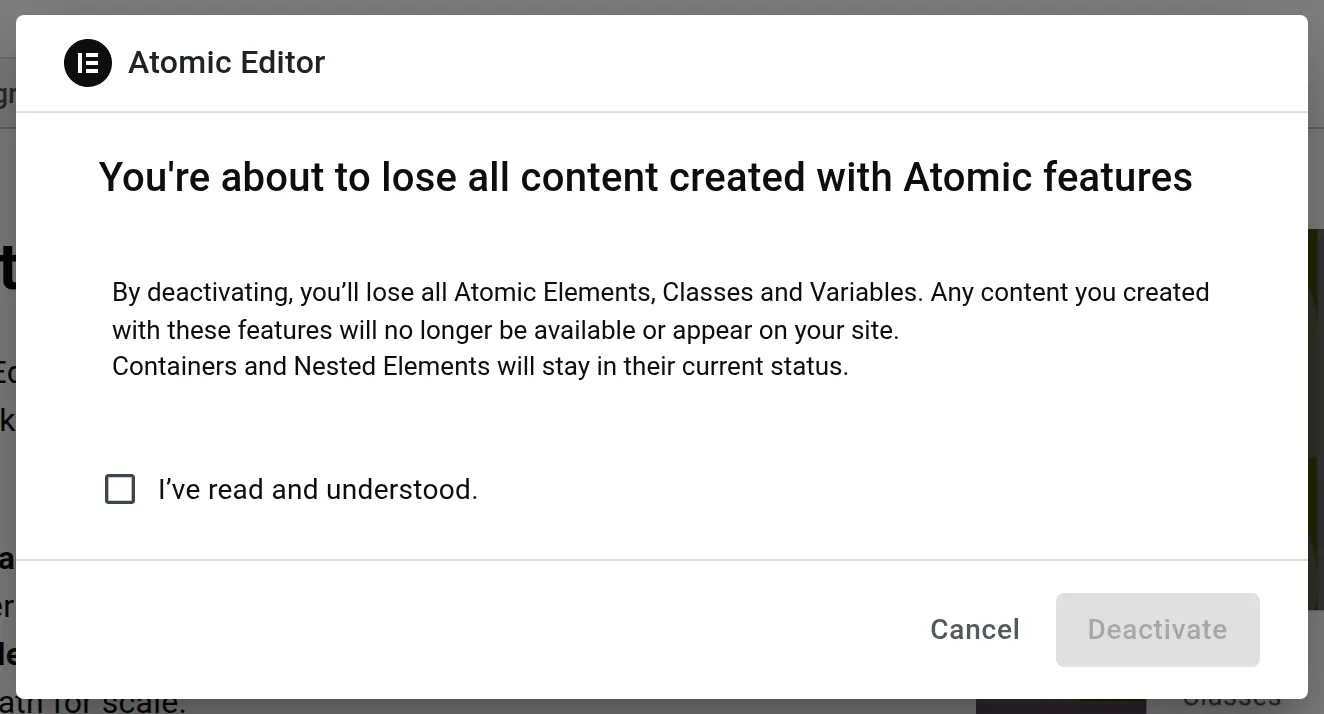
It meant it. With the Atomic editor off, both of my Atomic pages showed only their titles to visitors. Even the classic Text Editor widgets inside the Atomic layout disappeared, because they sat inside an Atomic container.
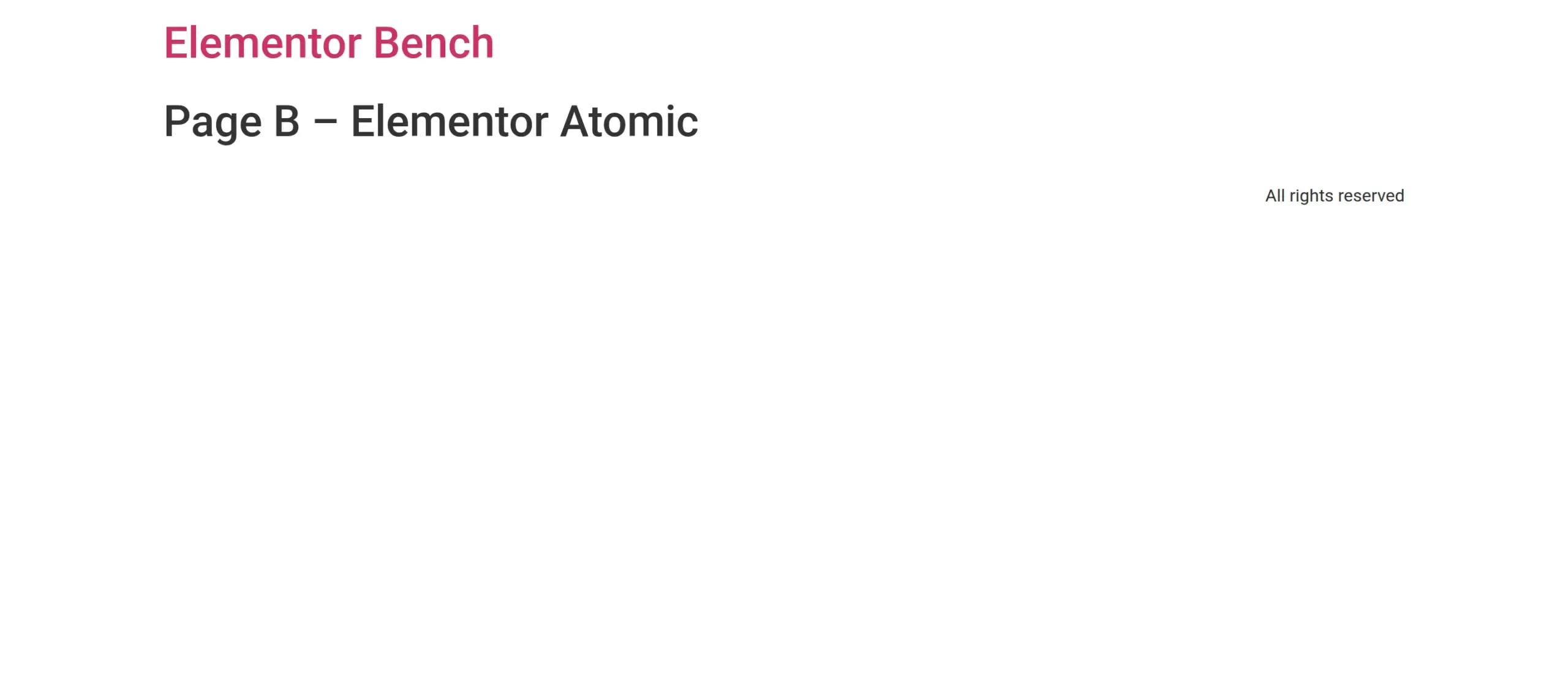
The content was still in the database, and turning the Atomic editor back on (“Activate the new experience”) brought both pages back exactly as they were. So it hides your pages rather than deleting them. But if your whole site is Atomic, never click that button on a live site.
Deactivating Elementor keeps your text and loses the design
Deactivating Elementor first asks why you’re leaving (you can click Skip & Deactivate).
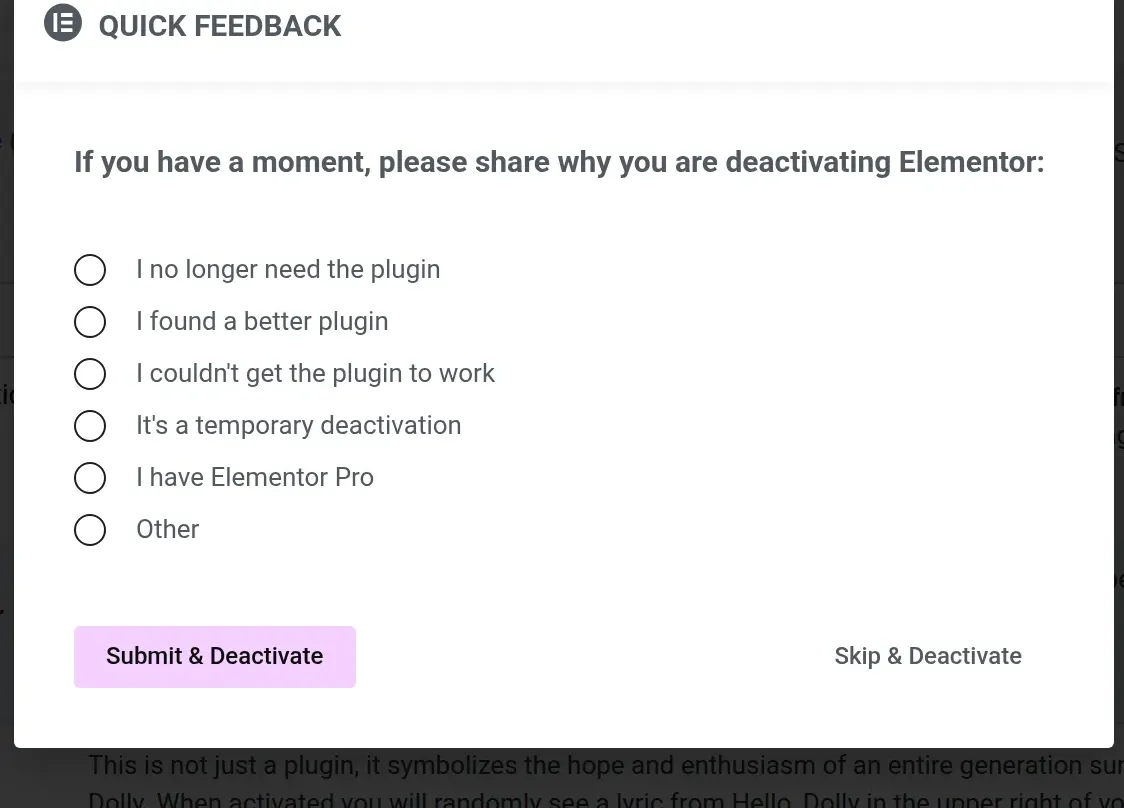
Every Elementor page kept its words. Elementor quietly saves a plain copy of your text into the normal WordPress content each time you save, and that’s what shows up. Headings, paragraphs, the list, the quote and the image were all there, on both the classic and the Atomic pages.
But nothing else was. No hero background, no columns, no button styling. My buttons became plain links.

Opening the same page in the block editor gave me plain editable text, 54 words. You can rebuild it with blocks, but you are rebuilding it.
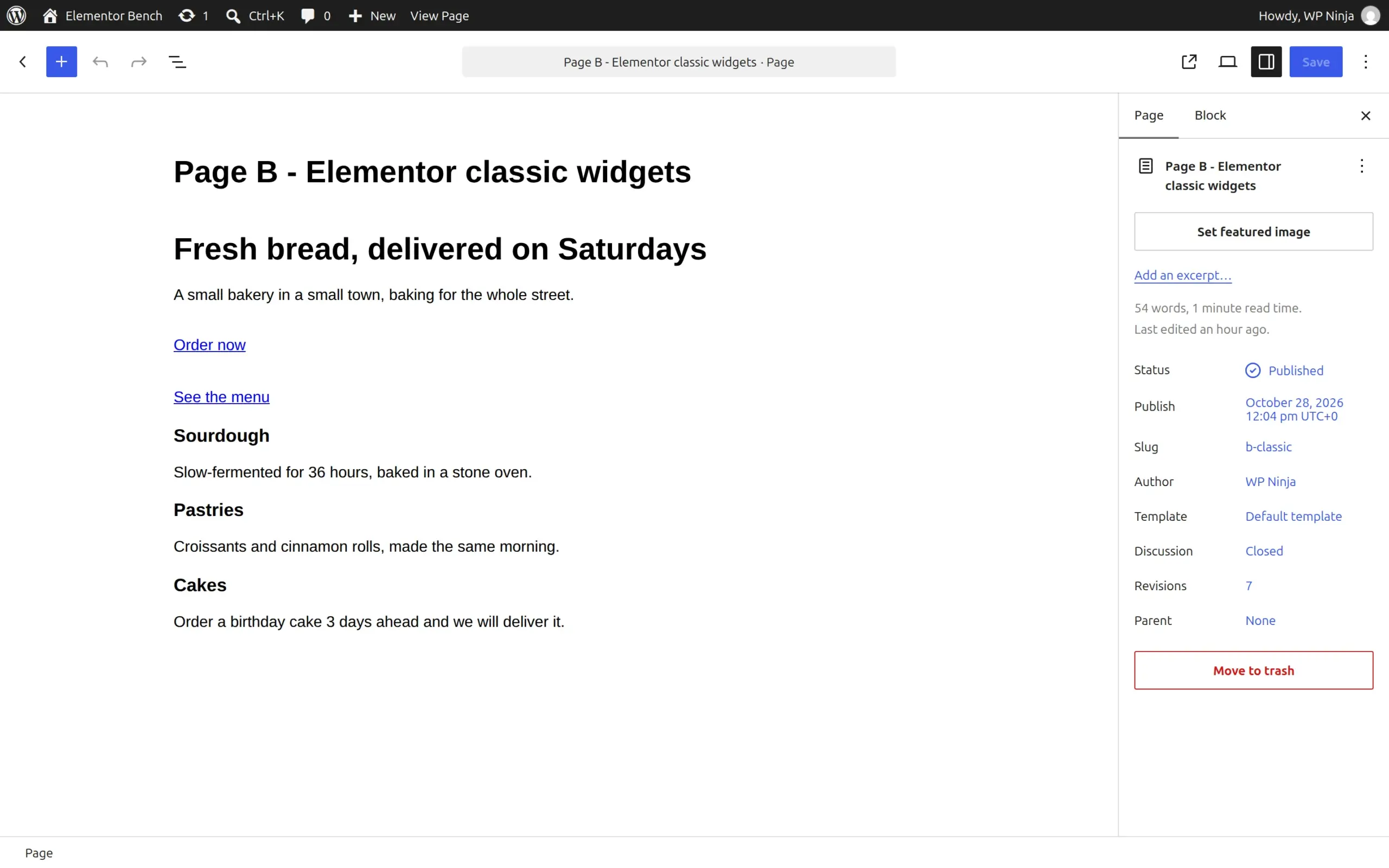
Going the other way is easier. A block post stays a block post, and Elementor’s “Edit with Elementor” button only takes over a page when you click it.
Deleting Elementor leaves its data behind
Elementor has no uninstall routine. When I deleted it from the Plugins screen, it removed its files and nothing else. Left behind: 1 database table, 31 settings, 256 pieces of page data (about 100 KB) and its Default Kit. None of it slows your site down, but it’s clutter you’d need a cleanup plugin to remove.
Is Gutenberg as easy to use as Elementor?
For writing, Gutenberg is easier. For designing a landing page, Elementor is easier, and that’s still its real strength.
In Elementor, everything I wanted for the hero (minimum height, background image, centering, spacing between buttons) was a setting on the element I’d clicked. In the block editor, the Cover block did most of it, but finer control depends on what your theme supports. My Classic Editor vs Gutenberg test has more on how the block editor feels day to day.
Elementor’s Hello theme is a blank canvas on purpose. You don’t need a child theme for it unless you add your own code.
Elementor or Gutenberg: which should you pick?
Pick Gutenberg (the block editor) if:
- Your site is mostly blog posts, recipes, news or simple pages
- You want the lightest pages with no extra plugin
- You don’t want to be tied to one plugin for your design
Pick Elementor if:
- You’re building landing pages or a small business site where design matters more than every kilobyte
- You like dragging things around on a live preview
- You plan to use Pro features like the Theme Builder or popups
If you pick Elementor, do these 3 things:
- Build with Atomic elements where one exists.
- Disable Google Fonts or set your own fonts.
- Write your blog posts in the block editor on a block theme, and save Elementor for the pages that need it.
My honest recommendation
Start with the block editor. It’s already on your site, and in my test it made the lightest pages and opened fastest. If you hit a design you can’t build with it, add Elementor then, and build that page with Atomic elements.
Elementor’s new Atomic editor is a real step forward. My Atomic landing page was 2.5 times lighter than the classic version. But it’s still missing basic pieces like lists, it adds weight to pages it doesn’t build, and switching it off hides your work. I’d use it for landing pages now and wait until Atomic has lists and quotes before building a whole site on it.
Frequently Asked Questions
Is Elementor better than Gutenberg?
Not for most beginners. Gutenberg made lighter pages in every test and costs nothing extra. Elementor is better when you want to design pages visually with fine control over spacing, backgrounds and mobile layouts.
Can I use Elementor and Gutenberg on the same site?
Yes. Each page uses one or the other, and you choose with the Edit with Elementor button. Just know that Elementor loads its files on the block editor and on your block pages too, even when you don’t use it there.
Does Elementor slow down WordPress?
It adds weight. On the Hello theme, activating Elementor took my plain block post from 15 KB to 85 KB and from 35 ms to 59 ms server response. Pages built with classic Elementor widgets were heavier still, at 168-170 KB.
Is Elementor bad for SEO?
No, Elementor pages are indexed like any other page, and it outputs proper headings and text. The SEO cost is speed: the extra weight above can hurt your Core Web Vitals scores. Building with Atomic elements and turning off Google Fonts closes most of the gap.
What happens if I deactivate Elementor?
Your text stays and your design goes. Headings, paragraphs, lists and images remain, but backgrounds, columns and button styles disappear, and you’ll need to rebuild those pages with blocks.
Is Elementor free?
The core plugin is free and has 15 Atomic elements and 30 classic widgets. Pro plans start from $60/year on Elementor’s pricing page (checked 28 October 2026) and add the Theme Builder, forms, popups and more Pro widgets.
What is the Elementor Atomic editor?
It’s Elementor’s new set of building blocks (Flexbox, Div block, Heading, Paragraph, Button and more), switched on by default for sites that installed Elementor 4.0 or later. It made the lightest Elementor pages in my test, but it doesn’t have list or quote elements yet.