LiteSpeed Cache vs WP Super Cache: I Tested Both on the Same Server
Here’s the LiteSpeed Cache vs WP Super Cache answer up front: your web host picks the winner, not you. If your host runs a LiteSpeed server, install LiteSpeed Cache – it started caching the moment I activated it and served my test page in about half a millisecond. On any other host, LiteSpeed Cache’s page cache does nothing at all, so install WP Super Cache instead: 2 clicks to switch on, and the tidiest uninstall of the pair.
I didn’t get that from a feature list. I put both plugins on the same LiteSpeed test server, timed them, threw 20 visitors at a time at each one, edited posts to see whether visitors got the new version, and then uninstalled both to see what they left behind.
How I tested this
I ran both plugins on a local test server running OpenLiteSpeed 1.9.2 (the free edition of the LiteSpeed web server), with WordPress 7.1.3, PHP 8.3 and the free Kadence theme. My usual test site runs nginx, and on nginx LiteSpeed Cache can’t cache pages at all – so testing there would have been unfair to it. Both plugins got the same server.
The versions were the newest on the day I tested, 19 October 2026:
- LiteSpeed Cache 7.9.1 by LiteSpeed Technologies, released 1 September 2026
- WP Super Cache 3.1.4 by Automattic (the company behind WordPress.com), released 30 September 2026
My test page was a real article from this site – about 2,000 words with 4 images. Between the two plugins I wiped the server back to the exact same starting point and checked it matched before measuring again. The full method is on my how I test page.
What this test can’t tell you: it’s one local server with no real traffic. Most hosts run the paid LiteSpeed Enterprise server, not OpenLiteSpeed, and they tune it their own way.
I didn’t test LiteSpeed’s paid QUIC.cloud services (image optimisation and its CDN), because they need a public website to talk to. Your numbers will differ. The gaps between the two plugins are the part to trust.
What does a caching plugin actually do?
A caching plugin saves a finished copy of each page so WordPress doesn’t have to build it again for every visitor. Without one, WordPress runs its PHP code and asks the database for your post, menus and widgets on every single visit.
On my test server, building the page from scratch took about 40 milliseconds. Handing over a saved copy took 0.5 to 1.4 milliseconds. That’s the whole trick, and it’s why a caching plugin is usually the first thing I install when a WordPress site feels slow.
The catch is that the saved copy has to be thrown away when you change something. Otherwise visitors keep seeing the old version – the classic “my changes aren’t showing” problem. I tested that too, further down.
Does LiteSpeed Cache work without a LiteSpeed server?
No – not for page caching. I installed LiteSpeed Cache on my nginx test site and it activated without a single warning on the Plugins screen or its own Dashboard. But it sent no cache headers at all, and the page took 106 to 114 milliseconds with the plugin on against 116 to 121 with it off. That’s normal variation, not a speed-up.
The only place the plugin admits this is one sub-page, LiteSpeed Cache > Cache, where a red box says caching is unavailable:
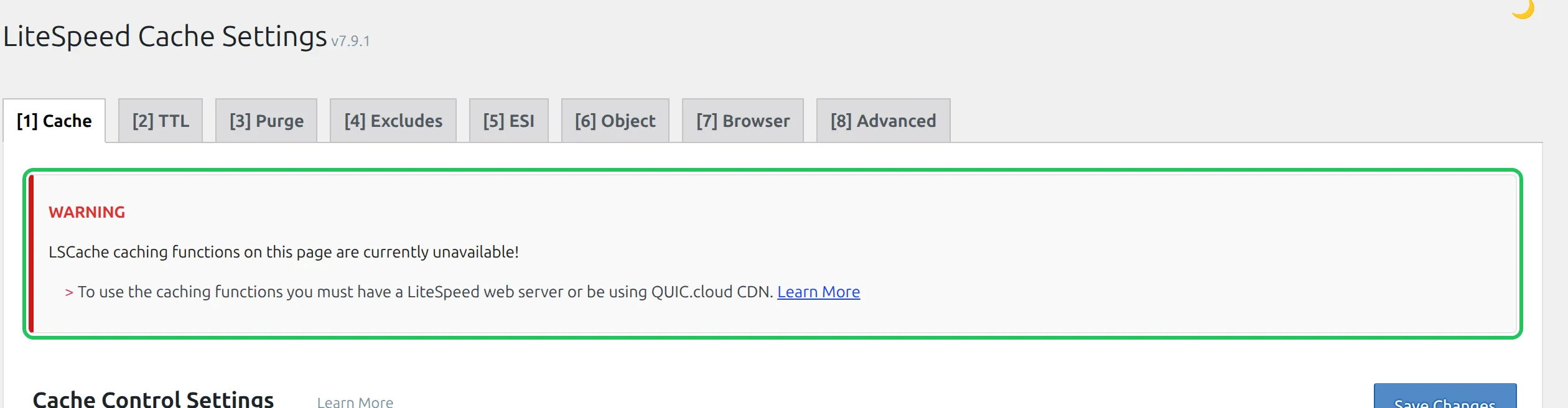
The warning names the vendor’s way around it: QUIC.cloud CDN, LiteSpeed’s own content delivery network. I didn’t test that, because it needs a live domain. Its free plan has unlimited bandwidth but only 6 server locations, all in North America and Europe.
And even on nginx, LiteSpeed Cache still wrote a WP_CACHE line into wp-config.php and a 31-line block into .htaccess – a file nginx never reads. Harmless, but it’s clutter for a plugin that isn’t doing its main job.
How do I know if my host runs LiteSpeed?
The quickest check is your site’s response headers. In Chrome, open your homepage, press F12, click the Network tab and reload the page.
Click the first row (your page address) and look under Response Headers for a line that says server: LiteSpeed. My test server showed exactly that. My nginx site showed server: nginx.
If that feels like too much, ask your host’s support “Do you run LiteSpeed web server?” or look for “LiteSpeed” on your plan’s features page. It’s a yes-or-no question, and it decides this whole comparison.
What do you get for free?
Both plugins are free, with no paid version of the plugin itself. The difference is scope: WP Super Cache does one job, and LiteSpeed Cache tries to be your whole speed toolkit – with its image and page optimisation running on its own cloud service, QUIC.cloud.
| Feature | LiteSpeed Cache | WP Super Cache |
|---|---|---|
| Page caching | Yes – on LiteSpeed servers only | Yes – any server |
| On after activation | Yes | No – you switch it on |
| Cache for logged-in users | Yes (private), on by default | No, off by default |
| Minify/combine CSS and JS | Yes, off by default | No |
| Database cleanup | Yes | No |
| Object cache support | Yes, off by default | No |
| Image optimisation | Yes, via QUIC.cloud (free monthly quota) | No |
| CDN | QUIC.cloud CDN (free plan available) | Basic CDN URL rewriting |
| Cache preloading | Crawler | Preload tab |
| Admin pages | 10, under its own menu | 1, under Settings |
If you only want pages cached, WP Super Cache covers it. If you want image compression and CSS tricks too, LiteSpeed Cache bundles them – but only the page cache depends on your server, and that’s the part that matters most.
LiteSpeed Cache vs WP Super Cache: what I measured
Here’s everything I measured on the same server, same page, same day.
| Measurement | No cache plugin | LiteSpeed Cache | WP Super Cache |
|---|---|---|---|
| Page load start (TTFB), median of 15 | 34-47 ms | 0.5 ms | 1.4 ms |
| 20 visitors at once: typical wait | 149 ms | 0.4 ms | 3.6 ms |
| 20 visitors at once: pages per second | about 115 | about 14,600 | about 2,340 |
| Page size | 83,874 bytes | +71 bytes | +144 bytes |
| CSS and JavaScript files on the page | 7 | 7 | 7 |
| Database tables added | – | 2 | 0 |
| Background jobs added | – | 1, every 15 minutes | 1 cleanup job |
Files added to wp-content | – | 1 folder | a cache folder plus 2 small files |
Edits to .htaccess | – | 35 lines | none |
TTFB = time to first byte, how long the server takes to start sending the page. Measured on OpenLiteSpeed 1.9.2, PHP 8.3, with each plugin on its default settings (WP Super Cache after switching caching on). The 20-visitor test sent 2,000 requests, 20 at a time, to a page already in the cache.
The extra bytes are just text comments each plugin adds to the end of the page. Neither one changed my CSS or JavaScript files out of the box, which is the safe default – those optimisations are the settings most likely to break a page layout.
Which one works the moment you turn it on?
LiteSpeed Cache does. WP Super Cache doesn’t do anything until you switch it on yourself.
LiteSpeed Cache cached my test page on the second visit
I activated LiteSpeed Cache from the Plugins screen and touched nothing else. The first visit to my test page built a fresh copy, and the second visit came back from the cache in half a millisecond. There’s no setup wizard. Its Dashboard opens with a pop-up suggesting QUIC.cloud’s services, which you can skip – the pop-up itself says QUIC.cloud is “not required”.
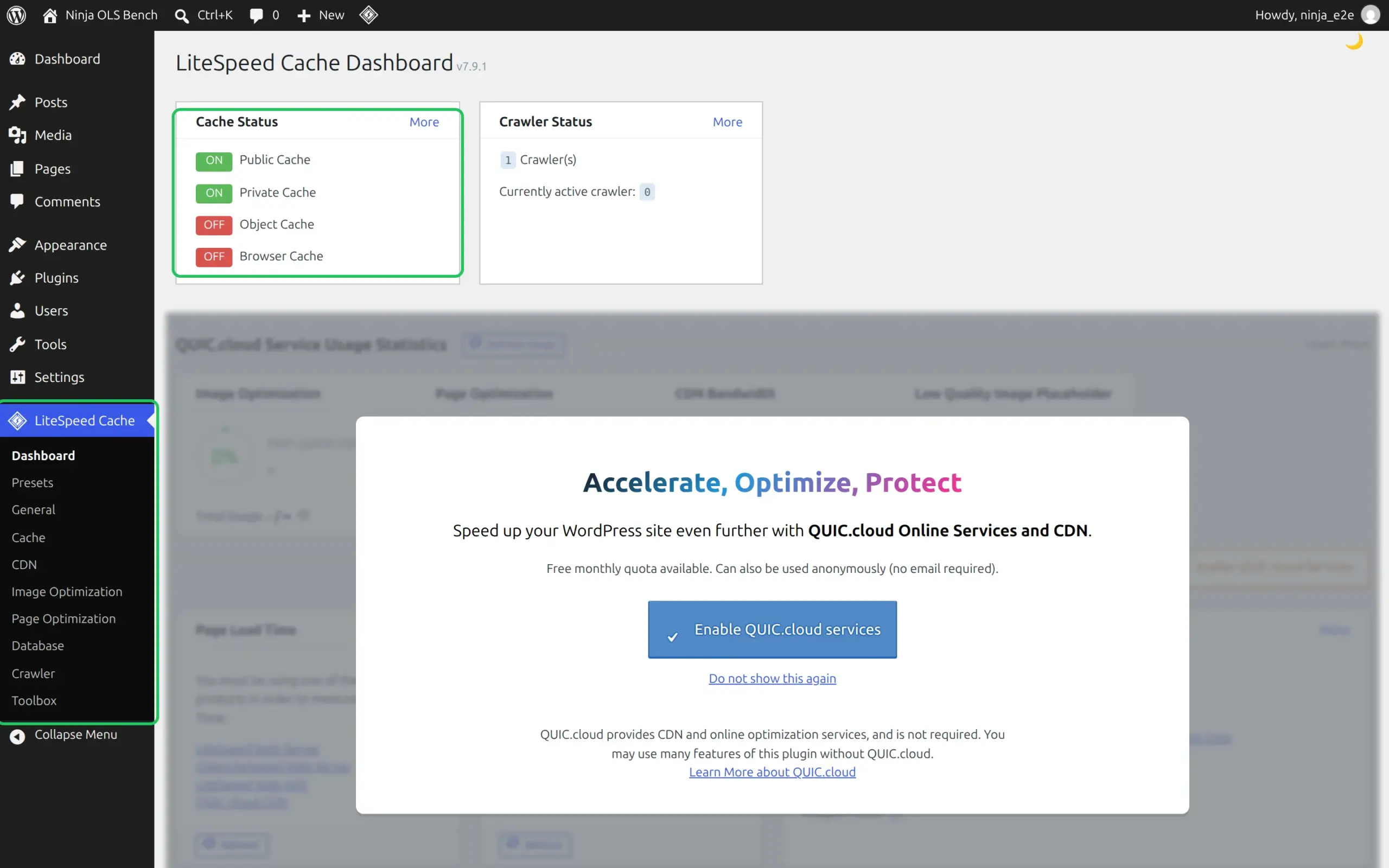
The Cache Status box behind it is the useful part: Public Cache and Private Cache both on, by default.
WP Super Cache did nothing until I switched it on
WP Super Cache activated and then told me straight away that it wasn’t caching anything:
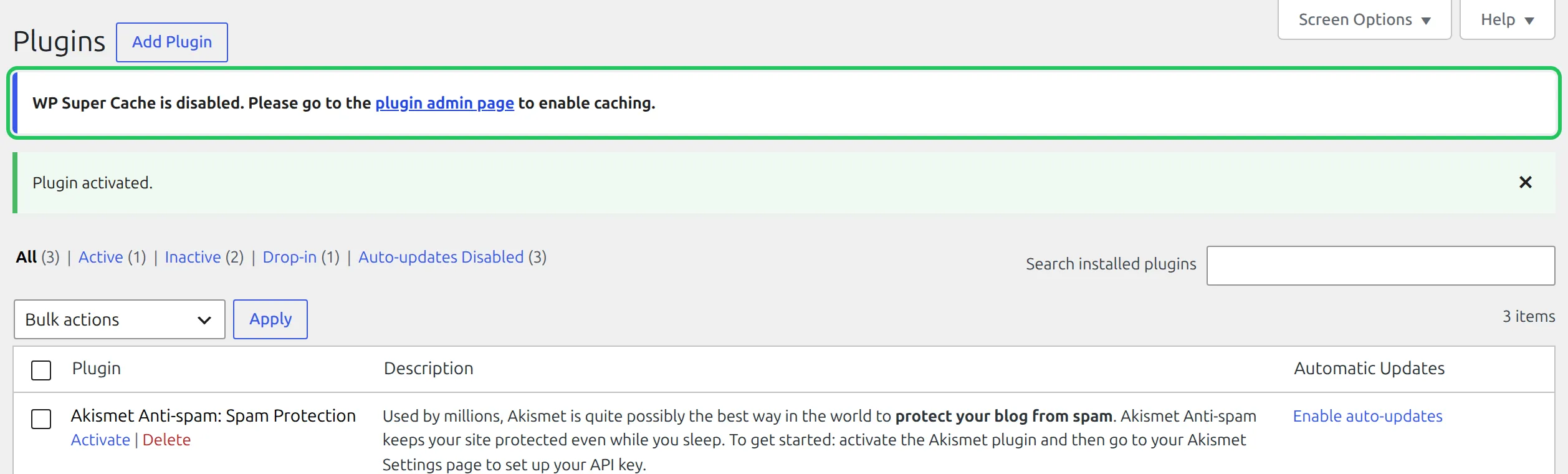
The link in that notice goes to Settings > WP Super Cache. On the Easy tab, tick Caching On (Recommended) and click Update Status. That’s 2 clicks, and the page lists exactly what it turns on: no caching for logged-in visitors, “simple” caching, cache rebuilding, and a cleanup every 10 minutes for copies older than 30 minutes.
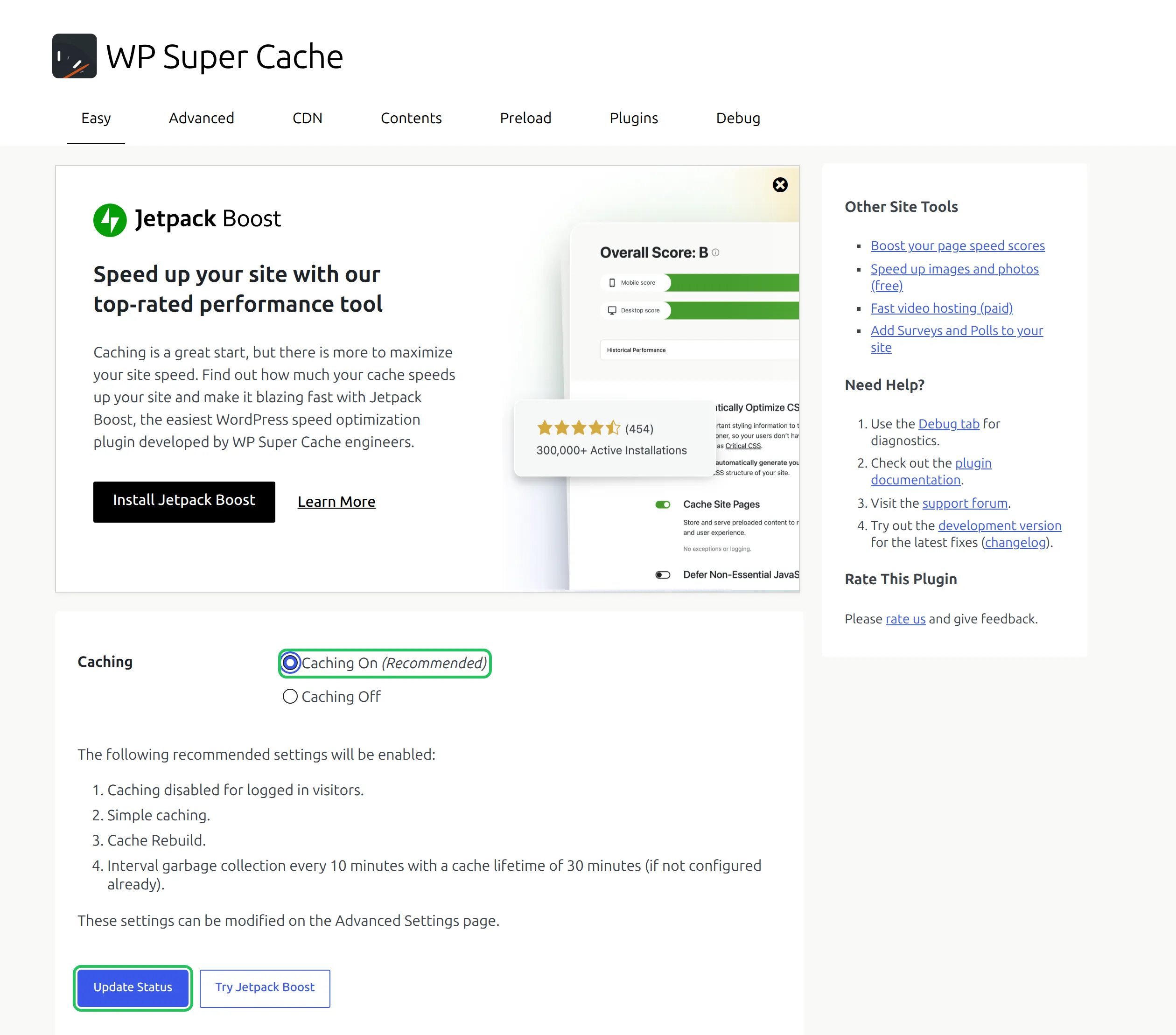
After that it served my test page in 1.4 milliseconds. It’s not a hard setup. But if you install it and walk away, your site is no faster than before – and that notice is the only thing telling you so.
Setting each one up
WP Super Cache needs those 2 clicks and nothing else. LiteSpeed Cache needs zero clicks but gives you far more to look at.
WP Super Cache: the Jetpack Boost nudges
The thing that surprised me was how hard WP Super Cache pushes another Automattic plugin. The Easy tab has a large “Install Jetpack Boost” banner above the caching setting, and a “Try Jetpack Boost” button sits right next to Update Status. Then, the moment I saved, a new notice appeared at the top:
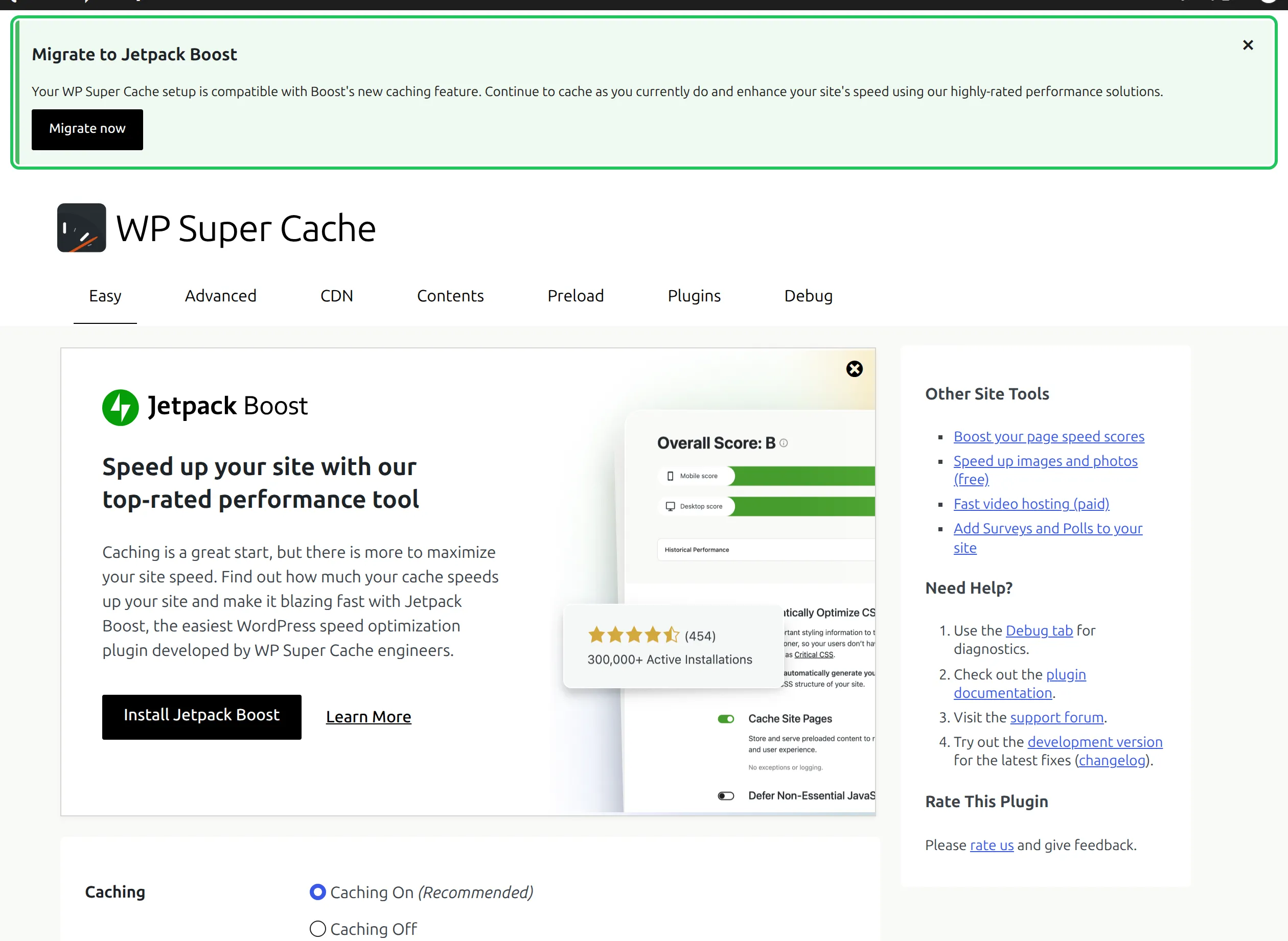
It’s dismissible, and nothing is installed unless you click. Just know that you don’t need Jetpack Boost for caching – WP Super Cache was already working when that notice appeared.
LiteSpeed Cache: leave most of it alone
LiteSpeed Cache adds its own menu with 10 pages, and the Cache page alone has 8 tabs. As a beginner, you can ignore nearly all of it. The defaults that matter are already right: Enable Cache is on, and so is Cache Logged-in Users.
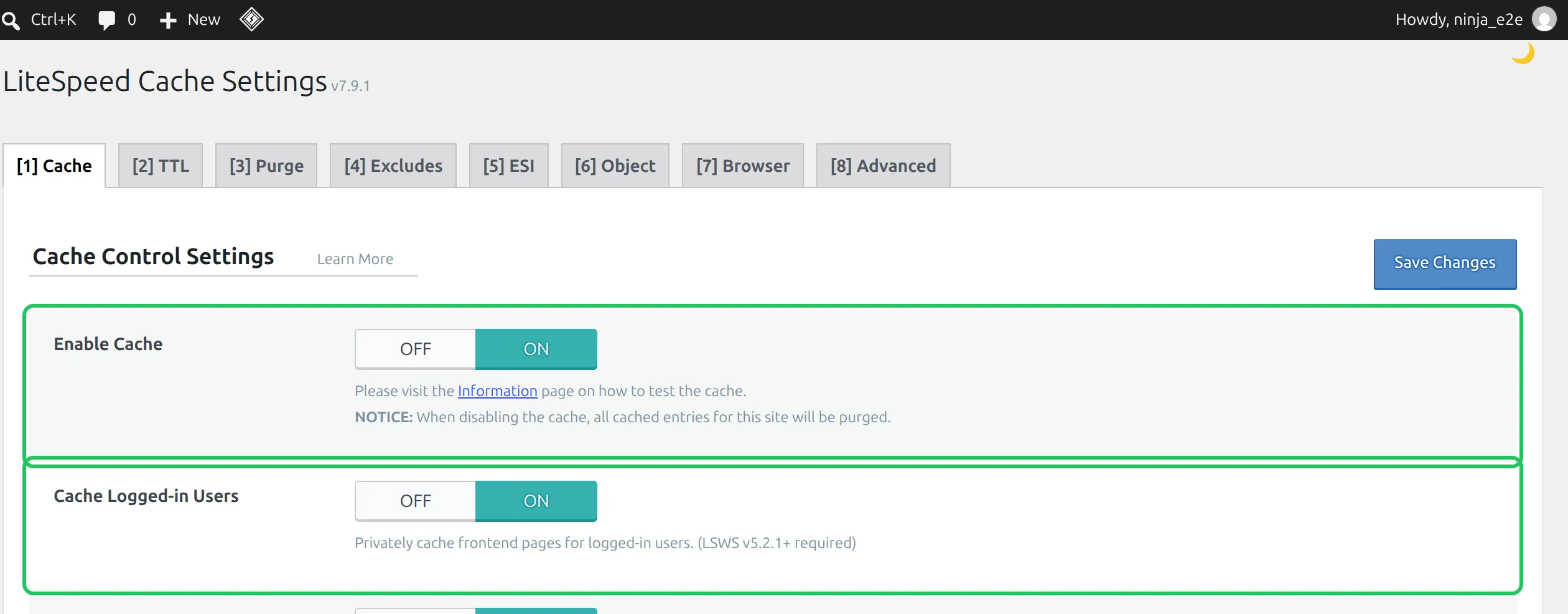
My advice is to leave the Page Optimization settings (minify, combine, defer) alone unless you’re happy to test your site afterwards. They’re off by default for a good reason: those are the settings that break menus, sliders and forms.
What happens when you edit a post?
Both plugins handled this properly. I changed my test post’s title in the block editor and clicked Save. Then I loaded the post and the homepage as a logged-out visitor. On both plugins, both pages showed the new title straight away.
LiteSpeed Cache threw away the old copies and built new ones on the next visit. WP Super Cache did the same. So neither one will leave your readers looking at last week’s version after you hit Update.
Do logged-in users get a cached page?
With LiteSpeed Cache, yes. With WP Super Cache, no.
LiteSpeed Cache served my admin view from a private cache in 0.6 milliseconds
LiteSpeed Cache keeps a separate private copy for each logged-in user. While I was logged in as an admin, my test page came back in 0.6 milliseconds, still with the admin bar showing.
WP Super Cache skips logged-in visitors completely, so my admin view took about 45 milliseconds, the same as no cache at all. For most blogs that’s fine – you and maybe 1 or 2 editors are the only people logged in. It matters more for membership sites, online courses or shops where customers log in, and that’s where LiteSpeed Cache earns its keep.
How fast is each one with 20 visitors at once?
LiteSpeed Cache was about 6 times faster than WP Super Cache, and both were dramatically faster than no cache. With 20 visitors hitting the page at the same time, my server managed:
- No cache plugin: about 115 pages per second, with a typical wait of 149 ms
- WP Super Cache: about 2,340 pages per second, 3.6 ms wait
- LiteSpeed Cache: about 14,600 pages per second, 0.4 ms wait
The reason is simple. With WP Super Cache, PHP still starts up and reads the saved file. With LiteSpeed Cache, the web server answers by itself and PHP never runs.
To be fair to WP Super Cache: a small blog will never see 2,340 visitors per second. Either plugin turns a page that takes 40 ms into one that takes a millisecond or two. The gap only matters on busy sites, or on cheap shared hosting where every bit of PHP counts.
Background jobs and hidden costs
Neither plugin loads anything extra on the page your visitors see. The differences are behind the scenes.
LiteSpeed Cache adds 2 database tables, 1 background job that runs every 15 minutes, and 35 lines to your .htaccess file. It also writes WP_CACHE into wp-config.php. None of that slowed my site down, but it’s more moving parts.
WP Super Cache adds no tables. It writes 2 small files into wp-content (advanced-cache.php and wp-cache-config.php), a cache folder for the saved pages – 158 KB after I’d visited 6 pages – and 1 cleanup job. It also writes WP_CACHE into wp-config.php.
What happens when you uninstall?
Both clean up well. I deleted each one from my test site and checked what was left.
| What’s left after uninstall | LiteSpeed Cache | WP Super Cache |
|---|---|---|
| Database tables | none (both dropped) | none |
| Settings left in the database | 0 | 3 tiny options |
WP_CACHE in wp-config.php | removed | removed |
.htaccess | 4 empty marker lines | untouched throughout |
| Files | 1 folder with 2 small files (1 KB) | none |
| Cached pages still being served | no | no |
Those leftovers won’t affect anything. If you’re switching from one to the other, you don’t need a clean-up plugin.
Security track record
Both have had security holes, and both fixed them – the bigger difference is how much code each one carries. On the US National Vulnerability Database, LiteSpeed Cache has 23 entries from 2020 to 2026, including two rated critical in 2024 (CVE-2024-28000 and CVE-2024-44000). Five more have 2026 numbers, and version 7.9.1 is past every one of the 23.
WP Super Cache has 4 entries, the newest from 2021, and 3 of those 4 needed an admin login to exploit.
That’s not a reason to avoid LiteSpeed Cache. It does far more – 10 settings pages, image optimisation, connections to its cloud service – and more code means more places for bugs. Turn on automatic updates for whichever one you pick. If you’re nervous about updates, here’s how to update plugins without breaking your site.
Support and how established each one is
Both are long-running and actively maintained. LiteSpeed Cache is on more than 7 million sites and WP Super Cache on more than 1 million, according to WordPress.org. Each shipped 5 updates between March and September 2026.
LiteSpeed Cache is made by LiteSpeed Technologies, the company that makes the server it depends on. WP Super Cache is made by Automattic, which explains the Jetpack Boost nudges – Jetpack is also theirs.
What do they actually cost?
Both plugins are free. WP Super Cache has nothing to buy at all – the only upsell is the free Jetpack Boost plugin it keeps suggesting.
LiteSpeed Cache’s page caching is free too, but its extras run on QUIC.cloud. Every site gets a free monthly allowance that doesn’t roll over. On QUIC.cloud’s pricing page on 19 October 2026, a site on the basic tier got 1,000 image optimisations and 200 page optimisation requests a month, and sites on a LiteSpeed server got more:
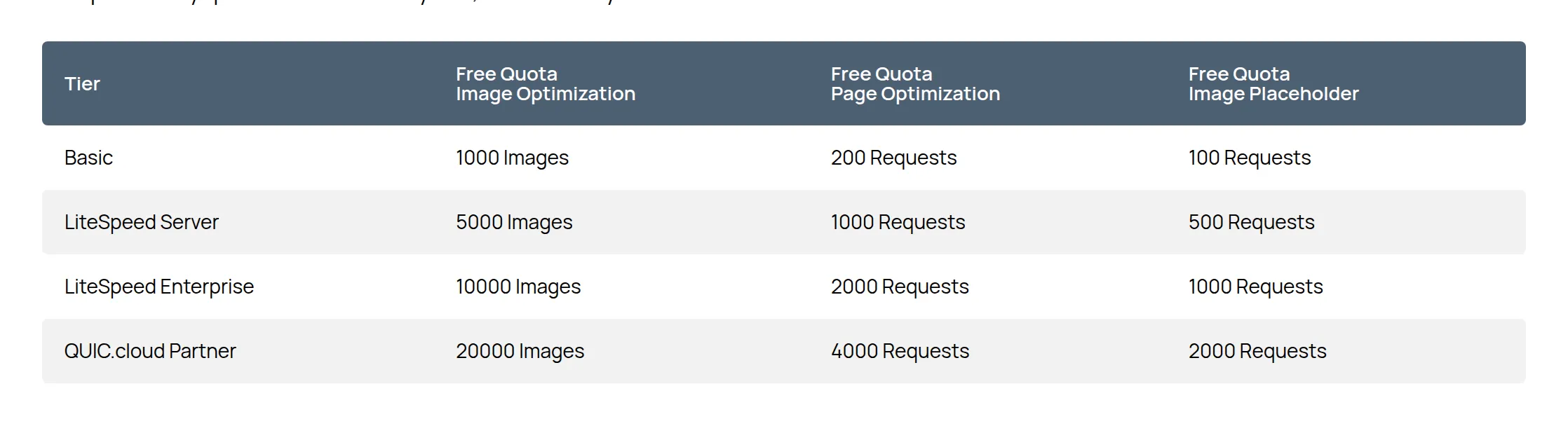
QUIC.cloud also says “Image Optimization is 100% Free for the Standard Queue” – the faster queue is the part you pay for, at $5 a month for 20,000 images or $3 for 10,000 on pay-as-you-go. For a small blog, 1,000 free image optimisations a month is likely to cover everything you upload.
Pick LiteSpeed Cache if…
- Your host runs LiteSpeed (check for
server: LiteSpeedin the headers) - You want caching that works the moment you activate it
- People log in to your site – members, students, shop customers
- You’d like image optimisation and a CDN option in the same plugin
Pick WP Super Cache if…
- Your host runs nginx or Apache – LiteSpeed Cache’s page cache won’t work there
- You want one simple job done, with 1 settings page instead of 10
- You prefer the smaller security footprint
- You don’t mind clicking past the Jetpack Boost suggestions
Frequently Asked Questions
Is LiteSpeed Cache free?
Yes. The plugin is free, and its page caching costs nothing on a LiteSpeed server. Only the optional QUIC.cloud services can cost money, and they come with a free monthly allowance.
Is LiteSpeed Cache safe?
Yes, as long as you keep it updated. It has had 23 recorded vulnerabilities, including two critical ones in 2024, and all of them were fixed. Version 7.9.1, the one I tested, is past every known issue as of October 2026. Turn on auto-updates for it.
Can I use LiteSpeed Cache and WP Super Cache together?
No, pick one. When I activated both, LiteSpeed Cache showed a notice asking me to disable WP Super Cache because it “may conflict”. Both then cached the same page twice. Two caches give you no extra speed – just two places where an old copy can hide.
What about WP Rocket?
WP Rocket is a paid caching plugin with no free version – when I checked on 19 October 2026 it cost €49.95 a year for 1 site (it showed me euros; the currency depends on where you are), with a 14-day trial. I haven’t tested it here, so I can’t give you numbers. On a LiteSpeed host I’d start with LiteSpeed Cache before paying for anything. Elsewhere, try WP Super Cache first and only pay if it doesn’t do enough.
Is WP Super Cache better than Jetpack Boost?
They do different jobs. WP Super Cache caches pages; Jetpack Boost (also free, also from Automattic) focuses on CSS and JavaScript tweaks and can now cache pages too – that’s why WP Super Cache keeps suggesting you “migrate”. I didn’t test Jetpack Boost, but you don’t need it for WP Super Cache to work.
How do I clear the cache in each one?
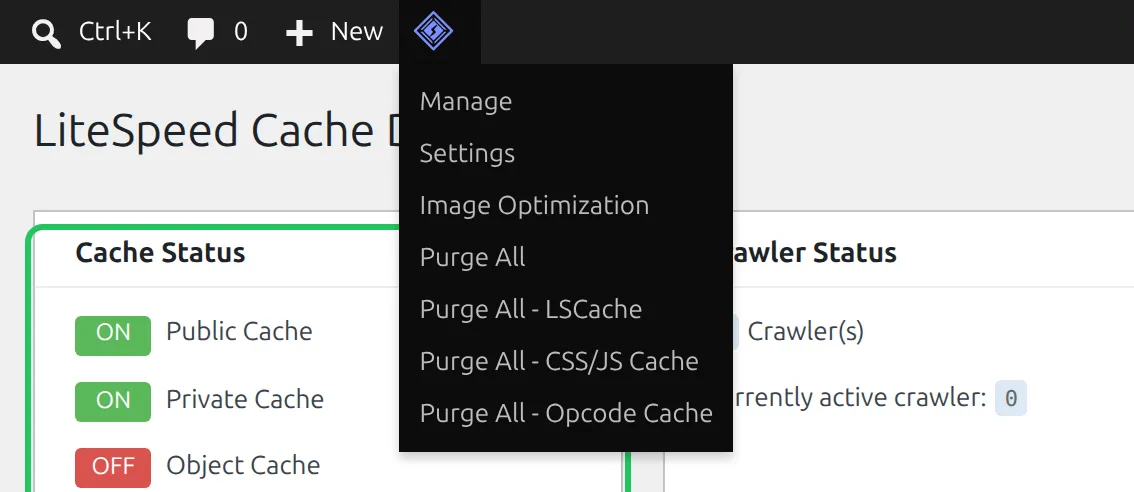
Both put a button in the black admin bar at the top of your site. In LiteSpeed Cache, hover over the LiteSpeed diamond icon and click Purge All:
In WP Super Cache, click Delete Cache in the admin bar:

How can I tell if my page is being cached?
Open your page while logged out, right-click and choose View Page Source, then scroll to the very bottom. WP Super Cache adds a line saying “Cached page generated by WP-Super-Cache”, and LiteSpeed Cache adds “Page cached by LiteSpeed Cache” with the version and date.