Do I Need a Child Theme for WordPress? (When It’s Worth It and When It’s Not)
Short, honest answer: probably not. If you’re picking colors, fonts, and layouts from the Customizer or Site Editor, you don’t need a child theme for WordPress. The advice you see everywhere – “always use a child theme” – comes from the days when the only way to change anything was to crack open a .php file.
For this update I tested it instead of repeating it. On a test site running WordPress 7.1.2, I edited the Kadence theme’s files, changed its settings, then ran a real theme update from the dashboard to see what survived. I also made child themes with the Child Theme Configurator plugin and checked what they kept.
The update result was what I expected. The child theme result wasn’t: a brand-new child theme threw away every one of my 72 Customizer settings until I ticked one easy-to-miss checkbox.
What is a child theme in plain English?
A child theme is a tiny folder that “inherits” everything from your main theme (the parent) but lets you override specific parts without touching the parent’s files.
Think of it like a hoodie over a t-shirt. The t-shirt (parent theme) does most of the work. The hoodie (child theme) sits on top and changes 1 or 2 spots. When the t-shirt gets replaced (theme update), your hoodie stays where it is.
The folder is usually 2 files – a style.css that points at the parent, and a functions.php for any custom PHP. That’s the whole thing.
Child themes exist because theme updates overwrite files. If you edit header.php to add some HTML and the theme releases a new version, your edit is wiped. A child theme keeps your edits in a separate folder the updater never touches.
So, do I need a child theme for WordPress anymore?
For most sites, no. The things you used to need a child theme for are now built into the dashboard.
Between the Customizer, the Site Editor, Additional CSS, and code snippet plugins, you can run a site for years without ever opening a theme file.
Here’s the rule I follow: if I never edit a theme file directly, I never need a child theme.
That covers colors, fonts, header layout, footer credits, sidebar widgets, button shapes, and spacing. All of it lives in the dashboard now, not in .php files.
What survives a theme update without a child theme?
This is the part most “always use a child theme!” tutorials skip. Everything you do through the dashboard is stored in the WordPress database, not in the theme folder, so an update can’t reach it.
I checked this with a real update. My test site ran Kadence 1.4.5, and I updated it to 1.5.2 by clicking Update now under Appearance > Themes.
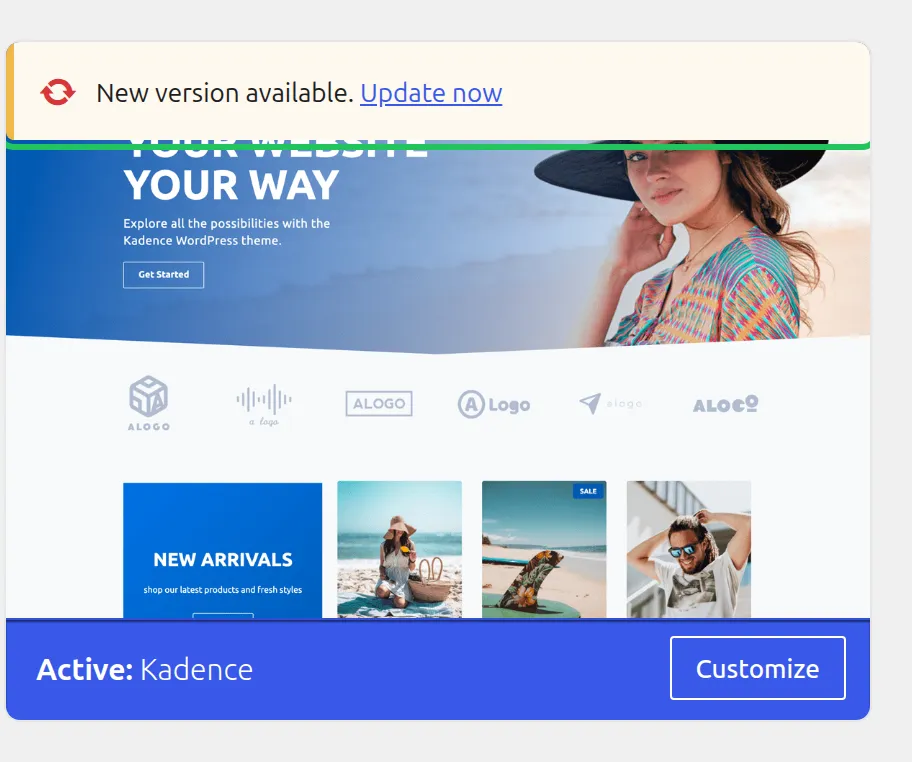
These came through the update untouched:
- Customizer settings. All 72 of my saved Kadence settings (colors, fonts, header layout, top bar, social icons) were byte-for-byte identical afterwards.
- Additional CSS. The CSS in Appearance > Customize > Additional CSS was still there, every character of it.
- Site Editor changes. I ran the same test on the block theme Twenty Twenty-Five (1.4 to 1.5). A footer I’d edited in the Site Editor and the CSS I’d added under Styles both survived.
- All your content. Posts, pages, images, menus, and widgets are database content. Theme updates don’t touch them.
So if you’ve only ever clicked things in the dashboard or pasted CSS into the Additional CSS box, a theme update is harmless.
What do I lose on a theme update if I didn’t use a child theme?
Before the update, I made 4 edits directly inside the Kadence theme folder. All 4 were gone afterwards:
- An edit to
functions.php. I added a small PHP snippet. The update replaced the file, and the snippet stopped running. - An edit to a template file. I changed Kadence’s header template. Gone.
- CSS added to the theme’s
style.css. Gone. And on Kadence it never did anything in the first place: Kadence doesn’t load its ownstyle.csson your pages, so CSS pasted there has no effect even before an update. - A WooCommerce template override. I added
kadence/woocommerce/cart/cart.php, the way WooCommerce tells you to customize its templates. The update didn’t just reset the file, it deleted the wholewoocommercefolder.
That last one is worth understanding. WordPress doesn’t merge a theme update into your folder. It deletes the old theme folder and puts the new one in its place, so anything you added inside it disappears too.
If you’ve ever done any of those 4 things, you needed a child theme – or a different approach entirely.
What happens to my Customizer settings when I switch to a child theme?
This is the trap nobody warns beginners about. WordPress saves Customizer settings per theme, and your new child theme counts as a different theme. So it starts with none of your settings and none of your Additional CSS.
I created a Kadence child theme with Child Theme Configurator using its default options, then activated it. The child theme had 0 of my 72 settings and 0 bytes of Additional CSS. The top bar, social icons, script logo font, centered header layout, and colors all disappeared, and 76% of the pixels on my About page changed.
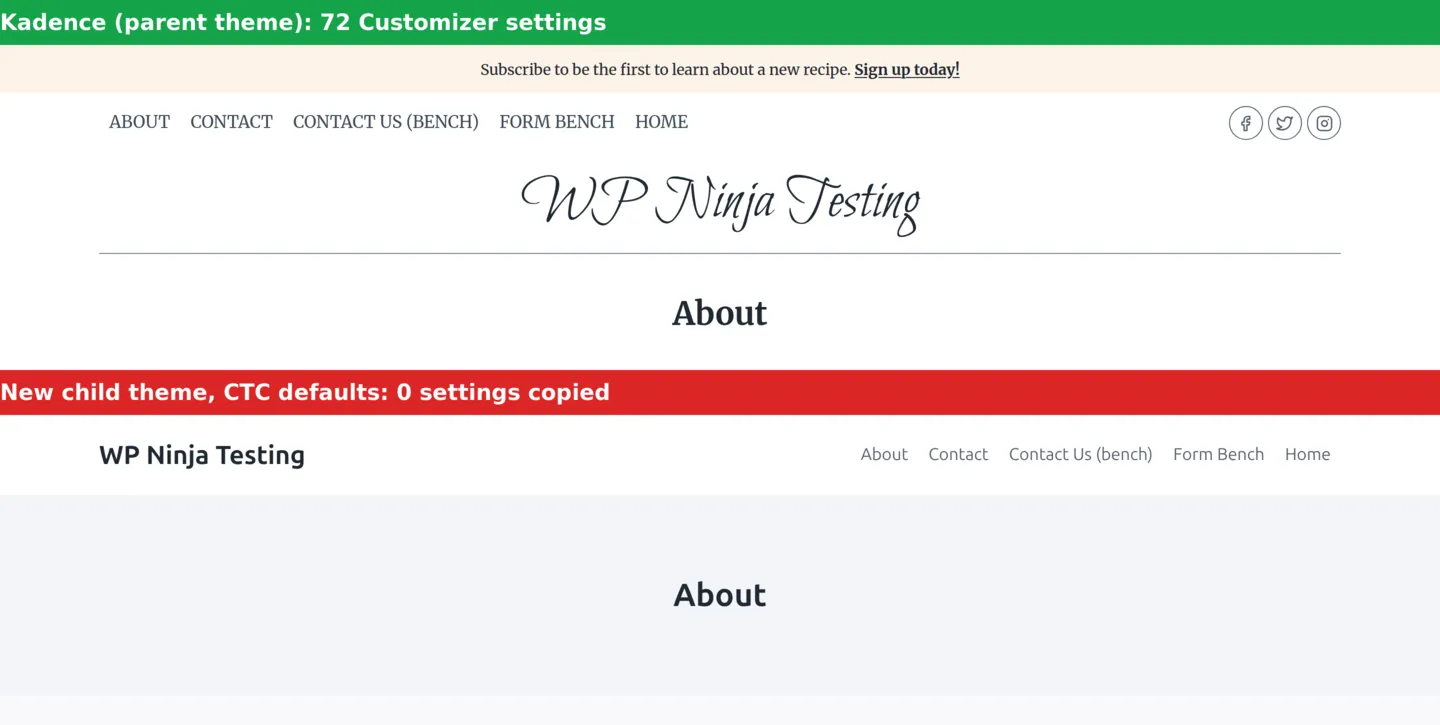
Your settings aren’t deleted. They stay saved under the parent theme, and when I switched back to Kadence everything returned. But it means “make a child theme first, it’s harmless” isn’t true if you’ve already customized your site.
The fix is one checkbox, which I’ll show you in the step-by-step below. With it ticked, my child theme copied all 72 settings and the Additional CSS, and the About page matched the parent pixel for pixel.
What’s the modern no-code alternative to a child theme?
For most beginners, this is the better answer: don’t edit theme files at all. Use 2 tools instead.
1. Additional CSS for visual tweaks. On classic themes like Kadence it’s under Appearance > Customize > Additional CSS. On block themes, open the Site Editor, click Styles, then the 3-dot More menu, then Additional CSS. Anything you’d put in your theme’s style.css goes here, and it survives updates because it’s stored in the database.
2. A code snippets plugin for PHP changes. This replaces the “I’ll just paste it into functions.php” habit. The 3 free options I’d look at:
- Code Snippets – 1 million+ active installs. Stores snippets in your database and switches off a PHP snippet when you save it with an error in it.
- WPCode – 3 million+ active installs. Has a library of ready-made snippets if you don’t know PHP, and automatically deactivates a snippet that causes a fatal error.
- FluentSnippets – 50,000+ active installs. Saves each snippet as a file in
wp-content/fluent-snippet-storageinstead of the database, and has a Safe Mode link for when something goes wrong.
All 3 keep your code outside the theme folder, so theme updates can’t touch it and switching themes doesn’t kill it. Just remember FluentSnippets’ files live outside the database, so a database-only backup won’t include them.
When do I actually need a child theme?
Child themes still earn their keep in 4 specific situations:
1. You’re overriding template files. If you need to change single.php or another template in a way the Customizer can’t, you need a child theme to hold the modified file. My test shows why: edits inside the parent theme’s folder don’t survive an update.
2. You’re customizing WooCommerce templates. Want to change the layout of the My Account page or the cart? WooCommerce lets you override its templates by copying them into your-theme/woocommerce/. Put that folder in a child theme. In the parent theme it was deleted by the very next update.
3. You’re hardcoding HTML the dashboard can’t reach. Think a heavily modified comment template or markup that has to sit in a specific spot in a .php file. If the change has to live in a theme file, you want it in a child theme.
4. You’re handing the site to a developer. If you’re paying someone to build a customized theme on top of an existing parent (common with Astra, GeneratePress, or Kadence), they’ll set up a child theme out of habit. Let them.
If none of those describe you, you can skip the child theme.
How do I create a child theme in 5 minutes?
If you do need one, the easiest path is the free Child Theme Configurator plugin. It has 300,000+ active installs and still worked on WordPress 7.1.2 in my test. But its last update was in June 2025 and it’s only marked as tested up to WordPress 6.8, so check the plugin page before you rely on it.
Back up your site first. Switching themes is the moment things go wrong. My roundup of free WordPress backup plugins covers the ones I tested.
- Install it from Plugins > Add New Plugin. Search for “Child Theme Configurator” and activate it.
- Go to Tools > Child Themes. CREATE a new Child Theme is already selected, and your active theme is already picked as the parent. Click Analyze.
- Scroll down and tick Copy Menus, Widgets and other Customizer Settings from the Parent Theme to the Child Theme. It’s unticked by default, and skipping it is how my test child lost all 72 settings.
- Click Create New Child Theme.

- Go to Appearance > Themes and activate the new child theme. With step 3 done, your site looks exactly the same.
Any template files you override go in the child folder, and parent theme updates leave them alone.
Does it slow your site down? Not in my test. With the copied settings, the page loaded 1 extra stylesheet of about 1 KB, and the median server response time over 20 requests was the same (93 ms for both).
Do block themes change the child theme story?
Yes. Block themes (the ones that use the Site Editor, like Twenty Twenty-Five) make child themes even less useful for most people.
Every change you make in the Site Editor is saved to the database as your own version of that template. The theme’s original files don’t change. That’s why my edited footer and Styles CSS survived the Twenty Twenty-Five update.
But the same trap applies. Those Site Editor changes are saved for that exact theme. When I switched to a plain child theme of Twenty Twenty-Five, my edited footer and CSS were both gone from the page.
If you ever do need a child of a block theme, WordPress.org’s own Create Block Theme plugin can make one from inside the Site Editor. From reading its code (I didn’t run this one), it copies your Site Editor templates and styles into the new child theme’s files, so your changes come along.
If you’re picking your first WordPress theme, my guide to choosing your first theme covers how block themes and classic themes differ.
What if I’m not sure whether I need one?
Ask yourself 3 questions:
- Have I ever edited a file inside my theme’s folder (through SFTP or Theme File Editor)? If no, you don’t need a child theme.
- Do I plan to override WooCommerce templates? If yes, you need a child theme.
- Am I just changing colors, fonts, and layouts in the dashboard? If yes, no child theme needed.
If you answered “no” to questions 1 and 2, skip the child theme. Use Additional CSS for styling and a code snippets plugin for any PHP.
If you’re nervous about updates breaking your site, my guide on updating WordPress plugins without breaking your site covers the defensive habits I use – they apply to theme updates too.
If you’ve never seen the Customizer because you’re on a block theme, here’s where the Customizer went.
Frequently Asked Questions
Will my custom CSS disappear if I don’t use a child theme?
Not if you put it in the Additional CSS box. In my test it survived a Kadence update untouched, because it’s stored in the database. CSS typed into the theme’s own style.css file was wiped by the same update.
Will I lose my Customizer settings if I add a child theme later?
On the child theme, yes, unless you copy them. A new child theme starts with no Customizer settings and no Additional CSS. Tick Child Theme Configurator’s “Copy Menus, Widgets and other Customizer Settings” option when you create it, and everything carries over.
Can I add Google Analytics without a child theme?
Yes. Use a free code snippet plugin like WPCode, or Google’s official Site Kit plugin (5 million+ active installs). Both keep your tracking code outside the theme files.
Does a child theme slow down my site?
Not in any way you’d notice. In my test, the child theme added 1 stylesheet of about 1 KB, and the median server response time stayed at 93 ms.
Should I use a child theme with Astra, GeneratePress, or Kadence?
Only if you’re editing their template files or adding WooCommerce template overrides. Their Customizer options, plus Additional CSS and a snippets plugin, cover everything else without extra folders.
The honest verdict
Most beginners don’t need a child theme for WordPress. The advice to “always use one” is outdated, and following it adds a folder you have to maintain for no real benefit.
Use the dashboard for visual changes, Additional CSS for styling, and a code snippets plugin for PHP. Save the child theme for the day you’re actually overriding template files – which, for most hobby bloggers and small business owners, is never.
If that day comes, back up first and tick the “Copy … Customizer Settings” box when you create it. That one checkbox is the difference between a site that looks identical and one that loses its whole design.