How to Change Your WordPress Site Title (It’s Not Where You Think)
If you’ve searched everywhere and can’t find where to change your WordPress site title, you’re not alone. A forum user just posted about this with the title “bad site title” – they knew it was wrong, they just couldn’t figure out where to fix it.
Here’s the thing. The main setting is in one obvious place. But there are 4 tricky cases where that setting does nothing, and nobody tells you about them until you’re already frustrated.
I’ll walk you through the main fix first, then all the weird edge cases that trip people up.
Where is the WordPress site title setting?
The main site title lives under Settings > General in your WordPress dashboard. That’s the one setting that controls the default title used across your site.
But here’s the part that confuses people. What you see on your actual website might come from somewhere else entirely. It could be a logo image, a block in the Site Editor, or an override from your SEO plugin. Each of those takes priority over the General setting.
So the fix depends on where your title is actually coming from. Let’s start with the basic setting and work through the others. And if you’d rather remove the page title entirely on individual pages, that’s a different setting in your theme.
How do I change the site title in Settings > General?
This is the 30-second fix that works for most sites.
Log in to your WordPress dashboard. In the left sidebar, click Settings, then General. The very first field at the top is Site Title. Type your new title in that box.
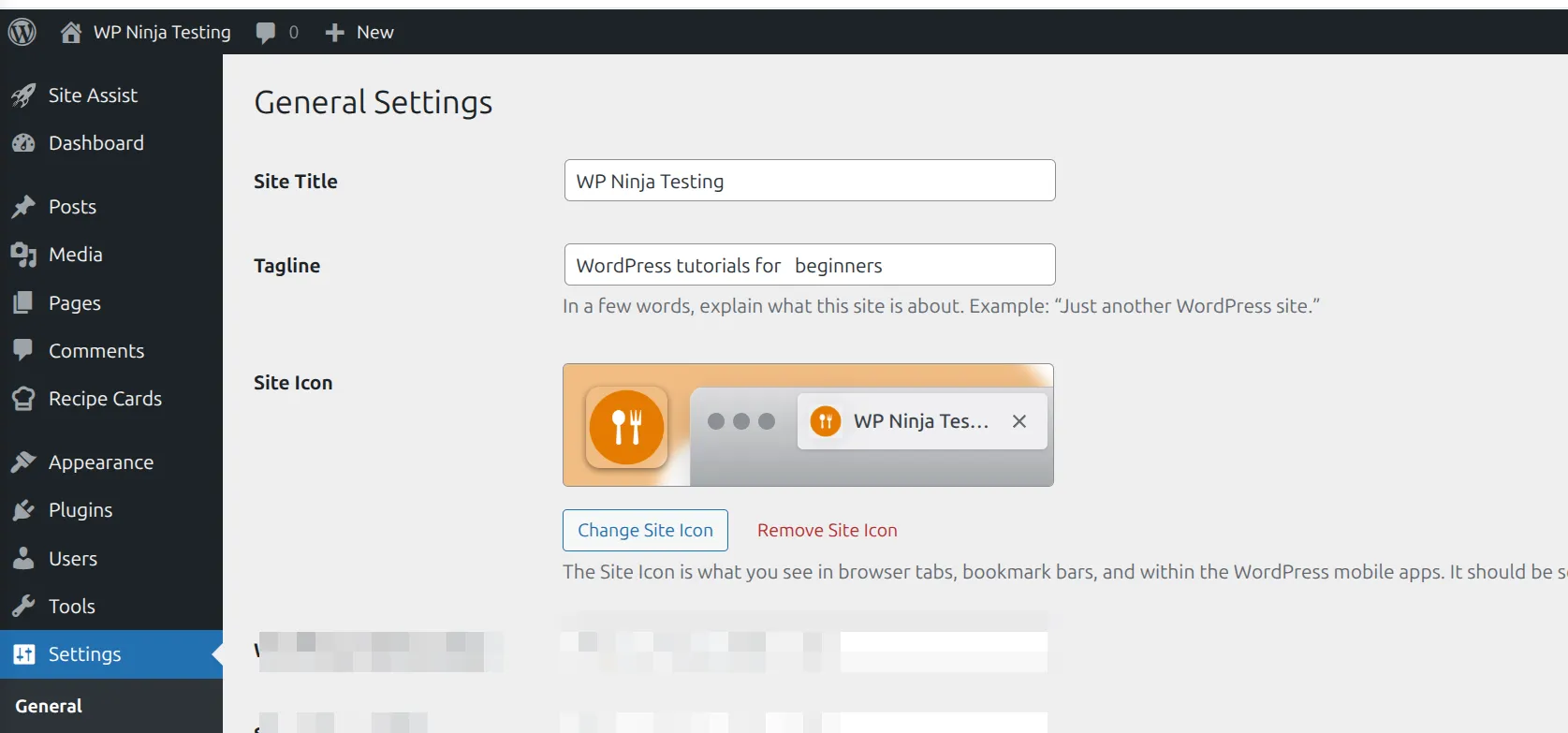
Scroll to the bottom of the page and click Save Changes. That’s it. Open your site in a new tab to confirm the title updated in the browser tab and anywhere the theme displays it.
If your title updated – great, you’re done. If nothing changed on the front end, one of the 4 cases below is the culprit. Keep reading.
What if my theme shows a logo image instead of the title?
This one trips up most beginners. You change the title in Settings > General, refresh your site, and nothing looks different. Why? Because your theme is showing a logo image, not text.
Most modern themes let you upload a logo that replaces the site title text in the header. The Settings > General title is still there under the hood – search engines and browser tabs still use it – but visitors see your logo instead.
To update or remove the logo, go to Appearance > Customize and look for a section called Site Identity, Header, or Logo. If you’re on a newer block theme, the Customizer might not exist. In that case, check my guide on where the WordPress Customizer went for the block theme equivalent.

Inside Site Identity you’ll usually see:
- Logo – upload or remove the image
- Site Title – a text field (this often syncs with Settings > General)
- Display Site Title and Tagline – a checkbox to toggle the text on or off
If your logo already has the brand name baked into the image, you have to edit the image file itself. WordPress can’t change text inside a PNG or JPG. Open the logo in Canva, Photoshop, or any image editor, fix the text, and re-upload it through the same Site Identity panel. While you’re tweaking branding, you might also want to change page background colors so the logo sits on the right color behind it.
What about block themes (Twenty Twenty-Four, etc.)?
Block themes like Twenty Twenty-Four, Twenty Twenty-Five, and any theme that uses Full Site Editing changed the rules. The Customizer is gone. The header is controlled by the Site Editor and a specific block called Site Title.
Here’s how to update it on a block theme.
Go to Appearance > Editor in your dashboard. This opens the Site Editor. Click Patterns in the sidebar, then find your header template part (usually just called Header). Click the header to open it for editing.
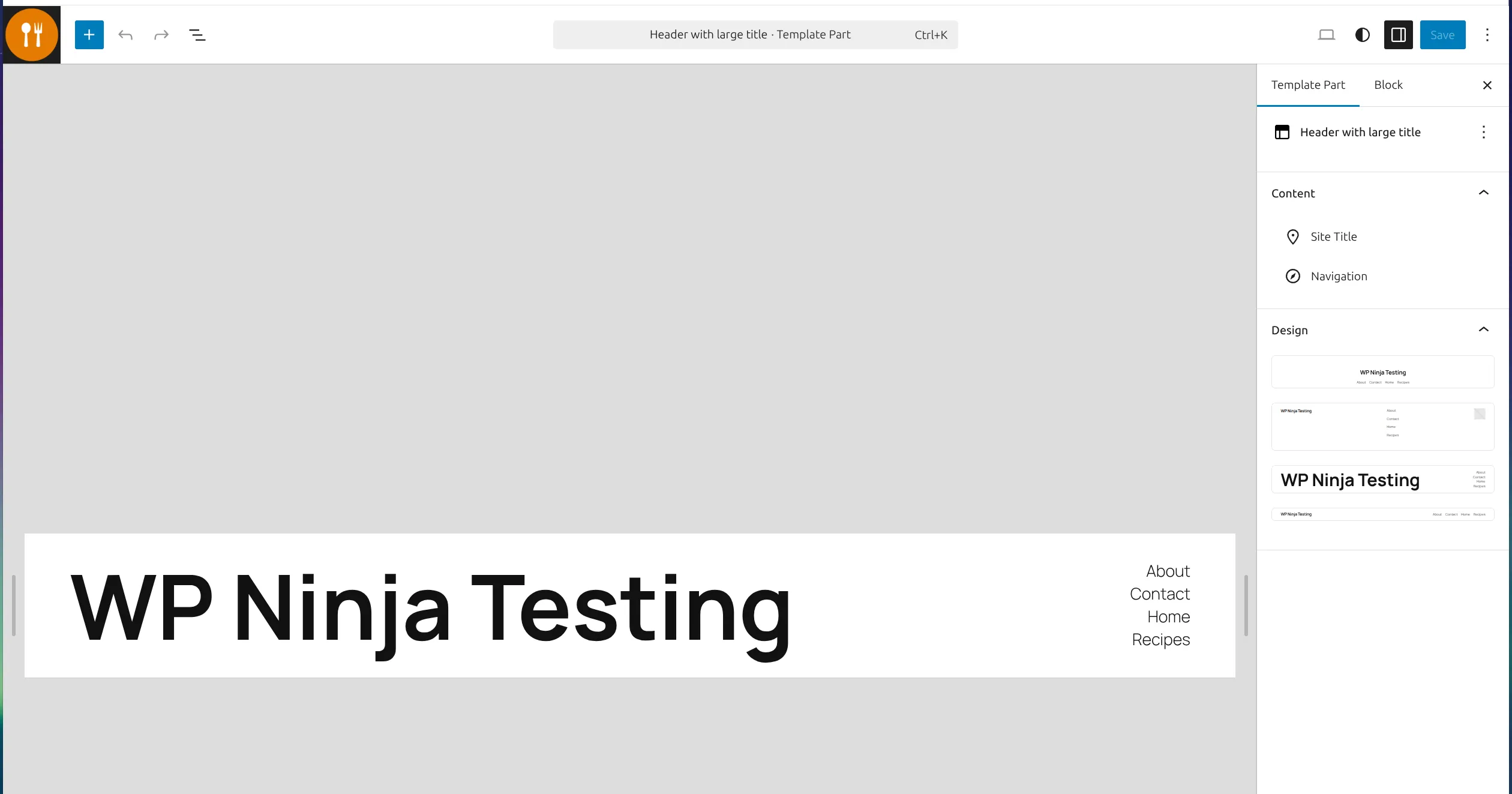
Look for the Site Title block in the header layout. Click it once to select it. In the right sidebar, you’ll see block settings – but here’s the important part: the text you see is pulled from Settings > General automatically. You can’t just type over it in the block.
To change the actual words, go back to Settings > General, update the Site Title field, and save. Then return to the Site Editor and refresh. The block updates automatically.
If you want to remove the title entirely and just show a logo, delete the Site Title block from the header. If you want to change the font or color, click the block and use the Styles panel on the right. While you’re in the Site Editor, you might also want to add items to your menu to match the new branding. If you accidentally break the layout while poking around, I wrote a guide on fixing global template changes that’ll walk you through reverting.
How do I change the site title that appears in Google search results?
This is the sneakiest case. You change the site title in Settings > General. The header on your site updates. But Google still shows the old title in search results, or the browser tab shows something weird like “Home – Old Site Name”.
That’s your SEO plugin overriding WordPress.
Most SEO plugins – Yoast, Rank Math, SEO Simple Pack, All in One SEO – let you set a separate “site name” or “title template” that takes priority over the built-in WordPress title tag. When the plugin is active, WordPress hands off title duties to it, and the Settings > General value gets ignored for the browser tab and search snippets.
Here’s where to look in each major plugin.
Yoast SEO. Go to Yoast SEO > Settings > Site basics. There’s a field called Site title that controls what shows up in search results and social previews.
Rank Math. Go to Rank Math > Titles & Meta > Global Meta. Look for the Title Separator and Site Name fields. The Homepage tab has a separate title template.
SEO Simple Pack. Go to SEO PACK > General settings. The Website name field at the top overrides WordPress. Clear it to fall back to your Settings > General value.
All in One SEO. Go to All in One SEO > Search Appearance > Global Settings. Update the Site Title field there.
If you’re not sure which plugin is overriding things, open your site in a new tab, right-click the page, and choose View Page Source. Search for <title> near the top of the code. Whatever text is between those tags is your real title. If it doesn’t match Settings > General, it’s coming from your SEO plugin.
Not sure which SEO plugin to keep? I compared Rank Math vs Yoast for beginners if you’re still choosing.
Site title vs tagline – what’s the difference?
These two fields sit right next to each other in Settings > General, and people mix them up constantly.
The Site Title is your site’s name. “The WP Ninja”, “Jane’s Kitchen Blog”, “Acme Plumbing”. It’s what shows in the browser tab and usually the main header text.
The Tagline is a short description that sits under or near the title. It’s meant to be a 5-10 word pitch. WordPress fills it with “Just another WordPress site” by default, which is the most common mistake I see. If you’ve never changed it, Google might be showing that default tagline in your search results right now.
Here’s a quick comparison.
| Field | Purpose | Example | Length |
|---|---|---|---|
| Site Title | Your site’s name | The WP Ninja | 1-5 words |
| Tagline | Short description | WordPress tips that won’t break your site | 5-10 words |
Both fields feed into SEO. The title usually appears at the end of every page’s browser tab (like “About Us – Your Site Title”). The tagline sometimes appears in the homepage meta description if you haven’t set a custom one – which is why writing a good meta description matters even more if you leave the tagline blank.
My rule: always change both from the defaults, even if you don’t use the tagline in your header design. It still shows up in places you can’t see.
Frequently Asked Questions
How do I change the site title and tagline in WordPress?
The easiest way I know is to go to Settings > General in your dashboard. You can type your new title right into the text boxes at the top of the page. Don’t forget to scroll down and click save!
Where are the General Settings in WordPress to change the title?
You’ll find the General Settings menu hiding near the bottom of your left-hand admin sidebar. I click on “Settings” and then “General” to access the 2 main text fields for the title and tagline.
How does changing my WordPress site title affect SEO?
Changing your title directly changes how you show up in Google search results. I try to include my brand name and at least 1 relevant keyword, so people know exactly what my site is about before they even click.
Why is my WordPress site title not changing after I save it?
When this happens to me, it’s almost always a caching issue. I’ll clear my caching plugin and refresh my browser, and my new title usually appears on the live site right away.
Closing thoughts
The short answer: change your site title in Settings > General, click save, done. That fixes it for 80% of people.
But if you hit one of the 4 tricky cases – a logo image, a block theme, an SEO plugin override, or confusion with the tagline – now you know exactly where to look. The hardest part is figuring out which one is the culprit, and “View Page Source” is your best friend for that.
One last tip. Whenever you change your site title, always check 3 places afterward: the browser tab, the header of your live site, and an incognito Google search for your domain. If all three match what you typed in Settings > General, you’re in good shape.