How to Change Footer Copyright Text in Kadence Free
If you’re using the Kadence theme, your footer probably says something like “© 2026 Your Site Name – WordPress Theme by Kadence WP.” That’s the default. And it looks generic.
The good news? You can change every word of it – including removing the “Theme by Kadence” credit – without upgrading to Kadence Pro. You can still find forum answers saying the credit needs Pro or a CSS hack. It doesn’t.
Kadence lets you do it with a free setting that takes about 30 seconds. I re-tested every step below on Kadence 1.4.5 for this update, and I found one trap with links that I hadn’t covered before.
Where Is the Copyright Setting in Kadence?
The copyright text lives inside the Kadence footer builder, which is part of the WordPress Customizer.
- Go to Appearance > Customize in your WordPress dashboard.
- Click Footer in the left sidebar.
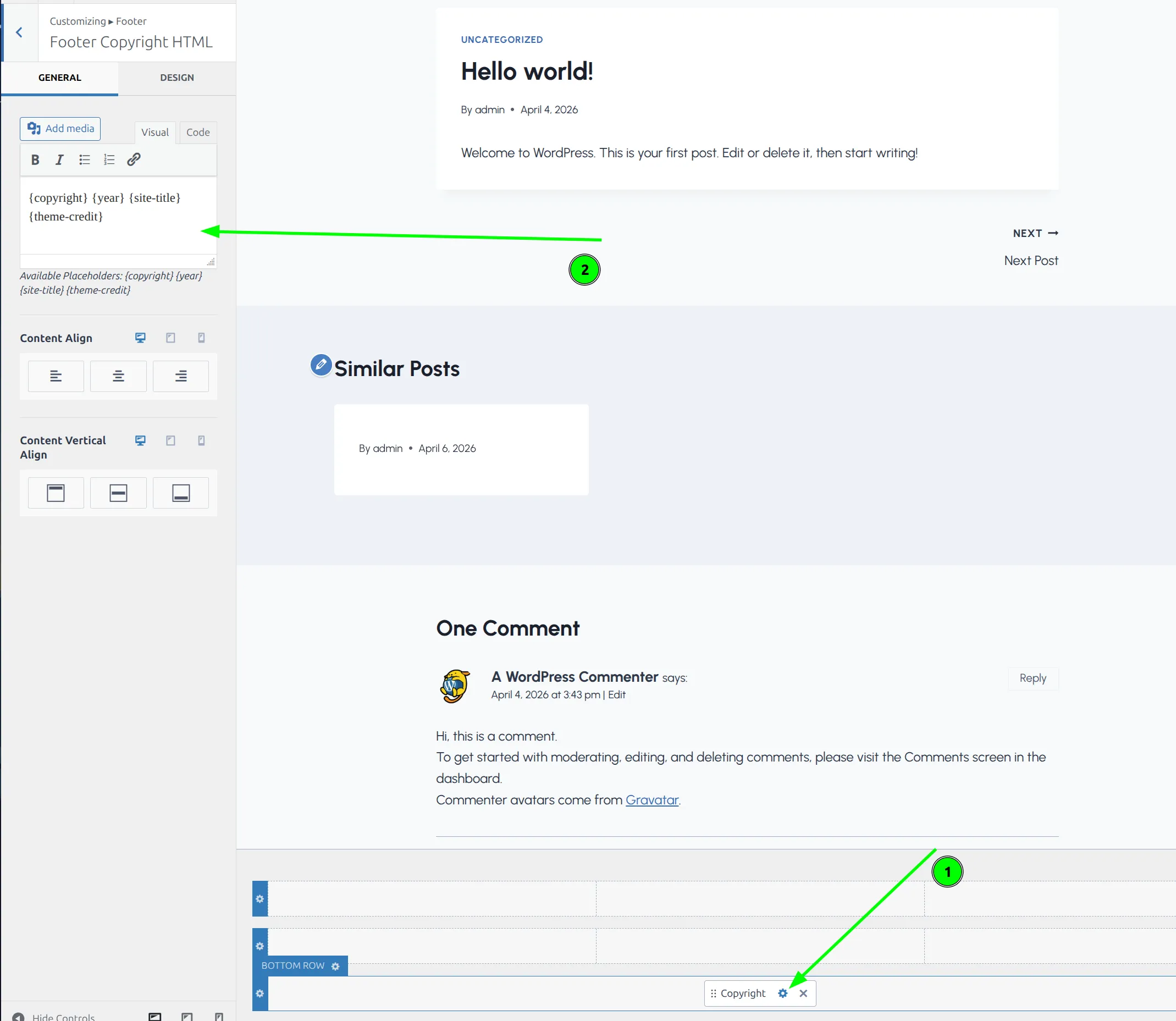
- The footer builder opens docked under the preview. Click the item labelled Copyright – on a fresh install it sits alone in the bottom row.
The panel that opens is called Footer Copyright HTML. If you don’t see a Copyright item anywhere in the builder, someone removed it. Click the + in any footer column and pick Copyright to put it back.
The default content looks like this:
{copyright} {year} {site-title} {theme-credit}Those curly-brace tags are dynamic placeholders. Kadence swaps them for real values when the page loads, and the list of all 4 is printed right under the editor box.
What Do the Dynamic Tags Mean?
| Tag | What It Outputs | Example |
|---|---|---|
{copyright} | The © symbol | © |
{year} | The current year (updates itself) | 2026 |
{site-title} | Your site name from Settings > General | The WP Ninja |
{theme-credit} | “- WordPress Theme by Kadence WP” (with a link) | – WordPress Theme by Kadence WP |
You can mix these tags with your own text however you want. Use all 4, drop some, or skip them entirely and type plain text.
How Do I Edit the Copyright Text?
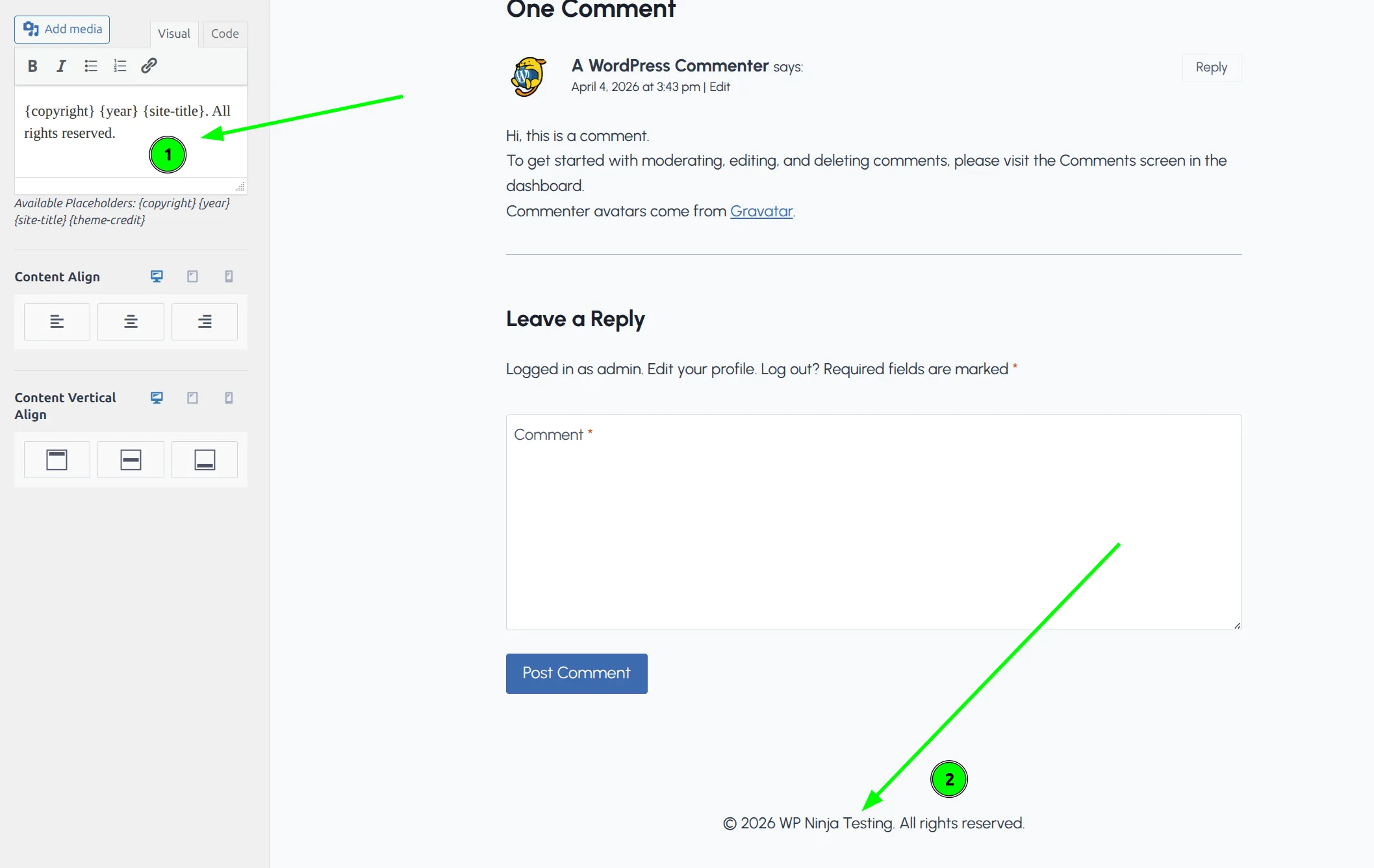
Click into the editor box and replace the default content with whatever you’d like. Here are 3 versions I’ve used:
Simple and clean:
{copyright} {year} {site-title}. All rights reserved.This renders as: © 2026 The WP Ninja. All rights reserved.
With a tagline:
{copyright} {year} {site-title} | Your tagline goes hereCompletely custom:
Made with love by Jane's Bakery {copyright} {year}The preview updates as you type. When you’re happy, click Publish at the top of the Customizer – nothing changes for visitors until you do.
How Do I Remove “Theme by Kadence WP”?
This is the part that trips people up – mostly because of bad advice floating around online.
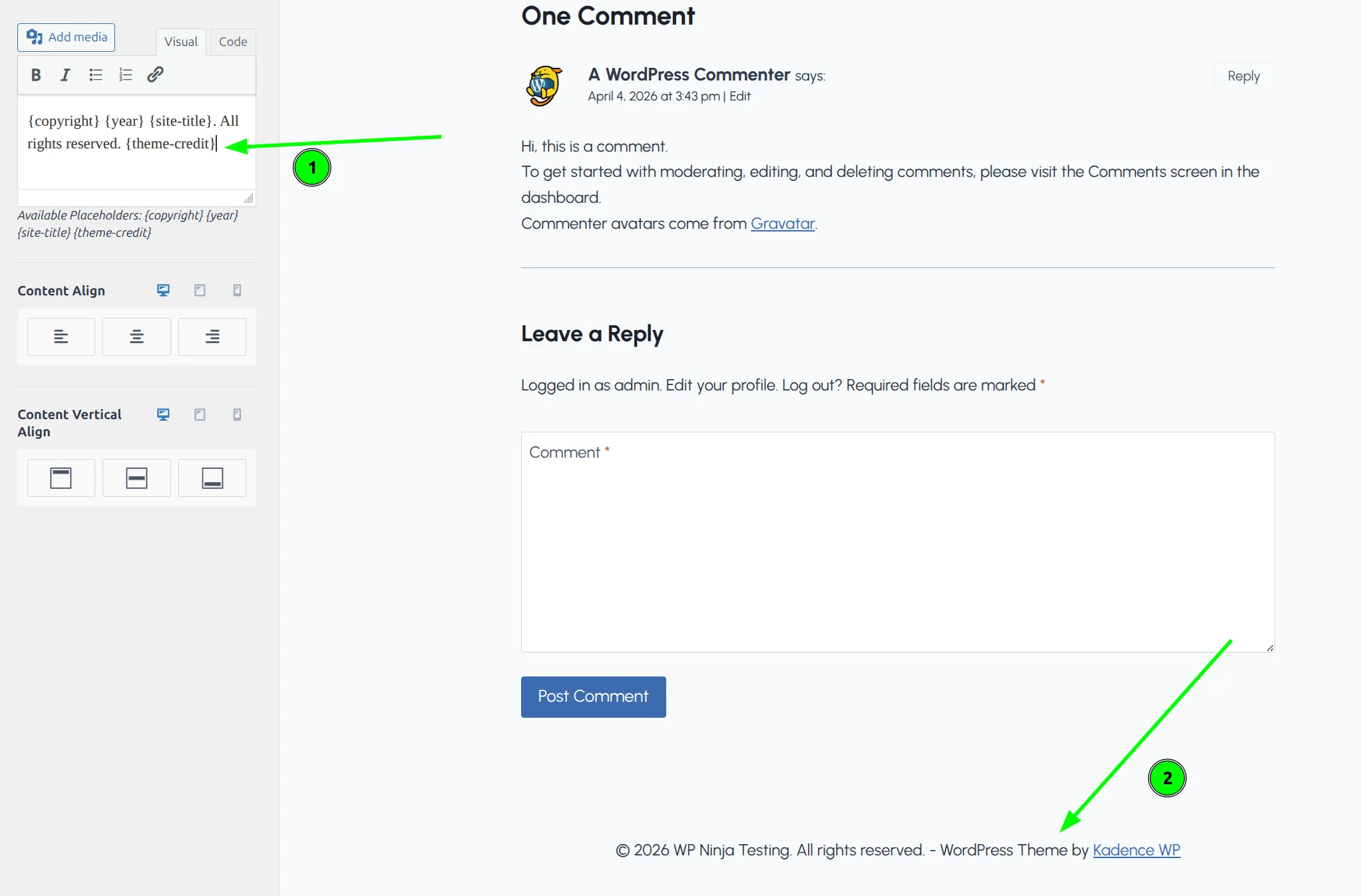
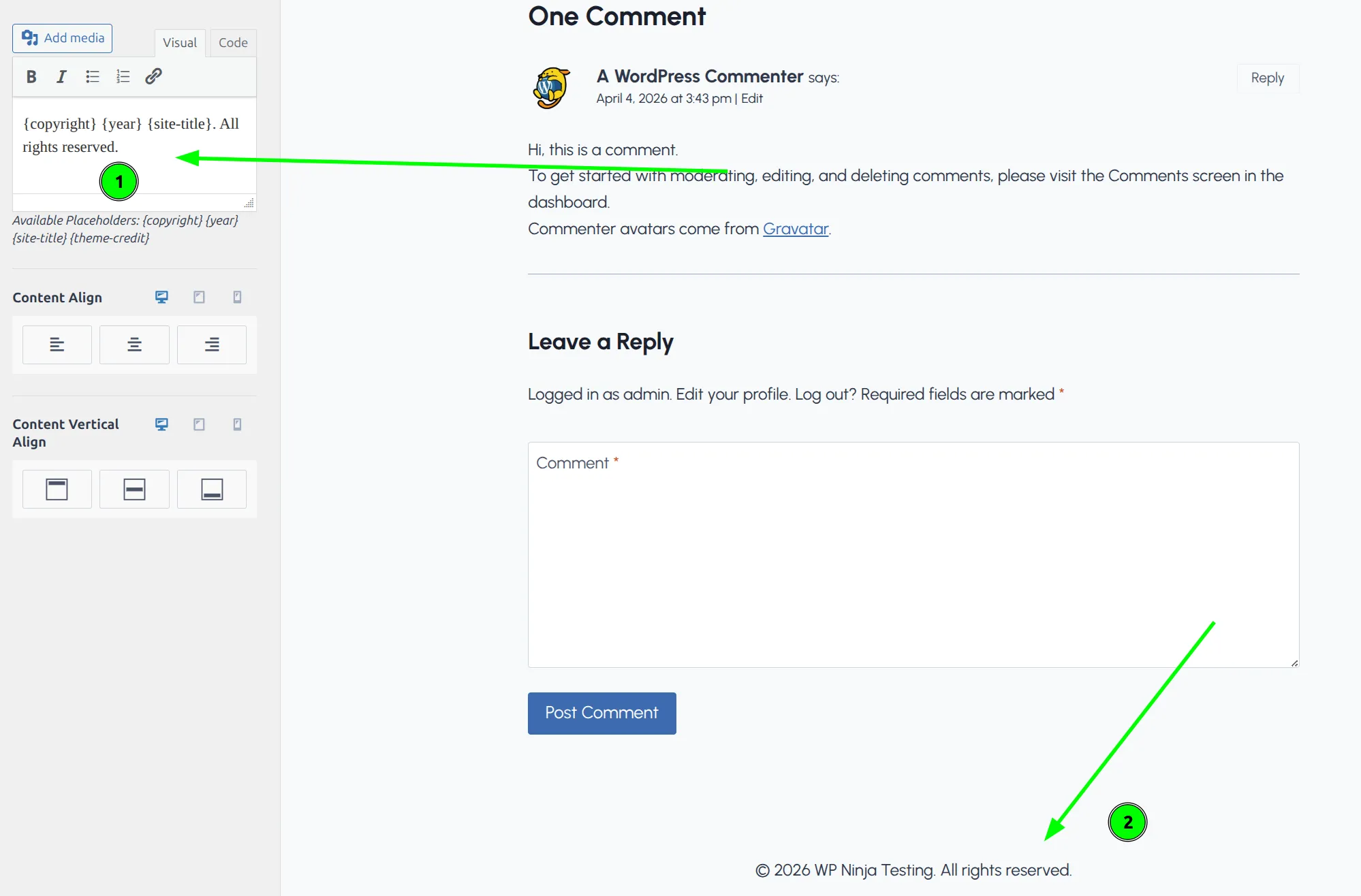
To remove the Kadence credit from your footer, delete the {theme-credit} tag from the copyright editor. That’s it. No CSS, no Pro upgrade, no child theme, no plugin.
- Open the copyright editor (Appearance > Customize > Footer > click the Copyright item).
- Find
{theme-credit}in the text. - Delete it.
- Click Publish.
The “WordPress Theme by Kadence WP” line disappears from your footer. I checked the page source on my test site afterwards and the words “Kadence WP” didn’t appear anywhere on the page.
That’s because {theme-credit} is a placeholder like the other 3. The theme only prints the credit when it finds that tag in your text. And for what it’s worth, the credit link carries rel="nofollow", so removing it doesn’t change anything for your SEO either way.
Before:
After:
Can I Add Links to the Copyright Area?
Yes. The copyright editor accepts HTML, so you can add clickable links directly. This is handy for linking your Privacy Policy and Terms pages.
But first, look at the top right of the editor box. There are 2 tabs: Visual and Code. Which one you type into decides whether your link works.
Switch to the Code tab and type the HTML there. Here’s what I use:
{copyright} {year} {site-title} | <a href="/privacy-policy/">Privacy Policy</a> | <a href="/terms/">Terms of Service</a>That renders as: © 2026 The WP Ninja | Privacy Policy | Terms of Service – with the last 2 as clickable links.
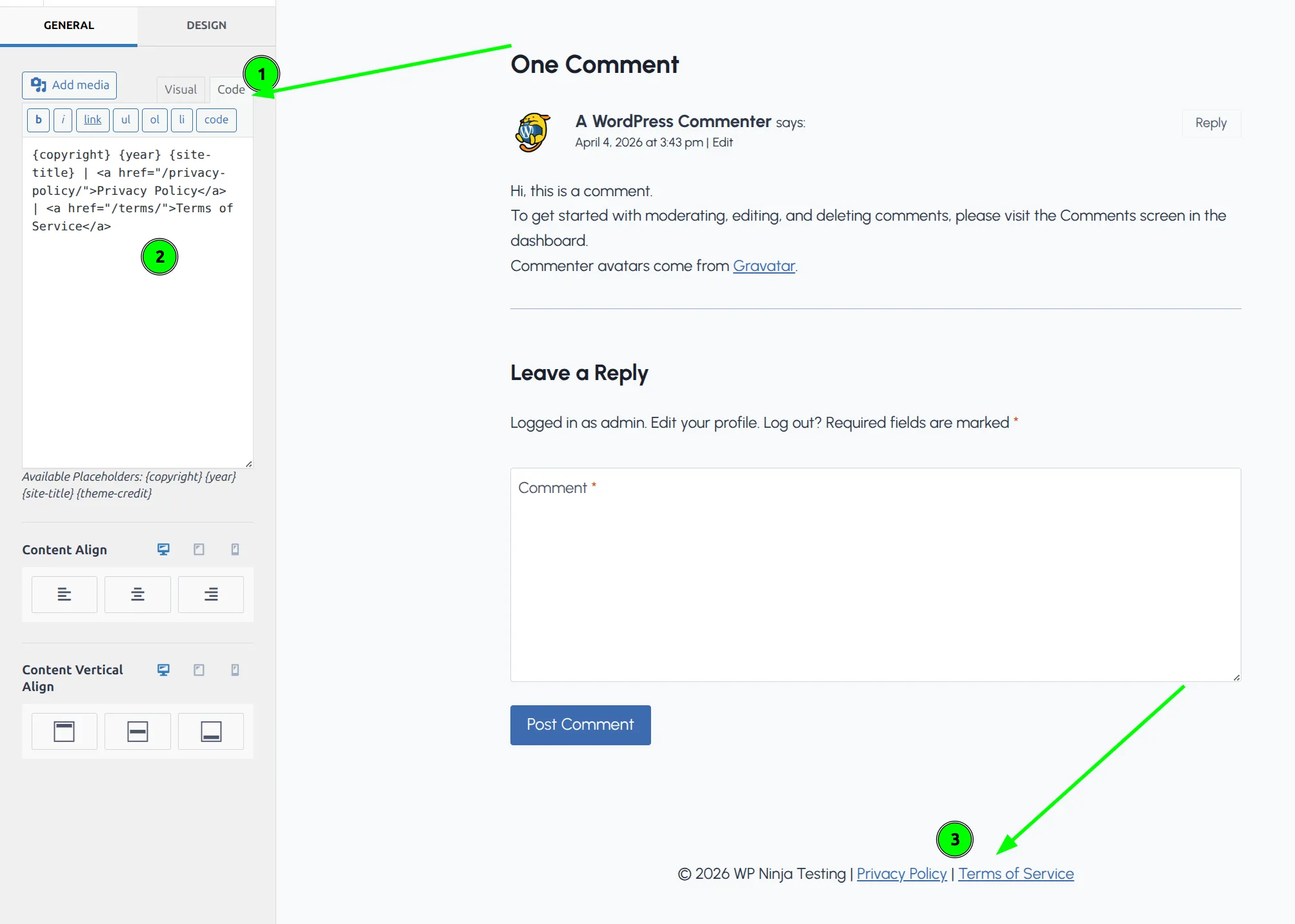
Now the trap. If you type that same HTML into the Visual tab, the editor treats it as ordinary text. I tested it: the editor saved my link as <a href=...>, and the footer showed the raw code to visitors instead of a link.
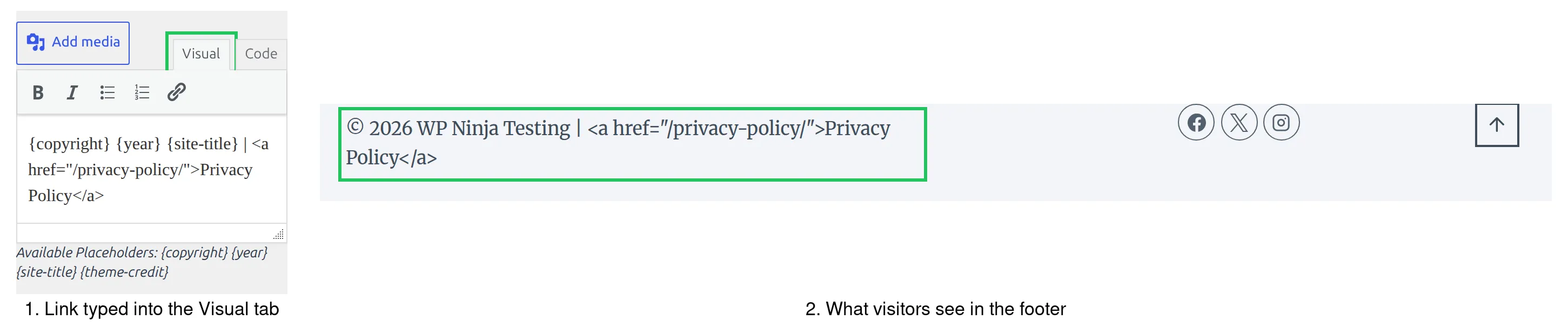
If you’d rather not touch HTML at all, stay on the Visual tab, select the words you want to link and click the chain icon in the toolbar. 3 more tips:
- Use relative URLs (starting with
/) instead of full URLs. If you ever move your domain, the links still work. - Keep it to 2-3 links. The copyright area isn’t a navigation menu.
- If you need more footer links, add Kadence’s Footer Navigation item instead – it’s built for menus and gets its own styling options.
Don’t Hard-Code the Year
I see this mistake constantly. Someone types © 2025 My Website instead of using {copyright} {year} My Website. It works fine until January 1st rolls around and your footer still says 2025.
The {year} tag fills in the current year by itself, using the timezone set in Settings > General. You never need to touch it again.
One catch: if you use a caching plugin, the cached pages keep showing the old year until the cache is cleared. A quick cache purge in the first days of January fixes it.
And the {copyright} tag isn’t required either. Pasting a © symbol straight into the editor works too – I tested both and they look identical. The tag is just easier to type.
How Do I Style the Footer Copyright Text?
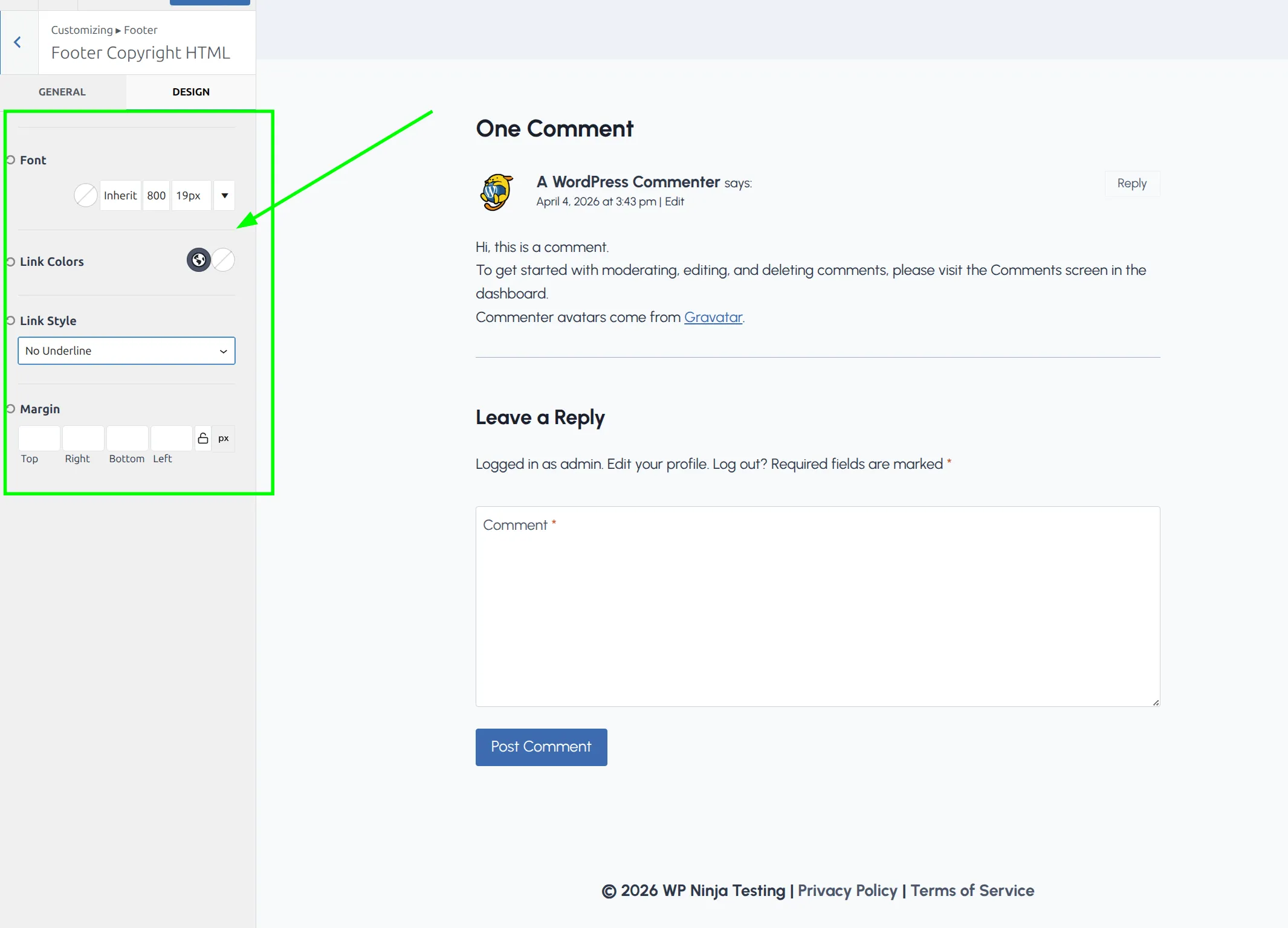
The copyright text inherits your site’s default font settings, but you can change it. The controls are split across the 2 tabs at the top of the Footer Copyright HTML panel.
On the General tab, under the editor:
- Content Align – left, center or right, set separately for desktop, tablet and mobile
- Content Vertical Align – top, middle or bottom within the footer row
On the Design tab:
- Font – family, size, weight and color. I usually go 1-2px smaller than body text
- Link Colors – normal and hover colors, important if you added links
- Link Style – Underline or No Underline
- Margin – spacing around the text block
Every footer option, row by row, is in my Kadence footer settings reference. If you notice extra white space in your footer area after making changes, check my guide on fixing extra footer white space in Kadence. And if your footer background is dark, make sure your text color is light enough to read. Test it by squinting at your screen – if you can’t read it while squinting, visitors with weaker eyesight won’t be able to read it normally.
What About Social Icons in the Footer?
Kadence’s footer builder has a separate Social item you can add alongside the copyright text. It’s not part of the copyright editor – it’s its own drag-and-drop block.
To add it:
- In the Customizer footer builder, click the + in a footer column (the same row as your copyright, or a different row).
- Select Social.
- Pick your networks and an icon style – Filled or Outline – and decide whether to use each network’s brand colors.
Each footer row can hold up to 5 columns, and you choose how many it uses in the row’s settings. I wrote a full walkthrough on adding social icons to your Kadence footer if you want the step-by-step.
Quick Reference: Common Footer Setups
Here are the exact strings for the most common footer configurations. Paste the ones with links into the Code tab.
Clean copyright only:
{copyright} {year} {site-title}Copyright with legal links:
{copyright} {year} {site-title} | <a href="/privacy-policy/">Privacy</a> | <a href="/terms/">Terms</a>Business footer with address:
{copyright} {year} {site-title} | 123 Main St, Springfield | (555) 123-4567Minimal:
{copyright} {site-title}All of them work in the free version.
Troubleshooting
| Problem | Cause | Fix |
|---|---|---|
| “Theme by Kadence” still showing | {theme-credit} tag still in the editor, or you didn’t click Publish | Delete the tag and click Publish |
Link shows as code like <a href=...> | HTML typed into the Visual tab | Retype it in the Code tab, or use the link button |
| Year shows the wrong date | Wrong timezone, or an old cached page | Check Settings > General > Timezone, then clear your cache |
| Copyright text not appearing | Copyright item removed from the footer builder | Click + in a footer column and add Copyright |
| Changes not showing on live site | Browser or page cache | Clear your caching plugin and browser cache – see why WordPress changes don’t show up |
Frequently Asked Questions
Do I need Kadence Pro to change the footer copyright text?
No. Everything in this article – editing the copyright text, removing the theme credit, adding links and styling the font – works in the free version of Kadence. My test site runs the free theme with no Pro license.
Will removing the Kadence credit cause any issues?
No. The {theme-credit} tag is a placeholder like {year} or {site-title}. Deleting it doesn’t break anything, and your setting stays in place when the theme updates.
Can I add a second line to the footer copyright area?
Yes. Press Enter in the editor and Kadence turns it into a line break on the page – I checked the output and it adds a <br> tag. I’ve used this to put the copyright on one line and legal links on the line below.
Does the {year} tag update automatically on January 1st?
It does. The tag reads the current year in the timezone you set under Settings > General. If you run a caching plugin, clear the cache once in early January so cached pages pick up the new year.
Wrapping Up
Changing your Kadence footer copyright takes about 30 seconds once you know where the setting lives. The key things to remember:
- The editor is at Appearance > Customize > Footer > Copyright
- Delete
{theme-credit}to remove the Kadence credit – no Pro upgrade needed - Use
{year}so you never have to update the date by hand - Type links in the Code tab, not the Visual tab
- Alignment is on the General tab; font, link colors and margin are on the Design tab
And if anyone tells you that you need to pay for Kadence Pro just to remove the footer credit, send them here. It’s been free all along.