How to Add Social Icons to Your Kadence Footer
When I first set up my Kadence site, I spent way too long looking for a social icons plugin. Turns out I didn’t need one. Kadence has a built-in Social element baked right into the footer builder, and it covers 56 networks including Facebook, Instagram, X, YouTube, TikTok, LinkedIn, Bluesky, Mastodon and Threads.
The whole setup takes about 3 minutes. But there’s one step that catches almost everyone, and it isn’t where you’d expect it to be. I’ll get to that in a moment.
How Do I Add Social Icons to My Footer?
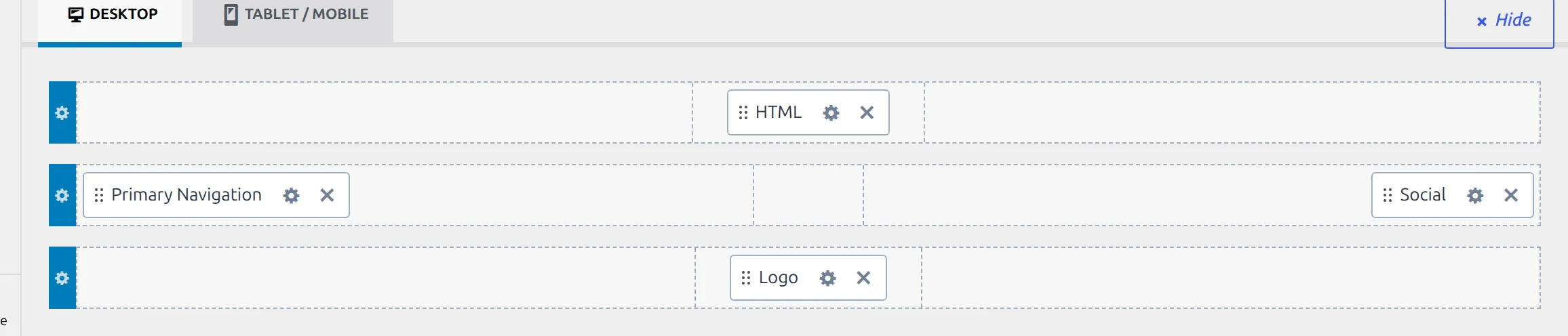
Head to Appearance > Customize > Footer. The footer builder isn’t a section inside that panel – Kadence docks it underneath the live preview as soon as the panel opens. That’s a grid of three rows, and each row can hold up to five slots.
Look at the control column on the left while you’re there. The top of it lists whatever is already in your footer by name, one clickable row each, and under that sits an Available Items tray holding the pieces you haven’t used yet. On a fresh install Kadence has already put the copyright line in the bottom row, so the tray holds Social, Footer Navigation and six widget areas.
Hover an empty slot in the builder and a + appears. Click it and Kadence offers you whatever is still in the tray. Pick Social.
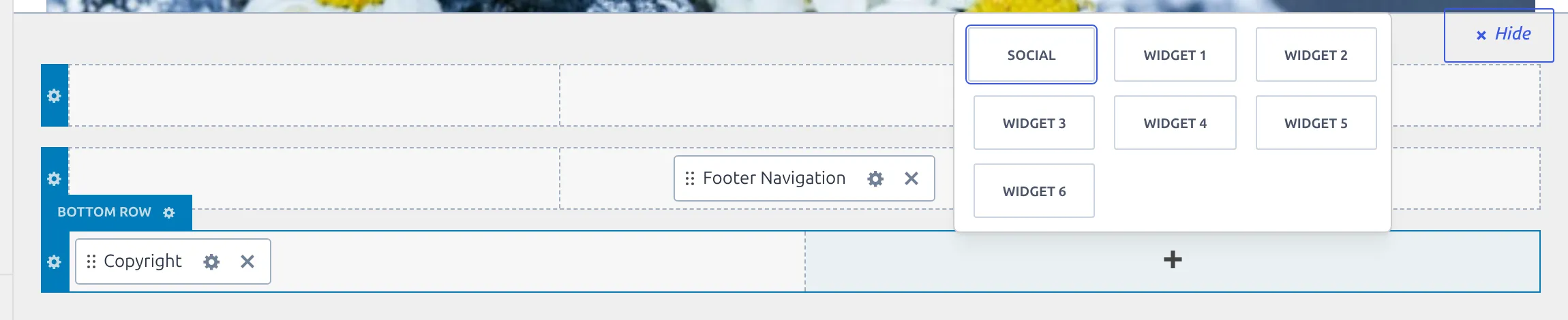
The icons show up in the preview straight away, and Social moves out of the tray into the row. That’s worth knowing, because once it’s placed the + stops offering it – if you go looking for Social in that menu and can’t find it, it’s already in your footer somewhere.
Most people put it in the bottom row next to the copyright line, but any of the fifteen slots works.
How many slots a row actually shows is its own setting. Each row has a Columns control set to anything from 1 to 5, and Kadence ships the bottom row on 1 column holding the copyright text. Bump it to 2 and you get a second slot for the icons.
Where Do the Social Media Links Actually Go?
Here’s the step that trips everyone up. The URLs are not in the Social element.
Open the Social element’s settings – either the small gear on the item in the builder, or the row labelled Social in the control column. Both go to the same place, the General tab.
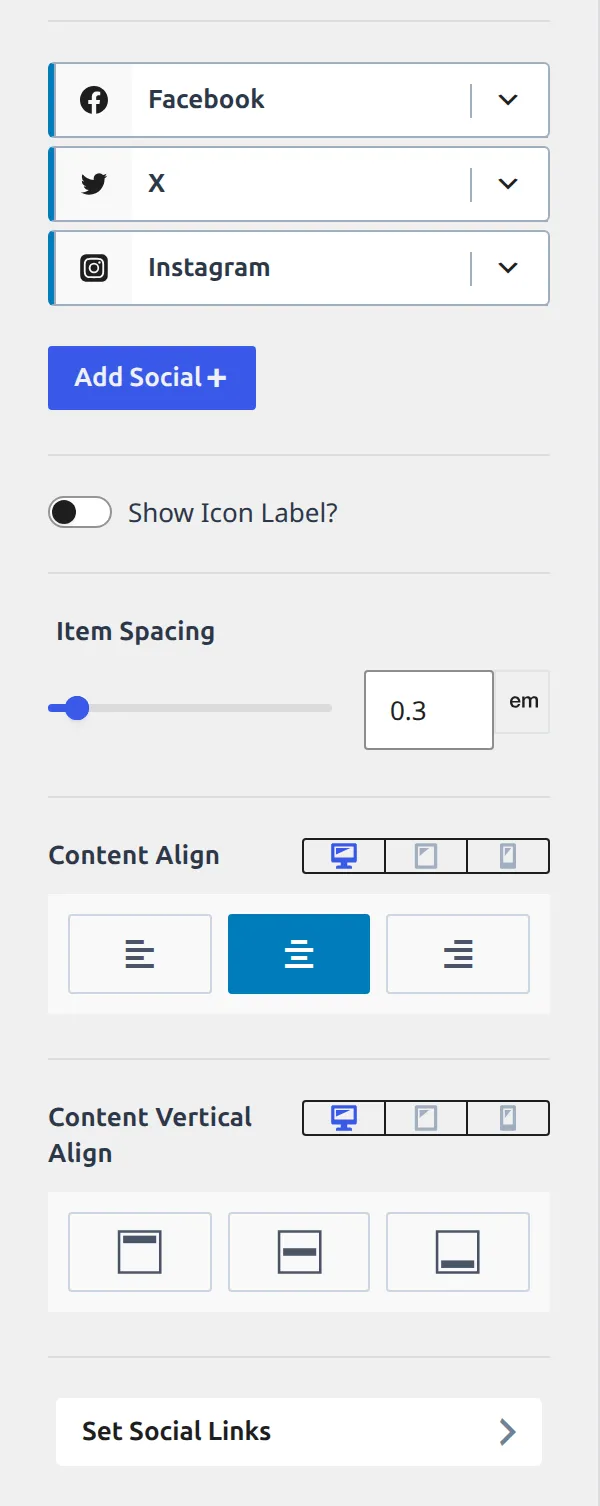
You’ll see a Social Items list with Facebook, X and Instagram already in it, plus a button labelled Set Social Links. That button isn’t a form. It’s a shortcut that jumps you to a completely different part of the Customizer: General > Social Links.
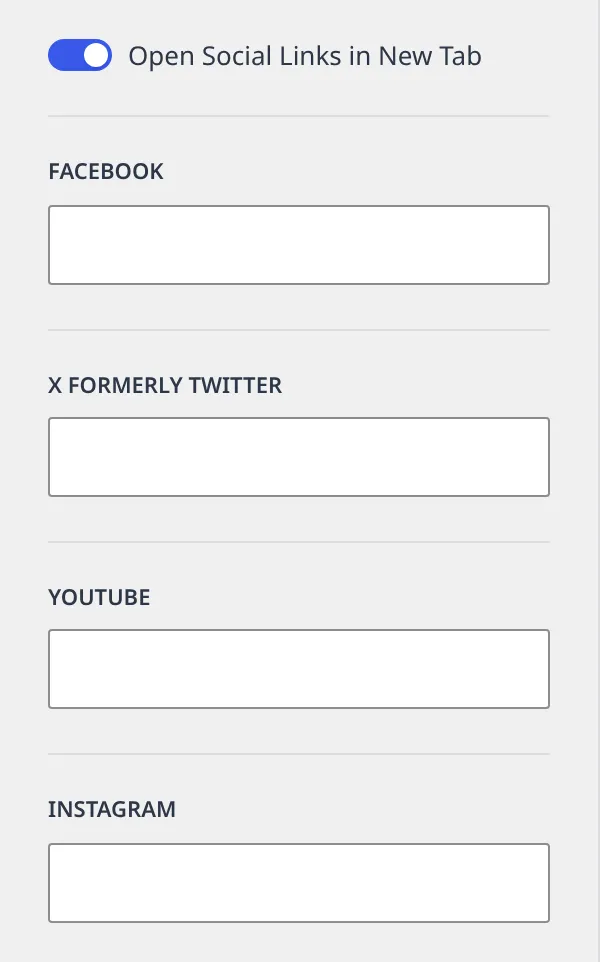
That section is one long list of text fields, one per network. Paste your profile URL into the field for each network you’re using, and leave the rest empty.
Back in the Social element, the Social Items list is where you decide which of those networks actually get an icon. Kadence starts you with Facebook, X and Instagram. Drag a row by its title bar to reorder them, click the network’s own icon at the left of the row to hide it without deleting it, and use Add Social + under the list to bring in another. Expanding a row with the caret gives you an Item Label and a Remove Item link, plus the icon controls I’ll come back to further down.
So the two halves of the job live in two places, and it’s worth holding this in your head:
- The Social element decides which icons appear, in what order, and how they look
- General > Social Links holds the actual URLs
There’s a consequence to that split which nobody mentions: the URLs are site-wide. Your header icons and your footer icons read from the same list. You can show different networks in each place, but you can’t point the footer Facebook icon at one page and the header Facebook icon at another.
Quick tip: For phone numbers and email, Kadence handles the tel: and mailto: prefixes itself. Type the number or the address and it does the rest. Those two also never open in a new tab, whatever your other settings say.
Why Do My Icons Look Fine but Go Nowhere?
This is the failure mode nobody warns you about, and I tested it to be sure.
If you add the Social element and never fill in the URLs, the icons still render. They’re the right size, the right colour, sitting in the right spot. They just link to nothing. I checked the page source on a test site and this is what Kadence writes out:
<a href="" aria-label="Facebook" target="_blank" rel="noopener noreferrer" class="social-button footer-social-item social-link-facebook">An empty href like that reloads whatever page the visitor is already on. So the icons look perfectly healthy, and every click quietly does nothing. Nobody complains, because from the outside it looks like a slow page rather than a broken link.
If you take one thing from this article: after you add the Social element, click through to General > Social Links and fill the URLs in. Then click one of the live icons yourself and check where it lands.
How Do I Change the Icon Style?
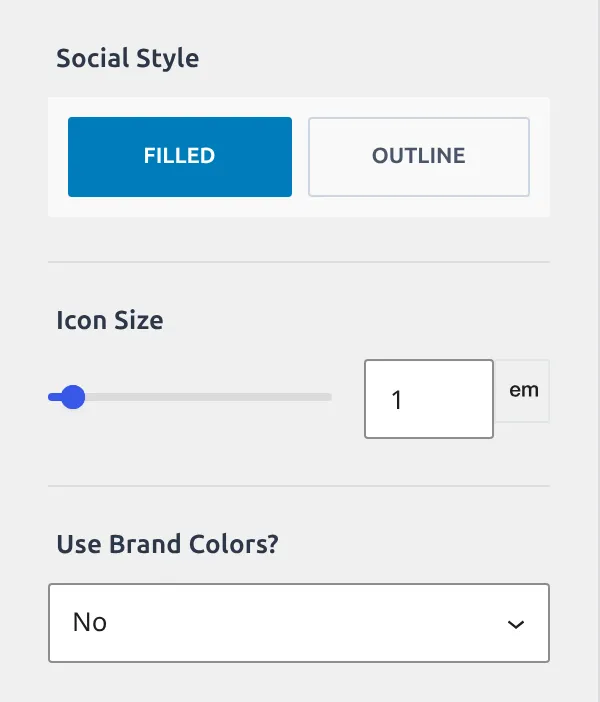
Click the Design tab in the Social element settings. There are two styles, not three:
Filled – a solid background with the icon knocked out on top. This is the default and what I use on most sites. One background colour, all icons match.
Outline – a border around each icon with no fill. Lighter and more minimal, good on a busy footer where you don’t want the icons shouting.
Brand colours are a separate control sitting just below, labelled Use Brand Colors?, and it has four settings rather than an on/off switch:
| Setting | What you get |
|---|---|
| No | Your own colours (this is the default) |
| Yes | Facebook blue, YouTube red, the Instagram gradient, always |
| On Hover | Your colours normally, brand colours when the mouse is over the icon |
| Until Hover | Brand colours normally, your colours on hover |
On Hover is the one I reach for most. The footer stays calm, and the icons light up in their real colours when someone actually goes to click one.
Below those you also get Icon Size (a slider that defaults to 1em and takes px, em or rem), Item Spacing (0.3em out of the box), Border Radius (3px by default, so slightly rounded rather than square), plus separate colour pickers for the icon, the background and the border, each with its own hover value.
One detail I appreciate about Kadence’s approach: the icons are printed as inline SVG with fill="currentColor", not an icon font. No extra font file to download, and the icons inherit your text colour for free.
Where Should I Place Them in the Footer?
The builder gives you three rows with up to five slots each, so fifteen positions. Here’s what actually works:
Bottom row, next to the copyright – put Copyright in slot 1 and Social in slot 2, set the row to 2 columns, and everything stays on one line. This is what most sites do and what visitors expect. If you haven’t touched your copyright line yet, here’s how to change the footer copyright text in Kadence.
Top row, on its own – works when you have a multi-row footer with widgets or a navigation menu underneath. The icons read as a header for the footer rather than an afterthought.
Middle row, centred – fine if your footer is widget-heavy and the bottom row is already crowded.
My advice: pick one spot and stop. I’ve seen sites with social icons in the footer, the header, the sidebar and a floating bar all at once. It looks cluttered and it doesn’t get more clicks.
Can I Add Social Icons to the Header Too?
Yes, and it’s the same process. Go to Appearance > Customize > Header and drop the Social element into the header builder instead.
The header element keeps its own item list and its own styling, so you can show five networks in the footer and two in the header, filled downstairs and outline upstairs. What it doesn’t keep is its own URLs – those come from the same General > Social Links list.
Watch the mobile header, though. If you already have a logo, a menu toggle and a search icon up there, social icons make it cramped fast. Kadence has a separate Header Social element for mobile with its own settings, so the cleanest answer is usually desktop-only social icons in the header and the full set in the footer.
What Networks Are Available?
Kadence ships 56 networks in the free theme, plus three Custom slots. The ones people ask about most:
- Facebook, Instagram, X, YouTube, Pinterest, LinkedIn, TikTok
- Bluesky, Mastodon, Threads, Telegram, WhatsApp, Snapchat, Line
- Reddit, Discord, Twitch, Tumblr, Dribbble, Behance, Vimeo
- Spotify, SoundCloud, Bandcamp, Apple Podcast, Anchor, Rumble
- GitHub, Medium, Patreon, Goodreads, IMDB, Steam, Strava
- Google Reviews, Trip Advisor, Yelp, Amazon, RSS, Email, Phone
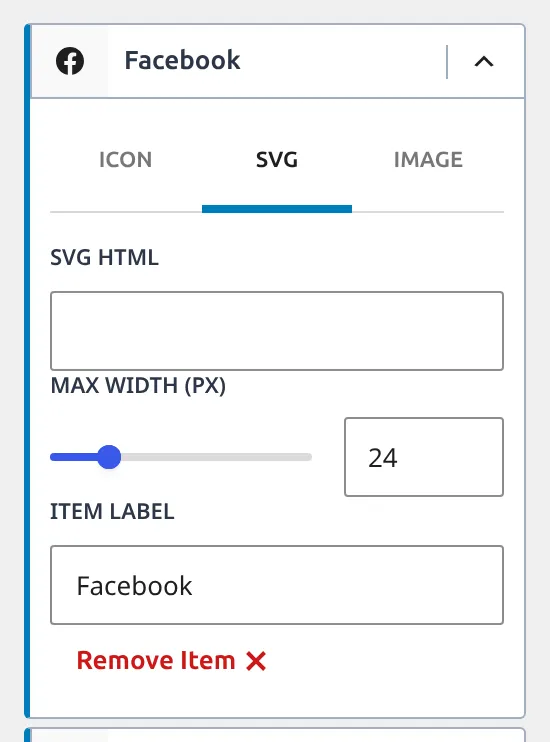
Not on the list: Stack Overflow and CodePen. If you need one of those, or anything else, every item in the Social element has three tabs – Icon, SVG and Image.
Switch an item to the SVG tab and you get an SVG HTML box. Paste in the markup from somewhere like Simple Icons, and Kadence sanitises it before it saves. The Image tab pulls from your media library instead, with a width slider. Custom 1, 2 and 3 skip the Icon tab entirely and open on SVG, and their URLs go in the Custom 1 / Custom 2 / Custom 3 fields at the bottom of General > Social Links.
Quick Troubleshooting
Icons appear but clicking does nothing – the URLs are empty. They live in General > Social Links, not in the Social element. This is the number one cause and the hardest to spot, because nothing looks broken.
Icons are too small or too large – Icon Size on the Design tab. It defaults to 1em, which follows your footer text. Switch the unit to px if you want a fixed size regardless of theme typography.
Brand colours look wrong – check the Use Brand Colors dropdown. If it’s on No, every icon uses your own colour, and On Hover means they only change under the mouse.
Icons open in the same tab – there’s a single site-wide switch, Open Social Links in New Tab, at the top of General > Social Links. It’s on by default, so if links are opening in place, something turned it off. Phone and email links ignore it by design.
Icons vanished after a theme update – clear your caching plugin first, then open the Customizer and check the footer builder still has the element in its slot.
If your footer has a stubborn gap under it after all this, that’s a different problem – here’s how to fix extra footer white space in Kadence.
Wrapping Up
Adding Kadence footer social icons is a 3-minute job once you know the URLs live somewhere else. The built-in Social element covers 56 networks plus custom SVG, offers filled and outline styles with four brand-colour modes, and needs no plugin and no code.
If you’re starting from scratch: drop it in the bottom row, set the row to 2 columns so it sits beside your copyright, keep the Filled style, add your three or four most active networks, then go to General > Social Links and actually fill the URLs in. For everything else the footer panel can do, I went through every Kadence footer setting in a separate reference.
Frequently Asked Questions
Do I need a plugin to add social icons in Kadence?
No. Kadence has a built-in Social element in both the header and footer builders. It covers 56 networks, two icon styles, four brand-colour modes and custom SVG icons, all without installing anything. I removed my old social icons plugin the day I found it.
Can I use different social icons in the header and footer?
The icons and the styling, yes. The URLs, no. Each Social element keeps its own item list, so you can show Facebook, Instagram and YouTube in the footer and only LinkedIn and X in the header, styled differently in each place. But both read their URLs from the same General > Social Links list, so one network means one address across the whole site.
Why do my social icons link nowhere?
Because the URL fields are empty. Kadence renders an enabled icon whether or not it has a link, and an empty link is written as href="", which just reloads the current page. Go to Customize > General > Social Links and fill in the address for every network you’ve enabled, then click one on the live site to check.
How do I make my social icons open in a new tab?
They already do. Open Social Links in New Tab sits at the top of General > Social Links and ships switched on. It’s one setting for the whole site rather than a per-element option, so you can’t have footer icons open in a new tab and header icons open in place. Phone and email links always open in the same tab regardless.
Can I add a network that isn’t in the list?
Yes, two ways. Every item in the Social element has an SVG tab with an SVG HTML box – paste markup from a source like Simple Icons and Kadence sanitises it on save. Or use one of the three Custom slots, which open on the SVG tab by default and take their address from the Custom 1-3 fields in General > Social Links.