How to Fix ‘Error Establishing a Database Connection’ in WordPress
If you just opened your site and saw a plain white box with one sentence – “Error establishing a database connection” – take a breath. Your site isn’t gone. Your posts, pages, and images are still sitting in the database, exactly where you left them.
To write this guide, I broke my own test site 7 different ways: wrong password, wrong username, wrong database name, wrong server address, a stopped database server, a server that never answers, and a hosting-style connection limit. All 7 showed visitors the exact same message. But 2 free tricks told the causes apart in under a minute, and that’s what this guide is built around.
Here’s what the error means, how to find your cause, and the fix for each one.
What does “Error establishing a database connection” mean?
WordPress is two things working together. There’s the code (the PHP files in your hosting account) and the database (a separate program called MySQL that stores every post, page, comment, user, and setting). The code can’t build a single page without reading from the database first.
When WordPress can’t log in to the database, it stops and shows this error instead. It’s not saying your data is broken. It’s saying “I can’t get to it right now.”
On my test site (WordPress 7.1.2, PHP 8.3), the page visitors saw was identical, byte for byte, for every cause I tried. It also returns an HTTP 500 status, so search engines know it’s a server problem and not a missing page.
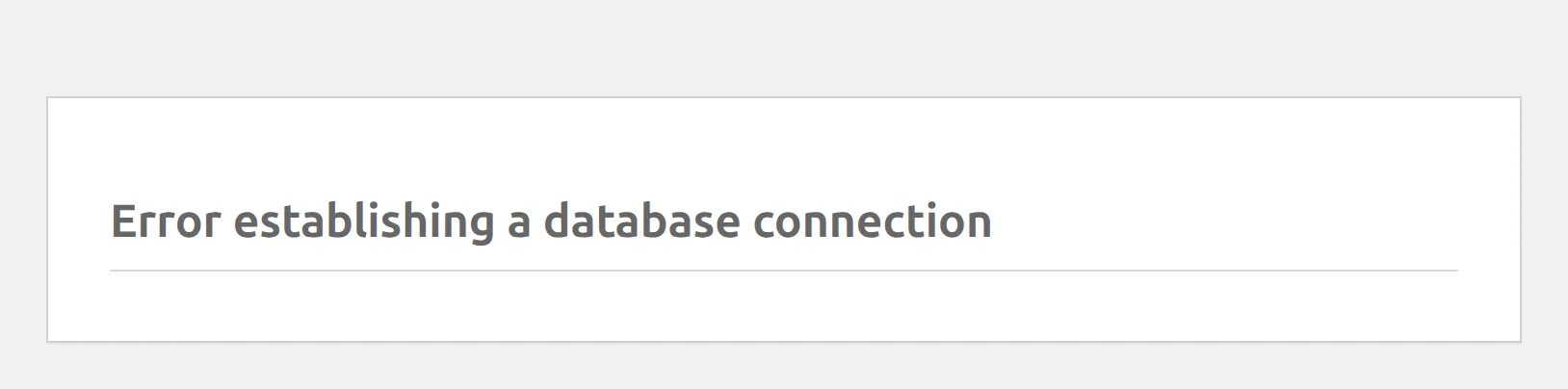
This error is different from the WordPress critical error or the white screen. Those are code crashes. With the database error, the code is fine – the line between the code and the database is down.
Step 1: Open /wp-admin/ to see the longer message
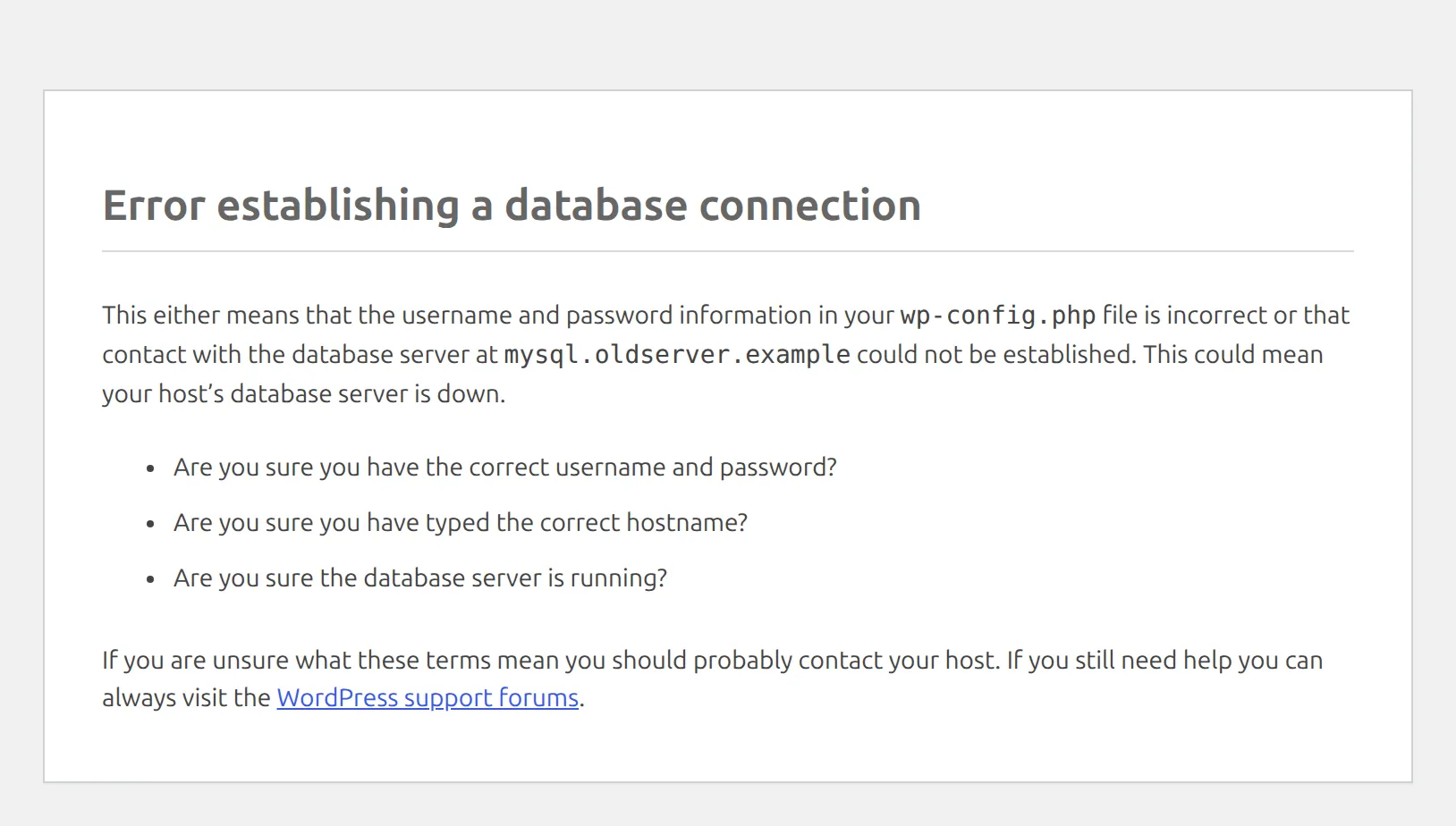
This is the trick most guides skip. WordPress shows visitors a short message on purpose, but it shows a much longer one on the admin side. You don’t need to log in – just add /wp-admin/ to the end of your address (for example, yoursite.com/wp-admin/) and press Enter.
You’ll get one of 2 messages.
Message 1: “Error establishing a database connection” plus a paragraph. It says your username and password might be wrong, or the database server at a named address couldn’t be reached. Look at the address in typewriter-style text in the middle of the first sentence – it’s your DB_HOST value. If it’s not what your host told you to use, you’ve found the problem.
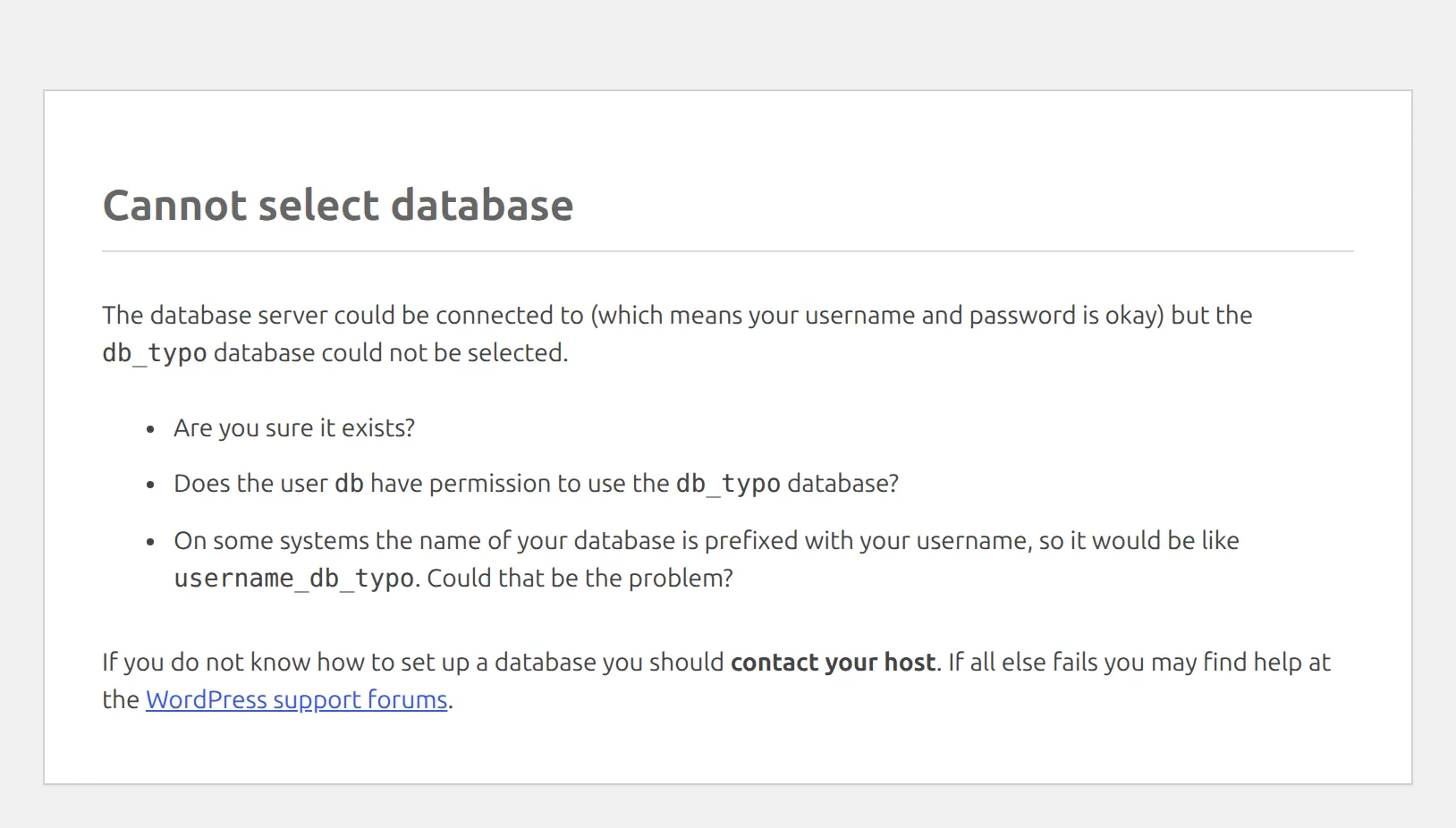
Message 2: “Cannot select database.” This one is good news. WordPress says it out loud: “which means your username and password is okay”. Only the database name is wrong. It even hints at the most common cause, which is a missing account prefix (myaccount_wp1 written as plain wp1).
Step 2: Turn on debug mode to see the real reason
The admin message still guesses. To see what the database server actually said, turn on WordPress debug mode just long enough to read it.
Open wp-config.php (I’ll show you where it is in the next section) and add this line just above /* That's all, stop editing! */:
define( 'WP_DEBUG', true );Save, wait a couple of seconds, and reload your site. 2 new lines now sit above the error. The first is a PHP “Warning” you can skip. The second, in typewriter-style text, is the exact reason MySQL refused the connection.
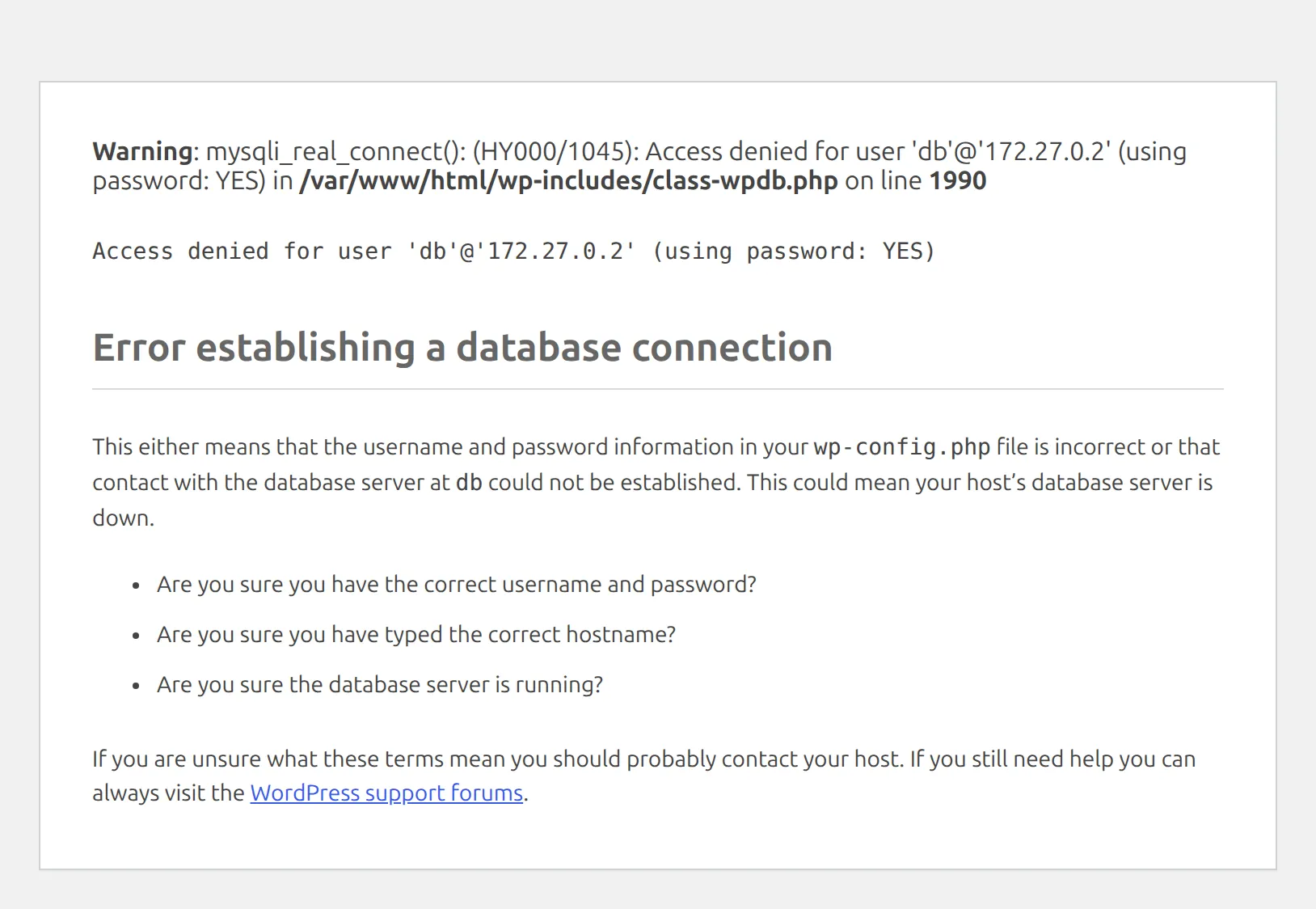
Here’s what each reason meant on my test site:
| What the reason line says | What’s wrong | Jump to |
|---|---|---|
Access denied for user '...' (using password: YES) | Wrong username or password | Check your credentials |
Access denied for user '...' to database '...' | Wrong database name | Check your credentials |
getaddrinfo for ... failed: Name or service not known | DB_HOST points at a server that doesn’t exist | The DB_HOST gotcha |
Connection refused | The database server is stopped | Is the server down? |
Connection timed out | The server isn’t answering at all | Is the server down? |
has exceeded the 'max_user_connections' resource | Too many connections at once | Why the error comes and goes |
When you’re done, delete the WP_DEBUG line again. Debug mode prints these details for every visitor, and you don’t want strangers reading your database username.
How do I check my wp-config.php database credentials?
Wrong credentials are the cause every guide puts first, and they’re the usual suspect right after a host migration or a password change. Your wp-config.php file holds 4 lines of login details, and if one character is off, the connection fails.
The file lives in the main folder of your WordPress install – the same folder that holds wp-admin, wp-content, and wp-includes. You can reach it through your host’s File Manager or an FTP app like FileZilla. Before you change anything, download a copy so you can put it back.
Open it in a text editor and find these 4 lines:
define( 'DB_NAME', 'your_database_name' );
define( 'DB_USER', 'your_database_user' );
define( 'DB_PASSWORD', 'your_database_password' );
define( 'DB_HOST', 'localhost' );
Now compare them with your hosting dashboard. On cPanel hosts the page is called MySQL Databases; other hosts call it Databases or Database Manager. You’re looking for 3 things:
- The exact database name (often starts with your account name, like
myaccount_wp1) - The username attached to that database
- A button to reset that user’s password
Copy each value across, watching for stray spaces inside the quotes. If you’re not sure about the password, reset it in the hosting panel, paste the new one into DB_PASSWORD, save, and reload your site.
What’s the DB_HOST gotcha?
DB_HOST tells WordPress where the database server lives. The WordPress default is localhost, which means “the same computer as my website”, and that’s what most shared hosts use.
But some hosts run the database on a separate machine. Then DB_HOST has to be that machine’s address (something like mysql.yourhost.com), sometimes with a port number on the end (localhost:3307). If you copied a site from one host to another, the old host’s value may have come along with it.
When I pointed my test site at a server name that doesn’t exist, the debug line read getaddrinfo ... failed: Name or service not known. Your host’s help pages will list the right value under a search like “MySQL hostname”, or support can tell you in one message.
The same thing happens when a host moves your database to new hardware. If the error started right after a “scheduled maintenance” or “server upgrade” email, check the database hostname in your panel first.
How do I test the database login without WordPress?
If you’d rather test the login details directly, a tiny PHP file can try them for you. Create a file called dbtest.php in the same folder as wp-config.php and paste this in:
<?php
mysqli_report( MYSQLI_REPORT_OFF );
$conn = @mysqli_connect( 'localhost', 'your_user', 'your_password', 'your_db_name' );
if ( ! $conn ) {
    die( 'Connection failed: ' . mysqli_connect_error() );
}
echo 'Connected successfully';
Swap in your 4 values from wp-config.php and visit yoursite.com/dbtest.php.
That mysqli_report line matters. Most guides (including the first version of this one) leave it out. On PHP 8.1 and newer, that older snippet never prints “Connection failed” – on my site it crashed with Fatal error: Uncaught mysqli_sql_exception, and on a host that hides errors you’d just get a blank page. WordPress itself turns that behavior off with the same line.

You’ll see “Connected successfully” or “Connection failed:” followed by the same reasons as the table in Step 2. Delete dbtest.php as soon as you’re done – it has your database password inside it.
Is my host’s database server down?
If the debug line says Connection refused or Connection timed out, your settings are fine. The database server itself isn’t working, and only your host can fix that.
The 2 messages feel different from your side. “Connection refused” showed up instantly on my test site. “Connection timed out” made me wait 60 seconds of blank loading before the error appeared, because that’s PHP’s default waiting time. If your site hangs for a full minute and then errors, an overloaded or crashed server is the likely reason.
Check your host’s status page (search “[your host name] status”) or their social accounts for an active outage. If there is one, there’s nothing to fix on your end. Just wait, and open a ticket if it lasts longer than the host says.
Why does the error come and go?
If your site works, then errors, then works again after a refresh, you’re probably hitting a connection limit. Shared hosts cap how many database connections your account can hold open at once. HostGator, for example, allows 25 per cPanel account, and some budget hosts set it as low as 5.
I reproduced this with a test database user capped at 1 connection. While another session held that slot, every page load got the error. The moment the slot freed up, the site came back on its own with nothing changed.
And here’s the confusing part: the standard message still asks whether your username and password are correct, even though they were fine. Only debug mode named the real cause.
The fixes, from quickest to biggest:
- Add page caching. A caching plugin serves saved copies of your pages, so most visits never touch the database. Which one to use depends on your host, and my guide to a slow WordPress site shows how to pick.
- Turn off database-heavy plugins one at a time. Visitor counters, live stats, related-posts widgets, and broken link checkers open connections on every page.
- Ask your host about the limit. If traffic keeps hitting it, a bigger plan or a managed WordPress host is the long-term fix.
Will the WordPress repair tool fix it?
Almost every guide sends you to the built-in repair tool. I tested it, and it can’t fix this error. With my site’s password wrong, the repair page showed the same “Error establishing a database connection” message – it needs a working connection to run.
What the repair tool does fix is a damaged table, and that looks different. When I removed my site’s posts table for a moment, there was no database error at all. The homepage loaded my theme’s header with a “page not found” message underneath, and the login page worked normally.
If that’s what you’re seeing instead, here’s how to run it. Add this line to wp-config.php above /* That's all, stop editing! */:
define( 'WP_ALLOW_REPAIR', true );Then visit yoursite.com/wp-admin/maint/repair.php. You don’t need to log in. Click Repair Database.
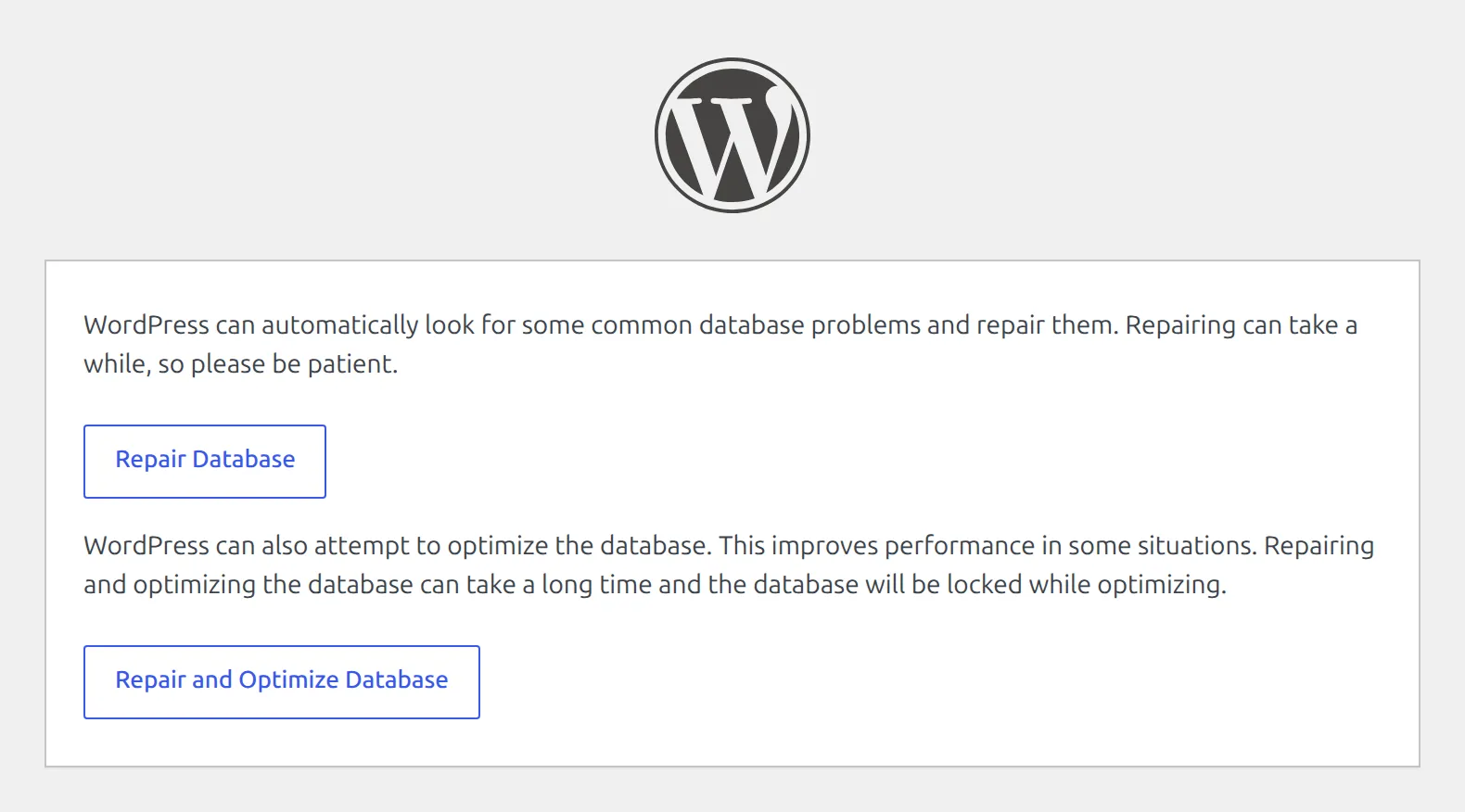
On my site it checked 18 tables in under a second and listed each one as okay or not okay. It reported the missing table clearly (“Table ‘db.wp_posts’ doesn’t exist”) – but it couldn’t bring it back. Only a backup could.
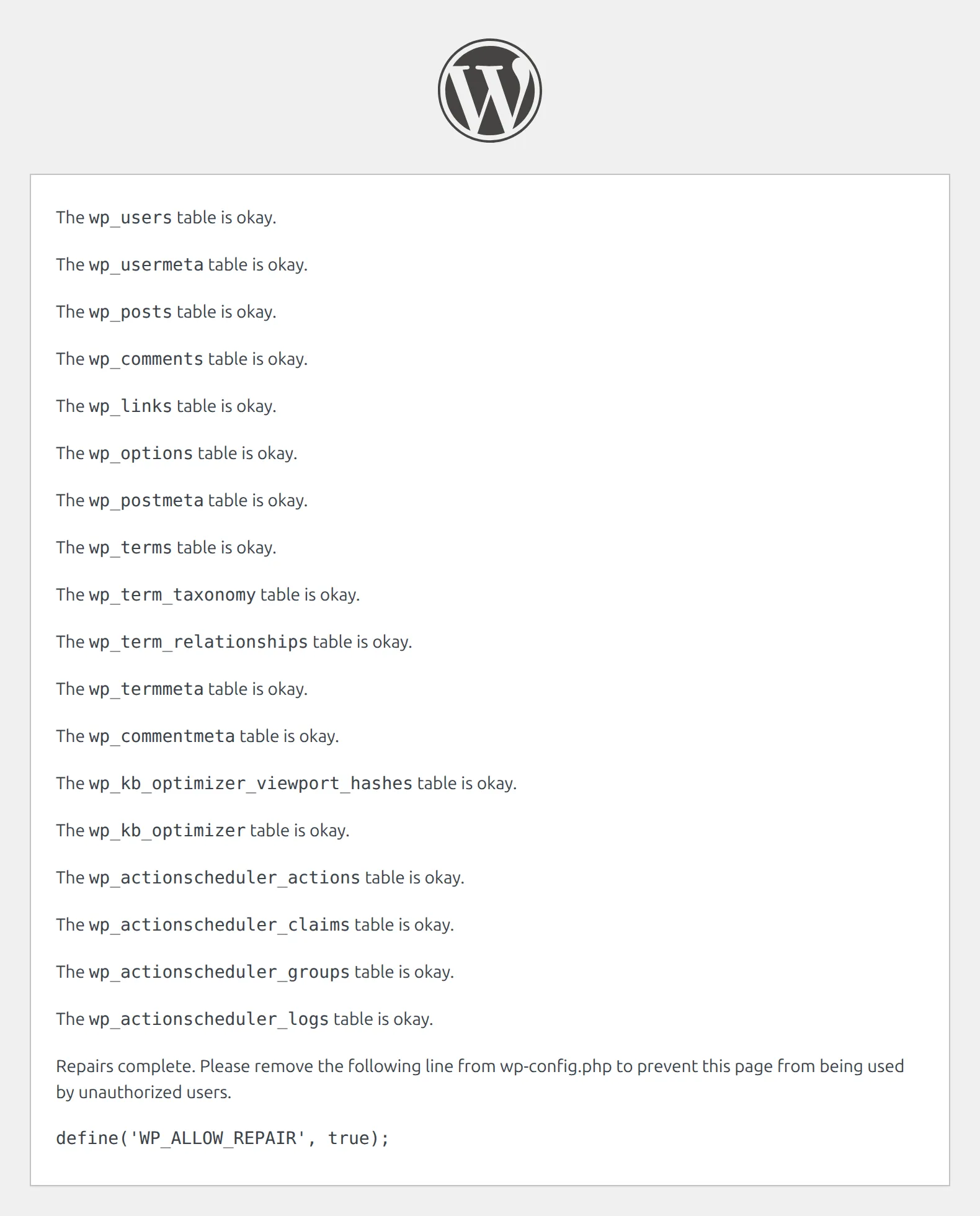
One more catch: most WordPress databases today use the InnoDB storage format, and MySQL answered my direct repair request with “The storage engine for the table doesn’t support repair”. So on a modern site the button mostly checks your tables. When you’re done, remove the WP_ALLOW_REPAIR line, because anyone who knows the address can use that page while it’s there.
How do I stop this happening again?
4 habits keep this error short and boring when it does show up.
Keep automatic backups. If a table is ever damaged, a backup is the only real cure. I tested 6 free backup plugins in my backup plugin roundup, including how long each restore took.
Save your database details in a password manager. When you set up a site, copy DB_NAME, DB_USER, DB_PASSWORD, and DB_HOST somewhere safe. If the file ever gets mangled, you can put the right values back in 2 minutes.
Bookmark your host’s status page. When the error appears, it’s the first place to look before you touch any files.
Update carefully. A plugin update that hammers the database can trigger connection limits. My guide on updating plugins without breaking your site covers the safe order.
What to tell your host if nothing works
If you’ve checked your credentials and DB_HOST and the error is still there, it’s time for support. Send them 3 things: the exact error, the time it started, and the debug line from Step 2 if you got one.
Something like: “Since 2:15 PM my site shows ‘Error establishing a database connection’. My wp-config.php details match the panel. With WP_DEBUG on, the error says ‘Connection refused’. Is the MySQL server for my account running?” That one message saves a round of back-and-forth.
And if your site shows a different message – like “Briefly unavailable for scheduled maintenance” after an update – that’s a separate, easier fix: here’s how to clear the maintenance message.
FAQs
What causes the “Error establishing a database connection” in WordPress?
WordPress couldn’t log in to its database. On my test site, 6 different problems produced the same message: a wrong password, username, database name, or server address in wp-config.php, a stopped or unresponsive database server, and a hosting connection limit. Open /wp-admin/ or turn on WP_DEBUG to see which one you have.
Does this error mean my content is deleted?
No. The error means WordPress can’t reach the database, not that the database is gone. Every time I broke my test site, putting the right setting back brought every post back instantly.
Why is the database connection failing even with the right password?
Check the database name and DB_HOST next. A wrong database name shows “Cannot select database” at /wp-admin/, and a wrong DB_HOST shows “Name or service not known” in debug mode. If both are right, the server may be down or your account may have hit its connection limit.
Will the WordPress database repair tool fix this error?
No. The repair page at /wp-admin/maint/repair.php needs a working database connection, so it shows the same error. It’s for damaged tables, which usually show up as missing content or “page not found” instead.
How long does it take to fix?
If it’s a wrong setting in wp-config.php, the site comes back the moment you save the right value. If the host’s server is down, it’s back when the host fixes it. On my test site, a hit connection limit cleared on its own as soon as a connection freed up.
The database connection error feels like the end of the world the first time you see it. But it’s almost always one wrong value in one file, or a server problem your host owns. Open /wp-admin/, read the debug line, and fix the one thing it points to.
Your content is fine. Your site will be back.