How to Remove Author Meta from Kadence Blog Posts
If you’re the only person writing on your WordPress site, showing “By admin” on every post looks unpolished. And if you never changed your display name from the default, your visitors are reading your login name in the byline.
The good news: Kadence lets you remove the author name without touching any code. No CSS, no plugins. But there’s a catch that trips up almost every beginner: Kadence has 4 separate switches for author info, and turning one off doesn’t affect the others.
I re-tested every one of them on Kadence 1.4.5 for this update. The original version of this guide listed 3 places and missed search results, and it described the wrong control for the first 2 – both are fixed below.
Where Does the Author Name Show Up in Kadence?
Before you start switching things off, it helps to know what you’re dealing with. Kadence shows author information in 4 places, each with its own setting:
- Single post meta – the “By Author Name” line near the title when you open a blog post.
- Archive and blog page meta – the author name on each post card in your blog listing, category and tag pages. The “Similar Posts” cards under each post follow this setting too.
- Search results meta – the same line on the cards in your search results, which have their own setting.
- Author box – a bio section below the post with your avatar, name and description. It’s off by default, so you’ll only see it if someone switched it on.
On my test site, a single post showed the author 3 times: once under the title and twice in the Similar Posts cards underneath. Turning off the single post setting removed only the first one. That’s why you need to know which switch controls which spot.
How Do I Hide the Author on Individual Blog Posts?
This controls the “By Author Name” text near the post title when someone opens a full article.
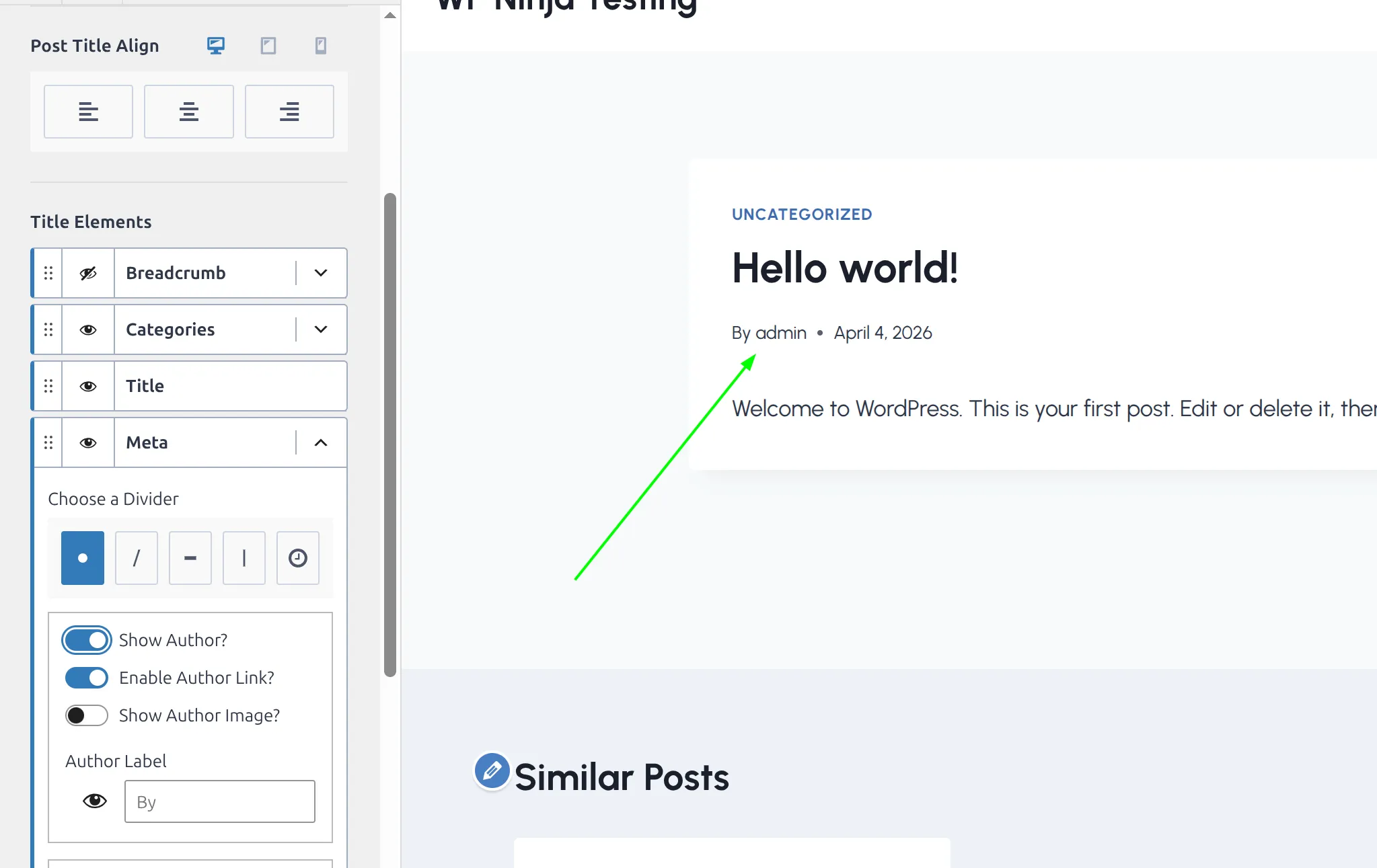
- Go to Appearance > Customize > Posts/Pages Layout > Single Post Layout.
- Find Title Elements. It’s a list of Breadcrumb, Categories, Title, Meta and Excerpt.
- Click the arrow on the right of the Meta row to open its settings.
- Switch Show Author? off.
- Hit Publish to save.
Don’t click the eye icon on the Meta row itself. That hides the whole meta line, including the date – fine if you want that, but it’s not the same as removing only the author.
Here’s the before and after. In the first screenshot, Show Author? is on and “By admin” appears under the post title:
Switch it off and the author line disappears from the preview:
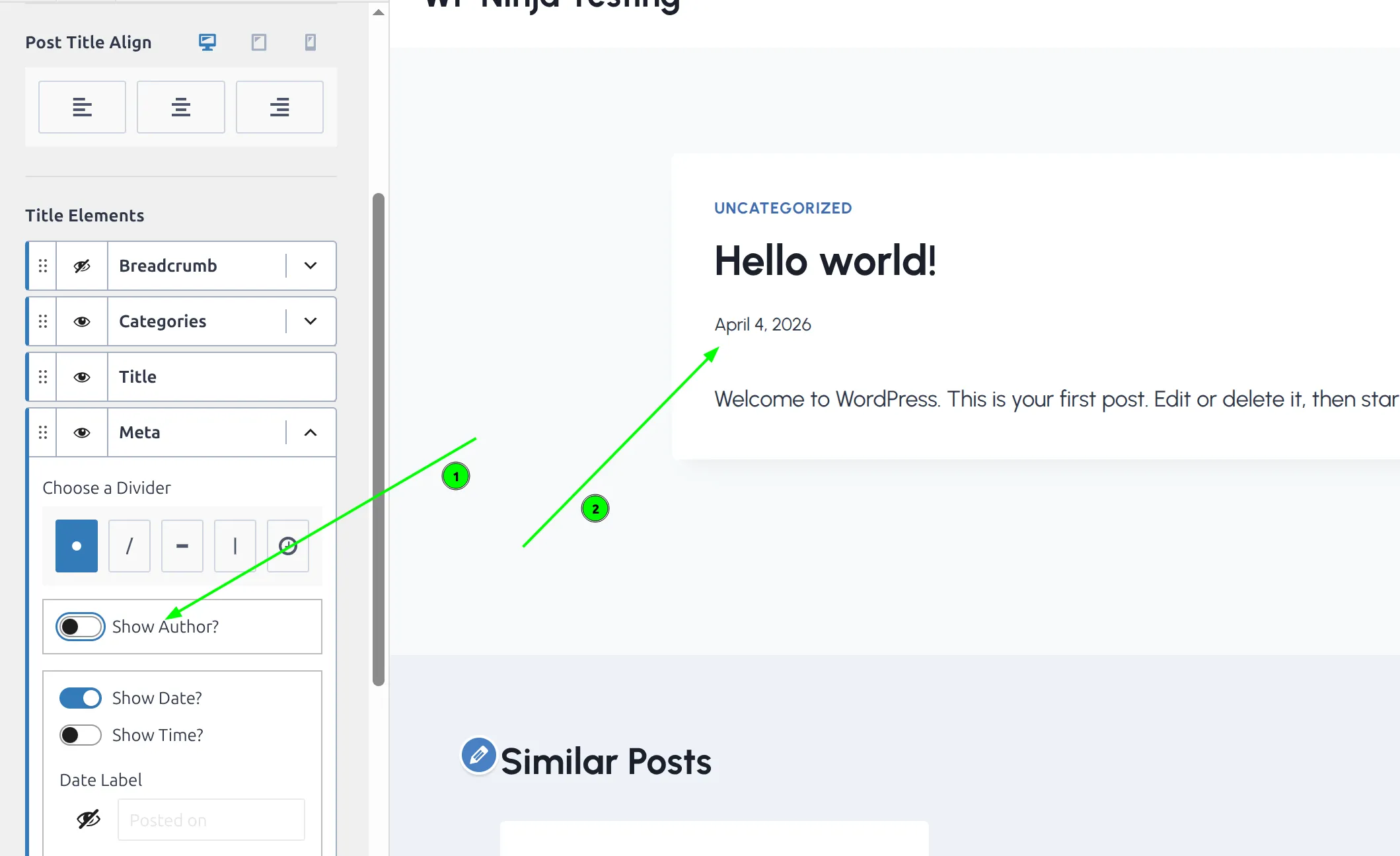
That covers the top of every single post on your site. And Kadence doesn’t just hide the name – it stops printing it into the page at all. More on why that matters in a minute.
The same Meta settings let you remove the date, show the author’s avatar, or turn off the link to the author page. And if you want to go further and hide the page title itself, that’s a separate setting I cover in another guide.
How Do I Hide the Author on Blog and Archive Pages?
This is the step most people miss. Your blog listing page (the one that shows all your recent posts as cards) takes its meta settings from a completely different Customizer section.
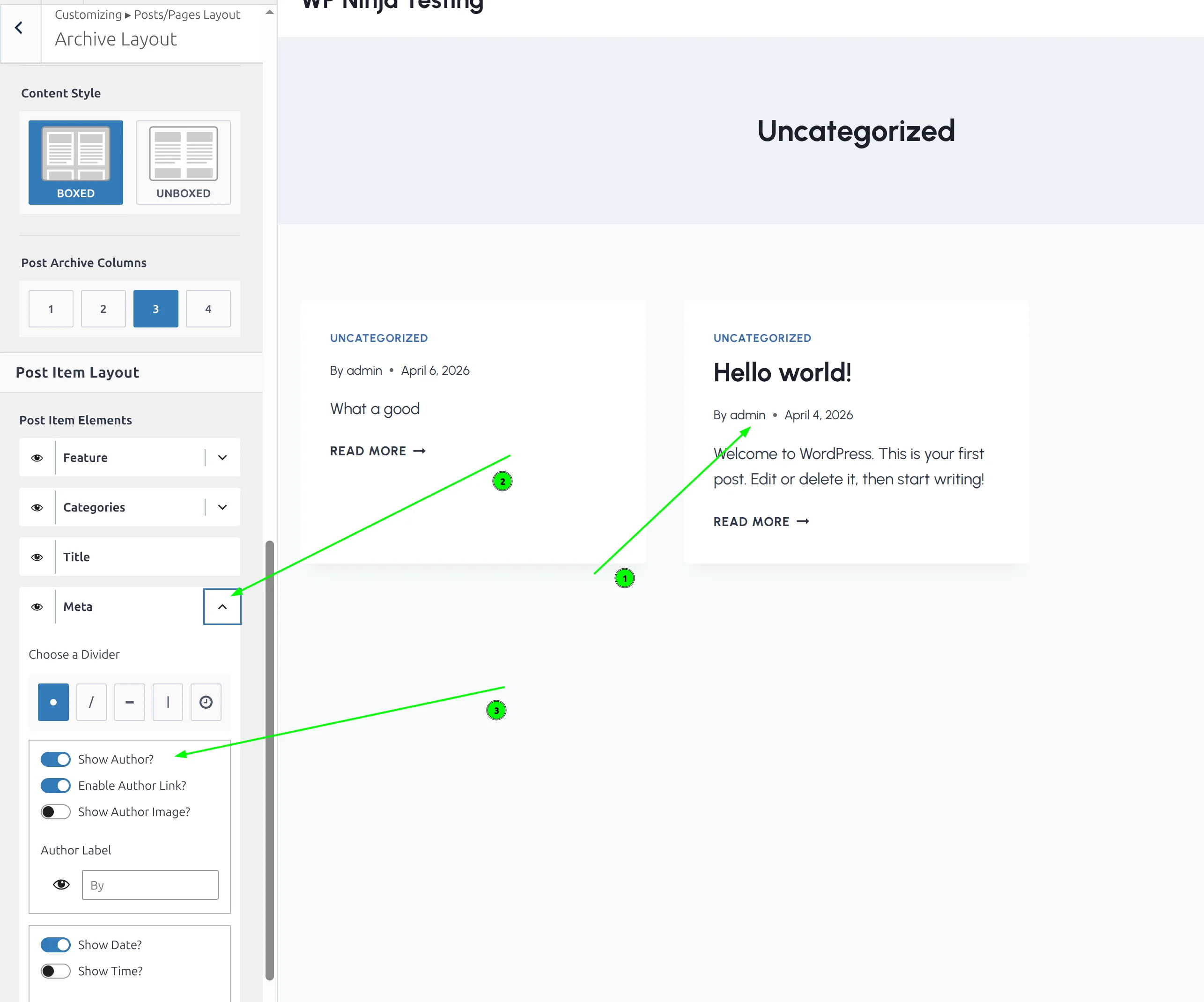
- Go to Appearance > Customize > Posts/Pages Layout > Archive Layout.
- Find Post Item Elements – Feature, Categories, Title, Meta, Excerpt and Read More.
- Click the arrow on the Meta row.
- Switch Show Author? off.
- Click Publish.
Before – the archive shows “By admin” on every post card:
After – same cards, no author line:
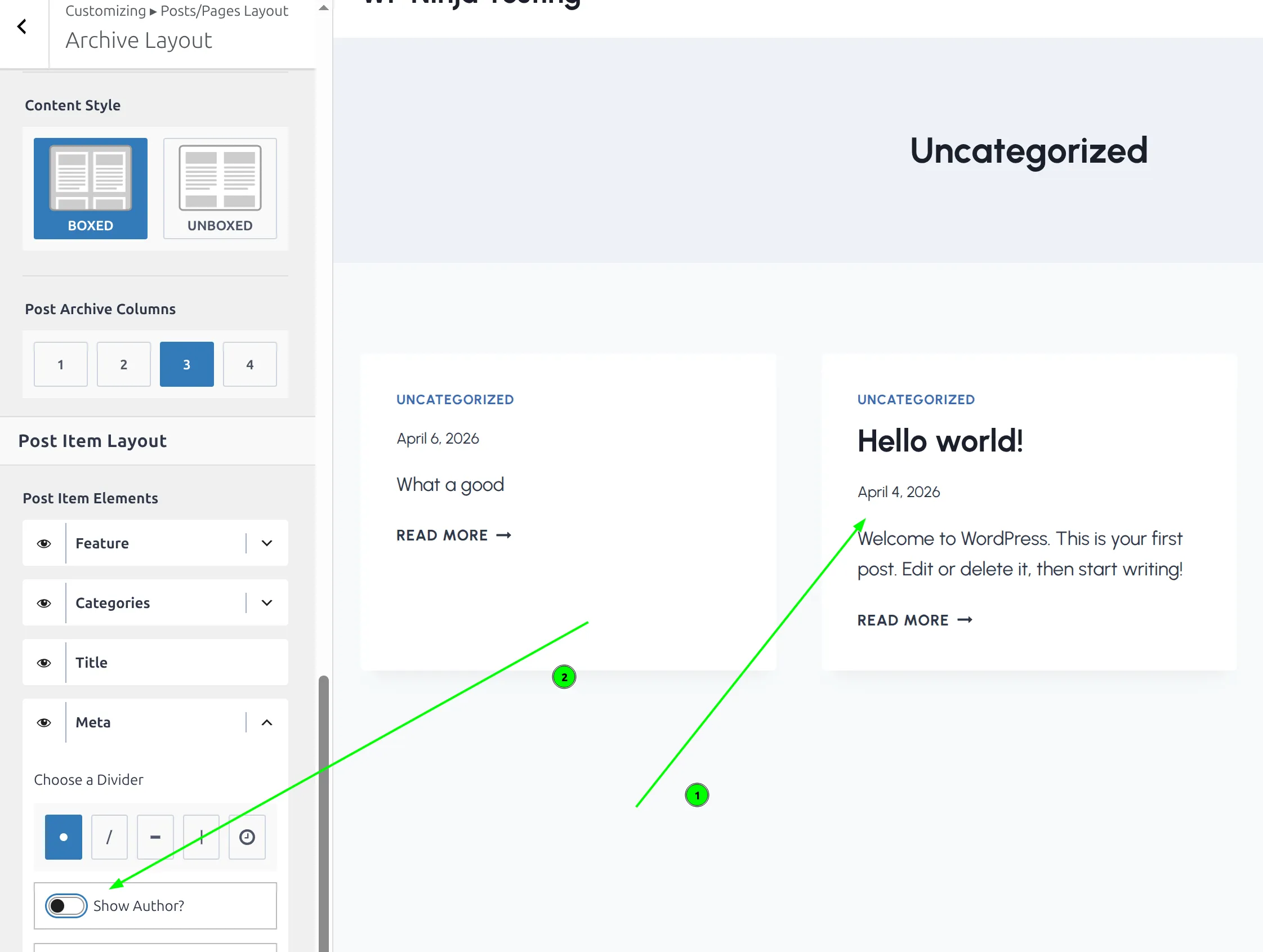
Now the author name won’t appear on your blog page, category archives or tag archives. It also disappears from the Similar Posts cards at the bottom of each single post – on my test post, those were the last 2 author lines left after the single post switch.
What About Search Results?
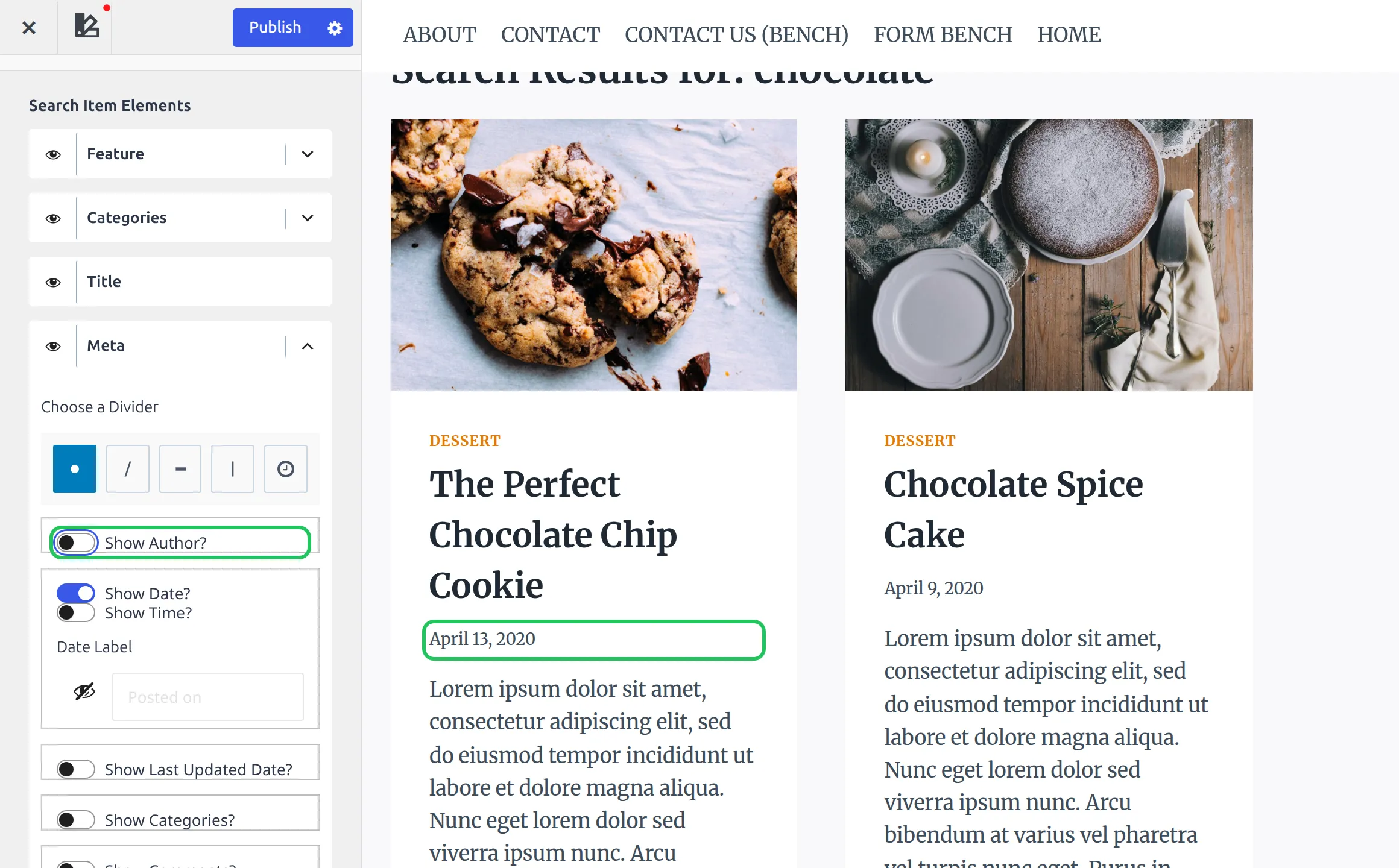
This is the one I missed the first time. Search results look like your blog page, but Kadence gives them their own section, so the archive switch doesn’t touch them.
I tested it: with the author switched off for single posts and archives, a search for “chocolate” on my test site still showed “By admin” on every result.
- Go to Appearance > Customize > Search Results.
- Find Search Item Elements and click the arrow on the Meta row.
- Switch Show Author? off.
- Click Publish.
What About the Author Box at the Bottom of Posts?
The author box is a separate feature entirely. It’s the larger section below your post content that shows your avatar, name and bio. Kadence ships with it switched off, so check this one only if your posts show it.
To turn the author box off:
- Go to Appearance > Customize > Posts/Pages Layout > Single Post Layout.
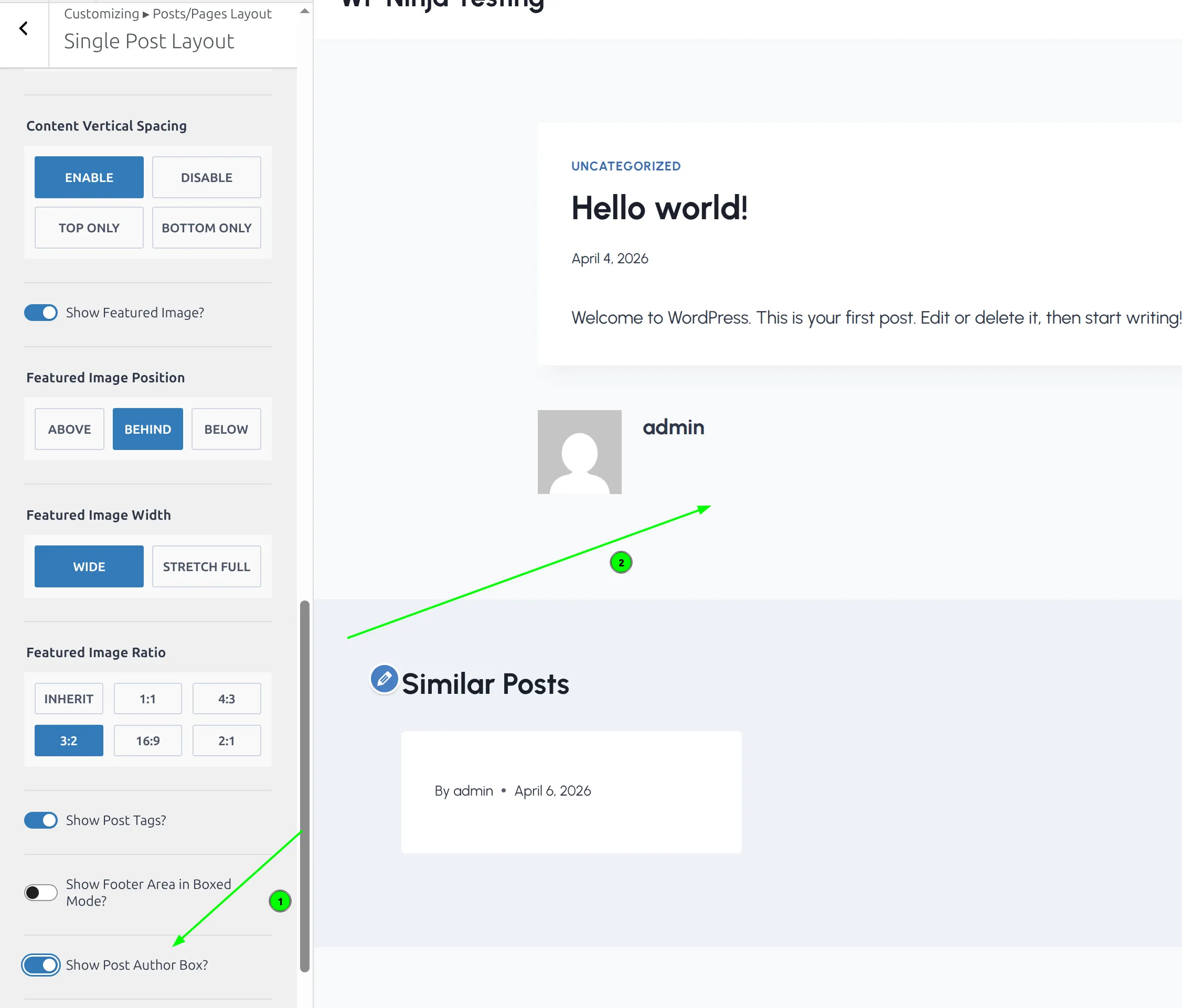
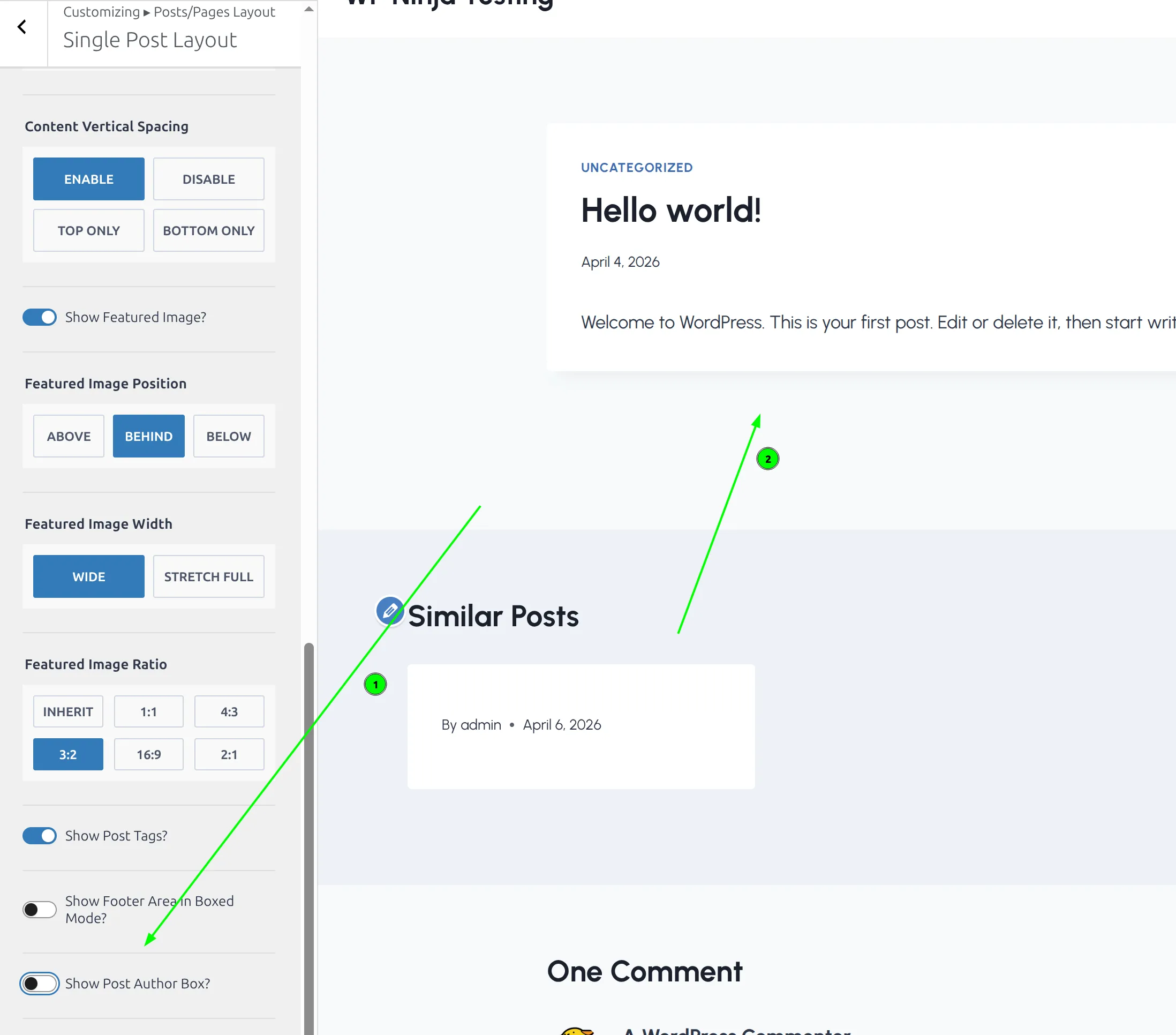
- Scroll down past the title settings until you find Show Post Author Box?.
- Switch it off.
- Click Publish.
With the switch on, you get the bio card below each post:
Switch it off and the whole bio block is gone:
If you decide to keep the author box, you get 2 extra options: Author Box Style (Normal or Center) and Use Author Archive Link?, which decides whether the name links to your author page.
But here’s my suggestion: if you’re a solo blogger, leave the author box off. It adds little when every post on your site was written by the same person.
Why Kadence’s Method Is Better Than CSS Hacks
If you search “hide author name WordPress,” you’ll find tutorials telling you to add CSS like .posted-by { display: none; }. And it works visually – the author name disappears from the screen.
But the HTML is still there. Open your page source and the full author markup is sitting in the code, including the link to your author page. That means:
- Your author link is still in the page. By default it points to an address like
/author/admin/, which is built from your login name, not your display name. - It’s extra HTML for nothing. Your server builds the author markup, sends it to the browser, and then CSS tells the browser to ignore it.
Kadence’s switches work differently. When you turn the author off, the theme skips that code entirely. I checked the page source after each switch: the author markup was gone, not hidden.
One honest caveat: hiding the byline doesn’t make your username a secret. WordPress itself still reveals it – on my test site, visiting /?author=1 redirected to /author/admin/, and the built-in /wp-json/wp/v2/users address listed the same name. That’s normal WordPress behavior. Your real protection is a strong password and two-factor login, not a hidden byline.
So skip the CSS snippets for this. Use the built-in switches.
Should You Remove the Author Name at All?
Removing the author meta isn’t always the right call. Here’s how I think about it.
Remove it if:
- You’re a solo blogger. Showing “By [Your Name]” on every post is redundant when there’s only one possible author.
- Your display name is still “admin” or your username. Fix this first (see below), but if you’re not ready to set up a proper author profile, hiding the name beats showing a default.
- You want a minimal design with just the date and category. You might also want to adjust your sidebar layout for a cleaner look.
Keep it if:
- More than one person writes for your site. Readers want to know who wrote what.
- You’re building a personal brand and want your name attached to your content.
- You write about health, money or legal topics. Google’s guidelines put extra weight on who’s behind that kind of content, so a visible author with a real bio helps readers trust it.
For most hobby bloggers and small business sites with a single author, removing it is perfectly fine.
Fix Your Display Name Before Anything Else
If you decide to keep the author visible, make sure you’re not showing “admin” as your name. A byline that reads “By admin” tells visitors nobody set up the basics.
- Go to Users > Profile in the WordPress admin.
- Find the Display name publicly as dropdown.
- Pick your real name, a pen name, or whatever you want readers to see.
- Click Update Profile.
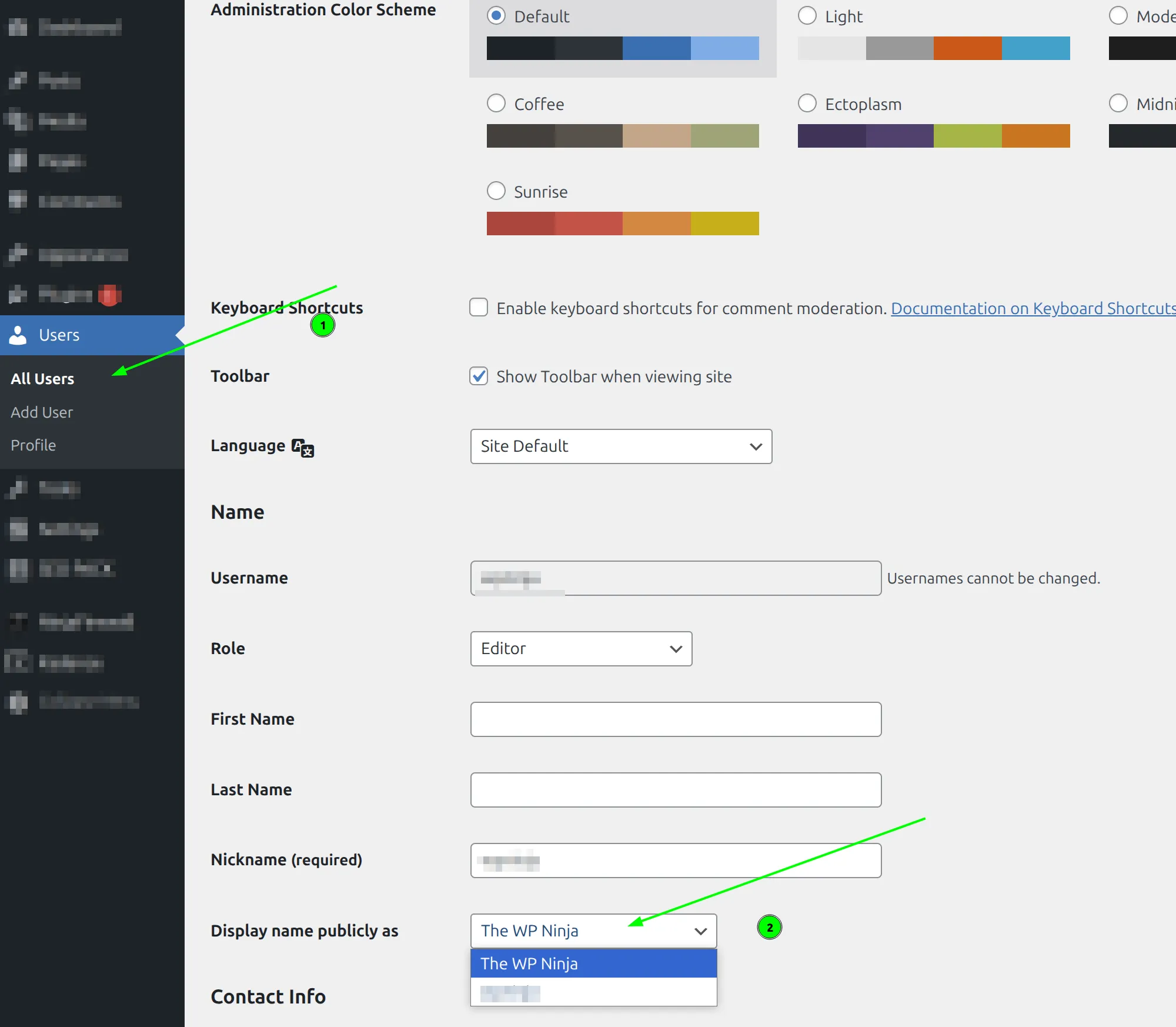
This changes the name everywhere it’s displayed – post meta, author box, comments and author pages. It takes 10 seconds. The dropdown only offers names built from your username, nickname, first and last name, so fill in First Name or Nickname first if your preferred name isn’t listed.
And while you’re in your profile, fill out the Biographical Info field and set up a profile picture through Gravatar. If you keep the author box on, a blank avatar and an empty bio look worse than no author box at all.
Quick Reference
| What to Hide | Where to Find It |
|---|---|
| Author on single posts | Customize > Posts/Pages Layout > Single Post Layout > Title Elements > Meta arrow > Show Author? |
| Author on blog, category and tag pages (and Similar Posts) | Customize > Posts/Pages Layout > Archive Layout > Post Item Elements > Meta arrow > Show Author? |
| Author on search results | Customize > Search Results > Search Item Elements > Meta arrow > Show Author? |
| Author bio box below posts | Customize > Posts/Pages Layout > Single Post Layout > Show Post Author Box? |
| Display name (fix, don’t hide) | Users > Profile > Display name publicly as |
Every one of these settings is also listed in my Kadence post, page and archive settings reference.
Frequently Asked Questions
Does hiding the author name hurt my SEO?
For most sites, no. Author details matter most on health, money and legal topics, where readers (and Google) care who’s giving the advice. If you’re a hobby blogger or run a small business site, hiding the byline is a design choice.
Can I hide the author on some posts but keep it on others?
Not with the Customizer – Kadence’s switches apply to all posts. In the free version, the per-post option is a small CSS snippet using that post’s ID, like .postid-42 .posted-by { display: none; } in Additional CSS. Keep in mind that CSS only hides the name visually, as explained above.
Will hiding the author name also hide it from my RSS feed?
No. The Customizer switches only change what the theme shows on your pages. Your RSS feed comes from WordPress itself, which still includes the author’s display name.
Is it safe to hide the author if I have multiple writers?
I wouldn’t recommend it. Readers expect to know who wrote what on a multi-author site. If more than one person writes for you, keep the author visible and make sure each person has a proper display name and bio.
Wrapping Up
Hiding the author name in Kadence takes about 2 minutes, as long as you remember there are 4 separate switches: single posts, archives, search results and the author box. Miss one and you’ll wonder why the name is still showing up somewhere.
The key takeaway: use Kadence’s built-in switches instead of CSS. They remove the author markup from your pages, while CSS only hides it from view.
And if you’re keeping the author visible, take 10 seconds to fix your display name first. “By admin” isn’t doing your site any favors.