How to Fix “Briefly Unavailable for Scheduled Maintenance” in WordPress
You hit “update” on a plugin, walked away for coffee, and came back to a site that just says “Briefly unavailable for scheduled maintenance. Check back in a minute.”
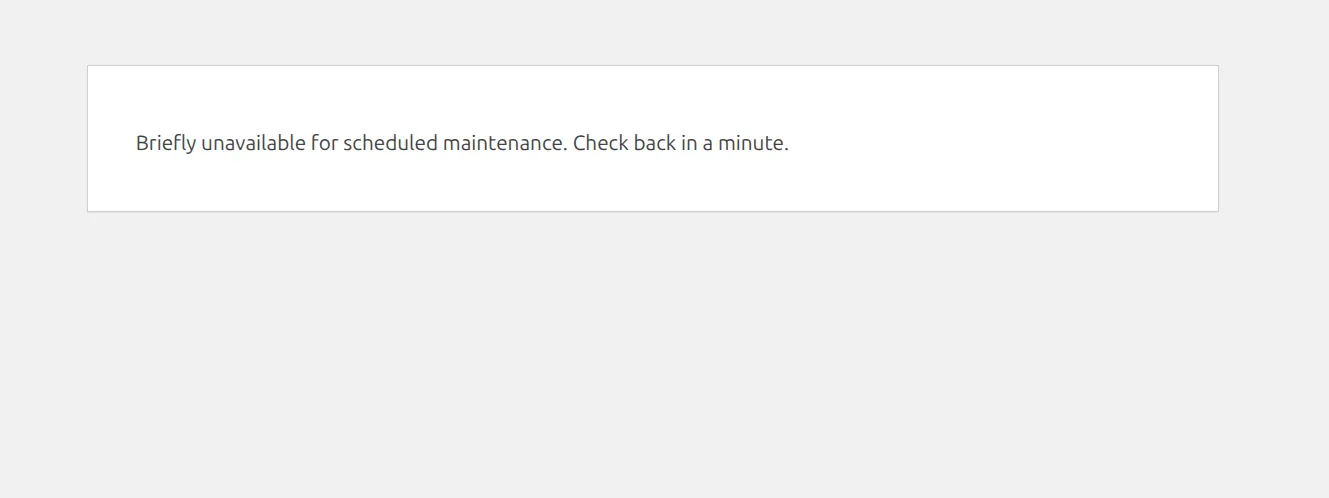
You refresh. Still there. You try /wp-admin. Same message.
Here’s the good news, and it’s something most guides leave out. WordPress gives up on maintenance mode by itself after 10 minutes, so this lock-out has a built-in time limit. And if you don’t want to wait, deleting one small file ends it in seconds. I tested both on WordPress 7.1 to be sure.
What does “Briefly Unavailable for Scheduled Maintenance” actually mean?
When WordPress updates a plugin, theme, or the core software, it drops a tiny file called .maintenance in your site’s main folder. That file is a flag. It tells WordPress “don’t let anyone in right now, I’m in the middle of changing files.”
The message comes straight from WordPress core, and it locks out everything: your homepage, /wp-admin, even the login page. WordPress sends it with a 503 status, which tells Google “temporarily down, come back later” rather than “this page is gone.” When the update finishes, WordPress deletes the file and traffic flows again.
The file also stores the exact time the update started. That timestamp is the part that matters when things go wrong.
When an update crashes, times out, or gets interrupted, WordPress never reaches the “delete the file” step. But every time someone loads a page, WordPress checks that timestamp, and once it’s 10 minutes old, WordPress ignores the file and loads the site normally. The file can sit there for weeks; it stops having any effect at the 10-minute mark.
I tested this by writing the file myself. With a fresh timestamp, the homepage, wp-admin and the login page all returned the maintenance message. With a timestamp 9 minutes old, still locked. At 10 minutes and 1 second, the site loaded as if nothing had happened.
How do I fix WordPress stuck in maintenance mode?
You have 2 choices: wait out the 10 minutes, or delete the file now. Deleting it is safe and instant, so if visitors (or customers) are hitting the message, go ahead and remove it.
First: how long has it been?
If the update started less than 10 minutes ago, the quickest fix is patience. Give it the full 10 minutes from when you clicked Update, then refresh.
If the message is gone after that, you’re back. Open Plugins and check that the plugin you were updating shows its new version number. If it doesn’t, run that one update again on its own.
If the message is still there after 10 minutes, deleting .maintenance probably won’t help on its own, because WordPress already stopped obeying it. Skip down to “Still showing after 10 minutes?” below.
Option 1: Using your host’s File Manager (non-technical)
Most WordPress hosts give you a browser-based File Manager inside a control panel like cPanel, Plesk, or their own dashboard. No software to install.
Log in to your hosting account and look for File Manager on the dashboard. If you can’t find it, search your host’s help docs for “file manager” – they’ll show you the exact path.
Once File Manager opens, go to your site’s root folder. This is usually called public_html. If you host more than one site on the same account, your WordPress site might be in public_html/yoursite.com/ instead. The right folder is the one containing wp-config.php, wp-admin, and wp-content.
Here’s the part that trips people up. Files starting with a dot (like .maintenance) are hidden by default. In File Manager, open the Settings or View menu and tick Show Hidden Files (sometimes called “dotfiles”), and .maintenance appears next to .htaccess.
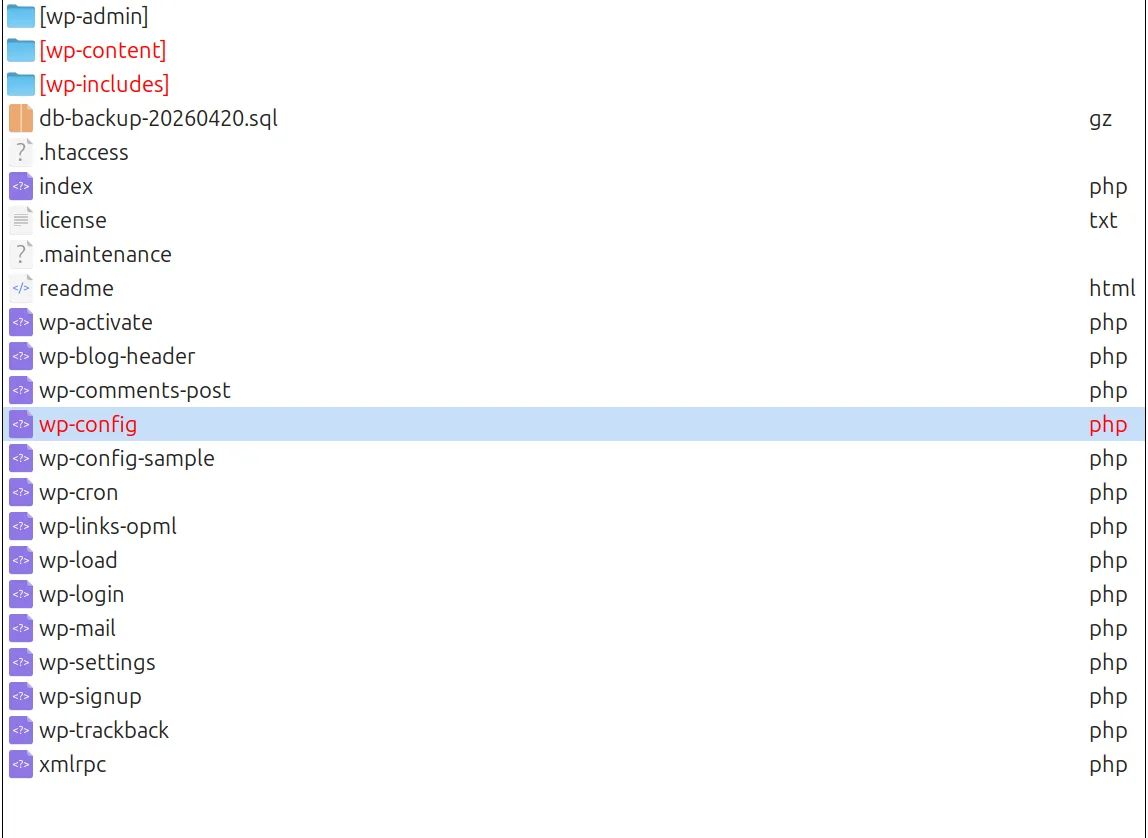
Right-click .maintenance, choose Delete, and confirm. Then go back to your site and refresh. It should load normally.
Option 2: Using an FTP client
If you already use an FTP client to manage your site, the steps are the same. Any SFTP/FTP tool works.
Connect with the FTP details your host gave you (usually in the welcome email, or under “FTP Accounts” in your hosting dashboard). Open the folder that contains wp-config.php – your WordPress root.
Turn on hidden files in your FTP client’s settings. Most clients call it “Show hidden files” or “Force showing hidden files” and keep it under a View, Server, or Preferences menu. Without it, you’ll scroll through the folder and swear .maintenance isn’t there. It is.
Once it shows, right-click .maintenance, choose Delete, confirm, and refresh your site.
Option 3: Ask your host (last resort)
If you don’t have any file access – no cPanel, no FTP, nothing – contact your hosting support. Tell them exactly this: “My WordPress site is stuck showing ‘Briefly unavailable for scheduled maintenance.’ Can you delete the .maintenance file in my site’s root folder?”
Any WordPress host will recognize that request straight away. Mention how long the message has been up, too – if it’s past 10 minutes, that tells them the file isn’t the whole story.
Still showing after 10 minutes?
If the message survives the 10-minute mark (or comes back right after you delete the file), WordPress isn’t the one sending it any more. 3 things can keep it on screen:
- A cached copy. If your host or a service like Cloudflare caches pages, it may be handing visitors a saved copy of the maintenance page. Purge the cache in your host’s dashboard or your caching plugin. My guide on changes not showing on the live site walks through every cache layer.
- A maintenance-mode plugin. “Coming soon” and maintenance plugins show their own page with similar wording. Check for one under Plugins, or rename its folder if you can’t get in.
- A custom maintenance page. If a file called
maintenance.phpsits insidewp-content, WordPress shows that instead of its own message. It only appears while.maintenanceis active, so it follows the same 10-minute rule.
And if the maintenance message disappears but you get “There has been a critical error on this website” instead, the update itself broke something. That’s a different problem with its own fix – I cover it in what to do if an update breaks your site.
Why did this happen in the first place?
The .maintenance file gets left behind when something stops WordPress before the update’s clean-up step. 4 things can do that:
The update was interrupted. Closing the tab, a laptop going to sleep, or a dropped connection can cut an update off before WordPress finishes. WordPress runs most single-plugin updates in the background, so it often survives this, but a big “Update All” batch is more fragile.
The update hit a PHP time limit. Most shared hosts stop PHP scripts after 30 or 60 seconds. If a large plugin update runs longer than that, the server kills it before WordPress can clean up.
A plugin or theme had a fatal error during install. If the new version contains a bug or clashes with another plugin, the update crashes and the flag stays behind.
Your server ran out of memory. Budget hosts sometimes cap PHP memory at 64MB or 128MB. When memory runs out, everything stops where it is – including the clean-up.
The common thread: something interrupted WordPress mid-update. The 10-minute limit means the lock-out ends either way, but the half-finished update is worth checking. Open Plugins afterwards and make sure the version number changed.
How do I prevent my WordPress site from getting stuck in maintenance mode?
6 small habits take care of most of these triggers.
Update one plugin at a time. When WordPress shows you 12 plugin updates, it’s tempting to click “Update All.” Don’t. Update them one by one. If plugin #7 crashes, you’ll know exactly which one caused the problem instead of guessing across all 12.
Don’t close the tab during updates. Even if the progress bar looks frozen, give it 60-90 seconds before you do anything.
Back up before you update. A free backup plugin takes about 5 minutes to set up – I tested 6 of them in the best free WordPress backup plugins. Always back up before major plugin or core updates.
Update during low-traffic hours. Less traffic means more server resources for the update and less chance of hitting a time limit.
Ask your host to raise PHP memory and time limits. Most hosts raise these on request. Ask for 256MB of memory and a 300-second maximum execution time.
Don’t let updates pile up. The bigger the update queue, the higher the chance something in it clashes. My routine for updating plugins without breaking your site covers the safe order, plus the safety nets WordPress now has built in.
If the update that caused the problem also left your site slower than before, that’s a separate issue – see why is my WordPress site so slow. And if pages start throwing 404s after the site comes back, a quick permalink refresh usually clears that up.
Frequently Asked Questions
How do I fix WordPress stuck in maintenance mode?
Either wait 10 minutes from when the update started, or delete the .maintenance file from your site’s root folder with your host’s File Manager or an FTP client. I tested it on WordPress 7.1: once the file’s timestamp is 10 minutes old, WordPress ignores it and the site loads again.
Why is my WordPress site stuck in maintenance mode?
An update was interrupted before WordPress could delete the .maintenance file. The usual causes are a closed tab, a PHP time limit, a fatal error in the new plugin version, or the server running out of memory.
How long does WordPress maintenance mode last?
10 minutes at most. The .maintenance file stores the time the update started, and WordPress stops showing the message once that time is 10 minutes old, even if the file is still there. If you still see the message after that, it’s coming from a cache or a plugin, not from WordPress’s own maintenance mode.
Can I still access my WordPress dashboard if it’s stuck?
Not during those 10 minutes. I measured it: the homepage, /wp-admin/ and the login page all return the same maintenance message. After 10 minutes, the dashboard works again without you touching anything.
What happens if I delete the .maintenance file?
WordPress stops showing the maintenance message on the next page load. It doesn’t break anything. Afterwards, check Plugins to make sure the update actually finished, and run it again if the old version number is still showing.
That’s it
The “briefly unavailable for scheduled maintenance” error looks terrifying because your whole site is offline. But it’s one of the gentler WordPress problems: it ends on its own within 10 minutes, and deleting one file ends it sooner.
If it’s still there after 10 minutes, look for a cache or a maintenance plugin rather than the file. Then check which plugin was mid-update and finish that update on its own.
And please back up your site before the next big update. Future you will say thank you.