How to Change Sidebar Position or Width in Kadence
Out of the box, Kadence doesn’t give you a sidebar at all. Posts open on the “Narrow” layout and pages on “Normal” – both single-column. That catches out anyone expecting the classic blog look. Maybe you want one on the right, maybe on the left, or maybe you just need the one you’ve already turned on to be narrower.
Good news – you can change all of this in the Kadence Customizer. No code, no plugins, no CSS hacks. And every option I’m covering here works in the free version of Kadence.
I re-checked every setting on Kadence 1.4.5 for this update and measured the widths in a real browser. The original version said the free theme can’t give one page a different set of widgets – it can, and I’ve added how below.
How Do I Change the Sidebar Position for All Posts?
This is the most common change people want to make, and it takes about 30 seconds.
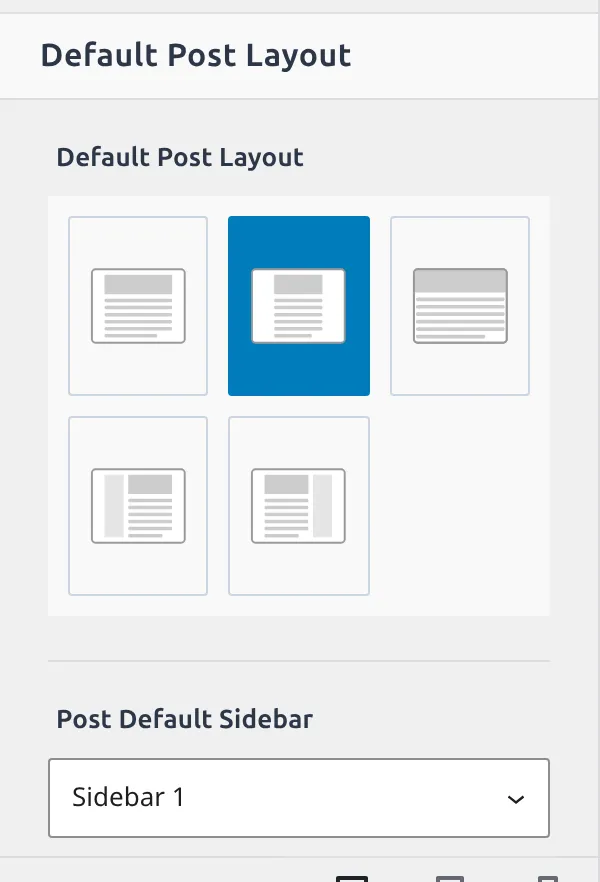
Head to Appearance > Customize > Posts/Pages Layout > Single Post Layout, then scroll down to Default Post Layout. It’s not a dropdown – it’s a row of 5 layout icons, and the highlighted one is what your posts use right now:
- Normal – Single column at your standard content width. No sidebar.
- Narrow – Single column, but narrower. This is the one Kadence starts you on.
- Fullwidth – Content stretches edge to edge. Best for landing pages, not so much for blog posts with long paragraphs.
- Left Sidebar – Sidebar on the left, content on the right. I’ve seen recipe blogs and news sites use this, but it’s less common.
- Right Sidebar – The classic blog layout. Content on the left, sidebar on the right.
Click the icon you want, hit Publish in the Customizer, and it applies to every blog post on your site.
Just below that row sits a separate Post Default Sidebar dropdown. That one doesn’t move anything – it picks which widget area fills the sidebar (Sidebar 1 or Sidebar 2). Leave it alone unless you’ve built a second widget area and want your posts to use it.
The archive gotcha. Here’s something that trips people up – “Single Post Layout” only affects individual post pages. Your blog archive page (the page that lists all your posts) has its own setting. You’ll find it under Appearance > Customize > Posts/Pages Layout > Archive Layout. If you want a consistent look, set both to the same option.
How Do I Change the Sidebar for Pages?
Almost the same process, just a different section.
Go to Appearance > Customize > Posts/Pages Layout > Page Layout and scroll to Default Page Layout – the same row of 5 icons, the same choices. Pages start on “Normal”, and honestly, that’s the right call for most sites. Your About page, Contact page, and Services page don’t usually need a sidebar competing for attention.
But if you run a content-heavy site – something like a wiki or knowledge base – adding a sidebar to pages can help visitors navigate. Just make sure you’re putting useful widgets in it. A sidebar full of random stuff is worse than no sidebar at all.
How Do I Override the Sidebar on a Single Page or Post?
This is my favorite Kadence feature for layout control. You can set a global default (say, right sidebar for all posts) and then override it on specific pages or posts individually.
Here’s how:
- Open the page or post in the WordPress editor.
- Look for the Page Settings panel – it’s called Post Settings on a post. You’ll find it in the right sidebar of the editor. If you don’t see it, click the Kadence settings icon in the top toolbar, next to the Save button.
- Find the Page Layout group.
- Click the layout you want. There’s an extra Default option here, which means “just follow whatever the Customizer says.”
- Update or publish the page.
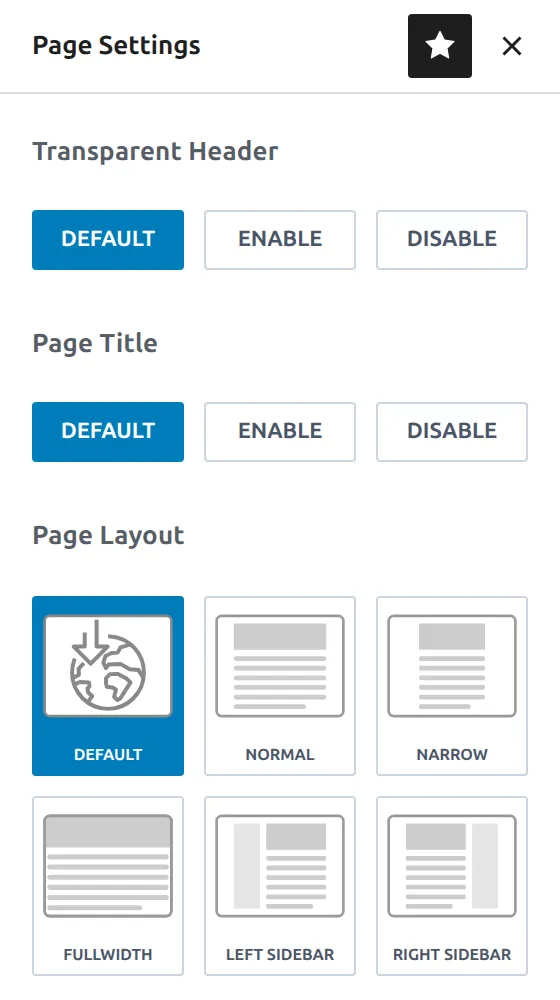
That override only applies to that one page or post. Everything else stays on your global setting.
Bonus: a different set of widgets on one page. When you pick Left Sidebar or Right Sidebar here, a new dropdown appears underneath, called Page sidebar (or Post sidebar). It lets you choose which widget area fills the sidebar on this page: Default, Sidebar 1 or Sidebar 2. The dropdown stays hidden while the page uses a layout with no sidebar, which is why most people never see it.
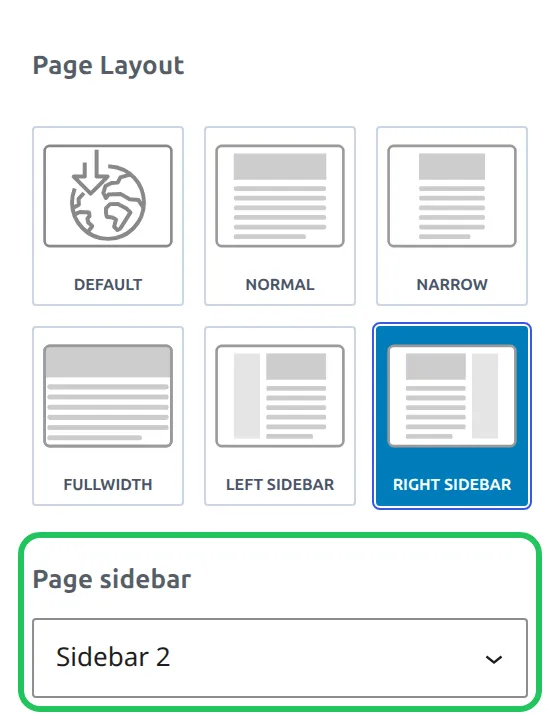
So the free theme gives you 2 separate widget areas. Fill Sidebar 2 under Appearance > Widgets with, say, a signup form and your most popular posts, then switch your sales or resource pages to it. Everything else keeps Sidebar 1.
I use the layout override all the time. My blog posts have a right sidebar globally, but my homepage has no sidebar, and my landing pages use fullwidth. All without writing a single line of CSS or installing a page builder.
How Do I Change the Sidebar Width?
Position is one thing, but sometimes the sidebar is just too wide. Or too narrow for that email signup form you squeezed in there.
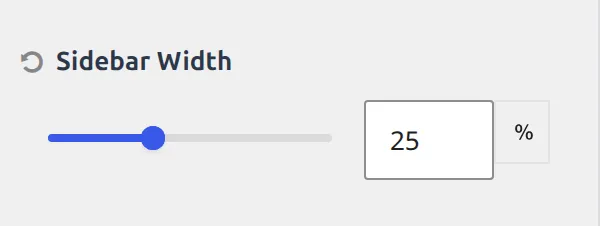
Go to Appearance > Customize > General > Sidebar. The Sidebar Width slider controls the percentage of space the sidebar takes up. The number box next to it starts empty – that’s Kadence falling back to its built-in split of 5 parts content to 2 parts sidebar, which works out to roughly 29%. On a default 1290px layout I measured the sidebar at 338px wide.
3 starting points:
- 25% gives your content noticeably more room. Good for text-heavy blogs where readability matters.
- 28-30% is about what you get by default and works for most sites.
- 35% makes sense if you’re running display ads or have widgets that need more horizontal space.
The change applies globally to every page and post that uses a sidebar. Every other setting in that General panel is covered in my Kadence General settings reference.
Watch out for the content width squeeze. If you’re using a smaller container width and a wide sidebar, your content area can get uncomfortably small. I measured it: with the container at 1100px and the default sidebar, the text column dropped to 645px – fine for reading, but any wider sidebar starts cramping tables and images. If things look cramped after adding a sidebar, try widening your blog post container width or reducing the sidebar width by 2-3 percentage points.
What Should I Actually Put in My Sidebar?
Having a sidebar is only useful if what’s in it helps your readers. I’ve seen way too many blogs with 12 widgets stuffed into their sidebar, and nobody clicks on any of them.
Stick to 3-5 widgets. Here’s what actually earns its place:
- Search box – Always useful on content-heavy sites.
- Recent Posts or Popular Posts – Keeps readers moving through your site.
- Categories – Helpful if you write about distinct topics (recipes, travel, WordPress tutorials).
- Email signup form – If you’re building a list, this is prime real estate.
- Short About Me blurb – One sentence and a photo. Not your life story.
Everything else? Probably skip it. Tag clouds, calendar widgets, and meta login links are relics from 2010. They add clutter without adding value. While you’re cleaning up your blog layout, you might also want to remove the author meta from your posts or remove the page title for a cleaner look.
Should You Even Use a Sidebar in 2026?
This might surprise you, but plenty of successful blogs have ditched sidebars entirely.
The trend over the past few years has been toward cleaner, single-column layouts.
And there’s a practical reason – on any screen narrower than 1025px, Kadence pushes the sidebar below your content. That’s every phone, and most tablets too, including an iPad held sideways (1024px). So for a big share of your visitors, the sidebar never sits beside the article. They’d have to scroll past your entire article to find it.
That said, sidebars still make sense in specific situations:
- Blog posts – A sidebar with related content and categories helps readers discover more of your writing. If content discovery matters to your site, keep it.
- Static pages – Usually no. Let the content stand on its own.
- Shops and directories – Filter sidebars are genuinely useful here.
My take? If your sidebar has 2-3 widgets that actually get clicked, keep it. If it’s just filler you added because “blogs are supposed to have sidebars” – try going without one for a month. Check your analytics. You might not miss it.
Quick Reference
| What You Want | Where to Find It |
|---|---|
| Change sidebar for all posts | Customize > Posts/Pages Layout > Single Post Layout > Default Post Layout |
| Change sidebar for all pages | Customize > Posts/Pages Layout > Page Layout > Default Page Layout |
| Change sidebar for blog archive | Customize > Posts/Pages Layout > Archive Layout |
| Override sidebar on one page/post | Editor > Page Settings > Page Layout |
| Use different widgets on one page/post | Editor > Page Settings > Page sidebar (appears with a sidebar layout) |
| Change sidebar for the WooCommerce shop | Customize > WooCommerce > Product Catalog > Archive Layout |
| Adjust sidebar width | Customize > General > Sidebar |
Every one of these settings works in the free Kadence theme. No Pro upgrade needed.
Frequently Asked Questions
Can I have different sidebar positions for posts and pages in Kadence?
Yes. You control each one independently under Appearance > Customize > Posts/Pages Layout – posts, pages, and archives all have their own layout setting. Worth knowing: neither starts with a sidebar. Kadence sets posts to “Narrow” and pages to “Normal” out of the box, so you’re switching a sidebar on rather than moving one that’s already there.
Does the Kadence sidebar work on mobile?
Below 1025px wide, Kadence moves the sidebar under your main content automatically – that covers phones and most tablets. There’s no setting to keep it side by side on smaller screens. Visitors on those screens have to scroll past your entire article to see sidebar widgets, which is why I put the most important one (like an email signup) inside the content as well.
Can I add different widgets to different page sidebars?
Yes, in the free version – with a limit of 2 widget areas. Kadence ships Sidebar 1 and Sidebar 2.
Set a page or post to Left or Right Sidebar in its Page Settings, and a Page sidebar dropdown appears where you pick which one it uses. For posts in bulk, the Post Default Sidebar dropdown in the Customizer does the same job. If you need more than 2 different widget sets, that’s when a plugin or Kadence Pro comes in.
How do I remove the sidebar from my WooCommerce shop page?
Go to Appearance > Customize > WooCommerce > Product Catalog and set Archive Layout to a layout without a sidebar (it ships on “Normal”, which has none). Kadence also reads the Shop page’s own Page Settings, so you can set the layout there instead if you only want to change that one page.