How to Fix Extra Footer White Space in Kadence
You’ve built your site, everything looks great – and then you scroll to the bottom and see a big strip of white space in or below your footer. You didn’t put it there. There’s nothing in the Customizer that says “add weird gap at the bottom.” And yet, here it is.
I’ve hit this exact problem on my own sites. The most common cause takes 30 seconds to fix once you know where to look, and for this update I recreated it on a test site running Kadence 1.4.5 and measured it: a 60px blank strip, from a block you can’t even see.
Here are the 3 things that cause this issue, starting with the most common one.
What causes white space below the Kadence footer?
The mystery gap is almost always one of these 3 things:
- A footer row holding an element that renders nothing – usually an empty widget area
- A plugin injecting hidden content after the footer
- Custom CSS adding margin or padding you forgot about
Here’s what the first one looks like on the front end. The dashed box is a footer row that holds nothing visible – it’s all empty space above the copyright line:

Here’s how to check each one.
Is a footer row with nothing in it causing the gap?
This is the fix for most people. Here’s why it happens.
First, the good news: Kadence is smarter than most themes about this. Its footer builder has 3 rows – Top, Middle, and Bottom – and a row with no elements in it at all doesn’t render. The theme checks all 5 columns of the row and skips it entirely if every one is empty. So a truly empty row can’t be your problem.
The gap comes from the row that looks empty but isn’t. Say you dragged a Widget 1 block into the Middle row months ago, never put a widget in that widget area, and forgot about it. Kadence sees an element in the row, so it renders the row – and the row brings its spacing with it.
Every footer row ships with 30px of spacing above and 30px below. So that forgotten block gives you exactly 60px of blank strip. I measured it on my test site: the Middle row held an empty Widget 1, printed no text at all, and was 60px tall.
Here’s how to check:
- Go to Appearance > Customize > Footer
- Kadence docks a visual footer builder under the preview, with the 3 rows stacked – Top Row, Middle Row, Bottom Row
- Look for a row that has a block sitting in it but shows nothing in the preview above
- The usual suspect is a Widget block (Widget 1 to Widget 6) pointing at a widget area you never filled
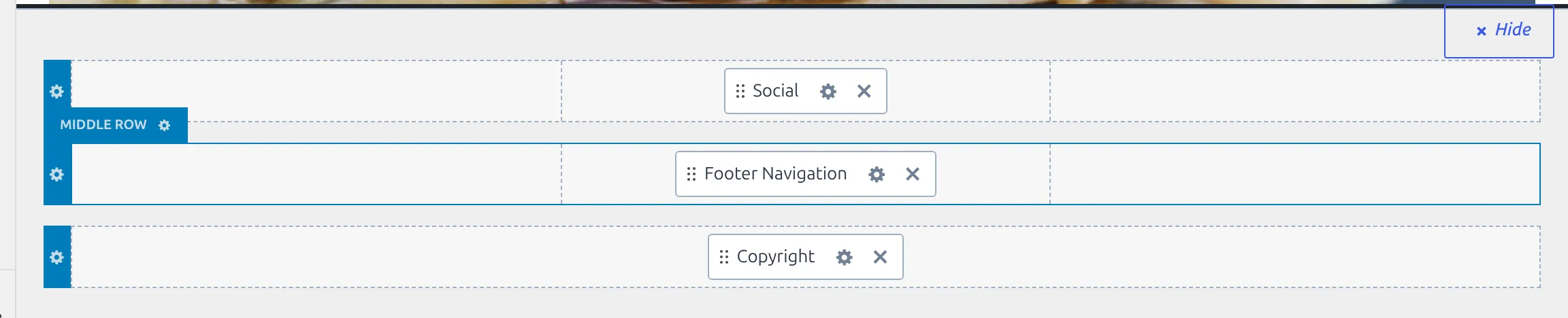
Hover over a row and its name appears above it. Here’s the culprit on my test site – a Widget 1 block sitting in the Middle row, with nothing in the Footer 1 widget area behind it:
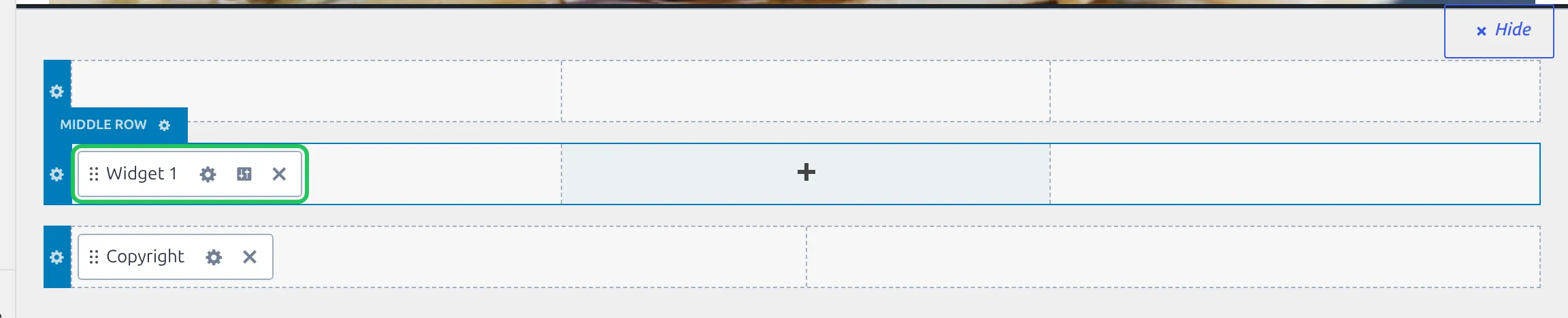
To double-check whether a widget area is really empty, go to Appearance > Widgets and open the matching area – Widget 1 in the builder reads from the area called Footer 1, Widget 2 from Footer 2, and so on.
The fix: You’ve got two options.
Option A – Drag the element out of the row. Grab the block and drop it back on Available Items, or click the small x on the block. With the row genuinely empty, Kadence stops rendering it and the gap goes with it. This is the cleanest fix.
Here’s my test footer after I removed the Widget 1 block. The Middle row is gone from the page completely, and the copyright line moves up to fill the space:

Option B – Zero the row’s spacing. If you want to keep the block for later, click the gear on the row to open its settings – Footer Middle, say – and on the General tab set Top Spacing and Bottom Spacing to 0. Note the labels: Kadence calls these Spacing, not padding, and they live on the General tab, not Design.
I’d go with Option A. If you need the block later, you can always drag it back. Once you’ve cleaned up the rows, you might want to update the copyright text while you are in there. And if you want to know what every footer setting does and what it starts at, I documented them all in my Kadence footer settings reference.
Is a plugin injecting hidden content?
If all 3 footer rows look correct, the next suspect is a plugin adding elements below your footer. Anything that adds a bar or a bubble to the bottom of your site can do it, because it has to put its markup somewhere on the page.
The usual suspects:
- Cookie consent plugins – some add their banner as a normal block at the end of the page instead of floating it over the content
- Chat widgets – they add a wrapper element for the chat bubble
- GDPR/privacy plugins – some add consent containers at the bottom of the page
Here’s how to find them:
- Right-click on the white space below your footer
- Click Inspect (or Inspect Element in some browsers)
- The browser DevTools will open and highlight the element under your cursor
- Look at the HTML – is it a
<div>or<section>that sits after Kadence’s<footer id="colophon">and doesn’t belong to the theme?
If you find a plugin-generated element there, you’ve found it. Go to that plugin’s settings and look for a position or layout option. Banner plugins usually offer a floating (fixed) position that sits over the page instead of pushing it, and switching to that should close the gap.
Quick test: Deactivate plugins one at a time and refresh. When the gap goes away, you’ve found the culprit. Reactivate it and adjust its settings.
Is custom CSS adding extra space?
If you’ve added custom CSS – in Appearance > Customize > Additional CSS or a child theme stylesheet – you might have a rule that’s adding bottom margin or padding without realizing it.
The properties to watch for:
margin-bottomorpadding-bottomonbody,html,#wrapper, or.site- Extra padding on
footeror.site-footer - A
min-heighton the page wrapper that’s pushing the footer up and creating space below it
How to find it:
- Go to Appearance > Customize > Additional CSS
- Select all your custom CSS and cut it (Ctrl+X)
- Paste it into a text file on your computer as a backup
- Click Publish and check your site
- If the white space is gone, paste your CSS back and remove rules one at a time until you find the culprit
Tedious, but faster than staring at 50 lines of CSS trying to guess which rule is the problem.
The CSS emergency fix
If you’ve checked all 3 causes and you’re still stuck, this CSS will force-remove the spacing from every footer row:
.site-footer {
    margin-bottom: 0 !important;
    padding-bottom: 0 !important;
}
.site-footer .site-footer-row {
    padding-top: 0 !important;
    padding-bottom: 0 !important;
}
Add this in Appearance > Customize > Additional CSS.
A correction here, because I got this wrong in the first version of this article. The earlier snippet targeted .site-footer-row-container-inner, but that’s the wrong element – Kadence puts its row spacing on the .site-footer-row element one level further in. I tested both on my 60px gap: the old snippet left it at 60px, the one above took it to 0.
But treat this as a last resort. You’re hiding the symptom, not fixing the cause, and it strips the spacing from rows you might want to keep. !important overrides can also create headaches later when you try to adjust footer spacing intentionally and wonder why nothing changes. If your Customizer changes aren’t sticking at all after you set spacing values, check my guide on fixing Kadence Customizer not saving.
Does the gap only show on mobile?
One more thing to check. Sometimes the white space only appears on phones or only on desktop.
Kadence lets you set a different value for desktop, tablet, and mobile on each footer row. Out of the box, the tablet and mobile values are blank, which means they copy whatever the desktop value is. But once somebody types a number into the mobile box, it overrides desktop – so you might have zero spacing on desktop but 30px still sitting there on mobile.
To check:
- Open Appearance > Customize > Footer
- Click the gear on a footer row to open its section – Footer Middle, for example
- Stay on the General tab
- Find Top Spacing and Bottom Spacing. Each one has a small row of device icons above it – desktop, tablet, phone. Click through all 3 to see what’s set at each breakpoint
- Set any unwanted value to
0on the device where you’re seeing the gap
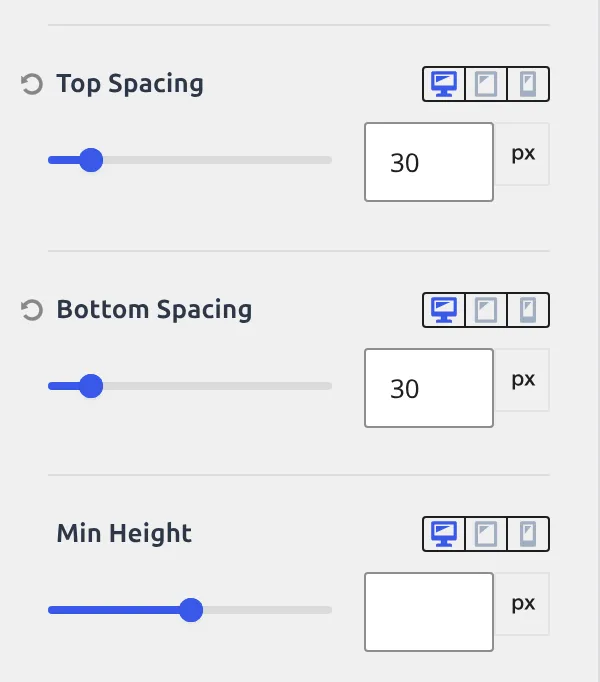
While you’re here, check Min Height too. It sits just below the spacing controls, it’s empty by default, and a value left in it holds the row open no matter how much spacing you strip out.
You can also use the Customizer’s responsive preview (the device icons at the bottom of the panel) to check without pulling out your phone. And if a floating button is what’s covering your footer on mobile rather than a gap, that’s the back-to-top button – I covered its offset settings in adding a back to top button in Kadence.
Wrapping up
In my experience, the fix almost always turns out to be a footer row still holding one element that renders nothing – usually a widget area nobody ever filled. Drag the block out, the row stops rendering, and the white space vanishes. If that’s not it, check for plugin-injected elements and custom CSS.
And if you found this after spending 20 minutes hunting for a non-existent margin somewhere in your stylesheet – I’ve been there. At least now you know where to look first next time.
Frequently Asked Questions
Why does my Kadence footer have a gap only on certain pages?
Different pages can have different footer behavior if you’re using Kadence’s per-page settings. Open the page in the WordPress editor, click the Kadence Page Settings pencil in the top toolbar, and check the options there. Also, some page builders add extra wrapper elements that add spacing only on pages built with that builder.
Can I remove the Kadence footer entirely?
Yes. Go to Appearance > Customize > Footer and drag every element out of all 3 rows onto Available Items. With nothing left in any row, Kadence renders no footer rows at all – on my test site the footer area measured 0px tall. If you still want copyright text, leave the Copyright block in the Bottom row and clear the other two.
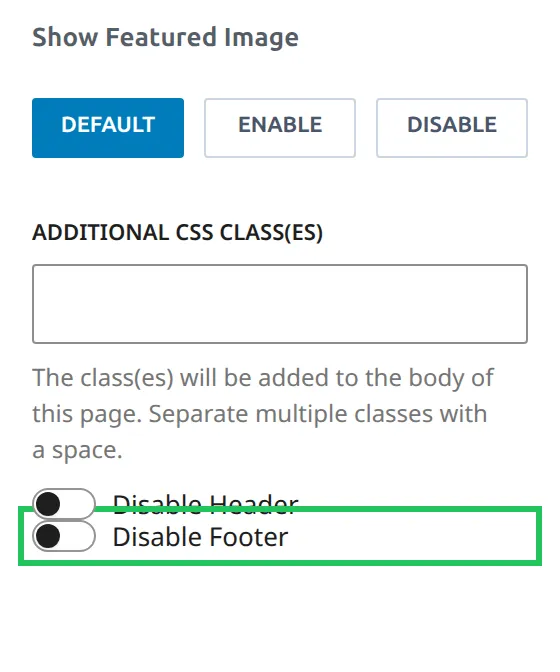
To hide the footer on one page only, open that page in the editor, click the Kadence Page Settings pencil, scroll to the bottom of the panel, and switch on Disable Footer:
Does the Kadence footer gap affect my site’s SEO?
The white space itself won’t hurt your SEO rankings. But if it’s caused by hidden plugin-generated elements that contain empty markup, that’s unnecessary page weight. It’s a minor issue, but worth fixing for clean HTML output and a polished look.
Will a Kadence theme update fix the footer white space?
Unlikely. The gap is almost always caused by your configuration – a leftover block in a row, plugin conflicts, or custom CSS – not a theme bug. Updating Kadence will not change your footer row settings or remove conflicting CSS you added.