How to Choose Your First WordPress Theme (Without Getting Stuck)
When I picked my first WordPress theme, I went in circles for two weeks. I’d find one I liked, install it, hate the colors, uninstall it, find another, install that, hate the header, uninstall it. Every demo looked perfect. None of them looked perfect once I tried to make them mine.
The official WordPress theme directory lists 8,783 free themes as I write this. No wonder beginners freeze.
The problem isn’t the lack of choice. The problem is that nobody told you which question to ask first.
Here’s the question I wish someone had asked me. “What does your site need to do in year 1?” Not year 5. Not in some imagined future where you’ve grown to 100,000 visitors a month.
Once you answer that, figuring out how to choose a WordPress theme stops being an 8,000-option problem and becomes a 4-option problem.
For this update I stopped repeating theme marketing and tested it. On a fresh WordPress 7.1.2 site I installed 7 popular themes, weighed the same page on each one, and switched between them to see what you keep and what you lose. Two results surprised me, and one of them was about a theme I used to recommend.
Why learning how to choose a WordPress theme is overwhelming
Three things make this harder than it needs to be.
First, every demo is staged. Theme developers hire designers, photographers, and copywriters to make the demo site look gorgeous. Your fresh install with one blog post and a default avatar will never look like that demo on day one.
That’s not the theme’s fault. That’s just how demos work.
Second, the choice feels permanent. It isn’t. Your posts, pages, images and menus live in the database, not in the theme. When I switched my test site from Kadence to Astra, all of it was still there, and so was my logo.
Third, the question is wrong. Most articles ask “which theme is best?” The right question is “which theme fits my goals and skill level right now?” Reframe it that way and the directory shrinks fast.
So before you open the theme installer, write down 3 things on a sticky note:
- What kind of site is this? (Blog, small business, portfolio, online store)
- How comfortable am I editing layouts? (Pure beginner, copy-paste tinkerer, confident with menus)
- What’s my budget? (Free only, $50/year is fine, $200/year is fine)
Those 3 answers cut your shortlist from thousands to about 5.
Block themes vs classic themes – which should I pick?
This is the first real fork in the road, and it changes how you’ll edit your site.
Classic themes use the older WordPress editing model. You change colors, fonts, and layouts in the Customizer (Appearance > Customize). Widgets go in widget areas, menus go in menu locations. The post editor is where you use blocks.
Block themes (also called “FSE themes” for Full Site Editing) let you edit the entire site visually in the Site Editor. The header, the footer, the blog template, the 404 page – all of it gets edited the same way you edit a blog post. There are no widget areas and no separate Menus screen.
Quick test: log into your site and hover over Appearance in the left sidebar. If you see Editor, you have a block theme. If you see Customize and no Editor, you have a classic theme.
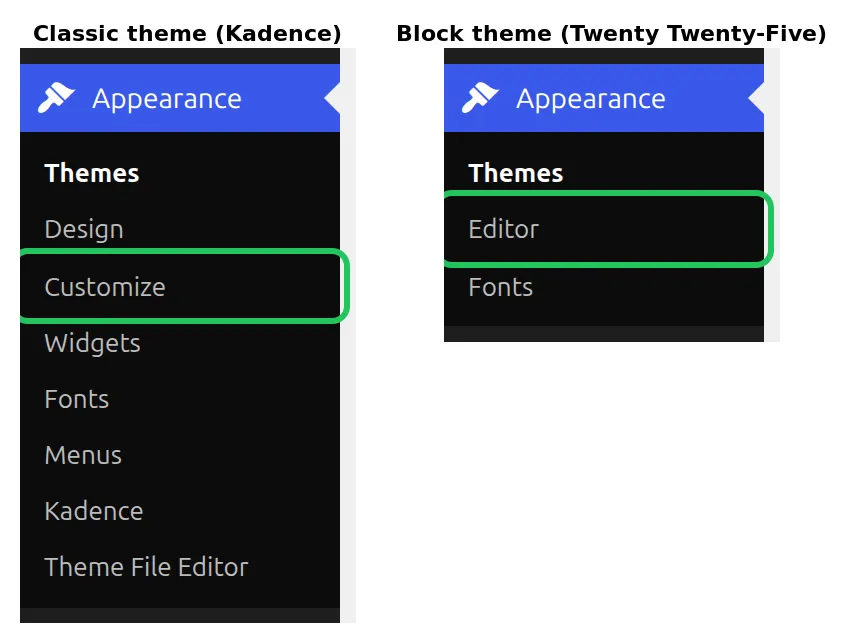
Look for “Editor” rather than “Customize”, because Customize isn’t a reliable sign. A plugin can bring it back on a block theme, and WordPress 7.1 also gives most classic themes a Design item. My classic Kadence site showed Themes, Design, Customize, Widgets, Fonts and Menus. Twenty Twenty-Five showed just Themes, Editor and Fonts.
So which should you pick? I used to tell beginners to pick a block theme, and I’ve changed my mind after checking the directory. The 4 biggest free multi-purpose themes – Kadence, Astra, GeneratePress and Blocksy – are all classic themes. None of the companies behind Kadence, GeneratePress or Blocksy has a block theme on wordpress.org, and Astra’s maker has one with 7,000 installs, against Astra’s 1 million+.
My honest recommendation: don’t pick on block vs classic. Pick the theme that fits your site, then learn whichever editor it uses.
If you want to edit everything in one visual editor and your site is mostly a blog, the default block theme is a fine start. If you want a header builder and simple settings panels, a classic theme like Kadence is easier. I wrote a separate piece on where the WordPress Customizer went if you’ve already noticed it disappearing.
Should I start with a free or paid theme?
Start free. I’ll defend that even though the paid theme upsell is everywhere.
Here’s the honest truth about premium themes in year 1. The pro features sound great in the marketing copy: custom layouts, header builders, deeper integrations, premium support. But year 1 of running a WordPress site is mostly about writing content, learning the dashboard, and figuring out what your site actually needs. Most premium features answer questions you haven’t asked yet.
The free versions of the big theme frameworks are genuinely good now. The free tiers of Kadence, Astra, GeneratePress, and Blocksy include:
- Header and footer layout controls (Kadence’s free version has a drag-and-drop header and footer builder)
- Color and typography controls (GeneratePress lists 60+ color controls in its free version)
- Starter templates you can import (Kadence and Astra both have free template plugins)
- Mobile-friendly layouts out of the box
- Compatibility with WooCommerce and the main page builders
That’s everything most blogs and small business sites need.
When does paid make sense? When you’ve hit a real wall: you need a mega menu and the free version only does dropdowns, or you want a sticky add-to-cart bar on a product page. Real walls are specific. Imagined walls sound like “I might need this someday.”
Upgrading later doesn’t mean starting over, either. Kadence Pro, Astra Pro and GP Premium are add-on plugins that sit on top of the free theme you already have, so your settings stay put.
My rule: start free, write 20 posts, and only upgrade when you hit a wall you can name in one sentence.
What does “lightweight” actually mean for a WordPress theme?
“Lightweight” is the most overused word in theme marketing. Kadence and GeneratePress both call themselves lightweight on wordpress.org, and Astra says “lightning-fast”. My measurements say they’re not equally light.
Here’s what lightweight actually means. Your visitor’s browser has to download the theme’s CSS, JavaScript, and fonts before your site can render. The smaller those files, the faster the page loads, and the better your reader’s experience. If you’ve ever wondered why your WordPress site is so slow, the theme is one of the first places I look.
The real metric is total page weight on a fresh install. So I made one: a stock WordPress 7.1.2 site with no plugins and the default Hello World post. I activated each theme with its default settings and loaded that post as a logged-out visitor:
| Theme | Files loaded | Page size | Actually downloaded (compressed) |
|---|---|---|---|
| GeneratePress 3.6.1 | 6 | 83 KB | 24 KB |
| Astra 4.14.1 | 5 | 187 KB | 32 KB |
| Blocksy 2.1.60 | 8 | 194 KB | 51 KB |
| Kadence 1.5.2 | 13 | 233 KB | 58 KB |
| Twenty Twenty-Five 1.5 | 7 | 191 KB | 88 KB |
| Twenty Twenty-Four 1.6 | 8 | 604 KB | 497 KB |
| OceanWP 4.2.7 | 22 | 808 KB | 344 KB |
“Page size” is every file at full size. “Actually downloaded” is what crossed the wire with normal server compression, which is the number speed tools report. Every row includes the same small avatar image from Hello World’s sample comment.
3 things stood out:
- GeneratePress is the lightest by a wide margin. Its wordpress.org page promises “less than 10kb (gzipped)” added to your page, and the whole page came to 24 KB.
- Fonts are the hidden weight. Font files are already compressed, so they don’t shrink in transit. Twenty Twenty-Four loads 2 font families totalling 461 KB, which is why it came last but one. On its default home page, with 3 sample photos, it passed 1 MB.
- Icons and sliders add up. OceanWP loads 22 files on an empty post, including jQuery, a slider library and 2 icon fonts. Kadence loads a small slider script on posts too, for its related-posts carousel.
You don’t need to memorize numbers. You need to know what causes bloat: bundled icon fonts, sliders, big web fonts, and “demo” features that load on every page whether you use them or not. If a theme’s sales page brags about “200 pre-built pages and 50 widgets included,” check the weight before you commit.
You can check any theme yourself in 2 minutes. Install it on a test site, run a post URL through PageSpeed Insights or GTmetrix, and look at the total page size.
Use my table as your yardstick. Under 100 KB downloaded on an empty site is excellent, and 5 of the 7 themes I tested landed there. If a theme is past 300 KB before you’ve added a single photo, every image you upload makes it worse.
When should I pick a multi-purpose theme vs a niche theme?
This is the trade-off most beginners get wrong, and it costs them weeks of frustration.
Multi-purpose themes (Kadence, Astra, OceanWP, Blocksy) are designed to look like anything. Blog, photography portfolio, online store, restaurant menu, lawyer’s office – one theme, infinite layouts.
The trade-off: you start from a blank canvas. Nothing looks finished out of the box, so you import a starter template or build a layout from scratch.
Niche themes are designed for one specific use case. A restaurant theme has menu sections, opening hours, and reservation buttons baked in. A real estate theme has property listings, search filters, and agent profiles built in.
The trade-off: they look gorgeous on day one but fight you when you try to bend them.
Here’s how I decide between the two.
Pick a multi-purpose theme if:
- You’re building a blog (any niche)
- You’re building a small business site that’s mostly text and photos
- You don’t know exactly what your site needs to look like yet
- You want to switch directions later without starting over
Pick a niche theme if:
- Your site has a very specific structure (real estate listings, restaurant menus, course catalogs)
- The niche theme demo looks 90% like what you want
- You’re not planning to deviate much from that demo
- The niche has features that would be tedious to recreate (booking widgets, property search, etc.)
For most beginners I work with – bloggers, hobbyists, small business owners writing about what they do – multi-purpose wins. It’s slower to set up but harder to outgrow.
Which themes do I recommend for beginners?
Here are 4 honest picks. All free. All ones I’ve installed and measured on the same test site.
For beginners building a blog: Kadence (free)
Kadence is what I use on most of my own projects, this site included. It’s a classic theme with a free drag-and-drop header and footer builder and a free Starter Templates plugin for importing ready-made designs.
It also plays well with Kadence Blocks (a separate free plugin from the same team), which adds 30 extra blocks to the editor.
Downsides: Kadence has 617 Customizer settings (I counted them all), which can overwhelm true beginners at first. It’s also mid-table on weight: 58 KB downloaded on an empty post, more than twice GeneratePress. And if you hit a JSON response error when saving in the editor, that’s usually a hosting issue, not a Kadence bug.
For absolute simplicity: Twenty Twenty-Five
This is the default theme that comes with WordPress 7.1, so it’s already active on a new site. No plugins to install, no setup wizard. It’s a clean block theme that works well for blogs, portfolios, and basic business sites, with patterns built in and templates you edit in the Site Editor.
I recommend this when someone says “I just want to write and not think about themes.” It does that well. The trade-off is fewer layout options than Kadence or Astra, but that’s also the appeal. Less to break.
One correction to my own old advice: this pick used to be Twenty Twenty-Four. When I measured it, it was the second-heaviest theme in my test at 497 KB downloaded, almost all of it fonts. Twenty Twenty-Five came to 88 KB on the same post.
For “I want to design from scratch”: GeneratePress (free)
GeneratePress was the lightest theme in my test by far: 24 KB downloaded on an empty post, from a 19 KB stylesheet and a tiny menu script. The free version is genuinely capable for a blog or simple business site. The interface feels closer to “developer-friendly” than the others – in a good way for people who like clean settings panels and don’t mind reading docs.
Downsides: the ready-made site library is part of the paid GP Premium, so on the free version you’ll do more building from scratch.
For e-commerce starters: Astra free + Starter Templates plugin
If you’re setting up a WooCommerce store and want a head start, Astra plus its free Starter Templates plugin gives you a library of 300+ templates, with free and premium designs mixed together. Astra sits in wordpress.org’s top bracket of 1 million+ active installs, and it was second-lightest in my test at 32 KB downloaded.
Downsides: check that a template is marked free before you fall in love with it, because the library mixes both.
If you’re not sure which to pick, default to Kadence for blogs and Twenty Twenty-Five for the simplest possible setup. You can always switch. Adding your logo and picking your colors is the next 5-minute job for any of these picks.
How do I install and try a theme without breaking my site?
WordPress makes this safer than you’d expect.
Go to Appearance > Themes and click Add Theme. You can search by name, browse popular themes, filter to block themes, or upload a .zip file you downloaded from somewhere else.
When you find one you like, click Install. The buttons then change to Activate and Live Preview. Click Live Preview first.
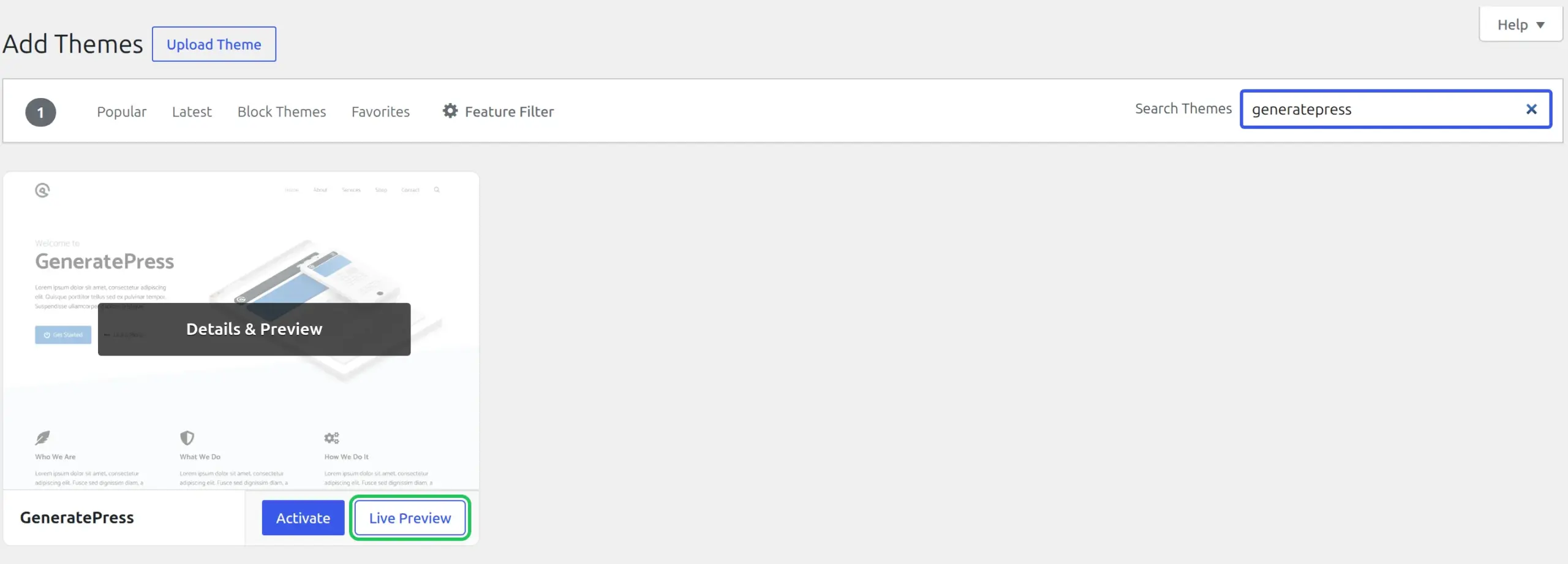
Live Preview is the part beginners skip and shouldn’t. It loads the theme over your actual content without making it live, so you see your real homepage, posts and menus in the new design. For a classic theme it opens in the Customizer; for a block theme it opens in the Site Editor. Your visitors keep seeing the old theme the whole time: on my test site the active theme was still Kadence after both previews.
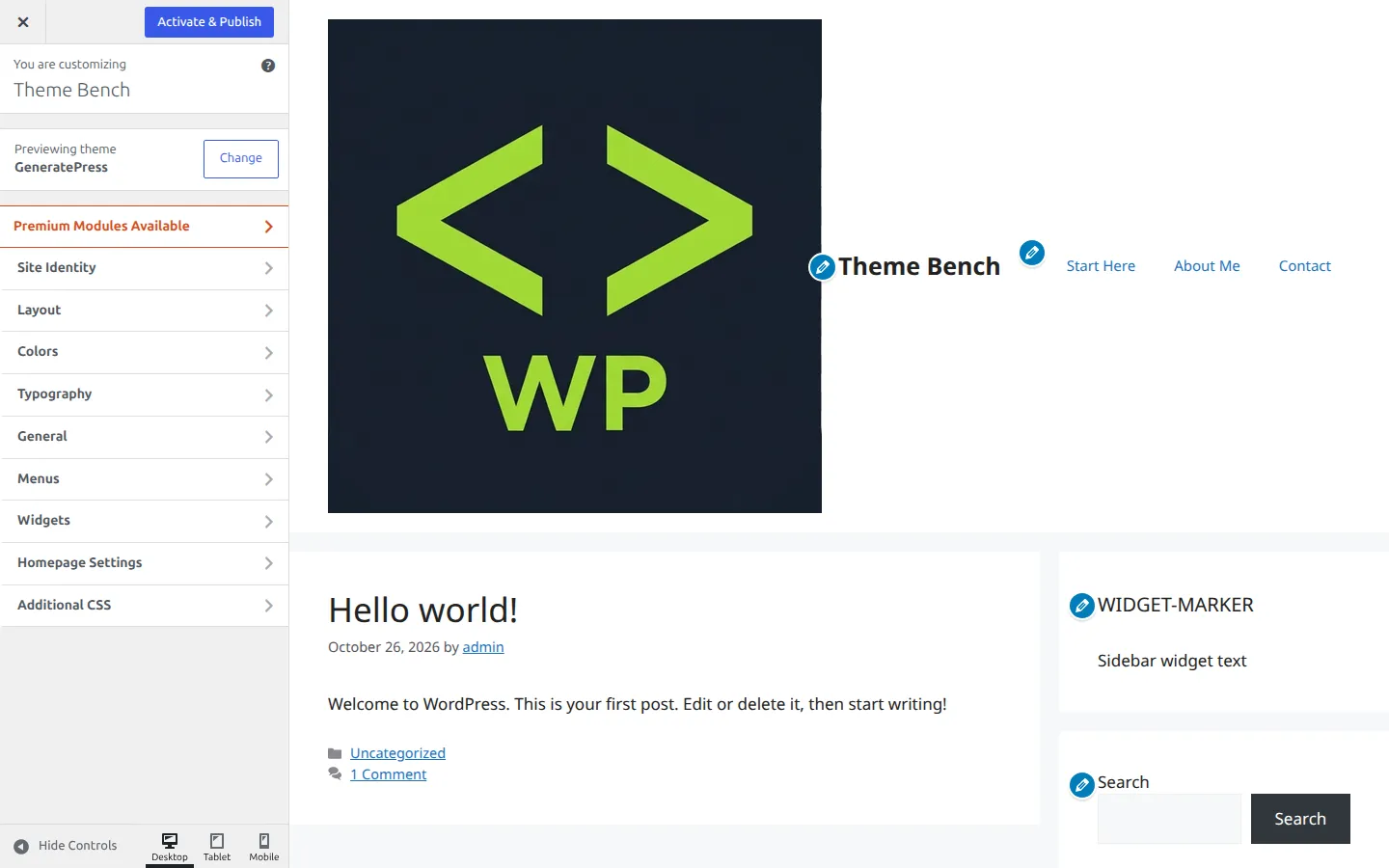
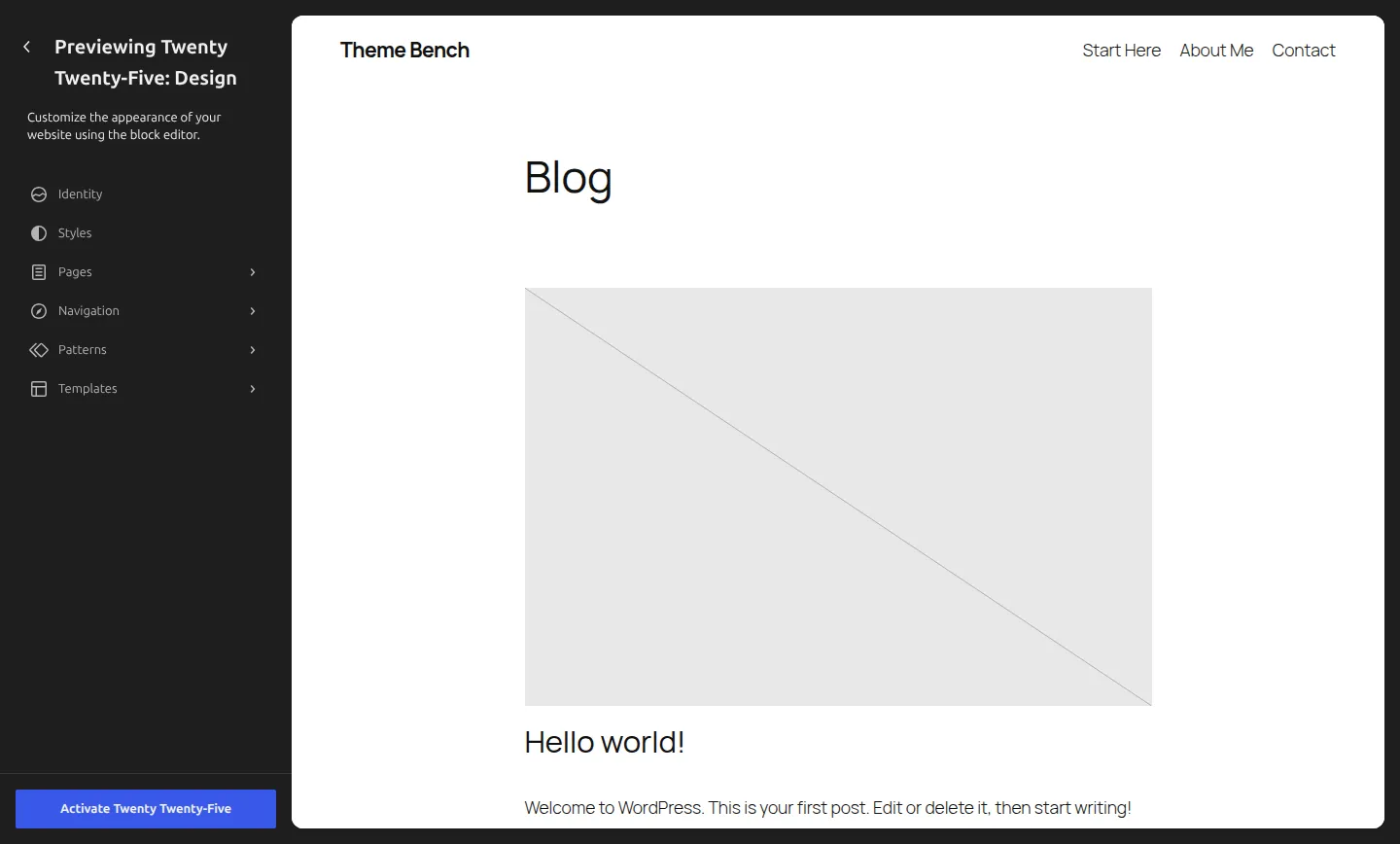
Nothing goes live until you click Activate & Publish (classic) or Activate (block). If the layout breaks horribly or the colors clash, just close the preview.
3 things to know before you activate a new theme:
- Your old theme’s design settings don’t come with you. Colors, fonts, header layout and Additional CSS are saved per theme, so the new theme starts with its own defaults.
- Widgets move to the closest matching area. On my test site the Kadence sidebar widgets landed in Astra’s sidebar, and the widgets from Kadence’s second sidebar went to Inactive Widgets (Appearance > Widgets), where nothing is lost.
- On a block theme, your old menu may not show up by itself. The menu still exists – you pick it in the header’s Navigation block.
Always back up your site before switching active themes. In my roundup of free WordPress backup plugins, UpdraftPlus was the only one that brought my test site back exactly in both restores, so it’s the one I install first.
What’s the right way to switch themes later?
Switching themes is normal. Here’s how to do it without losing work.
Before you switch, screenshot your current setup. Open your Customizer or Site Editor panels and screenshot the settings you changed – colors, fonts, logo size, header layout. Copy any Additional CSS into a text file. This sounds like overkill until you switch and can’t remember what color hex code you spent an hour picking.
Then back up. Then try the new theme with Live Preview on the real site. If it looks workable, activate it during your lowest-traffic hour (usually overnight).
Here’s what I saw when I switched my test site from Kadence to Astra through Appearance > Themes. The logo, menu and posts came across. The logo size I’d set in Kadence did not, so Astra drew my logo at its full 512 pixels:
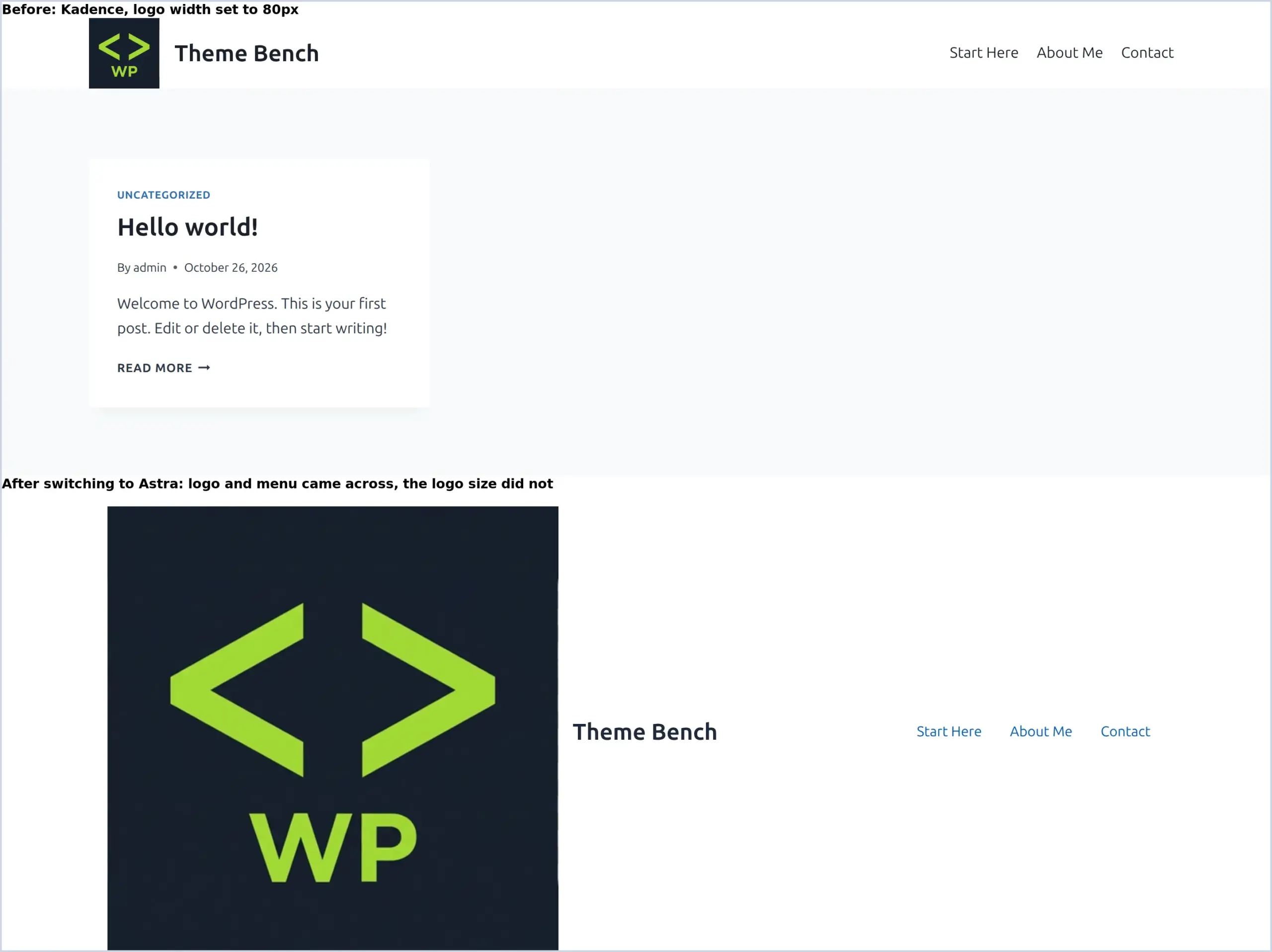
That’s the typical “my site looks broken” moment after a switch. Nothing is corrupt – the new theme simply doesn’t have your old theme’s settings, so you set the logo size again in the new theme.
Visit 5 important pages on the front end: your homepage, a blog post, a category archive, the contact page, and the 404 page. Fix what looks wrong before you log out for the night.
Switching from a classic theme to a block theme? Check the header menu first. On my fresh test site, Twenty Twenty-Five had already made its own menu from the page list, so that’s what showed instead of mine. Open Appearance > Editor, select the Navigation block in the header, and choose your old menu from its menu list (it’s under “Import Classic Menus”).
And if you change your mind, switch back. When I re-activated Kadence, every setting came back exactly as I’d left it: logo size, Additional CSS, menu and widgets. WordPress keeps each theme’s settings even while it’s not active.
Plan for an hour of cleanup after a real switch, not 5 minutes. Switching from Kadence to Astra means redoing the header, colors and typography in the new theme’s own panels.
FAQs
Should I start with a free or paid WordPress theme?
I always recommend starting with a good free theme like Kadence or GeneratePress. They give you plenty of customization power to learn the ropes. Their paid versions are add-on plugins on top of the free theme, so upgrading later doesn’t mean rebuilding the site.
What does “lightweight” actually mean for a WordPress theme?
It means the theme adds very little to every page your visitors download. On my fresh test site, the same empty post ranged from 24 KB downloaded with GeneratePress to 497 KB with Twenty Twenty-Four, mostly because of web fonts. Check a theme’s total page size in PageSpeed Insights before you commit.
Block themes vs classic themes – which should I pick?
Pick the theme first and the editor second. Most popular free themes, including Kadence, Astra and GeneratePress, are classic themes that use the Customizer. The default Twenty Twenty-Five is a block theme you edit in the Site Editor. If Appearance shows “Editor”, you’re on a block theme.
How do I test a theme before committing?
Use Live Preview under Appearance > Themes. It shows the theme with your real content while visitors keep seeing your current theme, and nothing changes until you click Activate. For bigger changes, like a full redesign, a staging copy of your site is safer still.
Stop hunting and start writing
Here’s the punchline I wish I’d heard 2 weeks earlier when I was theme-hopping.
The theme you pick today isn’t the theme you’ll use forever. It’s the theme you’ll use to write your first 20 posts and learn what your site actually needs. Once you’ve written those 20 posts, you’ll know exactly what’s missing – and that knowledge is worth more than picking the “perfect” theme on day one.
Pick Kadence if you’re a blogger. Pick Twenty Twenty-Five if you want zero setup. Pick GeneratePress if you want the lightest pages and like building from scratch. Pick Astra if you’re starting an online store.
Activate it, write, and switch later if you need to. Your posts, menus and logo come with you, and your old theme’s settings wait for you if you go back.
The cost of switching is one Saturday afternoon. The cost of staring at the directory for 2 weeks is 2 weeks of not writing. I know which one I regret more.
Go pick something. You can always change your mind.