Where Did the WordPress Customizer Go? (And How to Find It)
You followed a tutorial that said “go to Appearance > Customize” – and the link isn’t there. I’ve been in that exact spot, staring at the Appearance menu wondering if I accidentally broke something. You didn’t. WordPress moved things around, and it catches people off guard all the time.
If you’re using a block theme like Twenty Twenty-Five, the Customizer is hidden on purpose. WordPress replaced it with something called the Site Editor. Here’s where everything went and how to get the Customizer back when you need it.
I re-checked every path in this guide on WordPress 7.1 for this update. Some had moved since the original version, and 2 of its tips – that WooCommerce or Yoast SEO bring the Customize link back – don’t hold up any more.
Why Is the WordPress Customizer Missing?
Starting with WordPress 5.9, WordPress introduced Full Site Editing (FSE) and a brand new tool called the Site Editor. Block themes – like WordPress’s own Twenty Twenty-Four and Twenty Twenty-Five – use the Site Editor instead of the Customizer. So when you activate a block theme, WordPress hides the Customize link from your menu. This shift is part of the bigger Classic Editor vs Gutenberg story that’s been playing out since 2018.
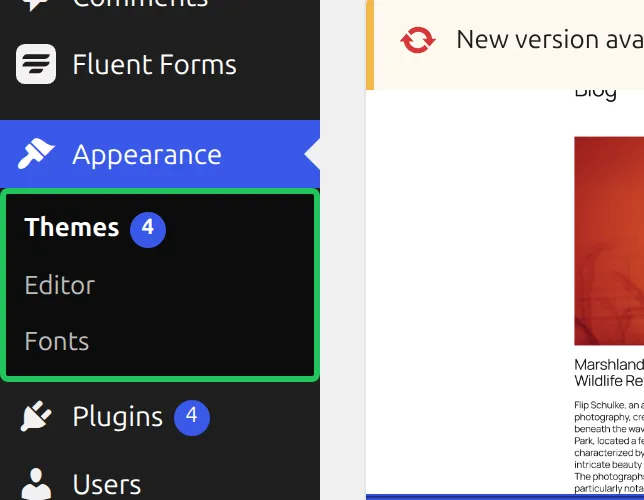
On WordPress 7.1 with Twenty Twenty-Five active, the Appearance menu has exactly 3 items: Themes, Editor and Fonts. No Customize.
But here’s the important part: the Customizer isn’t gone from WordPress itself. It’s just hidden because block themes don’t need it. “Classic” themes like Kadence, Astra and GeneratePress still rely on the Customizer for their header builders, footer builders, color settings and font controls.
If you’re using one of those themes, the link is still right there under Appearance > Customize.
The confusion usually starts when someone switches from a theme like Kadence to a block theme like Twenty Twenty-Five. One day the link is there, the next day it’s gone. That’s exactly what happened to me when I was testing themes – and it took me a solid 10 minutes of Googling to figure out what was going on.
Where Did Everything Move?
The good news is that the main Customizer jobs all have a home in the Site Editor. The bad news is that nothing is in the same place. Open Appearance > Editor and you’ll see 6 items down the left side: Identity, Styles, Pages, Navigation, Patterns and Templates. Here’s a quick map.
Menus
Your navigation menus moved to Appearance > Editor > Navigation. The menu editing experience is completely different now – you build menus with blocks instead of the old drag-and-drop screen. It takes some getting used to, but it’s more flexible once you learn it.
Colors and Fonts
These are now at Appearance > Editor > Styles. Click Styles (the half-filled circle icon) and you’ll see Typography, Colors, Background, Shadows and Layout. The controls are more visual than the old Customizer dropdowns. Fonts you want to install or upload live in their own screen now: Appearance > Fonts.
Additional CSS
This one is tucked away. Go to Appearance > Editor > Styles, click the three-dot menu (More) at the top of the Styles panel, and select Additional CSS. It works the same way as the old box – paste your CSS snippet and it applies site-wide.
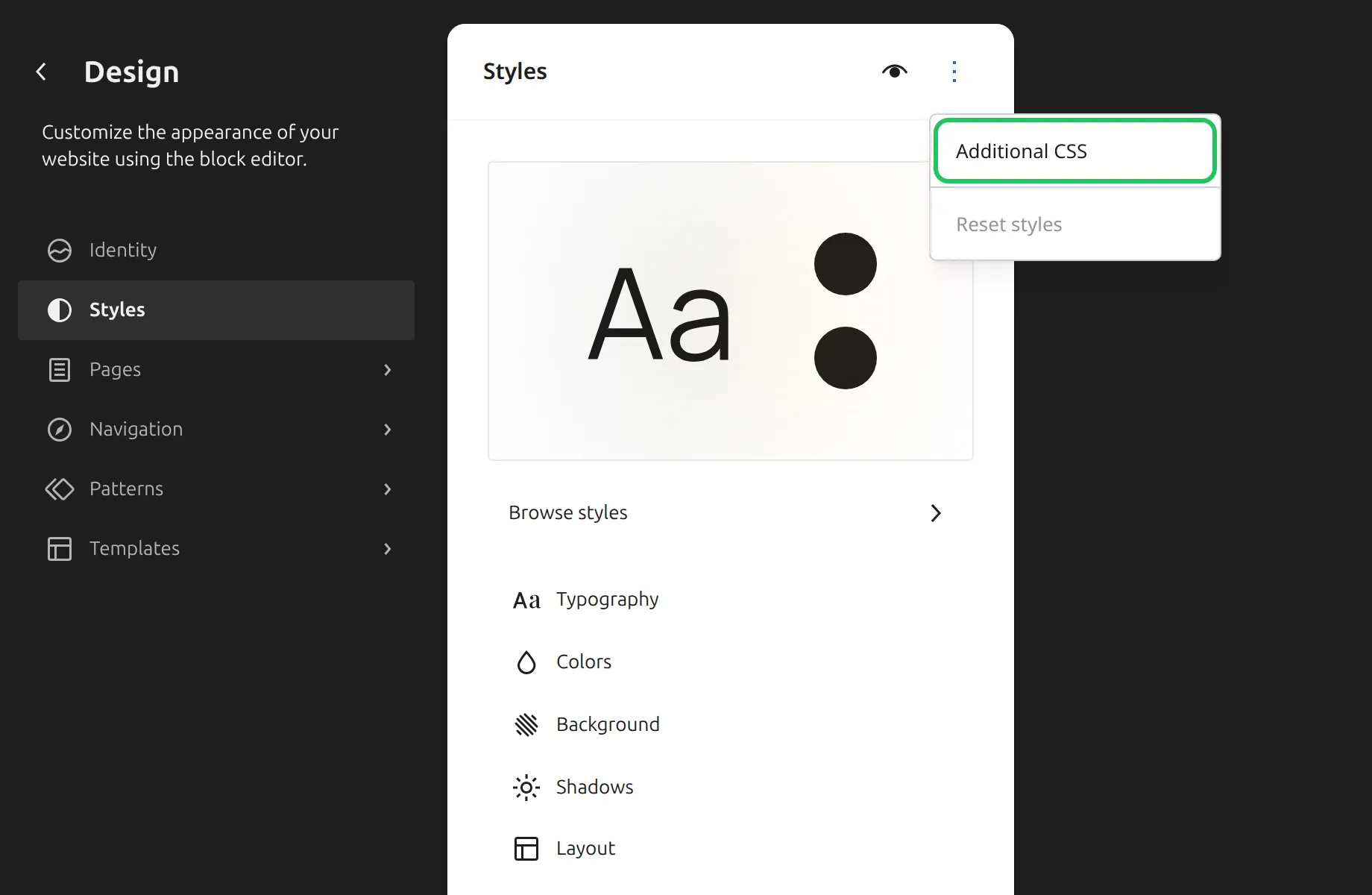
That’s 2 clicks once you’re in Styles. The original version of this guide included an “Edit Styles” pencil step – that button isn’t there in WordPress 7.1.
Widgets
Widgets don’t have their own page on block themes. Sidebars and widget areas are replaced by template parts – reusable chunks like your header and footer – that you edit with blocks. You’ll find them under Appearance > Editor > Patterns, at the top of the list under All template parts, split into Header, Footer and General.
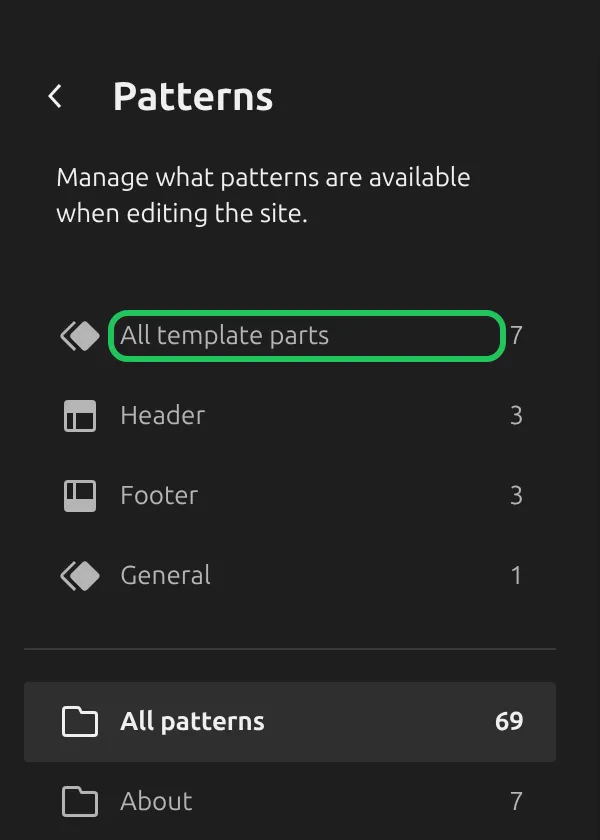
Template parts are global, so a change to the footer template part changes the footer on every page. I explain how they differ from patterns in WordPress patterns vs template parts.
How Do I Access the WordPress Customizer in 2026?
Here’s the shortcut that solves this immediately. Type this URL directly into your browser:
yoursite.com/wp-admin/customize.phpReplace yoursite.com with your actual domain. This opens the Customizer even on block themes. WordPress doesn’t delete the Customizer when you switch to a block theme – it just hides the menu link. The direct URL still works.
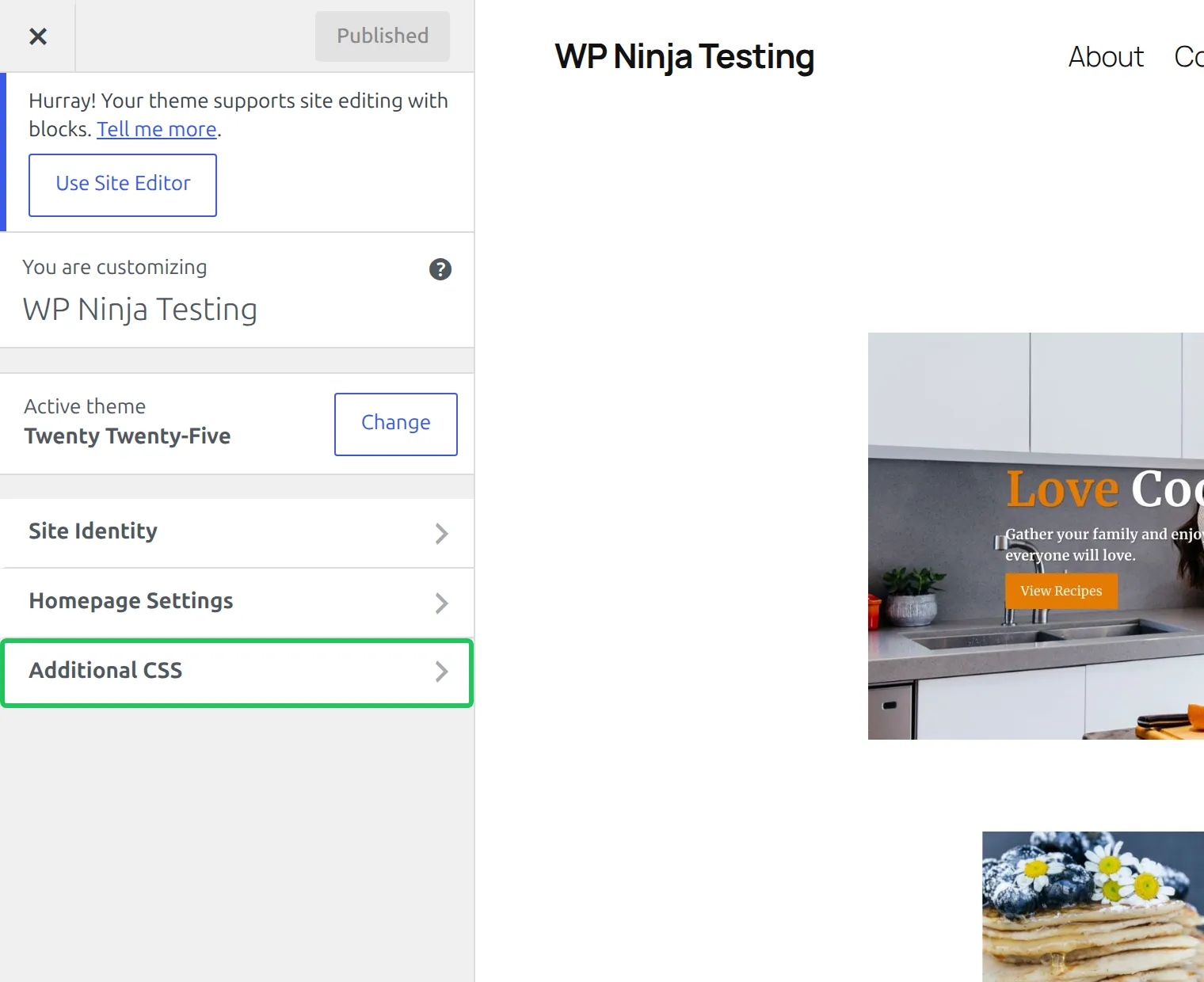
I bookmarked this URL on 2 of my test sites. It’s faster than digging through the Site Editor when I just need to paste a quick CSS snippet.
Don’t expect much when you get there. On Twenty Twenty-Five it showed me 3 sections: Site Identity, Homepage Settings and Additional CSS. Everything else lives in the Site Editor. But Additional CSS is the main reason most people go looking for the Customizer in the first place, and it works fine through this URL.
Which Themes Still Use the Customizer?
Not all themes are block themes. Most of the popular third-party themes still use the Customizer as their main settings hub.
| Theme | Uses Customizer? | Notes |
|---|---|---|
| Kadence | Yes | Full header builder, footer builder, colors, fonts, layout |
| Astra | Yes | Similar setup – Customizer-heavy with lots of options |
| GeneratePress | Yes | Customizer for layout, typography, and color controls |
| Twenty Twenty-Four | No | Site Editor only |
| Twenty Twenty-Five | No | Site Editor only |
If you switched from Kadence or Astra to a default block theme, that’s almost certainly why the Customizer disappeared. And if you prefer the Customizer workflow, sticking with a theme like Kadence is a perfectly valid choice. Kadence gives you a full header builder, footer customization and sticky header options – all through the Customizer.
If you’re using the Customizer and your changes aren’t sticking, that’s a separate issue – I wrote a fix for Kadence Customizer not saving changes that covers the most common causes.
Why the link sometimes comes back on a block theme. WordPress shows the Customize link on a block theme only if a plugin or theme adds its own Customizer settings. So if you see “Customize” under Appearance on a block theme, some plugin is asking for it. Older tutorials name WooCommerce as the classic example, but current WooCommerce (version 11.2) only adds its Customizer settings once you’re already inside the Customizer – so on a block theme it no longer brings the menu link back.
Should You Learn the Site Editor or Stick with the Customizer?
This depends on your situation. Here’s how I think about it.
Stick with the Customizer if:
- You’re already using a theme like Kadence, Astra or GeneratePress
- Your site is set up and working the way you want
- You don’t want to relearn how to manage menus, colors and layouts
Learn the Site Editor if:
- You’re starting a brand new site and want to use a modern block theme
- You like the idea of editing every part of your site with blocks
- You want to design custom page templates without code or page builders (just remember template parts are shared – here’s how patterns and template parts differ)
The Customizer isn’t going away anytime soon. Countless sites run themes that depend on it, and WordPress 7.1 still ships it and loads it on any theme that uses it. But new features and improvements are going into the Site Editor, not the Customizer. So if you’re building something from scratch, the Site Editor is where things are headed.
And honestly? The Site Editor in 2026 is much better than it was when it first launched. The early versions were rough – slow, buggy and confusing. But WordPress has put 4+ years of work into it now, and it’s genuinely usable. I still prefer Kadence’s Customizer for header and footer building, but the Site Editor’s Styles panel for colors and fonts is quite nice.
Frequently Asked Questions
Where is Additional CSS in block themes?
Go to Appearance > Editor > Styles, click the three-dot menu at the top of the Styles panel, and select Additional CSS. Or skip all of that and go directly to yoursite.com/wp-admin/customize.php – the Customizer’s Additional CSS section still works through the direct URL.
Is the WordPress Customizer deprecated?
Not officially. WordPress 7.1 still includes the Customizer and it works on every theme that uses it. Block themes hide the menu link, but the Customizer itself is fully functional. Removing it would break a huge number of sites – for a sense of scale, the Classic Editor plugin alone reports more than 8 million active installs on wordpress.org.
Can I use both the Customizer and the Site Editor?
It depends on your theme. Themes like Kadence primarily use the Customizer, so you’d use that for most settings. Block themes use the Site Editor.
You can force-open the Customizer on a block theme with the direct URL (/wp-admin/customize.php), but most settings are handled in the Site Editor. There’s no conflict between them – they just manage different things.
Do I need a plugin to bring back the Customizer?
No. If you’re on a theme like Kadence, the Customizer is already there. If you’re on a block theme, use the direct URL (/wp-admin/customize.php) to open it. Plugins that add the menu link back exist, but the direct URL does the same thing without adding another plugin to your site.
Why is the Customize option missing in WordPress?
Because you’re using a block theme, like Twenty Twenty-Four or Twenty Twenty-Five. WordPress hides the link on block themes unless a plugin adds its own Customizer settings, because it wants you to use the Site Editor instead.
How do I enable the Customizer in a block theme?
Type /wp-admin/customize.php at the end of your site address to open it directly. Don’t count on a plugin to bring the menu link back – I checked the current versions of WooCommerce and Yoast SEO, and neither does it on a block theme.
Where is the Theme Customizer in WordPress 6.x and 7.x?
If you’re using a classic theme, it’s right under Appearance > Customize, in every version. If it’s gone, you’re almost certainly on a block theme – check Appearance > Themes to see which one is active.
How to fix WordPress Customizer not showing?
First check which theme is active – on a block theme the link is hidden by design. If you’re on a classic theme like Kadence and it’s still missing, check that you’re logged in as an Administrator, since only users who can edit theme options see it. If you are, deactivate your plugins one at a time to find one that removes the menu item.
Wrapping Up
The WordPress Customizer isn’t gone – it’s just hidden when you use a block theme. WordPress replaced it with the Site Editor, which handles menus, colors, fonts and templates in a completely different way.
Here’s the quick version:
- Using Kadence, Astra or GeneratePress? The Customizer is still under Appearance > Customize. Nothing changed for you.
- Using a block theme? Your settings moved to Appearance > Editor. Check Styles for colors and fonts, Navigation for menus, and Patterns for your header and footer.
- Just need the Customizer right now? Go to
yoursite.com/wp-admin/customize.phpdirectly. It still works.
Don’t panic if you can’t find it. And don’t install a plugin to bring it back. Either learn where things moved in the Site Editor, or switch to a theme that still uses the Customizer the way you’re used to. Both are perfectly fine options.