Classic Editor vs Gutenberg in 2026 – Which Should You Use?
Short answer on Classic Editor vs Gutenberg: if you’re building a new site, use Gutenberg (the block editor). If you only write text posts and the old editor makes you happy, the Classic Editor plugin is still a perfectly safe choice in 2026. It doesn’t slow down your site for visitors at all – I measured it, and turning it on changed exactly 0 bytes on the front end.
I rewrote this article from scratch. The first version was written from research, and when I finally installed the plugin and measured both editors, it was wrong about the support date, wrong about the install count, wrong about the number of patterns, and wrong about which editor produces “cleaner, faster” pages.
So this time I set up a brand-new WordPress site, wrote the same post in both editors, and measured what each one costs you in the dashboard and what it costs your visitors.
Here’s what I found.
How I tested this
Everything below came from one fresh local test site, measured on 26 October 2026.
| WordPress | 7.1.2, stock install, no other plugins active |
| PHP | 8.3 |
| Themes | Twenty Twenty-Five 1.5 (the default block theme) and Twenty Twenty-One 2.9 (a classic theme) |
| Classic Editor plugin | 1.7.0, released 28 May 2026 |
| Test content | the same post (2 headings, 3 paragraphs, an image, a list and a quote) written once as classic HTML and once as blocks, plus a layout post with a cover, 3 columns and a button |
Every setting was changed by clicking through wp-admin in a real browser, including activating and deleting the plugin. That matters here, because the plugin behaves differently depending on how you turn it on, and I’ll show you where. The shared method (clean baseline, restore between tests, what gets measured) is on my how I test page.
Limits of this test: it’s one local site with no real traffic, so the load times show how the two editors compare to each other, not how fast they’ll feel on your host. I tested 7.1.2 (WordPress offered 7.1.3 halfway through, and I stayed put so the numbers match). I didn’t test page builders, custom post types from other plugins, or multisite.
What Is the Classic Editor?
The Classic Editor is the WordPress writing screen from before December 2018. You get a title box, one big text area with a toolbar (bold, italic, lists, links, “Add Media”), and boxes down the right side for publishing, categories and tags. If you’ve used Microsoft Word or Google Docs, you already know how it works.
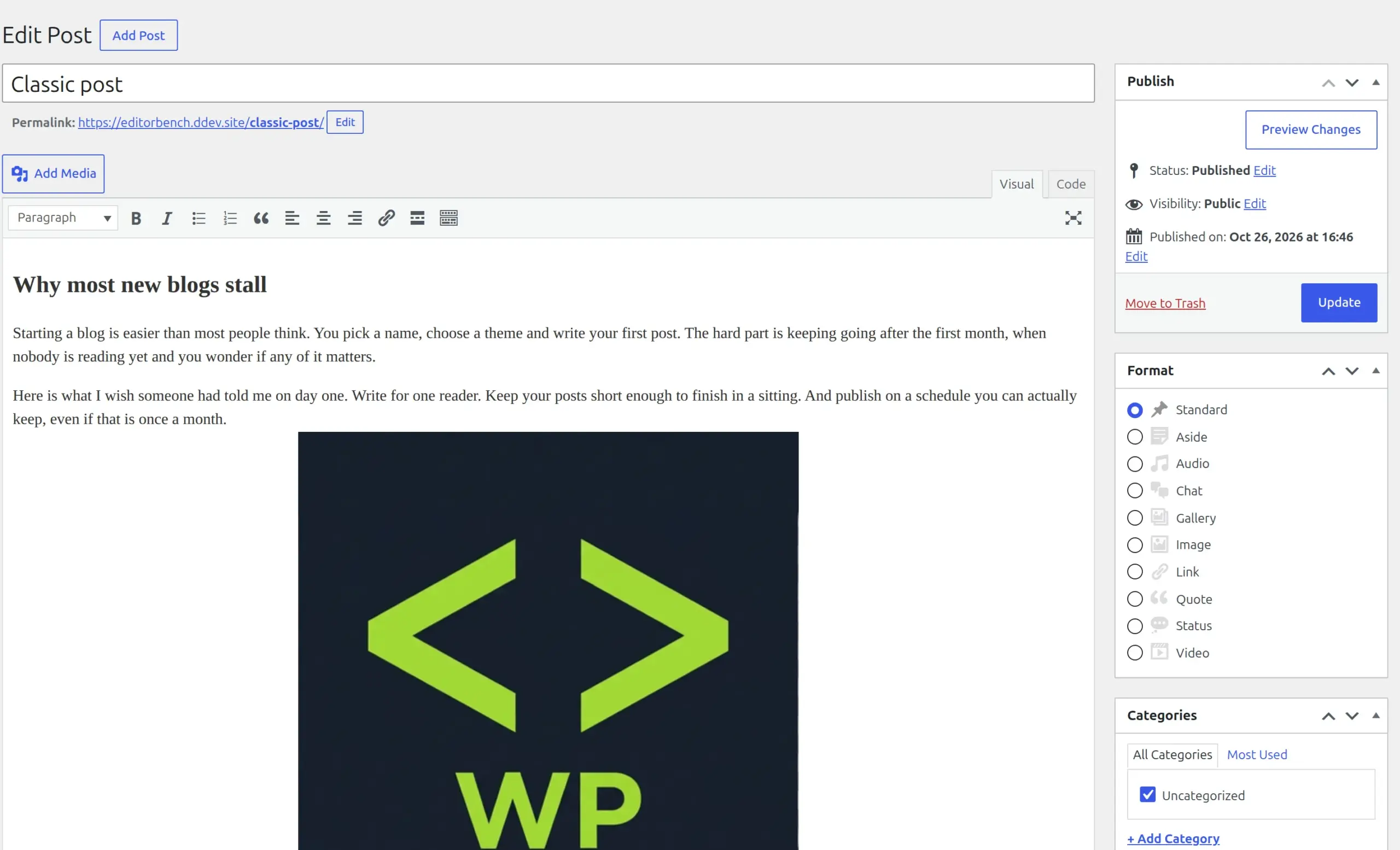
When WordPress 5.0 made the block editor the default, the WordPress team released the Classic Editor plugin so people could switch back. It’s still maintained by WordPress.org, and it now has 8+ million active installs. That makes it the 4th most-installed plugin in the whole directory, behind only Elementor, Yoast SEO and Contact Form 7.
What Is Gutenberg (the Block Editor)?
Gutenberg is the code name for the block editor, which has been the default since WordPress 5.0. Every piece of content is its own block: a paragraph, a heading, an image, a button, a set of columns. You can move each block around and change its settings in the sidebar.
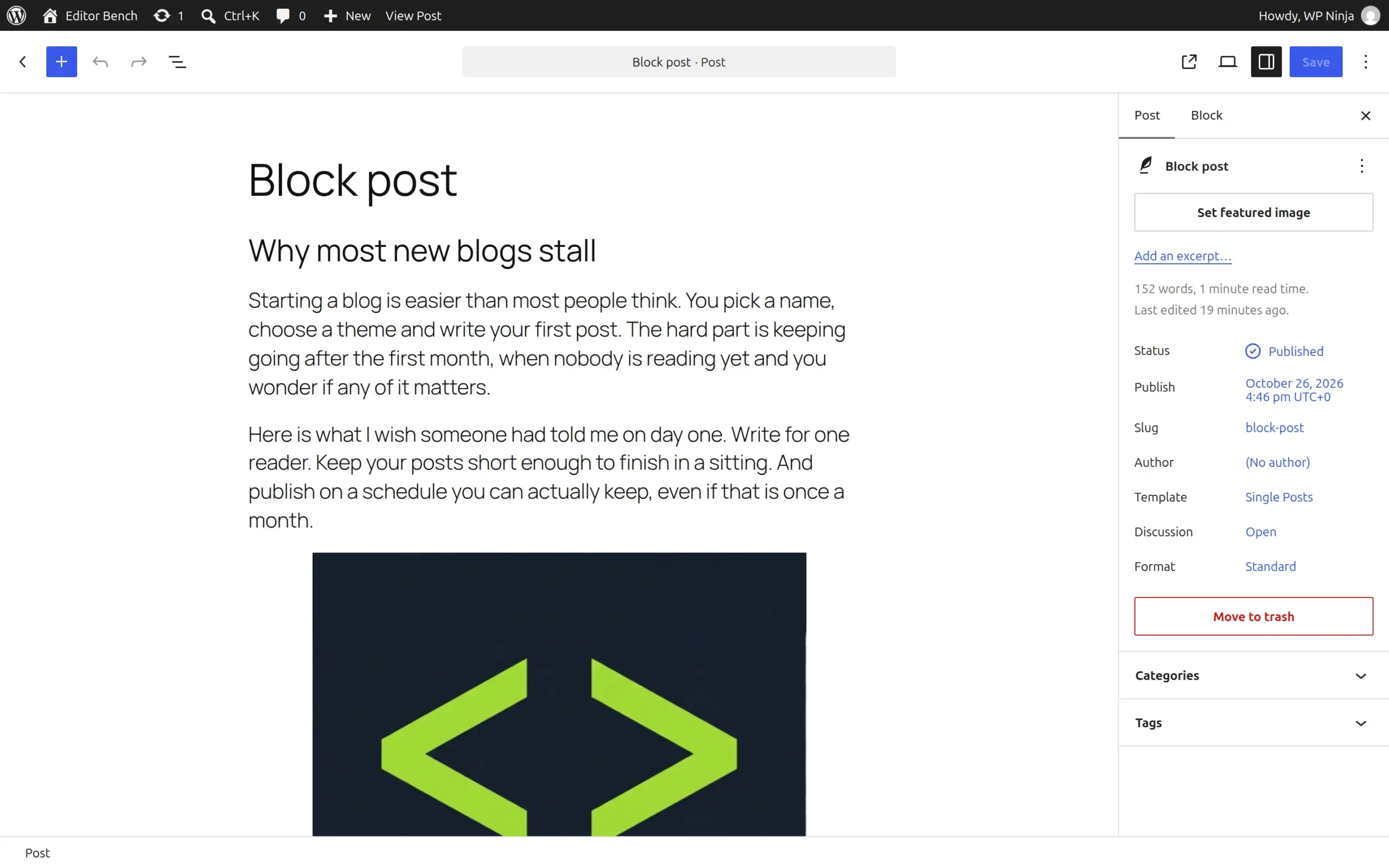
On a fresh 7.1.2 install, the block editor ships with 116 block types. The block editor also powers the Site Editor, where block themes let you edit headers, footers and templates. That’s why people ask where the WordPress Customizer went – on a block theme, it moved into the editor.
Classic Editor vs Gutenberg: Quick Comparison Table
Every number in this table came from my test site.
| Classic Editor (plugin) | Gutenberg (block editor) | |
|---|---|---|
| Built into WordPress | No – free plugin from WordPress.org | Yes, the default |
| Time to open “Add Post” (middle of 5 tries) | 1.05 s | 2.14 s |
| Downloaded to open the editor (compressed) | 1.7 MB | 4.3 MB |
| Front-end page weight for the same post (compressed HTML) | 10.0 KB on a classic theme | 12.1 KB on a classic theme |
| Front-end files loaded | identical | identical |
| Patterns you can insert | none | 132 on Twenty Twenty-Five |
| Changes the Site Editor or widgets | No | – |
| Plugin installs | 8+ million | built in |
| Official support wording | “until 2024, or as long as is necessary” | ongoing |
What does the Classic Editor plugin actually change?
Less than most people think. The whole plugin is a single PHP file of 1,064 lines (125 KB on disk). It adds no database tables, no scheduled tasks and no code at all to the pages your visitors see.
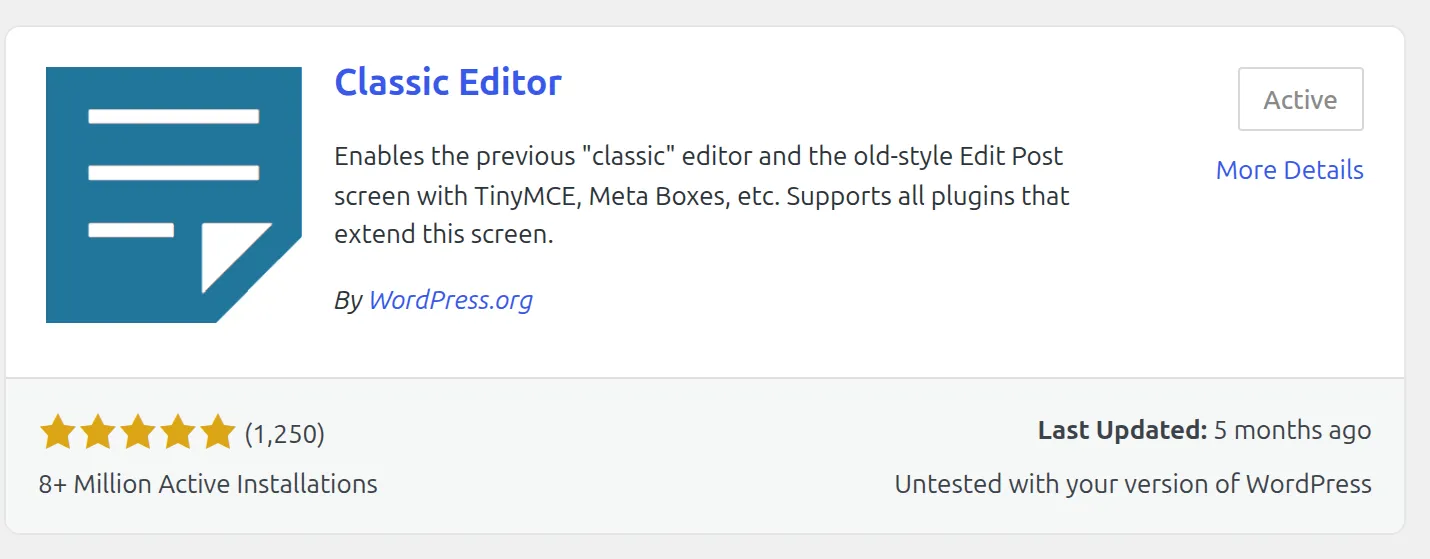
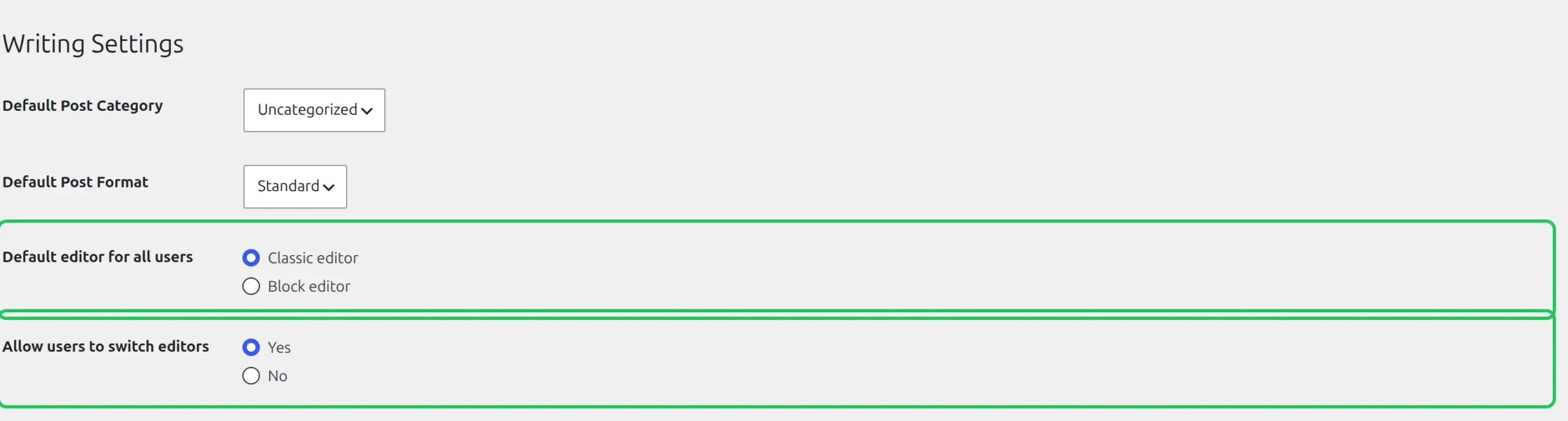
When you activate it, the post editor switches to the classic screen straight away. Then 2 new settings appear at Settings > Writing:
- Default editor for all users – Classic editor (the default) or Block editor
- Allow users to switch editors – Yes or No (the default is No)
It only swaps the post editor
This surprised me. The plugin’s own FAQ says it works “when using a classic (non-block) theme”. But on Twenty Twenty-Five, the default block theme, “Add Post” opened the classic editor just fine. What it doesn’t touch is everything else that runs on blocks.
On a block theme, Appearance > Editor (the Site Editor) still uses blocks, so you’ll edit your header, footer and templates with blocks either way.
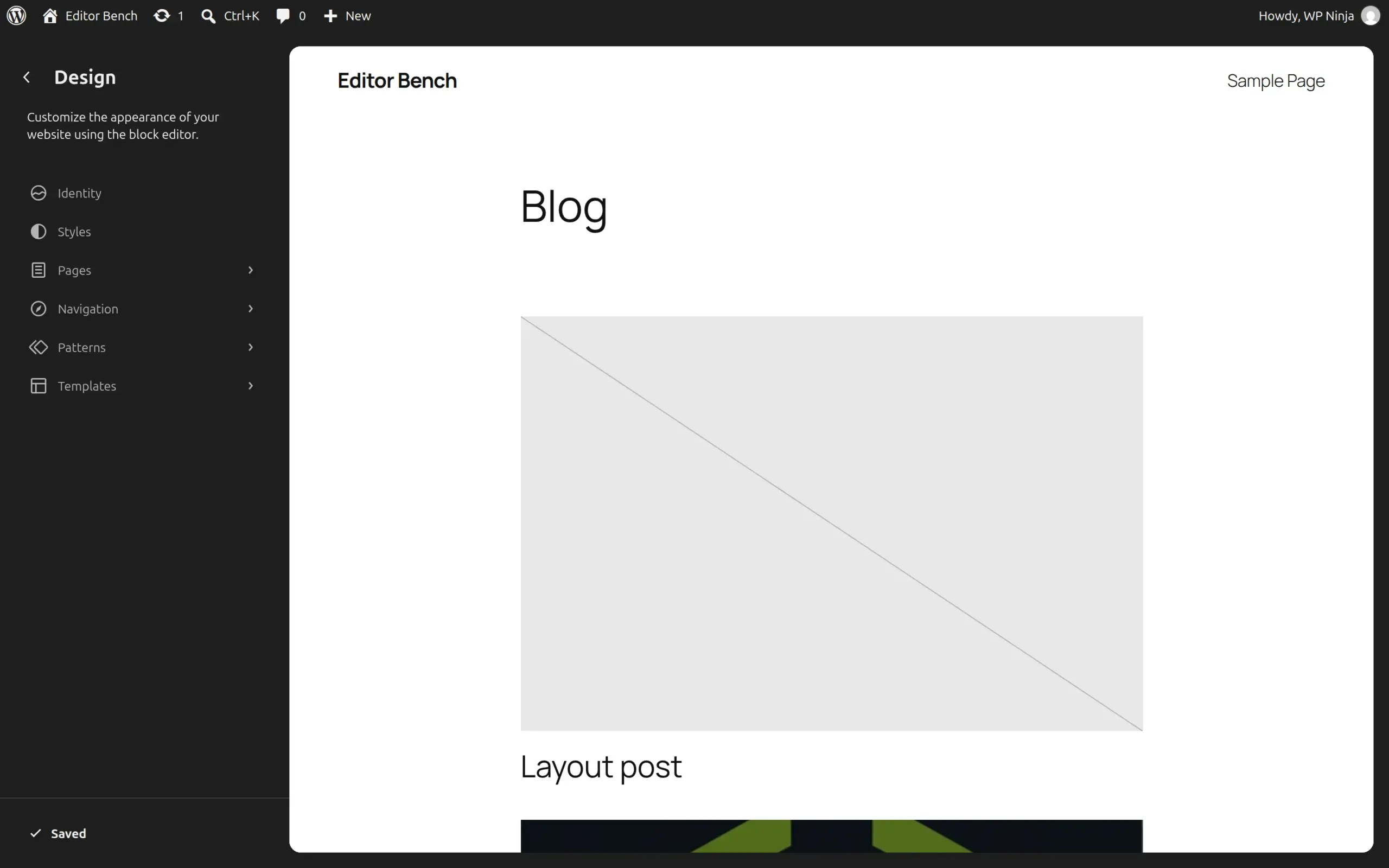
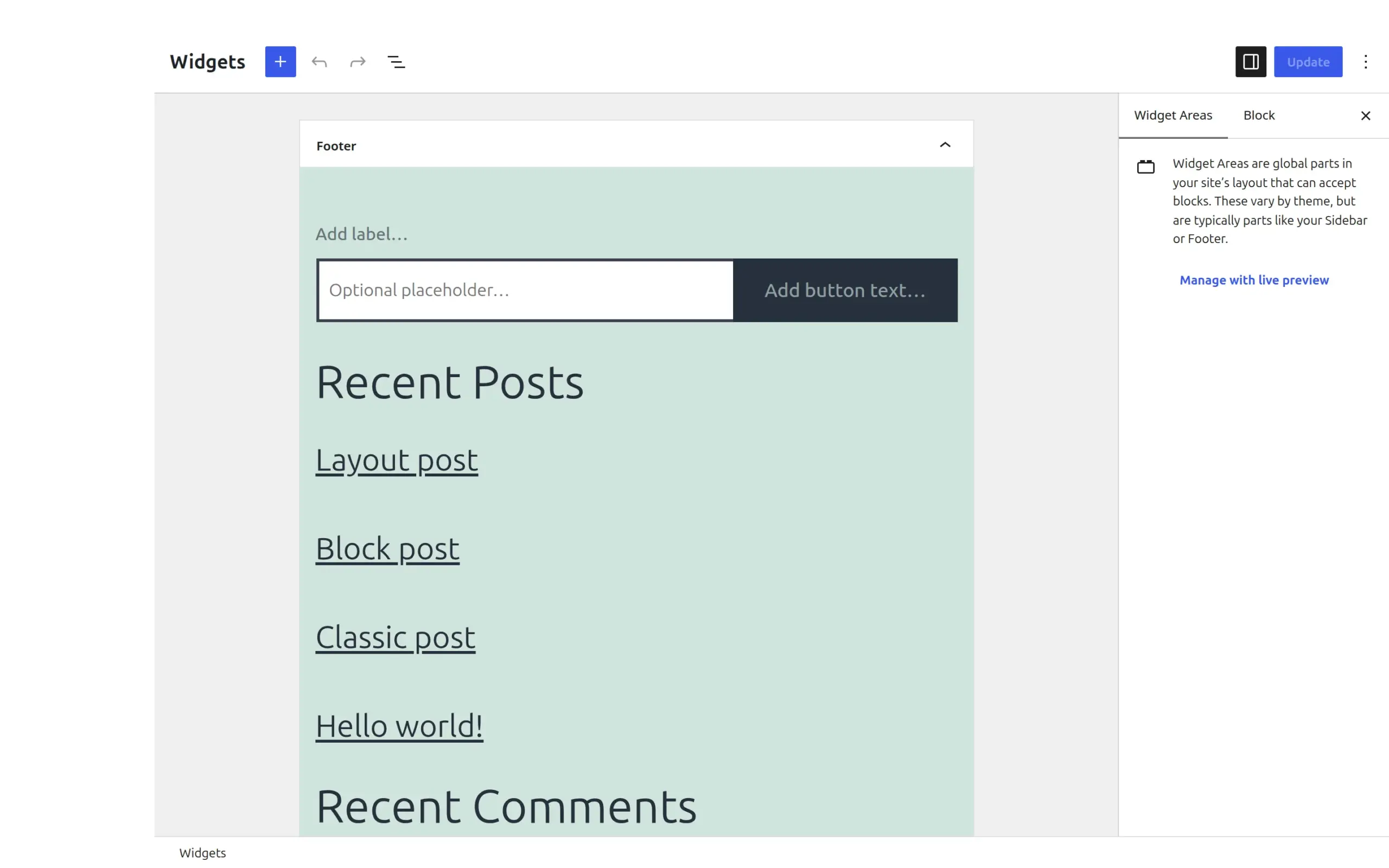
On a classic theme, Appearance > Widgets also stays on the block widget editor. If you want the old drag-and-drop widgets back too, that’s a separate plugin, Classic Widgets (2+ million installs).
Letting each person choose
If you set “Allow users to switch editors” to Yes, 4 things show up. Each user gets a Default Editor choice on their profile page.

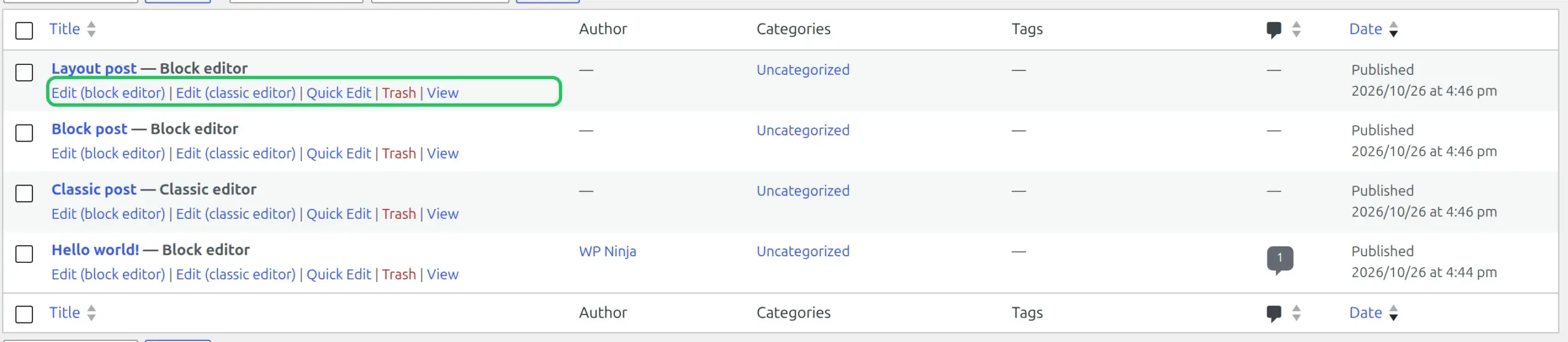
The Posts list gets two edit links per post, “Edit (block editor)” and “Edit (classic editor)”, and a label after each title showing which editor it will open in.
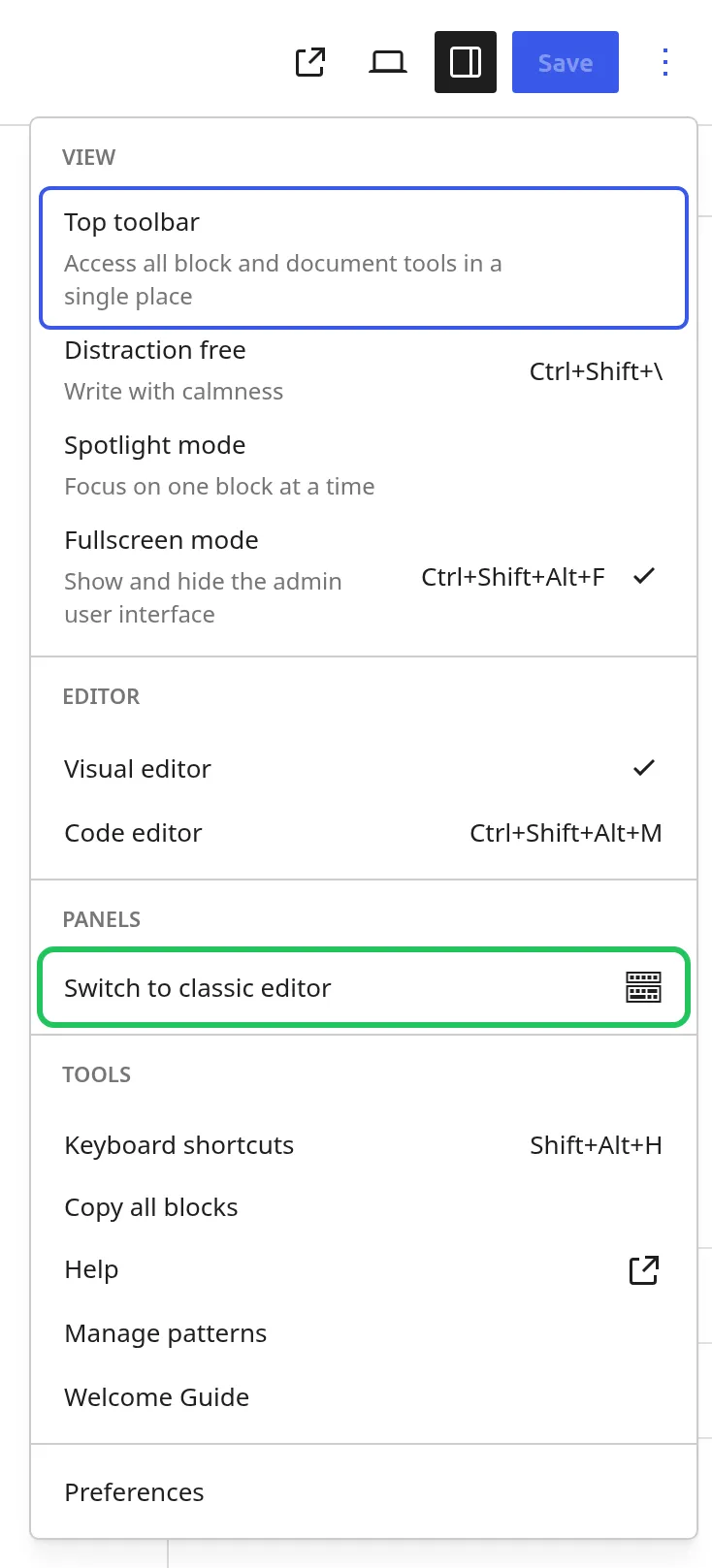
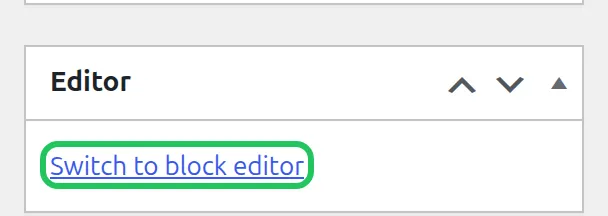
Inside the block editor, the three-dot Options menu gets Switch to classic editor. In the classic editor, a small Editor box appears in the sidebar with a Switch to block editor link.
Here’s the clever part. With switching on, each post remembers the last editor it was opened in. Posts that contain blocks open in the block editor, and old posts without blocks open in the classic one. In my test, the classic post and the block post each opened in the right editor on the first try.
Does Gutenberg slow down your website?
No – and neither does the Classic Editor plugin. Both are tools for writing. What your visitors download depends on your theme and on how the content is stored, not on which editor screen you used.
Turning the plugin on changed 0 bytes on my front end
I saved every test page with the plugin off, turned it on, and saved them again. On both themes, all 6 pages were byte-for-byte identical. The plugin has no front-end code at all.
Block content was about 2 KB bigger, not smaller
Then I compared the same post written both ways. The block version came out slightly heavier, because WordPress adds a small piece of CSS for each block type you use (image, list, quote) right into the page.
| Theme | Same post written in | Page HTML | Downloaded (compressed) | Other files |
|---|---|---|---|---|
| Twenty Twenty-Five (block theme) | Classic Editor | 70.9 KB | 13.6 KB | identical |
| Twenty Twenty-Five | Block editor | 82.8 KB | 15.6 KB | identical |
| Twenty Twenty-One (classic theme) | Classic Editor | 43.8 KB | 10.0 KB | identical |
| Twenty Twenty-One | Block editor | 54.9 KB | 12.1 KB | identical |
Logged-out visitor, browser cache off, same text, image, list and quote in both posts.
So the old claim that “Gutenberg outputs cleaner HTML and loads faster” isn’t true. But 2 KB is nothing. You’d never notice it, and the real causes of a slow WordPress site are hosting, images, themes and heavy plugins.
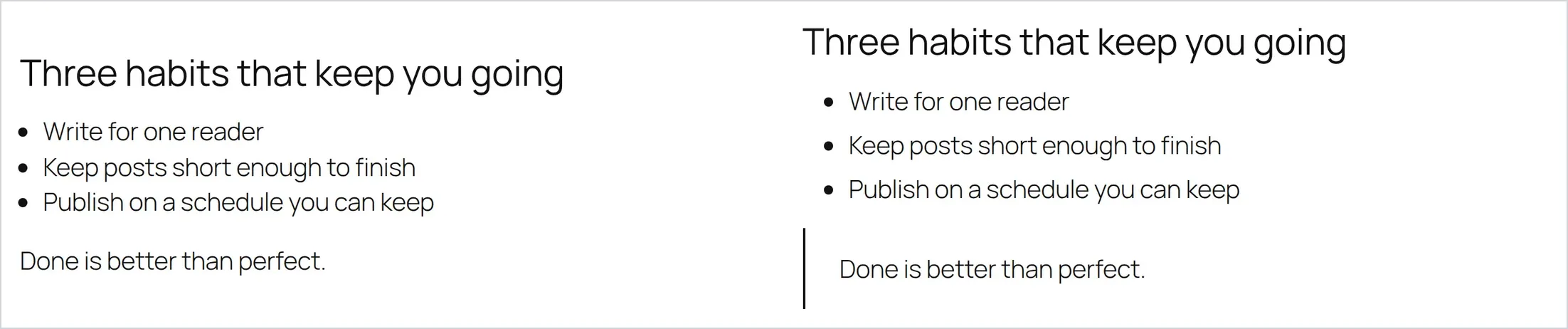
There’s a catch the other way, though. On the block theme, the classic version of my quote showed up with no styling at all, just plain text. The block version got the theme’s quote bar. Block themes style blocks, and classic content gets left out.
Which editor loads faster in wp-admin?
The block editor took twice as long to open
This is where the Classic Editor really is lighter. I opened each editor 5 times with an empty browser cache and timed how long it took until I could start typing.
| Screen | Typical time (middle of 5) | Requests | Downloaded (compressed) |
|---|---|---|---|
| Dashboard (for comparison) | 0.80 s | 87 | 1.3 MB |
| Classic Editor – Add Post | 1.05 s | 132 | 1.7 MB |
| Block editor – Add Post | 2.14 s | 150 | 4.3 MB |
Logged in, 5 cold loads each, local test server. Times show the gap between the two, not what you’ll see on your host.
The block editor downloads about 2.5 times as much and took about twice as long. Once it’s cached in your browser, the second load is much quicker. But on a slow laptop or a phone connection, that first open is where the “Gutenberg feels heavy” complaint comes from.
One more thing I didn’t expect: in WordPress 7.1, even the Dashboard loads the 1.4 MB block editor library. So the Classic Editor doesn’t remove the block editor from your admin. It just skips the biggest part of it on the writing screen.
What Does Gutenberg Do Better in 2026?
Page Layouts Without a Page Builder
In the Classic Editor, if you want columns, a big banner with text on top, or a row of buttons, you need a page builder or shortcodes. In the block editor, those are built in. My layout test post used a cover block, 3 columns and a button, and on Twenty Twenty-Five it added just one extra CSS file (20 KB) to the page.
Block Patterns
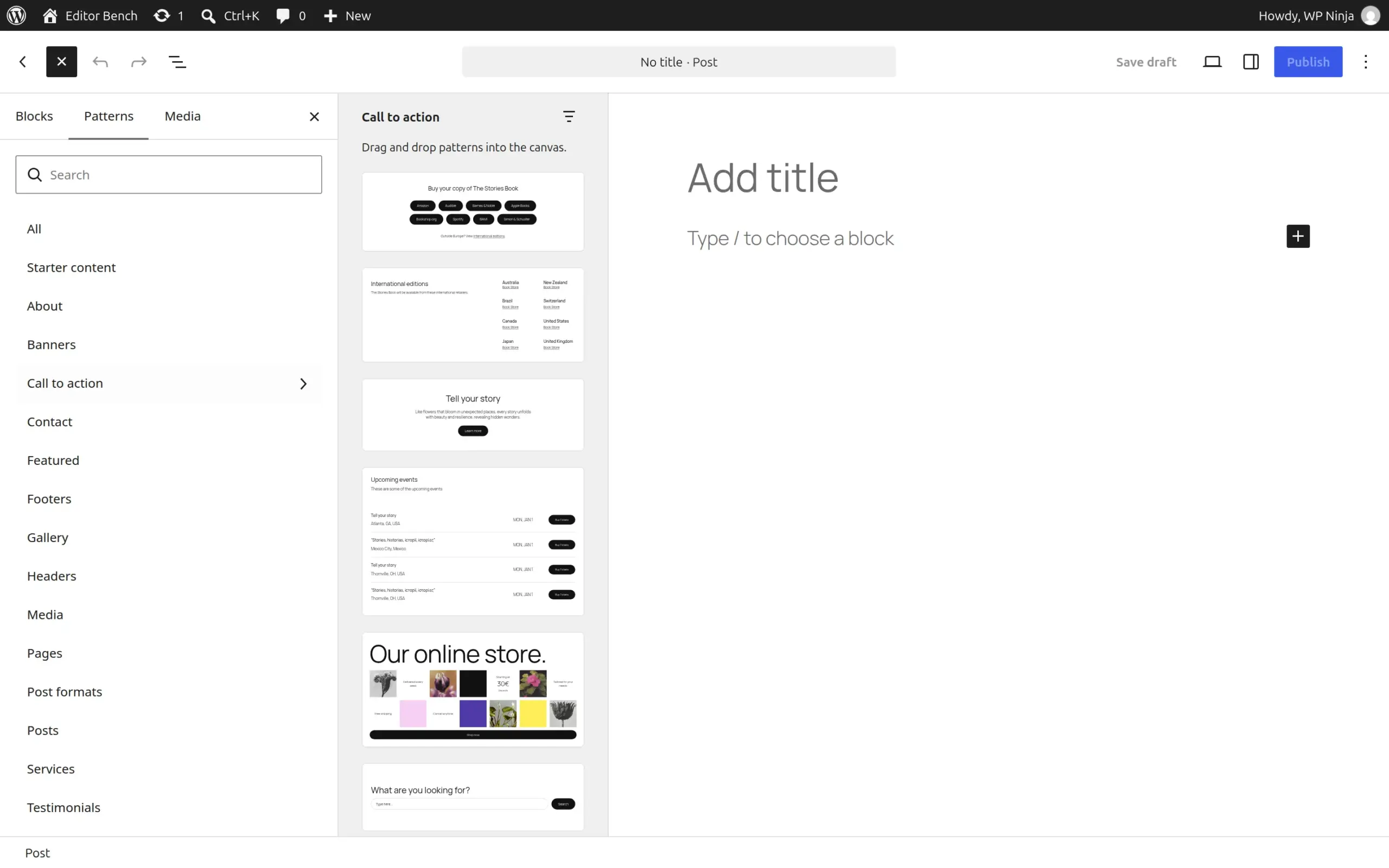
Patterns are ready-made sections you drop in with one click: a call to action, a pricing table, a team section, a footer. On the default Twenty Twenty-Five theme, I counted 132 patterns in the inserter, out of 160 registered by WordPress (54), the theme (97) and the WordPress pattern directory (9). The Classic Editor has nothing like this.
Block Plugins
Kadence Blocks, Spectra, GenerateBlocks and similar plugins add blocks like tabs, accordions, icon lists and advanced buttons. By definition those only work in the block editor. If you’re on the Classic Editor, you can’t use them in your posts.
Full Site Editing
If you pick a block theme, you’ll design your header, footer and templates in the Site Editor with blocks, whatever editor you use for posts. That’s where WordPress is putting most of its new features. Not every popular theme works that way, though – Kadence, Astra, GeneratePress and Blocksy are all classic themes that work great with the block editor. My guide to choosing your first WordPress theme covers that difference.
What Does Classic Editor Still Do Better?
Pure Writing Speed
If you just write headings, paragraphs and the odd image, the classic screen is simpler. There are no block toolbars popping up and no sidebar tabs, and it opened in half the time in my test.
Familiar Interface
Your client, your VA or your guest blogger has used Word or Google Docs. The classic screen looks like those tools, so there’s almost nothing to learn. The block editor’s idea that “everything is a block” takes some getting used to.
Fewer Accidental Mistakes
In the block editor, it’s easy to edit a synced pattern and change it on every page that uses it, or to wander into a template and change the layout of every post. The classic post editor doesn’t have those traps, because it doesn’t have those features.
Legacy Plugin Compatibility
The plugin’s own description says it’s for plugins that “extend that screen, add old-style meta boxes, or otherwise depend on the previous editor”. If a business-critical plugin only works on the old screen, that’s a good reason to keep it. Plugin conflicts in the block editor can also show up as a “not a valid JSON response” error, so test your must-have plugins before you switch.
What happens to your posts when you switch editors?
This is the question I care most about, because it’s the one that can actually cost you work.
Old classic posts open as one “Classic” block
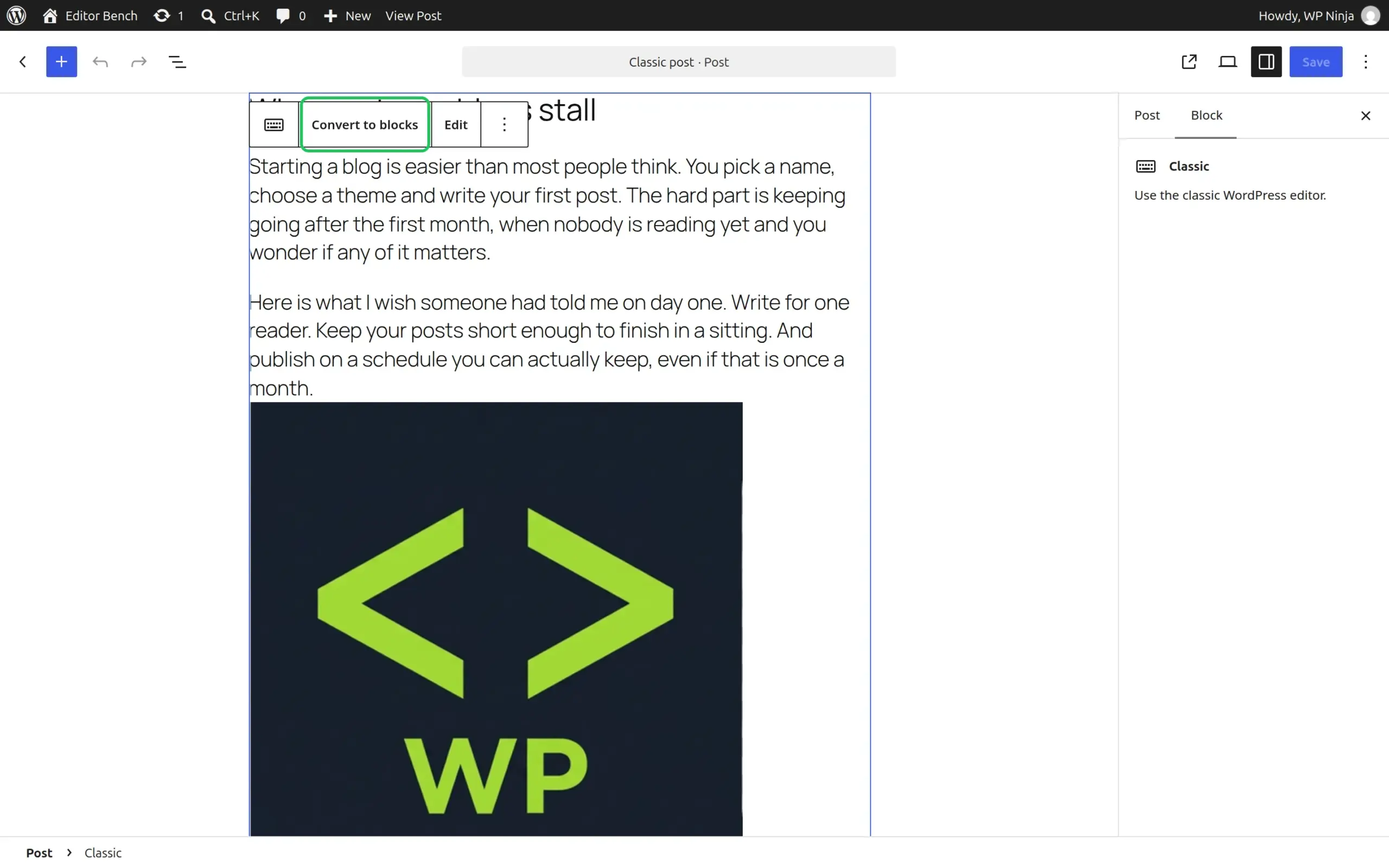
When I opened my classic post in the block editor, the whole post sat inside a single Classic block. It displayed fine, and nothing changed on the front end. The block’s toolbar has a Convert to blocks button.
Convert to blocks moved one of my images
Converting split my post into 8 proper blocks. But it also moved the image above the paragraph it came after. In the classic post, the image sat on the line right after a paragraph, which is how most people add images in the old editor. After converting, the image jumped up between the first and second paragraphs.
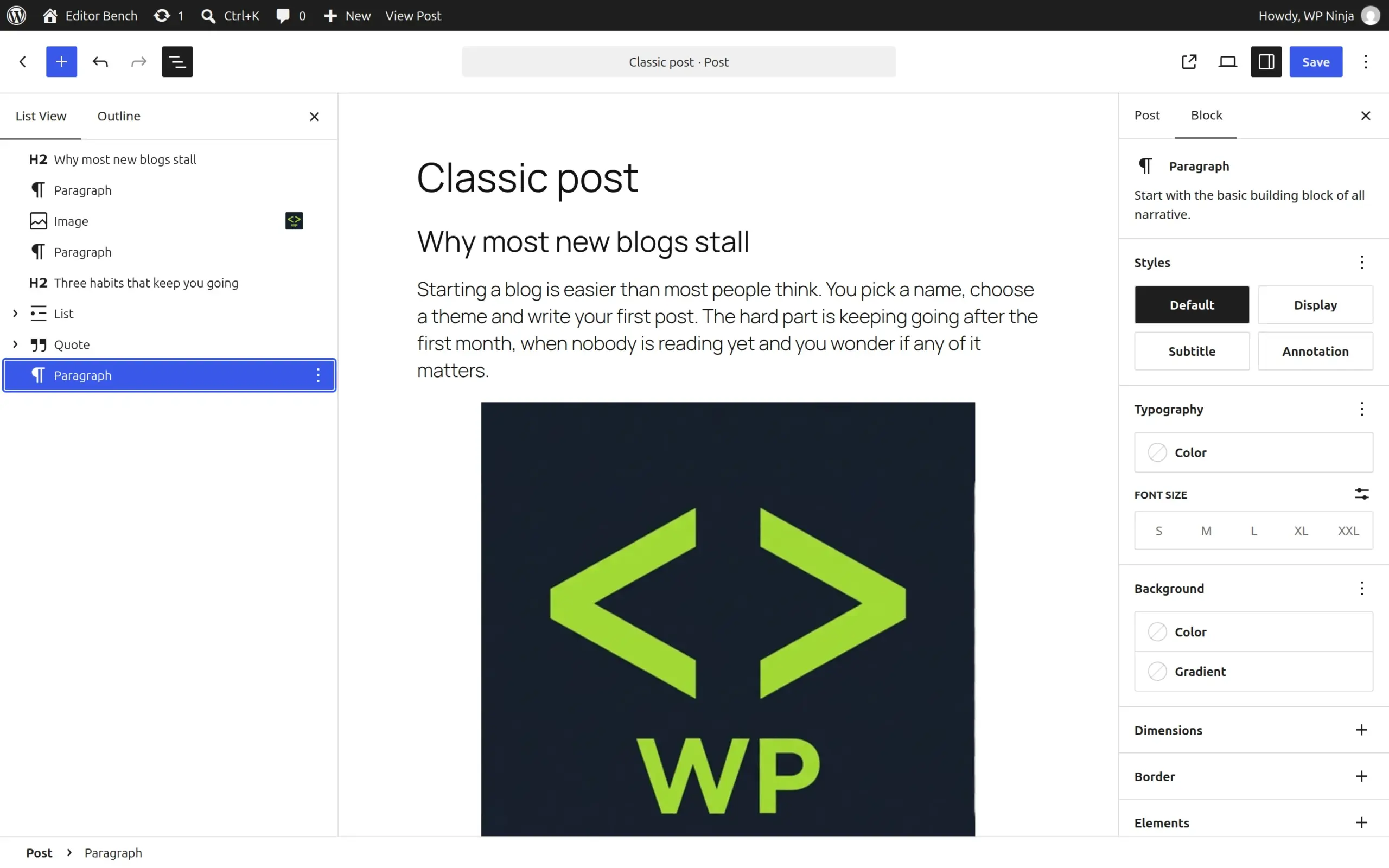
So if you convert old posts, check where every image ended up before you hit Update. Or simply leave old posts as Classic blocks – there’s no need to convert them.
Block posts survived a trip through the Classic Editor
Then I did it the other way round. I opened my block post in the Classic Editor, added a word at the end in the Visual tab and clicked Update. When I reopened it in the block editor, all 8 blocks were still there with no “unexpected or invalid content” warnings.
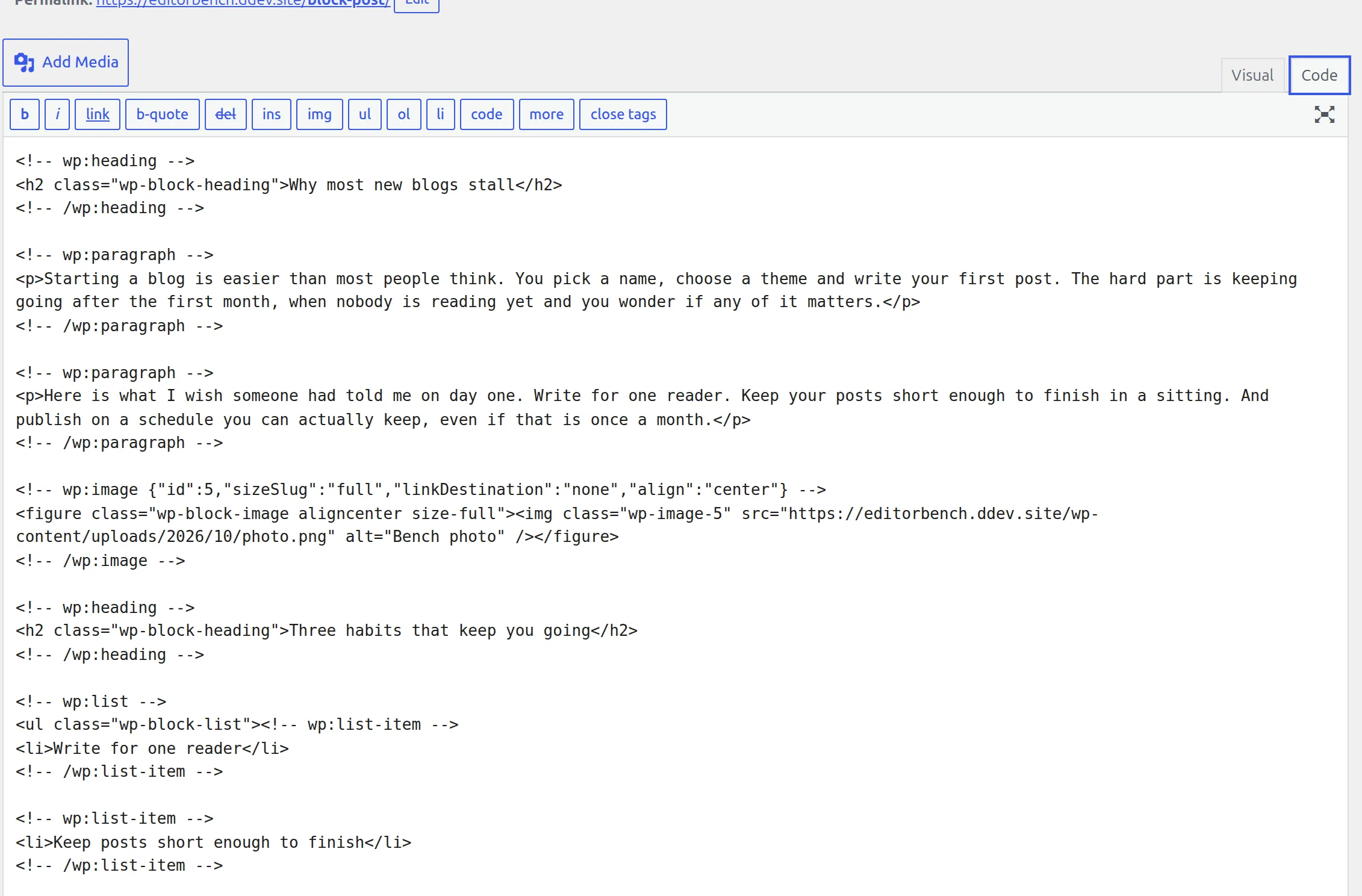
The only side effect: the word I typed at the end landed outside the last block, so it came back as a separate Classic block. It’s an easy fix, but it’s a good reason not to edit block-heavy pages in the Classic Editor.
Is the Classic Editor plugin still supported in 2026?
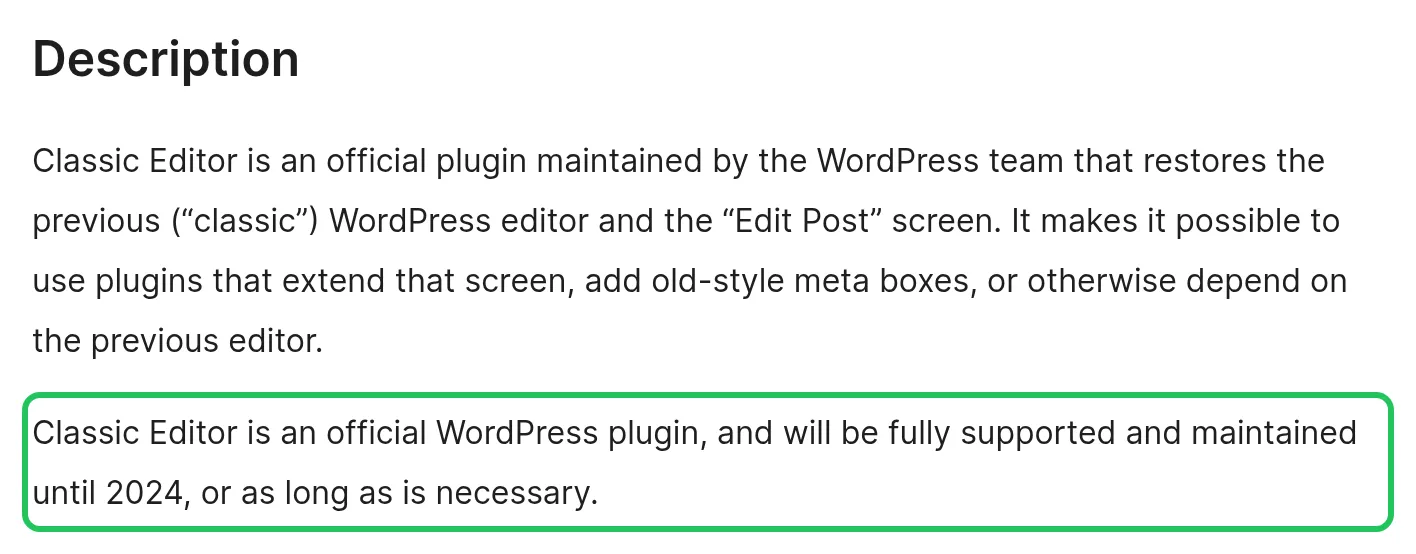
Yes, but the promise on the plugin page is older than most articles say. The wordpress.org description reads: “will be fully supported and maintained until 2024, or as long as is necessary”. That sentence was last changed on 4 November 2022, when it went from “until at least 2022” to “until 2024”. There’s no end-of-2026 date anywhere official.
In practice it’s still being looked after:
- 1.6.4 (July 2024) – admins can choose the default editor for other users. This is the last new feature.
- 1.6.5 to 1.6.7 (September to December 2024) – fixes for Safari 18 and WordPress 6.7.1.
- 1.7.0 (28 May 2026) – a fix for the crowded Publish box in WordPress 7.0.
With 8+ million sites using it, I don’t expect “as long as is necessary” to run out soon. But it’s in maintenance mode. On my 7.1.2 site, the plugin card already said “Untested with your version of WordPress”, because it’s marked as tested up to 7.0.
What happens when you uninstall it?
Your content is safe. Posts written in the classic editor stay classic HTML and display exactly as before. They just open as Classic blocks from then on.
I deleted the plugin through the Plugins screen and found a small bug. The plugin is supposed to clean up its 2 settings when you delete it, but its activation code runs too late to register that cleanup. So after deleting, the 2 settings from Settings > Writing were still in the database, plus one tiny “last editor used” note on each post I’d opened. That’s 4 tiny database rows in my test, harmless, so you don’t need to clean them up.
The same bug means the plugin saves no settings at all until you click Save Changes on the Writing screen. It just uses its defaults (Classic editor, no switching), which is why it works the moment you activate it.
Why Do People Hate the Gutenberg Editor?
Most of the frustration traces back to 3 things.
The forced rollout. WordPress 5.0 made the block editor the default in December 2018. Site owners clicked Update as usual and found a completely different writing screen.
The learning curve. Blocks are a different way of thinking about a page. People who’d used WordPress for years suddenly felt like beginners, and that’s frustrating.
The weight. My test backs this one up. The block editor downloaded 2.5 times as much as the classic screen and took twice as long to open. On a fast computer you barely notice. On an older laptop, you do.
Who Should Stick with Classic Editor in 2026?
- You have years of classic posts and everything works. Old posts display the same in either editor, and you don’t have to convert them.
- A plugin you depend on needs the old Edit Post screen. That’s what the plugin was built for, but ask the developer first – it may support blocks by now.
- You only write text. The classic screen opened in half the time in my test, and your visitors won’t see any difference.
- You run a site for someone who just posts updates. The classic screen is hard to break, and with switching allowed you can keep blocks for yourself.
Should I Use Classic Editor or Block Editor?
Pick the block editor if you’re starting a new site, you want columns, buttons or banners without a page builder, or you want patterns and block plugins like Kadence Blocks or Spectra.
Pick the Classic Editor if your posts are mostly text, a plugin you depend on needs the old screen, or other people post on your site and you want fewer ways for them to break a layout.
Or use both. Set “Allow users to switch editors” to Yes, keep the block editor as the default, and switch to classic for the posts where it’s easier.
My Honest Recommendation
I’d start any new site on the block editor. It’s where every new WordPress feature lands, it gives you layouts and 132 patterns for free, and it costs your visitors about 2 KB per page.
But the Classic Editor isn’t the dead end I called it in the first version of this article. It’s maintained by WordPress.org, it was updated for WordPress 7.0, and it has zero effect on your site’s speed. If it makes writing easier for you, use it.
What I’d avoid is jumping between the two on the same post. That’s where my test found the real problems: a moved image after converting, and a stray Classic block after editing a block post the old way.
Frequently Asked Questions
Is WordPress Classic Editor going away?
Not any time soon. The plugin page promises support “until 2024, or as long as is necessary”, and it’s still getting updates – version 1.7.0 came out on 28 May 2026 for WordPress 7.0. With 8+ million active installs, it’s the 4th most-installed plugin on wordpress.org.
Can I use both Classic Editor and Gutenberg on the same site?
Yes. Install the Classic Editor plugin, go to Settings > Writing and set “Allow users to switch editors” to Yes. You’ll get “Edit (block editor)” and “Edit (classic editor)” links on every post, and each post reopens in the last editor you used.
Will my old posts break if I switch to Gutenberg?
No. In my test, the old post opened as a single Classic block and looked exactly the same on the front end. You can leave it like that. If you click Convert to blocks, check your images afterwards – one of mine moved above the paragraph it came after.
Does Gutenberg slow down my website?
No. It’s an editor that only runs in your dashboard. On my test site, the same post written as blocks was about 2 KB bigger (compressed) than the classic version, and the Classic Editor plugin itself changed 0 bytes on the front end.
Does the Classic Editor work with block themes?
The post editor does. On Twenty Twenty-Five, “Add Post” opened the classic editor as normal. But your header, footer and templates are still edited in the Site Editor with blocks, and the plugin doesn’t change that.
Can I switch back to the Classic Editor if I don’t like Gutenberg?
Yes. Install the official Classic Editor plugin from Plugins > Add Plugin and activate it. That’s it – every post opens in the classic editor straight away, no settings needed. Your block posts keep their blocks, and you can switch back any time by deactivating it.
Which editor is better for SEO in 2026?
Neither. Google sees the finished page, and the editor only changes a couple of KB of styling. Your title, headings, content and meta description matter far more, and SEO plugins work in both editors.
Is Gutenberg faster than the Classic Editor?
On the front end they’re the same. In the dashboard, the Classic Editor is faster: it opened in 1.05 seconds against 2.14 for the block editor on my test site, and downloaded 1.7 MB against 4.3 MB.