
WPForms vs Fluent Forms: I Installed Both and Measured Everything
Here’s the WPForms vs Fluent Forms verdict in one sentence, because you don’t have time to scroll: if you want to keep the messages people send through your contact form, pick Fluent Forms. WPForms is the friendlier plugin to build with, and if that matters more to you it’s a fair choice – but its free version, WPForms Lite, never actually saves a single submission to your website. I only know that because I installed both plugins on a test site and watched where a real message went.
That’s the difference between this article and almost every other “WPForms vs Fluent Forms” page you’ll find. I checked the top results before I started, and four of the six were written by one of the two companies or their parent business. Not one of the three neutral pages had installed either plugin. They describe the plugins. I measured them.
So the numbers below are mine. I sent a real message through each form, then went looking for it in the site’s database. What I found decides the whole comparison.
What does a contact form plugin actually do?
If you’re new to this, a contact form plugin does two jobs. It puts a form on your page – the name, email, and message boxes a visitor fills in. And it does something with what they type when they hit Submit.
That second job is the one people forget to ask about. Most of us assume “does something with it” means “saves it somewhere I can read later.” That’s the reasonable assumption. It’s also the exact place these two plugins split apart, and the reason I wanted to test them side by side instead of trusting a feature list.
Both WPForms and Fluent Forms are among the most popular form plugins on WordPress. WPForms is the bigger name by a wide margin – it’s on about 5 million sites, against roughly 700,000 for Fluent Forms. Both hold the same 96 out of 100 rating on WordPress.org, so this isn’t a case of one being obviously better loved.
They’re both serious, well-supported plugins. The real question is what each one does with your messages, and what each one costs you in speed and money.
How I tested this
I want you to trust the numbers, so here’s exactly how I got them.
I installed each plugin on its own, on a clean WordPress test site running locally on my machine. Same WordPress version (7.1.1), same PHP version (8.3), same theme (Kadence). Between the two plugins I wiped the site back to an identical starting point and proved it matched before I measured anything, so nothing one plugin left behind could skew the other’s numbers.
On each plugin I built the same simple three-field contact form – Name, Email, and Message – because that’s what most people actually need. Then I submitted it with a real message and traced where that message ended up.
The versions I tested were the current releases on the day I ran this: WPForms Lite 2.0.2, released the same day I benched it, and Fluent Forms 6.2.14, released two days earlier. Both were the latest version available, so nobody can say I tested an old build.
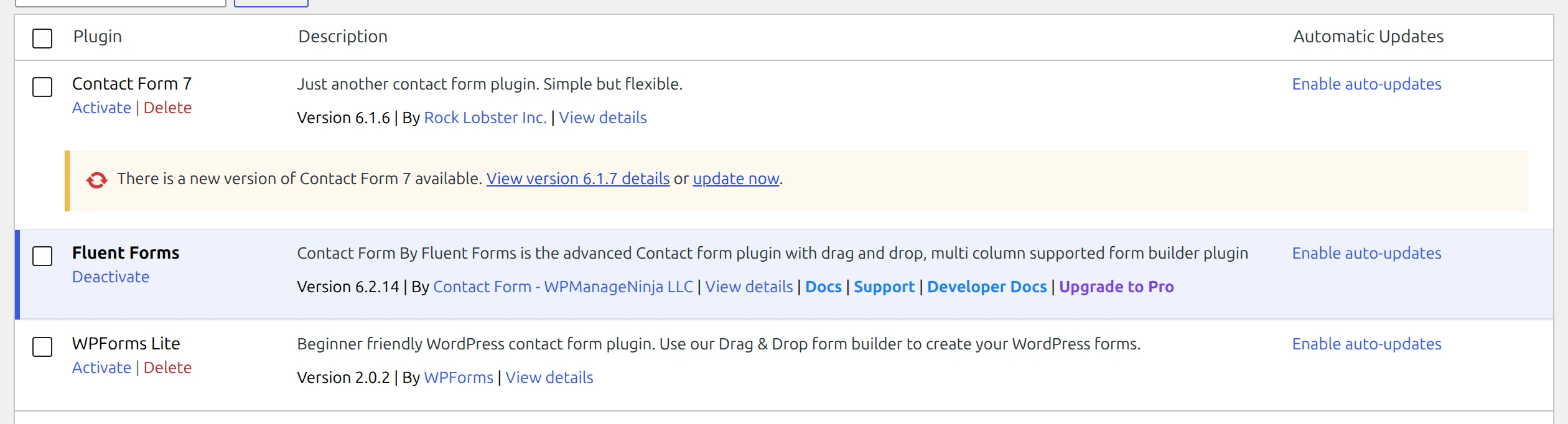
Both plugins have shipped updates since, so on 13 October 2026 I ran the key test again on the newest versions, WPForms Lite 2.0.2.2 and Fluent Forms 6.2.15 (WordPress 7.1.2). Same form, same real visitor submission, same search through the database and the test inbox. Every result in the next two sections came out the same. The uninstall and spam numbers further down come from a second, cleaner round of testing I did for my best free WordPress form plugins roundup, where I put these two up against 4 other free form plugins.
What do you get in the free version?
Before the big finding, here’s the honest free-tier picture. Both plugins give you a drag-and-drop builder, unlimited forms, email notifications, and spam protection at no cost. But “has the feature” and “has it switched on” aren’t the same thing, so the table says which.
| Feature (free version) | WPForms Lite | Fluent Forms |
|---|---|---|
| Drag-and-drop builder | Yes | Yes |
| Unlimited forms | Yes | Yes |
| Email notification to you | Yes, on by default | Yes, but the demo form has none – you add it |
| Email a copy to the visitor too | No (paid) | Yes |
| Spam protection | Yes, on by default | Yes, but off until you switch it on |
| Saves entries you can read in WordPress | No | Yes |
| Export entries to a spreadsheet | No | Yes (CSV, Excel, ODS, JSON) |
| Conditional logic | No (paid) | Yes |
| Stripe payments | Yes, plus a 3% WPForms fee | Yes, plus a 1.9% Fluent Forms fee |
| File uploads | No (paid) | No (paid) |
An earlier version of this table said payments were paid-only in both. That was wrong: both free versions take card payments, and both take a cut on top of Stripe’s own fee until you buy a licence.
Read the “Saves entries” row again. In Fluent Forms’ free version you can open a screen and read every message people have sent you. In WPForms Lite you can’t – and it’s not just hidden behind an upgrade button. The message was never saved in the first place. That’s the finding the rest of this article is built on, so let me show you exactly how I confirmed it.
Where do your form messages actually go?
I sent the same test message through both forms: a name, the address [email protected], and a short message asking “Does this message get saved to the database?” Then I went looking for it.
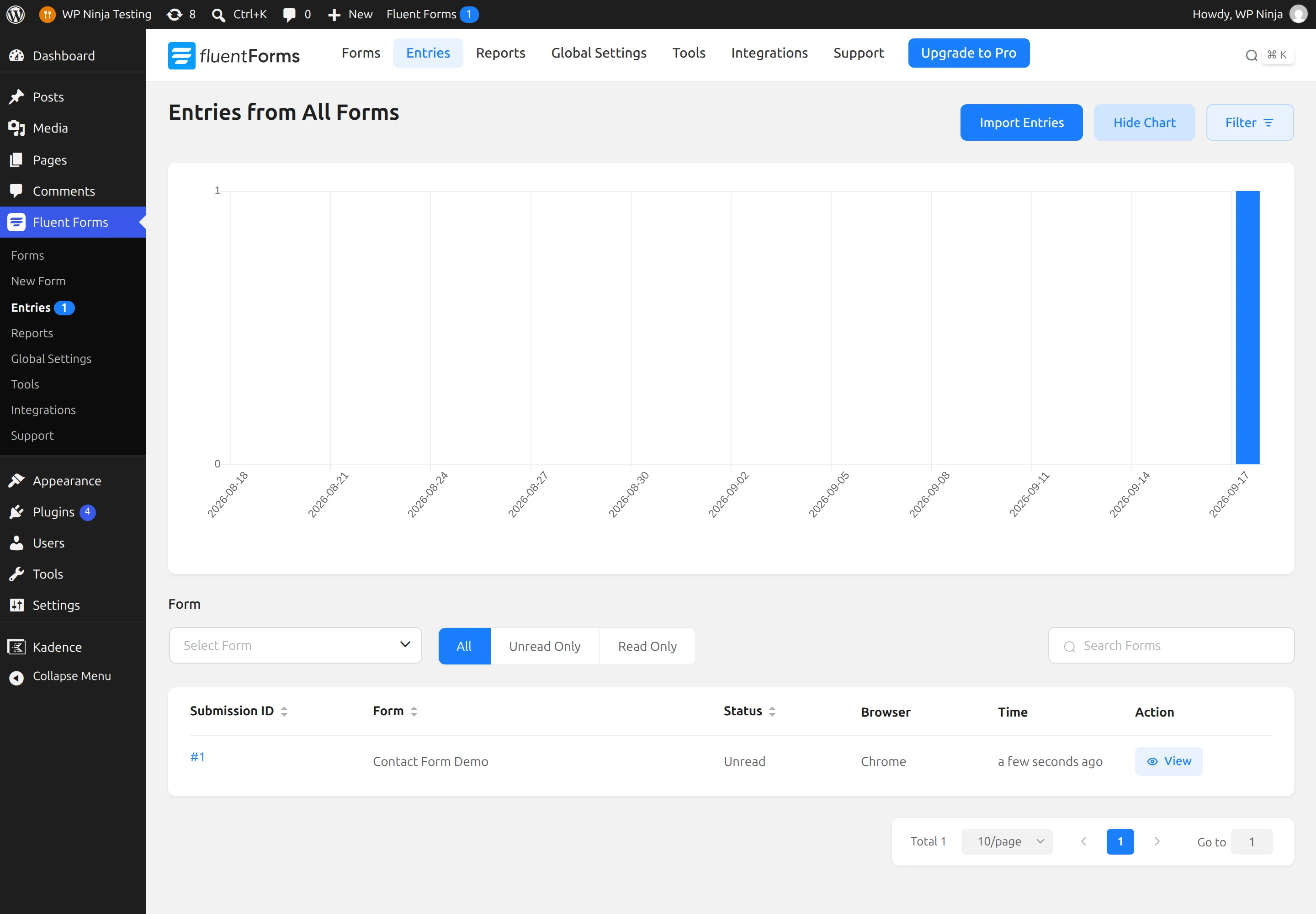
In Fluent Forms, it was right there. The plugin wrote a row to its submissions table and broke the message out field by field into a second table. I opened the Entries screen in WordPress and saw the submission sitting there, marked “unread,” with the name, email, and full message readable on screen. No upgrade prompt. It just worked, in the free version.
In WPForms Lite, the story was different and honestly a bit startling. The form accepted the message – I got a friendly “Thanks for contacting us” confirmation. WPForms even counted it: a hidden counter ticked up to 1, so the plugin knew a submission had happened. But when I searched the entire database for [email protected], it appeared nowhere. Not in one table, not in any option, nowhere. The message itself was never written to my site.
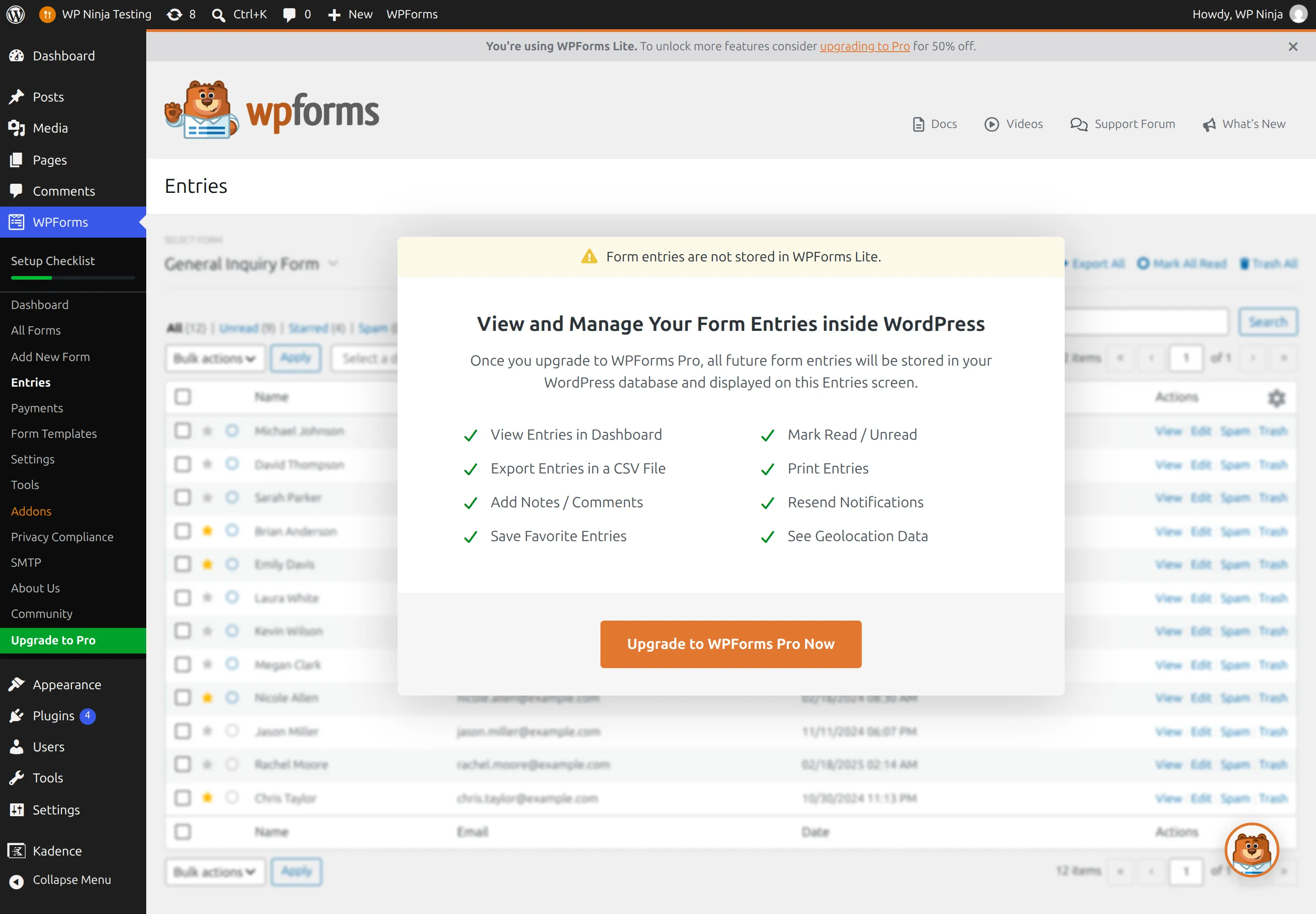
I didn’t have to guess about this, because WPForms tells you itself. Open the Entries screen in WPForms Lite and the banner across the top reads, word for word: “Form entries are not stored in WPForms Lite.” Behind that banner sits a blurred sample table of made-up entries – names like Michael Johnson and Sarah Parker – which is WPForms showing you what the Pro version would look like. None of it is real. It’s a mockup with an “Upgrade to WPForms Pro” button in the middle.
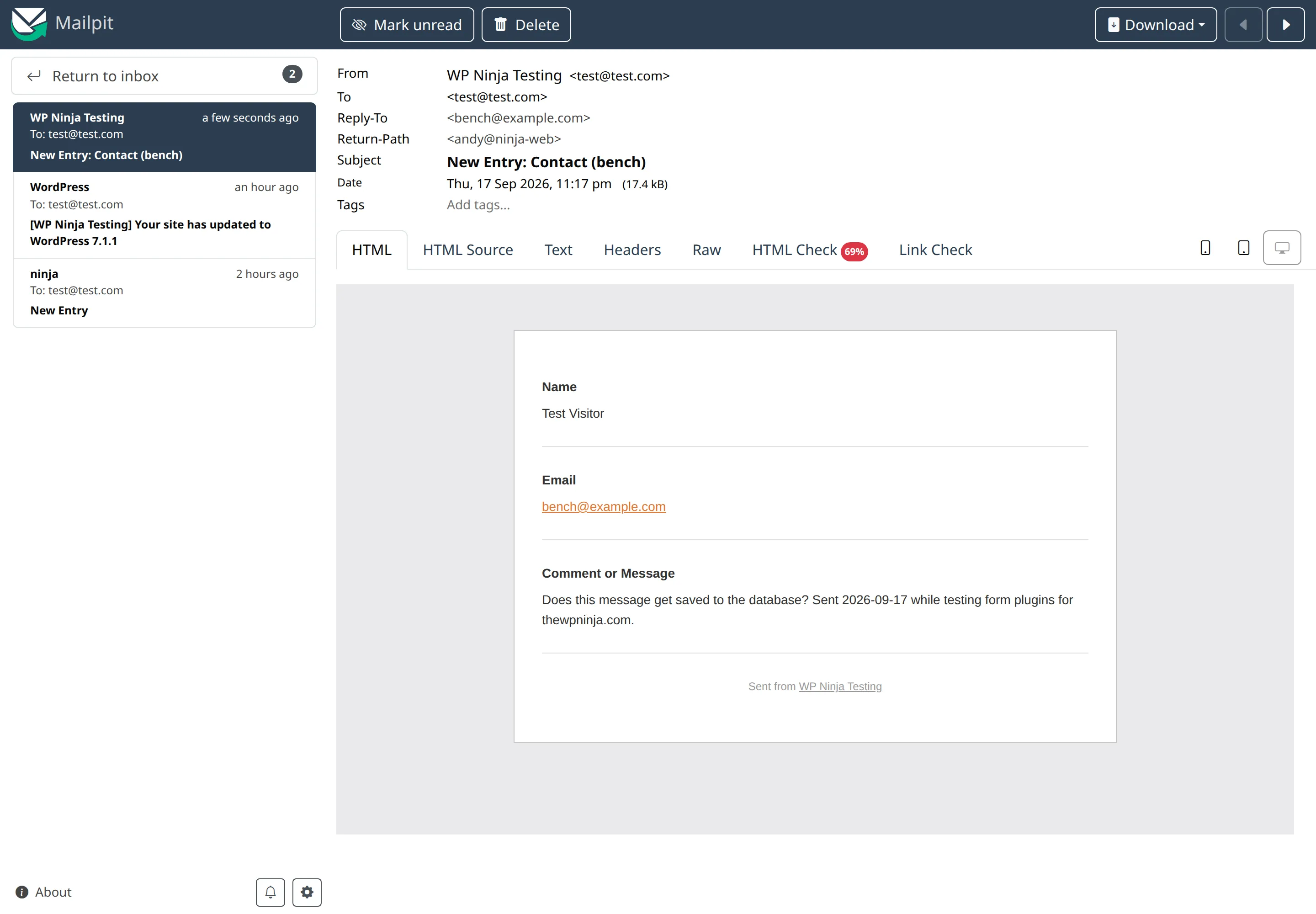
So where does your message go? WPForms sends you a notification email, and that email is the only copy that exists on your side. I confirmed the email arrives – it landed in my test site’s inbox with the full message inside, every time.
But think about what that means. If that email fails to send – a typo in the address, an over-eager spam filter, a hosting mail problem – the message is simply gone. Not sitting in a database waiting for you. Gone.
WPForms is straight about this, to its credit. In Settings, there’s a “Lite Connect” row that says: “Your form entries are not being stored in WordPress, and your entry backups are not active. If there’s a problem with deliverability, you’ll lose form entries.” That’s the plugin warning you, in its own words.

What is Lite Connect, and should you turn it on?
Lite Connect is WPForms’ answer to the problem it just described. Instead of saving your messages to your own site, it offers to back them up to WPForms’ own servers. When you first activate WPForms in your browser, a welcome screen appears with a box near the bottom that’s already ticked, agreeing to enable Lite Connect.
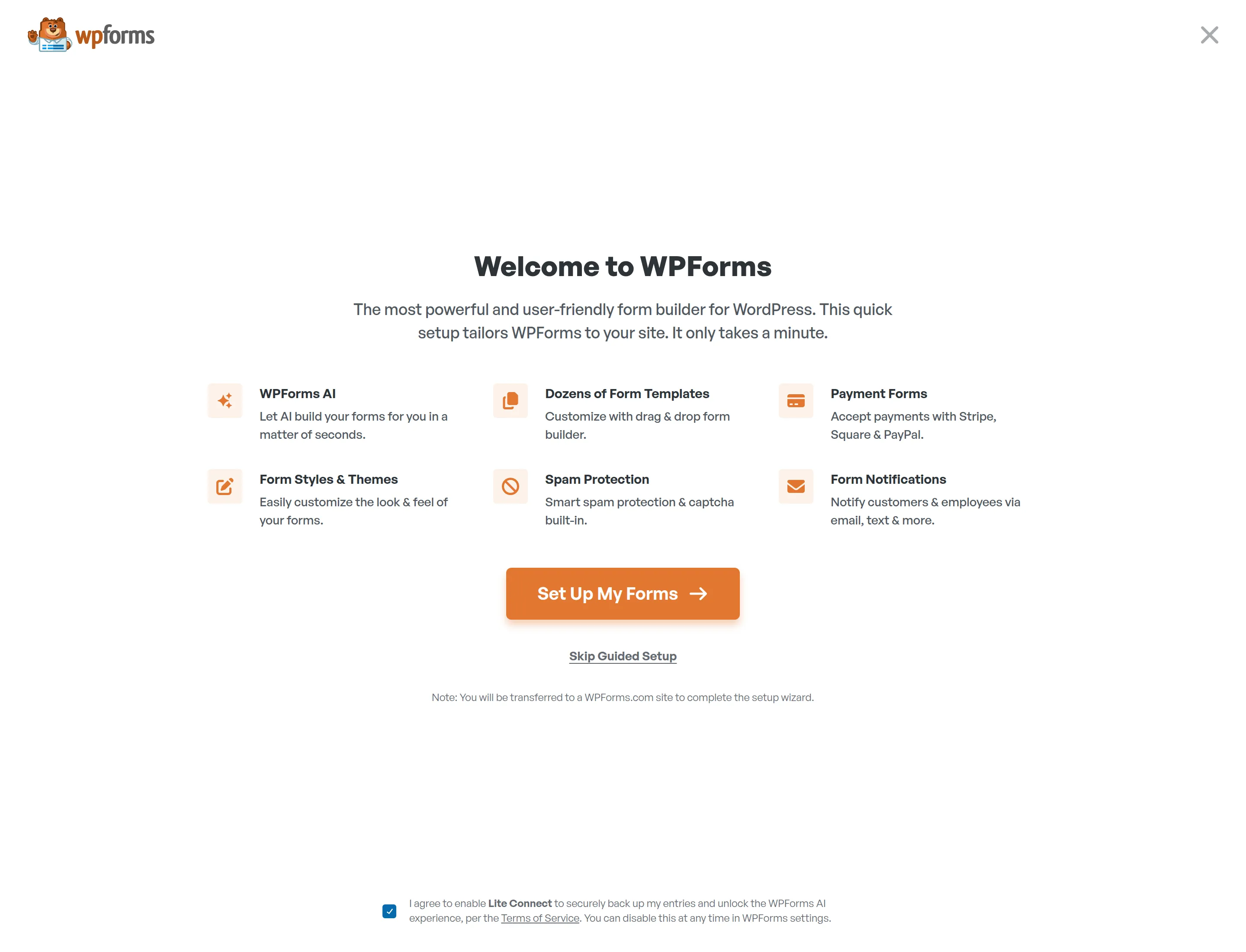
I want to be fair about how this works, because it’s easy to overstate. Ticking that box on the welcome screen doesn’t switch the feature on by itself – I checked, and the setting stayed off until you actually click the big “Set Up My Forms” button, which also sends you off to a WPForms.com site to finish. So it’s not switched on behind your back. But the box is pre-ticked on a screen most beginners will click straight through, and here’s the catch the plugin is quieter about: to get those backed-up messages back into a usable form, you have to upgrade to Pro. Your own messages, held on someone else’s server, released when you pay.
Fluent Forms does none of this dance. It writes your messages to your own database, and you read them in your own dashboard, free.
Which one works the moment you turn it on?
For building a form, both do, which is nice for a beginner. Neither makes you configure anything first. For getting told about a new message, only WPForms does – more on that in the day-to-day section below.
Fluent Forms goes one step further and ships two ready-made demo forms the moment you activate it – a contact form and a subscription form – so you’ve got something to look at and edit right away. WPForms starts you on a template picker instead, with a “Simple Contact Form” option that gives you the three-field form in one click.
One small thing I noticed: activating Fluent Forms just drops you back on your plugins list with a quiet “Plugin activated” message and nothing else. WPForms takes over your whole screen with that welcome wizard. Neither is wrong, but if you dislike being walked through a setup flow, that’s worth knowing.
Setting up and building a form
This is where WPForms earns its reputation, and I’m happy to give it credit. Its builder is the friendlier of the two for someone who has never made a form before. The layout is calm, the field buttons are large and clearly labelled, and the whole thing feels like it was designed for a nervous first-timer. If “easy and reassuring” is your top priority, WPForms is genuinely good at it.
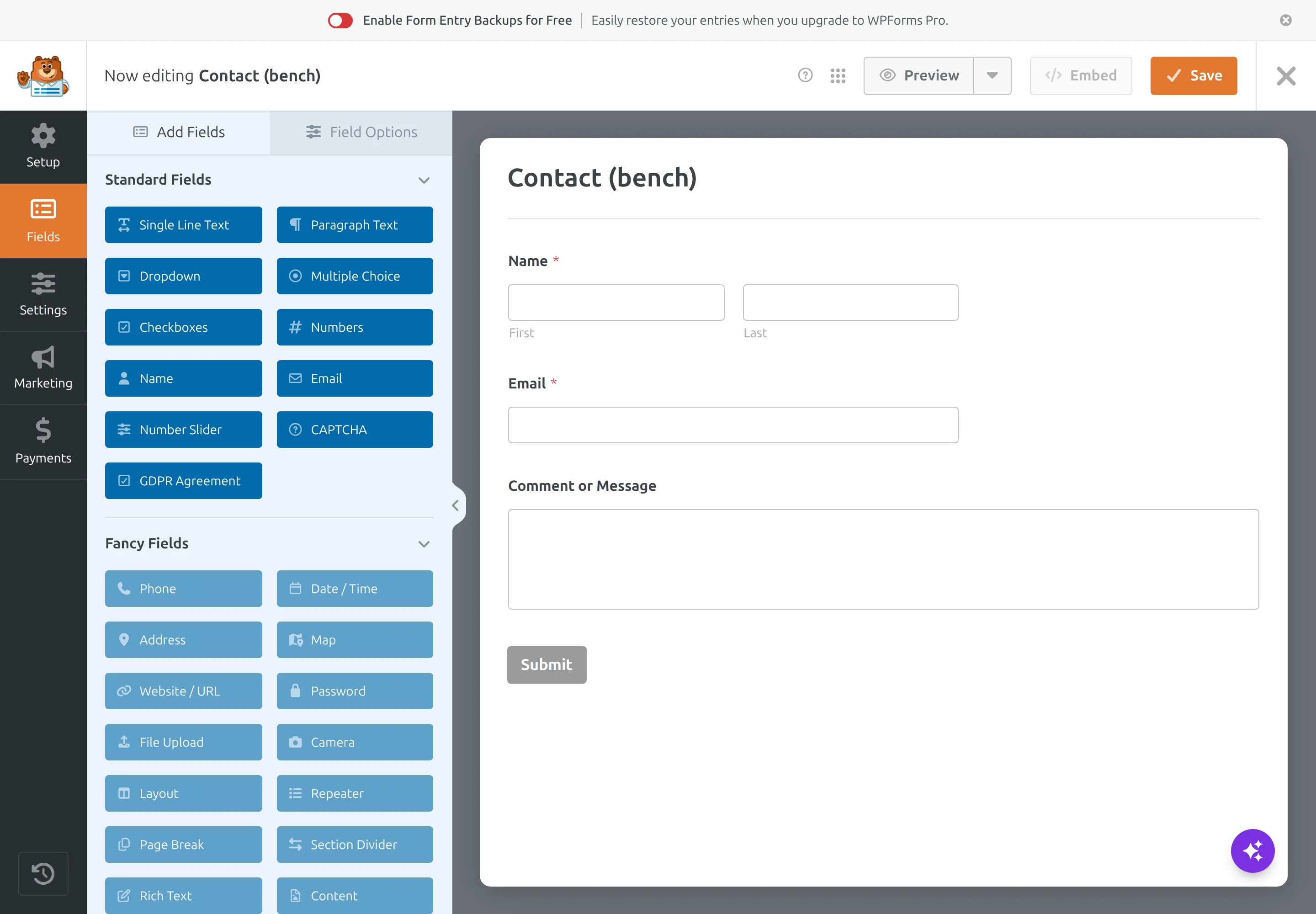
Fluent Forms’ builder is also drag-and-drop and also perfectly usable, but it’s built with a slightly more “app-like” feel – more panels, more options visible at once. It’s a touch busier. Not hard, just less hand-holdy. For a total beginner I’d call WPForms the gentler start by a small margin.
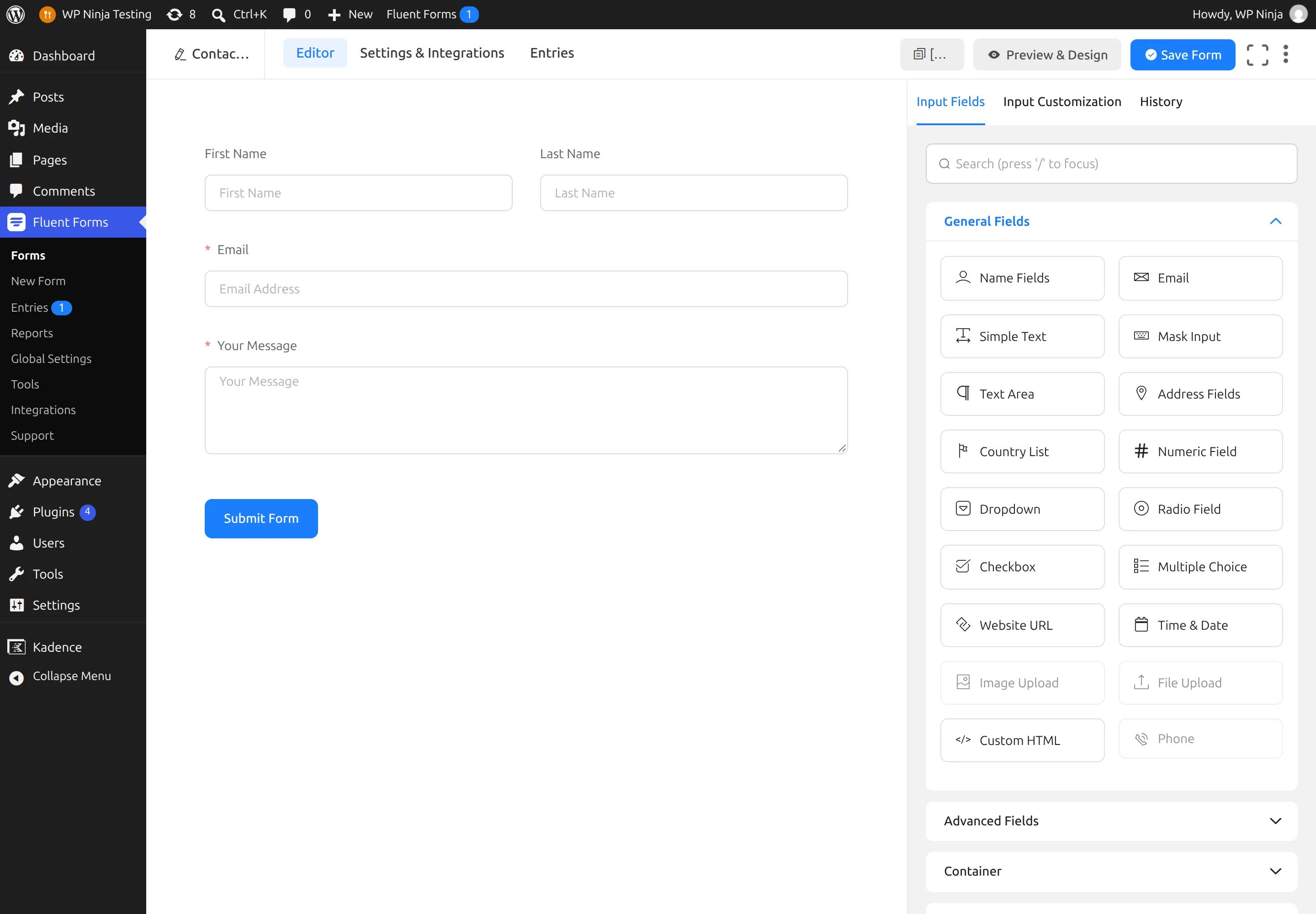
Both builders grey out the fields you’d need to pay for – file uploads, phone fields, and the like – so you can see what’s locked behind the paid version. Neither hides the upsell. That’s the same on both sides.
Reading your messages, day to day
This is the section that pairs with the big finding, and it’s the clearest picture in the whole comparison.
In Fluent Forms, reading your messages is a normal part of the free plugin. There’s an Entries screen that lists every submission with the sender’s name, email, and message right in the table. Click one and you get the full detail view – every field broken out, plus notes, a log, a “resend notification” button, and the submission’s details like the time and browser. All free.
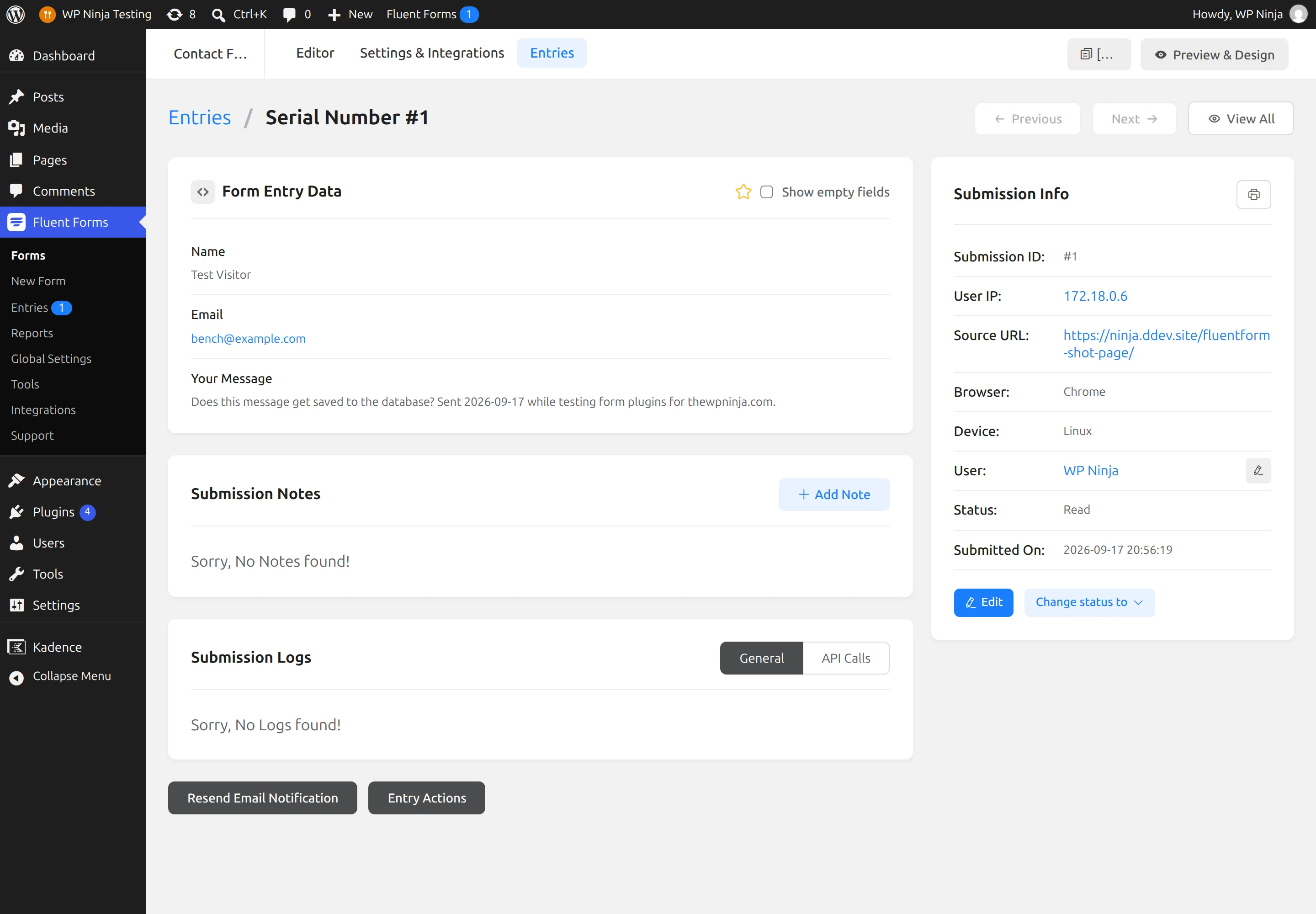
One thing to set up on day one, though: Fluent Forms’ demo contact form ships with no email notification at all. Out of the box it saves every message but emails nobody, so you won’t know one arrived unless you check this screen. I found it while testing for my best free WordPress form plugins roundup, and it was still true on 6.2.15: my test message landed in Entries and my test inbox stayed empty.
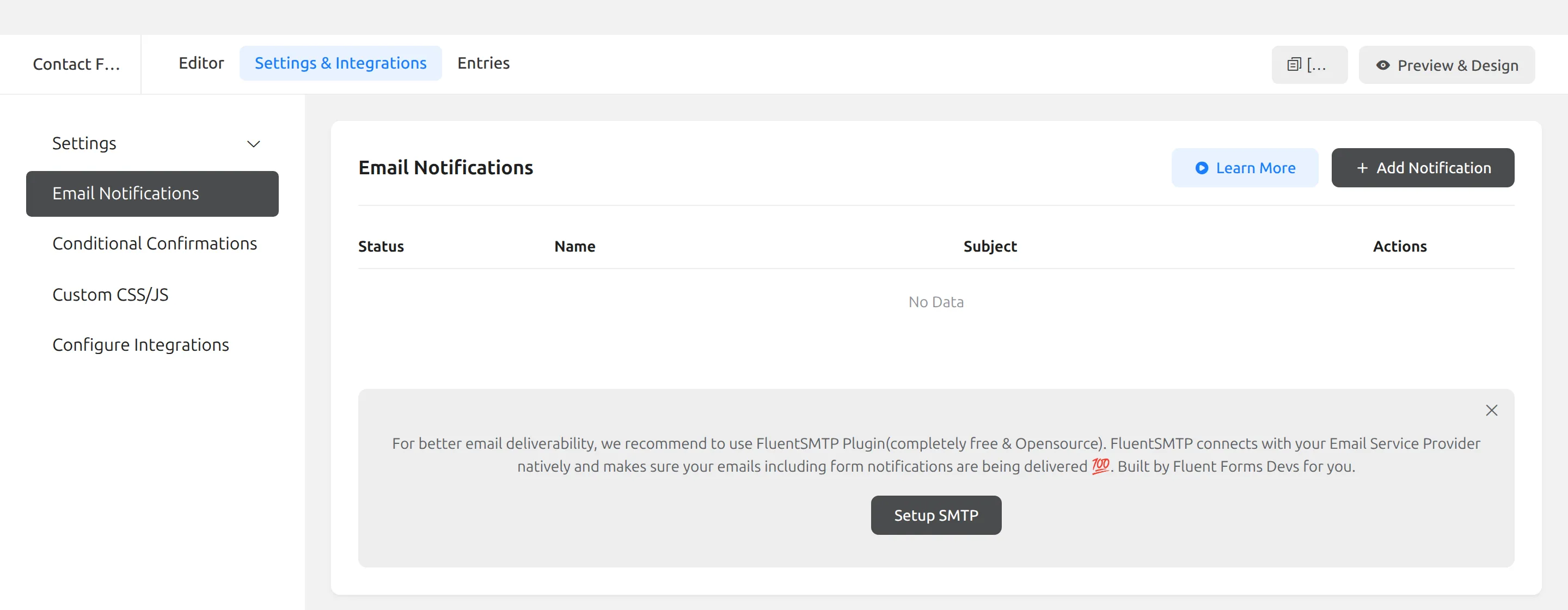
The fix takes 8 clicks. Open the form, go to Settings & Integrations, then Email Notifications, and click Add Notification. Type your address in Send To, type a subject, and in the message box use Add Shortcodes, then All Data, so the email includes what the visitor wrote. Save it, then send yourself a test message before you rely on it.
In WPForms Lite, there is no equivalent, because there’s nothing to read. The Entries screen is the upgrade wall I showed you earlier. If you want to see your messages inside WordPress, that’s a Pro feature – and remember, the messages aren’t even being saved unless you’re routing them through Lite Connect to WPForms’ servers first.
For a small business owner who checks their contact form messages once a day, this is the whole ballgame. One plugin gives you an inbox. The other gives you an email and a hope.
Spam and validation
Here’s a point in WPForms’ favour, and I want to give it fairly because I’ve been hard on the entries issue.
When my test script filled in the WPForms form instantly and hit Submit, the way a bot would, WPForms stopped it: “Please wait a little longer before submitting. We’re running a quick security check.” That’s its minimum-time check, which knows a real person can’t fill in a form in under a second. It doesn’t get in a human’s way – when I typed the message at normal speed, it went straight through. My WPForms form also carried 2 hidden “honeypot” fields, which people never see but spam bots fill in and give themselves away.
Fluent Forms accepted the same instant submission with no challenge at all, because its spam protection ships switched off. The honeypot is there, but you have to turn it on yourself under Fluent Forms > Global Settings > Miscellaneous > Enable Honeypot. It’s one switch, and I’d flip it the same day you fix the email notification.
Both free versions also support Google reCAPTCHA, hCaptcha, and Cloudflare Turnstile if you add the keys. Now, none of this is a full spam test – I’m not claiming one plugin blocks real spam better than the other, because I didn’t measure that. What I can tell you is that out of the box, WPForms’ free version is protected and Fluent Forms’ isn’t until you change a setting. That’s a fair point in WPForms’ column.
What does each one add to your pages?
Now the speed question, because a form plugin can quietly slow down your whole site. If your site already feels sluggish, that’s a separate rabbit hole worth reading about in why is my WordPress site so slow – but a heavy form plugin can absolutely be part of it.
First, the good news for both plugins: neither adds anything to pages that don’t have a form on them. I measured a normal blog post with each plugin active, and the page was byte-for-byte the same as with no plugin at all. That’s the right way to build a plugin, and both deserve credit.
The difference shows up on a page that does have a form. Here’s what each one loaded for my identical three-field form:
| On a page with a 3-field form | WPForms Lite | Fluent Forms |
|---|---|---|
| Extra page code added | 10,598 bytes | 8,504 bytes |
| Separate files loaded | 11 | 5 |
| Total size of those files | 370,578 bytes (about 371 KB) | 210,939 bytes (about 211 KB) |
WPForms loads 371 KB of styling and scripts for a three-field contact form. Its stylesheet alone is 169 KB – bigger than everything Fluent Forms loads except one shared file. Both plugins also pull in jQuery and jQuery Migrate (about 101 KB together) on a modern theme that otherwise wouldn’t load them, so that part’s a wash. Strip jQuery out and the gap widens: WPForms is still carrying roughly two and a half times more. (The updated versions moved these totals by less than 300 bytes.)
You may have seen Fluent Forms advertise “less than 30KB of combined CSS and JS for a standard form” – it’s on its WordPress.org page, and WPForms’ own comparison repeats it. That’s true for Fluent Forms’ own 3 files once your server compresses them: 29 KB. But the form also loads jQuery, which a modern theme like Kadence wouldn’t otherwise load, and that roughly doubles it to about 65 KB compressed.
None of this will destroy your site. But if you care about a fast-loading page – and it’s worth caring, because Google weighs speed too – Fluent Forms is the lighter guest on the page where it counts.
Background jobs and hidden costs
Page weight is what a visitor downloads. There’s a second cost that’s harder to see: how hard the plugin makes your server work on every request. I measured the time it took my server to start responding (the “time to first byte”), fifteen times each, and compared.
On the front end, WPForms added about 17% to that time; Fluent Forms about 6%. In the WordPress admin – the part only you see – the gap was wider: WPForms added 51% to 55%, Fluent Forms 10% to 14%. So the admin side of WordPress feels noticeably heavier with WPForms running.
Both plugins also bundle the same background-job system, borrowed from WooCommerce (it’s called Action Scheduler). Each one adds 4 database tables for it the moment you activate it. That’s normal – it’s how plugins queue up jobs like spam cleanup and summary emails without making your visitors wait.
A correction: an earlier version of this article said WPForms Lite never creates those tables and throws a PHP error as a result. That was my test site’s fault, not WPForms’: a leftover setting from an earlier test told the job system its tables already existed, and it starved Fluent Forms’ copy of its tables in exactly the same way. On a clean install, both plugins set up their tables properly and I logged zero errors from either. And the slower admin above was re-measured on that clean install, so it’s WPForms itself, not the old error.
What happens when you uninstall?
I deleted each plugin the normal way – through the WordPress Plugins screen, the way a real person would – and checked what got left behind.
Neither plugin removed its database tables. WPForms left all 11 of its tables (7 of its own plus the 4 background-job tables), and Fluent Forms left all 12 (8 plus the same 4). Fluent Forms also kept your stored messages, which is the point of keeping tables. I’ll be fair here: keeping your data through an accidental delete is defensible, and it’s completely normal – most plugins do it. If you reinstall, your forms come back.
The difference is in how you’d get a clean removal if you wanted one. WPForms’ delete dialog asks “Are you sure you want to delete WPForms Lite and its data?” – but the data only goes if you first turned on a switch called Uninstall WPForms under WPForms > Settings > Misc. It ships switched off, so a normal delete leaves everything. Fluent Forms has no such switch at all: it has no uninstall routine, so its tables stay until you remove them by hand or with a database cleanup plugin.

The quieter cost is the leftover settings that load on every page of your site, even after the plugin is gone. On a clean install, WPForms left 23 of those behind and Fluent Forms left 4. That’s a small, permanent tax on a site you thought you’d cleaned up, and WPForms charges almost six times more of it – unless you find that switch first.
How big are these plugins, and what’s inside?
The two plugins are close in total size on disk – about 45 MB for WPForms, 38 MB for Fluent Forms – but they’re built completely differently, and it’s worth understanding why.
WPForms is enormous in code: 685,130 lines of PHP, against 210,085 for Fluent Forms. That’s over three times more. For a sense of scale, a free contact form plugin here is bigger than Yoast SEO. Part of what’s in there is the full payment-processing kits for Stripe and Square. Those power WPForms Lite’s payment fields – the ones that charge the 3% fee. Fluent Forms bundles no third-party payment kits – its Stripe support is written into the plugin itself.
Fluent Forms carries its weight elsewhere – its builder is a modern JavaScript app, so it’s heavier on script files than on PHP. So neither is straightforwardly “lighter.” They’re just built on opposite philosophies. What I’d take from this is that WPForms ships a great deal of code a contact-form-only site will never run – two full payment kits, for a start.
Are these plugins safe?
Short version: both are actively maintained and patch problems quickly, so the honest advice is the boring one – keep whichever you choose updated.
Both plugins have a track record of security issues being found and fixed through Patchstack, the main WordPress vulnerability service. I checked a sample of those reports against the official CVE registry to make sure they were real, and they were. That might sound alarming, but it’s actually reassuring: popular plugins get looked at hard by security researchers, and both of these have a steady history of fixing what gets found. Neither had an unpatched problem at the versions I tested.
I’m deliberately not turning this into a scoreboard of “who had more reports,” because a bigger number usually means more researchers are looking, not that a plugin is less safe. The one thing that actually protects you is running the current version. Turn on automatic updates for your form plugin and you’ve handled the real risk. (The same logic applies to security plugins themselves, which I dug into in Wordfence vs Solid Security.)
Support and how established each one is
WPForms is the more established of the two by the numbers: on WordPress.org since 2016, on about 5 million sites, with over 14,000 reviews averaging 96 out of 100. Fluent Forms has been around since 2017, sits on about 700,000 sites, and has a smaller but equally strong review score – 96 out of 100 across roughly 800 reviews.
Don’t read the review gap as a quality gap. WPForms has been listed almost two years longer and has seven times the users, so of course it has more reviews. Both offer support forums for free users on WordPress.org, and both put their faster, dedicated support behind the paid tiers. For a free-plugin user, the support experience is broadly similar: the community forum and the documentation.
What do they actually cost?
If the free version isn’t enough – most often because you want conditional logic, file uploads, or payments – here’s what upgrading really costs. And I need to correct something the older comparisons get wrong, including the version of this article I’m replacing.
The old figure floating around is that WPForms Pro is “$200 a year.” That’s close to the introductory price, but it’s misleading, because WPForms discounts your first year and then renews at full price. Here’s what I read straight off both vendors’ pricing pages on the day I wrote this, and the list prices were unchanged when I re-checked on 13 October 2026.
| WPForms | First year | Renews at | Sites |
|---|---|---|---|
| Basic | $49.50 | $99 | 1 |
| Plus | $99.50 | $199 | 3 |
| Pro | $199.50 | $399 | 5 |
| Elite | $299.50 | $599 | Unlimited |
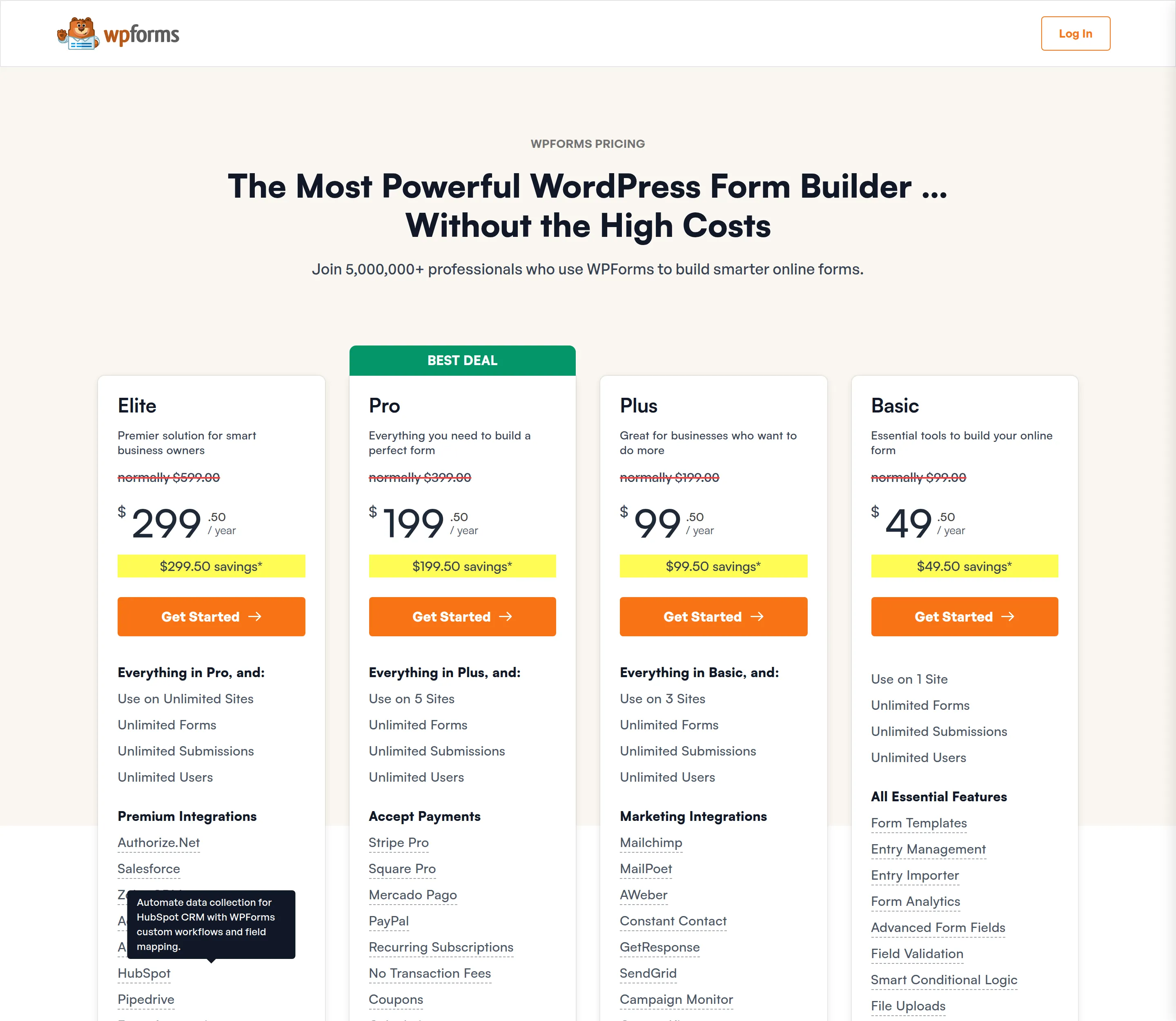
So WPForms Pro is $199.50 to start and $399 a year after that – double the number everyone quotes. WPForms’ own page says it plainly in the small print: “all renewals are at full price.”
| Fluent Forms | First year | Renews at | Sites |
|---|---|---|---|
| Single Site | $63 | $79 | 1 |
| Agency | $127 | $159 | 5 |
| Unlimited | $239 | $299 | Unlimited |
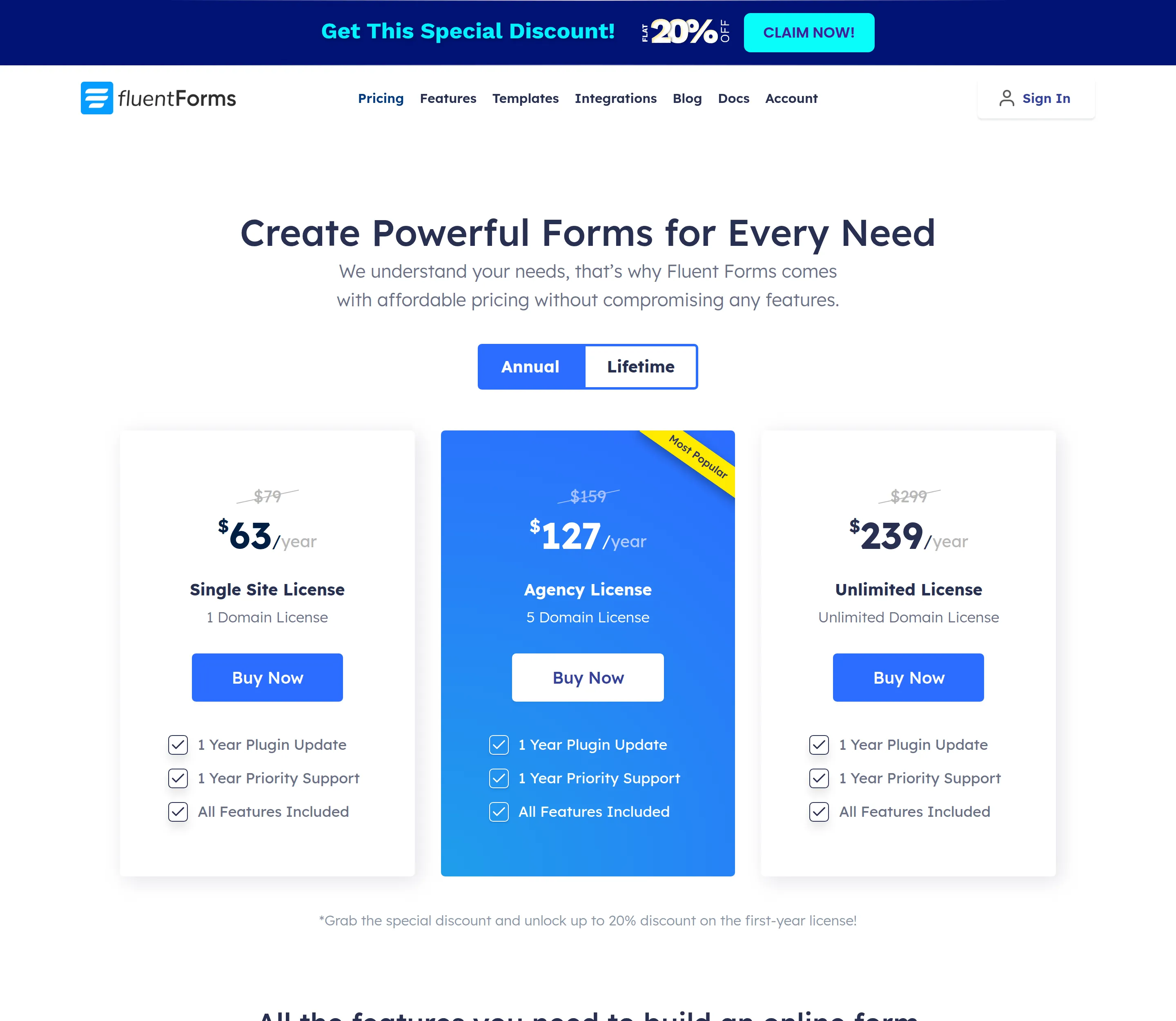
Two things stand out. First, Fluent Forms is cheaper at every comparable level, and its renewal jump is far gentler – $79 versus $99 for one site, $159 versus $399 for five. Second, every Fluent Forms tier includes all features; it only charges you for more sites. WPForms locks features behind higher tiers – its pricing page only promises fee-free payments from Pro up, for instance. Below that, the free version’s 3% WPForms fee is the one I can confirm; the page doesn’t say what Basic and Plus pay. Any Fluent Forms licence removes its 1.9% fee. Fluent Forms also sells a one-time lifetime licence ($279 to $719) that WPForms doesn’t offer at all.
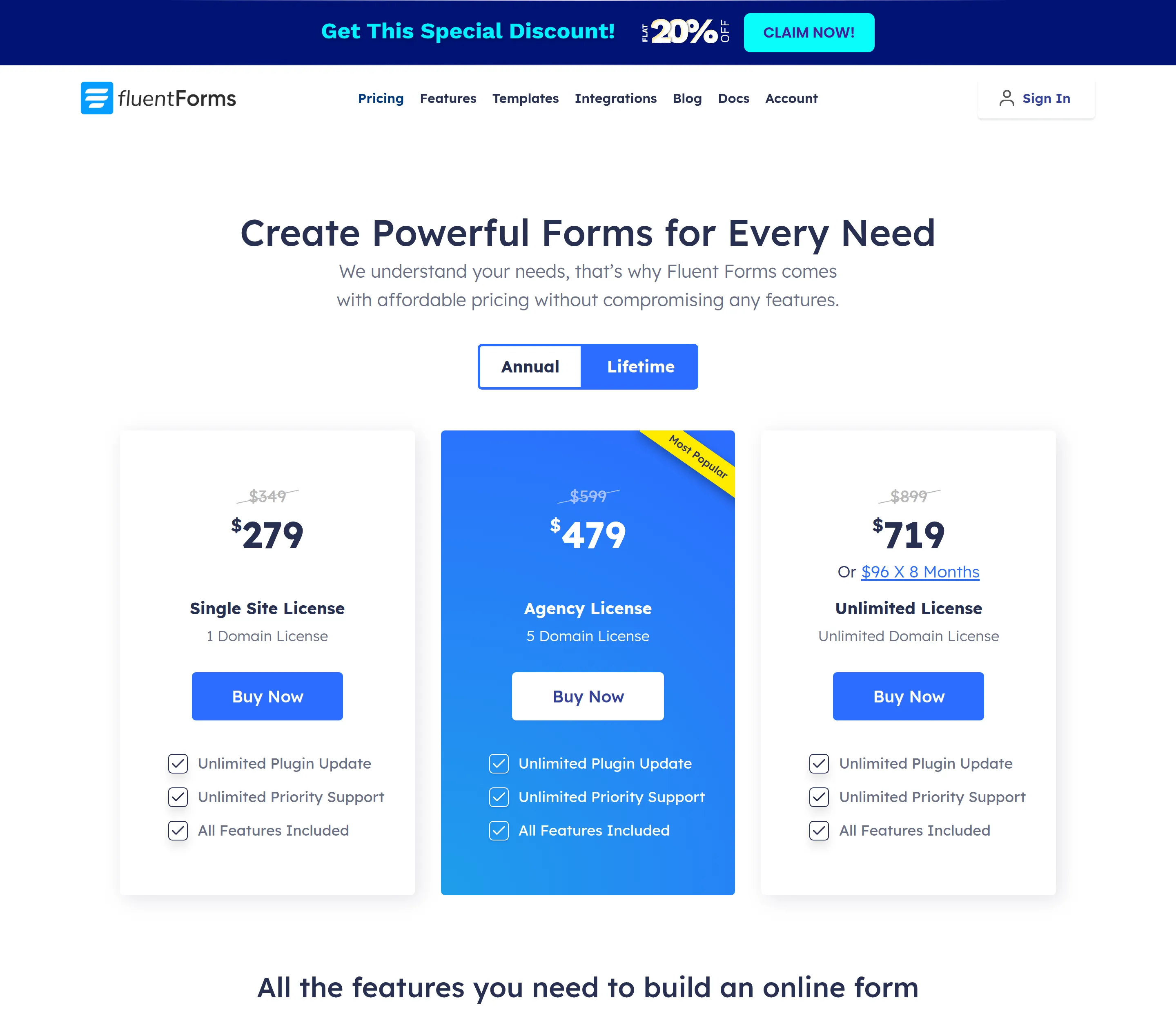
One more practical note: the cheapest way to keep your messages with WPForms is the Basic tier, which includes entry management for $49.50 the first year and $99 after. With Fluent Forms, you keep your messages in the free version. That’s the whole cost comparison in one sentence.
WPForms vs Fluent Forms: which should you pick?
Pick Fluent Forms if you want your form messages saved somewhere you can actually read them without paying – which, honestly, is most people. Pick it if you care about a lighter, faster page, a gentler upgrade price, or you might want that lifetime licence one day.
Just make 2 changes on day one, because both ship off: add the email notification (8 clicks) and switch on the honeypot.
Pick WPForms if the friendliest possible builder matters more to you than saving entries, your notification email is rock-solid reliable, and you’re happy either upgrading to Basic or routing your messages through Lite Connect. It’s a polished plugin with a huge user base, genuinely nice onboarding, and spam protection that works from the first minute. It’s just built around an assumption – that the email is enough – that I don’t think most beginners realize they’re accepting.
For me, the deciding fact is simple. A contact form’s one job is to make sure a message reaches you. Fluent Forms keeps a copy for you, free, once you’ve told it where to email you. WPForms Lite emails you straight away but trusts that one email and keeps nothing. When you frame it that way, the choice for most people gets easy.
My wider roundup backs this up. When I scored 6 free form plugins on the same 100-point scale in my best free WordPress form plugins test, Fluent Forms came second with 70.38, just behind Forminator, and WPForms Lite came last with 43.28. It lost its points in three places: what the free version does (no saved messages), how much it loads on a form page, and how hard it pushes you to upgrade.
If you’re weighing up other WordPress plugin decisions the same careful way, I did the same install-and-measure treatment for Rank Math vs Yoast.
Frequently asked questions
Does WPForms Lite save your form entries? No. I tested this directly – the free version accepts a submission and counts it, but never writes the message to your website’s database. Your only copy is the notification email it sends you. Fluent Forms’ free version does save entries.
How do I see WPForms entries for free? You can’t inside WordPress. The Entries screen in WPForms Lite is an upgrade prompt, because there are no stored entries to show. Your options are to read the notification emails, upgrade to a paid WPForms tier, or switch to a plugin like Fluent Forms that saves entries for free.
Is Fluent Forms’ free version better than WPForms Lite? For keeping and reading your messages, yes – clearly. Fluent Forms free saves entries; WPForms Lite doesn’t. WPForms has the friendlier builder, and it emails you and blocks basic spam bots from the moment you install it, where Fluent Forms needs both switched on. If those matter most to you it’s a fair pick. But for most people the entries question settles it.
Why am I not getting emails from Fluent Forms? Most likely because the form has no email notification. Fluent Forms’ demo contact form ships without one, so it saves every message in Entries but emails nobody. Open the form, go to Settings & Integrations > Email Notifications, click Add Notification, and fill in Send To, Subject, and the message (use the All Data shortcode). If a notification exists and mail still doesn’t arrive, the problem is your site’s email sending, not the form.
Do WPForms Lite and Fluent Forms charge a fee on payments? Yes, both free versions do. WPForms Lite adds a 3% fee on every transaction and Fluent Forms free adds 1.9%, both on top of Stripe’s own fee. Fluent Forms drops its fee with any paid licence; WPForms’ pricing page promises fee-free payments on its Pro and Elite plans.
Which free form plugin is lighter? It depends what you mean. Neither adds anything to pages without a form. On a page with a form, Fluent Forms loads less – about 211 KB versus 371 KB, and 5 files versus 11. WPForms carries far more code overall and runs slower in the WordPress admin.
Are WPForms and Fluent Forms safe to use? Both are, as long as you keep them updated. Each has a normal history of security issues found and patched through Patchstack, and neither had an unpatched problem at the versions I tested. Turn on automatic updates and you’ve handled the real risk.
Can I switch from WPForms to Fluent Forms? Yes. Both plugins include import tools on their Tools screens, so moving your forms across is built in rather than a manual rebuild.