WordPress Patterns vs. Template Parts – What’s the Difference?
You restyled the header on your About page. New menu colors, a bigger font, a button on the right. Then you opened your Services page and the old header was still sitting there.
Welcome to the most confusing corner of the block editor, and the heart of the WordPress patterns vs template parts mix-up.
The first time this happened to me, I thought the editor was broken. It wasn’t. I’d dropped a header pattern into that one page and restyled the copy, while the real header that every page uses is a template part. Same look, completely different behavior.
I rechecked every screen in this guide on WordPress 7.1.2 with the Twenty Twenty-Five theme in October 2026. Template parts have moved to the top of the Patterns screen since the early block-theme days, and each kind of block now carries its own label, so this is the current picture.
WordPress patterns vs template parts: Why do both exist?
Both came with the block editor and full site editing. The idea is to give you ready-made layouts so you don’t have to rebuild a hero section or a footer from scratch every time.
The trouble is they look almost identical on the page. Both show up under Patterns in the Site Editor, both have a diamond-ish icon, and both can be added with the “+” button.
But they behave in opposite ways once you save. A template part is shared by every page that uses it. A regular pattern is copied into the page, and from then on that copy is on its own.
If you used to edit your header through the old Customizer and you’re wondering where the WordPress Customizer went, this Patterns/Template Parts split is what replaced it on block themes.
Where are patterns and template parts in WordPress?
On a block theme, go to Appearance > Editor and click Patterns. Template parts are listed first, at the top of the sidebar: All template parts, then one line per area (Header, Footer, General). Your patterns come underneath, starting with All patterns and then a category list.
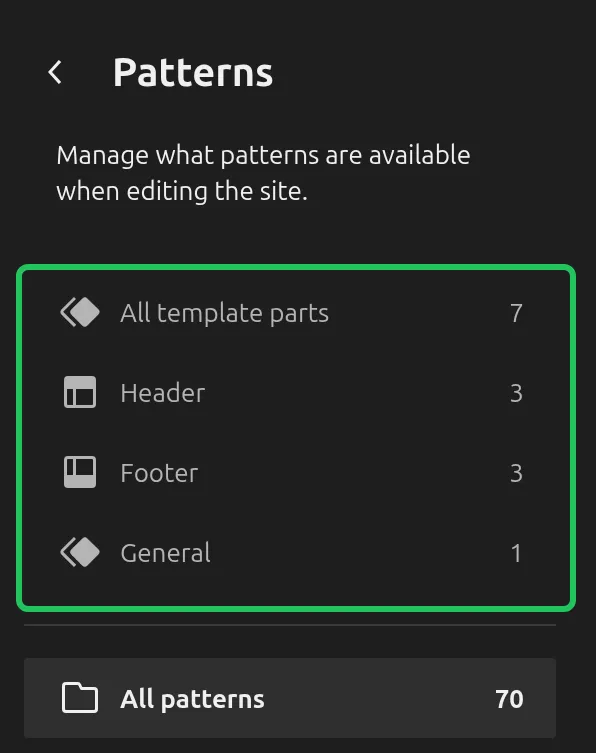
On Twenty Twenty-Five that’s 7 template parts (3 headers, 3 footers and 1 general) and 70 patterns. The theme registers 97 patterns in total, but not every one of them is listed on that screen.
You can also reach patterns from any post or page: click the blue “+” in the top-left corner and switch to the Patterns tab. The free WordPress.org pattern directory lists 2,375 more you can copy in.
What is a WordPress Pattern?
A Pattern is a saved block layout. There are 2 kinds, and the difference between them is the whole story.
A regular (unsynced) pattern is a stamp. Think of a rubber stamp and an ink pad. Press it on page 1 and you get a shape, then press it on page 2 and you get the same shape. Draw a mustache on page 1’s shape and page 2 doesn’t grow one. The theme patterns you insert from the “+” button work this way: each page gets its own copy.
In WordPress 7.1 the copy still remembers where it came from. When you click it, the sidebar shows the pattern’s name with a grey Pattern badge and an Edit pattern button. The text inside is listed under Content so you can change the words straight away.
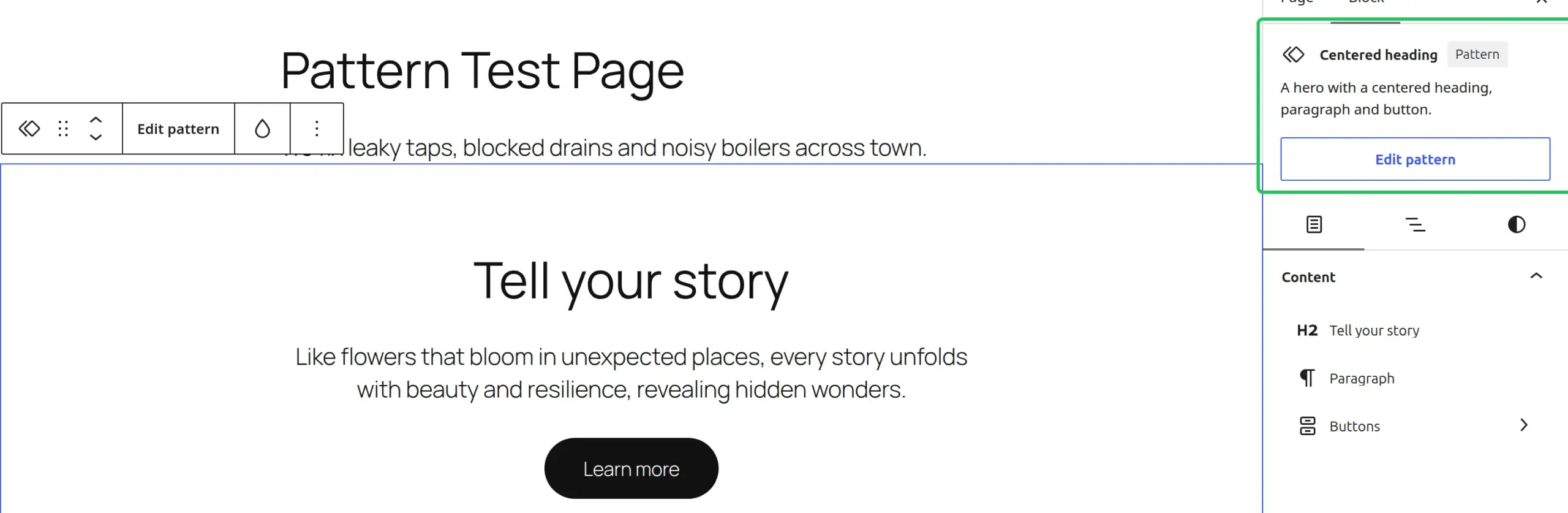
A synced pattern is a mirror. You create it yourself from blocks you’ve built: select them, open the 3-dot menu and choose Create pattern. The box that opens has a Synced switch, and in WordPress 7.1 that switch is ON by default.
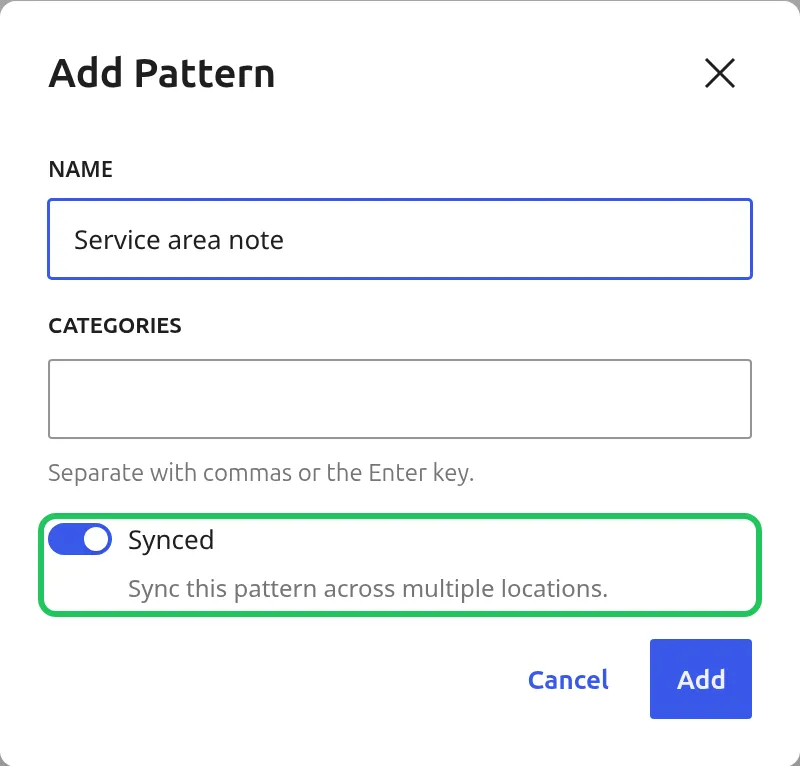
Leave it on and every copy of that pattern stays linked to the original. Edit the original once and the change shows up on every page that uses it. Turn it off and you get a reusable stamp instead.
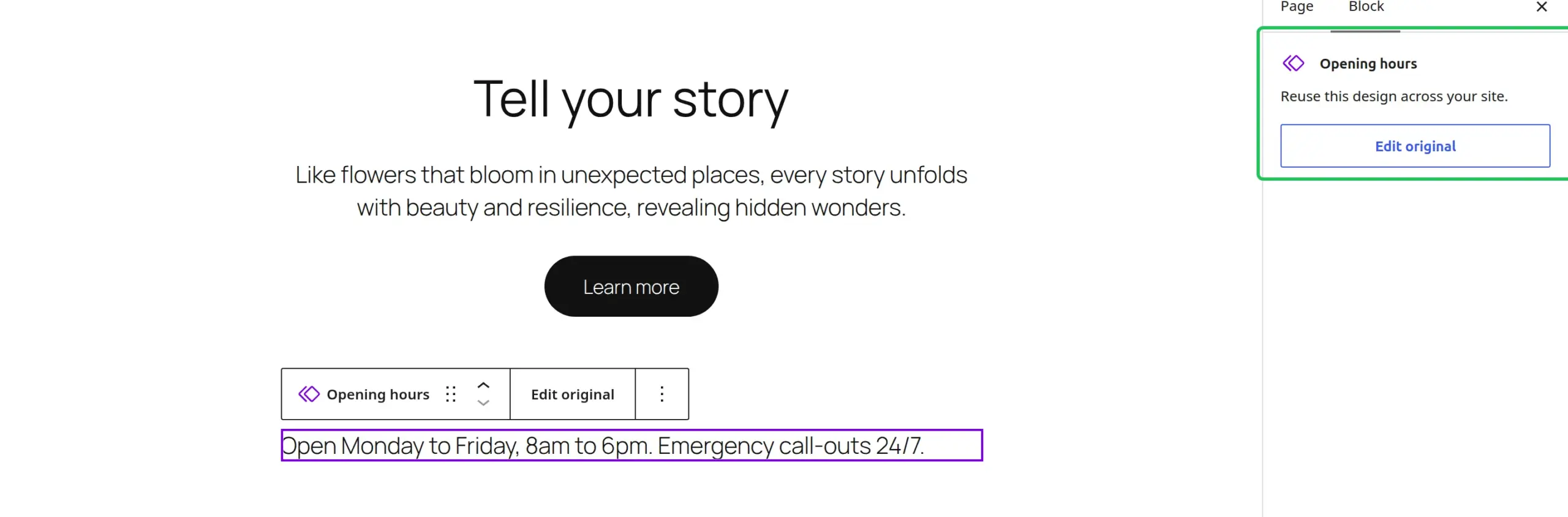
A synced pattern looks different when you click it: a purple diamond icon, the line “Reuse this design across your site.” and an Edit original button.
What is a Template Part?
A Template Part is a block layout that every page points to instead of copying. Edit it once and the change appears everywhere it’s used.
Your header is a template part. So is your footer, and on some themes the sidebar. They’re meant to look the same on every page, so WordPress stores them once and pulls them in wherever they’re needed.
Here’s the mirror analogy that made it click for me. Imagine a mirror hanging in your hallway, and you put a sticker on the glass. There’s only 1 sticker, but everyone walking past sees it.
To edit a template part, go to Appearance > Editor > Patterns, click Header (or Footer) under the template parts, and open the one you want. When you click a template part inside a template, the sidebar shows its name with a layout icon and an Edit original button, and the breadcrumb at the bottom of the screen reads Template > Header.

If you’re on a classic theme and you’re not sure whether to touch any of this, my take on whether it’s safe to use block templates on an older theme covers what classic themes actually get.
Patterns vs Template Parts: the 3-line summary
If you remember nothing else from this article, remember these 3 lines:
- Pattern (unsynced) = stamp. Copied into the page. Edits stay on that page.
- Synced pattern = mirror. Linked everywhere it’s used. Edit the original and every copy updates.
- Template part = the frame of your site. Header, footer, sidebar. Linked everywhere, and edited in the Site Editor.
The naming overlap is genuinely the worst part. WordPress keeps template parts inside the Patterns screen, so when you click “Patterns” you see both kinds listed together. At least in 7.1 the template parts sit in their own group at the top.
When should I use a Pattern?
Regular patterns are for layouts that change from page to page. Anything you’ll customize after dropping it in.
Real examples from sites I’ve worked on:
- A hero section with different headlines on the homepage, About page and Services page
- Pricing tables where each product has its own copy and feature list
- Testimonial layouts where the quote and photo change per case study
- Call-to-action banners with different offers on different pages
The key question to ask: “Do I want this to look the same on every page, or different?” If different, insert a regular pattern.
When I built my first block theme site, I made the mistake of turning every section into a template part because I liked how organized it felt. Then I needed the homepage hero to say something different from the About page hero, and I had to detach it and rebuild it. Save yourself the cleanup and start with a regular pattern when the content varies.
When should I use a Template Part?
Template parts are for the frame of your site: sections that should look identical on every page. The classic 3 are header, footer and sidebar.
Use a template part when:
- The header logo and menu need to match on all 47 pages of your site
- The footer copyright and social links should never drift between pages
- The sidebar with your newsletter signup needs to stay consistent across blog posts
- An announcement banner should appear (and disappear) sitewide with one edit
And use a synced pattern for the same “edit once, update everywhere” idea inside your content. An opening-hours box, a disclaimer or a sign-up form that you drop into the middle of 20 posts is a synced pattern job, not a template part job.
One thing that isn’t affected by any of this: your site logo and site title. The Site Logo and Site Title blocks always show the one logo and title your whole site uses. Change the logo in any Site Logo block and it changes everywhere, even inside a regular pattern copy. I measured the same thing for the title in my guide on how to change your WordPress site title.
How do I tell which one I’m currently editing?
This is the trick that saves the most pain. Click the block, then look at the top of the right-hand sidebar (the Block tab). In WordPress 7.1 each kind is labelled:
| What you clicked | Sidebar shows | Button | Breadcrumb at the bottom |
|---|---|---|---|
| Regular pattern | Pattern name + grey Pattern badge | Edit pattern | Page > pattern name |
| Synced pattern | Pattern name, purple diamond icon, “Reuse this design across your site.” | Edit original | Page > pattern name |
| Template part | Part name (e.g. Header) with a layout icon | Edit original | Template > Header |
| Plain blocks | Just the block name (Group, Columns…) | none | Page > Group |
The button is the quickest tell. Edit original means “this is linked, and editing the original changes every copy”. Edit pattern means you’re looking at a copy that belongs to this page only.
Can I convert a Pattern to a Template Part (or vice versa)?
Yes, both directions work, but not from the same screen.
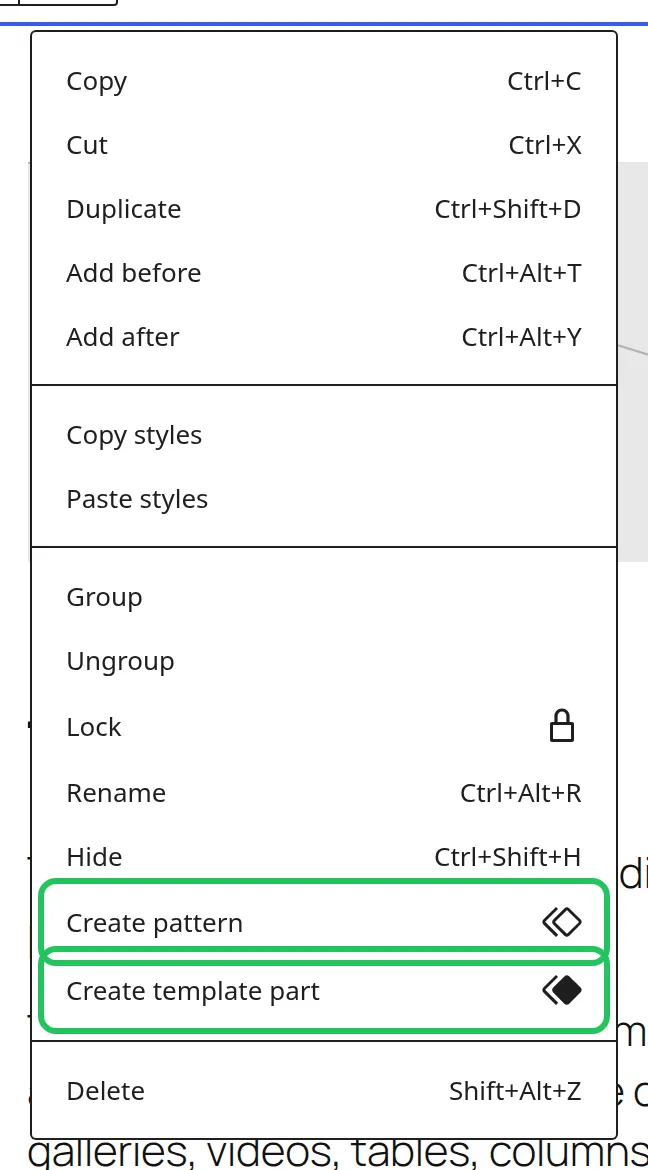
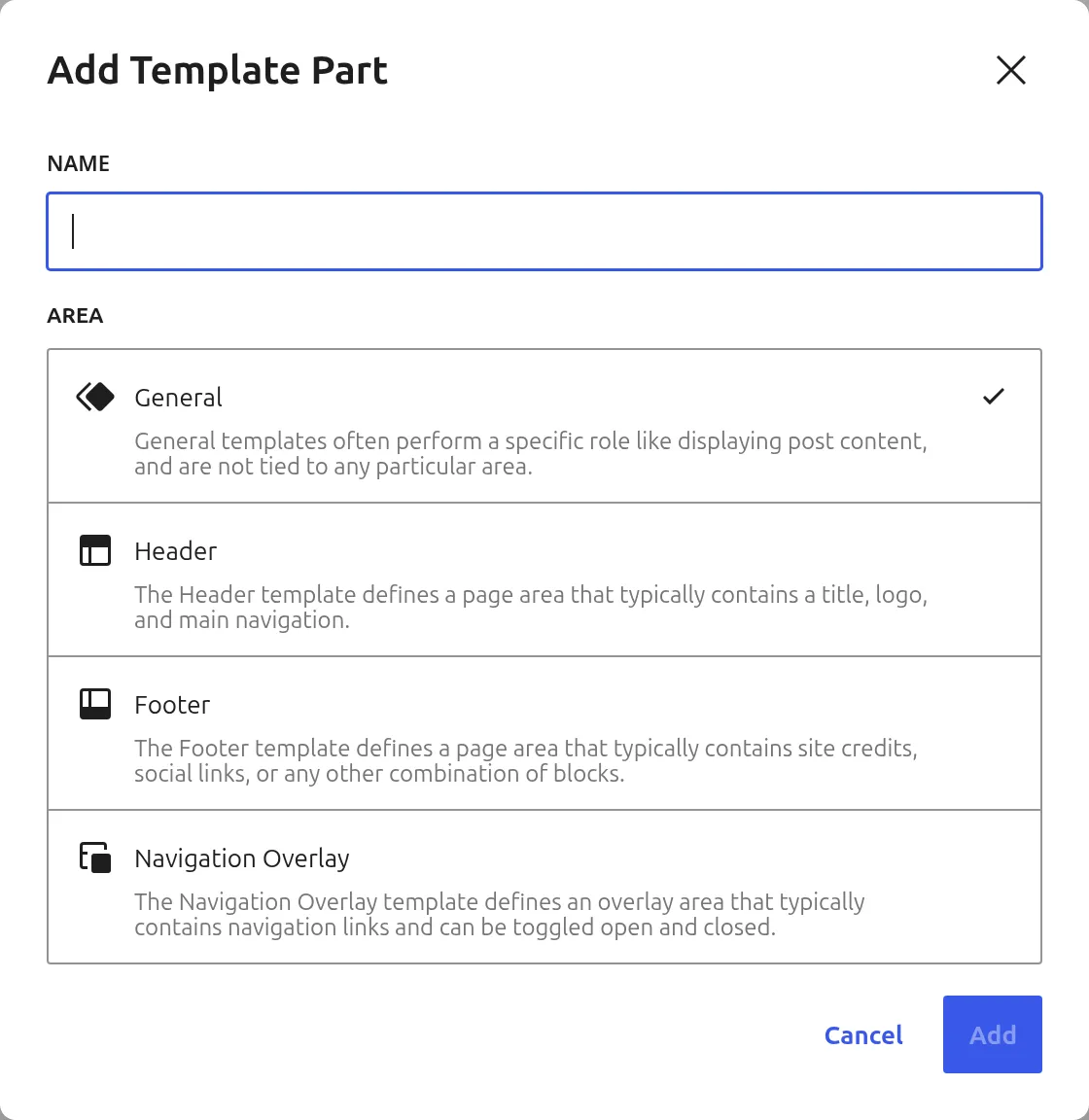
Turning blocks into a template part: this only works in the Site Editor (Appearance > Editor). Select the blocks, open the 3-dot menu in the toolbar and choose Create template part. The same menu also has Create pattern. In the normal page editor you’ll only see Create pattern.
WordPress then asks for a name and an area. There are 4 areas: General, Header, Footer and Navigation Overlay (a menu panel that opens and closes).
Breaking the link: click the template part or synced pattern, open the 3-dot menu and choose Detach. For a template part the menu also offers Replace, which swaps in a different header or footer.
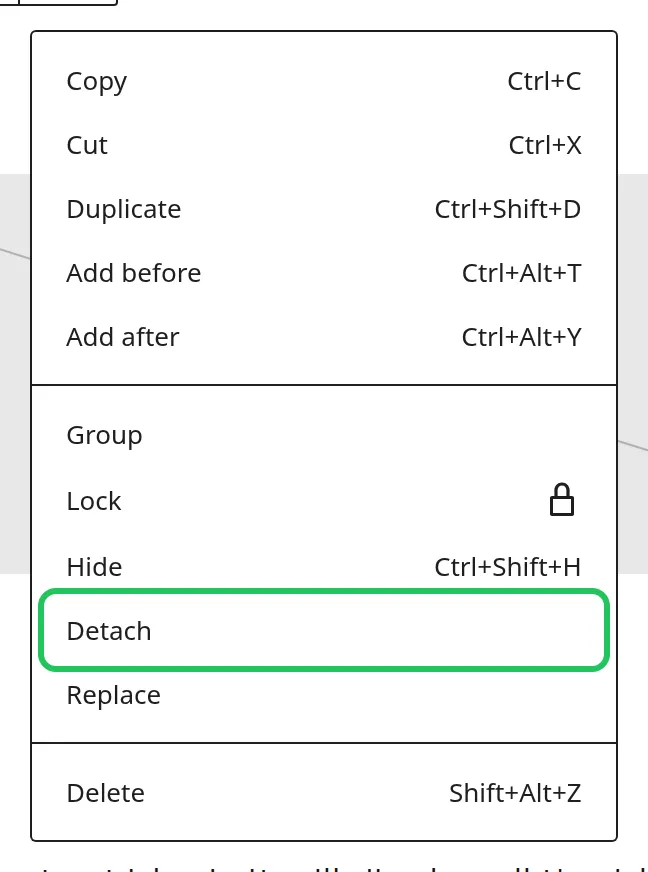
Detaching is a one-way street. The blocks stay where they are, but they become ordinary blocks in that one place. If you detach the header in one template and later update the real Header template part, that template won’t get the update. Detach only when you genuinely want that spot to break away from the rest of the site.
I usually recommend going pattern first, template part later. Build the section as a regular pattern, see if you actually want it everywhere, then turn it into a template part or synced pattern if it makes sense. That’s much safer than starting linked and accidentally changing pages you didn’t mean to touch.
If all this Site Editor talk has you missing the old days, my comparison of Classic Editor vs Gutenberg in 2026 walks through whether the classic interface is still a sensible choice.
FAQs
What is the primary use of WordPress Patterns?
I use regular patterns as starting points for content: dropping a ready-made call to action or testimonial layout into a post, then changing the words for that page.
What is the primary use of Template Parts?
Template parts hold the frame of my site: the header, the footer and the sidebar. They look the same on every page, so they’re stored once and shared.
Can WordPress Patterns be synced like Template Parts?
Yes. When you create a pattern from your own blocks, the Synced switch is on by default in WordPress 7.1, so every copy stays linked to the original. Turn it off and you get independent copies instead. Theme patterns you insert from the “+” button are always independent copies.
Can I use Patterns and Template Parts together?
Yes, I do this all the time. Twenty Twenty-Five lists 5 patterns in its Headers category, and dropping one into the Header template part is the quickest way to start a new header design.
The mental model that actually works
Once you stop thinking of patterns and template parts as 2 versions of the same thing, the editor stops feeling broken.
Regular patterns are stamps: a starting point you customize per page. Synced patterns and template parts are mirrors: 1 layout that shows up in every reflection.
Next time a header change refuses to show up across your site, click it and check the sidebar. If you see Edit pattern, you changed a copy. Go to Appearance > Editor > Patterns, open Header under the template parts and make the change there.