Is It Safe to Use Block Templates on an Older WordPress Theme?
I was editing a Services page on a Kadence site when I noticed a small icon next to the word Template in the sidebar. I clicked it, gave the new template a name and hit Create. When I viewed the page, the header, the menu, the logo and the footer were all gone.
That was a block template. If the same thing happened to you, the good news is your theme isn’t broken. Only that one page changed, and you can turn the block template off again in about 2 minutes, with no code.
I rebuilt this guide in October 2026 by doing exactly that on purpose, on WordPress 7.1.2 with Kadence 1.4.5 (a classic theme), and measuring what changed on the front end. Here’s what block templates really do on an older theme, how to spot them, and how to undo them.
What are “block templates” and why is my old theme suddenly using them?
A block template is a page layout built entirely out of blocks: the header, the content area and the footer, all edited in the block editor. On a block theme like Twenty Twenty-Five, every page uses one, and you edit them under Appearance > Editor.
Classic themes work differently. Their header and footer come from the theme’s own PHP files, and you style them in the Customizer. But WordPress lets a classic theme opt in to one small piece of the block system: custom block templates for individual pages and posts.
Plenty of themes do opt in. WordPress switches it on automatically for any classic theme that ships a theme.json file, and Kadence switches it on itself. So if you use Kadence (or a similar modern classic theme), the option has probably been sitting in your page editor all along.
What you don’t get on a classic theme is the full Site Editor. Your header, footer and site-wide layouts stay exactly where they were: in the Customizer.
How do I tell if my theme is currently using block templates?
There are 2 quick checks.
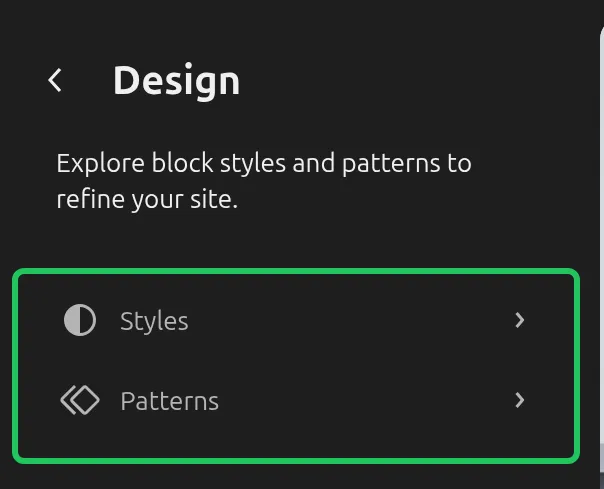
Check 1: the Appearance menu. Hover over Appearance in your dashboard. If you see Editor, you’re on a block theme and everything is built from block templates. If you see Design (or Patterns) instead, you’re on a classic theme.
On Kadence, Appearance > Design opens a screen with just 2 options, Styles and Patterns. There are no templates to edit there.
Check 2: the Template row in the page editor. Open any page for editing, click the Page tab in the right-hand sidebar and look for a row called Template. If it says Default template, the page is using your theme’s normal layout. Click it, and if the box that opens has a small “add template” icon, your theme supports custom block templates.
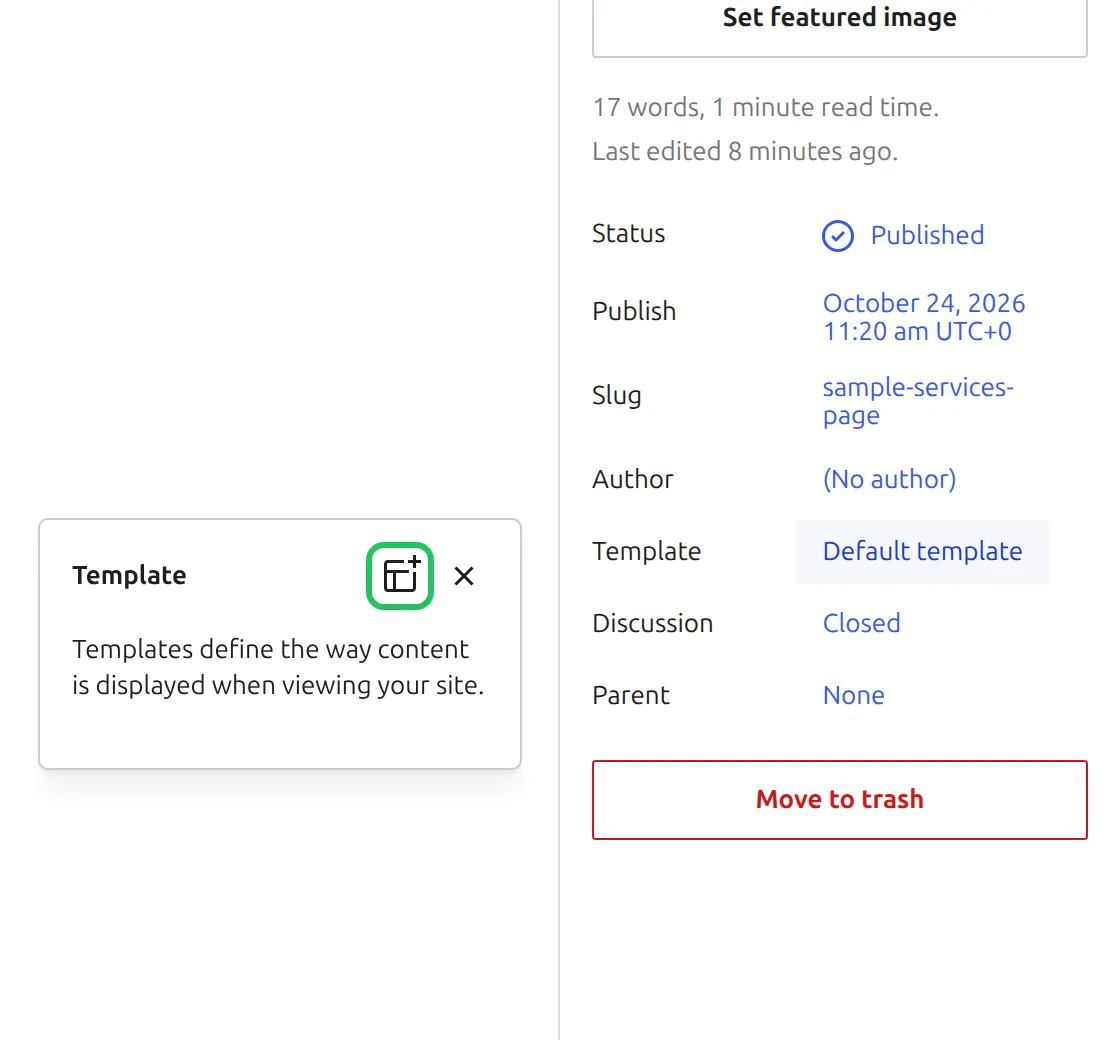
If there’s no Template row at all, your theme doesn’t use block templates and nothing in this article can happen to you.
Why you might want to turn off block templates in WordPress
Here’s what happens when you click that add-template icon. WordPress asks for a name, and as soon as you click Create, it saves a brand-new template and switches your page to it.
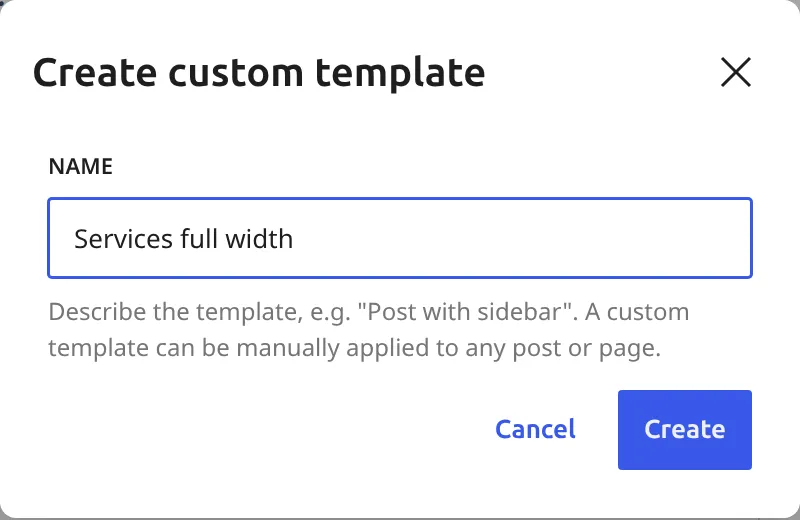
The new template is almost empty. On my Kadence test site it held 5 blocks: Site Title, Site Tagline, a divider, the page title and the page content. There was no logo, no menu, no header layout and no footer, because a block template doesn’t use any of the theme’s PHP.
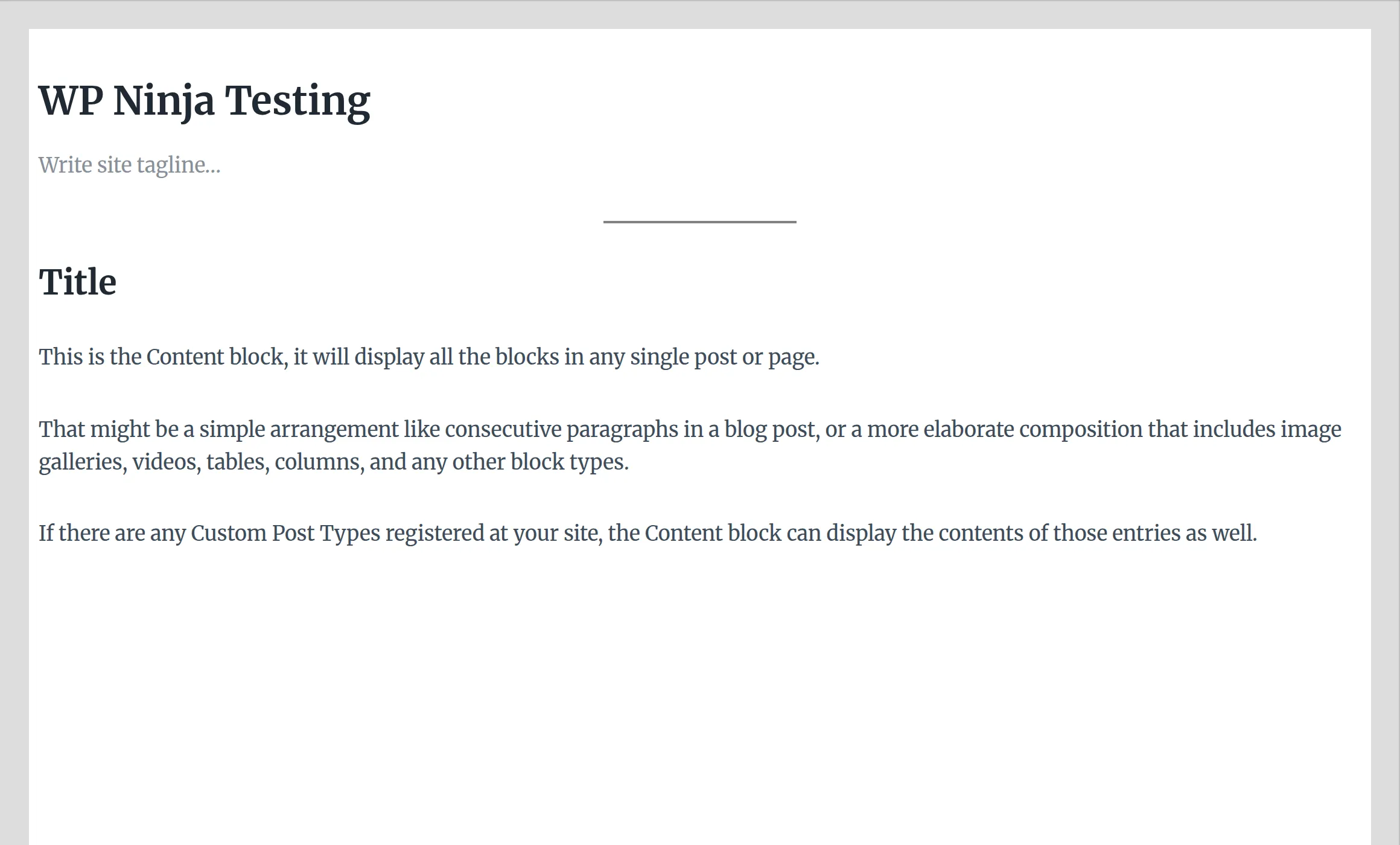
Save the page and view it, and you get the left side of this picture. The right side is the same page on Kadence’s default template.

I checked the page’s code before and after. Kadence’s header (masthead) and footer (colophon) disappeared completely, and the page shrank from 72,863 to 50,051 bytes. Every other page on the site still had its normal header and footer. The damage only applies to the page you assigned the template to.
So that’s the real risk. Block templates don’t quietly take over a classic theme, but one click in the page sidebar can strip the theme’s header and footer off a single page.
How do I turn off block templates in WordPress and go back to my Customizer?
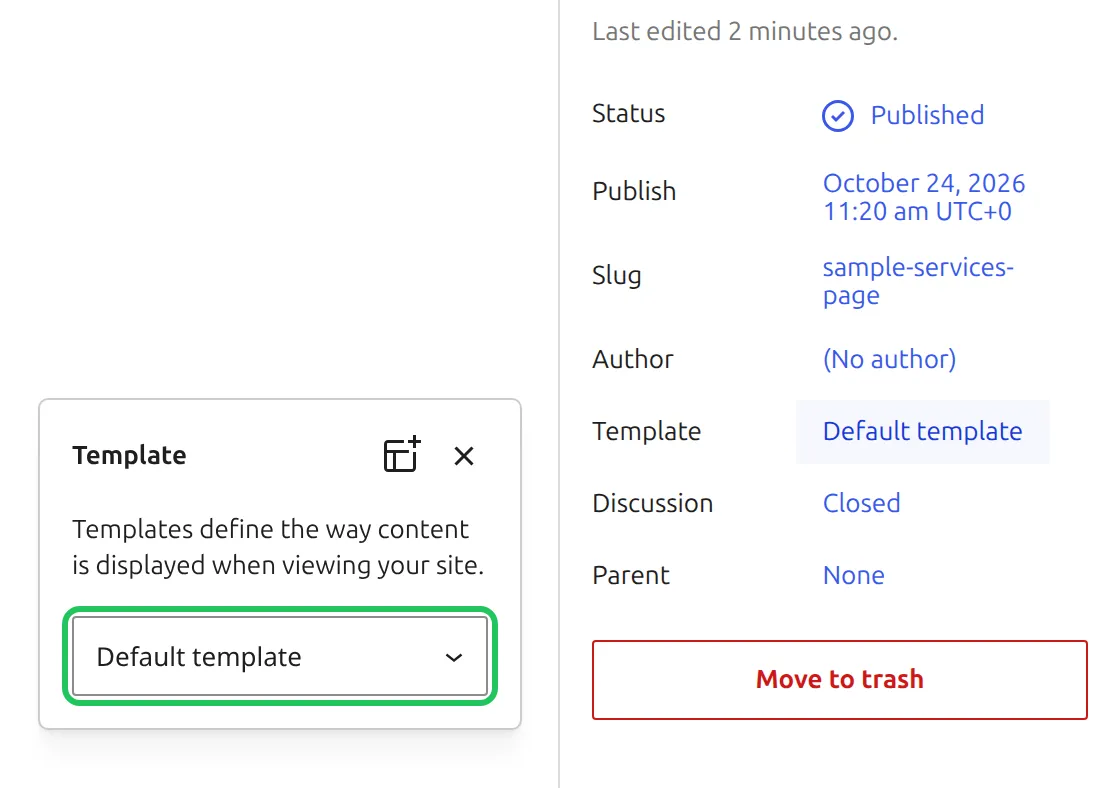
Step 1: put the page back on the default template. Open the page, click Template in the Page panel, pick Default template from the dropdown and click Save. That’s it. When I did this, the Kadence header and footer came straight back.
Step 2: delete the leftover template (optional). The custom template still exists after Step 1, ready to be picked again. On a classic theme there’s no template list to delete it from: on Kadence, the Site Editor’s template screen just says “The theme you are currently using does not support this screen.”
You delete it from the page editor instead. Pick the custom template in the Template dropdown (don’t save), click Edit template, then open the 3-dot menu next to the template’s name in the sidebar and choose Delete. WordPress asks you to confirm.
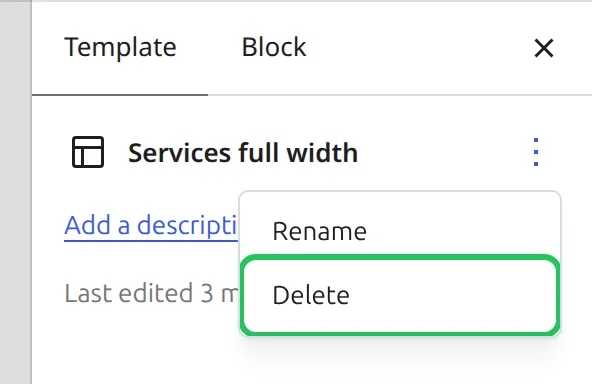
After the delete, WordPress shows “You attempted to edit an item that doesn’t exist. Perhaps it was deleted?” That message is harmless, so just leave the page without saving.
If a template gets deleted while a page still uses it, that page falls back to your theme’s normal layout on its own. I tested that too.
Step 3: hide the option for good (optional, Kadence). Kadence has a built-in switch for this. Add this one line with a free snippet plugin such as WPCode (as a PHP snippet that runs everywhere):
add_filter( 'kadence-theme-block-templates-support', '__return_false' );With that line active, the Template row disappears from the Page panel, so nobody can create a block template by accident. Do Step 1 on any affected pages first. For other themes, check the theme’s documentation for a similar setting.
What doesn’t work: you’ll find advice online to add a GUTENBERG_USE_LEGACY_TEMPLATES line to wp-config.php. That constant doesn’t exist in WordPress, so it does nothing. Installing the Classic Editor plugin doesn’t switch block templates off either. With Classic Editor 1.7.0 active, my custom template was still listed in the old Page Attributes > Template dropdown, ready to be picked.
My guide on where the WordPress Customizer went covers the Customizer side, if you’re not sure you’re in the right place.
My theme worked fine before – what changed?
If one page suddenly lost its header and footer while the rest of the site looks fine, a custom block template is the first thing to check. Open that page and look at the Template row. If it shows anything other than Default template, you’ve found it.
Someone has to create and assign that template. It could be you while exploring the sidebar, a co-worker or client with editor access, or an imported page that came with a template already assigned. A WordPress update doesn’t assign one to your pages on its own.
If every page changed at once, block templates aren’t the cause. Look at what else changed around that date (a theme switch, a page builder, a caching plugin) under Dashboard > Updates and in your plugin list.
When should I migrate to a block theme instead?
I’m not going to push you toward a block theme. Plenty of people use classic themes happily, and there’s no rule that says you have to switch. But there are 3 situations where a migration is genuinely the easier path.
The first is if you actually like editing layouts with blocks. A block theme gives you that for the whole site, header and footer included, instead of one page at a time.
The second is if your classic theme is unmaintained. If the author hasn’t pushed an update in 2 years, the risk of compatibility problems with future WordPress versions only goes up. Migrating now, on your schedule, is less stressful than migrating later when something breaks.
The third is if you’re starting a new site anyway. My guide on how to choose your first WordPress theme walks through that decision. If you do pick a block theme, read up on WordPress patterns vs template parts first, because that’s how block themes handle headers and footers.
If none of those 3 apply to you, stay on your classic theme. It’s the right call.
Should I just stay on my classic theme without block templates?
Yes, for most beginners I talk to, this is the right answer. The Customizer is still part of WordPress 7.1, and classic themes like Kadence still do all their header, footer and color work there. If you want a tour, I wrote up how the Kadence Customizer is organized.
Stay on your classic theme if 3 things are true. One: it works well for the kind of site you’re running. Two: the theme author still ships updates (check the last update date on the theme page). Three: you don’t need full site editing features like editing your header with blocks.
If all 3 are true, leave every page on Default template and keep using the Customizer. You’re not falling behind. You’re using the tool that fits your site.
FAQs
How do I disable the Template Editor in WordPress?
On a classic theme, the template editor only appears when you create or edit a custom template from a page’s Template row. On Kadence, one line in a snippet plugin (shown above) removes that row completely. Without it, keeping your pages on Default template is enough.
How do I turn off the Site Editor (Gutenberg) in WordPress?
The full Site Editor only comes with block themes. On a classic theme, Appearance > Design gives you just Styles and Patterns, and your header and footer stay in the Customizer. If you’re on a block theme and want the Customizer back for everything, you’d have to switch to a classic theme.
Can I delete default block templates?
Custom templates you created can be deleted. Open the template from a page’s Template dropdown, click Edit template, and use Delete in the 3-dot menu next to its name. Your classic theme’s normal layout isn’t a block template at all, so there’s nothing to delete there.
What happens if I use a block template on a classic theme?
The page you assign it to stops using the theme’s header and footer and shows only the blocks inside the template. When I tried it on Kadence, the page lost its header, menu, logo and footer. Every other page stayed the same, and switching back to Default template brought everything back.
You don’t have to use block templates
Here’s what I want you to take away. Block templates on a classic theme are an option, not a takeover. They only affect the pages you assign them to.
If a page lost its header, open it, set Template back to Default template and save. Delete the leftover template if you like, and add the one-line switch if you’re on Kadence and want the option gone. Your classic theme isn’t outdated, and WordPress still supports it.