
How to change font in WordPress depends on one thing: your theme. Block themes use Appearance > Fonts plus the Site Editor’s Styles panel. Classic themes like Kadence use the Customizer. And if your theme has no font settings at all, a free plugin adds them.
I did all 3 on a test site, with the same font every time, and counted what a visitor’s browser has to download. Same font, same 2 weights: one way cost 15.3 KB, another cost 99.3 KB. None of it needs code.
Which kind of theme do you have?
Open your dashboard and hover over Appearance. The menu tells you which kind of theme you’re on:
- Appearance > Editor means a block theme (Twenty Twenty-Five and the other recent default themes). Go to the block theme section below.
- Appearance > Customize means a classic theme (Kadence, Astra, GeneratePress, Twenty Twenty-One). Check the Customizer for a Typography section first.
Since WordPress 7.0, every theme also gets Appearance > Fonts. That’s new, and none of the guides I read before testing mention it. On a block theme it’s the main way to add fonts. On a classic theme it’s useful, but only up to a point (more on that below).
If you can’t find the Customizer at all, here’s where the WordPress Customizer went.
How I tested this
I built a test blog on my own computer: WordPress 7.1.5, one post with a heading, a subheading, a list, and some bold and italic text. Then I changed the font 14 ways across 3 themes: Twenty Twenty-Five (block), Kadence 1.6.0.1 (classic, free) and Twenty Twenty-One (classic, no font settings), plus the free Fonts Plugin 4.2.3.
For each setup I loaded the post 3 times in a fresh browser with an empty cache and logged every file it downloaded. Every number below is from those loads. Here’s how I test in general.
I used Poppins for body text in every test, because it’s popular and because it comes as separate files per weight. That makes the cost of each weight easy to see.
How to change font in WordPress with a block theme
On a block theme you do it in 2 parts: install the font, then pick it in Styles. I used Twenty Twenty-Five, which ships with a font called Manrope.
Part 1: Install the font in Appearance > Fonts
- Go to Appearance > Fonts and click the Install Fonts tab.
- The first time, WordPress asks permission to connect to Google Fonts. Click Allow access to Google Fonts.
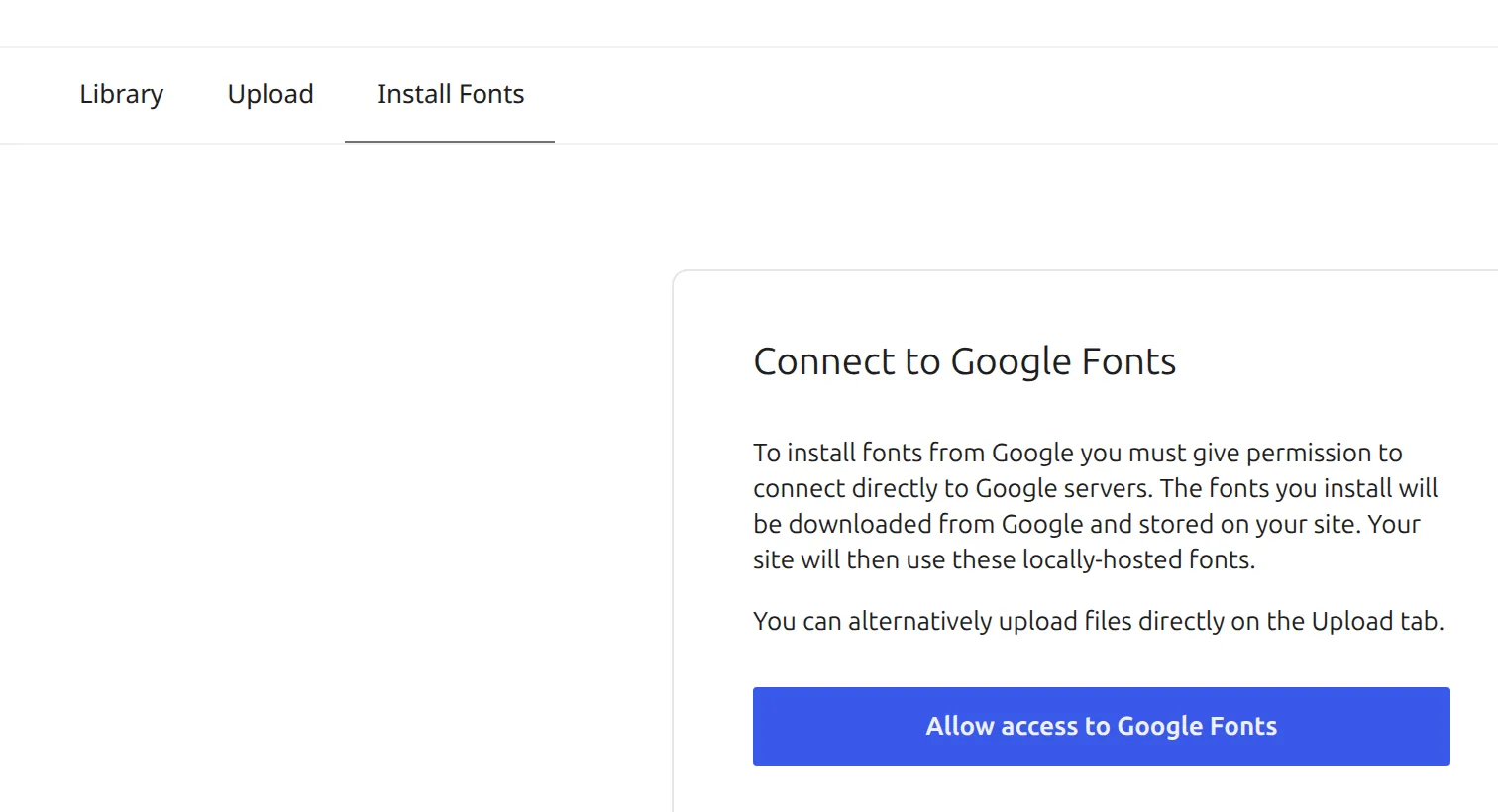
Read that permission message, because it answers a privacy question most people have. The fonts are downloaded from Google once, stored on your own site, and served from there. In my test, visitors’ browsers made 0 requests to Google. The files landed in wp-content/uploads/fonts.
- Type the font name in the search box (there are 1,949 Google fonts in the list) and click it.
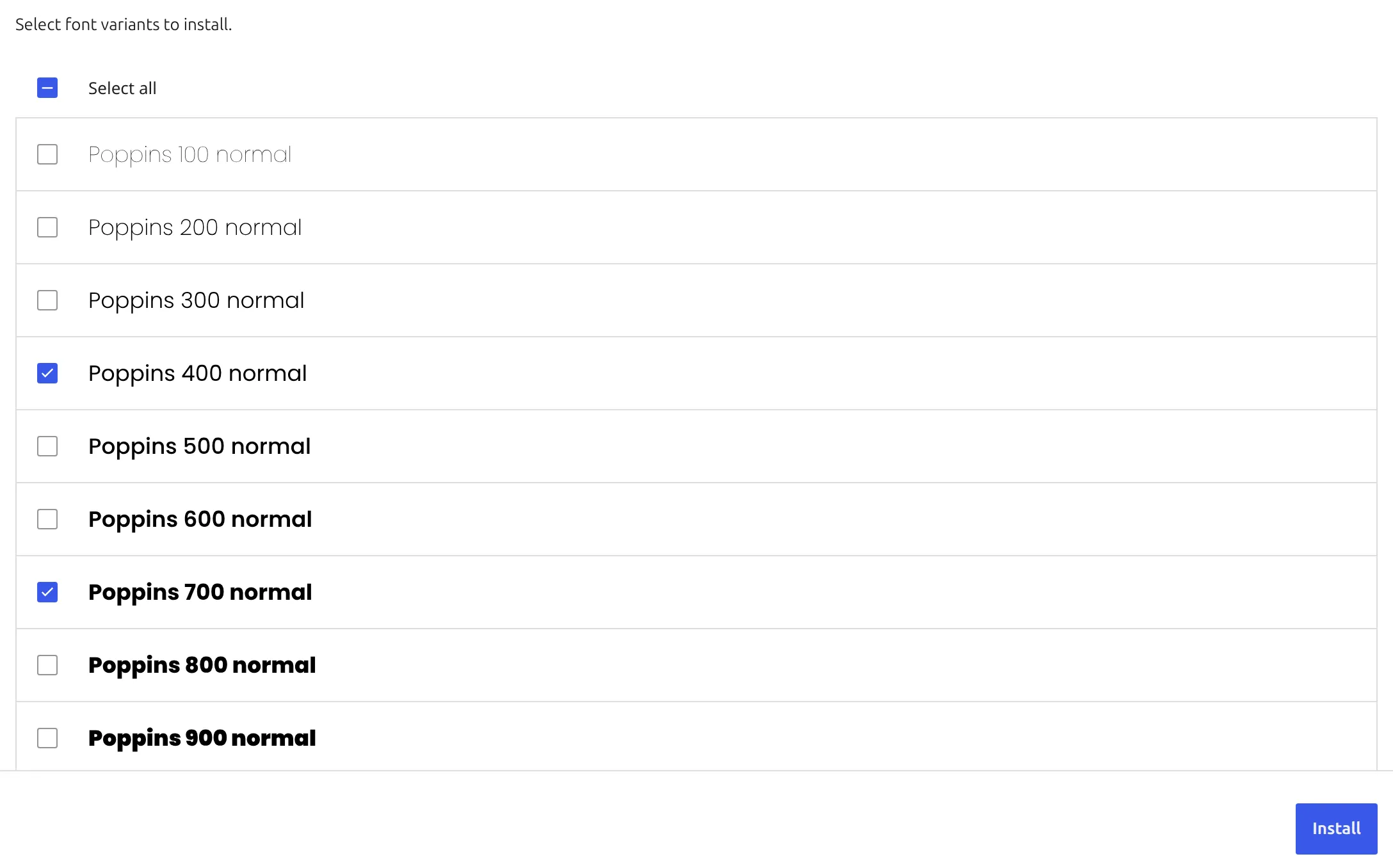
- Tick only the weights you need. I picked 400 (regular) and 700 (bold).
- Click Install.
Part 2: Pick the font in Styles
- Go to Appearance > Editor and click Styles.
- Click Typography, then Text.
- Open the Font dropdown and pick your new font. The preview on the right changes straight away.
- Click the blue save button. In WordPress 7.1 it reads Review 1 change…, then you confirm with Save.
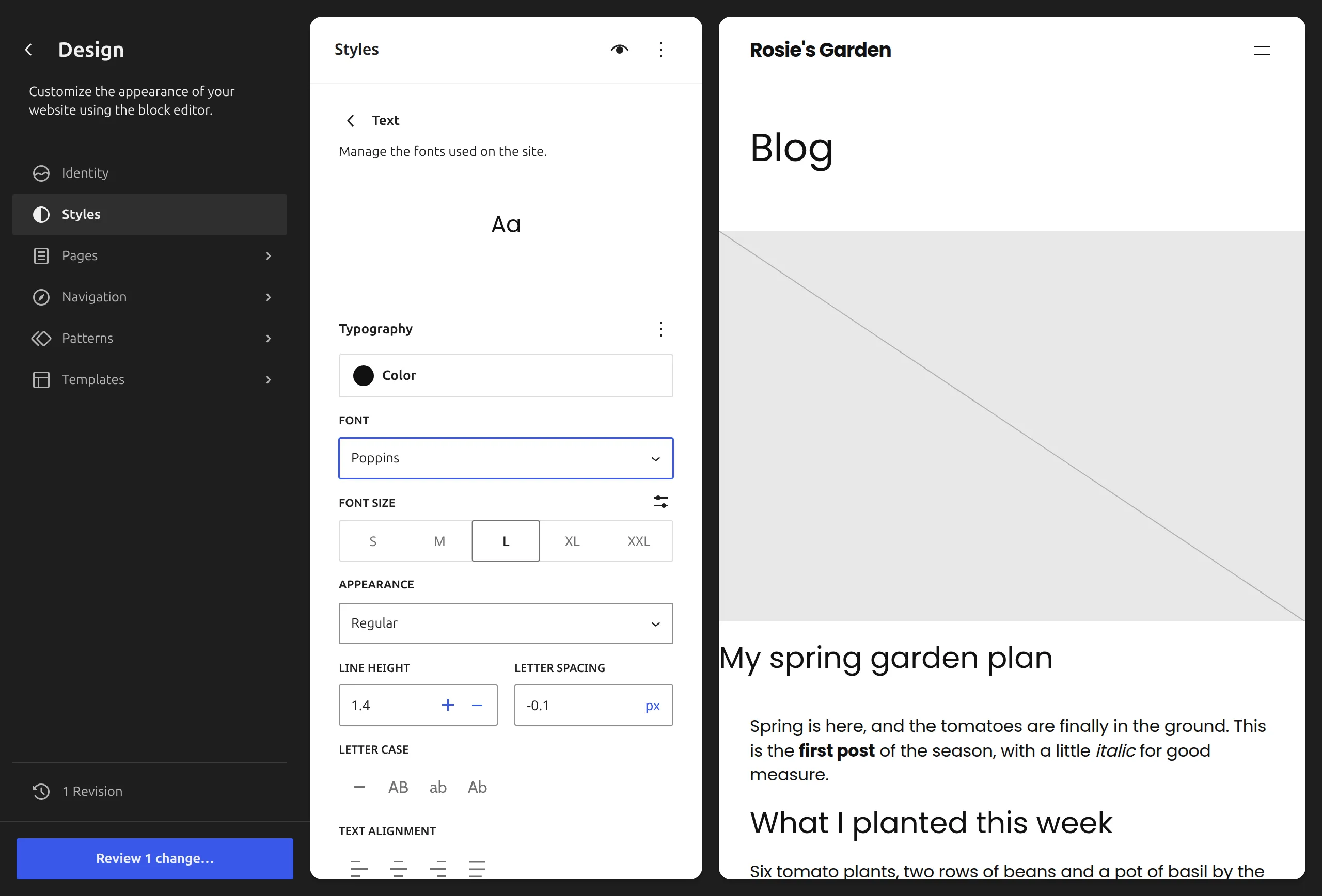
Headings in Twenty Twenty-Five follow the text font unless you change them, so this one setting switched the whole site. To give headings their own font, go back to Typography and open Headings (under Elements) instead of Text.
One thing I noticed: Twenty Twenty-Five sets body text to weight 300, which is lighter than regular. I hadn’t installed 300, so the browser used 400 instead. That’s fine, but if your text looks heavier than the theme demo, that’s why. Install the 300 weight too if you want the original look.
The catch: Font Library files are big
This is the number that surprised me. Each Poppins weight the Font Library installed was about 50 KB. The same weight from Google’s own servers (the way Kadence loads it) was 7.6 KB.
The reason: Google normally sends only the characters a page needs (Latin letters for an English site). The Font Library stores the complete font file, with every alphabet the font supports. Poppins includes Devanagari, so you download it whether you use it or not.
| Same font (Poppins 400 + 700) | Font files | What the visitor downloads |
|---|---|---|
| Font Library, block theme | 2 | 99.3 KB |
| Kadence, loaded from Google | 2 | 15.3 KB |
| Kadence, loaded locally | 2 | 15.3 KB |
So it’s 6.5 times heavier for the same 2 weights. On a fast connection you won’t notice 84 KB. On a slow phone connection, text in the new font takes longer to appear.
I’d still use the Font Library on a block theme, because it’s the built-in way and it keeps Google out of the picture. Just install 2 weights, not every box on the list.
Installing a font you don’t use costs visitors nothing, by the way. With Poppins installed but not picked anywhere, my test page still downloaded only Manrope (52.3 KB).
How to change font in WordPress with a classic theme (Kadence)
Classic themes keep fonts in the Customizer. I used the free Kadence theme. Other classic themes with font settings usually have a similar Typography section in the Customizer, but the menu names differ. Every setting in Kadence’s version is listed in my Kadence Colors & Fonts reference.
- Go to Appearance > Customize > Colors & Fonts > Typography.
- Under Base Font, click the font name (it says System Default on a fresh install).
- Type the font name in the search box and click it. Kadence’s list has 1,916 Google fonts.
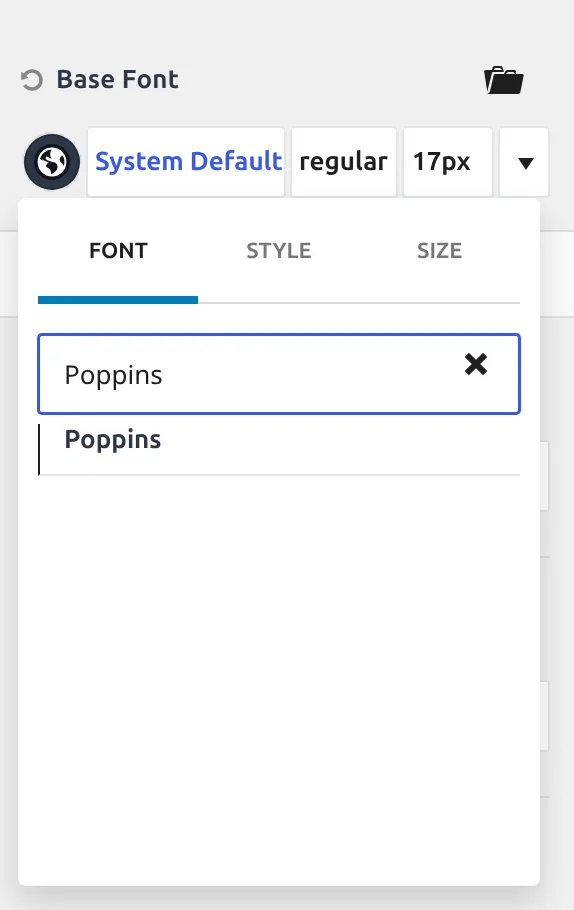
- Under Headings, set Heading Font Family if you want a different font for headings. I paired Poppins with Playfair Display. Leave it on Inherit to use the base font for headings too.
- Click Publish.
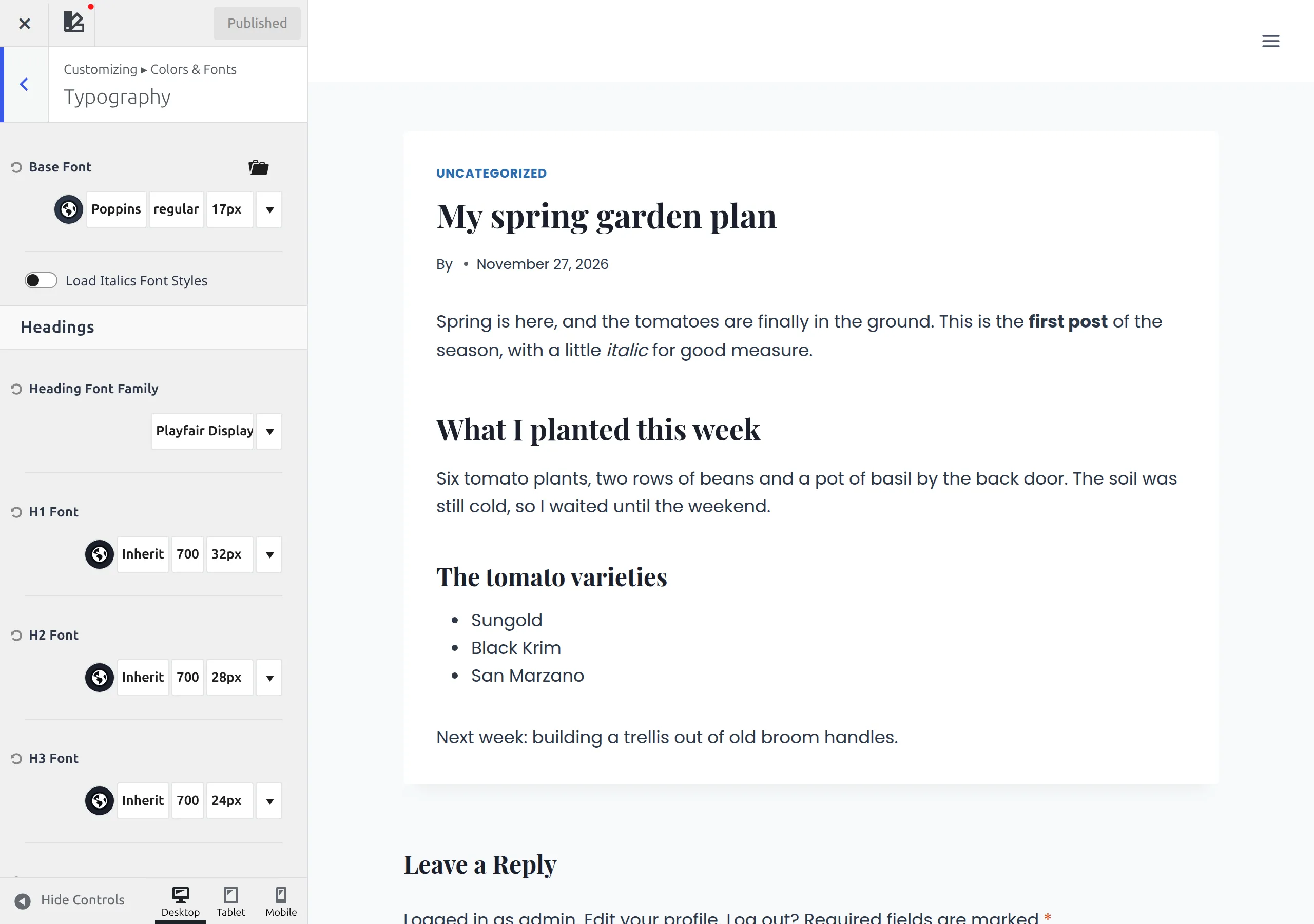
There are no weight checkboxes in Kadence, and you don’t need any. Each control (Base Font, H1 to H6) has one weight, and Kadence asks Google only for the weights those controls use. With Poppins and the default heading weights, that was exactly 2 files: 400 and 700.
Out of the box, Kadence uses each visitor’s system font (Segoe UI on Windows, for example). That downloads 0 font files, which is why a fresh Kadence site is so light. Every Google font you pick adds to that.
Turn on local fonts in the same session
Once you pick a Google font, Kadence loads it from Google’s servers by default. My test page made 4 requests to Google: 1 stylesheet and 3 font files. That sends each visitor’s IP address to Google, which is a GDPR issue for sites with European visitors.
The fix is one switch, but it’s not in Typography:
- Go to Appearance > Customize > General > Performance.
- Turn on Load Google Fonts Locally. Preload Local Fonts switches on with it.
- Click Publish.
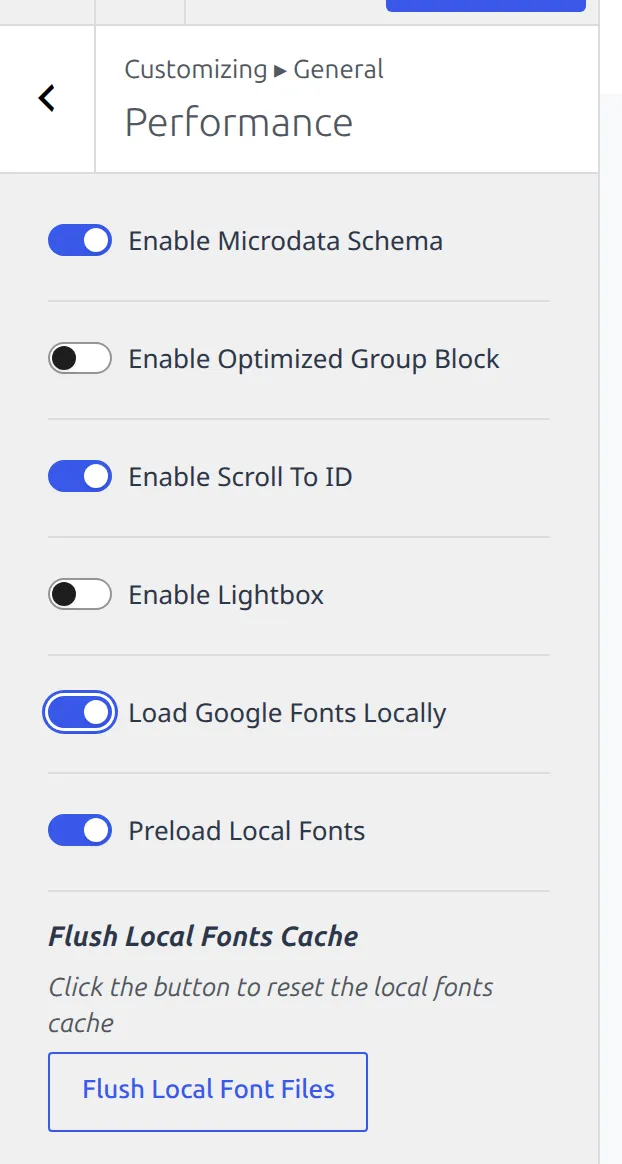
After that, my test page made 0 requests to Google and downloaded the same 3 files (38 KB) from my own site. The full walkthrough, including the failure case where Kadence quietly falls back to Google, is in how to load Google Fonts locally in Kadence Free. The legal side is in how to fix Google Fonts GDPR warnings in Kadence.
Can I use the new Fonts screen on a classic theme?
Yes, but only block by block. I installed Poppins through Appearance > Fonts on Kadence, and it never showed up in Kadence’s Customizer. The Customizer only lists its own Google fonts.
Where it did show up was the block editor:
- Open a post and click the paragraph or heading you want to change.
- In the block settings on the right, click the 3 dots next to Typography and tick Font.
- Pick the font in the Font dropdown that appears.
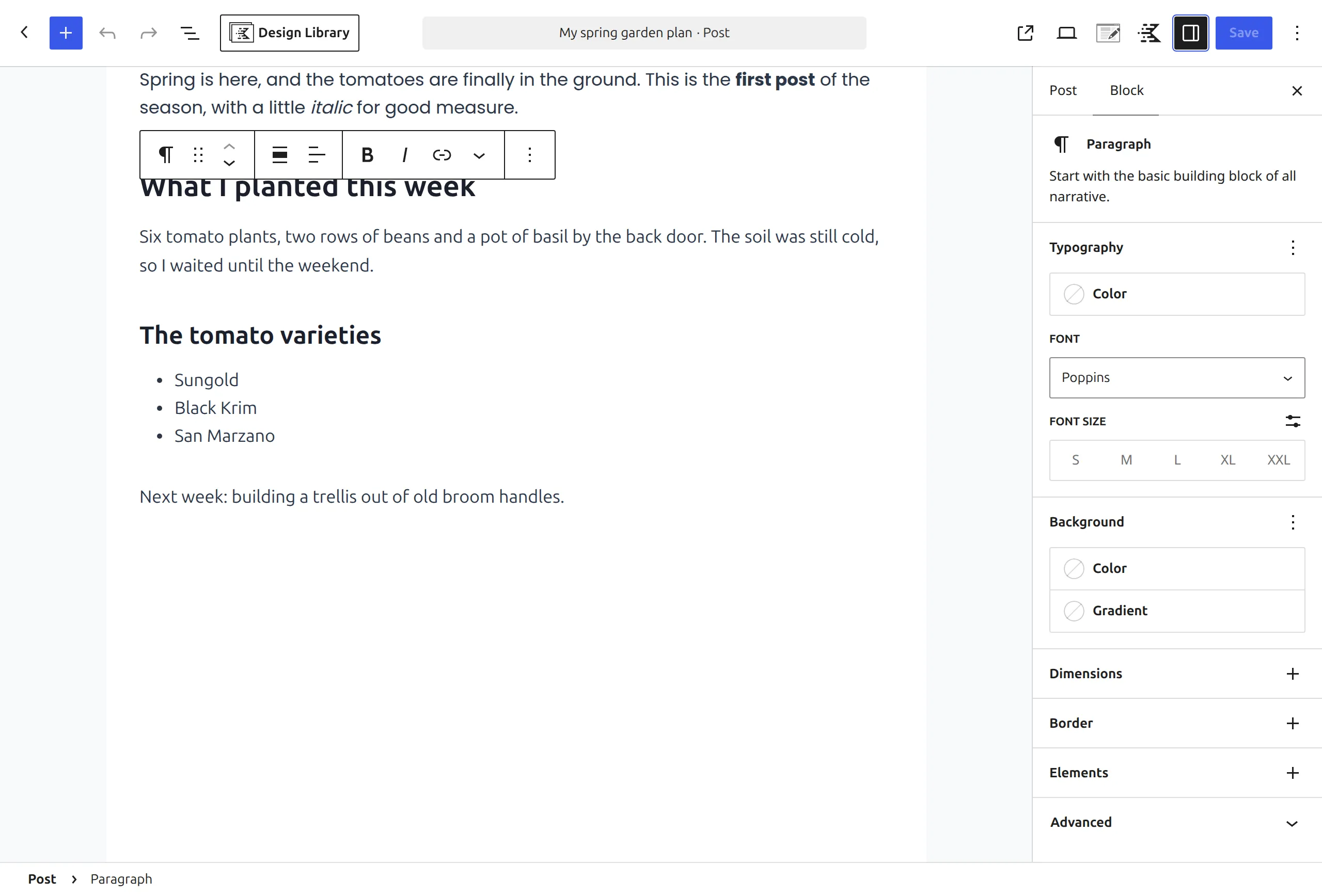
It worked on the front end. But it’s one block at a time, and those block settings beat your theme’s font. Change the theme font 6 months later and these blocks keep the old one. For a whole-site change on a classic theme, use the theme’s own Typography settings.
The Upload tab on the same screen is how you add a font file you bought (a .woff2 or .ttf file), with no plugin. The same rule applies: on a classic theme you can pick it only per block.
What if my theme has no font settings?
Some classic themes, like Twenty Twenty-One, have no Typography section at all. The free Fonts Plugin adds one (200,000+ active installs).
- Install and activate Fonts Plugin from Plugins > Add New.
- Go to Appearance > Customize > Fonts Plugin > Basic Settings.
- Pick a font under Base Typography and another under Headings Typography.
- Click Publish.
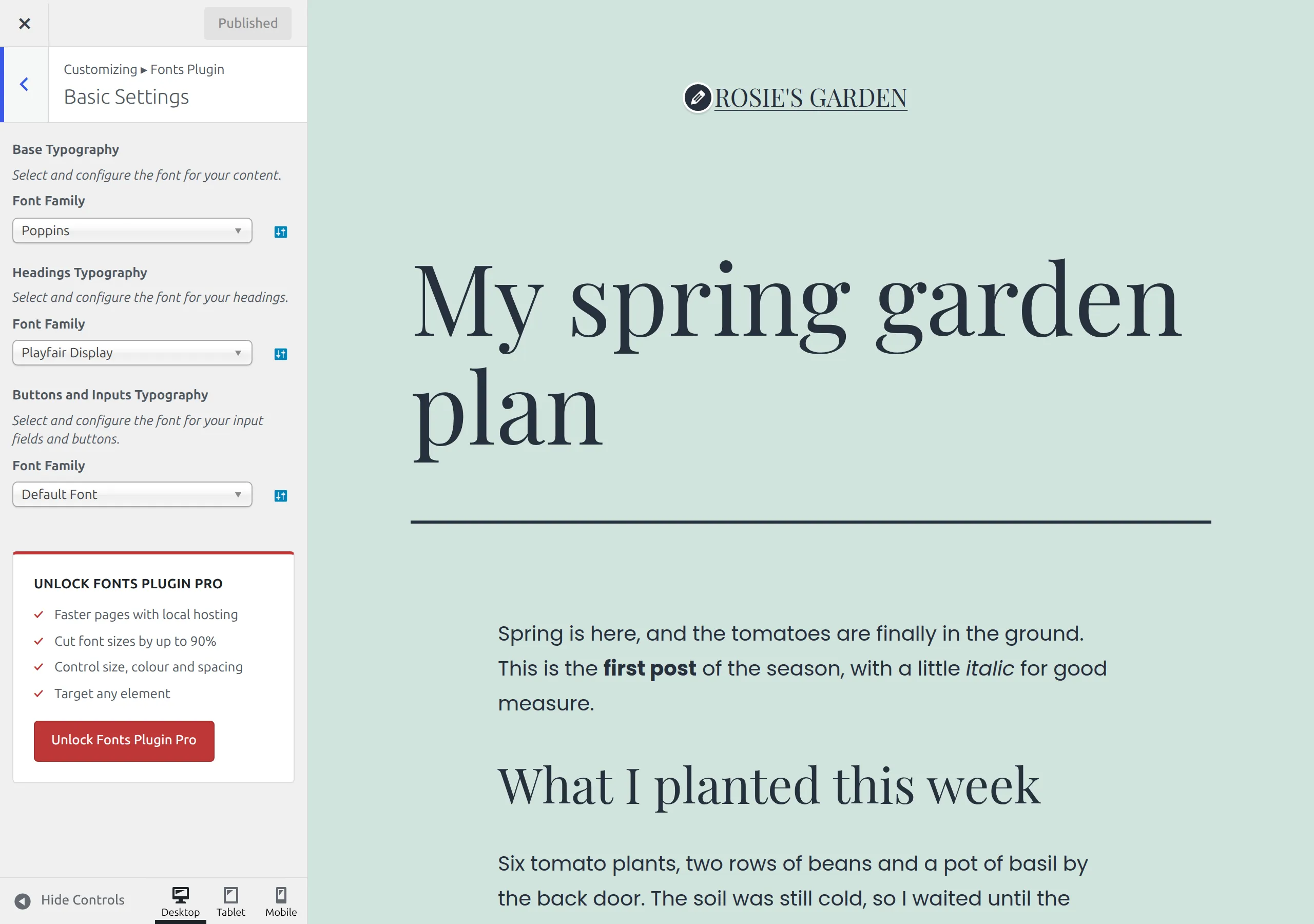
It works, and it was the heaviest Google option I measured. With the same 2 fonts, my page downloaded 5 font files, 68.9 KB, all from Google. Kadence downloaded 3 files (38 KB) for the same fonts.
The reason: Fonts Plugin asks Google for every weight and style of each font. The browser then downloads any of them the page uses. On Twenty Twenty-One that meant a weight-500 file and an italic file on top of regular and bold. The plugin has a Font Loading section for unticking weights, but in the free version every box is locked on and marked PRO.
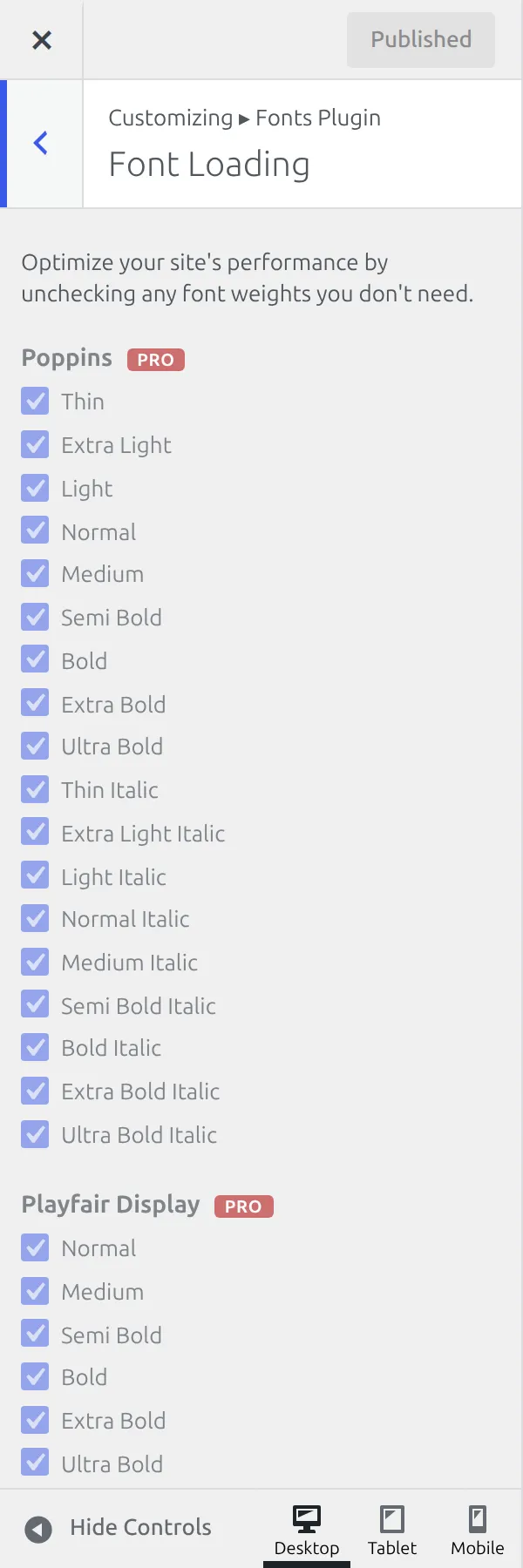
When I limited the weights to what the page needed (the Pro feature), it dropped to 3 files and 38 KB. Hosting the fonts on your own site is also Pro. Fonts Plugin Pro is a one-time payment, $59 list for 1 site on the day I checked. Uploading your own font files is free.
How many font weights should I use?
Fewer than you think, but the answer depends on the font. This is what each change added to my test page with Kadence:
| What I changed | Font files | Downloaded |
|---|---|---|
| Kadence default (system font) | 0 | 0 KB |
| Poppins, regular + bold | 2 | 15.3 KB |
| + a third weight (600 for H3) | 3 | 23.1 KB |
| + italics switched on | 3 | 23.8 KB |
| Lora instead, regular + bold | 1 | 36.9 KB |
| Poppins + Playfair Display headings | 3 | 38.0 KB |
2 things stand out. First, an extra Poppins weight costs about 8 KB, not the 30-50 KB I’d seen quoted. Second, Lora was 1 file for both weights, because it’s a “variable” font: one file holds every weight. So Lora costs the same 36.9 KB whether you use 1 weight or 5.
My rule: 1 font for body text, 1 more for headings if you want contrast, regular and bold for each. Don’t load a third family. For what else slows a site down, see why is my WordPress site so slow.
Why isn’t my font change showing?
These are the 4 causes I’d check, in this order:
- Caching. A caching plugin or your host’s cache can serve the old page. Clear it, then hard-refresh with Ctrl+Shift+R (Cmd+Shift+R on a Mac).
- A block-level font. If someone set a font on a single block (the Font dropdown above), that block ignores the site-wide setting. Click into it and clear the font.
- You changed the wrong panel. On a block theme, a change in Appearance > Customize does nothing to fonts. On Kadence, a font installed in Appearance > Fonts won’t appear in the Customizer.
- The Customizer didn’t save. If Publish doesn’t stick, here’s how to fix the Kadence Customizer not saving changes.
Frequently asked questions
How do I change the font on my whole WordPress site?
On a block theme: install the font in Appearance > Fonts, then pick it in Appearance > Editor > Styles > Typography > Text. On a classic theme: Appearance > Customize, then the theme’s Typography section. If your theme has neither, the free Fonts Plugin adds a font panel to the Customizer.
Can I change fonts in WordPress without a plugin?
Yes, on most themes. Block themes have the Font Library and Styles built in, and themes like Kadence have Typography settings in the Customizer. You need a plugin only when your theme has no font settings and you want a site-wide change.
Does changing fonts slow down WordPress?
A little, and you can measure it. In my tests, 2 weights of Poppins added 15.3 KB loaded through Kadence and 99.3 KB through the Font Library. Keep it to 2 fonts and 2 weights each, and it stays small.
How do I add a custom font to WordPress?
Go to Appearance > Fonts > Upload and add the .woff2 or .ttf file you have a licence for. On a block theme you can then pick it in Styles. On a classic theme you can pick it block by block, or use a plugin like Fonts Plugin, which uploads custom fonts in its free version.
Are Google Fonts GDPR compliant in WordPress?
Loading them from Google’s servers sends each visitor’s IP address to Google, which is the GDPR issue. Fonts installed through Appearance > Fonts are stored on your site, and Kadence’s Load Google Fonts Locally switch does the same for its fonts. In both cases my test page made 0 requests to Google.
The short version
- Block theme: Appearance > Fonts > Install Fonts, tick 2 weights, then Appearance > Editor > Styles > Typography > Text. Local by default, but heavier: 99.3 KB for 2 Poppins weights.
- Classic theme (Kadence): Appearance > Customize > Colors & Fonts > Typography, then switch on Load Google Fonts Locally under General > Performance. The lightest Google font option I measured: 15.3 KB.
- No font settings: free Fonts Plugin. It works, but it loads every weight from Google (68.9 KB for 2 fonts) unless you pay for Pro.
Before you change fonts on a live site, take a quick backup. My guide to backing up WordPress before changes shows the quick way to do it. And if your theme has none of these options, it may be time to pick a different theme.