WordPress White Screen of Death: How to Fix a Blank Page (Tested)
You open your site and there’s nothing. No header, no error, no message. Just white. This is the WordPress white screen of death, and it’s scary because the page gives you no clue at all.
Most guides were written for older WordPress, when every crash gave a blank page. That changed in WordPress 5.2. So I broke my own test site 13 different ways to find out which problems still give a truly blank page today. Only 7 did, and they came down to 5 causes that each need a different fix.
Here’s how to work out which white screen you have, and how to get your site back without touching any code you don’t understand.
Is it really a white screen?
Before you fix anything, look closely at what’s on the screen. On my test site, the “white screen” turned out to be 4 different things.
1. A completely blank white page. Nothing at all, not even text. This is the real white screen of death, and most of this guide is about it.
2. “This page isn’t working” with “HTTP ERROR 500”. This is what Chrome shows when your server sends back an empty error page. It comes from the same kind of problem as number 1, and I cover every kind of 500 in my 500 internal server error guide.

3. A white box saying “There has been a critical error on this website.” That’s not a white screen. A plugin or theme crashed and WordPress caught it, so you need my guide to fixing “There has been a critical error on this website” instead.
4. Half a page that suddenly stops. When a plugin crashed near the bottom of my homepage, the top half loaded, squeezed into a narrow white box, with the critical error message at the very end. Use the critical error guide for this one too.

If you see “Error establishing a database connection”, that’s a different problem again. Here’s how I fix the database connection error.
Why modern WordPress rarely shows a white screen
Since WordPress 5.2, WordPress watches for crashes and swaps the blank page for the critical error message. In my tests, it caught almost everything:
- a plugin calling code that doesn’t exist
- a plugin running out of memory
- a plugin running too long and hitting the time limit
- a typo in a plugin file
- a crash in a “must-use” plugin, the kind your host sometimes installs
All 5 gave the critical error page, not a blank one. That’s why the classic advice to “increase your memory limit” rarely fixes a white screen today. When my test plugin ran out of memory, WordPress showed the critical error, not a blank page.
So if your page is truly blank, something happened that WordPress’s safety net can’t see. On my test site, that came down to 5 causes, and they split into 2 groups.
Step 1: Check your dashboard and login page
Open yoursite.com/wp-login.php in a new tab. Then, if it loads, log in and open your homepage again while logged in.
What you see tells you where to look:
| What you see | Most likely cause | Go to |
|---|---|---|
| Login page blank too, Chrome says HTTP ERROR 500 | A mistake in wp-config.php | Step 4 or 5 |
| Login page blank too, no error | A plugin is stopping WordPress | Step 2 |
| Login works, homepage blank for visitors | Your theme | Step 3 |
| Logged in, homepage says “The theme directory … does not exist” | Your theme folder is missing | Step 3 |
On my test site, every theme problem left the login page and dashboard working. The silent plugin and both wp-config.php mistakes took the login page down with it.
Step 2: A plugin is stopping WordPress quietly
Some plugins stop WordPress without reporting an error. It might be leftover test code, or a plugin that gives up when something it needs is missing. When I made my test plugin do this, every page went blank, including the login page and the dashboard.
This is the hardest white screen to track down, because there’s no error anywhere. Debug mode showed nothing, and nothing was written to any log file. You find the plugin by switching plugins off.
You need your host’s File Manager (most hosting dashboards have one) or an FTP app like FileZilla. Open your WordPress folder, then wp-content, then plugins.
If you know which plugin it is (the one you just installed or updated), rename only its folder, for example contact-widget to contact-widget-off. Reload your site.
If you don’t know, rename the whole plugins folder to plugins-off. Then follow this order, because it matters:
- Log in to wp-admin.
- Open Plugins. WordPress shows a red notice for each plugin and switches them all off.
- Only now rename
plugins-offback toplugins.
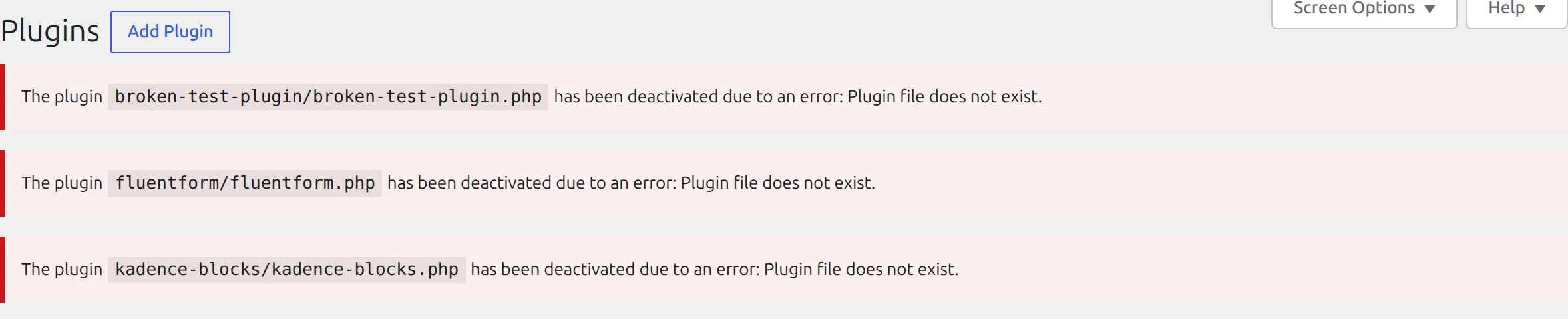
If you rename the folder back before opening Plugins, WordPress still thinks every plugin is on, and the blank page comes straight back. I tested this for the critical error guide, and it caught me out there too.
Then turn your plugins back on one at a time from the Plugins screen, and check your homepage after each one. When it goes blank, you’ve found it. Rename that plugin’s folder to switch it off, and leave it off until there’s a fixed version.
Step 3: Your theme has nothing to show
If your login page and dashboard work but your homepage is blank, the theme is the problem. WordPress loaded fine, but the theme gave it nothing to print. I found 2 ways this happens.
The theme folder is missing or renamed
This happens when a theme is deleted over FTP, renamed by mistake, or only half uploaded. When I renamed my active theme’s folder, visitors got a blank page with no error.
Logged in as an admin, I got a clear message instead:

That’s a good reason to always check your homepage while logged in. The fix is simple:
- If you renamed or moved the folder, put it back in
wp-content/themeswith its original name. - If it’s gone, go to Appearance > Themes in your dashboard.
When I opened Appearance > Themes, WordPress noticed the problem and switched my site to its default theme on its own.

Your site now loads again, but in Twenty Twenty-Five (or whichever default theme you have), so it’ll look very different. Your theme’s settings aren’t lost. Reinstall your theme, activate it again, and your design comes back.
A theme file is empty
If a theme file ends up empty, for example after an upload that stopped halfway or an edit that went wrong, WordPress has nothing to show. When I pointed my homepage at an empty template file, the page was completely blank, while the login page and dashboard kept working.
The fix is a fresh copy of your theme:
- Download your theme again from wordpress.org or from the theme seller.
- Go to Appearance > Themes > Add Theme > Upload Theme and upload the zip file.
- WordPress sees you already have it and offers Replace installed with uploaded. Click it.
This replaces the theme’s files but keeps your settings, because those are stored in your database. If you’ve edited the theme’s files yourself, those edits will be gone, which is one more reason to use a child theme.
Step 4: A mistake in wp-config.php
wp-config.php is the file in your main WordPress folder that holds your database login and settings. It runs before WordPress’s crash protection starts. So if there’s a mistake in it, WordPress can’t show the critical error message, and you get an empty page with HTTP ERROR 500 everywhere, login page included.
On my test site, 2 small mistakes did it:
- a missing semicolon (
;) at the end of a line I’d added - a pasted code snippet that called something WordPress hadn’t loaded yet
Think about the last time you or a plugin changed this file. Common culprits are a memory limit line, a debug line, or a snippet copied from a tutorial.
Open wp-config.php in File Manager, find what you added, and check it character by character. Every define( ... ) line should end with ); and use straight quotes ', not curly ones.
If you can’t spot it, remove the lines you added and save. If your host or a backup plugin kept a copy of wp-config.php from before the change, comparing the 2 versions is the quickest way to find the mistake.
Don’t expect debug mode to help here. I turned on WP_DEBUG and WP_DEBUG_LOG above the broken line. The page stayed blank, and no debug.log file was created, because WordPress never got far enough to set them up.
The error was only in the server’s own PHP error log. Most hosting dashboards have an “Error log” or “Logs” section. If you can’t find it, ask your host’s support for “the PHP error log for my site”. The line you’re looking for starts with “PHP Fatal error” or “PHP Parse error” and ends with wp-config.php and a line number.
Step 5: Someone switched off WordPress’s crash protection
There’s one more cause of an empty 500 page, and it’s rare. WordPress lets you switch off its crash protection with this line in wp-config.php:
define( 'WP_DISABLE_FATAL_ERROR_HANDLER', true );Developers sometimes add it while testing and forget to remove it. With this line in place, a plugin crash on my test site gave an empty page with HTTP ERROR 500 instead of the critical error message. So did running out of memory.
Search your wp-config.php for WP_DISABLE_FATAL_ERROR_HANDLER. If it’s there, delete the line and reload your site. You’ll most likely see “There has been a critical error on this website” now, which is good news: it means WordPress is catching the crash again. Then follow the critical error guide to find the broken plugin.
Why debug mode often shows nothing
Almost every white screen guide tells you to turn on WP_DEBUG first. On my test site, it helped in just 1 of the 5 blank page cases:
| Cause | What WP_DEBUG showed |
|---|---|
| Plugin stops WordPress quietly | Nothing |
| Theme folder missing | Nothing for visitors |
| Theme file empty | Nothing |
| Mistake in wp-config.php | Nothing, and no debug.log file |
| Crash protection switched off | The error, with the plugin’s folder name |
That’s because 3 of these causes aren’t errors at all, and the 4th happens before WordPress can turn debug mode on. So skip straight to the steps above. If you do want to try debug mode, the 3 lines are in my critical error guide.
After the fix: clear your cache
Once your site works for you, open it in a private browser window too. If you use a caching plugin, purge its cache, and do the same in Cloudflare or your host’s dashboard if you use them.
A cache rarely causes the white screen in the first place. WP Super Cache, for example, refuses to save a blank page. But it can keep showing visitors an older copy of your pages for a while after the fix, so purging makes sure everyone sees the same thing you do.
How do I stop this happening again?
Change one thing at a time. Update plugins one by one, and test your site after each one. I walk through the safe order in how to update plugins without breaking your site.
Back up before you edit wp-config.php. Download a copy of the file before you change it. If the site goes blank, upload the copy and the site is back.
Keep automatic backups. A backup puts everything back if a fix goes wrong. I restored a broken site with 6 free plugins in my backup plugin roundup.
FAQs
What causes the WordPress white screen of death?
On a modern WordPress site, most plugin and theme crashes show “There has been a critical error on this website” instead. A truly blank page usually means a plugin stopped WordPress without an error, the theme folder is missing, a theme file is empty, there’s a mistake in wp-config.php, or WordPress’s crash protection was switched off.
Why is my WordPress site showing a blank page but the dashboard works?
That points to your theme. On my test site, a missing theme folder and an empty theme file both left the dashboard working while visitors saw a blank page. Log in and open your homepage: if WordPress says “The theme directory … does not exist”, put the folder back or open Appearance > Themes.
Will increasing the memory limit fix a white screen?
Usually not on current WordPress. When my test plugin ran out of memory, WordPress showed the critical error page, not a blank one. It’s only blank if WordPress’s crash protection has been switched off in wp-config.php.
Why does Chrome say “HTTP ERROR 500” instead of a white screen?
Chrome shows its own “This page isn’t working” page when the server returns an error with an empty page. On my test site, that came from a mistake in wp-config.php or from the WP_DISABLE_FATAL_ERROR_HANDLER line. Check both in Step 4 and Step 5.
Will I lose my content fixing a white screen?
No. Your posts, pages and settings live in your database, and none of these fixes touch it. Renaming plugin or theme folders only switches them off.
A blank page gives you no clues, but there are only a handful of places to look. Check whether your login page works, then go to the matching step. In most cases you’ll have your site back by renaming one folder or fixing one line.