Why Is My Old WordPress Logo Still Showing in Google Search?
If you have a WordPress favicon not updating in Google, you aren’t alone. You uploaded a shiny new icon, your browser tab shows it, and Google still shows the old one (or a plain globe) next to your search result.
Don’t panic. In most cases nothing is broken on your end.
Google fetches favicons on its own schedule, and its own documentation says that can take “several days to several weeks”. But I found 2 things on my test site that can make the wait longer than it needs to be, and one test that’s commonly recommended gives the wrong answer on many hosts. Here’s what I checked, in the order I’d check it.
Why is my WordPress favicon not updating in Google?
The small icon next to your site name in Google is your favicon. WordPress calls it the Site Icon. It’s a separate setting from the logo in your header, so swapping the header logo never changes what Google shows.
When Googlebot crawls your homepage, it reads the icon links in the page’s code, then fetches the image with a second crawler (Googlebot-Image). Google doesn’t fetch the icon every time someone searches. It checks back on its own timetable, and there’s no setting on your side that forces an instant update.
Your browser works differently. It grabbed the new icon the moment you visited your site, which is why your tab looks right while Google’s result doesn’t. Two separate copies, updated at different times.
So the job is simple: make sure the new icon is really live on your homepage, avoid changing it again, and ask Google to take another look.
How do I confirm my new favicon is actually live?
Don’t skip this part. If your homepage still points at the old icon, no amount of waiting will help.
The check that matters is the one Google does: look at your homepage’s code. Open your homepage, press Ctrl+U (Cmd+Option+U on a Mac) to view the page source, then press Ctrl+F and search for icon. A WordPress Site Icon shows up as 4 lines like these:

Look at the file names in those lines. If they match the icon you just uploaded, your site is telling Google about the new one. If they still show the old file name, your change didn’t save, or a cache is still serving an old copy of the homepage.
That second case is common. A Site Icon is a site-wide setting, and in my cache test WP Super Cache refreshed neither the homepage nor a blog post after a site-wide Customizer change. So purge your caching plugin after you change the icon, then check the source again in an incognito window (Ctrl+Shift+N in Chrome). My guide on WordPress changes not showing on the live site shows the purge button for each cache layer.
Don’t trust the yoursite.com/favicon.ico test. It’s a popular tip, but WordPress doesn’t create a favicon.ico file.
When that address reaches WordPress, it redirects to your Site Icon. On nginx servers with a common favicon rule, the request never reaches WordPress at all, so you get a 404 page. My own site returns a 404 there, and Google shows the ninja icon next to every result anyway, because Google reads the icon links in the page source.
Want a rough look at what Google has stored? Paste this into your browser with your own domain: https://www.google.com/s2/favicons?domain=yoursite.com&sz=64. It returns the icon Google’s favicon service holds for your domain, or a small globe if it has none. Google doesn’t document it as the search results cache, so treat it as a hint, not proof.
Where do I update the favicon in WordPress?
The one path that works on every theme is Settings > General. Scroll down to Site Icon, click Change Site Icon, and pick your new image. Then scroll to the bottom and click Save Changes. The icon isn’t saved until you do.
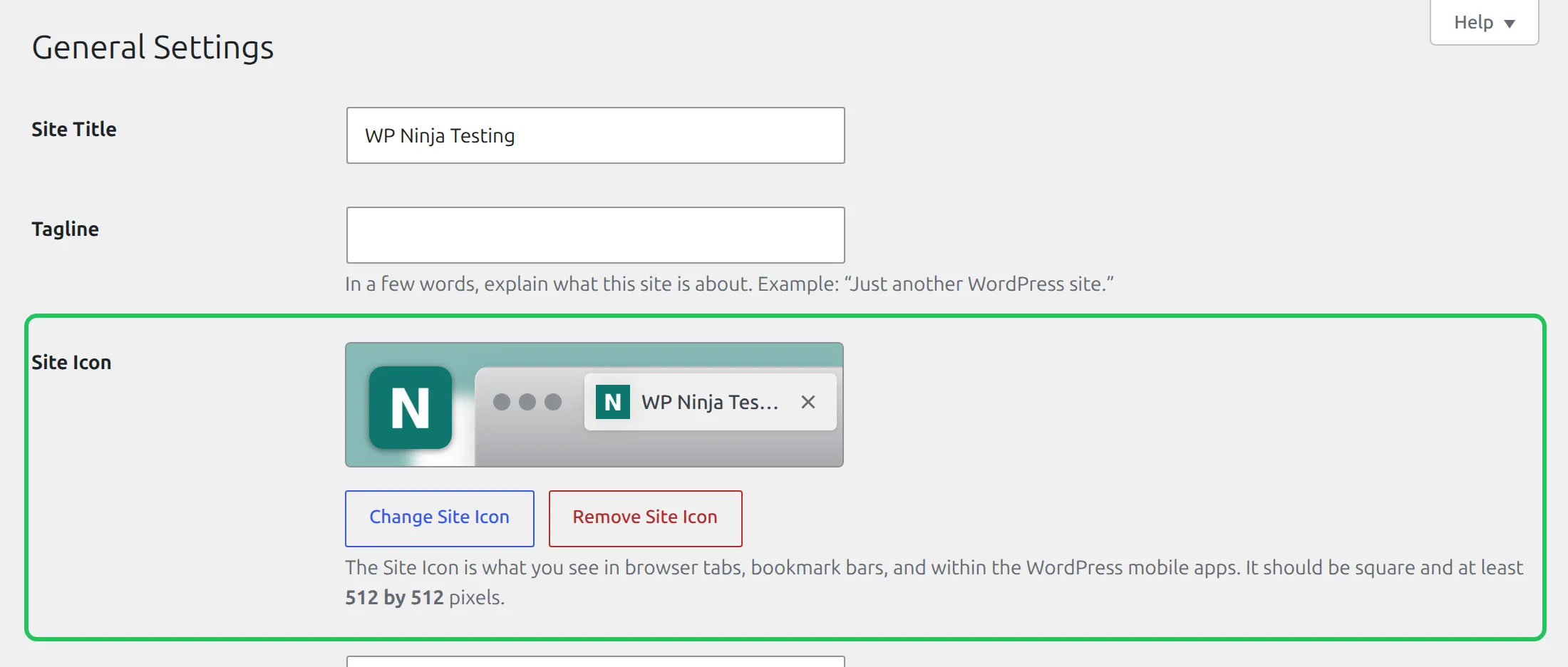
Your theme may show the same setting somewhere else too. All of these change the same Site Icon:
- Classic themes (Kadence, Astra, GeneratePress and most older themes): Appearance > Customize > Site Identity > Site Icon, then click Publish. In Kadence the same control is also reachable from Header > Site Identity, in the same panel as the Logo setting it’s easy to mix it up with.
- Block themes (Twenty Twenty-Five and most themes from 2024 onwards): Appearance > Editor > Identity, where Site Title, Tagline, Site Logo and Site Icon sit on one screen.
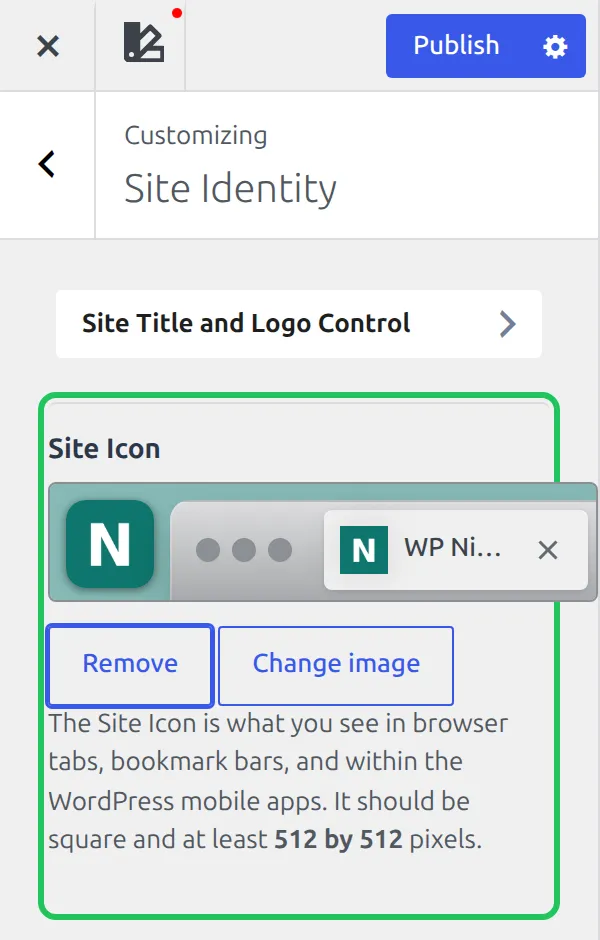
If you can’t find Customize in your menu at all, my guide on where the WordPress Customizer went covers why it disappears. And if you click Publish in the Customizer and nothing seems to stick, my Kadence Customizer not saving changes fix walks through the causes I could reproduce.
Why shouldn’t I keep re-uploading my favicon?
This one surprised me. Every time you pick an image for the Site Icon, WordPress makes a brand-new copy of it called cropped-yourfile.png, with new file names for every size. It doesn’t overwrite the old files.
I tested it by uploading the exact same image twice. The second time, WordPress named it cropped-new-icon-teal-1.png, so all 4 icon links on the homepage pointed to new addresses, even though the picture hadn’t changed by a single pixel.
That matters because Google’s favicon guidelines say the favicon URL “must be stable (don’t change the URL frequently)”. If you re-upload the icon 3 or 4 times while waiting for Google, every upload hands Google a new address to fetch.
So pick your final icon, upload it once, and leave it alone. If you spot a mistake, fix it in one go rather than in 5 small tries.
How do I tell Google to refresh my favicon?
This is the step that can speed things up. Google’s favicon documentation tells you to request indexing of your home page, because that’s the page where Google reads your icon links.
Log into Google Search Console. If you haven’t set it up yet, it’s worth doing anyway – you’ll need it to see how your meta descriptions perform in search and almost everything else about your rankings.
- Click URL Inspection in the left sidebar.
- Paste your homepage address into the bar at the top (just
https://yoursite.com/) and press Enter. - Wait for the result, then click Request Indexing.
Request indexing for the homepage, not for individual posts. Google only supports one favicon per site, and it reads it from the homepage. Search Console limits how many indexing requests you can send per day, so one request is enough – clicking it again doesn’t move you up a queue.
Resubmitting your sitemap is optional and doesn’t target the favicon. If you want to do it anyway, open Sitemaps in the sidebar, type the same sitemap address into Add a new sitemap and click Submit. There’s no “Resubmit” button; submitting the same address again is how Google’s help page says to do it. If you haven’t picked an SEO plugin to make your sitemap yet, my Rank Math vs Yoast SEO comparison covers the sitemap settings in both.
How long until the new favicon shows in search?
Google’s own answer is “several days to several weeks”, and that’s as precise as anyone outside Google can honestly be. There’s no public timer, and Google also says a favicon isn’t guaranteed to show even when every guideline is met.
I know that’s frustrating when you’ve done everything right. But it does mean a week of seeing the old icon isn’t a sign that something’s wrong.
If a month or more has passed and the old icon is still there, run through this list:
- Check the page source again (Ctrl+U, search for
icon) in an incognito window. The links must name your new file. - Open the 192×192 link from the page source in a new tab. The new icon should load, not a 404.
- Open
yoursite.com/robots.txtand make sure no line blocks/wp-content/or/wp-content/uploads/. That’s where WordPress stores the Site Icon, and Google’s crawler has to be allowed to fetch it. WordPress’s default robots.txt only blocks/wp-admin/, so this only bites if you or a plugin added a rule. - In Search Console, open the Page indexing report and URL Inspection for your homepage, and check that Google can crawl it without errors.
- Request indexing for the homepage one more time – once.
What if my favicon broke entirely?
A different problem: Google shows a plain globe, or your icon looks fuzzy. That’s not a waiting game – something about the file needs fixing. I uploaded 5 test files on my test site to see what WordPress accepts.
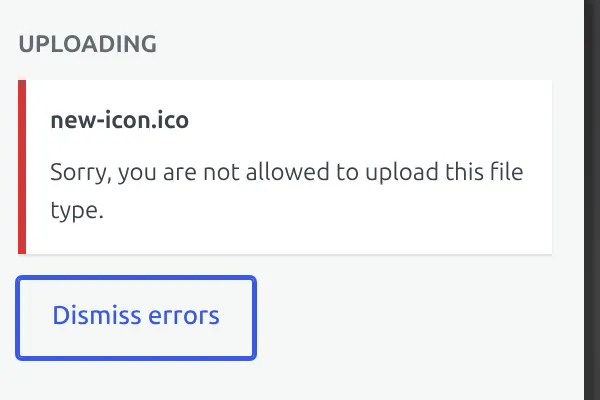
Use a PNG or JPG. Google lists ICO among the formats it supports, but WordPress refused my ICO file with “Sorry, you are not allowed to upload this file type.” An SVG failed too, with “This file cannot be processed by the web server.” So the Site Icon has to be a regular image file – PNG is the safe choice.
Make it square and at least 512 by 512 pixels. Google’s minimum is tiny (8×8) and it recommends anything larger than 48×48, but WordPress asks for 512×512 because it makes all the other sizes from that one image. Nothing stops you from uploading something smaller, though. I uploaded a 64×64 icon and WordPress showed no warning at all – it quietly stretched the image to 512×512, and every size it made from that was blurry.
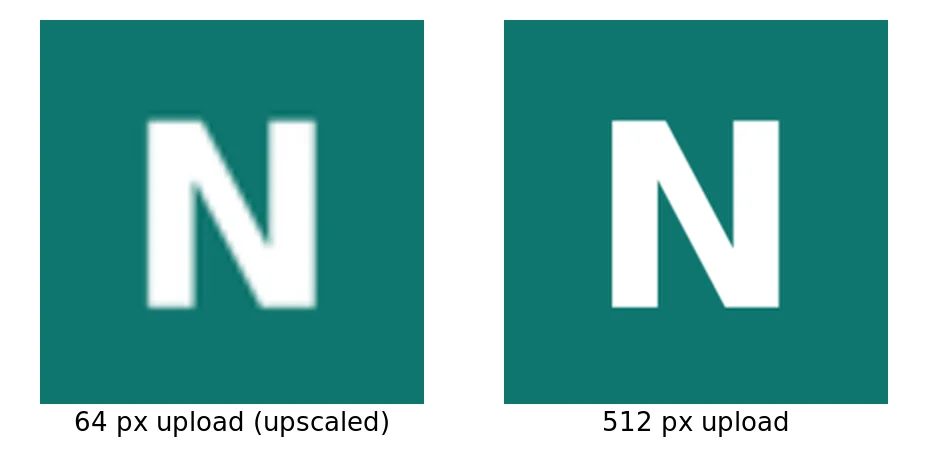
If your icon is fuzzy, find the original artwork and re-export it at 512×512. Then upload it once (see the section above about why once matters).
Give it a solid background. A transparent PNG works, but Google shows results on both light and dark backgrounds. A dark logo on a transparent background can almost vanish in dark mode. A simple square with your brand color baked in looks the same everywhere.
FAQ
How long does it take for Google to update a favicon?
Google’s documentation says crawling and processing can take anywhere from “several days to several weeks”. Requesting indexing for your homepage in Search Console is the only official way to ask it to look sooner.
How do I force Google to update my favicon?
You can’t force an instant update. Open URL Inspection in Google Search Console, enter your homepage address and click Request Indexing. Then leave the icon alone, because every new upload in WordPress gives the favicon a new URL.
Why is my WordPress favicon showing in the browser but not in Google?
Your browser and Google keep separate copies. Your browser fetched the new icon the moment you visited your site, while Google still holds the one it fetched on its last crawl.
What are Google’s favicon requirements?
Google wants a square image of at least 8×8 pixels, ideally larger than 48×48, on a stable URL that Googlebot-Image is allowed to crawl. For WordPress, upload a 512×512 PNG or JPG – WordPress refused the ICO and SVG files in my test.
Your new favicon is on its way
When your WordPress favicon isn’t updating in Google, it’s usually a patience problem, not a technical one. But make sure the patience is pointed at the right thing.
Check that the homepage source names your new icon file, purge your cache, request indexing for the homepage once, and then stop re-uploading. The favicon.ico test can say 404 on a perfectly healthy site, so don’t let it send you down a rabbit hole.
While you’re working on your branding, it’s a good moment to check your WordPress site title too, since Google shows it right next to the icon.
Your favicon will show up. Just not today.