How to Fix “There Has Been a Critical Error on This Website” in WordPress
If your site just turned into a white box that says “There has been a critical error on this website”, take a breath. Your posts, pages, and settings are fine. One plugin or your theme crashed, and WordPress stopped the page before it could break anything else.
To write this guide, I crashed my own test site on purpose with a broken plugin and a broken theme, and watched what WordPress did each time. The first version of this article got 2 big things wrong, and both would have sent you in circles. The biggest one: WordPress often doesn’t send the recovery email at all, no matter how long you wait.
Here’s how the WordPress critical error works, why the email might never come, and the 3 ways back in.
What does “There has been a critical error on this website” mean?
It means a plugin or theme hit a fatal PHP error – a mistake in its code that PHP can’t recover from. Since WordPress 5.2, instead of a blank white page, you get this message and an HTTP 500 status.
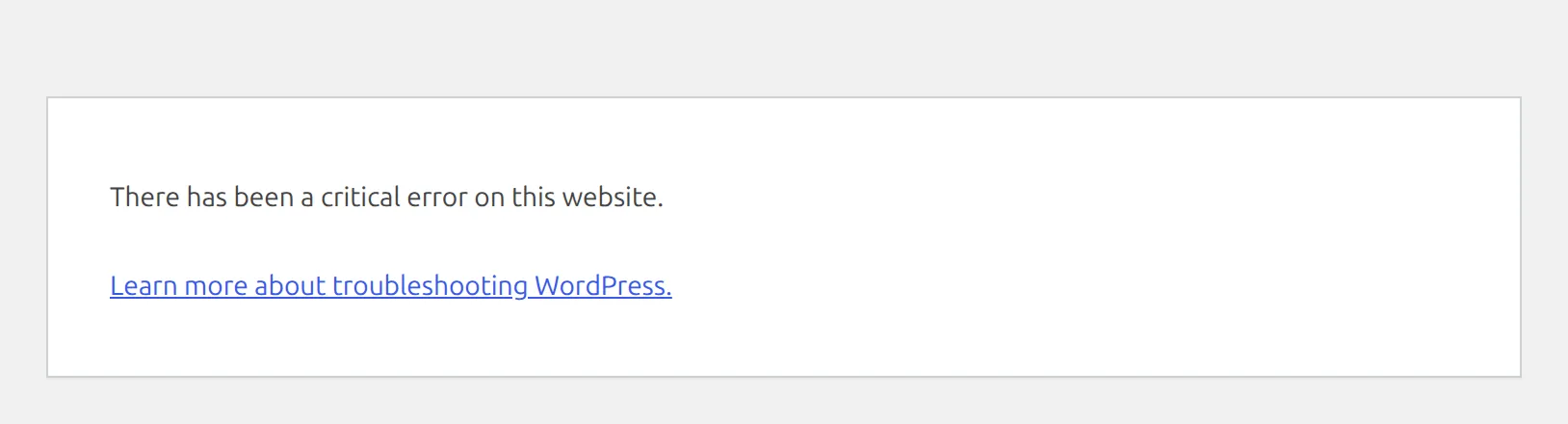
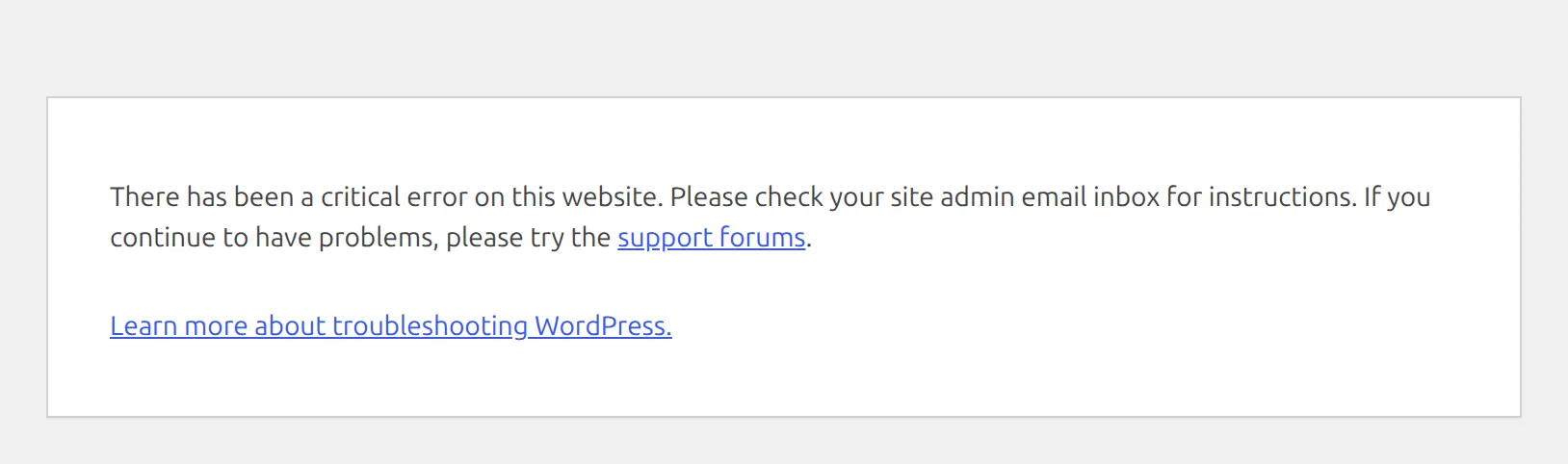
The message changes depending on where you see it. On your homepage and posts, visitors get the one line above. On your login page or in wp-admin, WordPress adds: “Please check your site admin email inbox for instructions.”
This is a different problem from “Error establishing a database connection”. That one means WordPress can’t reach its database at all. If that’s the message you see, here’s how I fix the database connection error.
Step 1: Try your dashboard first
Before you touch any files, open yoursite.com/wp-admin/ in your browser.
When my test plugin only crashed the front of the site, the dashboard still worked perfectly. Visitors saw the critical error, but I could log in, go to Plugins, and click Deactivate on the plugin I’d just installed. The site came straight back.
If the dashboard shows the same error, move on to Step 2.
Why didn’t I get the WordPress recovery email?
WordPress has a backup plan called recovery mode. When it catches a crash, it emails your site’s admin address a special login link. But on my test site, the email failed to show up for 3 different reasons, and only 1 of them was spam.
1. The crash happened on the front of your site. WordPress only sends the email when the crash happens on the login page or in wp-admin. When my plugin crashed only the homepage, I got 0 emails – even while I was logged in as an admin looking at the broken page. When it crashed everything, my homepage visit sent nothing, and the email went out the moment I opened the login page.
2. It only sends 1 email per day. After the first email, WordPress waits 24 hours before sending another. The login page keeps saying “check your inbox” the whole time. So if you deleted that first email, or it went to an old address, you won’t get a new one today.
3. It went to an inbox you don’t check. The email goes to the Administration Email Address in Settings > General. That’s often the address you used when you installed WordPress years ago, or your web developer’s address.

And yes, it can land in spam. It’s sent from [email protected], and budget hosts often send mail in a way Gmail and Outlook don’t trust. Search every inbox and spam folder for this subject line:
“[Your Site Name] Your Site is Experiencing a Technical Issue”
Step 2: If you got the email, use recovery mode
The email is worth finding because it tells you exactly what broke. Mine said “WordPress caught an error with one of your plugins, Broken Test Plugin”, and listed the file and line where it crashed.
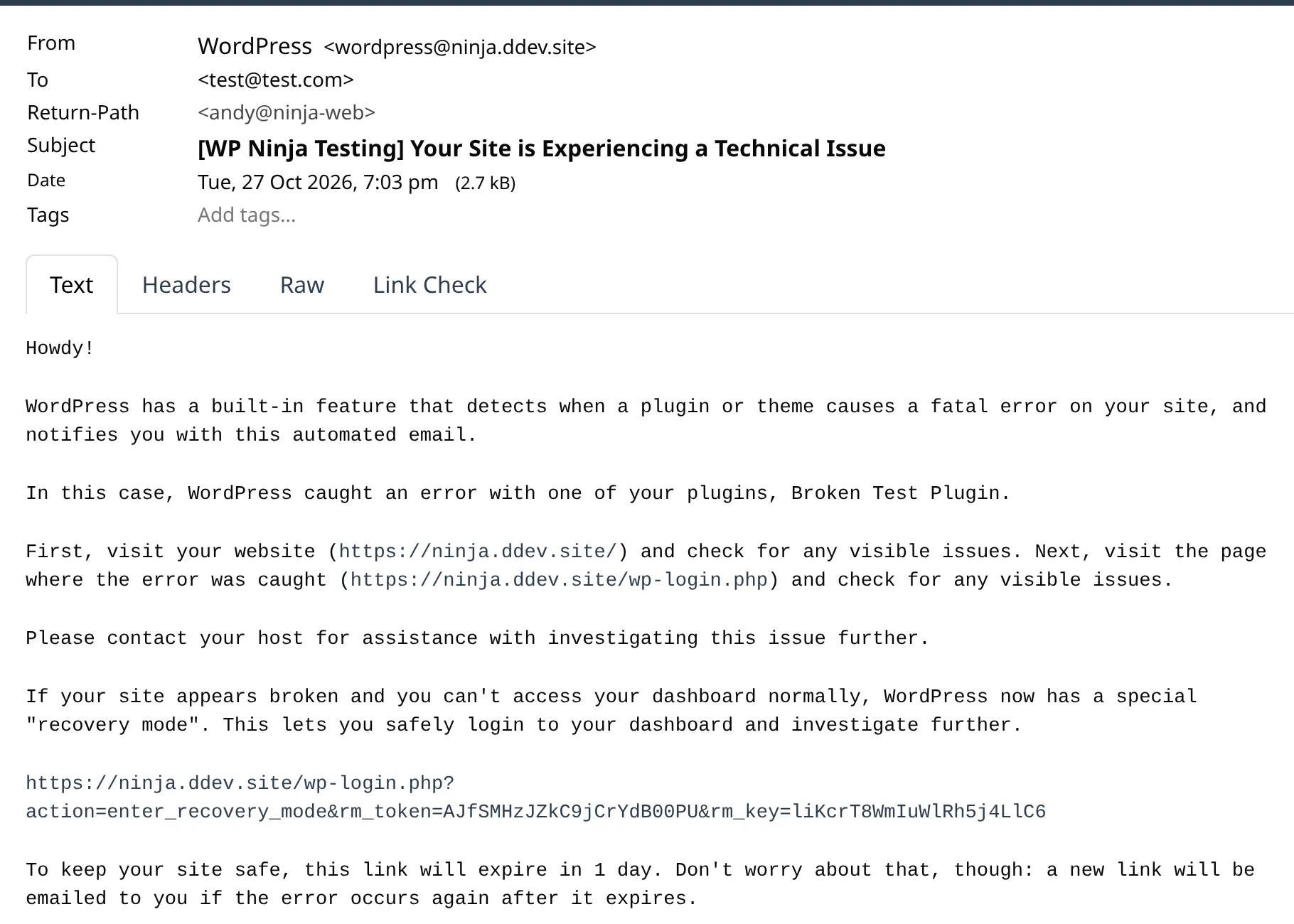
Click the long link in the email. It opens your login screen with the message “Recovery Mode Initialized. Please log in to continue.” Log in as normal.
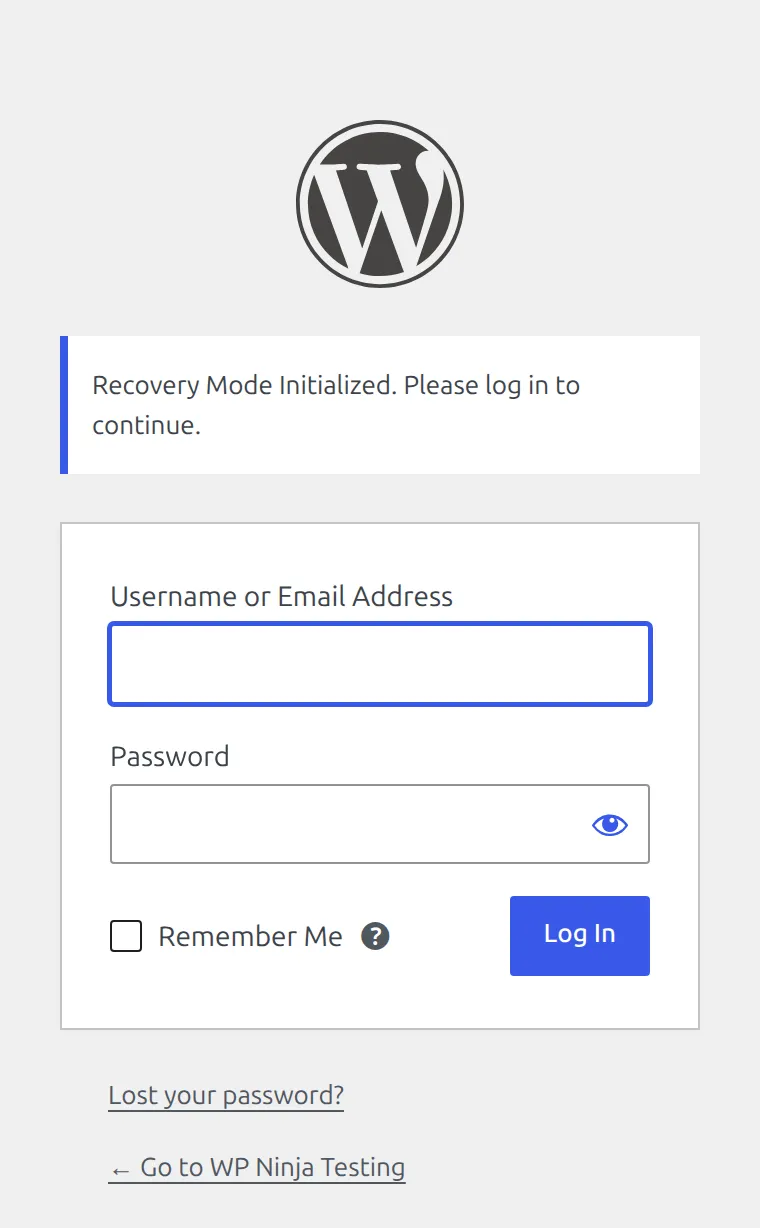
You’re now in recovery mode: the broken plugin is paused for you only, while your visitors still see the error. Go to Plugins and click the Paused filter. You’ll see the plugin with “This plugin failed to load properly and is paused during recovery mode.”
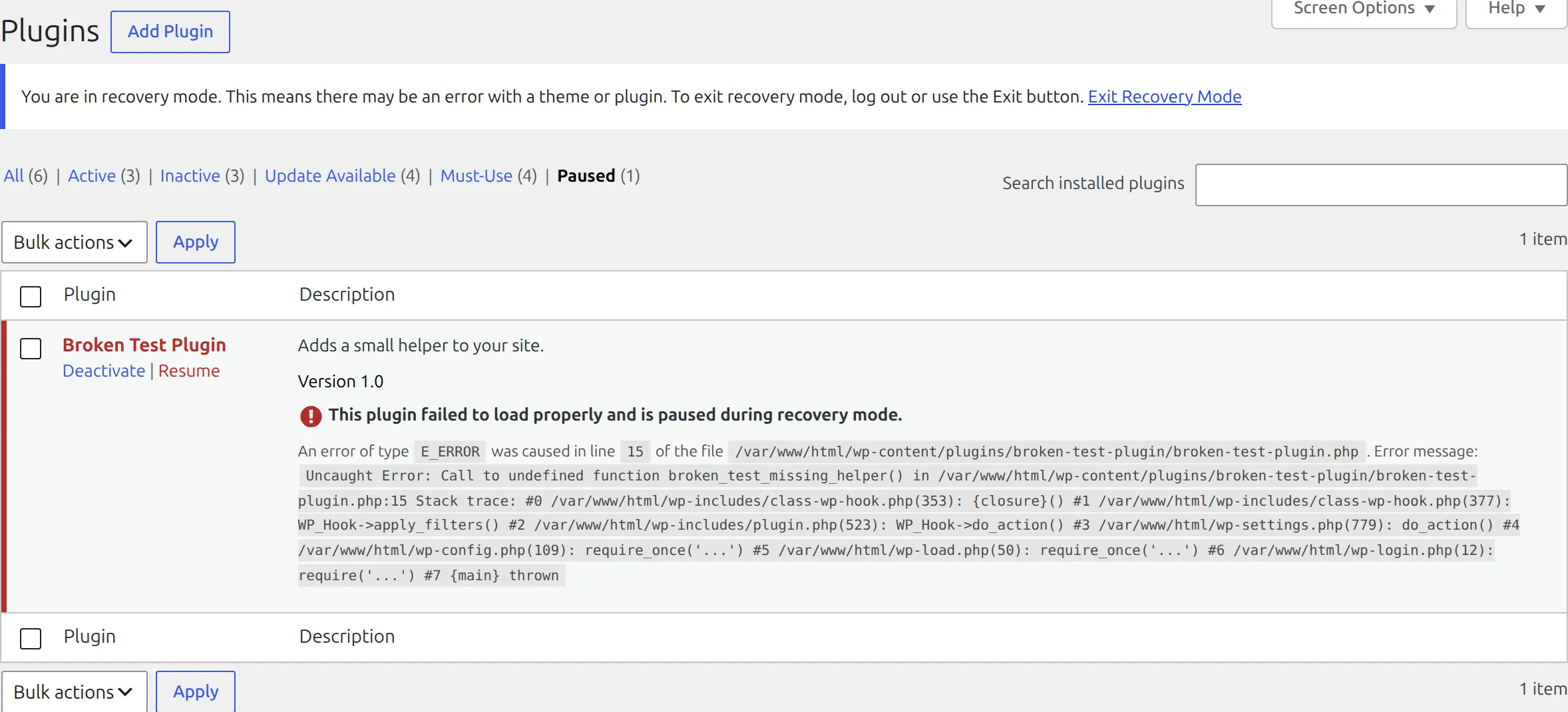
Click Deactivate under the plugin’s name. That’s the step that actually fixes your site – until you do it, the plugin is still switched on for everyone else. Then click Exit Recovery Mode in the blue banner and check your homepage in a private browser window.
The link expires after 1 day. If it’s expired, use Step 3.
Step 3: No email? Turn the plugin off with File Manager or FTP
This works without the email and without logging in. You need your hosting account’s File Manager (most hosts have one in their dashboard) or an FTP app like FileZilla with your FTP login from your host.
Open your WordPress folder (the one with wp-config.php in it), then wp-content, then plugins. Each plugin has its own folder in there.
If you know which plugin broke it
Usually you do: it’s the plugin you just installed or updated. Rename only that plugin’s folder – for example, contact-widget becomes contact-widget-off.
On my test site, renaming just the broken plugin’s folder brought the site back the instant I reloaded, and every other plugin kept working. Then I opened Plugins in the dashboard, and WordPress showed “The plugin … has been deactivated due to an error: Plugin file does not exist.” That’s normal.
Leave the folder renamed until there’s a fixed version, or delete the plugin from the Plugins screen once you’re back in.
If you don’t know which plugin broke it
Rename the whole plugins folder to plugins-off. With no plugins folder, WordPress can’t load any of them, and your site and dashboard come back.
Now the order matters, and this is where the first version of this guide was wrong:
- Log in to wp-admin.
- Open Plugins. WordPress shows a red “deactivated due to an error” notice for each plugin and switches them all off.
- Only now rename
plugins-offback toplugins.
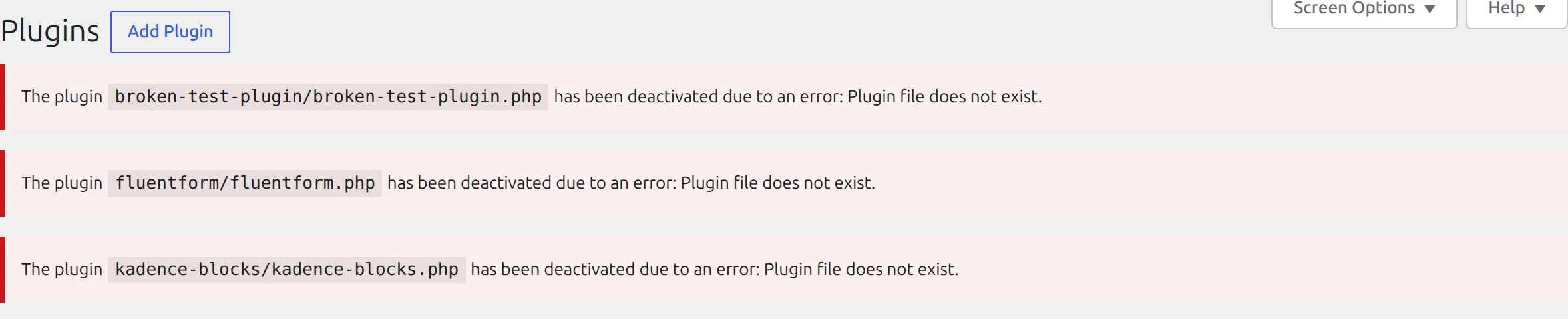
If you rename the folder back before opening Plugins, nothing changes. I tested it: WordPress still had all 3 of my plugins switched on, and the critical error came straight back on both the homepage and the dashboard.
Once every plugin is off, turn them back on one at a time from the Plugins screen, and reload your homepage after each one. When the error comes back, you’ve found it. Deactivate it again (if the dashboard is broken, rename just that plugin’s folder) and leave it off.
What if it’s my theme?
If the email says “WordPress caught an error with your theme”, or turning off every plugin didn’t help, the theme is the problem. It’s usually a code snippet pasted into the theme’s functions.php file.
Rename your theme’s folder inside wp-content/themes. When I did that with my broken test theme, the site came back immediately. But expect a surprise: when I opened Appearance > Themes, WordPress switched my site to its default theme, Twenty Twenty-Five, so it looked completely different.
Your theme settings aren’t lost. They’re saved with the theme, so once you undo the bad change and rename the folder back, activate your theme again in Appearance > Themes and your design returns.
How do I see the exact error?
If you’d rather see what crashed than guess, turn on WordPress debug mode. In wp-config.php, add this line above /* That's all, stop editing! */:
define( 'WP_DEBUG', true );Reload your site, and a “Fatal error” line appears above the message. Look for /wp-content/plugins/ or /wp-content/themes/ in it – the folder name right after it is your culprit.
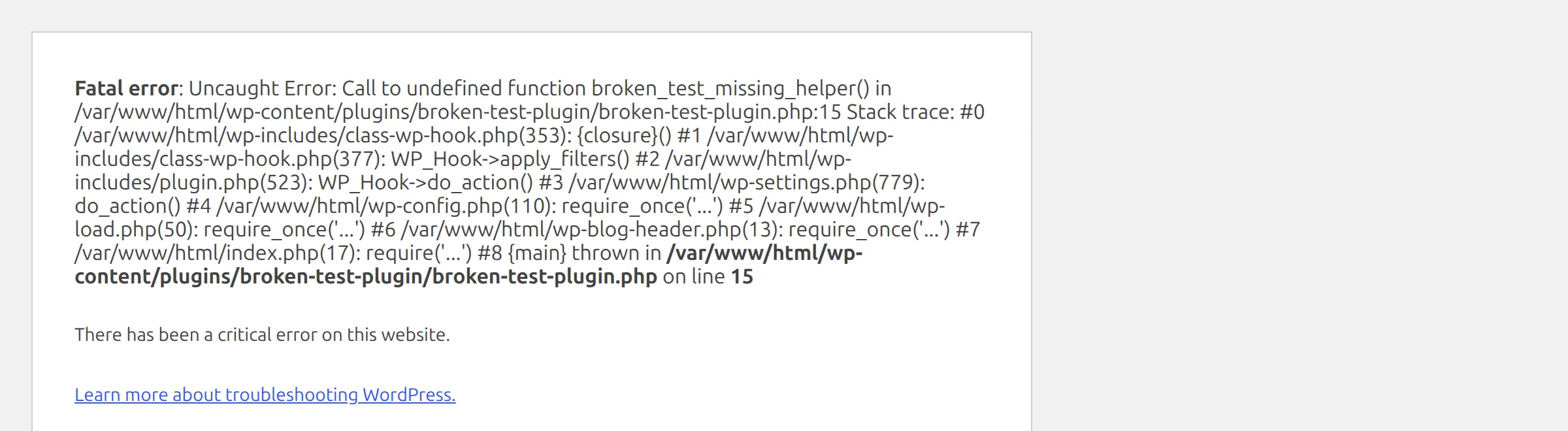
Everyone visiting your site sees this too, so remove the line as soon as you’ve read it. If you want the error saved to a file instead, use these 3 lines, and it goes to wp-content/debug.log while visitors only see the normal message:
define( 'WP_DEBUG', true );
define( 'WP_DEBUG_LOG', true );
define( 'WP_DEBUG_DISPLAY', false );
WP_DEBUG on its own doesn’t create a debug.log file – I checked. You need the WP_DEBUG_LOG line.
What should I do with the broken plugin?
Once your site is back, you have 3 choices.
Wait for a fix. If the crash started right after an update, check the plugin’s page on wordpress.org. Plugin authors often release a fixed version within days, and the support forum will show if others hit the same error.
Send the error to the author. Copy the error from the email or debug mode and post it in the plugin’s support forum. The file and line number help them find the bug fast.
Replace it. If the plugin hasn’t been updated in over a year, it probably won’t be. Look for a maintained alternative in the plugin directory.
How do I stop this happening again?
Update plugins one at a time. If something breaks, you know which update did it. I walk through the safe order in how to update plugins without breaking your site.
Keep automatic backups. If a fix goes wrong, a backup puts everything back. I restored a broken site with 6 free plugins in my backup plugin roundup.
Make sure the recovery email can reach you. Check the address in Settings > General today, while your site works. An SMTP plugin (WP Mail SMTP and FluentSMTP are both free) sends WordPress emails through a real email service, so they’re far less likely to land in spam.
FAQs
Why does my site say there has been a critical error on this website?
A plugin or your theme crashed with a fatal PHP error, and WordPress stopped the page. It’s usually caused by an update, a new plugin, or a code snippet added to your theme. Your content is safe.
Why didn’t I get the WordPress critical error email?
On my test site, WordPress only sent the email when the crash happened on the login page or in wp-admin, never for a crash on the front of the site. It also sends just 1 email per 24 hours, to the address in Settings > General. Check spam for “Your Site is Experiencing a Technical Issue”.
Can I fix the critical error without the recovery email?
Yes. Rename the broken plugin’s folder in wp-content/plugins with your host’s File Manager or FTP. If you don’t know which plugin it is, rename the whole plugins folder, log in, open the Plugins screen, and then rename it back.
Will renaming the plugins folder delete my settings?
No. Plugin settings are stored in your database, not in the plugin’s folder. After all my rename tests, Fluent Forms still had its 2 forms and 3 entries when I switched it back on.
How long is the recovery mode link valid?
1 day. WordPress also waits 24 hours before it sends another email, so if the link has expired, use the File Manager method instead of waiting.
A WordPress critical error looks like the end of your site, but it’s almost always one plugin or one theme change. Try the dashboard, look for the email, and if it never comes, rename one folder. You’ll be back in minutes.