How to Fix a 500 Internal Server Error in WordPress (Tested)
A 500 Internal Server Error means your server tried to load your site and gave up. Your posts, pages and settings are still there. Something in the chain between the server and WordPress broke, and the error doesn’t say what.
The tricky part is that “500” covers 3 different kinds of problem, and most guides treat them as one. So I built 2 test sites, one on Apache (the server many shared hosts use) and one on nginx, and broke them on purpose 12 different ways. The cause decided what the error looked like, and that’s the quickest clue to the fix.
What does your 500 error look like?
Before you change anything, look at the page itself. On my test sites, a 500 showed up in 3 different ways.
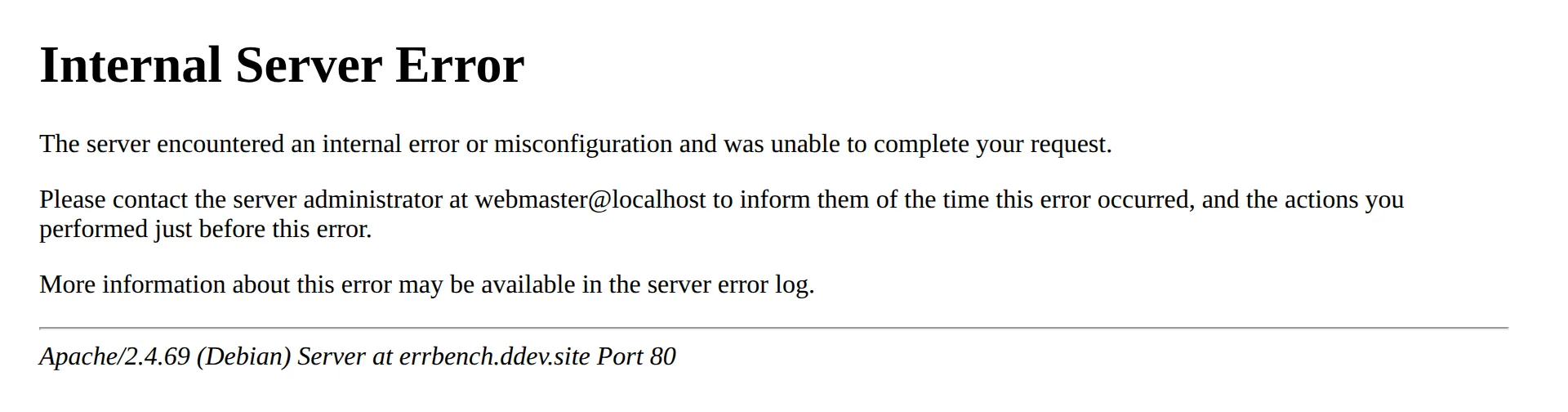
1. A plain page that says “Internal Server Error”. Black text on white, “The server encountered an internal error or misconfiguration and was unable to complete your request”, and on my Apache site, a line naming Apache at the bottom. This one comes from your web server, before WordPress even starts. Go to Fix 1 below.
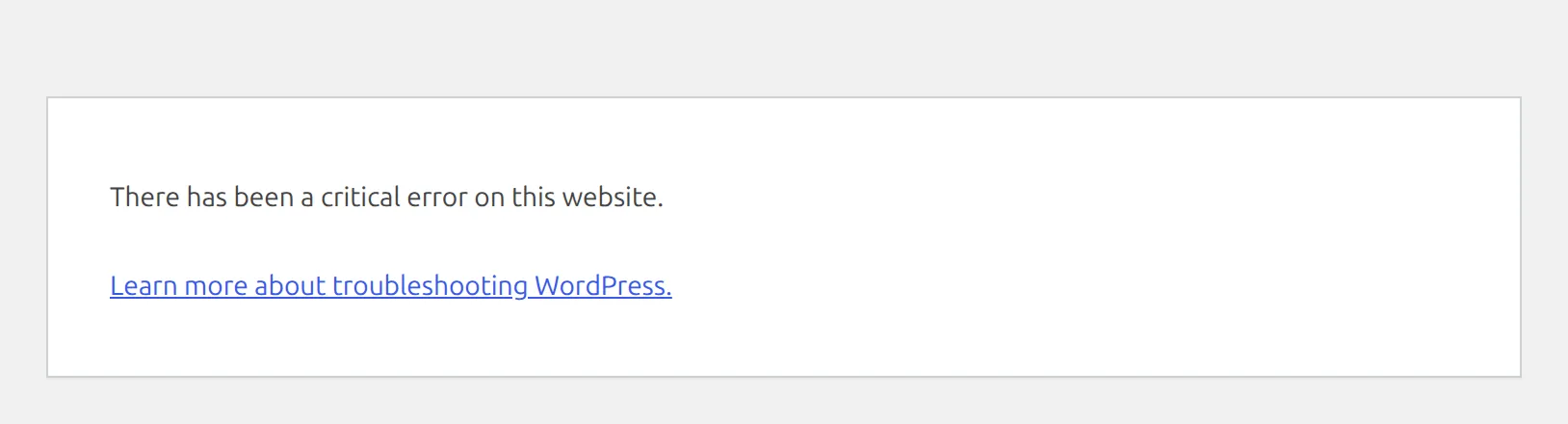
2. “There has been a critical error on this website.” That’s a 500 too, with WordPress’s own message instead of the number. A plugin, your theme, old code on a newer PHP version, or running out of memory caused it. Go to Fix 2.
3. Chrome’s “This page isn’t working” with “HTTP ERROR 500”. This means the server sent back an error with nothing in it. On my test sites, that came from a mistake in wp-config.php or a missing WordPress core file. Go to Fix 3.

If your page says “Error establishing a database connection”, that’s a 500 as well, with its own fix: here’s how I fix the database connection error.
Fix 1: Check your .htaccess file
.htaccess is a small settings file in your main WordPress folder, next to wp-config.php. Apache and LiteSpeed servers read it on every visit, and WordPress uses it to make your post links work. If it has a line the server doesn’t understand, the server refuses to load anything, and you get the plain “Internal Server Error” page on every page, login included.
One thing first: if your host runs nginx, this isn’t your problem. nginx never reads .htaccess. When I filled the file with broken lines on my nginx test site, it kept loading normally. Your host’s help pages or support chat can tell you which server you’re on.
What broke it on my test site
2 changes gave me the 500 page straight away:
- A line the server didn’t recognise. Apache’s log said: “Invalid command ‘This’, perhaps misspelled or defined by a module not included in the server configuration”.
- A
php_valueline. Many tutorials tell you to raise your memory limit by addingphp_value memory_limit 256Mto.htaccess. On my Apache test site that line alone took the whole site down, because PHP there runs in a separate process (PHP-FPM, a common setup) and Apache doesn’t know the command.
A file that was cut off halfway didn’t give a 500. My homepage still loaded, but every post showed “Not Found”. That’s worth knowing if your posts 404 after a failed edit.
How to reset it
- Open your host’s File Manager (or an FTP app like FileZilla) and go to the folder that holds
wp-config.php. .htaccessstarts with a dot, so it’s hidden by default. In cPanel’s File Manager, open Settings and tick Show Hidden Files (dotfiles).- Rename
.htaccessto.htaccess-old. Don’t delete it, since you might need lines from it later. - Reload your site. When I did this, my homepage and login page came back at once, but posts showed “Not Found” because the link rules were gone.
- Log in and open Settings > Permalinks. You don’t even need to click anything: WordPress wrote a fresh
.htaccessthe moment the page opened, and my posts worked again. Clicking Save Changes does no harm.

The new file only has WordPress’s own rules. If your old file had extra lines from a security or cache plugin, copy them back from .htaccess-old one block at a time, reloading your site after each. Leave out any php_value lines.
If renaming the file didn’t fix the 500, rename it back and move on to the next fix.
Fix 2: A plugin, theme or memory problem
If you see “There has been a critical error on this website”, the server is fine. A plugin or your theme crashed inside WordPress. On my test sites, 3 different problems all gave this same page:
- a plugin calling code that doesn’t exist
- a plugin written for an old PHP version (it used a command PHP 8 removed)
- a plugin that needed more memory than the host allowed
Turn off the plugin or theme
Start with the plugin you installed or updated last. I’ve written a full walkthrough with tested steps in my guide to fixing “There has been a critical error on this website”, including the recovery email and the File Manager method.
One step trips up almost everyone, including the older version of this article. If you rename the plugins folder to turn every plugin off, log in and open the Plugins screen before you rename the folder back. If you rename it back first, WordPress still thinks every plugin is on, and the error returns.
If it’s memory
If the error started after you added a big plugin (a page builder, a shop, a backup tool), memory may be the cause. To test this, I set my site’s memory to 128 MB, which is common on budget hosting, and made a plugin need 184 MB for one page. WordPress showed the critical error page.
Then I added this line to wp-config.php, just above /* That's all, stop editing! */:
define( 'WP_MEMORY_LIMIT', '256M' );The same page loaded normally. WordPress raised the limit to 256 MB on its own, and my test plugin used 184 MB of it. Some hosts lock the memory limit so this line can’t raise it. If the error stays, ask your host to raise PHP’s memory_limit.
Use wp-config.php for this, not .htaccess. The php_value line is exactly what caused the Apache 500 in Fix 1.
If your host just upgraded PHP
Hosts move sites to newer PHP versions, and plugins nobody has updated in years can break. On my test site, a plugin using a command that PHP 8 removed crashed with the critical error page, like any other broken plugin. Turn it off as above, then look for an update or a maintained replacement.
Fix 3: An empty HTTP ERROR 500
When Chrome says “This page isn’t working” and “HTTP ERROR 500”, the server returned an error with no page at all. WordPress’s own error page never got a chance to load. On my Apache test site, 2 things did this:
A mistake in wp-config.php. I left the semicolon off the end of one line, and every page, login included, went empty. If you or a plugin edited wp-config.php recently, open it in File Manager and check what changed. Every define( ... ) line should end with );.
A missing WordPress core file. When I removed a file WordPress loads very early, I got the same empty 500. Removing a file it loads later gave the critical error page instead. Either way, the fix is a fresh copy of WordPress:
- Download WordPress from wordpress.org and unzip it on your computer.
- Upload only the
wp-adminandwp-includesfolders, replacing the ones on your server. - Don’t touch
wp-contentorwp-config.php. Those hold your themes, plugins, uploads and settings.
I go through every cause of a blank or empty page in my WordPress white screen of death guide.
How to find the exact cause
All 3 fixes work without knowing the exact error, but the logs can save you the guesswork.
For the plain “Internal Server Error” page, check your server’s error log. WordPress hasn’t started at that point, so it can’t log anything. Most hosting dashboards have an “Errors” or “Logs” section. On my test site the log named the file and the bad line: /var/www/html/.htaccess: Invalid command 'php_value'.
For the critical error page, use WordPress’s debug log. Add these 3 lines to wp-config.php, above the “stop editing” line:
define( 'WP_DEBUG', true );
define( 'WP_DEBUG_LOG', true );
define( 'WP_DEBUG_DISPLAY', false );
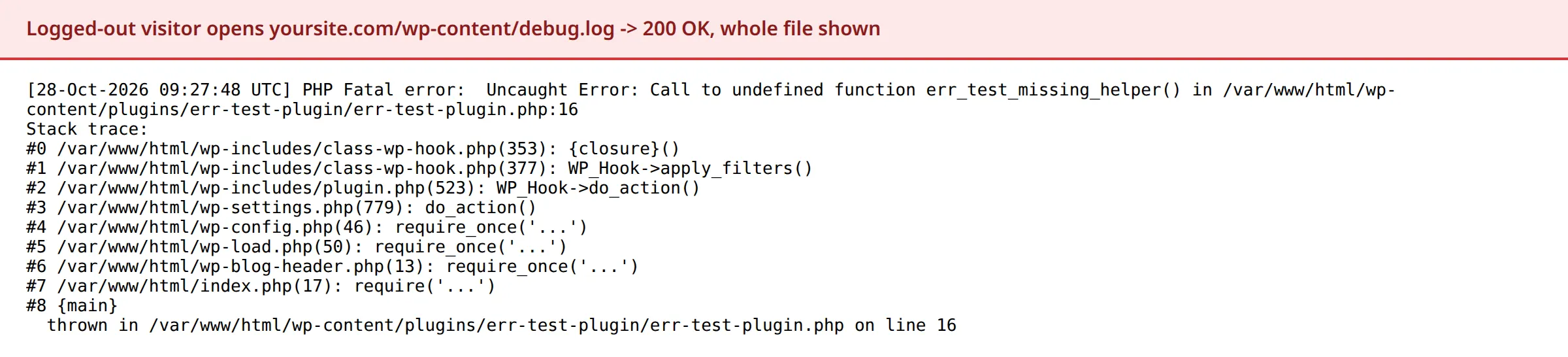
Reload your site once, then open wp-content/debug.log in File Manager. The last “PHP Fatal error” line names the file that crashed, and the folder after /plugins/ or /themes/ is your culprit.
Delete that log when you’re done. On both my test sites, anyone could open yoursite.com/wp-content/debug.log in a browser without logging in, and read every error with your server’s folder paths. Remove the 3 lines, then delete debug.log.
What if nothing works?
Contact your host’s support. They can see logs you can’t, and this message gets straight to the point:
“My WordPress site shows a 500 error. I’ve already reset .htaccess and turned off my plugins. Can you check the server error log for my site and tell me what it says?”
Ask them to check your disk space and PHP version while they’re at it. If your site went down after an update and you have a backup, restoring it is often the fastest way back. I restored a broken site with 6 free plugins in my backup plugin roundup.
If your site says “Briefly unavailable for scheduled maintenance” rather than 500, that’s a stuck update, and it has its own quick fix.
How to prevent 500 errors
Update one plugin at a time. If something breaks, you know which update did it. I walk through the safe order in how to update plugins without breaking your site.
Copy before you edit. Download wp-config.php and .htaccess before you change either one. If the site breaks, upload the copy and you’re back where you started.
Be careful with copied snippets. A php_value line in .htaccess and a missing semicolon in wp-config.php caused 2 of the empty or plain 500s on my test sites. Both came from the kind of snippet tutorials hand out.
FAQs
What causes a 500 internal server error in WordPress?
On my test sites, the plain “Internal Server Error” page came from a bad line in .htaccess. Plugin crashes, old plugins on newer PHP, and running out of memory all gave the “There has been a critical error” page, which is also a 500. A mistake in wp-config.php or a missing core file gave an empty 500.
Is a 500 error my fault or my host’s?
Usually it’s something on your site: a plugin, a theme, .htaccess or wp-config.php. Your host can still help, because they can read the server error log. If you didn’t change anything and the 500 appeared on its own, ask them whether they changed your PHP version or server settings.
Does increasing the memory limit fix a 500 error?
Only when memory is the cause. On my test site, a plugin that needed 184 MB failed on a 128 MB limit and worked after I added define( 'WP_MEMORY_LIMIT', '256M' ); to wp-config.php. Raising memory won’t fix a bad .htaccess line or a crashing plugin.
Can I fix a 500 error without wp-admin?
Yes. Every fix here works from your host’s File Manager or FTP: renaming .htaccess, renaming the plugins folder, editing wp-config.php, and uploading fresh core files.
Will I lose my content fixing a 500 error?
No. Your posts, pages and settings are in your database, and none of these fixes touch it. Renaming files and folders only switches things off.
A 500 error looks like a dead end, but the page itself tells you where to look. Plain “Internal Server Error” means .htaccess, a critical error message means a plugin or theme, and an empty page means wp-config.php or a core file.