How to Fix Google Fonts GDPR Warnings in Kadence
If your Kadence site loads Google Fonts the default way, every single page view sends your visitors’ IP addresses to Google’s servers. That’s a GDPR violation. A German court fined a website owner 100 euros for exactly this in 2022, and enforcement has only gotten stricter since.
The good news? Kadence has a built-in fix that takes about 30 seconds. One toggle in the Customizer, and your site stops sending data to Google entirely. No plugin needed, no code, works in the free version.
But there’s a catch most tutorials skip – the Kadence toggle only covers fonts loaded by Kadence itself. If you have other plugins loading Google Fonts behind the scenes, you’re still exposed. I’ll walk through the full fix, including how to verify you’re actually clean.
What’s the Actual GDPR Problem With Google Fonts?
Here’s what happens when someone visits your site. Their browser needs to download the fonts your site uses. If you’re using Google Fonts the standard way, the browser sends a request to fonts.googleapis.com to fetch them. That request includes your visitor’s IP address.
Under GDPR, an IP address counts as personal data. Sending it to a third party (Google, in the US) without explicit consent is a violation.
This isn’t theoretical. In January 2022, a Munich court ruled against a website operator and awarded 100 euros in damages to the plaintiff – just because the site loaded Google Fonts externally. Since that ruling, there’s been a wave of similar complaints across Germany and Austria, with some law firms sending mass warning letters to site owners.
And here’s the part that surprises people: this applies even if you aren’t in Europe. If any of your visitors are in the EU, GDPR covers them. Running a hobby blog from Texas with 50 European readers? Still applies.
The fix is straightforward – stop loading fonts from Google’s servers. Load them from your own server instead. Same fonts, same look, zero data sent to Google.
How Do I Fix This in Kadence?
Kadence has a built-in local fonts feature that downloads Google Font files to your server and serves them from your domain. No external requests, no IP addresses shared.
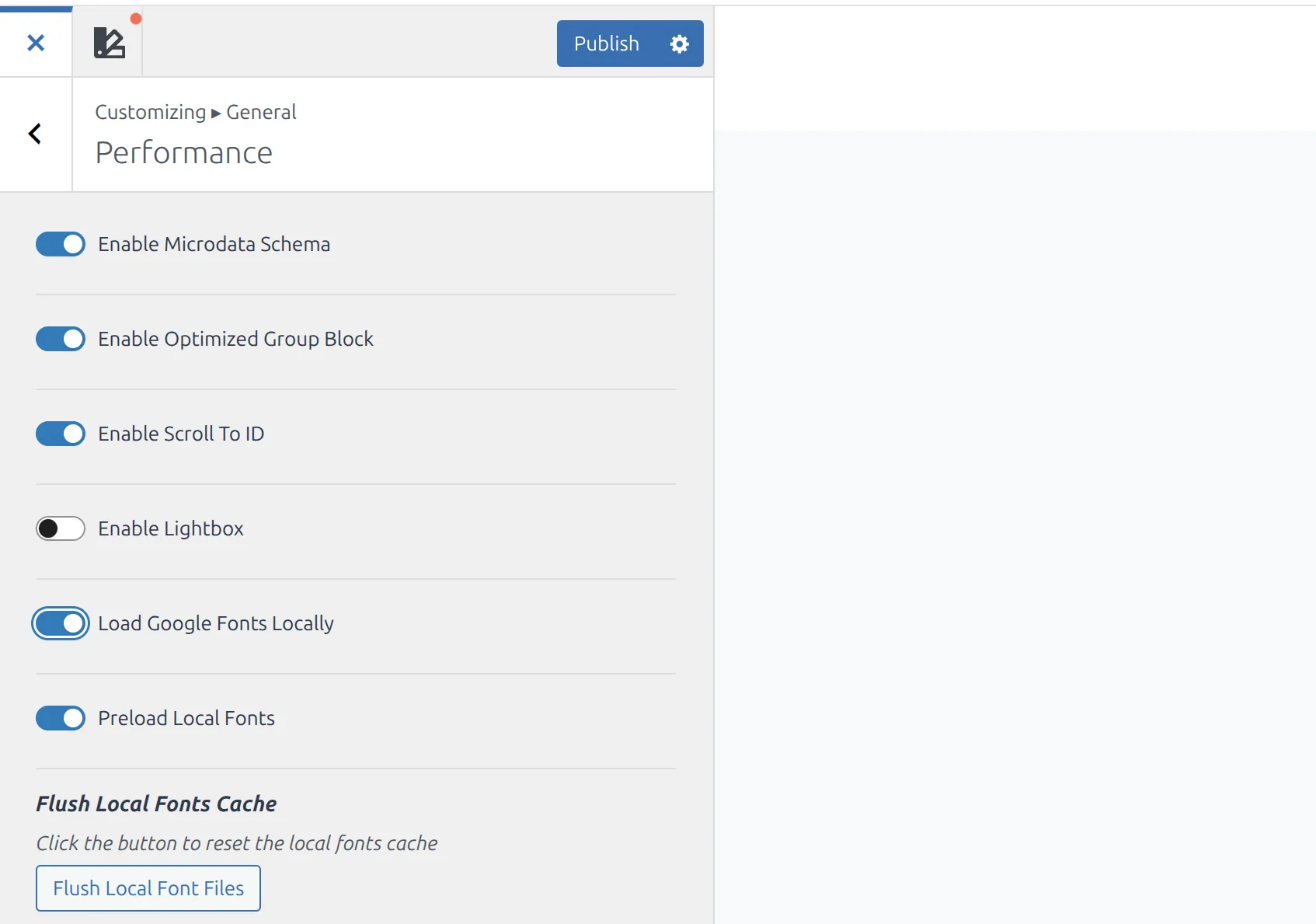
- Go to Appearance > Customize > General > Performance.
- Find the “Load Google Fonts Locally” toggle.
- Switch it to On.
- Optionally, enable “Preload Local Fonts” right below it (this helps page speed by telling the browser to start downloading fonts early).
- Click Publish.
That’s it. I’ve got a more detailed walkthrough of the entire local fonts process in my guide on loading Google Fonts locally in Kadence. Kadence downloads the font files to wp-content/fonts/ on your server, organized by font family. From now on, every font request stays on your domain.
Heads up – this toggle lives in the Performance panel, not Typography. The Typography panel under Colors & Fonts is where you pick which Google Font to use (Urbanist, Inter, etc.). The local loading toggle is a separate setting under Performance. I tripped over this myself the first time.
One important step – if you’re running a caching plugin (WP Super Cache, LiteSpeed Cache, WP Rocket, etc.), clear your cache after enabling this. If the toggle doesn’t save properly, check my guide on fixing Kadence Customizer not saving changes. Otherwise, your cached pages will still contain the old Google Fonts URLs until the cache refreshes.
Does This Work in the Free Version?
Yes. This isn’t a Kadence Pro feature. The local fonts downloader is built into the free Kadence theme. I tested it on a fresh install of Kadence 3.x with no Pro license, and the toggle is right there in the Customizer.
You don’t need to buy anything or install an extra plugin. Just flip the switch.
How Do I Verify the Fix Is Actually Working?
Don’t just trust that the toggle worked. Verify it. Here are 2 ways.
Method 1: View Page Source
- Open your site in an incognito/private window (this avoids cached pages).
- Right-click anywhere on the page and select “View Page Source”.
- Press Ctrl+F (or Cmd+F on Mac) to open the search bar.
- Search for
fonts.googleapis.com. - Search for
fonts.gstatic.com.
If both searches return zero results, you’re clean. No Google Font requests are happening.
If you find matches, something besides Kadence is loading Google Fonts – read the next section.
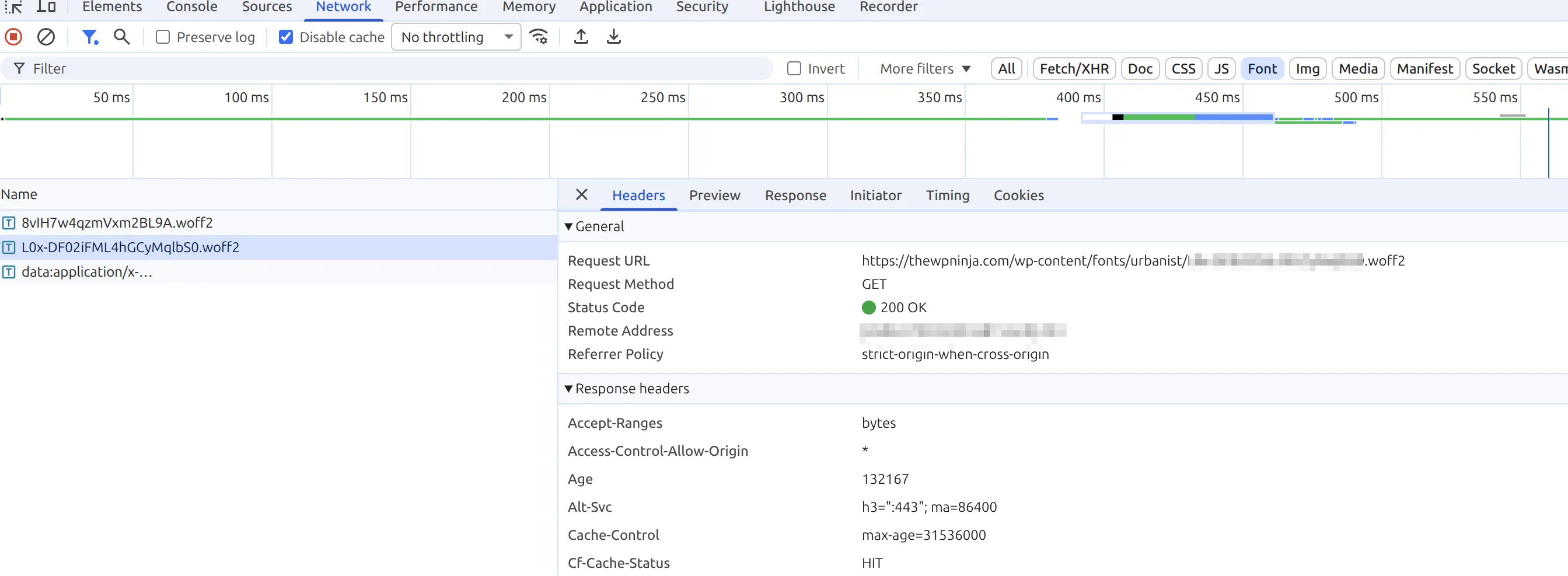
Method 2: Chrome DevTools Network Tab
This method is more thorough because it catches fonts loaded by JavaScript after the page renders.
- Open your site in Chrome.
- Press F12 to open DevTools.
- Click the Network tab.
- Reload the page.
- In the filter bar, type “font” to show only font requests.
- Check the “Domain” column for each request.
Every font request should point to your own domain. If you see fonts.googleapis.com or fonts.gstatic.com, something is still loading fonts from Google.
What if Other Plugins Are Still Loading Google Fonts?
This is the gotcha that trips people up. You flip Kadence’s toggle, run the verification, and still find Google Font URLs in your source code. The Kadence setting only controls fonts that Kadence itself loads. Other plugins load their own fonts independently.
Common culprits:
- Elementor – loads Google Fonts for its widgets. Go to Elementor > Settings > Advanced and enable “Load Google Fonts Locally” (Elementor 3.x+)
- Slider Revolution – loads fonts for slide text. Check its Global Settings for a local fonts option
- Contact form plugins – some form builders load Google Fonts for form styling
- Page builder addons (Spectra, Ultimate Addons) – may have their own Google Font connections
If you can’t find a local fonts option in the offending plugin, there are 2 fallback approaches:
Option A: OMGF plugin. Install “OMGF (Optimize My Google Fonts)” – it’s a free plugin that intercepts all Google Font requests across your entire site and replaces them with locally hosted versions. It catches fonts from any source, not just Kadence.
Option B: Switch to system fonts. This is the nuclear option but also the simplest. Instead of using Google Fonts at all, switch your typography to system fonts (like the system font stack). Go to Appearance > Customize > Colors & Fonts > Typography and choose a system font family for your headings and body text. Zero external requests, zero GDPR risk, and your site loads faster because there are no font files to download at all.
Does Loading Fonts Locally Change How My Site Looks?
No. Not even slightly. The font files are identical – same glyphs, same weights, same rendering. The only difference is where they’re served from.
If anything, your site might load a fraction faster. I cover more Kadence performance tips in my guide on fixing LCP issues in Kadence. When fonts are hosted on Google’s servers, the browser needs to do a DNS lookup for fonts.googleapis.com, open a new connection, and then download the files. When fonts are on your own server, the browser already has an open connection to your domain – so it skips the DNS lookup entirely.
One thing to watch for: if your site uses non-Latin character sets (Cyrillic, Greek, Vietnamese), check that those characters still display correctly after switching. Kadence downloads the font subsets it detects you need, but occasionally a specific subset doesn’t get pulled down. If you notice character fallbacks (where certain letters look different), you may need to manually add the missing subset or pick a font that bundles all character sets by default.
Do I Still Need a Cookie Consent Banner?
Hosting fonts locally fixes one specific GDPR issue – the unauthorized transfer of IP addresses to Google. But it doesn’t make your entire site GDPR compliant on its own.
If you’re using any of these, you still need a consent mechanism:
- Google Analytics or any analytics tool
- Facebook Pixel or other tracking pixels
- YouTube embeds (these also send IP data to Google)
- Advertising scripts
- Marketing automation tools
A cookie consent plugin like Complianz or CookieYes handles the broader picture. But getting Google Fonts off the external loading path removes one easy target for GDPR complaints – and it’s the specific issue those German court rulings focused on.
Quick Troubleshooting
| Problem | Cause | Fix |
|---|---|---|
| GDPR scanner still flags Google Fonts | Another plugin loads them independently | Use OMGF plugin or check each plugin’s font settings |
| Fonts look different after switching | Missing character subset (rare) | Check for non-Latin characters; re-select font in Typography settings |
| Toggle is on but source still shows Google URLs | Cache serving old pages | Clear all caching (plugin cache, server cache, CDN) |
| Font files not downloading | Uploads folder isn’t writable | Check that wp-content/uploads/ has correct permissions (755 for folders) |
| Site slower after preloading fonts | Too many font weights preloaded | Reduce to 2-3 font weights max; preloading 5+ weights hurts performance |
Frequently Asked Questions
Does loading Google Fonts locally in Kadence affect my SEO?
No. Search engines don’t care where your fonts are hosted. If anything, locally hosted fonts can slightly improve your page speed scores because the browser skips the DNS lookup for fonts.googleapis.com. Better page speed is a minor ranking signal, so this change is neutral to positive for SEO.
Do I need to re-download fonts after every Kadence update?
No. Once Kadence downloads the font files to wp-content/fonts/, they stay there across updates. The font files are stored outside the theme directory, so theme updates don’t touch them. You only need to re-download if you switch to a different Google Font family in your Typography settings.
Can I use the Kadence GDPR fonts fix with a CDN like Cloudflare?
Yes. When you host fonts locally, your CDN caches them just like any other static file on your server. The fonts get served from your CDN’s edge nodes instead of Google’s servers – still no GDPR issue since the data stays within your infrastructure. Just clear your CDN cache after enabling the local fonts toggle.
Is the 100 euro GDPR fine for Google Fonts a real risk for small blogs?
It’s a real legal precedent, not just a scare tactic. The Munich court ruling in 2022 set the standard, and automated complaint services now send bulk warning letters across the EU. Even if the fine itself is small, the legal fees to respond add up fast. The 30-second fix in Kadence removes the risk entirely, so there’s no reason not to do it.
Wrapping Up
Fixing the Google Fonts GDPR issue in Kadence takes about 30 seconds – flip one toggle in the Customizer and clear your cache. The feature works in the free version, the fonts look exactly the same, and your site might even load a bit faster.
But don’t stop at the toggle. Verify the fix with a page source search or the DevTools Network tab. And if you’re running other plugins that load their own Google Fonts, deal with those too – the Kadence toggle only covers Kadence’s fonts.
A 100 euro fine might not sound like much. But the real cost is the legal headache – responding to warning letters, dealing with law firms, and the stress of knowing your site is technically non-compliant. A 30-second fix eliminates all of that.