How to Update WordPress Plugins Without Breaking Your Site
That red “Update Available” badge is staring at you right now, isn’t it? You know you should click it. But the last time you did, your contact form disappeared, your layout shifted, or your checkout page threw an error. And you spent 2 hours panic-Googling how to undo it.
I’ve been through that exact scenario more times than I’d like to admit. But after breaking my own site enough times, I landed on a process that works every time. It takes about 5 extra minutes per update round, and it’s saved me from hours of debugging. The trick is simple: update one plugin at a time, and always have a rollback plan ready.
Why Do Plugin Updates Break Things?
It’s not random. There’s a pattern to why updates cause problems, and understanding it makes the whole process less scary.
Here’s what usually happens. Plugin A releases an update that changes how it handles something – maybe it restructures its CSS, changes a function name, or updates a database table. Plugin B still expects the old behavior. They conflict, and something visible breaks – your page layout shifts, a form stops sending emails, or your WooCommerce checkout throws a white screen.
This is completely normal. It’s not your fault. Plugin developers can’t test against every other plugin on the market – there are over 60,000 plugins in the WordPress directory. Conflicts happen. But they’re preventable if you update the right way.
The One-by-One Rule
WordPress makes it tempting to select all plugins and click “Update” in one go. Don’t do this. Ever.
If you update 8 plugins at once and something breaks, you have no idea which of the 8 caused the problem. You’d have to deactivate them one by one, test after each change, and slowly narrow it down. That turns a 5-minute fix into a 45-minute investigation.
Instead, update one plugin, then check your site. Load the homepage, check a blog post, and test any critical feature (your contact form, checkout page, or membership login). If everything works, move to the next plugin. If something breaks, you know exactly which plugin caused it.
This takes about 5 extra minutes per update cycle. That’s the best 5 minutes you’ll ever spend.
Before You Update Anything
Two things need to happen before you touch that update button. Think of these as your safety net.
Make a Backup First
This is non-negotiable. A backup is your undo button – if anything goes wrong, you can restore your site to exactly how it was 5 minutes ago.
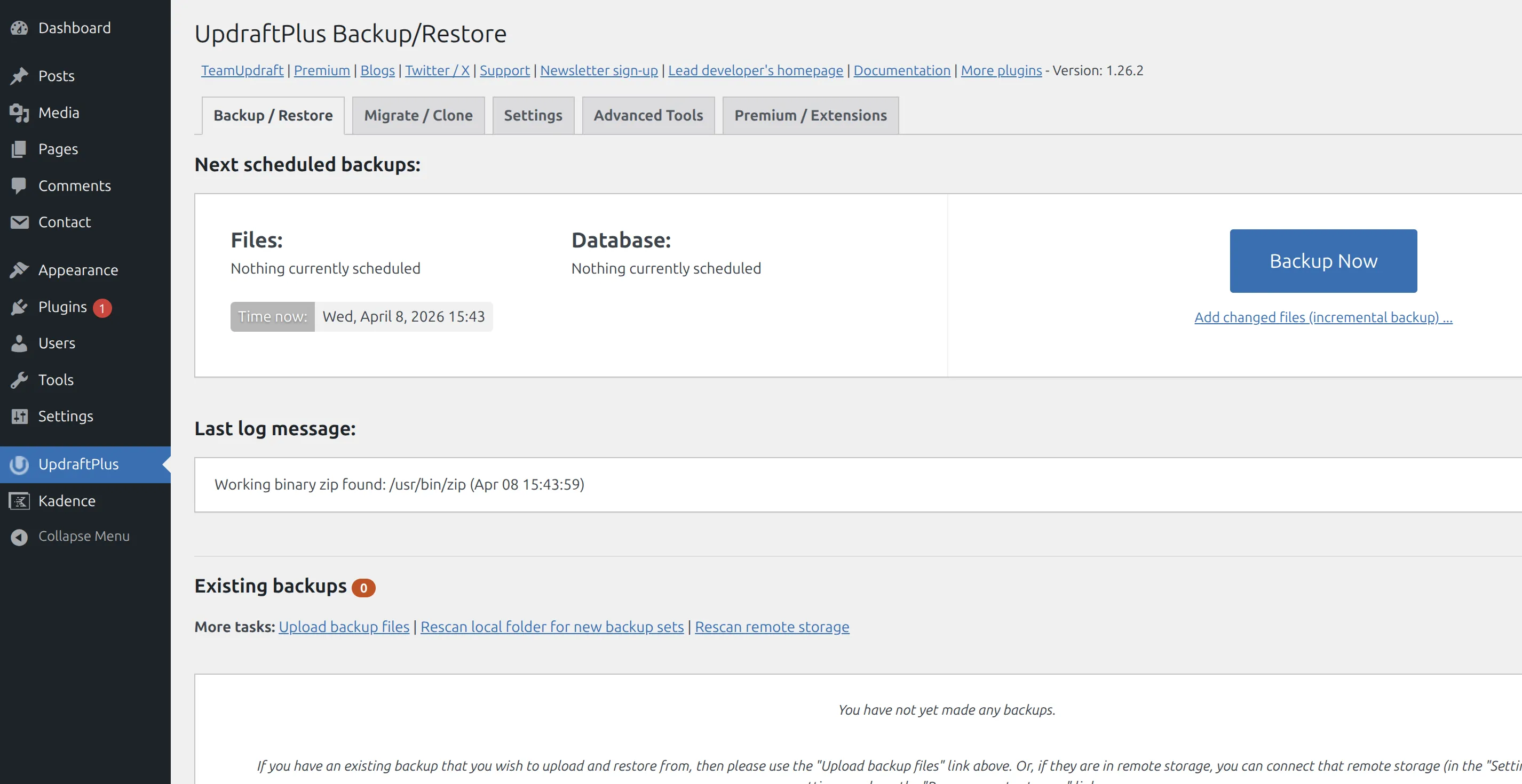
I use UpdraftPlus for this. The free version works fine. Open Settings > UpdraftPlus Backups and click “Backup Now.” Make sure both “Include your database” and “Include your files” are checked. Wait for it to finish – it usually takes 1-3 minutes depending on your site size.
If you don’t have a backup plugin yet, check out my guide on how to backup your WordPress site before making changes. Set it up once, and you’ll never have to worry about this step again.
Install WP Rollback (Optional but Recommended)
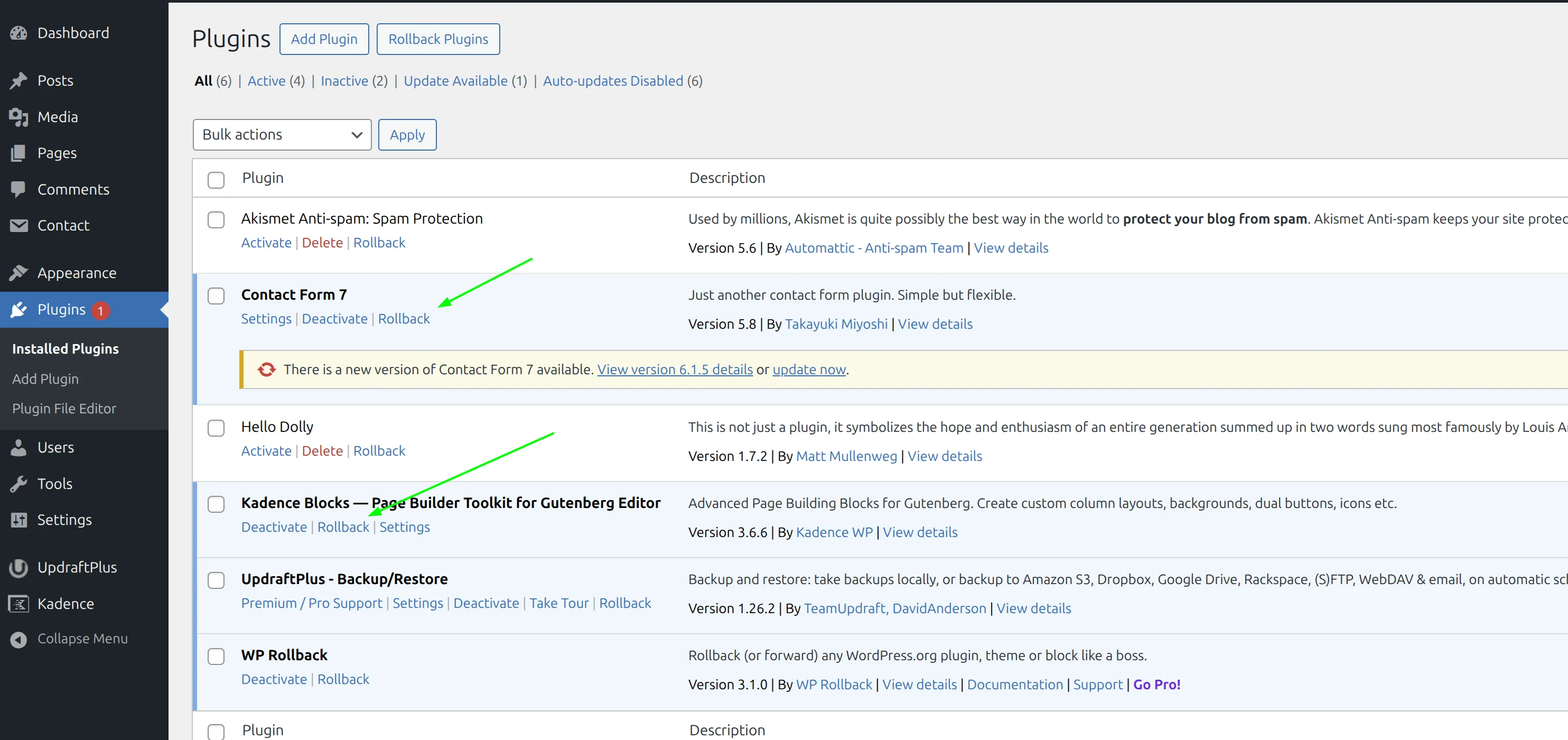
WP Rollback is a free plugin that adds a “Rollback” link next to every plugin on your Plugins page. If an update breaks something, you click Rollback, pick the previous version number, and it instantly reverts that one plugin. No full backup restore needed.
I consider this a must-have for any WordPress site. It’s especially useful when you don’t want to restore your entire site just because one plugin update went bad. Here’s how to set it up:
- Go to Plugins > Add New and search for “WP Rollback”
- Install and activate it
- You’ll now see a “Rollback” link under each plugin on the Plugins page
That’s it. You won’t need it most of the time. But when you do, it saves you 20 minutes of backup restoration.
The Safe Update Process (Step by Step)
Here’s the exact process I follow every time I update WordPress plugins safely. It works for 5 plugins or 25.
- Make a backup – Open UpdraftPlus, click Backup Now, wait for it to complete (2 minutes)
- Pick one plugin – Start with the smallest or least critical one
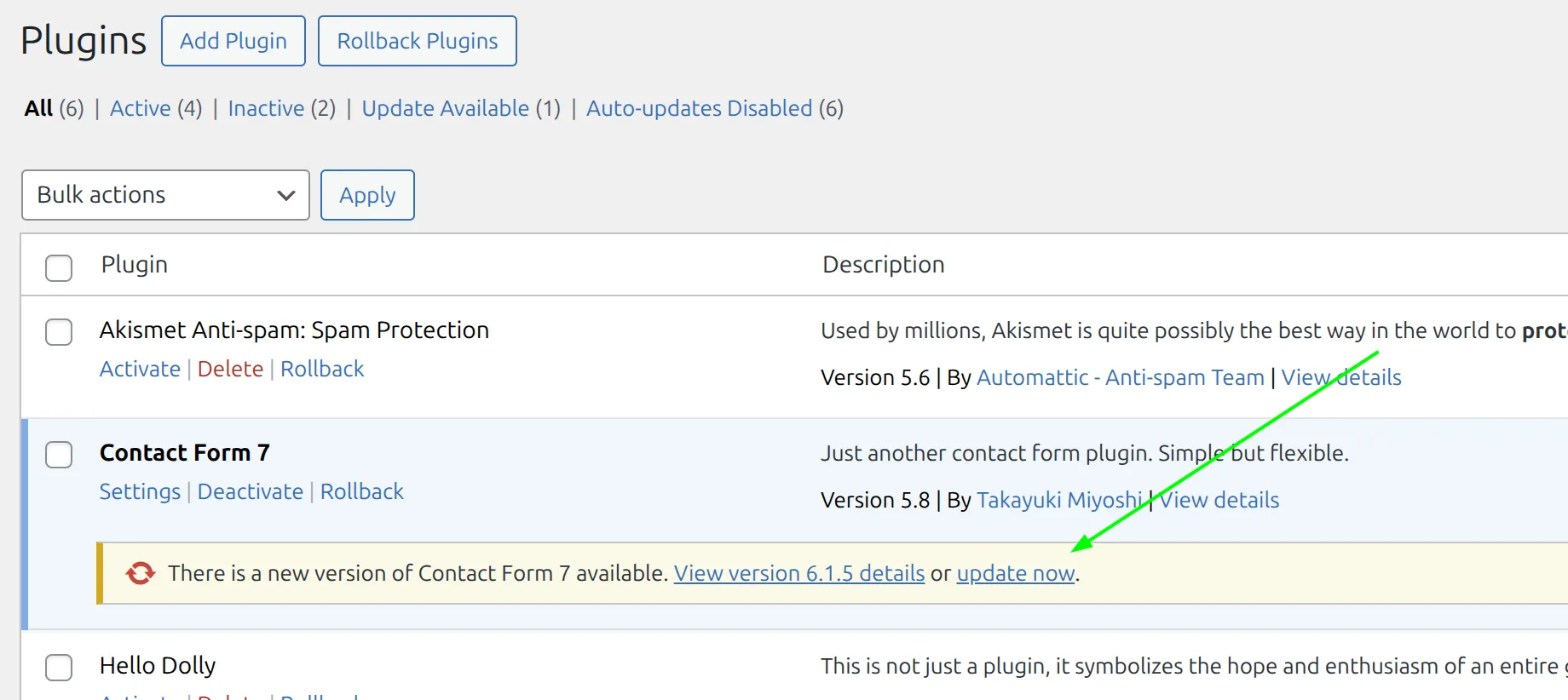
- Click “Update Now” next to that single plugin
- Check your site – Open your homepage, a blog post, and at least one important page (contact form, checkout, or landing page)
- If it works: Move to the next plugin and repeat from step 3
- If something breaks: Click Rollback on that plugin (or restore your backup if the issue is severe)
- Repeat until every plugin is updated
The whole process takes 10-15 minutes for a site with 12-15 plugins. Compare that to the 2+ hours you’d spend debugging a batch update gone wrong.
What Should I Update First?
Order matters. Start with low-risk plugins and work up to the ones that could cause the most damage.
| Update order | Why |
|---|---|
| Small utility plugins (redirects, analytics, security) | Low risk – quick to check |
| SEO plugin (Rank Math or Yoast) | Check that your posts still show meta titles and descriptions |
| Form plugins (WPForms, Fluent Forms) | Test that your forms still submit a test entry |
| Caching plugin (WP Rocket, LiteSpeed Cache) | Clear your cache after updating this one |
| Your theme | Check layout on both desktop and mobile |
| WooCommerce + add-ons | Test product pages and full checkout flow last – highest risk |
| WordPress core | Update this after all plugins are current |
WooCommerce goes near the end because it touches the most parts of your site – product pages, cart, checkout, account pages, and email notifications. If a WooCommerce update breaks something, you want every other plugin already stable so you’re not chasing multiple issues at once.
WordPress core goes dead last. Core updates can occasionally change how plugin APIs work, so you want your plugins fully up-to-date first. That way, any compatibility patches plugin developers released are already active on your site.
Should I Enable Auto-Updates?
WordPress lets you toggle auto-updates for each plugin individually. It’s a useful feature, but only for the right plugins.
Turn auto-updates ON for:
- Simple utility plugins – things like redirects, analytics trackers, or small security tweaks
- Plugins that rarely cause conflicts – anything that doesn’t touch your front-end layout or critical features
Keep auto-updates OFF for:
- WooCommerce and its extensions
- Page builders (Elementor, Kadence Blocks, Beaver Builder)
- Form plugins that handle leads or payments
- Your theme
- Any plugin that controls a core part of your business
To toggle this: go to your Plugins page and click “Enable auto-updates” or “Disable auto-updates” in the right column next to each plugin. You can be selective – I have auto-updates on for about 4 of my 15 plugins. The rest I update manually using the one-by-one method.
What If My Site Is Already Broken From an Update?
If you’re reading this because something already broke, here’s how to recover depending on how bad the damage is.
You Can Still Access the Dashboard
This is the easiest fix. Go to Plugins and deactivate the plugin you updated most recently. Check if the site works again. If it does, that plugin was the problem – either roll it back to the previous version with WP Rollback, or leave it deactivated and contact the plugin developer.
If you’re seeing JSON response errors or other odd behavior, try deactivating the last 2-3 plugins you updated. Reactivate them one at a time to isolate the conflict.
The Dashboard Is Broken Too
When you can’t even load wp-admin, you need to disable the problem plugin through your hosting file manager or FTP.
- Log into your hosting control panel (cPanel, Plesk, or your host’s file manager)
- Navigate to
/wp-content/plugins/ - Find the folder of the plugin you just updated
- Rename it – add
-disabledto the end (e.g.,woocommercebecomeswoocommerce-disabled)
WordPress will automatically deactivate any plugin whose folder name doesn’t match. Your dashboard should load again. From there, you can restore your backup or troubleshoot further.
Nothing Works at All
If your entire site is down – white screen, 500 error, or database connection error – restore from your UpdraftPlus backup. If you set up UpdraftPlus to save backups to cloud storage (Google Drive or Dropbox), you can still access them even if the plugin itself isn’t loading.
No backup? Contact your hosting provider. Most hosts keep server-level backups for 7-14 days. Ask them to restore your site to yesterday’s snapshot. It’s not ideal, but it’s better than starting from scratch.
Use a Staging Site (The Professional Way)
A staging site is a private copy of your live website. You can update plugins, test new features, and break things on it without affecting your real visitors. Once everything checks out on staging, you push the changes to your live site.
This is how professional developers handle updates. And the good news is you don’t need to be a developer to use one.
Most managed hosts offer one-click staging:
- SiteGround: Site Tools > WordPress > Staging
- Cloudways: Applications > Your Site > Staging Management
- WP Engine: Sites > Your Site > Add Staging
The process is simple. Create the staging copy, update all your plugins there, test everything, and then push to live. It adds about 10 minutes to your update routine, but it means your live site never touches an untested update.
If your host doesn’t offer staging, the free WP Staging plugin creates a copy of your site in a subfolder. It’s not as clean as host-level staging, but it works.
Keep a Simple Update Log
One last tip that’s saved me more than once. I keep a text file called “update-log.txt” on my desktop. Every time I run updates, I jot down the date, which plugins I updated, and which versions they went to. It takes 30 seconds.
Why? Because sometimes a plugin update causes a subtle problem you don’t notice for 3 days – a form that silently stopped sending emails, or a page that loads 2 seconds slower. If your site suddenly feels sluggish after updates, check my guide on why your WordPress site is so slow – it covers the exact diagnostics. When you have a log, you can look back and say “I updated Plugin X on Tuesday – that’s when this started.” Without a log, you’re guessing.
Frequently Asked Questions
How do I update a WordPress plugin without losing my customizations?
If you used the official settings panel to customize a plugin, updating it won’t erase your work. I always recommend using a child theme for any direct code edits so your custom CSS and functions stay safe during updates.
Will updating a plugin delete my settings or data?
Standard updates never delete your saved data or settings because those live in your WordPress database, not the plugin files. Still, I always run a database backup first just in case something goes sideways.
What should I do if a plugin update fails?
If an update gets stuck and leaves your site in maintenance mode, don’t panic. I usually log in via FTP or my host’s file manager and delete the .maintenance file in the root folder to bring the site back online immediately.
Should I turn on automatic updates for WordPress plugins?
I only enable auto-updates for small utility plugins that rarely cause conflicts. For major plugins like WooCommerce or your page builder, I always recommend updating them manually so you can test your site right away.
Quick Recap
Here’s the short version you can bookmark:
- Backup your site with UpdraftPlus
- Install WP Rollback as your safety net
- Update one plugin at a time
- Check your site after each update
- Roll back immediately if something breaks
- Save WooCommerce and WordPress core for last
- Use a staging site if your host offers one
Plugin updates don’t have to be stressful. With the one-by-one method and a rollback plan, you’re in control the entire time. And if something does go wrong, you’re 2 clicks away from undoing it.