The Best Free WordPress Backup Plugins in 2026 (I Tried to Restore a Site With All 6)
The best free WordPress backup plugin in 2026 is UpdraftPlus. It was the only one of the 6 I tested that brought my site back exactly in both restores, and it did all 10 of my free-tier jobs without asking for money.
To find the best free WordPress backup plugins, I didn’t stop at making backups. I backed up the same test site with each plugin, broke the site on purpose, and restored it from wp-admin. Then I took the downloaded backup to a brand-new WordPress install on a different address and restored it there too.
- Best overall: UpdraftPlus (77.95 / 100) – exact restores both times, plus a free schedule and Google Drive. The catch: it took the most clicks in the test (25), and its setup wizard pre-ticks 3 extra plugins to install.
- Easiest: WPvivid (71.06) – 7 clicks from first backup to finished restore. The catch: its restores moved my form entries’ times by 2 hours, and it skipped 6 protection files on the new site.
- Best for moving a site: Duplicator (67.45) – exact restores and a free address change. The catch: no schedule, no cloud, and the new-site restore needs FTP.
- Simplest automatic backups to Google Drive: Backup Migration (66.69) – a 1-click weekly schedule. The catch: its default settings left a 120 MB file out of my backup, and the screen still said “Backup successful!”.
- Same-site restores only: BackWPup (59.49) – the fastest backup of the five ranked (9 s). The catch: the new-site restore stalled silently, and moving to a new address is Pro.
- Not a free backup plugin: All-in-One WP Migration (27.05, unranked) – it couldn’t restore my site at all on a normal 64 MB upload limit.
Duplicator and Backup Migration finished 0.76 points apart, so treat them as a tie and pick by the label. And one more thing: of the 14 pages ranking for this search, 5 say they tested the plugins. None of them publishes a single measured restore.
How I tested these 6 free WordPress backup plugins
The test site. A local copy of WordPress 7.1.2 on PHP 8.3 with the Kadence theme, Fluent Forms holding 3 real form entries, and 40 posts with 120 large photos. I also put one 120 MB zip file in the Media Library, bigger than the upload limit on purpose. That’s 920 MB of uploads in 1,510 files.
Host-like limits, on purpose. 256 MB of memory, a 60-second time limit and a 64 MB upload limit, which is typical shared hosting. A test machine with no limits hides exactly the failures a real host causes.
The plugins. The current version of each from WordPress.org. Two of them shipped updates during my test week, so I tested the newer one:
| Plugin | Version tested | Last updated | Active installs |
|---|---|---|---|
| All-in-One WP Migration | 7.112 | 6 Oct 2026 | 5,000,000+ |
| UpdraftPlus | 1.26.8 | 21 Sep 2026 | 4,000,000+ |
| Duplicator | 5.0.5 | 29 Sep 2026 | 1,000,000+ |
| WPvivid Backup | 0.9.136 | 28 Sep 2026 | 900,000+ |
| BackWPup | 5.7.7 | 5 Oct 2026 | 400,000+ |
| Backup Migration | 2.1.7 | 11 Aug 2026 | 80,000+ |
The same job, in each plugin’s own screens. Make a full backup, download it, then break the site: delete 5 posts and 20 images, switch the theme and turn off Fluent Forms. Restore from wp-admin. Then restore the download onto a fresh WordPress site on a new address. Finally, set a weekly schedule and send a backup to Google Drive (a real upload, to a throwaway account).
How I checked “exact”. Before every backup and after every restore, I recorded every database table and a fingerprint of every file, then compared them. I also opened a post, an image and the footer to check by eye. Between plugins I reset the site to the same proven starting copy, so nothing one plugin left behind could leak into the next.
What I didn’t test. Sites over about 2 GB, WooCommerce or multisite, any paid version, and months of scheduled runs (I set up one weekly schedule, I didn’t wait for weeks of them).
How I ranked them (the scorecard)
I wrote the scoring rules down before I installed the first plugin, so I couldn’t bend them later. Each plugin could score 100 points:
| What I scored | Points | How |
|---|---|---|
| Restore actually works | 30 | 15 per restore: exact 15, minor loss 8, anything else 0 |
| What the free version does | 25 | 10 fixed backup jobs, checked in its own screens |
| Beginner ease | 15 | clicks to first backup and restore, jargon on the restore screen |
| Cost of a backup run | 10 | time, size, memory, and what it adds to your site |
| Upsells and data | 10 | upgrade prompts, locked menus, pre-ticked boxes, calls home |
| Archive safety and cleanup | 10 | can a stranger download the backup? what does Delete leave? updates, security reports |
There was one pass-or-fail check too. To be ranked, a plugin had to back up the database and files, restore from wp-admin with a matching result, and get the backup off the server. All-in-One WP Migration failed the restore part, so it’s scored but unranked.
| Rank | Plugin | Restore /30 | Free /25 | Ease /15 | Cost /10 | Upsells /10 | Safety /10 | Total |
|---|---|---|---|---|---|---|---|---|
| 1 | UpdraftPlus | 30 | 25.0 | 3.00 | 7.45 | 8.00 | 4.50 | 77.95 |
| 2 | WPvivid | 16 | 22.5 | 14.00 | 6.31 | 8.00 | 4.25 | 71.06 |
| 3 | Duplicator | 30 | 15.0 | 9.89 | 4.89 | 2.67 | 5.00 | 67.45 |
| 4 | Backup Migration | 16 | 22.5 | 11.33 | 4.61 | 8.00 | 4.25 | 66.69 |
| 5 | BackWPup | 15 | 20.0 | 7.44 | 6.62 | 9.17 | 1.25 | 59.49 |
| – | All-in-One WP Migration | 0 | 5.0 | 4.00 | 8.46 | 8.33 | 1.25 | 27.05 |
Two honest notes. UpdraftPlus wins even though it needed the most clicks, because restore and free features carry the most weight. And #3 and #4 swapped on one rule I stated up front: a plugin that leaves downloadable backups behind after you delete it scores 0 on that part. Duplicator was the only one that cleaned up, so read those two as a tie.
The best free WordPress backup plugins side by side
Here’s what I measured. “New site” means the downloaded backup restored onto a fresh WordPress install on a different address.
| UpdraftPlus | WPvivid | Duplicator | Backup Migration | BackWPup | AIOWM | |
|---|---|---|---|---|---|---|
| Backup time | 14.0 s | 61.2 s | 30.4 s | 35.1 s | 9.0 s | 6.1 s |
| Backup size | 979 MB | 992 MB | 1.02 GB | 844 MB | 1.17 GB | 1.10 GB |
| Peak memory | 34 MB | 54 MB | 18 MB | 64 MB | 24 MB | 16 MB |
| Free jobs (of 10) | 10 | 9 | 6 | 9 | 8 | 2 |
| Same-site restore | 7.1 s, exact | 31.5 s, form times +2 h | 7.4 s, exact | 101 s, 3 tables emptied | 11.5 s after re-upload, exact | refused (64 MB limit) |
| New-site restore | 7.0 s, exact | 99.7 s, times +2 h, 6 files skipped | 8.8 s, exact (needs FTP) | 107 s, 12 files missing (incl. the media zip) | stalled; retry worked, old address | refused (64 MB limit) |
| Clicks, first backup + restore | 25 | 7 | 9 | 10 | 17 | – |
| Backup downloadable on most hosts? | no | no | yes | no | yes | yes |
| Backup downloadable on nginx hosts? | yes | yes | yes | yes | yes | yes |
| Left on the server after Delete | 934 MB of backups | 2.3 MB of database copies | nothing | 806 MB of backups | 1.2 GB of backups | 1.1 GB of backups |
Backup speed barely matters: the slowest, WPvivid, still finished in about a minute. The restore rows are the ones to read.
Can anyone download your backup? (the test nobody else ran)
A full backup is a copy of your whole site, including the user table with everyone’s password hashes. Anyone who can download it effectively owns it. So I tried to download every backup as a logged-out stranger.
A quick explainer. These plugins drop a little “keep out” file (.htaccess) into their backup folder. Most shared hosts run Apache or LiteSpeed, which obey it. Some managed hosts run nginx, which ignores it. So I tested on both.
- Blocked on most hosts, open on nginx: UpdraftPlus, WPvivid and Backup Migration.
- Downloadable on both: BackWPup, Duplicator and All-in-One WP Migration. BackWPup puts no protection file in its folder at all, and its full backup includes wp-config.php, the file with your database password.
To be fair, every plugin gives its backups random file names, so nobody can guess the address. The real risk is a leaked link or a folder listing, not a lucky guess. But UpdraftPlus’s log file sits in the same folder and lists every backup by name.
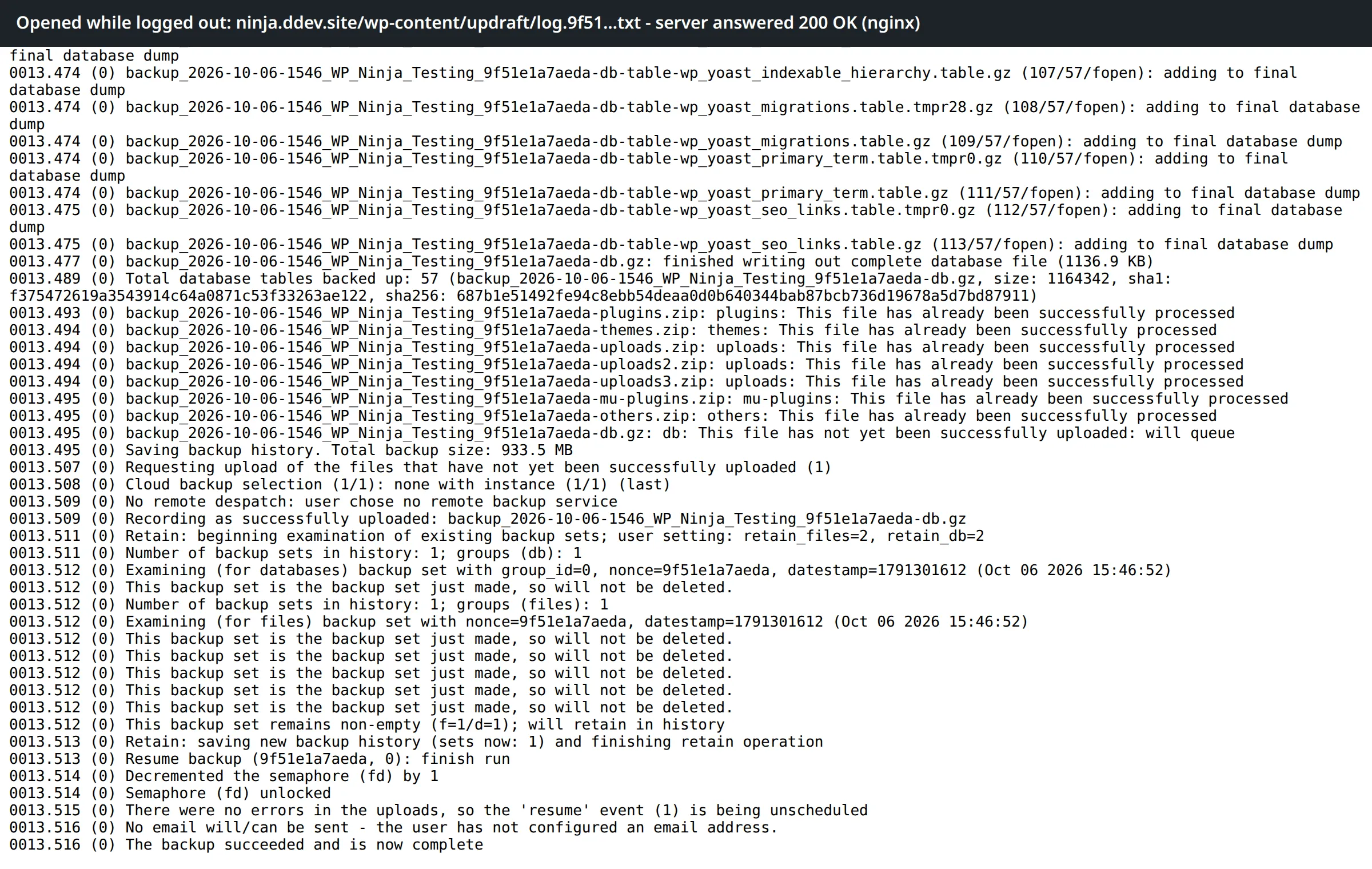
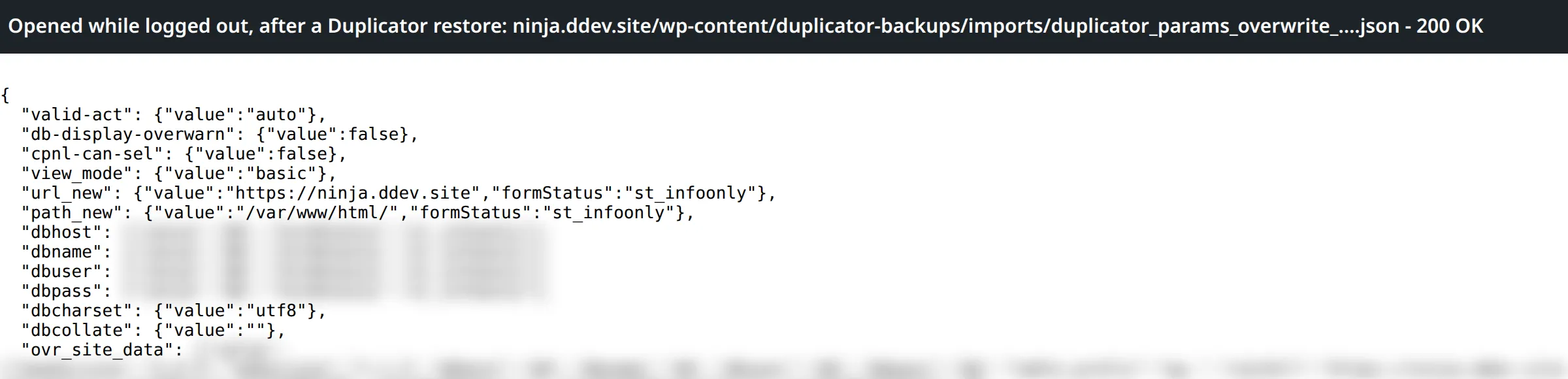
Two password files I didn’t expect. Backup Migration writes a small file next to every backup with your database password and the site’s security keys in plain text. It’s open on nginx and blocked on Apache. Duplicator, after a wp-admin restore, leaves a settings file holding the database password in a public folder, on both kinds of server, until you uninstall the plugin. Its own “Delete Installation Files” tool doesn’t remove it.
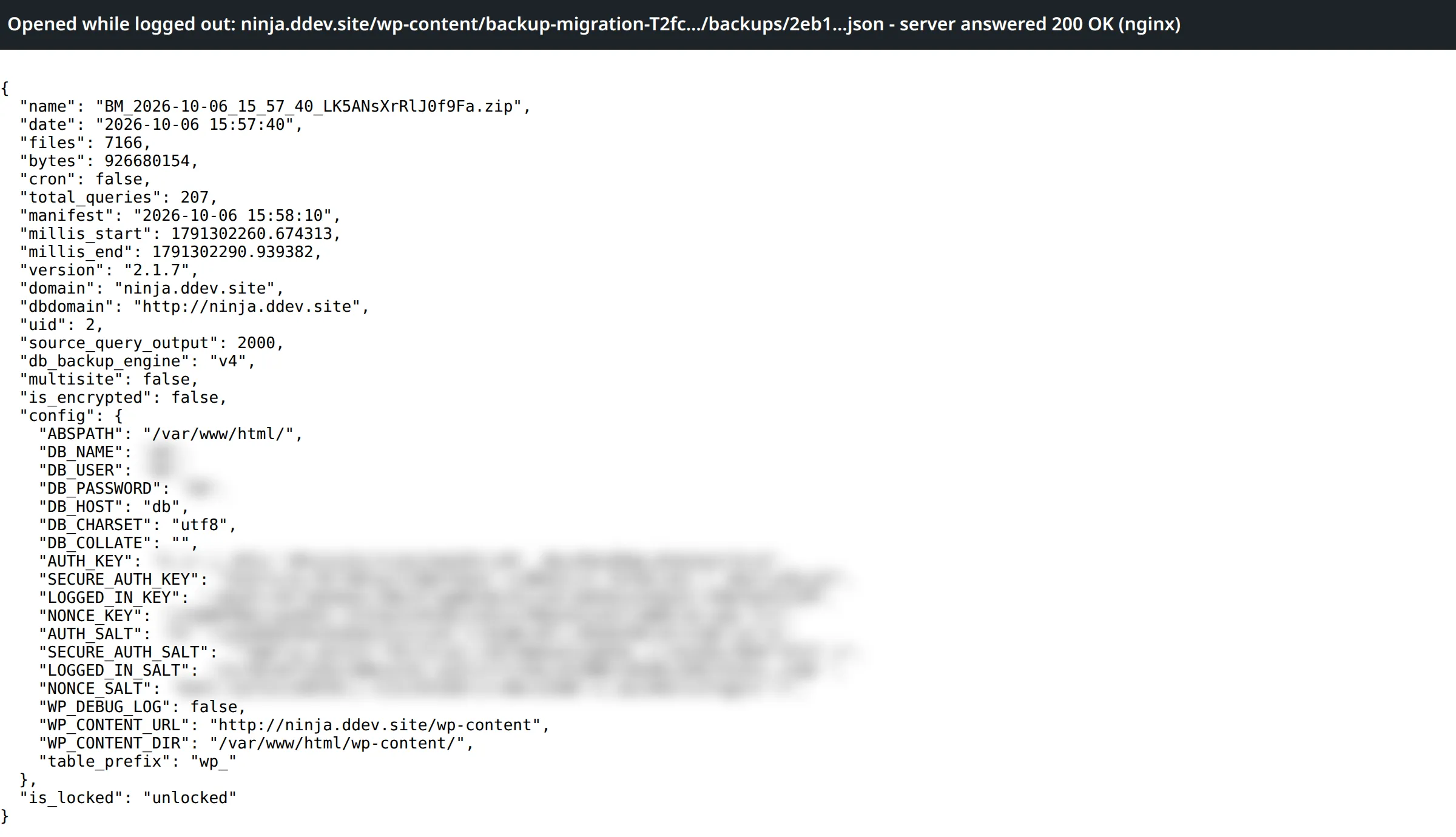
Deleting the plugin doesn’t delete your backups. On the normal Delete, UpdraftPlus left 934 MB, BackWPup 1.2 GB, All-in-One WP Migration 1.1 GB, Backup Migration 806 MB and WPvivid 2.3 MB of database copies. All were still downloadable on nginx with the plugin gone. Only Duplicator removed its backups, because its two “delete” settings are on by default.
Google Drive keys left behind. UpdraftPlus and Backup Migration both kept a working Google Drive connection in the database after “Delete … and its data”. WPvivid removed its own. If you’ve connected Drive, revoke access at myaccount.google.com/permissions after uninstalling.
What to do:
- Download your backups and delete old copies from the server. Keep 1 or 2 recent ones at most.
- If your host runs nginx, ask them to block the backup folder, or send backups to the cloud and delete the local copies.
- After deleting a backup plugin, delete its folder in wp-content by hand.
1. UpdraftPlus – the only exact restore on both tests
UpdraftPlus restored my site exactly on the same site and on a brand-new one, and its free version did every job I threw at it. It’s the one I’d install on a site I care about.
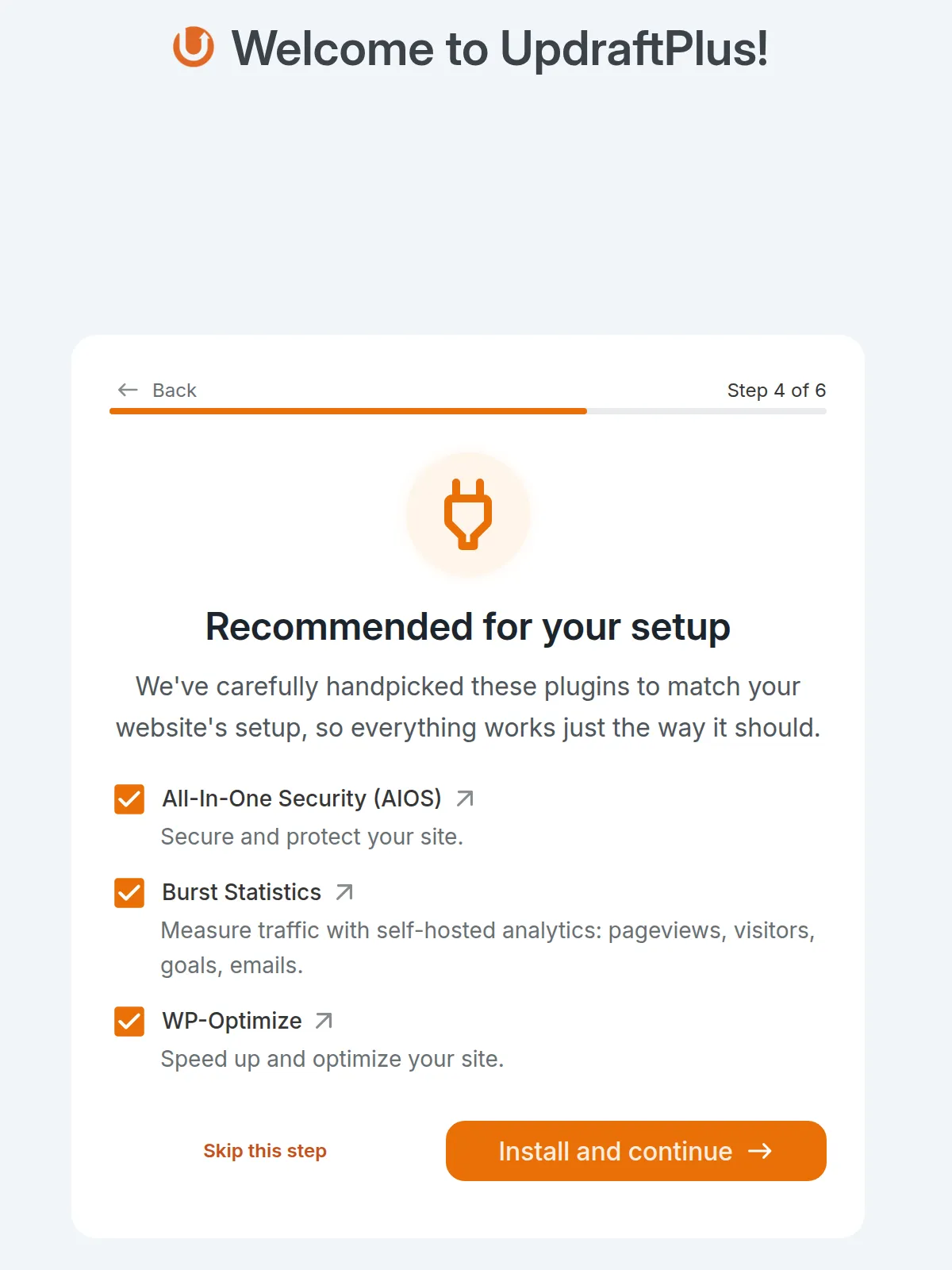
Setup. It has no menu of its own – you’ll find it under Settings > UpdraftPlus. A 6-step welcome wizard covers the screen, and 2 of its steps won’t let you continue until you connect cloud storage or tick the newsletter box, so “Skip” is the only way through. Step 4 has All-In-One Security, Burst Statistics and WP-Optimize pre-ticked under “Install and continue”. Press the big button and you get 3 more plugins.
It took 10 clicks to reach the backup screen and 4 more to start a backup. The backup took 14.0 seconds and made 8 files (database, plugins, themes, uploads in 3 parts and more). Downloading means clicking each one: 16 clicks for all 8.
What’s free. All 10 jobs: a weekly schedule, “keep the last 2” retention, Google Drive (my real upload took 74 seconds), email reports and folder excludes. Dropbox, S3, FTP and OneDrive are offered free too.
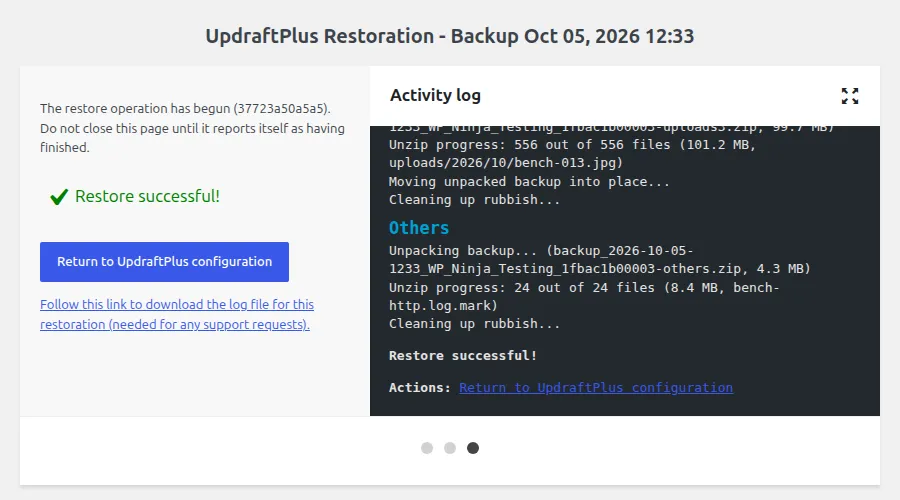
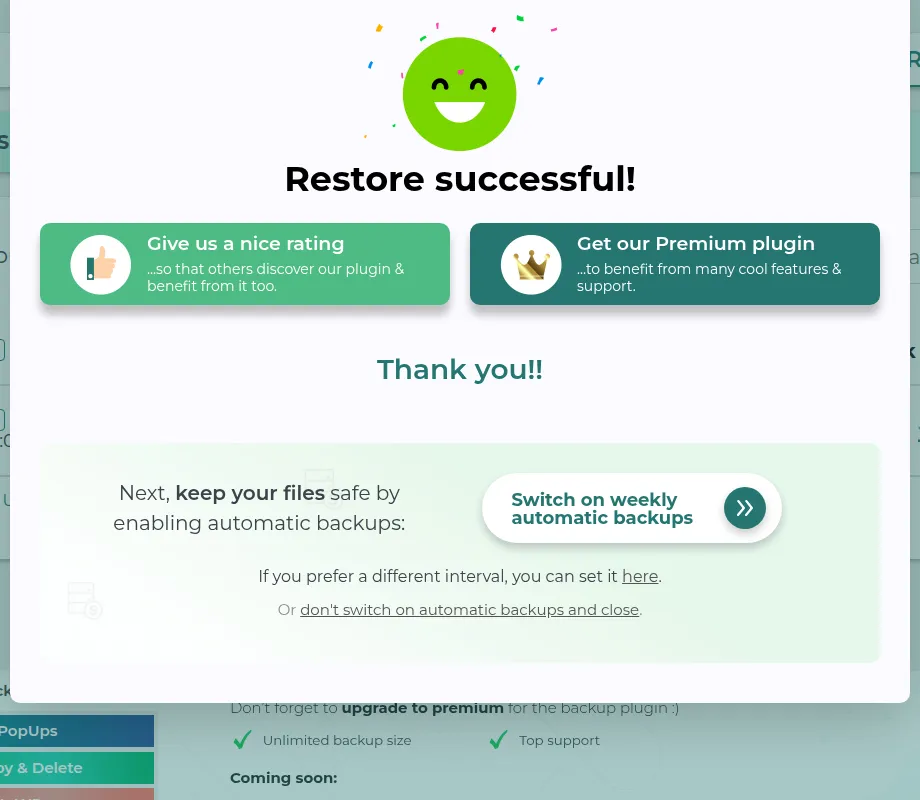
The restore. All 6 component boxes start unticked, so you have to tick each one, including the confusing “Must-use plugins” and “Others”. It took 11 clicks and showed “Restore successful!” after 7.1 seconds. Afterwards a “Delete old folders” button cleans up the backup copies it set aside.
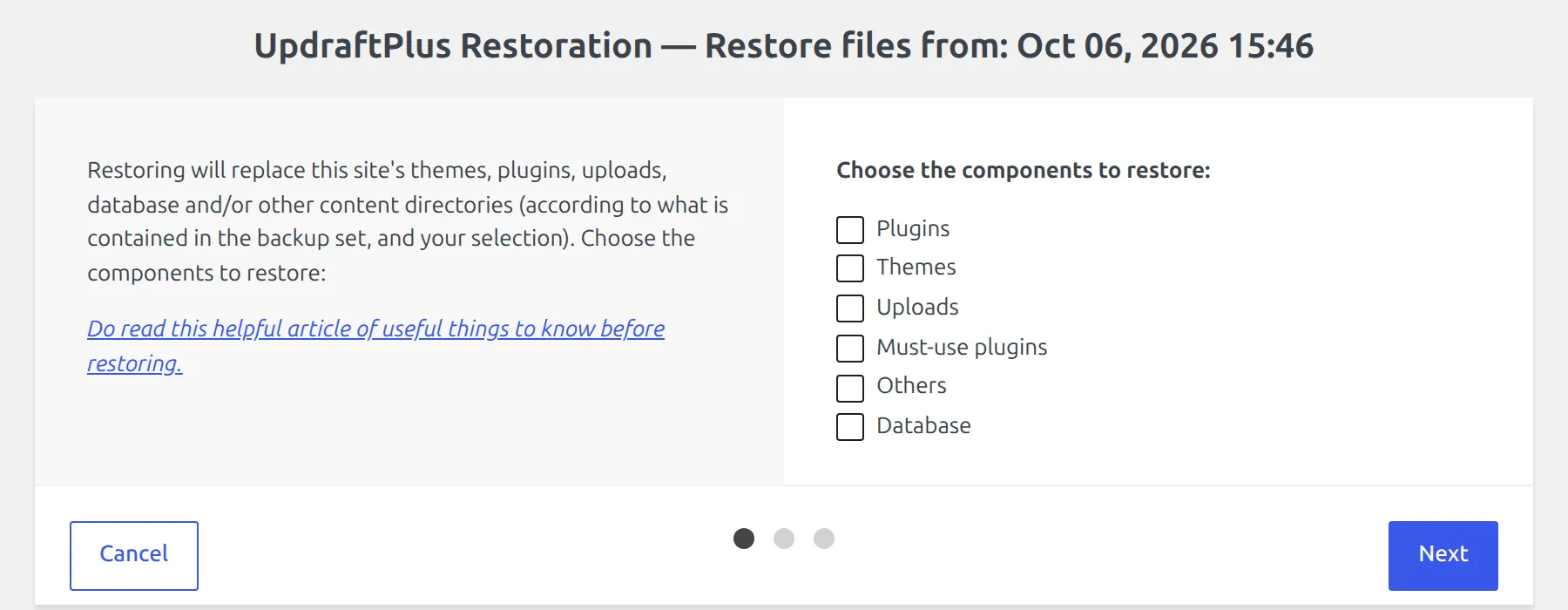
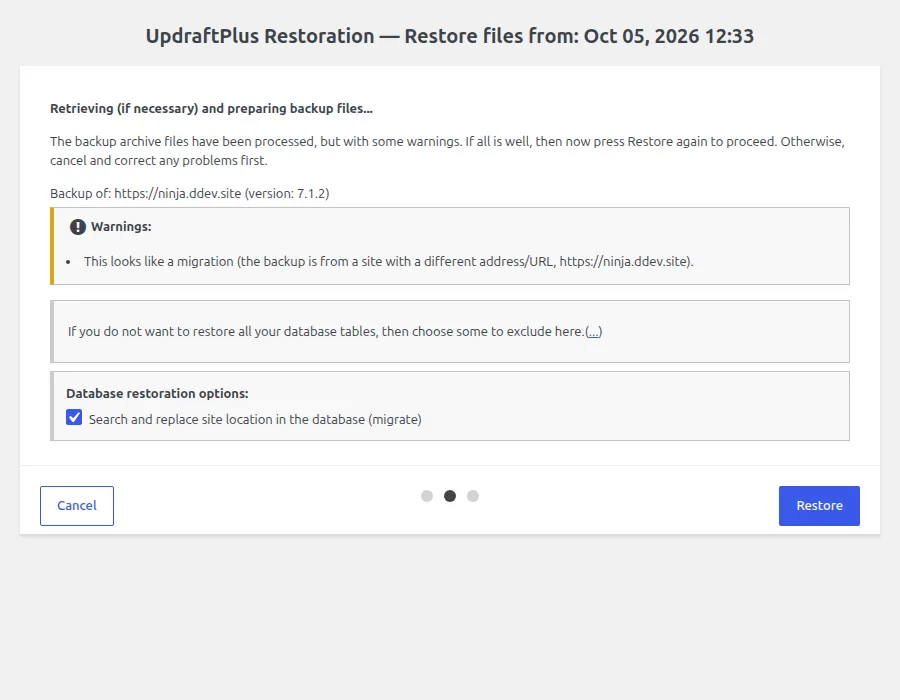
On the new site it uploaded all 8 files past the 64 MB limit in under 15 seconds. “Search and replace site location in the database” was already ticked for free, so the address changed and everything else came back exactly.
What it adds to your site. No database tables, 17 small settings loaded on every page (2.5 KB), 1 scheduled task and nothing on the front end. Peak memory was 34 MB during the backup.
The catch. The most clicks in the test. If you tick Google Drive but don’t finish signing in, Backup Now shows a wrong “no remote storage locations have been selected” alert. Deleting it keeps 62 settings (including the Drive key), 3 scheduled jobs and the 934 MB backup folder. And version 1.26.8 is the fix for a security report published on 27 September 2026, so update before anything else.
Best for: set-and-forget backups you can actually restore.
2. WPvivid – the fewest clicks, with two quiet losses
WPvivid is the easiest backup plugin I tested. But its restores weren’t perfect, and nothing on screen tells you.
Setup. No wizard. Activating it lands you on Backup & Restore, and Backup Now is 2 clicks away. You may see a harmless notice about WP-Cron if your host runs scheduled tasks the proper server way.
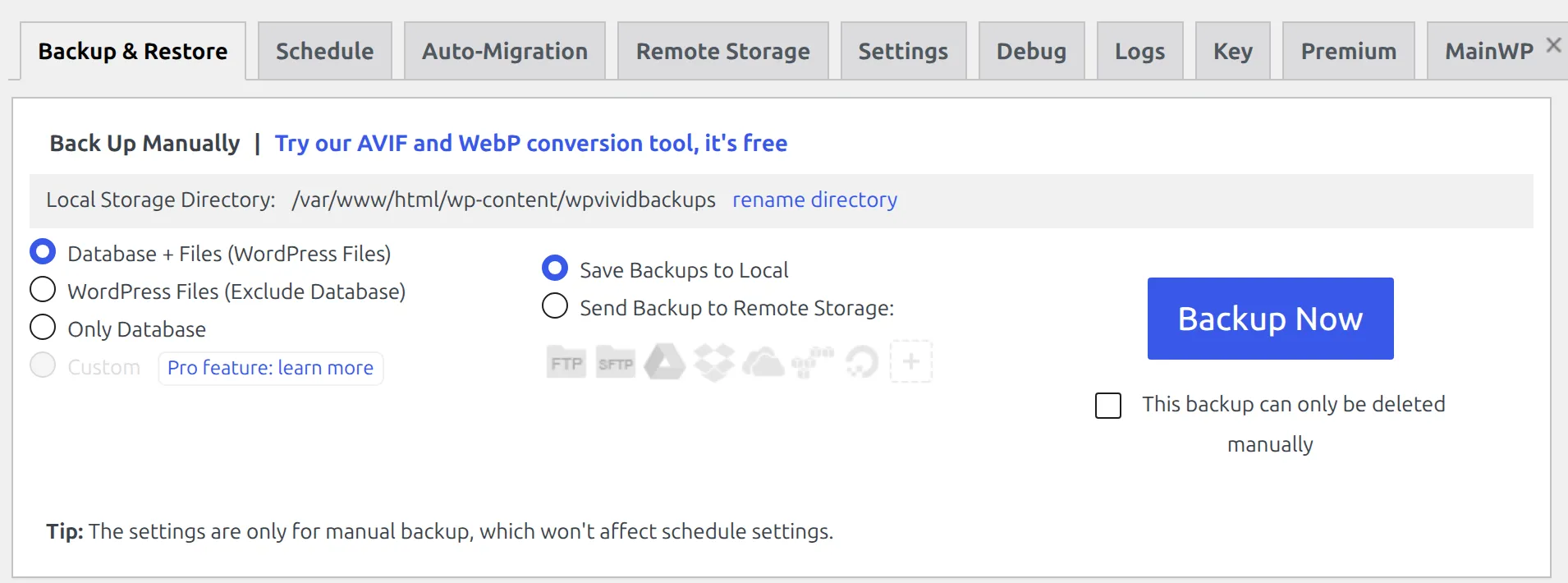
The backup was the slowest at 61.2 seconds: 992 MB in 6 parts, with WordPress itself included. Closing the browser tab doesn’t stop a backup.
The restore. 4 clicks, no choices and no jargon. It took 31.5 seconds on the same site and 99.7 seconds on the new one, and the new address was set automatically.
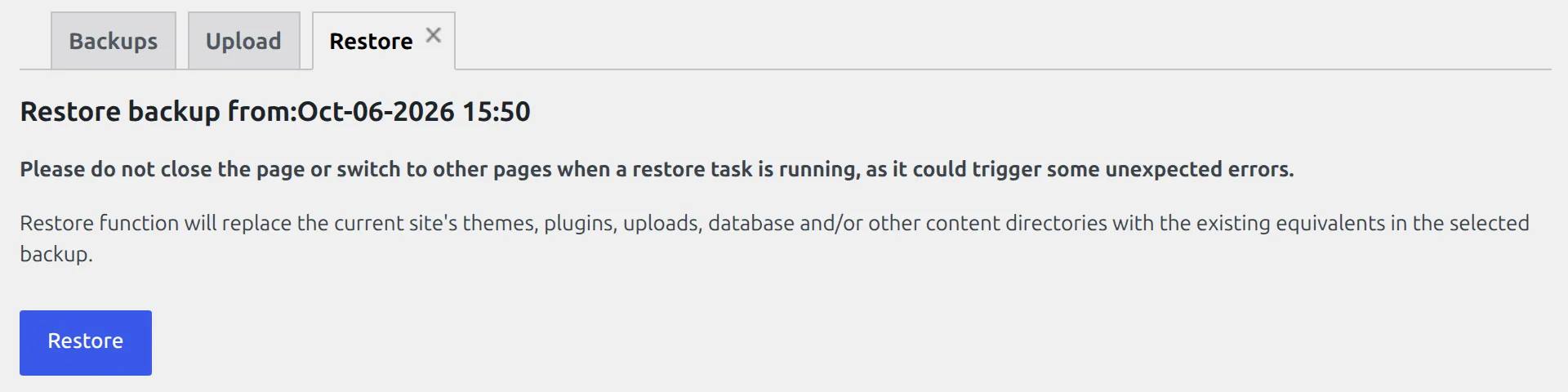
The two losses:
- Every restore moved my Fluent Forms entry times forward by 2 hours. WPvivid saves those times in the server’s local time but labels them as UTC (world standard time), so they shift on any server set to a different time zone. Plugins that store dates the same way are hit too. WordPress posts and comments aren’t affected, and UpdraftPlus and Duplicator restored the same tables exactly.
- On the new site it skipped all 6 .htaccess protection files inside wp-content, the ones that guard folders like form uploads. That’s by design, with no free setting to change it.
Keep the tab open while it restores. The restore runs from your browser, so leaving the page stops it half-way and leaves a half-restored site.
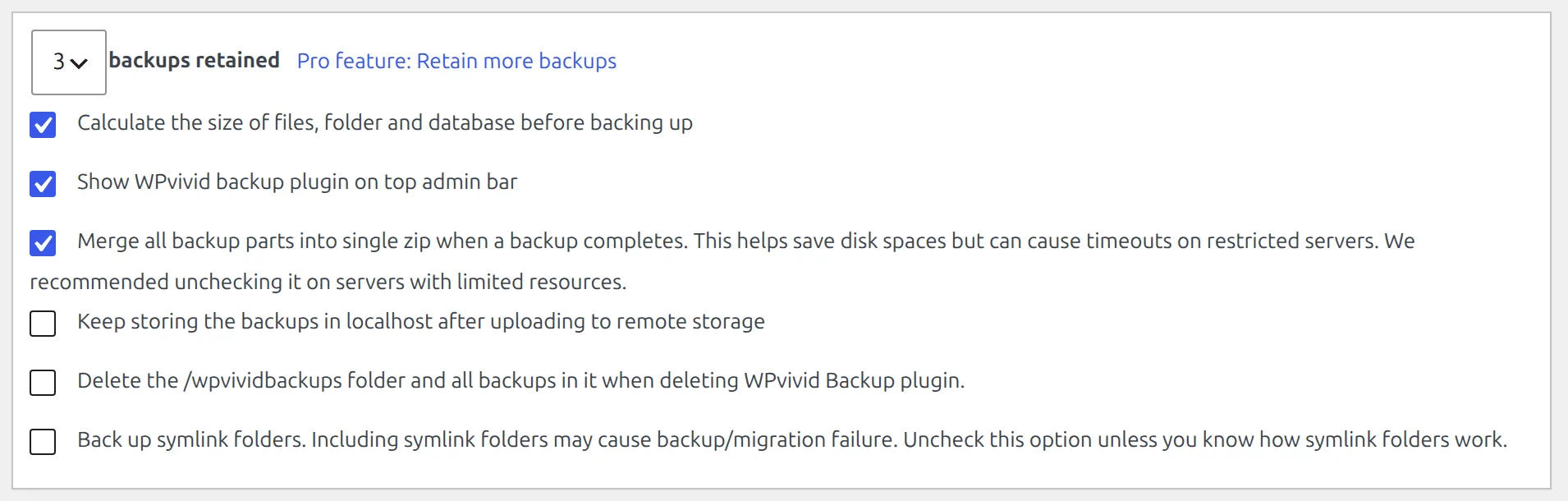
What’s free. 9 of 10 jobs: a schedule (from every 12 hours to monthly), retention, Google Drive (157 seconds for my upload), Dropbox, S3, OneDrive, FTP and email reports. The one miss is excluding a folder, which is “Custom – Pro feature”.

What it adds to your site. 1 database table, almost nothing loaded on every page (49 bytes) and no scheduled task until you set one.
The catch. The setting to delete its backup folder on uninstall is off by default, so 2 database copies stayed downloadable on nginx after I deleted it. It also had the most security reports in the test (15 in 24 months, 2 of them critical), all fixed before the version I tested.
Best for: beginners who want the shortest path, on a site where form-entry times aren’t critical.
3. Duplicator – exact restores and the cleanest uninstall, but no schedule
Duplicator restored my site exactly both times and was the only plugin that cleaned up after itself. But it’s a manual tool: no schedule, no cloud.
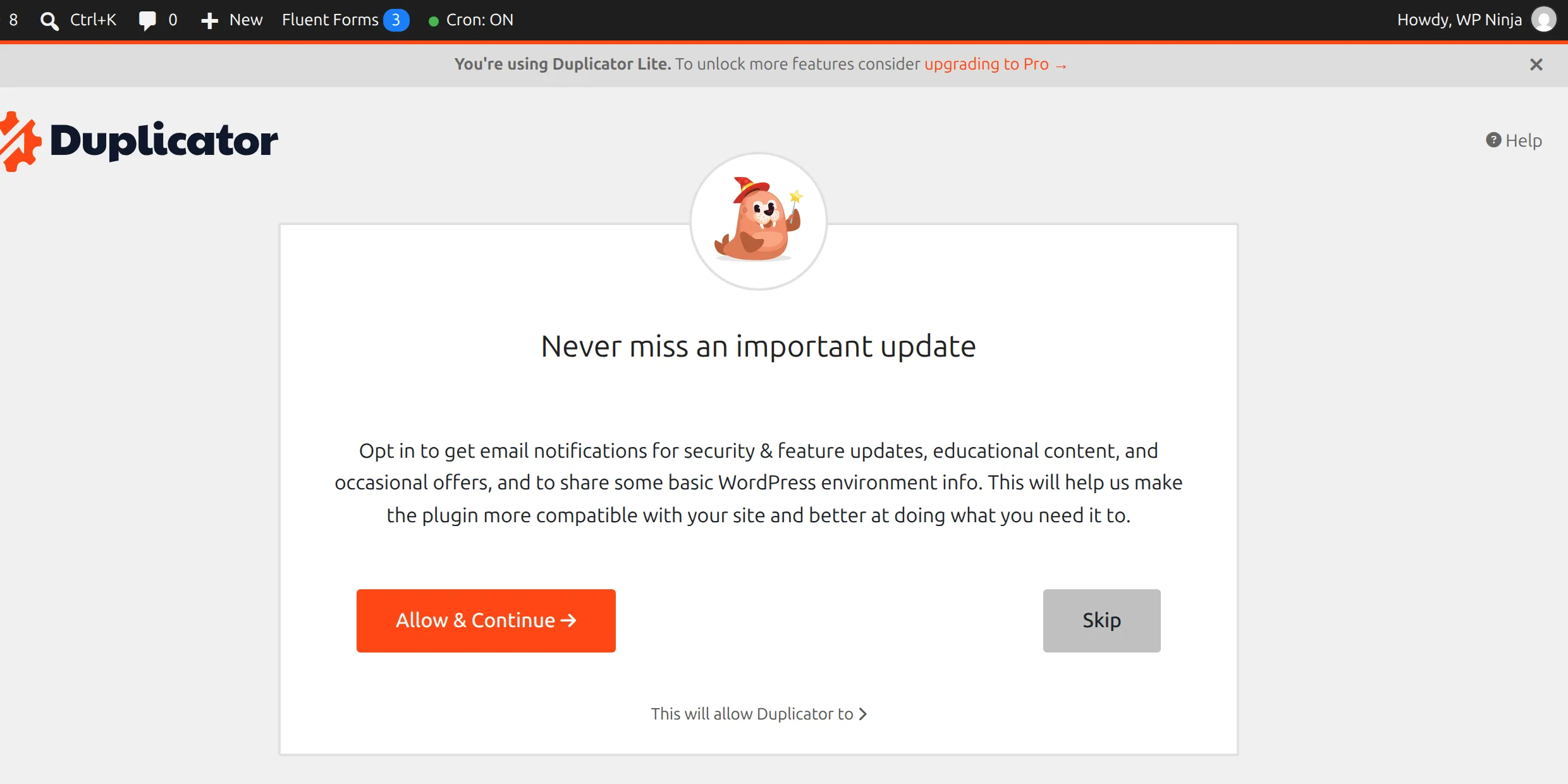
Setup. A “Getting started” page asks you to opt in to update emails, with nothing pre-ticked, surrounded by 4 upgrade blocks. “Skip” goes straight to a new backup, 4 clicks in total. It contacted its notifications server when I activated it, and it writes a key into wp-config.php (removed when you uninstall).
The backup took 30.4 seconds and made a 1.02 GB file in Duplicator’s own .daf format. Peak memory was 18 MB, the lowest of the five ranked plugins.
What’s free. 6 of 10 jobs. The Schedules page says “Duplicator Lite does not support scheduled backups!”, and there’s no Google Drive, Dropbox or S3. There are no failure emails either, but a weekly summary email is on by default.
Restore on the same site. From the copy already on the server: 5 clicks, 7.4 seconds, exact. But it’s the most jargon-heavy screen in the test, with “Character Set and Collation”, “installer” and “Search and replace”.
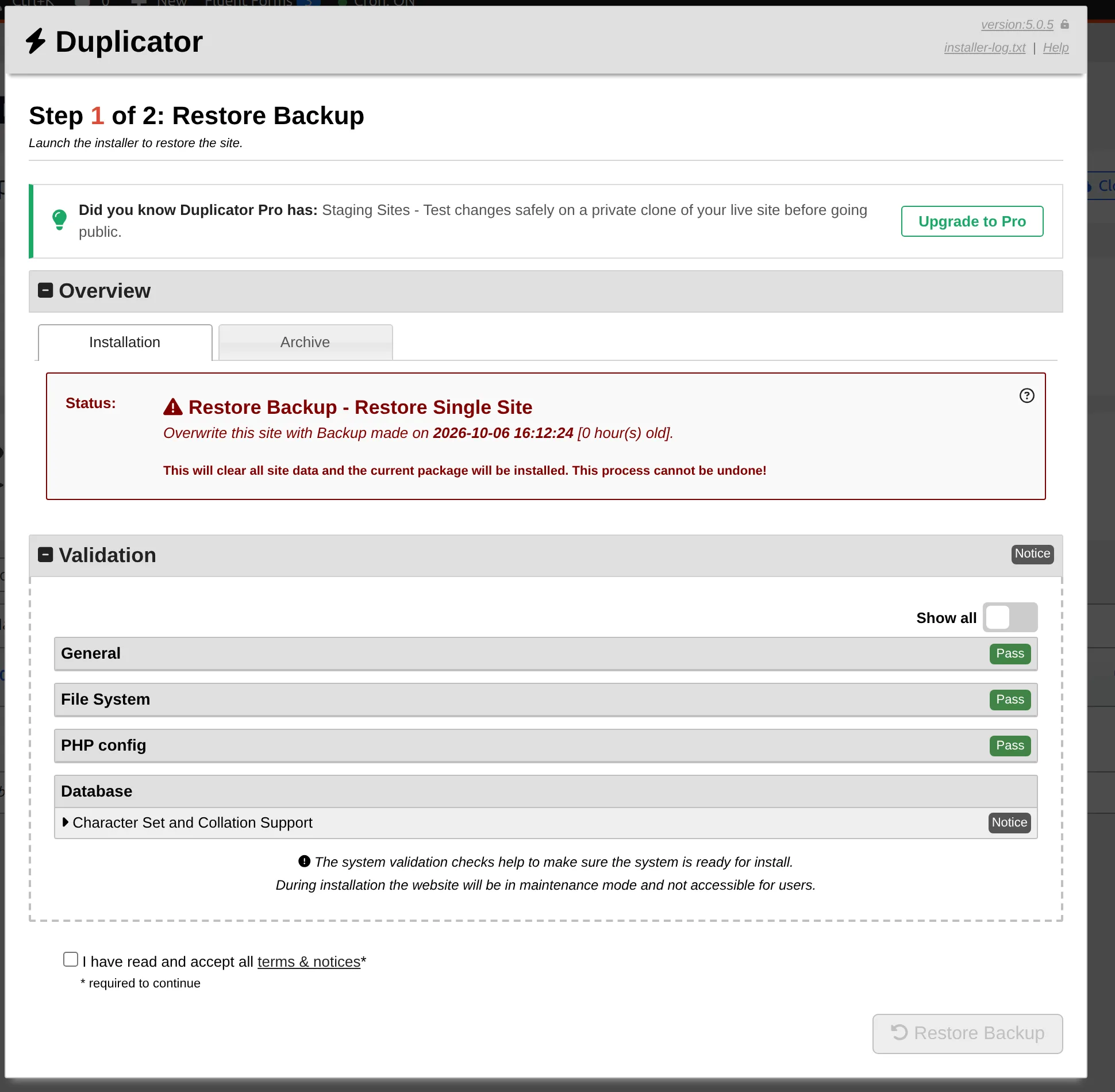
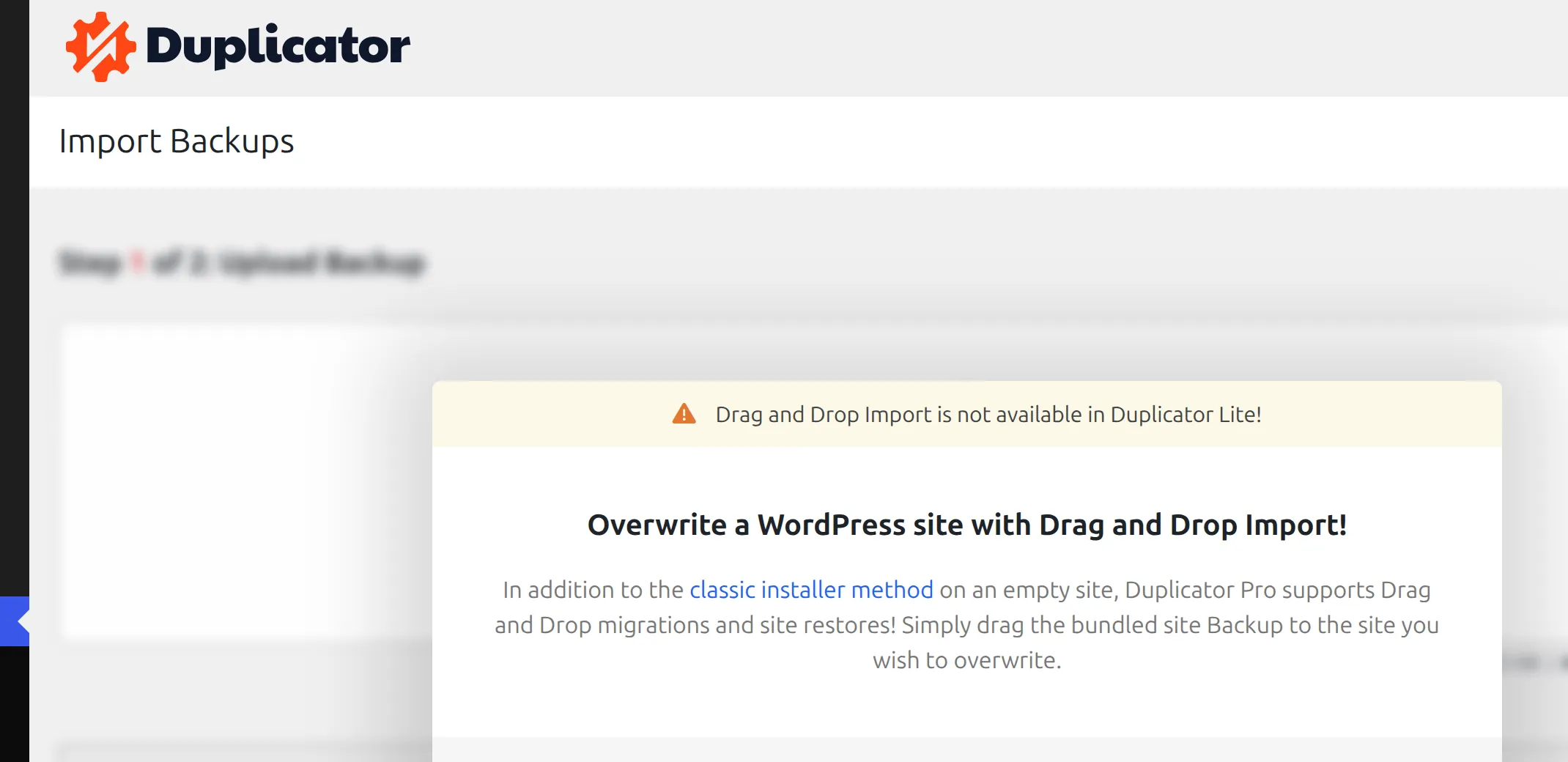
Restore on a new site. The wp-admin import is a blurred Pro mock-up. The free way is to upload 2 files (an installer and the backup) to the new site by FTP or your host’s file manager, then open the installer in your browser. It came back exact in 8.8 seconds, and the address was rewritten for free in 2,726 database rows. This is the step I’d expect beginners to struggle with.
The catch. After a wp-admin restore, that settings file with your database password stays downloadable until you uninstall. In 1 of my 2 restores, Duplicator also refused to start a new backup until I ran Tools > Delete Installation Files. And its backups were downloadable on both kinds of server.
The good part. Deleting Duplicator removed everything, backups included, with its default settings. And it had 0 security reports in 24 months.
Best for: moving a site to a new host or address, and manual backups before big changes.
4. Backup Migration – easiest schedule, but check the filters first
This is “Backup Migration” by BackupBliss (its WordPress.org address is backup-backup), not one of the other plugins with “backup” and “migration” in their names.
Setup. No wizard, just a tracking opt-in with nothing pre-ticked and 2 upgrade blocks. But before I’d agreed to anything, it had already contacted BackupBliss’s server 3 times to register my site for its “keepalive” service.

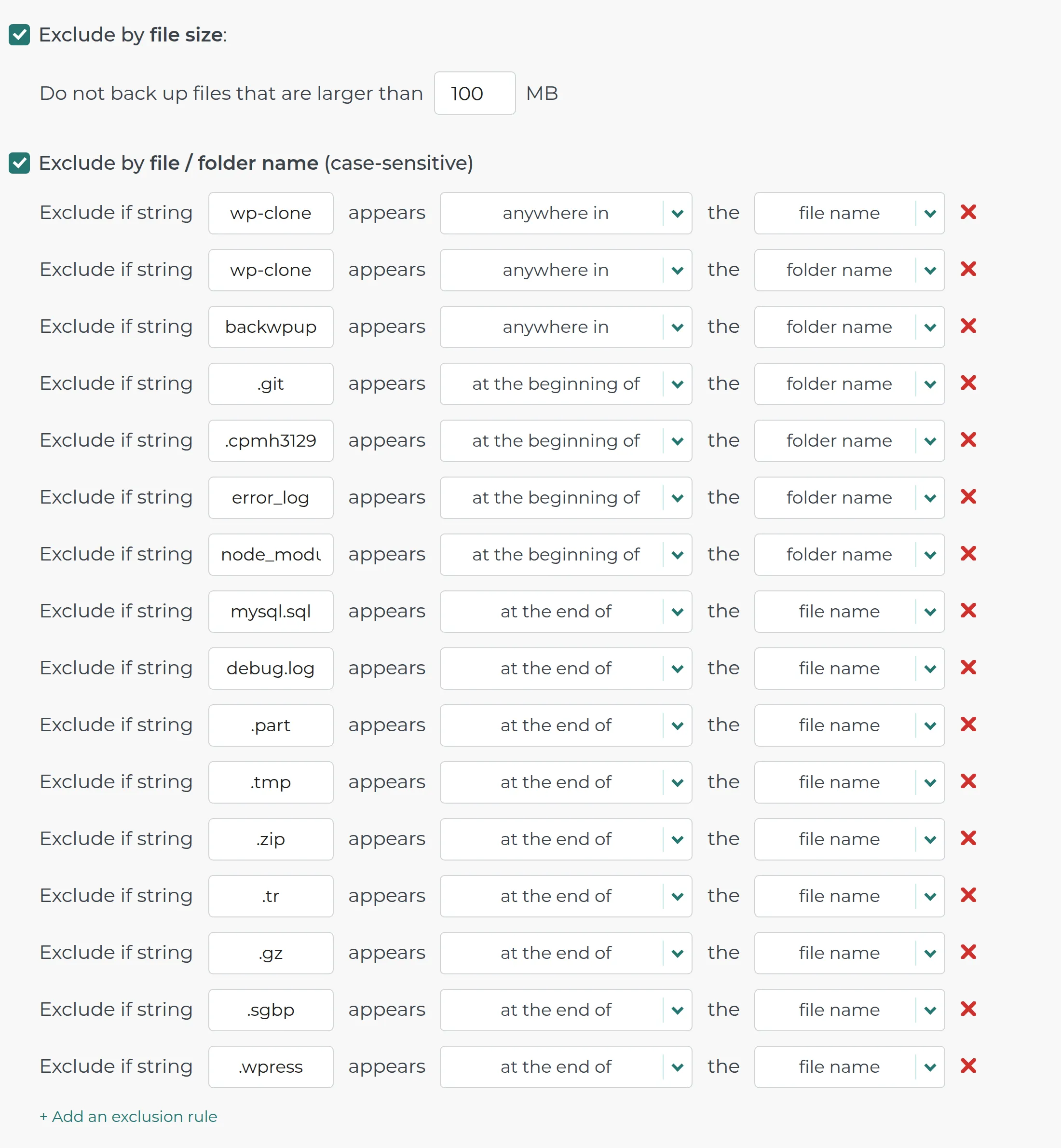
The backup is smaller because it left files out. It took 35.1 seconds and made 844 MB. By default it skips every file over 100 MB and every file ending in .zip, among other names. So my 120 MB Media Library zip was missing, plus 5 more files. The log mentions 3 of the 6, but the screen just says “Backup successful!”.
To fix it, open “What will be backed up?” under Configuration options. Untick “Exclude by file size”, delete the “.zip” rule from the name list, and save. It’s free.
What’s free. 9 of 10 jobs. Its weekly schedule is the easiest in the test (1 click), it keeps the last 2 automatic backups, and Google Drive worked (805 MB uploaded). Dropbox and FTP are free too, plus 1 GB of BackupBliss’s own cloud. The miss: success and failure emails are Premium.
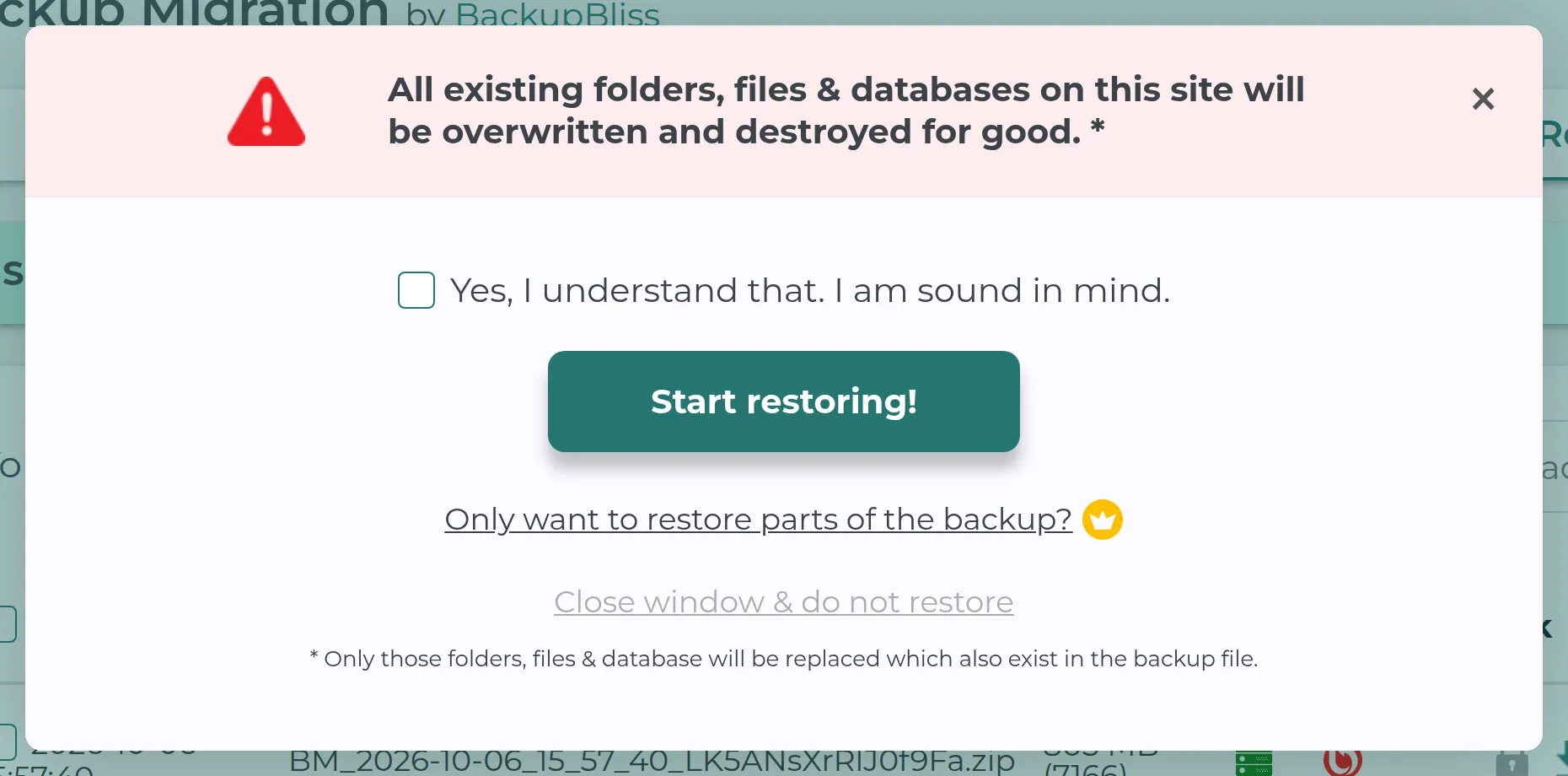
The restore. 5 clicks, including ticking “Yes, I understand that. I am sound in mind.” It took about 100 seconds on the same site and 107 seconds on the new one, where it ignored the 64 MB limit and changed the address.
There were losses, though. It restored 3 database tables empty on purpose, from a built-in list of 47 “unwanted” tables that includes pending scheduled tasks and WPML string translations – and still called it a success. On the new site the media zip was gone, and it skipped the same 6 .htaccess files as WPvivid.
What it adds to your site. A small version tag on every front-end page (the only plugin that touched the front end) and 4.2 KB of settings loaded on every page, the most. Peak memory hit 64 MB, the highest, even though its own log claimed 9.6 MB. With Google Drive connected, its open admin page called BackupBliss 238 times in 38 minutes.
The catch. That password file next to every backup. Deleting it keeps its settings, the Drive key, a scheduled job and the 806 MB backup folder, because both delete settings are off by default. And 2.1.7 is the fix for a security report, so update.
Best for: hands-off weekly backups to Google Drive – after you switch off the size and zip filters.
5. BackWPup – fast backups, same-site restores only
BackWPup made a full backup in 9 seconds and restored it exactly on the same site. Moving to a new site is where it falls down.
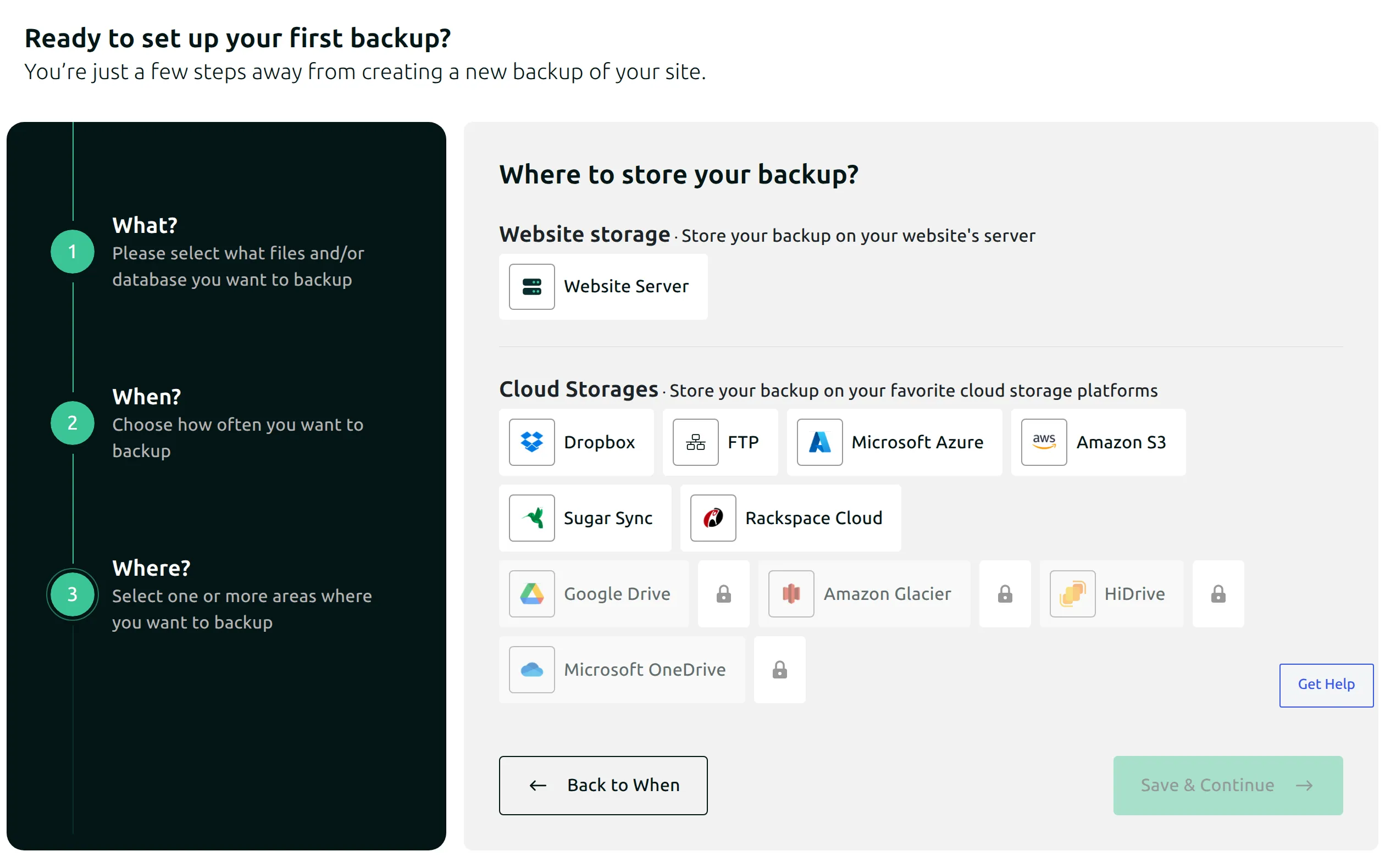
Setup. A forced 3-step setup (What, When, Where) that’s monthly by default, with no Google Drive in the free list. Finishing it starts a backup straight away. On my fresh install it also showed a false “Sensitive restore files detected” warning. Until you finish setup, every BackWPup page, Restore included, sends you back to it.
The backup was a 1.17 GB file of the whole WordPress folder, wp-config.php included.
What’s free. 8 of 10 jobs: a schedule, retention (15 backups by default), Dropbox, S3, FTP, Azure, email reports and folder excludes. The misses are Google Drive and restoring onto a new site.
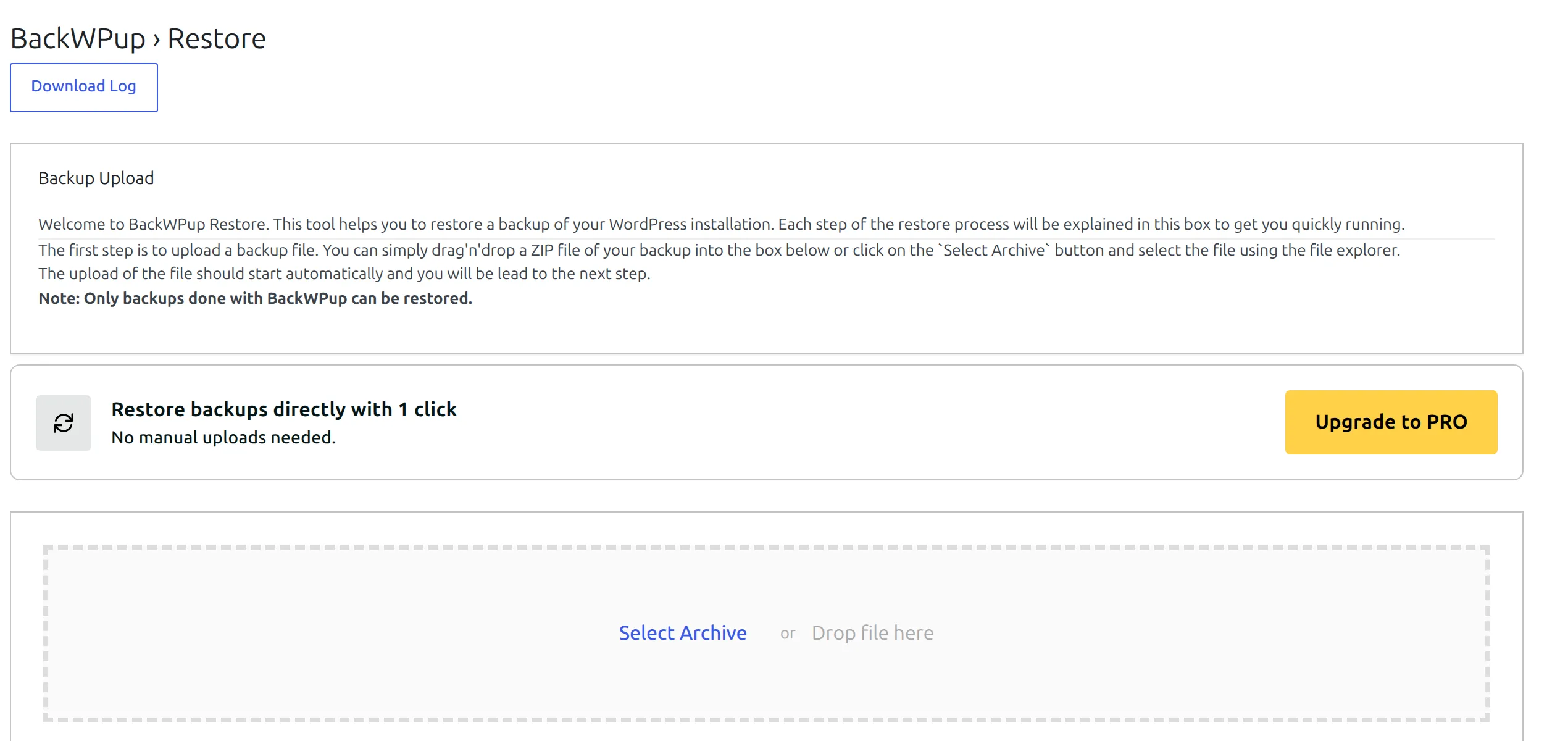
Restore on the same site. You have to download the backup and upload it again, even though it’s sitting on the server. “Restore backups directly with 1 click” is Pro. It came back exact, 11.5 seconds after the re-upload.
Restore on a new site. It stalled silently in 2 out of 2 tries. The file step copied the old site’s wp-config.php over the new one, which logged me out mid-restore. The screen said “Directories restored successfully”, then WordPress’s “session has expired” box appeared, and the database never restored. I was left with a half-restored site.
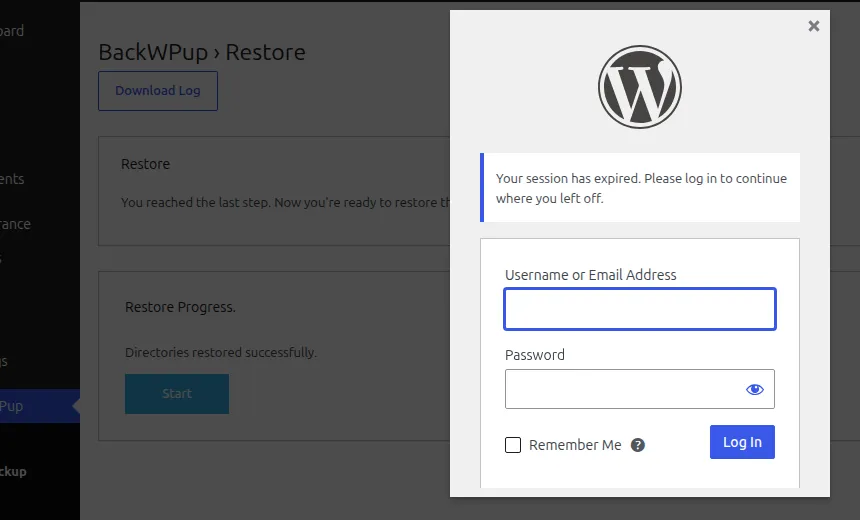
Logging in and uploading again finished the job. But changing the address is Pro-only, so the new site redirected visitors to the old domain.
What it adds to your site. 1 table, 2.4 KB of settings on every page and 1 scheduled task. It had the lowest upsell pressure of the five, with just one “Upgrade to Pro” menu item.
The catch. No protection on its backup folder on either kind of server. Deleting it cleans the database completely but leaves the 1.2 GB of backups, wp-config.php inside, on the server.
Best for: fast scheduled backups that you’ll only ever restore on the same site, at the same address.
All-in-One WP Migration – not a free backup plugin (unranked)
All-in-One WP Migration is the most installed of the six (5 million+). Setup is clean, with no wizard and no opt-in, and it exported my whole wp-content folder in 6.1 seconds as one 1.1 GB file. The trouble starts when you need that backup back.
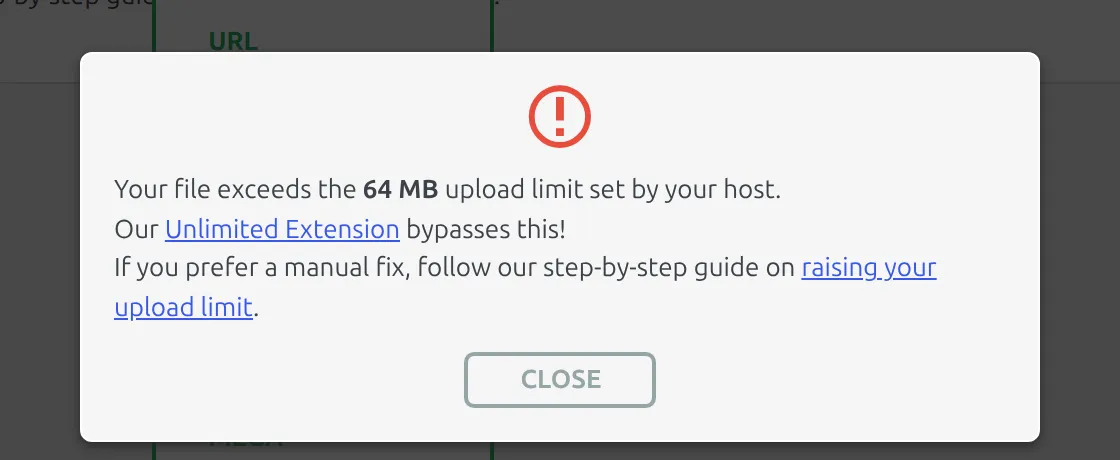
The Restore button says it’s “available in our Unlimited Extension”. The free route, Import from file, refused my backup in the browser: “Your file exceeds the 64 MB upload limit set by your host.” The fresh site said the same. So it restored 0 of 2.
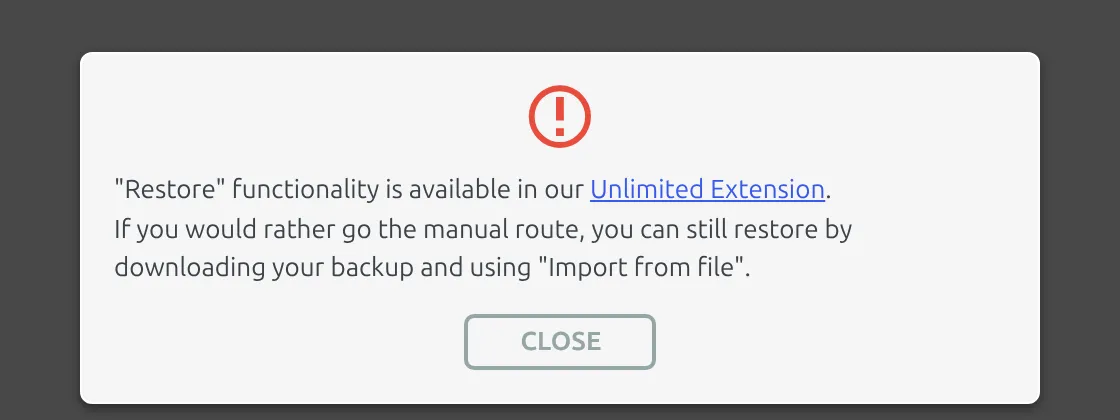
Most lists say the free limit is 512 MB. It isn’t a fixed number: it’s whatever upload limit your host sets, which was 64 MB here. Modern WP Themes’ list is the one page I found that gets this right.
What’s free. 2 of 10 jobs. No schedule, no retention, no cloud and no email – those all need the $69 Unlimited Extension or the $99 Pro.
Don’t download an old version to dodge the limit. “All-in-One WP Migration 6.77 free download” is a real search. But the plugin had 9 security reports in 24 months, 4 of them between 16 August and 18 September 2026, and old versions have none of those fixes.
Its backups were downloadable on both kinds of server, and deleting it leaves the 1.1 GB file behind.
Fine for: moving a small site whose backup fits under your host’s upload limit.
UpdraftPlus vs WPvivid vs the rest: which free backup plugin fits you?
Most people choose on 3 things. Here’s how the six compare on each:
| What you need | Works well, free | Works with a catch | Doesn’t, free |
|---|---|---|---|
| Restore onto a new host or address from wp-admin | UpdraftPlus (exact) | WPvivid and Backup Migration (small losses); Duplicator (needs FTP) | BackWPup (stalls, keeps the old address); AIOWM (upload limit) |
| Automatic schedule + Google Drive | UpdraftPlus, WPvivid, Backup Migration | BackWPup (schedule, no Drive) | Duplicator, AIOWM |
| Fewest clicks, first backup + restore | WPvivid (7) | Duplicator (9), Backup Migration (10) | BackWPup (17), UpdraftPlus (25) |
UpdraftPlus vs WPvivid? Pick UpdraftPlus if the restore has to be exact. Pick WPvivid if you want the fewest steps and can live with the 2-hour shift in form-entry times.
How safe are these backup plugins?
Here are the security reports published for each plugin in the last 24 months:
| Plugin | Reports in 24 months | High or critical | Open on the version I tested |
|---|---|---|---|
| WPvivid | 15 | 6 | no |
| All-in-One WP Migration | 9 | 5 | no |
| Backup Migration | 7 | 4 | no |
| UpdraftPlus | 5 | 2 | no |
| BackWPup | 5 | 3 | no |
| Duplicator | 0 | 0 | no |
Please don’t read that as a safety ranking. Backup plugins touch files, database copies and downloads, so security researchers look at them hard, and a higher count often means problems get found and fixed. My scoring rules, fixed before I started, still took 0.5 points off for each high-severity report, out of 1.25.
Every version I tested was patched. But for UpdraftPlus (1.26.8) and Backup Migration (2.1.7), the version I tested IS the fix, so anyone one version behind is exposed. Turn on auto-updates for your backup plugin, and if that makes you nervous, here’s how to update WordPress plugins without breaking your site. For a firewall on top, see my Wordfence vs Solid Security comparison.
What do they cost when you outgrow free?
Prices on each company’s site on 6 October 2026, in US dollars per year, for the cheapest plan:
| Plugin | Cheapest plan (sites) | First year | Renews at |
|---|---|---|---|
| Backup Migration | Premium (2) | $45.89 | 20% off, no figure shown |
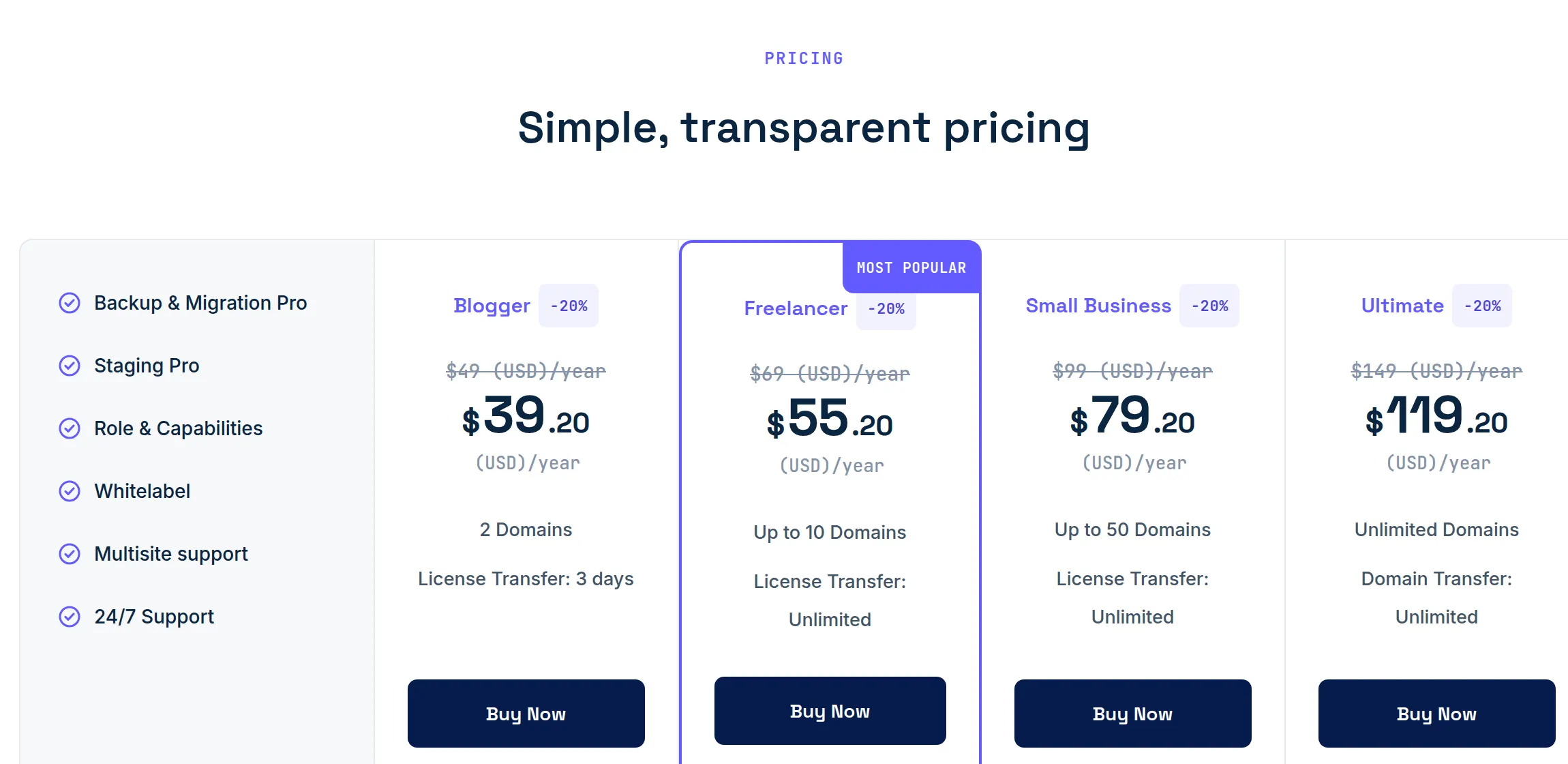
| WPvivid Pro | Blogger (2) | $49 ($39.20 in a flash sale) | not shown |
| BackWPup Pro | Starter (2) | $49 | not shown |
| All-in-One WP Migration | Unlimited Extension | $69 | not shown |
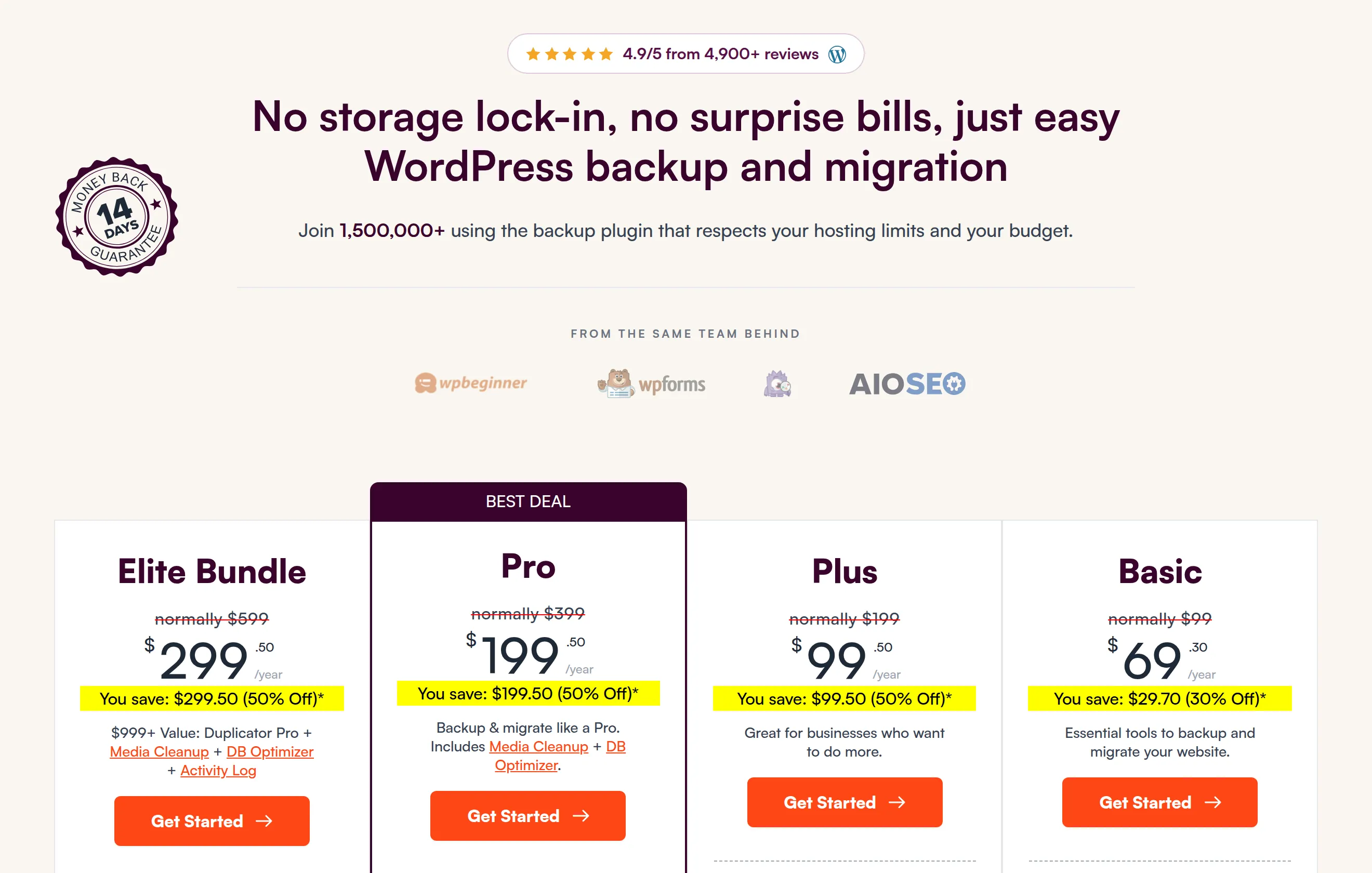
| Duplicator Pro | Basic (2) | $69.30 | $99 |
| UpdraftPlus Premium | Personal (2) | $70 | not shown |
Duplicator’s page says “all renewals are at full price”, so that $69.30 becomes $99 in year two. All-in-One WP Migration no longer sells separate cloud extensions, so cloud backups and a schedule now mean the $99 Pro plan. WPvivid also sells a lifetime licence, and Backup Migration gives every free user 1 GB of its own cloud storage.

Honestly, the free versions of UpdraftPlus and WPvivid already do what most people would pay for.
Switching from one backup plugin to another
Keep the old plugin’s last backup until the new one has made a backup and you’ve test-restored it, or at least downloaded it. Don’t count on the new plugin reading the old backup: each one saves its own format (.daf, .wpress, zip parts, tar), and I only ever restored each plugin’s own.
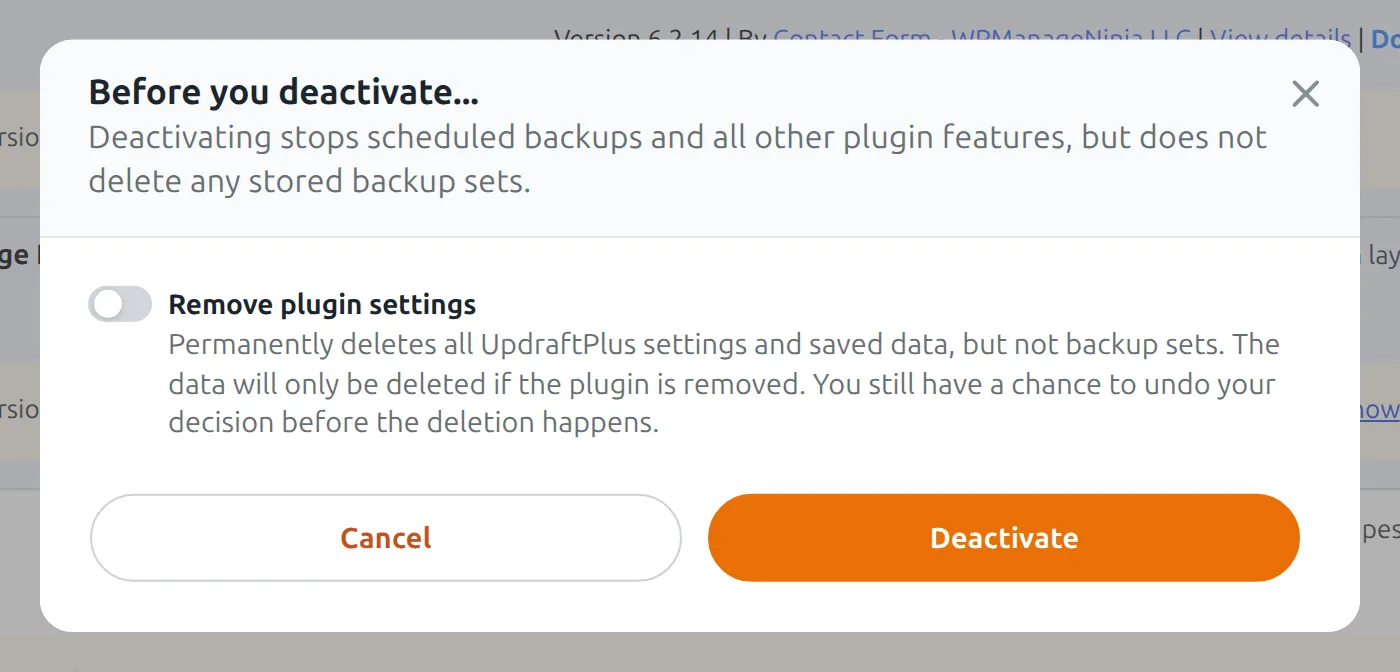
After deleting the old plugin, delete its backup folder in wp-content by hand, and revoke its Google Drive access. UpdraftPlus even asks about its settings when you deactivate it, but its “Remove plugin settings” switch is off by default.
Other free backup options worth knowing
I didn’t test these, so I have no numbers for them:
- BlogVault and Jetpack VaultPress Backup keep your backups on the company’s servers, and the free tier is either missing or a trial.
- Solid Backups (formerly BackupBuddy) has no free version.
- WP Database Backup backs up the database only, not your files.
- XCloner has 10,000+ installs and no update since May 2026.
So which free backup plugin should you pick?
- Pick UpdraftPlus if you want it to just work, restores included. Skip the 3 pre-ticked plugins in its wizard.
- Pick WPvivid if you want the fewest steps and form-entry times aren’t critical.
- Pick Duplicator if you’re moving a site to a new host or address.
- Pick Backup Migration for weekly Google Drive backups with no fuss – switch off its size and zip filters first.
Whatever you pick, do one test restore now, while nothing is broken. That’s the only way to know your backup works.
If you’re setting up a new site, my best free WordPress SEO plugins and best free WordPress form plugins roundups were tested the same way.
Frequently asked questions
Is UpdraftPlus free?
Yes. The free version did all 10 of my test jobs, including a weekly schedule, Google Drive and an exact restore onto a new site with the address changed. Premium starts at $70 a year for 2 sites.
What is the All-in-One WP Migration file size limit?
In the free version, the import limit is your host’s upload limit, not a fixed 512 MB. On my 64 MB host it refused a 1.1 GB backup, and the Restore button needs the paid Unlimited Extension. Don’t install an old version to get around it.
Is Duplicator free?
Duplicator Lite is free and made exact restores in both my tests. But it has no schedule and no cloud storage. Restoring onto a new site means uploading 2 files by FTP or your host’s file manager and running its installer.
Which free backup plugin saves to Google Drive?
UpdraftPlus, WPvivid and Backup Migration – all three uploaded a real backup to my Google Drive for free. BackWPup, Duplicator Lite and All-in-One WP Migration’s free version can’t.
Can BackWPup restore without Pro?
Yes, on the same site, after you upload the backup again. Onto a new site, my restore stalled silently until I logged back in and retried. Even then it kept the old address, because changing it is Pro-only.
How do I restore a WordPress backup?
Use the same plugin that made it. On the same site, use its Restore button. On a new site, install WordPress and the plugin, upload the backup, then restore. WPvivid and BackWPup logged me out afterwards – just log in again.
If every page shows a 404 after moving to a new host, here’s how to fix WordPress 404 errors on every page.
Is it safe to keep backups on my server?
Keep 1 or 2 recent ones at most and send copies off-site. On nginx hosts, every backup in my test could be downloaded by a stranger, and deleting the plugin doesn’t delete the backups.