NinjaFirewall Review: The Only Free Firewall That Runs Before WordPress
Short answer: NinjaFirewall is the most genuinely protective free security plugin I’ve tested, it adds nothing at all to the page your visitors download, and it costs you about 22 milliseconds per request plus a real amount of fiddling. If you want a security plugin with a friendly dashboard that scans for malware and holds your hand, this is the wrong one. If you want the actual firewall part done properly, nothing else free comes close.
Here’s the thing that makes it different, and it’s the whole review in one sentence: NinjaFirewall runs before WordPress starts. Not first among your plugins. Before WordPress. By the time a malicious request reaches the code that would normally boot up your site, NinjaFirewall has already looked at it and thrown it away.
That claim gets repeated a lot in this category without anyone checking it. So I checked it, and I’ll show you exactly how further down.
I’m also not reviewing this from the outside. NinjaFirewall 4.9 has been the firewall on this site since 4 April 2026, running in its strongest mode. In those five months it blocked 5,406 requests from 1,015 different IP addresses. Those are counted from this site’s own log files, and I’ll break them down.

How I tested this
I installed the plugin on a clean local WordPress site and measured it against a baseline I’d recorded on two earlier runs, restored, and proved before I started. After I finished I uninstalled it and proved the baseline again, so I know nothing drifted underneath the numbers.
| Plugin | NinjaFirewall (WP Edition) 4.9 |
| Author | The Ninja Technologies Network (NinTechNet) |
| Last updated | 16 August 2026 |
| In the WordPress repo since | 30 March 2013 |
| Requires | WordPress 4.9+, PHP 7.1+ |
| Tested up to | 7.1, the current release |
| Measured on | 7 September 2026, WordPress 7.1, PHP 8.3.33, nginx |
| Theme | Kadence 1.4.5, unchanged across every run |
| Other plugins active | Kadence Blocks only, unchanged |
Two of those lines are worth pausing on. Thirteen years in the plugin directory is a long time for a security tool, and “tested up to 7.1” means the author keeps up with WordPress releases. When I reviewed SEO Simple Pack last week it was sitting two releases behind, which told me something real about its pace. This one isn’t.
The community signals point the same way. NinjaFirewall has 100,000 active installs and 220 ratings averaging 4.9 stars, and 6 of the 10 support threads from the last two months are marked resolved. For comparison, the last plugin I reviewed had 14 ratings and 0 of 2 threads resolved.
What a firewall plugin actually does
If you’re new to this, the word “firewall” gets used for two different jobs and the difference matters here.
The first job is scanning: checking your files for malware that’s already on your site. The second job is filtering: reading every request that arrives and refusing the dangerous ones before they touch anything.
NinjaFirewall only does the second job. There’s no malware scanner in it. That’s a deliberate choice by the author, who sells a separate scanner, and I’ll come back to whether that’s a fair deal.
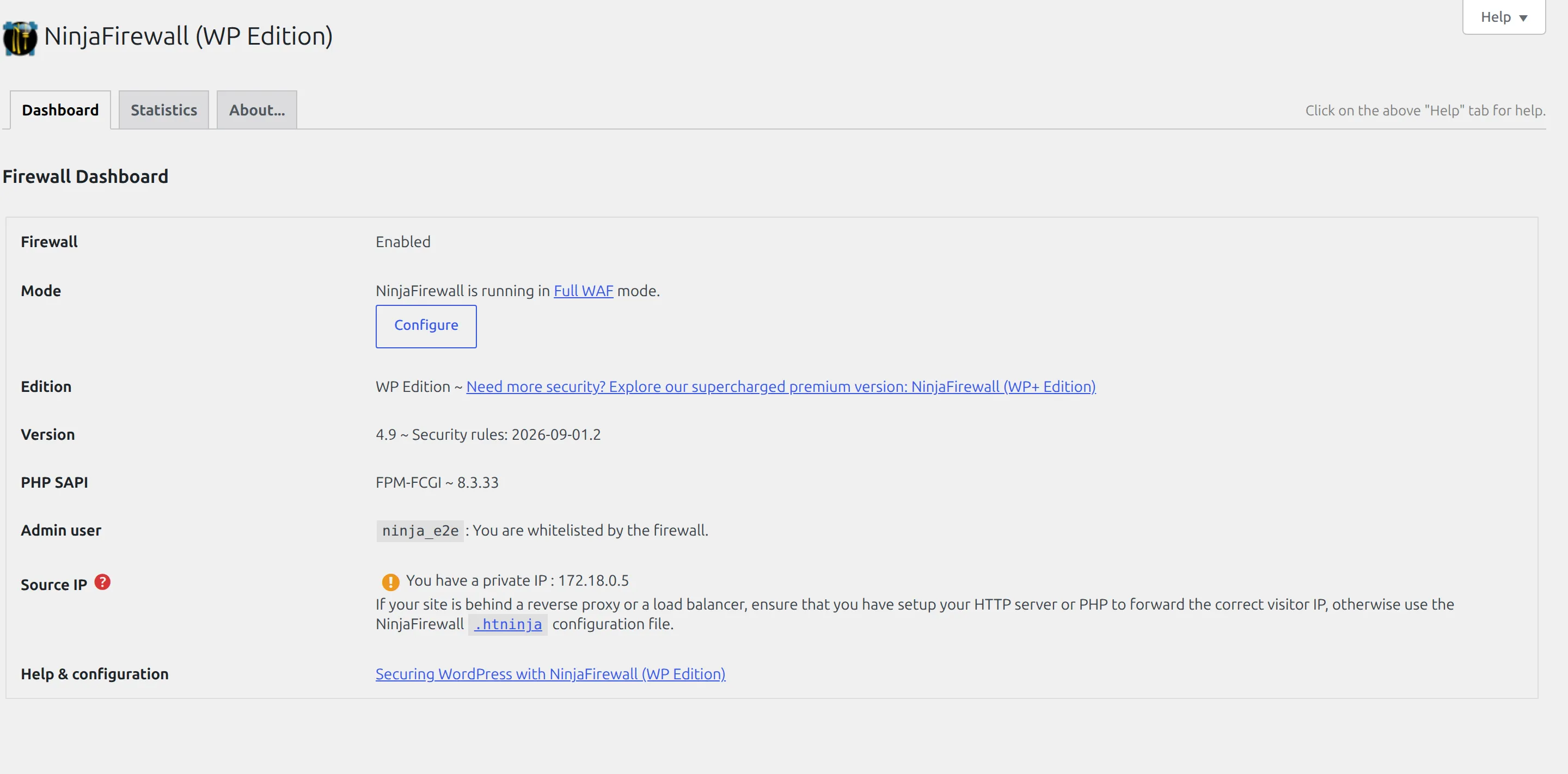
It also has two modes, and every review I read skips this entirely. In WordPress WAF mode it loads as one of the first things WordPress runs. In Full WAF mode it loads before WordPress runs at all. Same plugin, very different amount of protection, and the second one takes three clicks to switch on.
Installing it, and the five minutes that look like failure
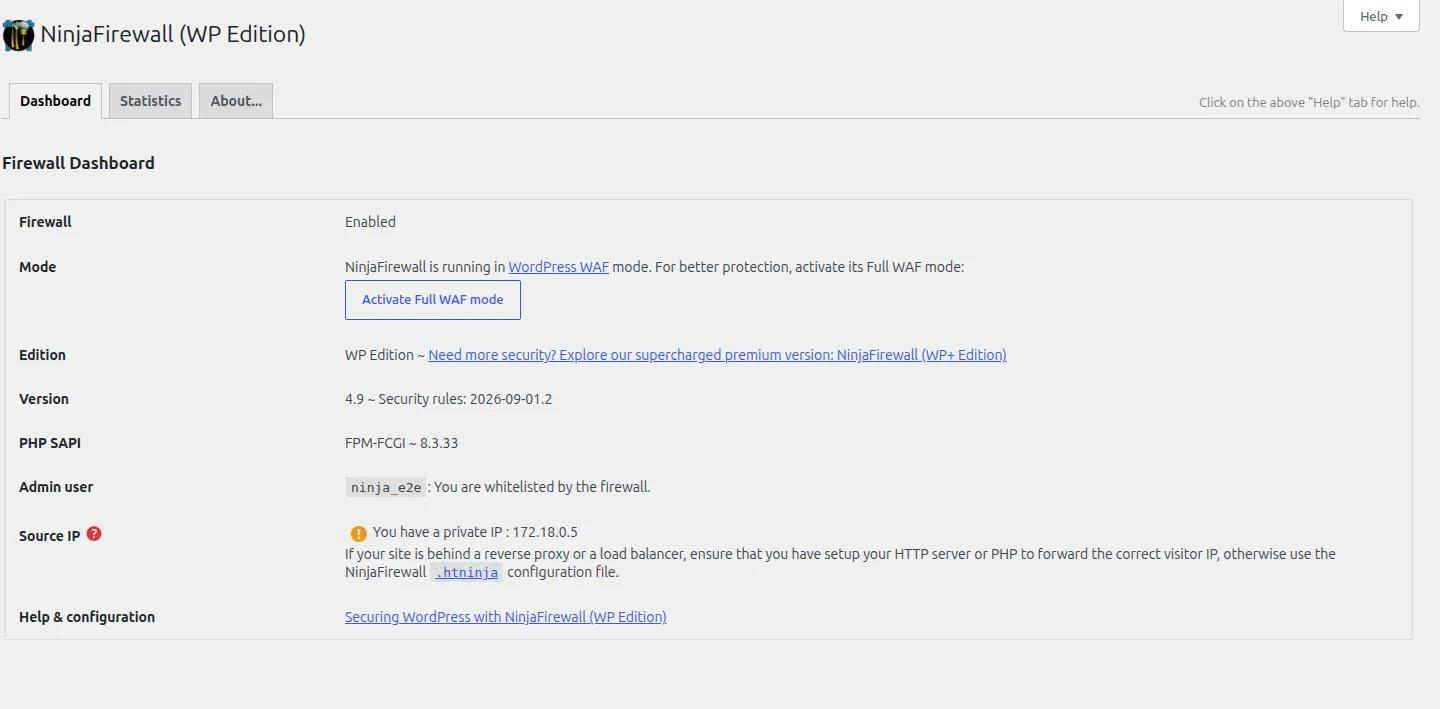
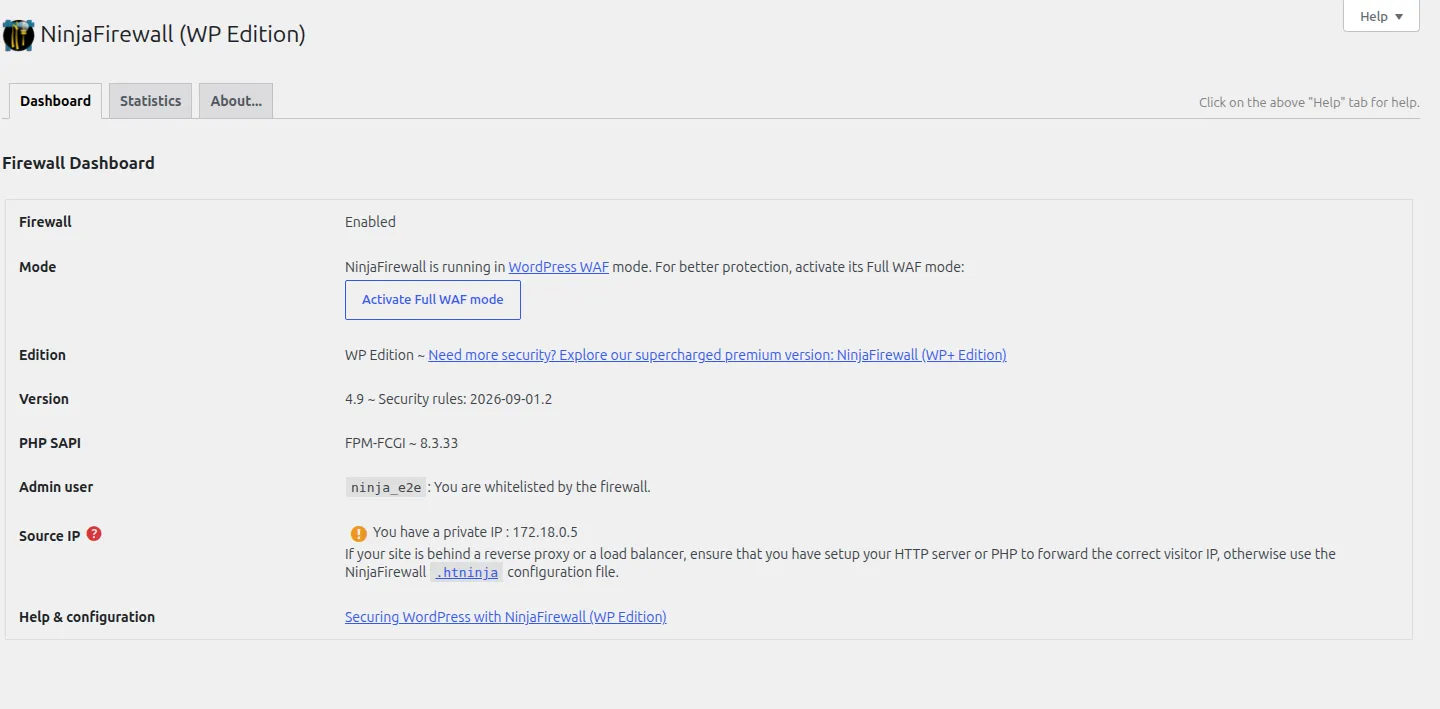
Activation is ordinary. You get a dashboard telling you the firewall is on and running in WordPress WAF mode, with a button offering to upgrade you to Full WAF.
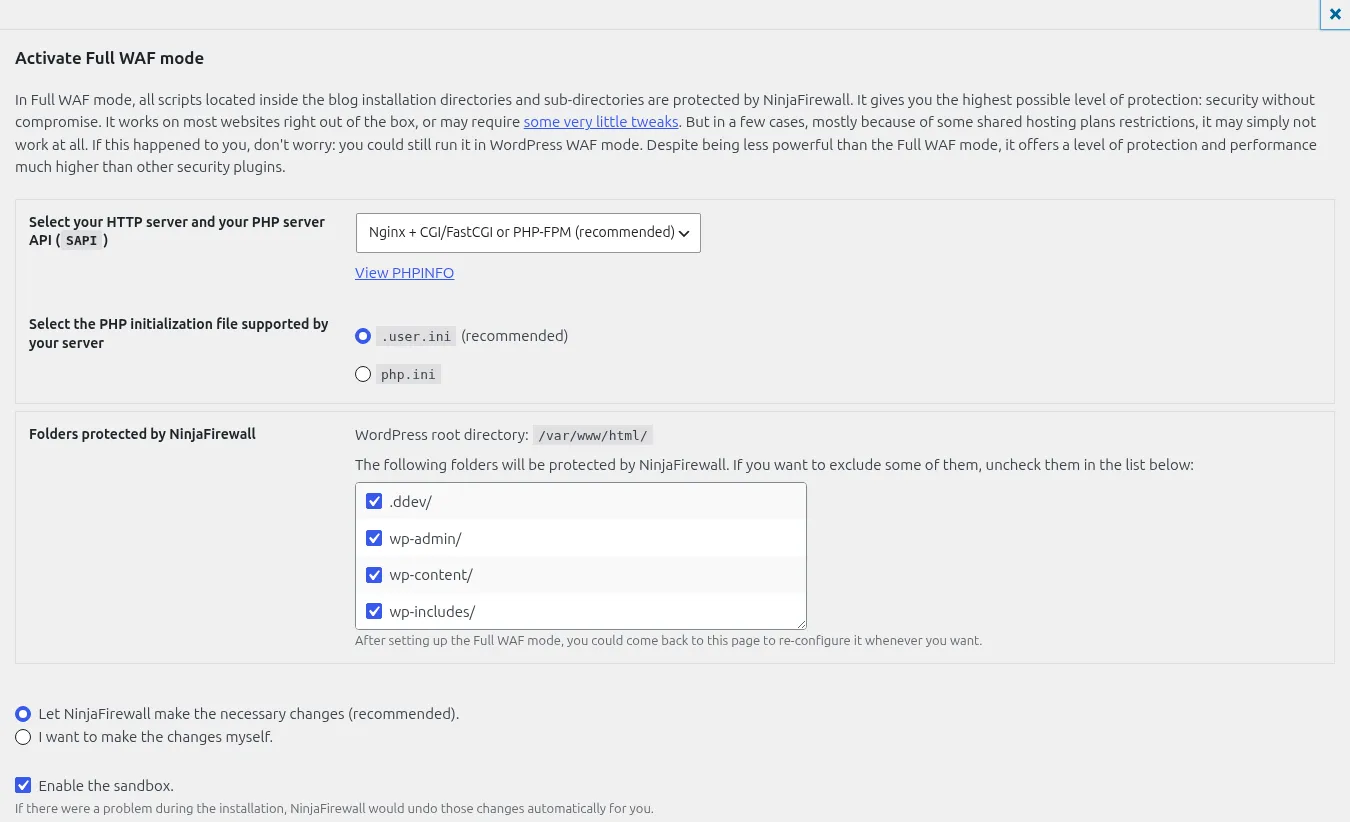
Clicking that opens a small installer. It asks what web server you’re on and which PHP configuration file your host supports, and it offers to make the change itself. If you don’t know the answer to either question, the honest advice is to ask your host, because picking the wrong one just means it doesn’t work rather than anything breaking.
Now the part that will make you think you broke something. You click Finish Installation, the page reloads, and it says “Oops! Full WAF mode is not enabled yet.”
You didn’t break anything. PHP caches this particular settings file for 5 minutes, so the change genuinely hasn’t taken effect yet. The plugin knows this and shows you a live countdown. Wait it out, reload, and it flips to Full WAF on its own.
I think this is the single biggest reason people give up on NinjaFirewall at the first hurdle. It looks like a failed install and it isn’t.
Does it really run before WordPress? I checked
This is the claim the whole plugin rests on, so I tested it directly rather than trusting the dashboard.
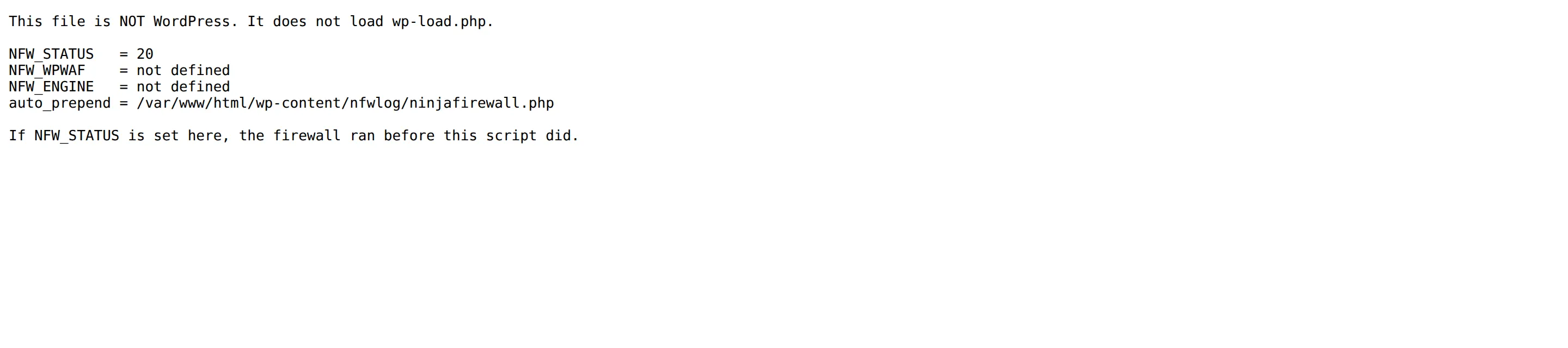
I put a small PHP file at the root of the test site that does nothing except print four values. It doesn’t load WordPress. It doesn’t know WordPress exists. If NinjaFirewall is genuinely running at the PHP level, it will have run before this file did, and it will have left its fingerprint behind.
Here’s what that file printed:
This file is NOT WordPress. It does not load wp-load.php.

NFW_STATUS   = 20
auto_prepend = /var/www/html/wp-content/nfwlog/ninjafirewall.php
NFW_STATUS is NinjaFirewall’s own marker, and it’s set inside a file WordPress had no part in serving. That’s the proof.
Then I attacked that same non-WordPress file with a basic directory traversal. It came back 403 Forbidden, blocked by the firewall, on a file WordPress couldn’t have protected because WordPress never ran.

For context on why this matters: when I tested Wordfence against Solid Security earlier this year, a fresh Wordfence install had none of this in place. Wordfence can do the same trick, but it’s opt-in and you have to go and switch it on. Most people never do.
What NinjaFirewall adds to your site
Every plugin costs you something. Here’s what this one costs, measured against the clean baseline.
| Baseline | NinjaFirewall, Full WAF | |
|---|---|---|
| Database tables | 19 | 19, no change |
| Front-end page HTML | 96,990 bytes | 96,990 bytes, no change |
| Front-end CSS and JS files | 10 | 10, no change |
| Tags added to your page head | 25 | 25, no change |
| Scheduled background jobs | 16 | 19, three added |
| Autoloaded options | 165 | 167, two added |
Read that top half again, because it’s unusual. Your visitors’ pages are byte-for-byte identical with the firewall on and off. No database tables, no scripts, no stylesheets, no markup. Most security plugins can’t say any of that.
The cost shows up in two other places instead.
Speed. Measuring the time to first byte 41 times in each state, the front end went from 0.0844 seconds to 0.1063 seconds. That’s +21.9 milliseconds, about 26%. In the weaker WordPress WAF mode it’s only about +7 ms. The admin area is also measurably slower, though it bounced around too much between runs for me to quote you a figure honestly.
Whether 22 ms matters to you depends on your site, and if you’re chasing load times generally I’d look at what’s actually making your site slow before blaming a firewall.
Memory on every request. The plugin stores its rule set in a single database option called nfw_rules, and that option is 77,324 bytes and set to load automatically. It holds 275 rule groups made up of 1,187 parts. Every page of your site pulls all 77 KB out of the database, whether it needs them or not.
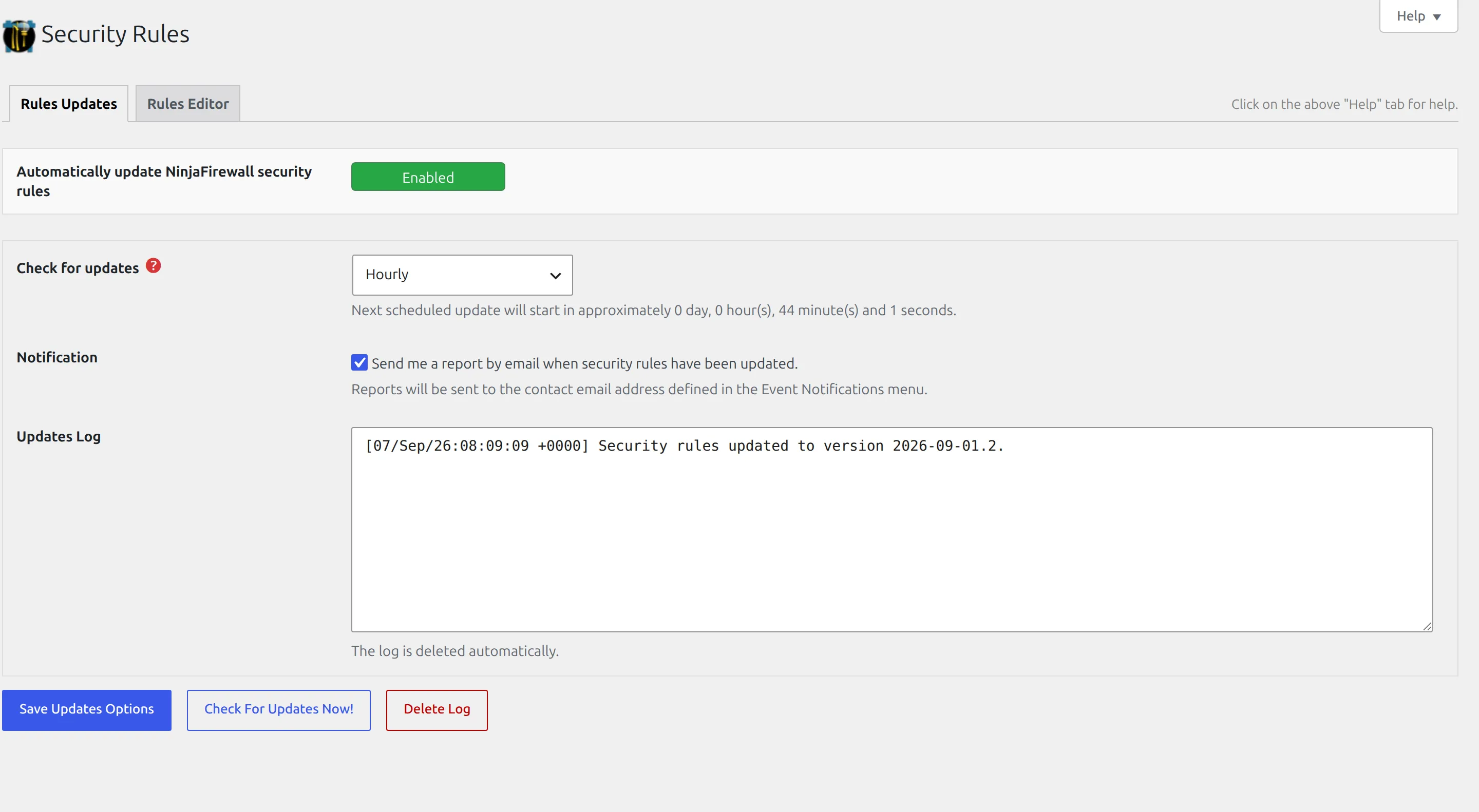
The three background jobs are a garbage collector, an hourly check for new firewall rules, and a daily email report. The rules check isn’t decorative: during my test session the rule set updated itself from version 20260810.1 to 20260901.2 without me doing anything.
What it blocked on this site in five months
This is the part no other review can give you, because it needs a real site taking real abuse.
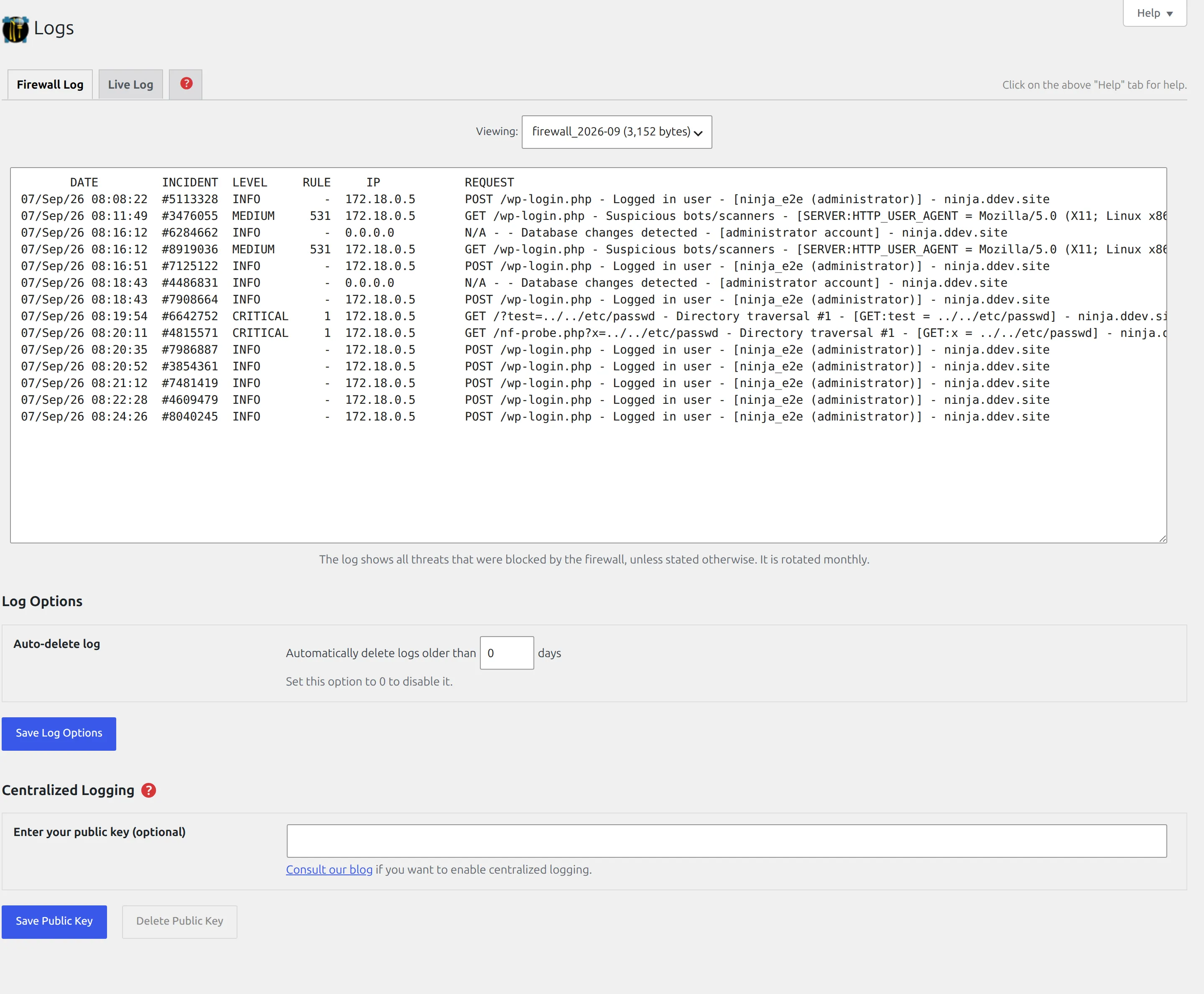
I counted the incidents in this site’s own firewall logs on 7 September 2026, by counting log lines that begin with a timestamp. I’m telling you the method because the plugin’s own summary files disagree with the logs and report a lower number. The log is the record.
| Month | Requests blocked |
|---|---|
| April, from the 4th | 311 |
| May | 724 |
| June | 2,513 |
| July | 930 |
| August | 793 |
| September, to the 7th | 135 |
| Total | 5,406 |
Those came from 1,015 different IP addresses. The busiest single day was 11 June with 1,366 blocked requests. One single address, 45.88.138.44, accounted for 1,360 of the total on its own, which is a quarter of everything.
And here’s what it was actually stopping:
| What was blocked | Count |
|---|---|
| Suspicious bots and scanners | 1,268 |
| Attempts on the login page | 1,063 |
| Directory traversal | 805 |
| Username harvesting via author pages | 699 |
| Local file inclusion | 563 |
| Username harvesting via the REST API | 296 |
| Null byte injection | 265 |
| Known WordPress vulnerabilities | 183 |
This is a small blog that sells nothing. It still gets probed thousands of times a month, and roughly 1,000 of those probes were people trying to guess a password.
Now the number I’m most pleased to have. NinjaFirewall records how long it spent on each request it logged, and across the 4,380 logged requests that carry a timing, the median was 0.00123 seconds. That’s 1.2 milliseconds to inspect a request and throw it away, measured by the firewall itself on five months of real attack traffic.
What works the moment you switch it on
Plenty, and this is where NinjaFirewall is strongest for a beginner. You don’t have to configure a thing for the numbers above to happen. The defaults block bots, traversal attempts, file inclusion, null bytes and the known-vulnerability rule set on their own.
Two defaults are worth knowing about because they surprise people.
The first is that it blocks headless browsers by default. I know this because it blocked mine. The tool I use to take the screenshots for these articles was refused at the login page by the very plugin I was photographing:
[403] [GET] [/wp-login.php] [Suspicious bots/scanners]That’s the firewall doing its job correctly. But it means uptime monitors, link checkers and automated screenshot services can get blocked too, and the fix is to whitelist their addresses rather than switch the policy off.
The second is that it watches for changes to your important settings and to user accounts. Promote someone to administrator and it notices, logs it, and can email you. It doesn’t block the change, it reports it.
The screens you’ll actually use
There are 10 menu items and you’ll open maybe 3 of them regularly.
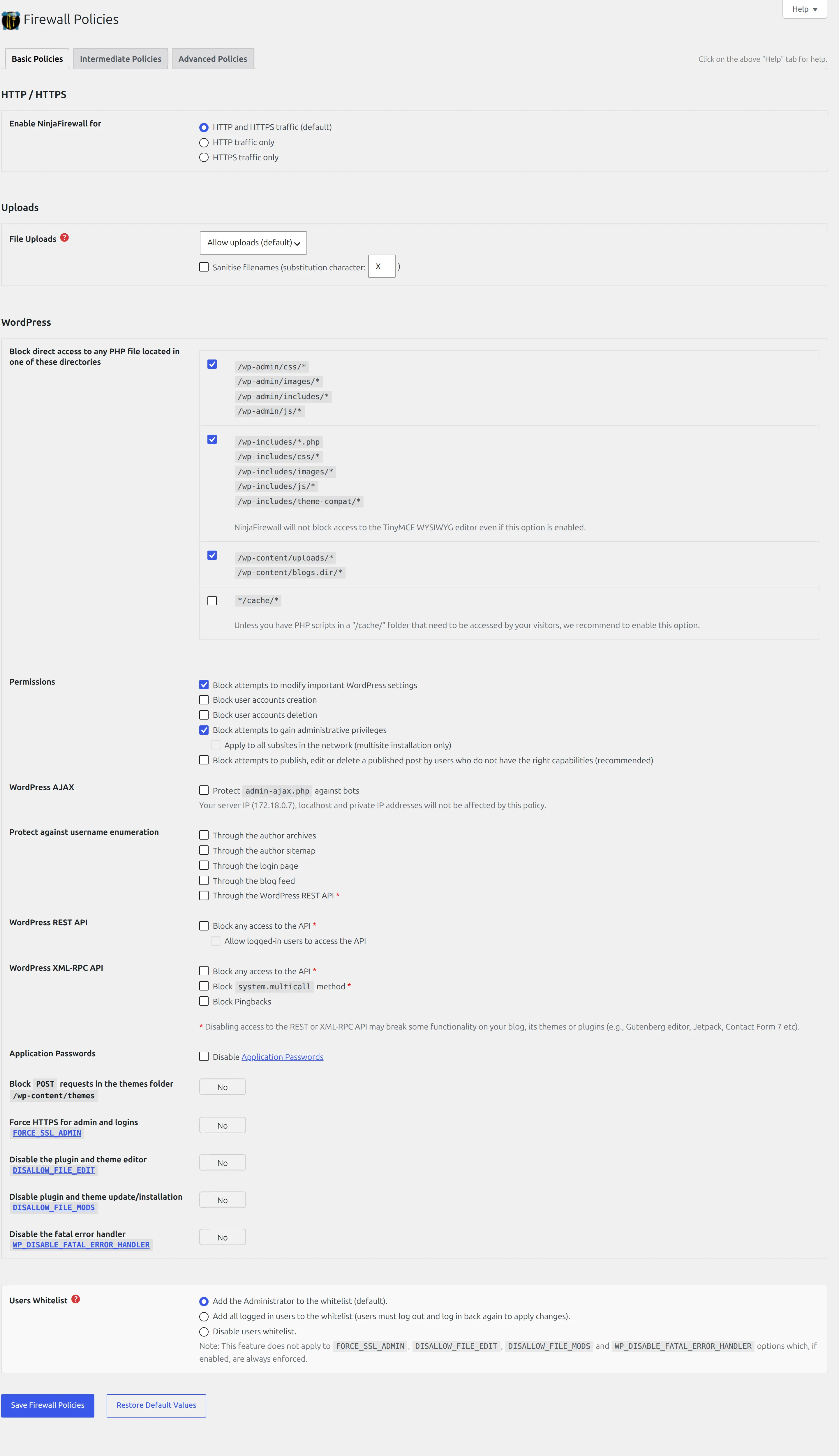
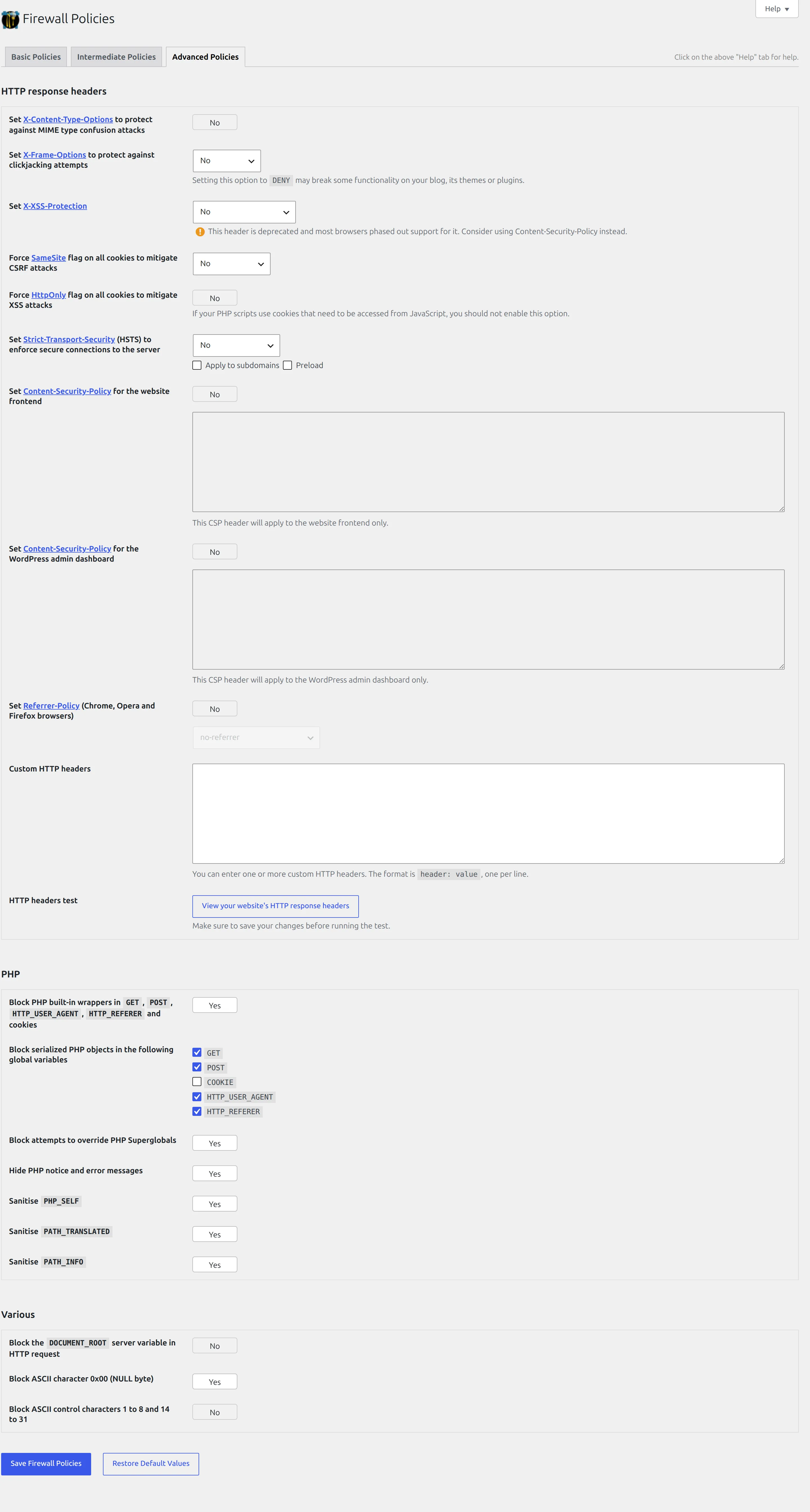
Firewall Policies is the real control panel, and it’s dense. Three tabs of toggles covering uploads, cookies, user agents, referrers, IP handling and response headers. Most people should leave this alone.
Logs is where you’ll actually spend time, and where the numbers above come from.
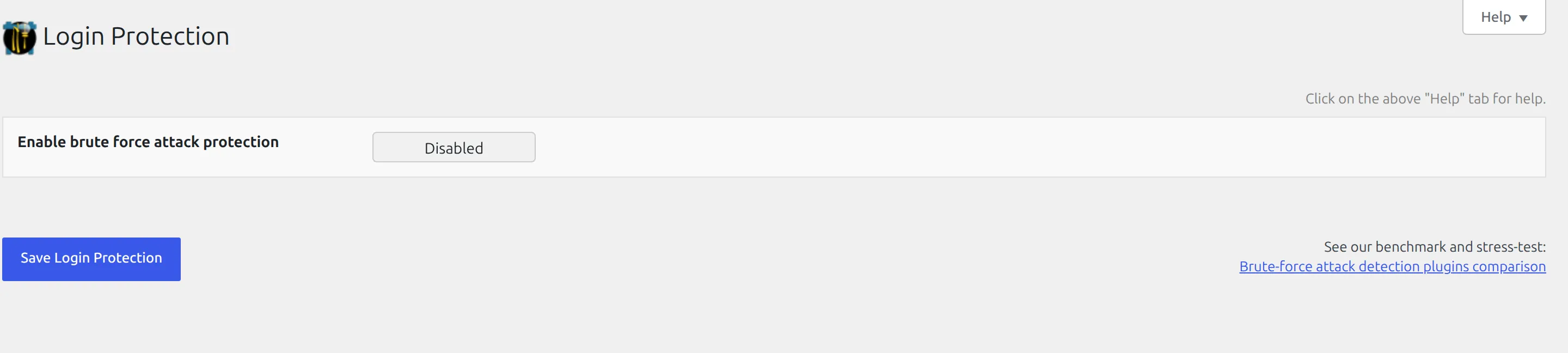
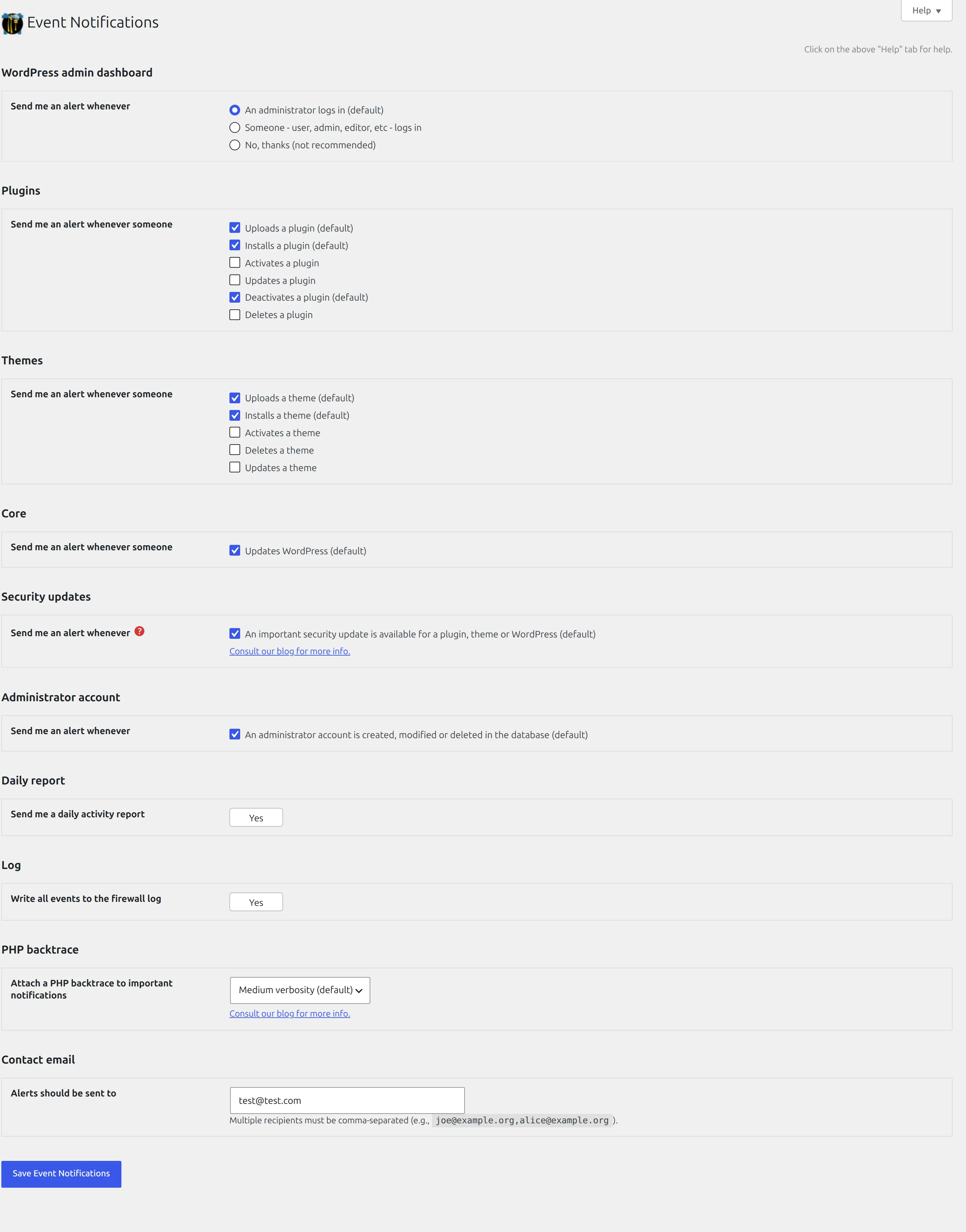
Login Protection is a single small screen that adds a challenge to your login page when it’s under attack. Event Notifications decides what gets emailed to you, and its defaults are chatty enough that you’ll want to trim them.
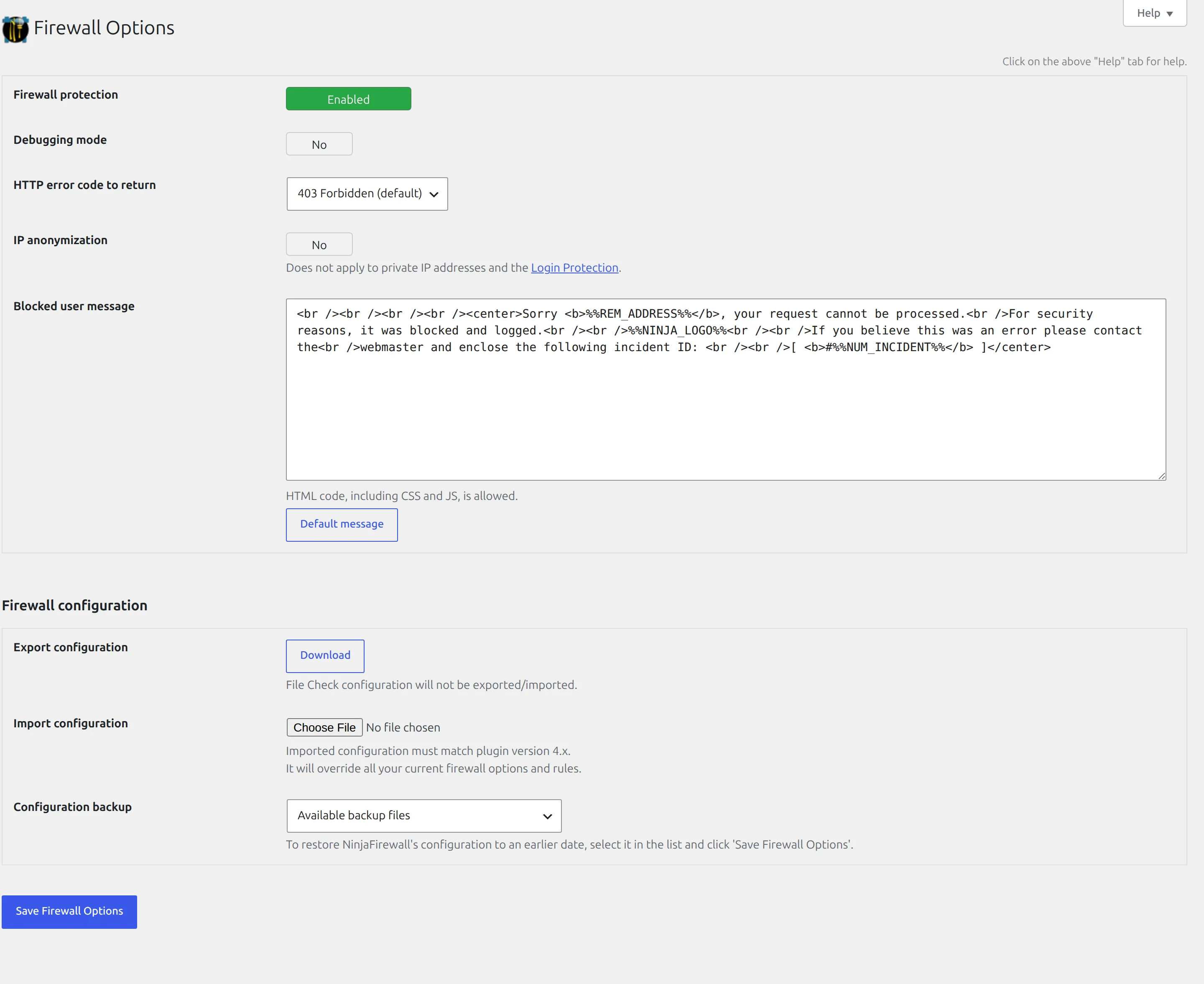
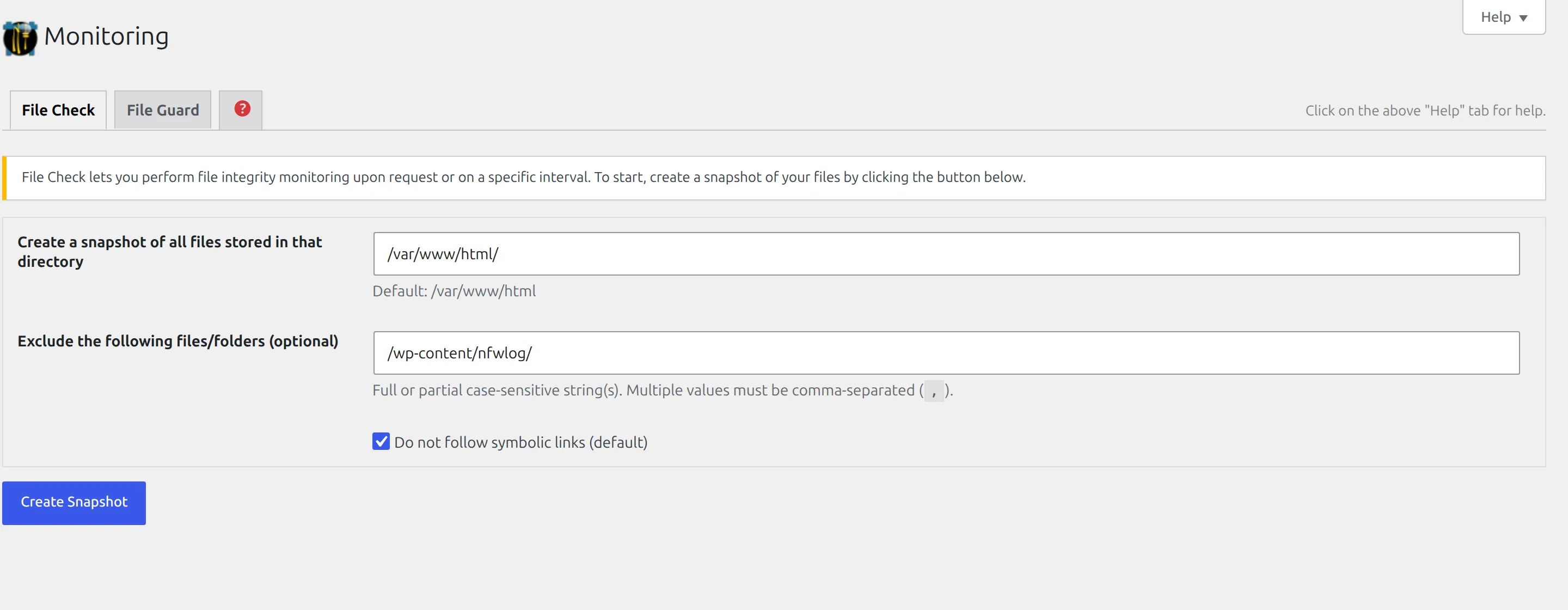
Firewall Options and Monitoring hold the on/off switch and a file-change checker respectively.
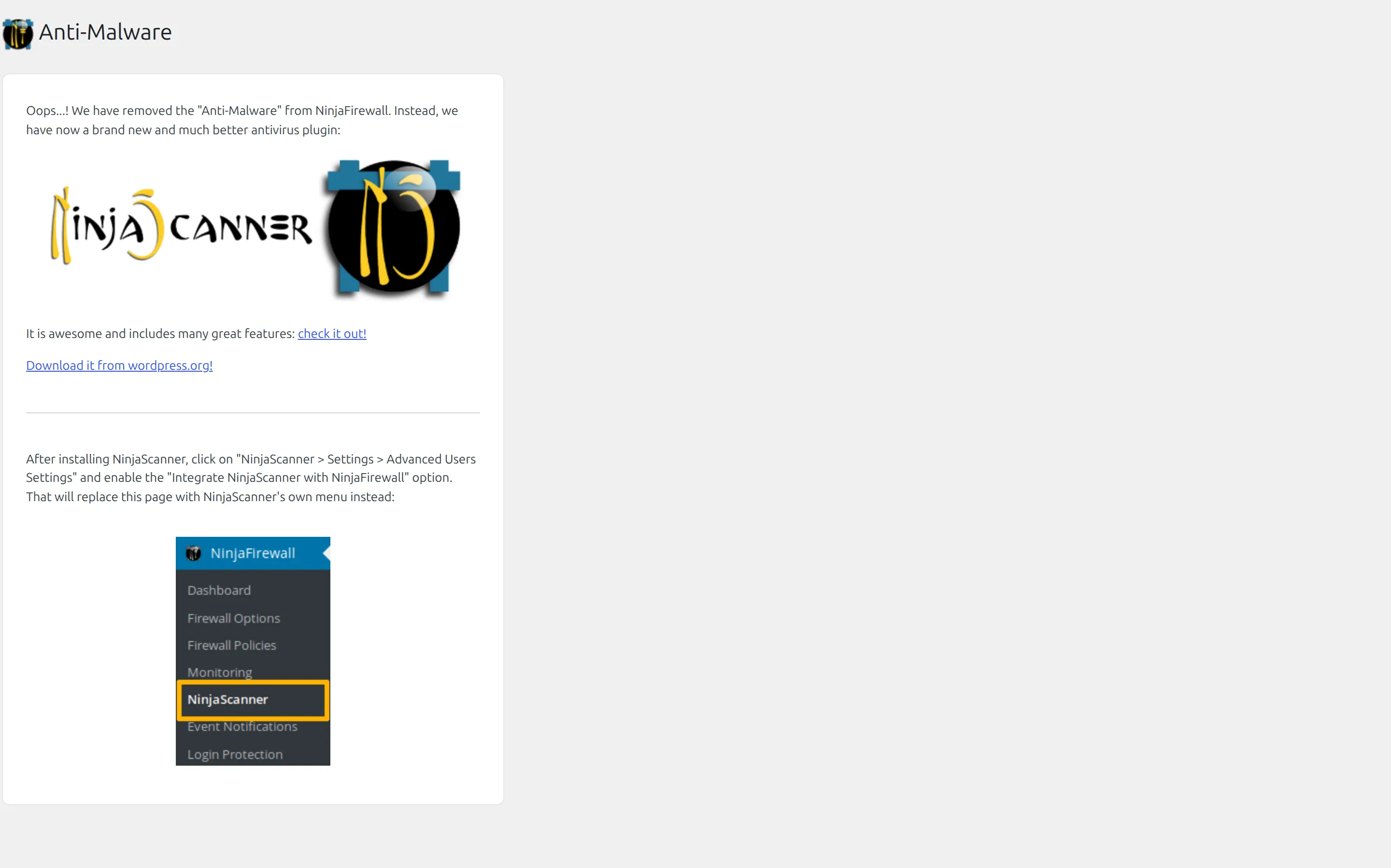
And then there’s Anti-Malware, which is a menu item leading to a page that says the feature has been removed and you should install a different plugin instead. It’s an advert occupying a permanent slot in the menu.
Where the paid wall is
There’s no licence key field in this plugin and no locked settings. The paid product is a completely separate plugin, WP+ Edition, that you install instead of this one.
What the free version ships instead is advertising, and I counted it in the source rather than guessing. There are 14 separate “In the Premium version of NinjaFirewall…” tooltips spread across 9 files, 2 permanently greyed-out dropdown options, a link on the plugins screen, and a full-page advert in the menu that is 9,508 pixels tall with 15 vendor screenshots.
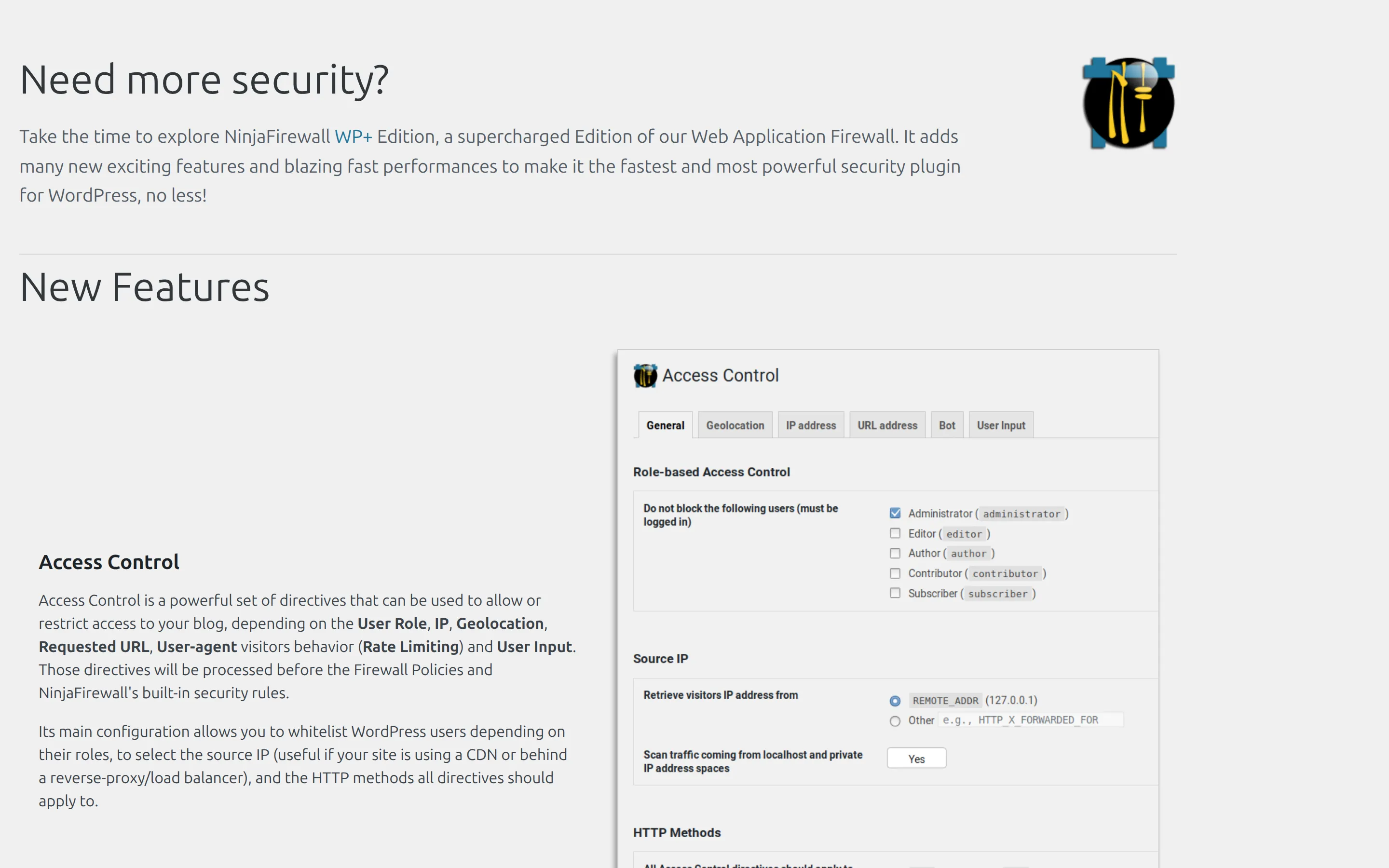
Two limits are stated in the plugin’s own text, and they’re easy to confuse because they sound alike:
| Free WP Edition | WP+ Edition | |
|---|---|---|
| How often it fetches new firewall rules | Every hour | Every 15 minutes |
| How often it checks for vulnerable plugins on your site | 3 times a day | Every hour |
The paid version also adds geolocation blocking, IP and bot access control, rate limiting, antispam, and centralised logging across every site you run it on.
I’ll be straight about my reaction. The free plugin is genuinely generous and the protection is real. It’s also carrying more in-admin advertising than any other free security plugin I’ve installed. Both things are true.
What happens when you uninstall it
I removed it properly, using the command that actually triggers the plugin’s own cleanup routine, and then measured what was left.
| Result | |
|---|---|
| Plugin folder | Removed |
| The loader it installs in mu-plugins | Removed |
| Its 3 database options | Removed |
| Its 3 scheduled jobs | Removed |
| The PHP setting that makes Full WAF work | Stripped out correctly |
| The nfwlog folder | Left behind, 26 files, 172 KB |
That’s a good result, and better than the reputation this plugin has. You’ll read in most write-ups that NinjaFirewall leaves its PHP configuration behind and breaks your site. On version 4.9, uninstalling properly removes that setting. I watched it happen, and the site went straight back to normal.
What it does leave is the log folder, which still holds every blocked request and every attacker’s IP address. Nothing will ever delete it for you, so delete it yourself once you’ve finished with it.
The real risk people run into isn’t uninstalling, it’s migrating. If you copy your site to a new host and bring that PHP setting with you but leave the log folder behind, PHP will look for a file that isn’t there. That’s where the “500 error after moving hosts” stories come from. The plugin’s own documentation covers the correct migration steps, and it’s worth reading them before you move.
Has NinjaFirewall itself ever been hacked?
A security plugin is also code that can have bugs, so this deserves a straight answer rather than reassurance.
In thirteen years there is one recorded vulnerability. It’s an authenticated PHAR deserialization issue affecting version 4.3.3 and earlier, fixed in 4.3.4. The two databases that track these things disagree on how serious it was: Patchstack scores it 3.8, the US national vulnerability database lists it as CVE-2021-4451 and scores it 6.6.
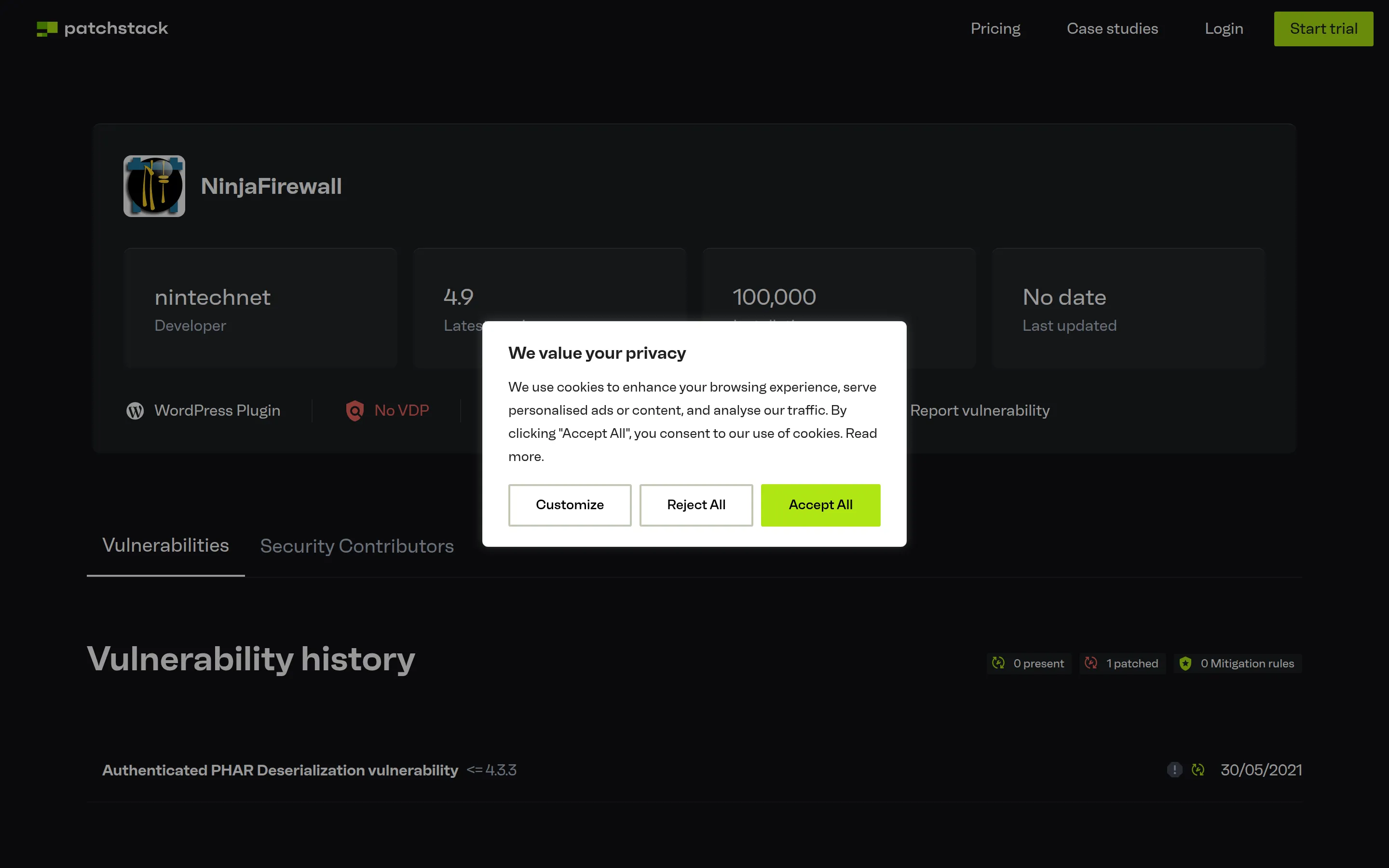
The gap is explained by the word “authenticated”. Exploiting it required already holding a high-privilege account on the site, which is a large obstacle. Patchstack currently shows nothing outstanding.
One bug in thirteen years, needing an admin account to use, patched. That’s a good record, and the correct response is the same as always: keep your plugins updated and turn on automatic updates.
What it costs
The plugin reviewed here is free, with no functional limits. These are the WP+ Edition prices from the vendor’s own page on 7 September 2026, in US dollars:
| Sites | Price per site, per year |
|---|---|
| 1 site or one multisite network | $89 |
| 2 to 5 | $73 |
| 6 to 15 | $64 |
| 15 or more | $56 |
Two details other reviews get wrong. Renewal costs the same as the first year and there’s no subscription or automatic billing, so an unrenewed licence simply expires rather than surprising you. And the money-back guarantee is 14 days but conditional: it applies if the product is unusable and they can’t fix it, not if you change your mind.
One warning if you go looking yourself. The pricing page’s HTML contains a struck-through $89 next to a red $76 from an old promotion, sitting inside a comment that browsers don’t display. It isn’t a live sale. The price is $89.
The malware scanner, NinjaScanner, is sold separately and starts at $29 per site per year, with a free version on WordPress.org. There’s no advertised bundle. If you want firewall and scanning from this vendor, budget for both.
Who should use NinjaFirewall, and who shouldn’t
Use it if you want the strongest free request filtering available for WordPress, you’re comfortable answering one question about your web server during setup, and you’d rather have a firewall that does one job properly than a suite that does five jobs adequately. It’s especially good on cheap shared hosting, because it adds nothing to your pages and no database tables.
Skip it if you want one dashboard that covers malware scanning, login security and traffic in one place, or if the words “.user.ini” made you nervous rather than curious. There’s no shame in that. A security plugin you never configure protects you less than a simpler one you actually understand.
The honest alternative is Wordfence. It scans for malware, which NinjaFirewall doesn’t. It shows you live traffic, which NinjaFirewall doesn’t. It’s friendlier to set up.
It also costs more in database weight and CPU, and its equivalent pre-WordPress protection is switched off until you go and enable it. If you want a comparison of Wordfence against another suite, I’ve tested that pairing separately.
If I had to put it in a sentence: NinjaFirewall is the better firewall, Wordfence is the better product.
Questions people actually ask
Is NinjaFirewall completely free?
The WP Edition reviewed here is free with no crippled features. A separate paid plugin, WP+ Edition, starts at $89 per site per year and adds geolocation blocking, rate limiting, access control and faster rule updates.
Does NinjaFirewall slow down WordPress?
Measurably but slightly. On my test site it added 21.9 ms to the front-end response in its strongest mode, and about 7 ms in the weaker one. It adds zero bytes to the page your visitor downloads. On real traffic it spent a median of 1.2 ms per request it inspected.
What is Full WAF mode?
It’s the mode where the firewall runs before WordPress loads, by hooking into PHP itself rather than into WordPress. It’s stronger, because it protects PHP files WordPress knows nothing about, and it needs one extra step during setup. The weaker WordPress WAF mode works without that step.
Is NinjaFirewall better than Wordfence?
At filtering requests, yes, and its strongest mode is on by default once you complete setup while Wordfence’s equivalent is opt-in. At everything else, Wordfence does more. NinjaFirewall has no malware scanner at all.
Do I need a malware scanner as well?
Yes, and NinjaFirewall doesn’t include one. A firewall stops things getting in; a scanner finds what’s already there. The same vendor sells NinjaScanner separately, with a free version available.
How do I safely uninstall NinjaFirewall?
Delete it from the WordPress plugins screen rather than deleting the folder over FTP, because only the proper removal runs the cleanup that strips out its PHP setting. Afterwards, delete the leftover nfwlog folder yourself.
Will the .user.ini file survive a server migration?
Yes, and that’s the one thing to watch. Copying it to a new host without the log folder it points at, or to a host with different file paths, leaves PHP looking for a file that doesn’t exist. Follow the vendor’s migration steps when you move.