How to Remove the Page Title in Kadence (3 Ways)
That big page title sitting above your content can look redundant. Especially when you’ve already designed a custom hero section – having “About” or “Home” plastered across the top kind of ruins the effect. Kadence makes it easy to hide page titles, and you don’t need any code for the first 2 methods.
But there’s a detail almost nobody mentions. When you hide the page title in Kadence, you’re usually removing the only H1 heading on the page. That won’t sink your rankings, but it’s worth putting a heading back – I’ll explain why further down.
I re-tested all 3 methods on Kadence 1.4.5 for this update. Methods 1 and 2 work exactly as described. The CSS I originally gave for method 3 did not, so that section is rewritten with a rule I tested.
How Do I Hide the Title on a Single Page?
This is the fastest method. It takes about 5 seconds and only affects the one page you’re editing.
- Open the page in the WordPress block editor.
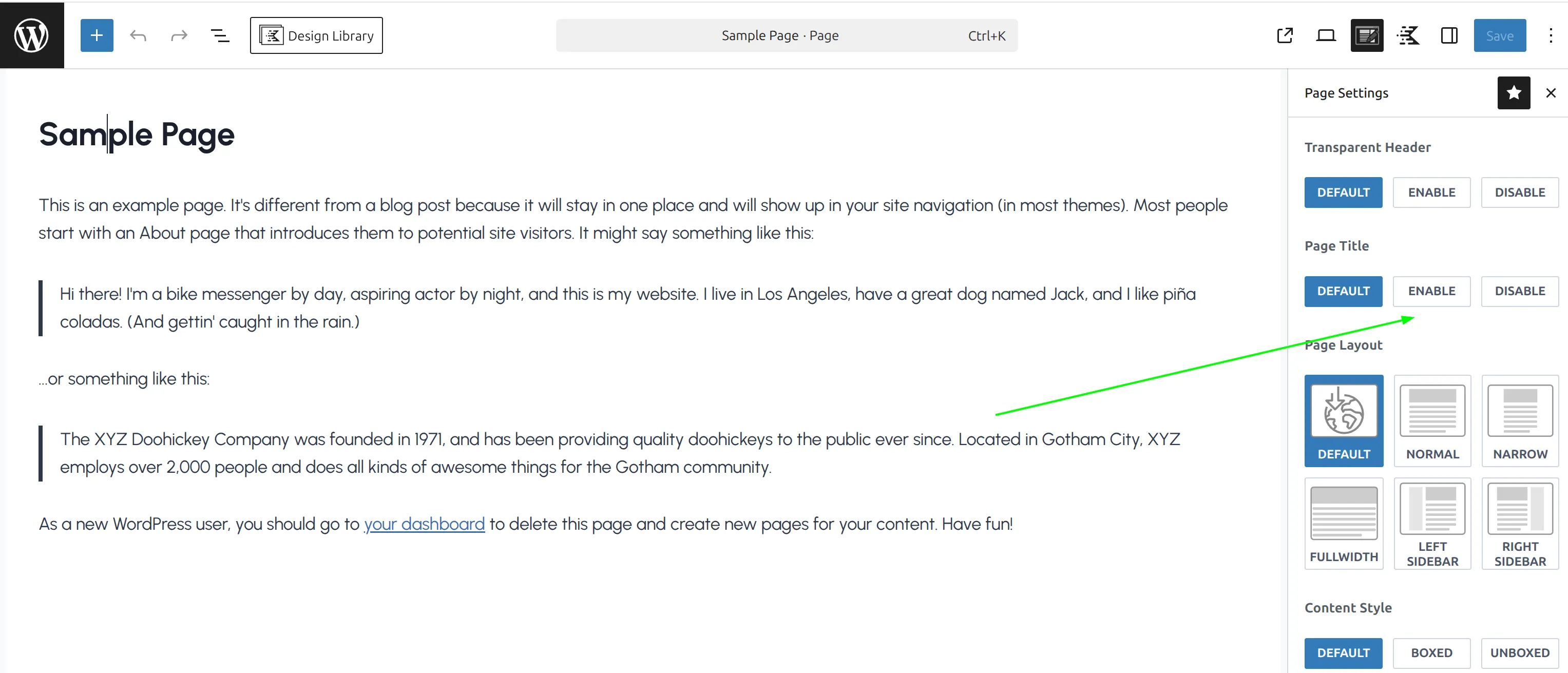
- Click the Kadence icon in the top right toolbar to open the Page Settings panel.
- Find the Page Title row – it has 3 buttons: Default, Enable and Disable.
- Click Disable.
- Click Save.
That’s it. The title disappears from the front end, but it stays as the page name in your WordPress admin. So you won’t lose track of which page is which.
I use this method the most. It’s perfect for your homepage, About page, landing pages – anywhere you’ve built a custom layout and the default title just gets in the way.
And this per-page setting always wins over the global one. I tested it both ways: with titles turned off site-wide, Enable on a single page brings its title back, and with titles on site-wide, Disable still hides it. Default means “follow the site-wide setting.”
How Do I Hide Page Titles Across My Entire Site?
If you want to remove the title from every page at once, there’s a global switch in the Customizer.
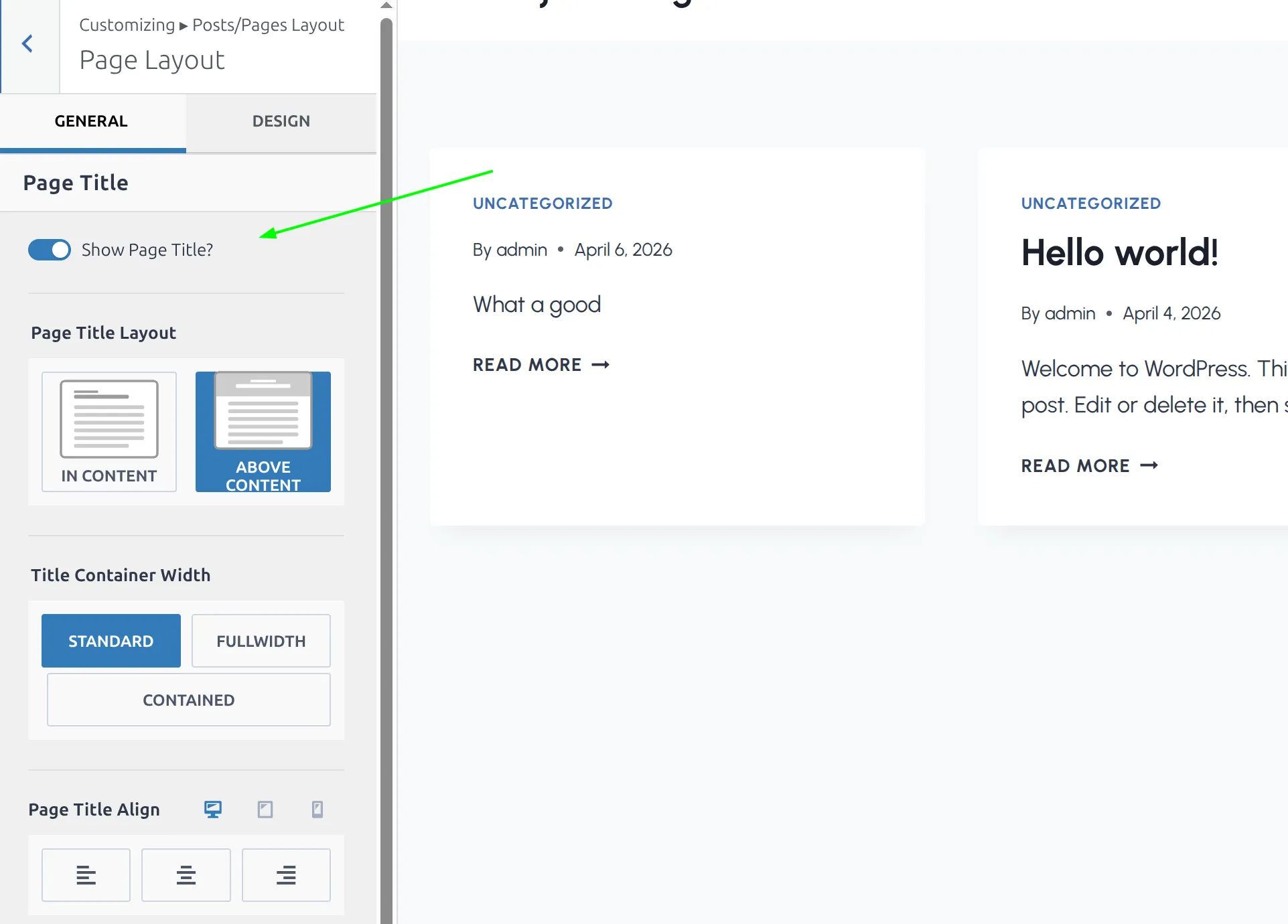
- Go to Appearance > Customize > Posts/Pages Layout > Page Layout.
- Find Show Page Title? at the top of the General tab.
- Switch it off.
- Click Publish to save.
This turns off the title on all standard pages in one click. No need to edit them one by one.
Keep 2 things in mind. First, this only covers pages. Blog posts have their own switch under Single Post Layout, and custom post types added by a plugin (portfolio items, products) get their own layout sections in the same Posts/Pages Layout panel. I list every one of those settings in my Kadence post, page and archive settings reference.
Second, any page that’s set to Enable in its own Page Settings keeps its title. So you can turn titles off site-wide and switch them back on just where you want them – or the reverse.
I’d start with the per-page approach (Method 1) unless you genuinely want titles gone everywhere. It’s easier to control and you won’t strip titles from pages where they’re useful. While you’re tidying the top of a page, you might also want to disable breadcrumbs on specific pages.
What If Neither Method Works? (CSS Fallback)
Both switches above worked first time on my test site. CSS is the fallback for the rare case where a plugin or child theme overrides them.
Here’s the catch that broke my original version of this section. Kadence pages show their title Above Content by default, inside a separate title area. Kadence loads its own stylesheet after yours, and it re-displays that title block. So the snippet I used to recommend, .page .entry-header { display: none; }, does nothing on a default Kadence page – I tested it and the title stayed put.
This rule works for both title layouts (Above Content and In Content):
- Go to Appearance > Customize > Additional CSS.
- Paste this snippet:
.page .entry-hero,
.page .entry-header.page-title {
  display: none;
}- Click Publish.
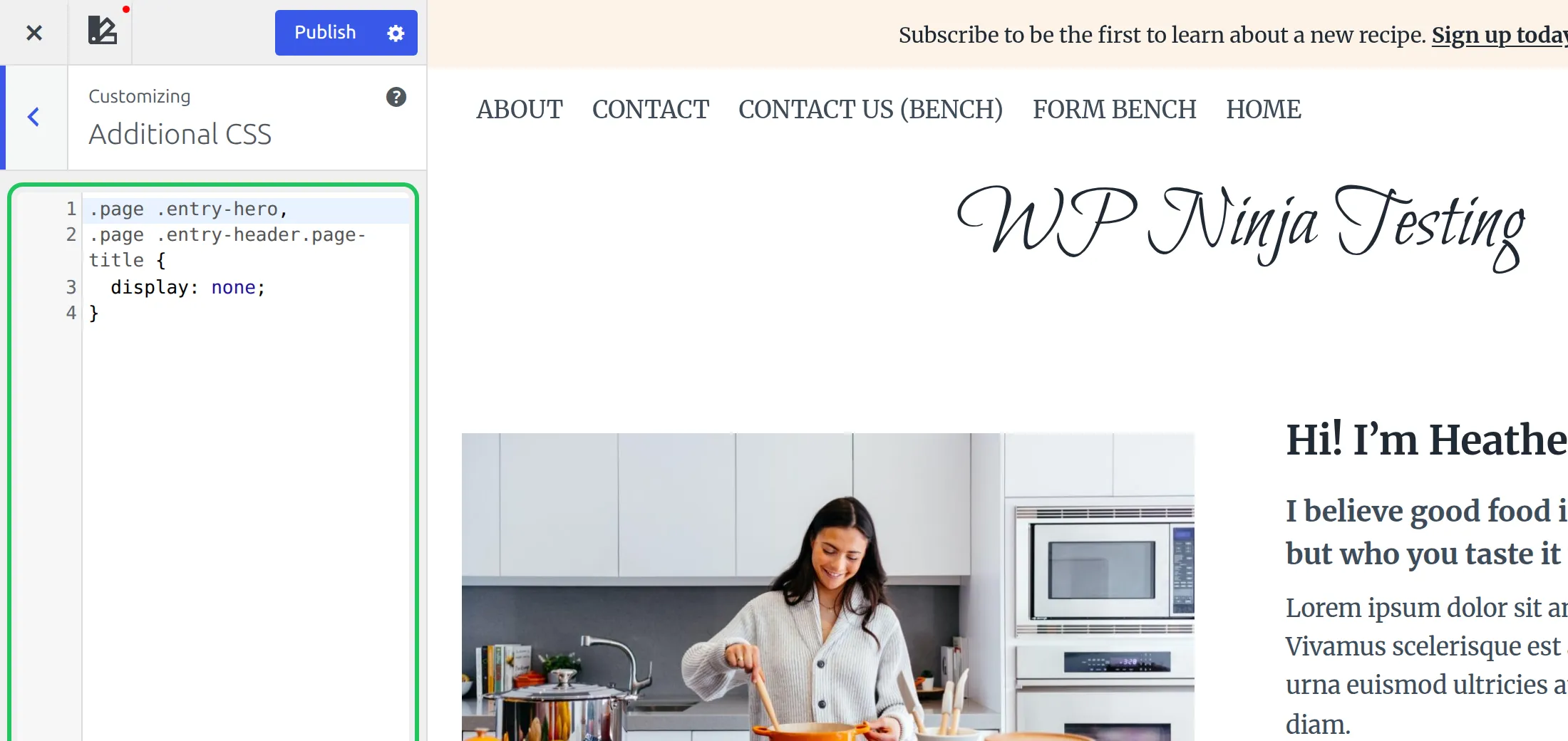
The first line hides the Above Content title area, the second hides the In Content title. On my test page the content moved straight up under the header, with no empty space left behind.
To target one page only, swap .page for that page’s ID class. WordPress adds a class like page-id-42 to the page, so the rule becomes:
.page-id-42 .entry-hero,
.page-id-42 .entry-header.page-title {
  display: none;
}
You’ll find the ID by editing the page and looking at the address bar – the number after post= is your ID. And keep in mind that CSS only hides the title from view. The H1 is still in the page’s code, unlike Methods 1 and 2, which remove it completely.
Wait – Won’t Removing the Title Hurt My SEO?
Probably not much – but it’s still worth adding a heading back. Here’s the honest version.
When Kadence displays your page title, it wraps it in an <h1> tag. Your site name in the header isn’t a heading in Kadence (it’s a plain paragraph), so that page title is usually the only H1 on the page. Methods 1 and 2 remove it from the page’s code.
Google doesn’t penalize that. Its own SEO Starter Guide says there’s “no magical, ideal amount of headings a given page should have.” So you won’t drop in the rankings just because a page has zero H1s.
But headings still help people. Screen reader users often jump straight to the H1 to find out what a page is about, and a clear main heading tells search engines and humans what to expect. My fix is simple: add an H1 Heading block in your page content.
- Edit the page in the block editor.
- Add a Heading block near the top of your content.
- Set it to H1 in the block toolbar.
- Type a descriptive title that includes your target keyword.
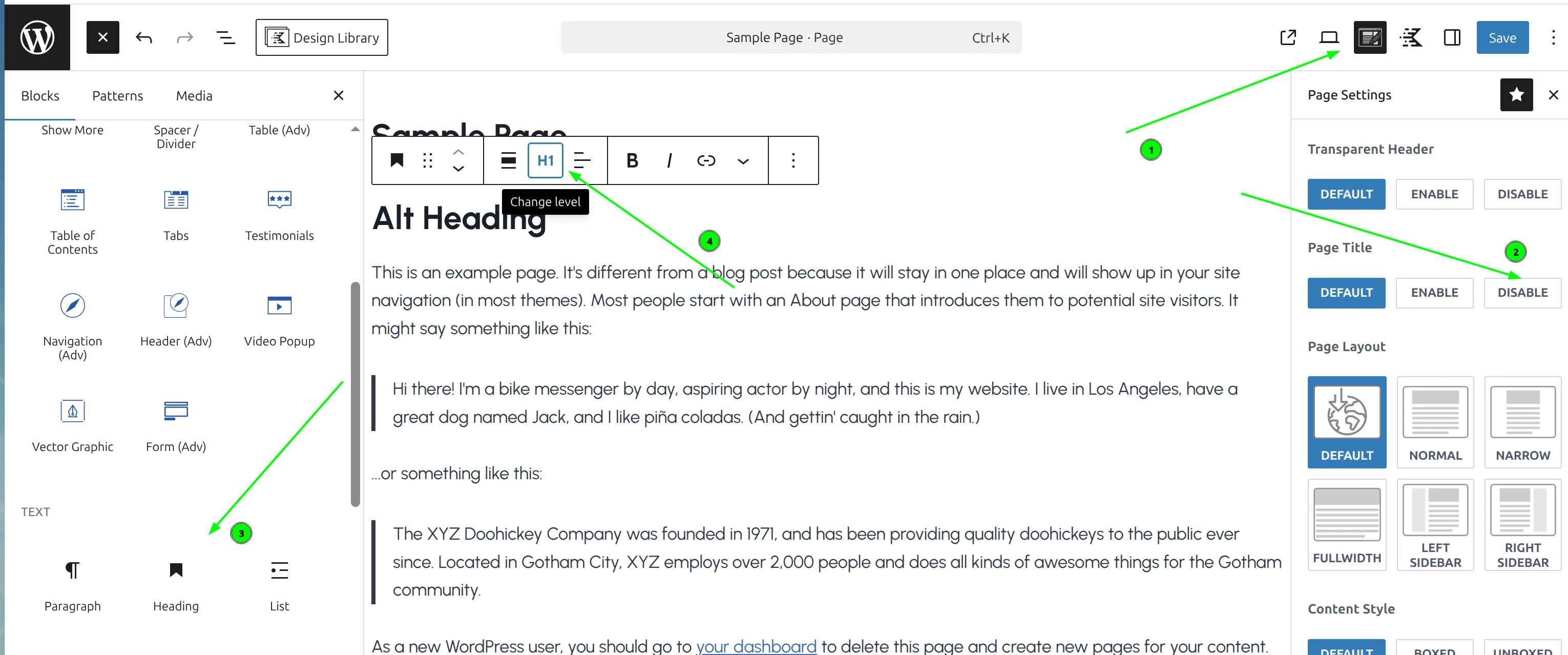
This H1 doesn’t have to match the page title you just hid. You can write it for your readers – longer and more descriptive – while keeping the page design clean.
For example, if your hidden page title was just “About” but the page is really about your freelance web design services, your H1 could say “Freelance Web Design Services in Portland.” That tells a visitor far more than a bare “About.”
Does Kadence Pro Give You More Options?
For hiding titles, the free version handles everything. You don’t need to upgrade.
Kadence Pro adds Hooked Elements, which let you insert your own designed sections (a hero with a background image, heading and button, say) at hook points around the content. That’s useful if you want the same custom hero on every landing page, but it’s a different job from hiding a title. I haven’t tested Pro on this site, so I’ll leave it at that – for removing the title, the free switches are all you need.
If your goal is a clean landing page, the same Page Settings panel can also hide the header and footer. I cover that in how to hide the header on specific pages in Kadence.
What About the Gap After Removing the Title?
When you use Method 1 or 2, there’s no gap to worry about. I checked the page code after each one: Kadence removes the whole title area, not just the words, so the content moves straight up under the header.
A gap shows up when CSS hides the title text but leaves its box behind. I tried that too: hiding only the heading with .page .entry-title { display: none; } left an empty 122px band where the title area used to be. That’s why the rule above hides .entry-hero – the whole title area – instead of just the words.
If you still see extra space at the top after hiding the title, it’s usually the page’s own top spacing. In the Page Settings panel, set Content Vertical Spacing to Bottom Only or Disable for that page.
Quick Reference Table
| Method | Scope | Difficulty | Free? | Best For |
|---|---|---|---|---|
| Page Settings > Page Title > Disable | Single page | Easy | Yes | Landing pages, homepage |
| Customizer > Show Page Title? off | All pages | Easy | Yes | Sites that never show titles |
| CSS snippet (above) | Targeted or all pages | Medium | Yes | When the switches are overridden |
Frequently Asked Questions
Does hiding the page title affect my SEO?
Not in a way that Google penalizes – it says there’s no ideal number of headings per page. But Methods 1 and 2 remove the page’s only H1, so I add an H1 Heading block to the content right after hiding the title. It helps screen reader users and makes the page’s topic obvious.
Can I hide the title on posts too, not just pages?
Yes. Open any post in the block editor, click the Kadence icon, and set Post Title to Disable. For every post at once, use Customize > Posts/Pages Layout > Single Post Layout instead of Page Layout.
Will the hidden title still show in my WordPress admin?
Yes. Hiding the page title only affects what visitors see on the front end. Your dashboard, page list and menus still show the original title.
Does hiding the title remove it from Google search results?
No. Google takes your search result title from the page’s title tag (set by an SEO plugin like SEO Simple Pack), not from the visible heading. Hiding the page title in Kadence doesn’t change the title tag.
Do I need Kadence Pro to hide page titles?
No. All 3 methods – the per-page setting, the global Customizer switch and the CSS fallback – work in the free version of Kadence.
Wrapping Up
Hiding page titles in Kadence is one of the simplest customizations you can make – the per-page setting takes 5 seconds.
Here’s my recommended workflow:
- Hide the title with Method 1 (per-page) or Method 2 (site-wide).
- Add an H1 Heading block to the page content.
- Write that H1 for your readers, with your main keyword in it.
- Check the page on mobile to make sure everything looks right.
And if you do need the CSS route, use the .entry-hero rule from this guide, not the .entry-header one that still circulates online. On a default Kadence page, the old one doesn’t hide anything.