How to Disable Breadcrumbs on Specific Kadence Pages
Breadcrumbs are those little navigation trails at the top of a page – “Home / Blog / Post Title” – that help visitors figure out where they are on your site. They’re useful on blog posts and product pages. But on a landing page or your Contact page? They just look weird, and they give visitors a way out you didn’t plan for.
The good news: Kadence makes it easy to disable breadcrumbs, and you don’t need the Pro version to do it. I’ll walk you through 3 approaches – site-wide, one page at a time, and restyling the ones you keep. I tested every step on Kadence 1.4.5 for this update.
One thing surprised me when I checked: Kadence ships with breadcrumbs switched off for both pages and posts. So if you’re seeing them, they were turned on at some point – by you, by a starter template you imported, or by an SEO plugin adding its own trail. That last one matters, and I’ll cover it in the double-breadcrumbs section below.
Why Would I Want to Disable Kadence Breadcrumbs?
Breadcrumbs serve two purposes. First, they give visitors a clickable path back to parent pages. If someone is reading a post in your “WordPress Tips” category, they can click back to that category without hunting for it in your menu. Second, Google uses breadcrumbs to understand your site structure and sometimes displays them in search results instead of the raw URL.
But not every page benefits from breadcrumbs. A 5-page brochure site with Home, About, Services, Blog, and Contact doesn’t need them – the navigation is already obvious. And breadcrumbs on a landing page? They give visitors an exit ramp you didn’t intend.
Here’s when breadcrumbs typically get in the way:
- Landing pages and sales pages – you want visitors focused, not clicking away
- About and Contact pages – the path is self-explanatory
- Any standalone page where the breadcrumb trail is just one level deep (“Home / Contact”)
You don’t need to worry about your homepage. Kadence never prints its breadcrumb on the page you’ve set as your homepage, so there’s no “Home / Home” to hide.
How Do I Disable Breadcrumbs on All Pages?
The fastest fix for most sites is the global Customizer toggle. This kills breadcrumbs on every page (or every post) at once.
- Go to Appearance > Customize
- Navigate to Posts/Pages Layout
- Click Page Layout (for pages) or Single Post Layout (for blog posts)
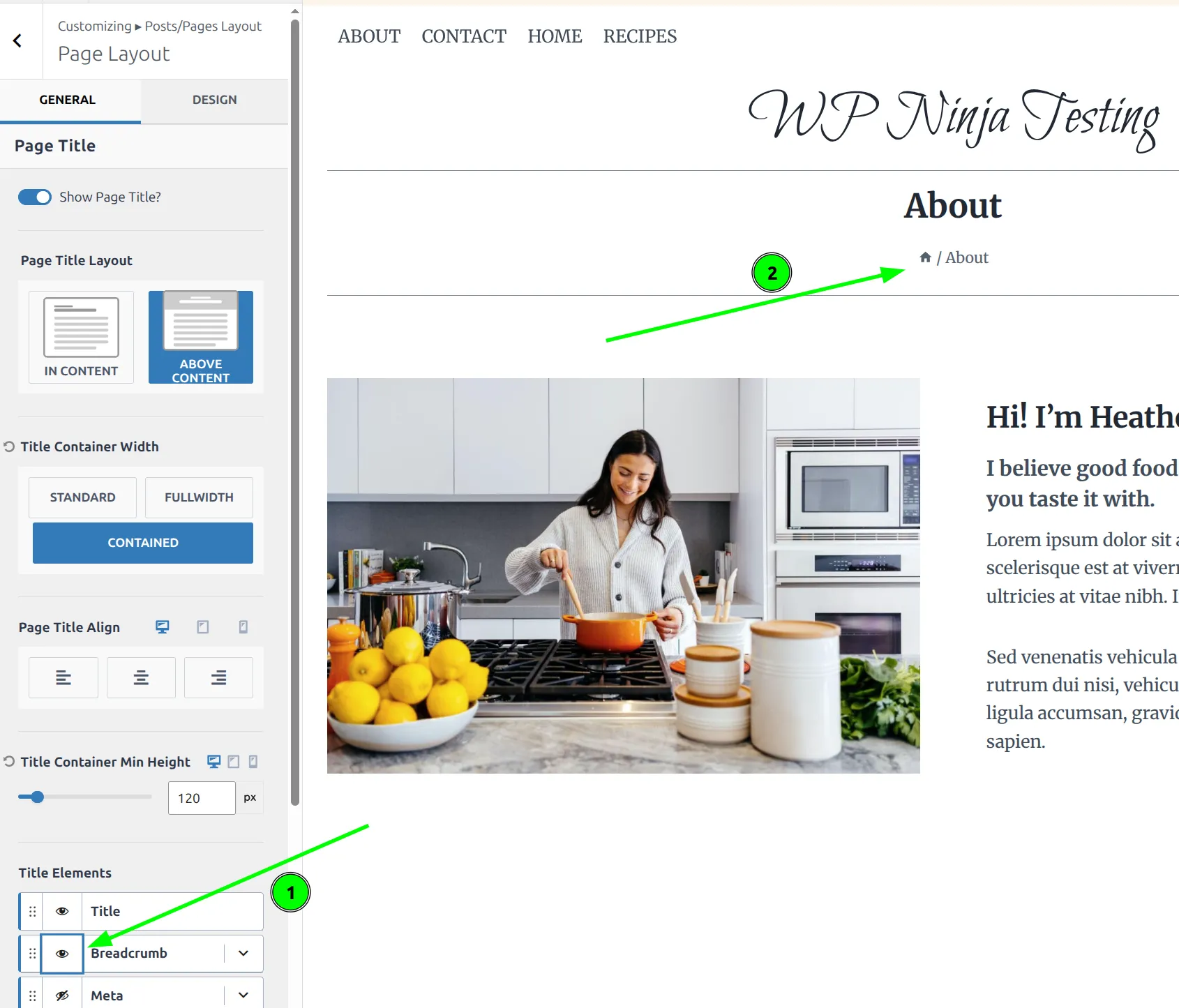
- Scroll down to the Title Elements list at the bottom of the panel
- Click the eye icon next to Breadcrumb to toggle it off
- Click Publish to save
Here’s the Page Layout panel with breadcrumbs enabled – you can see the breadcrumb trail “Home / About” on the frontend preview:
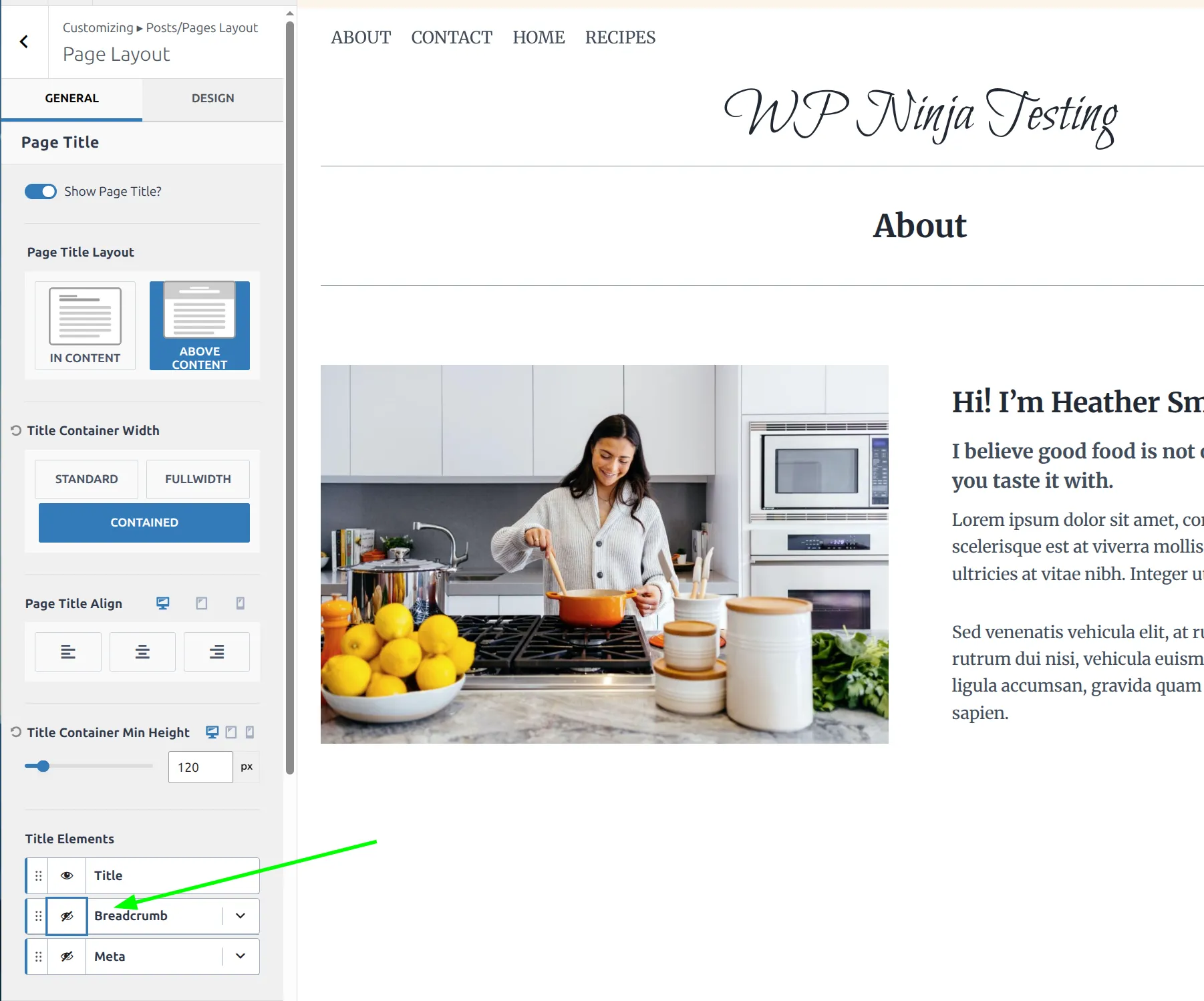
And here’s the same panel after toggling the Breadcrumb element off. The frontend updates immediately – no more breadcrumb above the page title:
Here’s what’s nice about this: pages and posts have separate controls. So you can disable breadcrumbs on all your pages (where they’re usually unnecessary) but keep them on blog posts (where they actually help readers navigate between categories). Or vice versa.
What About Blog Posts?
Blog posts use a separate layout panel. Go to Customize > Posts/Pages Layout > Single Post Layout and you’ll find the same Title Elements list with its own Breadcrumb toggle.
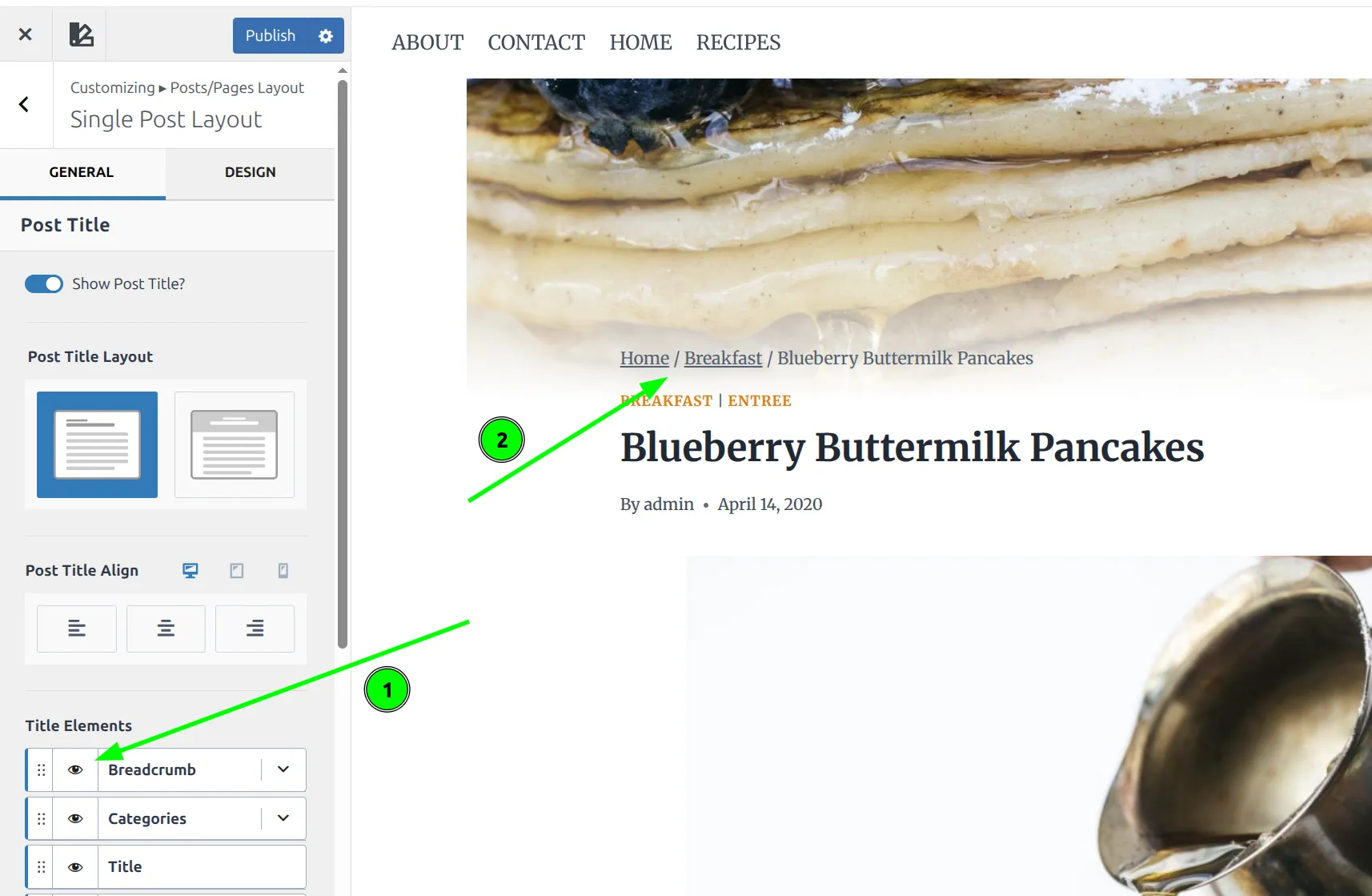
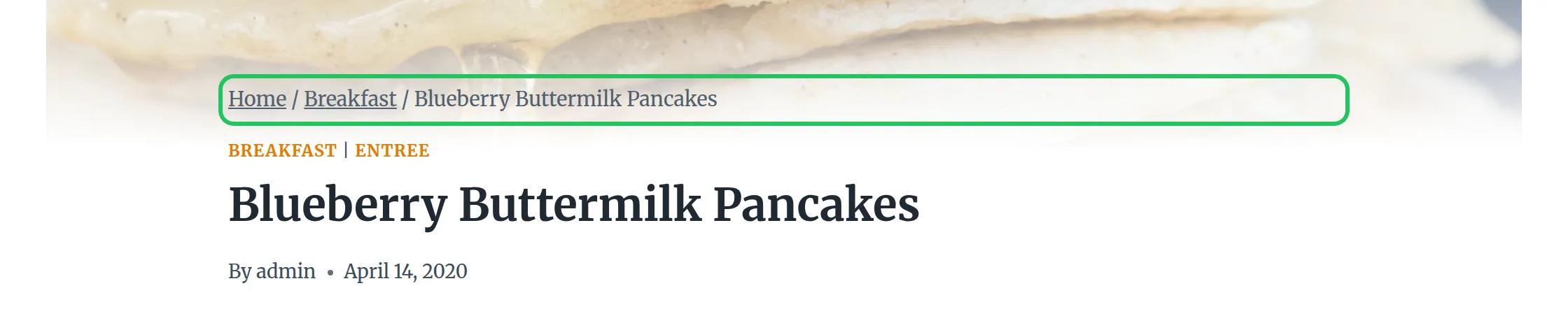
For most blogs, I’d leave breadcrumbs on for posts. A post like “Blueberry Buttermilk Pancakes” in the “Breakfast” category genuinely benefits from a trail like Home / Breakfast / Blueberry Buttermilk Pancakes. Readers can jump back to the category and browse related recipes.
Your category and tag pages have a third, separate switch under Posts/Pages Layout > Archive Layout. While you’re in the Title Elements section, you might also want to remove the author meta from your blog posts – that’s the same panel.
How Do I Disable Breadcrumbs on Just One Page?
Here’s where I need to correct an earlier version of this guide. Kadence has no per-page breadcrumb switch. I went through the Page Settings panel in the editor control by control, and its options are Transparent Header, Page Title, Page Layout, Content Style, Content Vertical Spacing, Show Featured Image, an extra CSS class field, and Disable Header/Footer. None of them is a breadcrumb toggle.
So you’ve got 2 ways to hide the trail on one page, depending on whether you want to keep the page title.
Option 1: Disable the page title (no code)
In Kadence, the breadcrumb lives inside the title area. Switch the title off for one page and the breadcrumb goes with it.
- Open the page in the WordPress block editor
- Click Kadence’s Page Settings icon in the top-right toolbar
- Under Page Title, click Disable
- Click Update
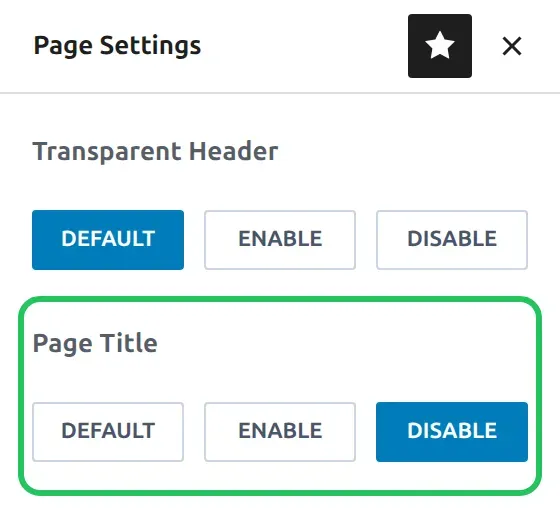
I checked the live page after saving: the breadcrumb and the H1 title were both gone. That’s perfect for a landing page that already opens with its own big heading block. If you want more detail on hiding titles, I cover it in my guide on removing the page title in Kadence.
Option 2: Keep the title, hide only the breadcrumb (3 lines of CSS)
If you want the title to stay, you need a tiny bit of CSS. Don’t worry – it’s copy and paste, and you only change one number.
First, find the page’s ID. Go to Pages, hover over the page and click Edit. Look at the address bar: the number after “post=” is the ID. My About page’s address ends in post=109, so its ID is 109.
Then go to Appearance > Customize > Additional CSS and paste this, swapping 109 for your own page’s ID:
.page-id-109 .kadence-breadcrumbs {
	display: none;
}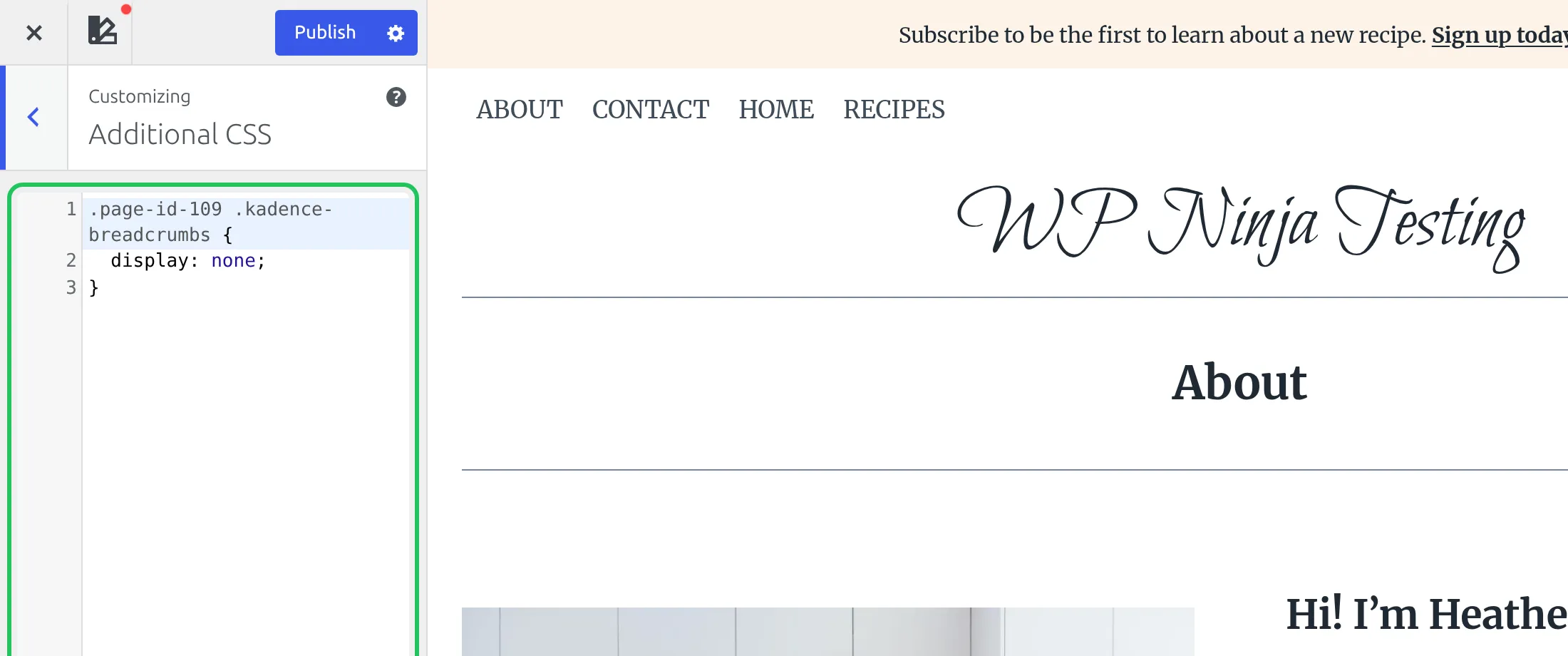
The preview updates as you type. On my test site the trail disappeared from the About page while the title stayed put, and every other page kept its breadcrumb. Click Publish to save. For a blog post, use .postid-123 instead of .page-id-123.
How Do I Customize Breadcrumbs Without Removing Them?
Maybe you don’t want to remove breadcrumbs entirely – you just want them to look different. Kadence splits the styling across 2 places.
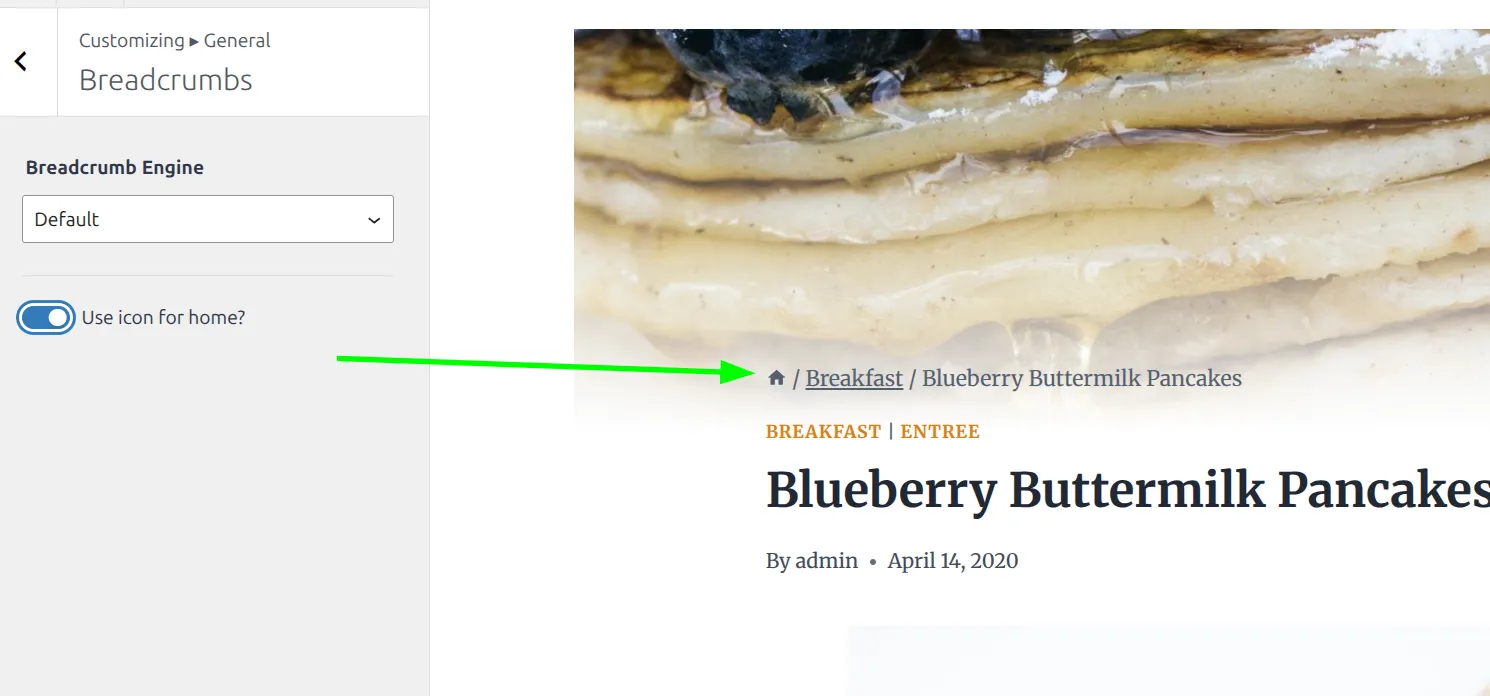
Customize > General > Breadcrumbs has 2 settings: the Breadcrumb Engine (covered in the next section) and Use icon for home?. That second one swaps the word “Home” for a small house icon at the start of the trail. I always turn it on – it looks cleaner and takes up less space, especially on mobile.
The colors and font live in the layout panels instead. Open Customize > Posts/Pages Layout > Page Layout, click the Design tab, and scroll to the Page Title group. You’ll find Breadcrumb Colors (a normal and a hover color) and Breadcrumb Font.
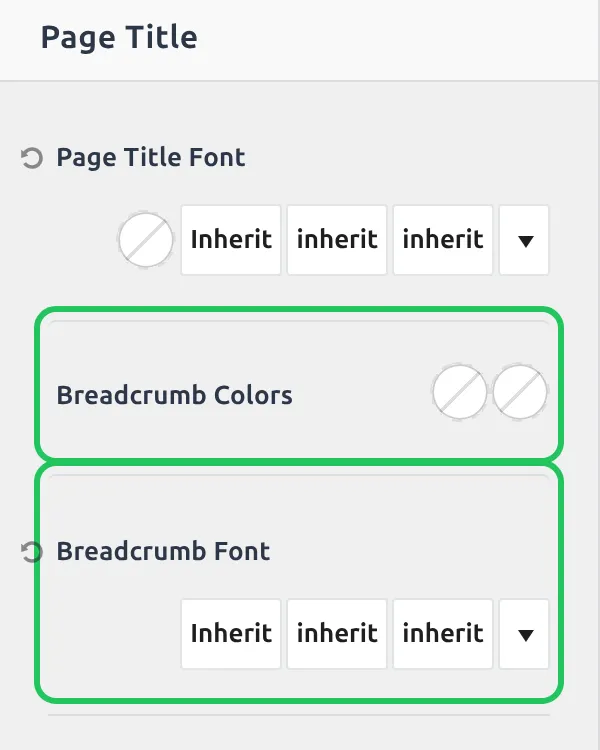
Posts get their own copy of these controls in Single Post Layout, on the same Design tab. One thing you won’t find anywhere is a separator setting. Kadence’s own trail always uses a slash. If you want a » or > instead, switch the Breadcrumb Engine to an SEO plugin that has a separator field, like Yoast SEO.
What Is the Breadcrumb Engine Setting?
At the top of the General > Breadcrumbs panel, there’s a dropdown called Breadcrumb Engine. This is one of the most useful settings in Kadence – and one of the least documented.
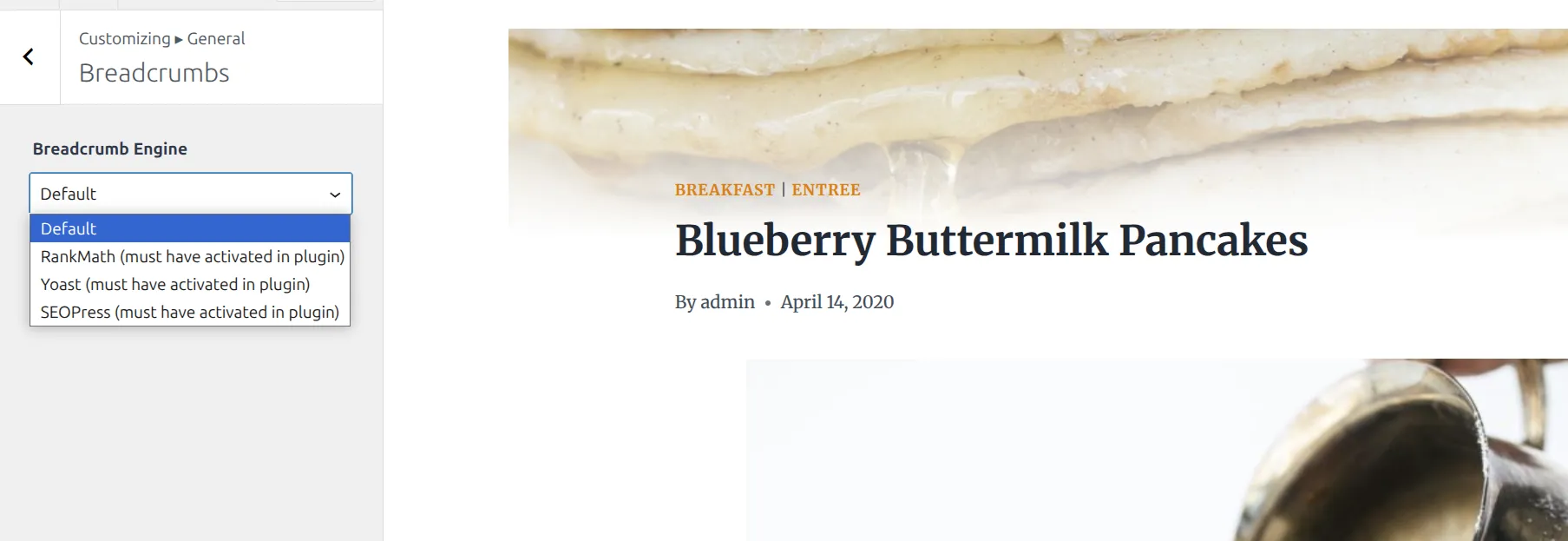
By default it’s set to Default, which uses Kadence’s own breadcrumb logic. But if you have Rank Math, Yoast SEO, or SEOPress installed, you can switch the engine to one of those plugins. Kadence then prints that plugin’s trail in the same spot, still styled with Kadence’s colors and font.
Why does this matter? It keeps your breadcrumbs consistent with your SEO settings. Rank Math and Yoast both have detailed breadcrumb options (the separator, the home label, whether to show the blog page), and picking the engine means those settings flow through to your theme. If you haven’t picked an SEO plugin yet, I tested 5 of them in my best free WordPress SEO plugins roundup.
But there’s a trap I hit while testing. The SEO plugin’s own breadcrumb setting has to be on, or the trail vanishes completely. With the engine set to Yoast and Yoast’s breadcrumbs off, my test page showed no breadcrumb at all. In Yoast, that switch is at Yoast SEO > Settings > Advanced > Breadcrumbs:
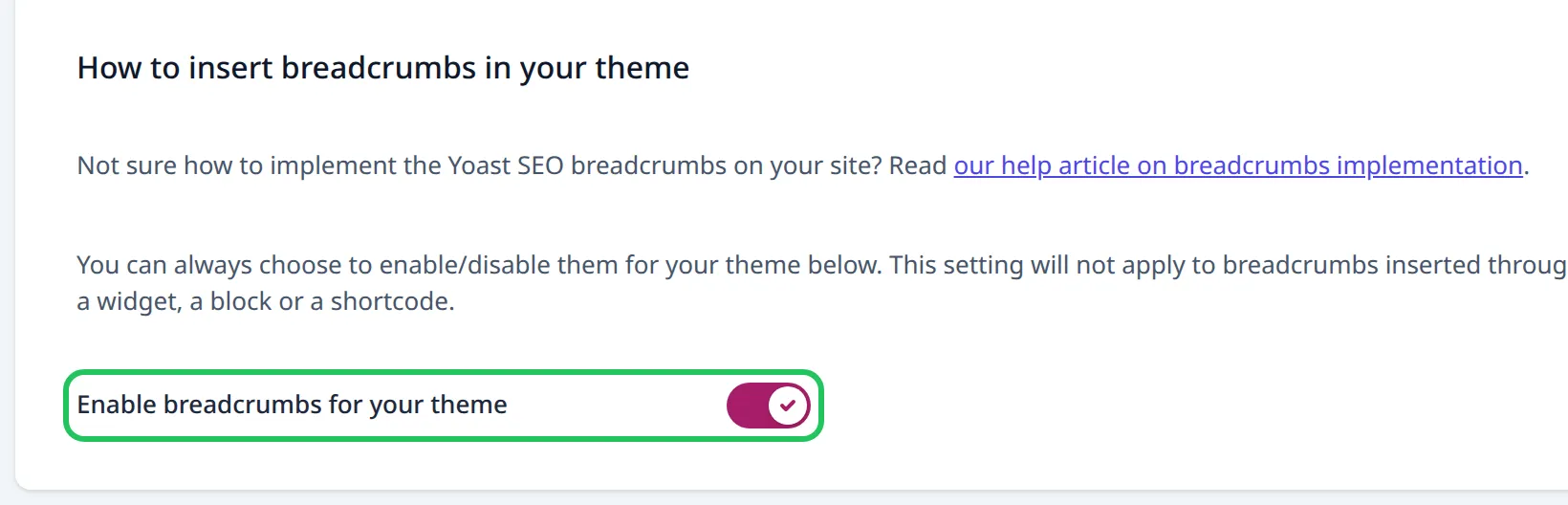
In Rank Math, it’s Rank Math SEO > General Settings > Breadcrumbs. That tab only appears when Rank Math is in Advanced mode, so switch modes on the Rank Math dashboard if you can’t find it.
Watch Out for Double Breadcrumbs
This one catches people all the time. You add a breadcrumb block (Yoast has one), a breadcrumb shortcode or a page-builder breadcrumb widget to your content. Kadence is still printing its own trail above the title, so you end up with two stacked on top of each other.
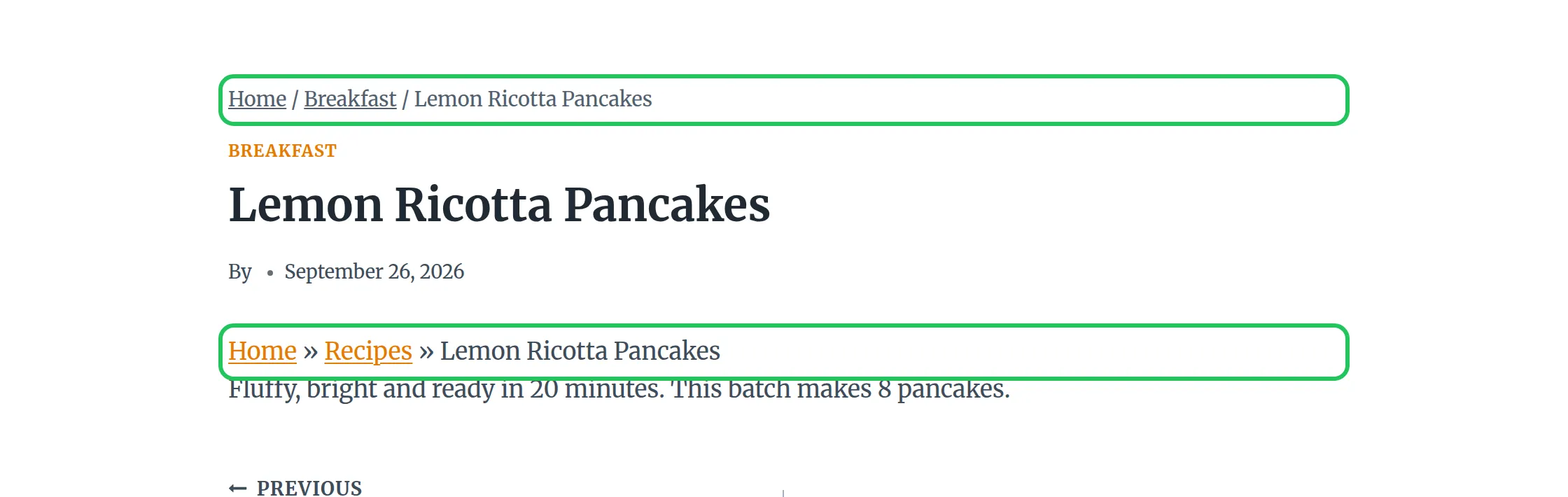
I reproduced this on my test site and tried the fixes you’ll see recommended elsewhere. Neither of them works:
- Switching the Breadcrumb Engine to Yoast – both trails stayed. The engine only changes what fills Kadence’s own slot. It doesn’t touch a block in your content.
- Turning breadcrumbs off in Yoast – the block’s trail stayed. Yoast even says so on its settings screen: the toggle doesn’t apply to breadcrumbs added through a widget, a block or a shortcode.
The fix is to pick one trail and delete the other:
- Fix 1 (my pick): Delete the extra breadcrumb block, shortcode or widget from the page, and let Kadence show the trail in its normal spot. Set the engine to your SEO plugin if you want its settings.
- Fix 2: Keep the block and switch off Kadence’s Breadcrumb element in the layout panel, as shown at the top of this guide.
If the extra trail is on every post, check your post template or your widget areas rather than each post. A breadcrumb added once in a template shows up on every page that uses it.
Should I Keep Breadcrumbs at All?
It depends on your site’s structure.
Keep breadcrumbs on:
- Blog posts with multiple categories – they help readers browse related content
- WooCommerce product pages – shoppers use them to navigate back to categories
- Archive and category pages – they show visitors where they are in the hierarchy
- Any site with more than 2 levels of nested pages
Remove breadcrumbs from:
- Simple sites with 5-10 pages and a clear menu
- Single-page or minimal sites
- Landing pages designed for conversions
- Pages where the breadcrumb trail is only one level deep (“Home / Contact” doesn’t tell anyone anything useful)
And about SEO – yes, breadcrumbs do help Google understand your site structure. Google can display them in search results as a clean path instead of showing your URL.
But this only matters on pages with meaningful hierarchy. Don’t keep breadcrumbs everywhere just for SEO reasons. Keep them where they actually help visitors navigate.
Quick Reference
| What you want | Where to do it | Free? |
|---|---|---|
| Disable on all pages | Customize > Posts/Pages Layout > Page Layout > Title Elements > Breadcrumb eye icon | Yes |
| Disable on all posts | Customize > Posts/Pages Layout > Single Post Layout > Title Elements > Breadcrumb eye icon | Yes |
| Disable on category and tag pages | Customize > Posts/Pages Layout > Archive Layout > Title Elements | Yes |
| Disable on one page, title too | Edit Page > Page Settings > Page Title > Disable | Yes |
| Disable on one page, keep the title | Customize > Additional CSS > .page-id-123 .kadence-breadcrumbs rule | Yes |
| Home icon | Customize > General > Breadcrumbs > Use icon for home? | Yes |
| Colors and font | Customize > Posts/Pages Layout > Page Layout > Design tab | Yes |
| Use your SEO plugin’s breadcrumbs | Customize > General > Breadcrumbs > Breadcrumb Engine | Yes |
Frequently Asked Questions
Does disabling Kadence breadcrumbs hurt my SEO?
Not in most cases. Breadcrumbs help Google understand deep site hierarchies, but pages like About and Contact have obvious structure already. I only keep breadcrumbs on blog posts and product pages where the category path actually adds value.
Can I disable breadcrumbs on specific categories only?
Not with a built-in setting. Kadence’s switches work per content type: all pages, all posts, all archives. You can hide the trail on individual posts with Option 1 or Option 2 above, but there’s no “hide it for every post in this category” switch without custom code.
Why do I see two sets of breadcrumbs on my Kadence site?
Kadence is printing its own trail, and something else – usually an SEO plugin’s breadcrumb block, a shortcode or a page-builder widget – is printing a second one in your content. Delete one of them. Switching the Breadcrumb Engine or turning breadcrumbs off in your SEO plugin won’t remove a block; I tested both.
Will disabling breadcrumbs affect my WooCommerce product pages?
No. Kadence gives products their own panel at Customize > WooCommerce > Single Product Layout, with a separate Breadcrumb element and its own colors. Turning breadcrumbs off for pages or posts won’t touch your product pages, and the reverse is true too.
Does the home icon toggle work on mobile?
Yes. The home icon replaces the “Home” text everywhere breadcrumbs appear – desktop, tablet, and mobile. It’s a small SVG icon, so it scales cleanly at any size and saves horizontal space on narrow mobile screens where long breadcrumb trails tend to wrap awkwardly.
Start with the global toggles. Turn breadcrumbs off for pages, leave them on for posts, then use the Page Title switch or the CSS rule for the odd page that still needs cleaning up. It’s one of those small tweaks that makes your site look more polished in under 5 minutes.