How to Fix WordPress 404 Errors on Every Page
Your homepage loads fine, but every other page throws a “404 Not Found” error. Take a breath – your site isn’t broken, and your posts aren’t gone.
The fix takes 30 seconds and doesn’t need any code. Go to Settings > Permalinks in your dashboard. Just opening that page rebuilds WordPress’s link rules, and clicking Save Changes does the same thing again, so click it too if it makes you feel better.
I tested this on purpose: I broke the link rules on my WordPress 7.1 test site until every page except the homepage returned 404, then opened Settings > Permalinks. Every page came back. Here’s why it works, what to do when it doesn’t, and how to stop a WordPress 404 error on all pages from wrecking your afternoon again.
Why is my WordPress site showing 404 on every page?
When your homepage works but clicking any link throws a 404, the problem sits between the web address and the post it should load.
Behind the scenes, there are 2 sets of instructions involved. Your web server needs a rule that sends every address to WordPress (on Apache servers, that rule lives in a small file called .htaccess). Then WordPress keeps its own list of rewrite rules that turn yoursite.com/about-me/ into “load the About Me page.” If either set goes missing or goes stale, every pretty URL stops working.
The homepage survives because yoursite.com/ goes straight to WordPress’s main file without needing any rule at all. That’s why “home works, everything else 404s” is such a recognizable pattern.
It usually starts after one of 4 events: moving your site to a new host, changing your permalink structure, a plugin editing .htaccess, or a failed update. The posts and pages themselves are safe in the database. The directions to them are what broke.
Which 404 are you seeing?
Look at the error page itself, because it tells you which set of instructions broke.
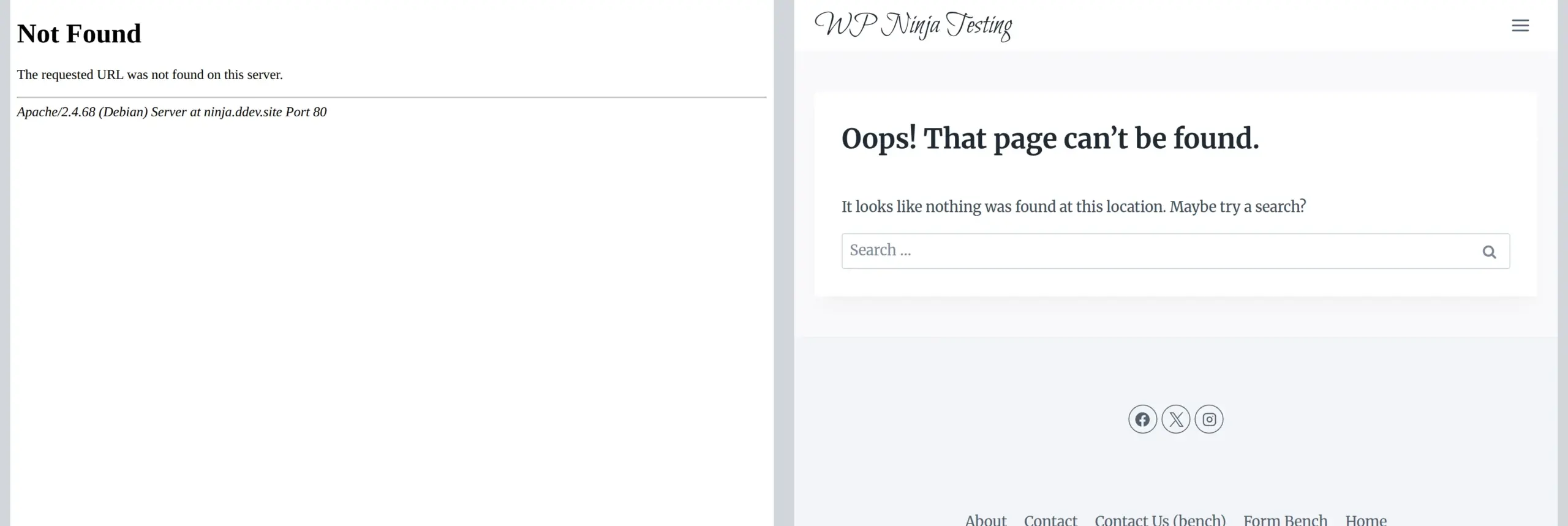
A plain white page with “Not Found – The requested URL was not found on this server” means WordPress never even ran. The web server’s rule is missing, so the .htaccess checks below are where your fix is.
Your theme’s own 404 page (your logo, menu and a “page can’t be found” message) means WordPress ran but its own rewrite rules are stale. The Permalinks visit below fixes that one every time it’s the cause, on any kind of server.
How do I fix 404 errors in 30 seconds?
This is the fix for the WordPress 404 error on all pages, and it’s built right into the dashboard.
Step 1: Log in to your WordPress dashboard
Go to yoursite.com/wp-admin and log in. Your admin area normally keeps working even when the front end is throwing 404s. If you can’t reach the admin either, skip down to the .htaccess section below.
Step 2: Open the Permalinks settings
In the left sidebar, click Settings > Permalinks. You’ll see a list of URL structures (Plain, Day and name, Post name, and so on).
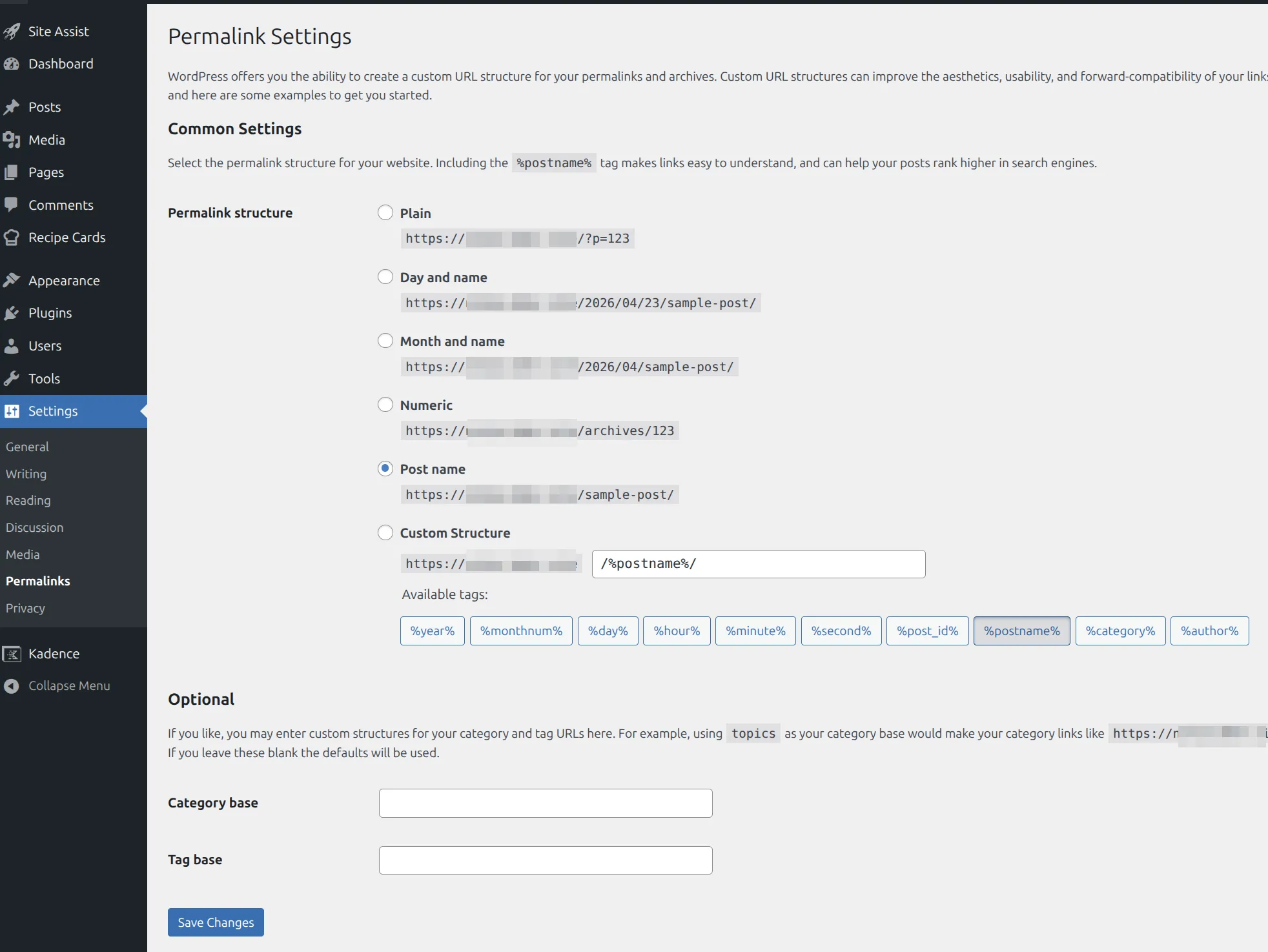
Here’s what surprised me: the fix has already happened at this point. Every time this page loads, WordPress throws away its old rewrite rules and builds a fresh set, and on Apache servers it rewrites its section of .htaccess too if it can. On my test site, the rules went from 1 broken entry back to 112 the moment the page opened, before I clicked anything.
Step 3: Click Save Changes
Don’t change anything. Scroll down and click the blue Save Changes button. It runs the same rebuild again, and if WordPress can’t write to .htaccess, this is the click that tells you so.
Now open your site in a new tab and click around – every page should load. If you use a caching plugin or your host caches pages, clear that cache too, or you may keep seeing saved copies of the 404 for a while.
What did that actually do?
Developers call this “flushing the rewrite rules.” Don’t let the word flushing scare you – nothing gets deleted.
WordPress looks at your current permalink setting, works out the correct address pattern for posts, pages, categories and tags, and saves that fresh list. The stale list gets replaced. Think of it like printing a new map after the road signs changed: your destination hasn’t moved, you just needed updated directions to find it.
What if the permalinks fix didn’t work?
If your pages are still 404ing, and especially if the error is that plain white “Not Found” page, WordPress probably couldn’t write to your .htaccess file. You’ve got 3 follow-up checks.
Check 1: Fix the .htaccess file manually
First, look at the top of the Permalinks page right after you click Save Changes. If WordPress can’t write the file, it tells you so: “You should update your .htaccess file now,” followed by an error and a box containing the exact rules your site needs.
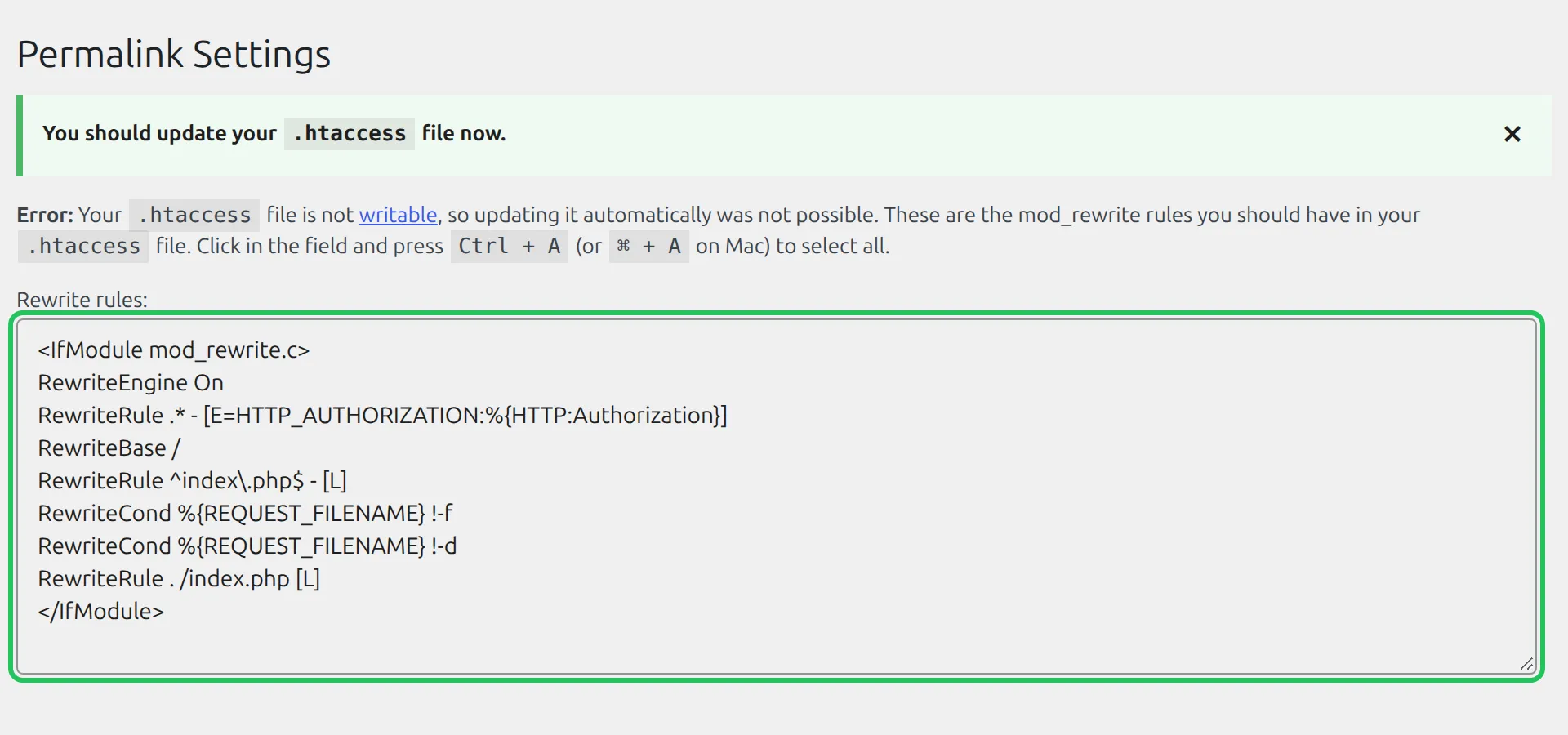
I made .htaccess read-only on my test site to get this message. Click inside the box, press Ctrl + A (Cmd + A on Mac) to select all the rules, and copy them. Those are the rules you’ll paste into the file.
Now open the file itself through your host’s File Manager or an FTP client. It sits in your site’s root folder (usually public_html or www), next to wp-config.php. If you don’t see it, turn on “Show hidden files” – files starting with a dot are hidden by default.
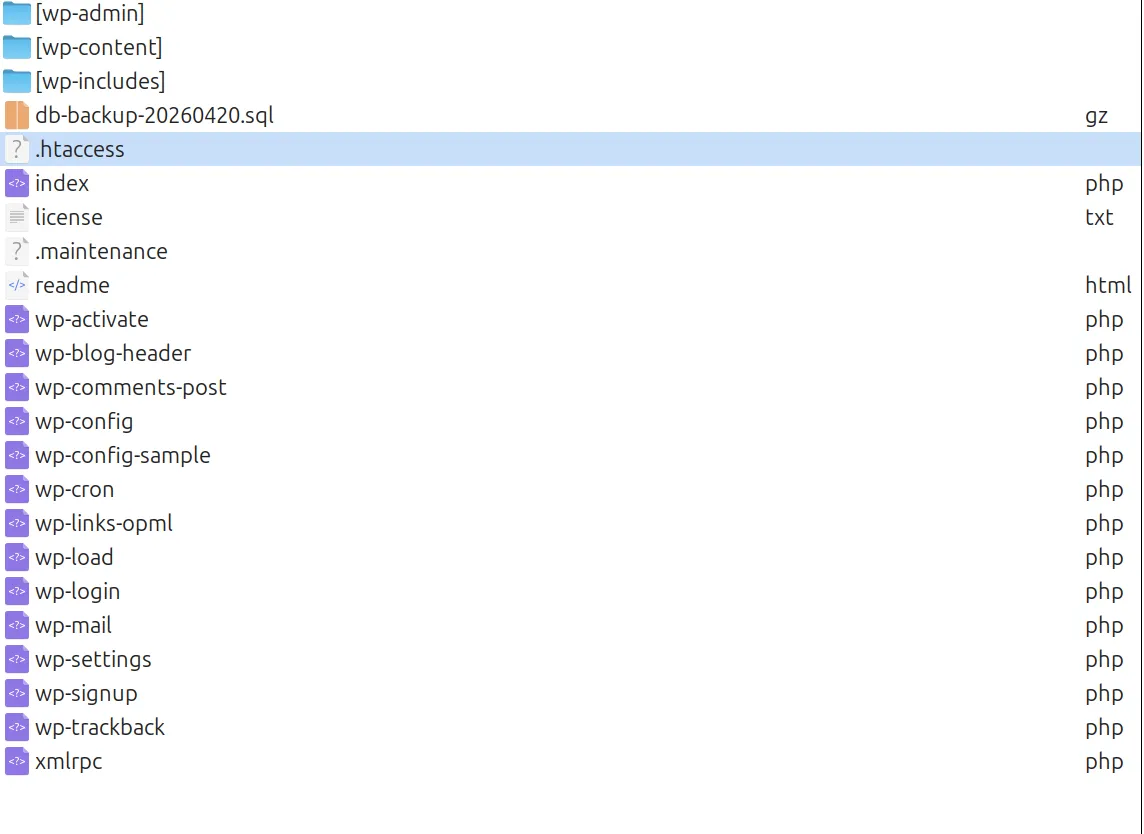
Before touching anything, back up your site or at least download a copy of the current .htaccess. Then put this between the # BEGIN WordPress and # END WordPress lines (or add all of it if the file is empty). It’s exactly what WordPress 7.1 wrote on my test site:
# BEGIN WordPress
<IfModule mod_rewrite.c>
RewriteEngine On
RewriteRule .* - [E=HTTP_AUTHORIZATION:%{HTTP:Authorization}]
RewriteBase /
RewriteRule ^index\.php$ - [L]
RewriteCond %{REQUEST_FILENAME} !-f
RewriteCond %{REQUEST_FILENAME} !-d
RewriteRule . /index.php [L]
</IfModule>
# END WordPress
Save the file, then load your site. If WordPress lives in a subfolder (like yoursite.com/blog/), use the version from the Permalinks page instead, because it adjusts the paths for you.
One more case: if your host runs Nginx instead of Apache, there’s no .htaccess to fix. Nginx hosts set up that forwarding rule for you, so on Nginx the Permalinks visit above is the fix you control.
Check 2: Deactivate plugins in bulk
Some security and caching plugins add their own rules to .htaccess, and a bad rule there can break every URL. Go to Plugins > Installed Plugins, tick the checkbox at the top to select every plugin, pick Deactivate from the bulk actions dropdown, and click Apply. Then reload your site.
If the 404s disappear, reactivate plugins one at a time until they come back. That’s your culprit – check its settings for anything about URLs, login addresses or .htaccess, or ask its support team.
Check 3: Switch to a default theme temporarily
Rarely, a theme with broken page templates can cause site-wide 404s. Go to Appearance > Themes and activate Twenty Twenty-Five (or any default WordPress theme).
If your site suddenly works, the problem lives inside your current theme. Contact the theme developer or switch to a different theme.
Why is my WordPress site showing a 404 error on just one page?
If only 1 or 2 pages throw 404s while the rest of your site works fine, it’s a different problem. The rewrite rules are healthy – something happened to those specific pages. I tested each of these on my test site:
The post was moved to the Trash. Go to Posts > All Posts and click the Trash tab. If your missing page is there, hit Restore. A trashed post’s address returns 404 immediately. I covered the broader case of WordPress blog posts disappearing separately.
A page’s slug changed. The slug is the last part of the address (/about-me/). Here’s a detail most guides get wrong: when you change a post’s slug, WordPress remembers the old one and redirects it to the new address automatically. I changed one and the old URL sent me straight to the new one. Pages don’t get that, so a changed page slug leaves the old address 404ing – set it back, or add a redirect (below).
The post isn’t published. Draft and Private posts return a 404 to visitors, even though you can still preview them while you’re logged in. Open the post and check the Status row in the right sidebar says Published.
The category was deleted. An empty category is fine – its page still loads, it just has no posts on it. But a deleted category’s address returns 404, so links to it need updating or redirecting.
What about redirecting the old URL?
If a page’s address legitimately needed to change (like fixing a typo), don’t leave the old URL broken. Set up a redirect so anyone with the old link lands on the new page.
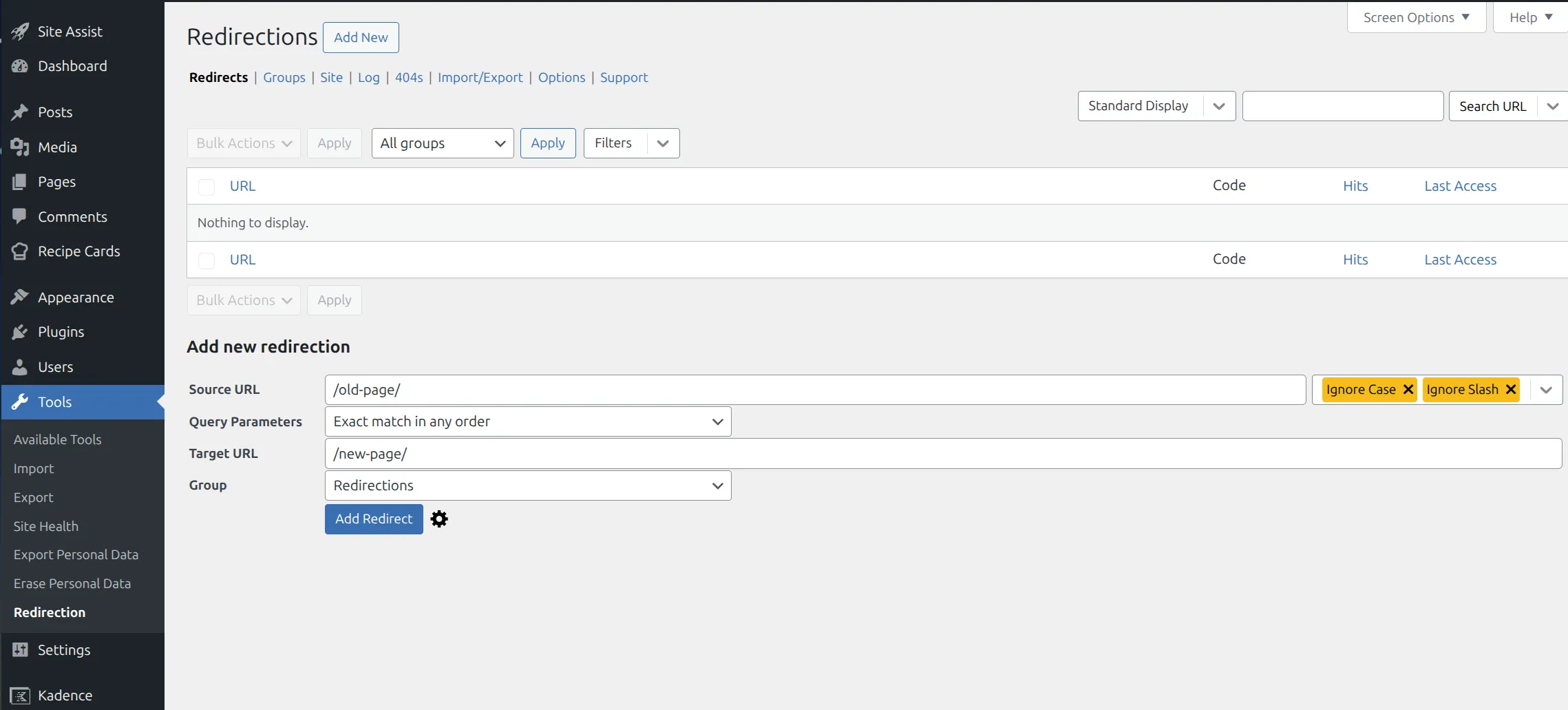
The free Redirection plugin does this. Install it, go to Tools > Redirection, enter the old address in Source URL and the new one in Target URL, and click Add Redirect. Visitors (and search engines) following the old link go to the new one automatically.
If you use an SEO plugin, check before adding another one. Rank Math’s free version has a redirect manager, but it ships switched off – I had to turn it on under Rank Math’s Modules screen in my Rank Math vs Yoast test. Yoast’s redirect manager is a Premium feature, so free Yoast users still need Redirection.
How do I stop 404 errors from happening again?
Most site-wide 404 outages come down to 4 habits.
Open Permalinks after every migration. Moving to a new host or changing your domain? The first thing to do after the move is log in and open Settings > Permalinks (and click Save Changes). Do it before you test anything else. It takes 5 seconds.
Back up before changing your permalink structure. Switching from Plain (?p=123) to Post name URLs is a good upgrade, but do it right after a fresh backup – I compared 6 free options in the best free WordPress backup plugins. If something misfires, you can restore in minutes instead of debugging for hours.
Keep plugins updated. Outdated security and caching plugins sometimes write bad .htaccess rules, and their updates usually fix them. My guide on updating plugins without breaking your site covers doing that safely.
Avoid editing .htaccess by hand unless you have to. If you must, keep a copy of the original first. One stray character in that file can take your whole site offline, and 404s are often the first symptom. Badly configured caching plugins can also be behind why your site is running slow as well as 404s.
Quick checklist
Here’s the fix-it order I run through for a WordPress 404 error on all pages:
- Open Settings > Permalinks (and click Save Changes), then clear any page cache
- Look at the 404 page: plain white “Not Found” means
.htaccess, your theme’s 404 means WordPress’s own rules - If WordPress says it can’t write
.htaccess, copy the rules it shows you into the file - Deactivate all plugins and reactivate one at a time to find conflicts
- Switch to a default theme to rule out theme problems
- For single-page 404s, check the Trash, the post status, and whether a page’s slug changed
Most of the time, step 1 is the only step you’ll need. The rest are backup plans.
Frequently Asked Questions
Why are all my WordPress pages showing 404 except the home page?
The homepage address goes straight to WordPress’s main file without needing a rewrite rule, so it keeps working when the rules break. Every other address needs those rules – either the web server’s (in .htaccess on Apache) or WordPress’s own list – to find the right post.
How do I fix a 404 error on all pages?
Open Settings > Permalinks in your dashboard and click Save Changes without touching anything else. Opening the page already rebuilds WordPress’s rewrite rules (and its part of .htaccess on Apache, when the file is writable), and saving does it again and warns you if the file can’t be written. Then clear any page cache.
What if saving permalinks doesn’t work?
Look at the top of the Permalinks page after saving. If WordPress says “You should update your .htaccess file now,” it couldn’t write the file, so copy the rules it shows into .htaccess yourself. If there’s no message, deactivate your caching and security plugins to test for a conflict.
Can a plugin cause a sitewide 404 error?
Yes. Security and caching plugins add their own rules to .htaccess, and a broken rule there can stop every URL from reaching WordPress. Deactivating all plugins at once is the quickest way to test it.
That’s the full playbook. Next time your WordPress site throws 404s on every page, start with Settings > Permalinks – you can be back online before your coffee gets cold.