How to Change Footer Copyright Text in Kadence Free
If you’re using the Kadence theme, your footer probably says something like “© 2026 Your Site Name – WordPress Theme by Kadence WP.” That’s the default. And it looks generic.
The good news? You can change every word of it – including removing the “Theme by Kadence” credit – without upgrading to Kadence Pro. This is one of those things that most other tutorials get wrong. They’ll tell you that removing the theme credit requires the Pro version or a custom CSS hack.
It doesn’t. Kadence lets you do it with a free setting that takes about 30 seconds.
Here’s exactly how it works.
Where Is the Copyright Setting in Kadence?
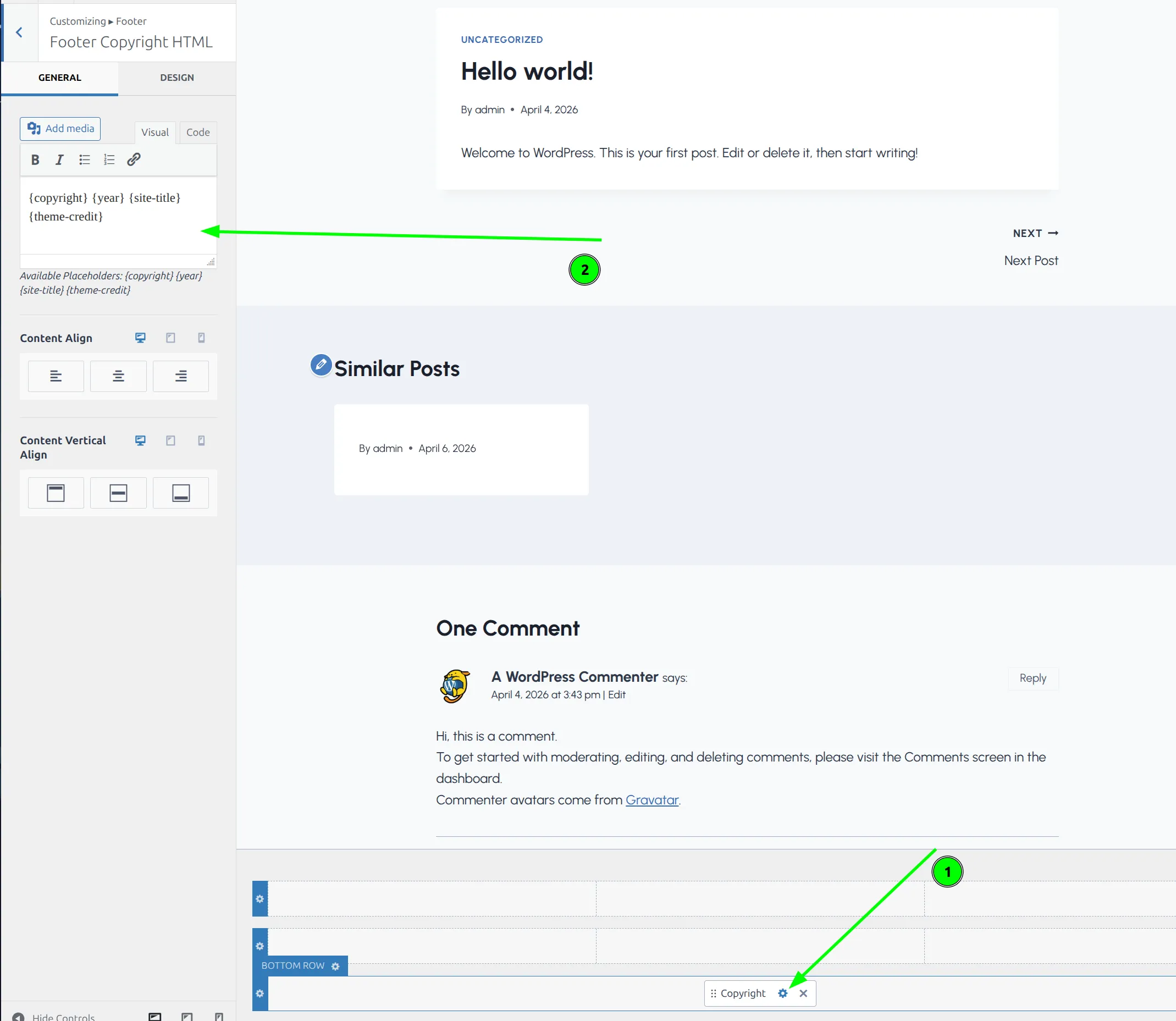
The copyright text lives inside the Kadence footer builder, which is part of the WordPress Customizer.
- Go to Appearance > Customize in your WordPress dashboard.
- Click Footer in the left sidebar.
- You’ll see a visual footer builder at the bottom of the preview. Click the “HTML” element (this is the copyright block).
If you don’t see an HTML element in the footer builder grid, click an empty slot and select “HTML” from the element picker to add one.
Once you click it, a text editor opens where you can type whatever you want. The default content looks like this:
{copyright} {year} {site-title} {theme-credit}Those curly-brace tags are dynamic placeholders. Kadence replaces them with real values on your live site. I’ll explain each one below.
What Do the Dynamic Tags Mean?
| Tag | What It Outputs | Example |
|---|---|---|
{copyright} | The © symbol | © |
{year} | The current year (auto-updates) | 2026 |
{site-title} | Your site name from Settings > General | The WP Ninja |
{theme-credit} | “- WordPress Theme by Kadence WP” (with link) | – WordPress Theme by Kadence WP |
You can mix these tags with your own text however you want. You can use all 4, drop some, or skip them entirely and just type plain text.
How Do I Edit the Copyright Text?
Click into the text editor and replace the default content with whatever you’d like. Here are a few examples I’ve used on different sites:
Simple and clean:
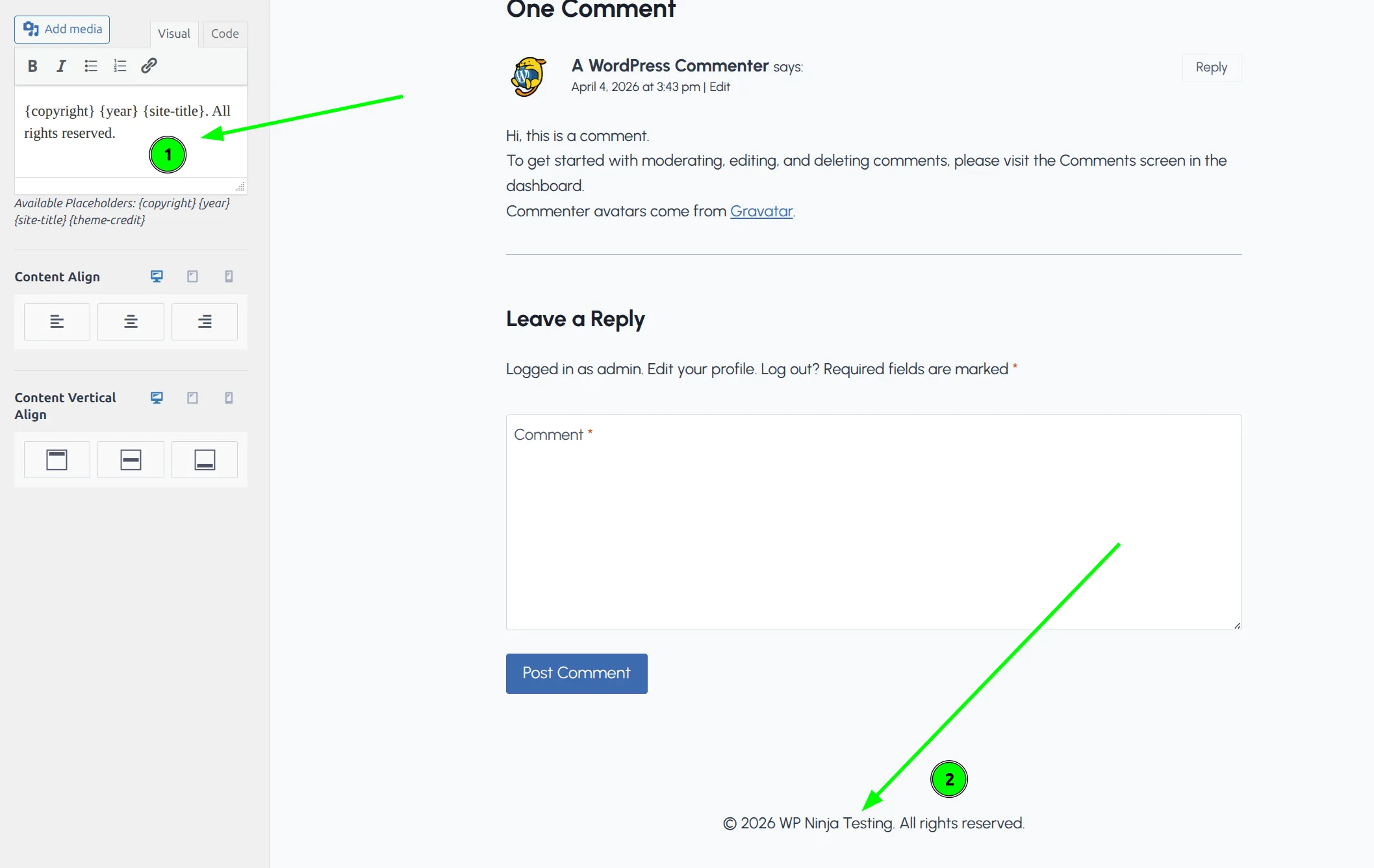
{copyright} {year} {site-title}. All rights reserved.This renders as: © 2026 The WP Ninja. All rights reserved.
With a tagline:
{copyright} {year} {site-title} | Your tagline goes hereCompletely custom:
Made with love by Jane's Bakery {copyright} {year}Type your preferred text, then click Publish at the top of the Customizer. That’s it. Your footer updates immediately.
How Do I Remove “Theme by Kadence WP”?
This is the part that trips people up – mostly because of bad advice floating around online.
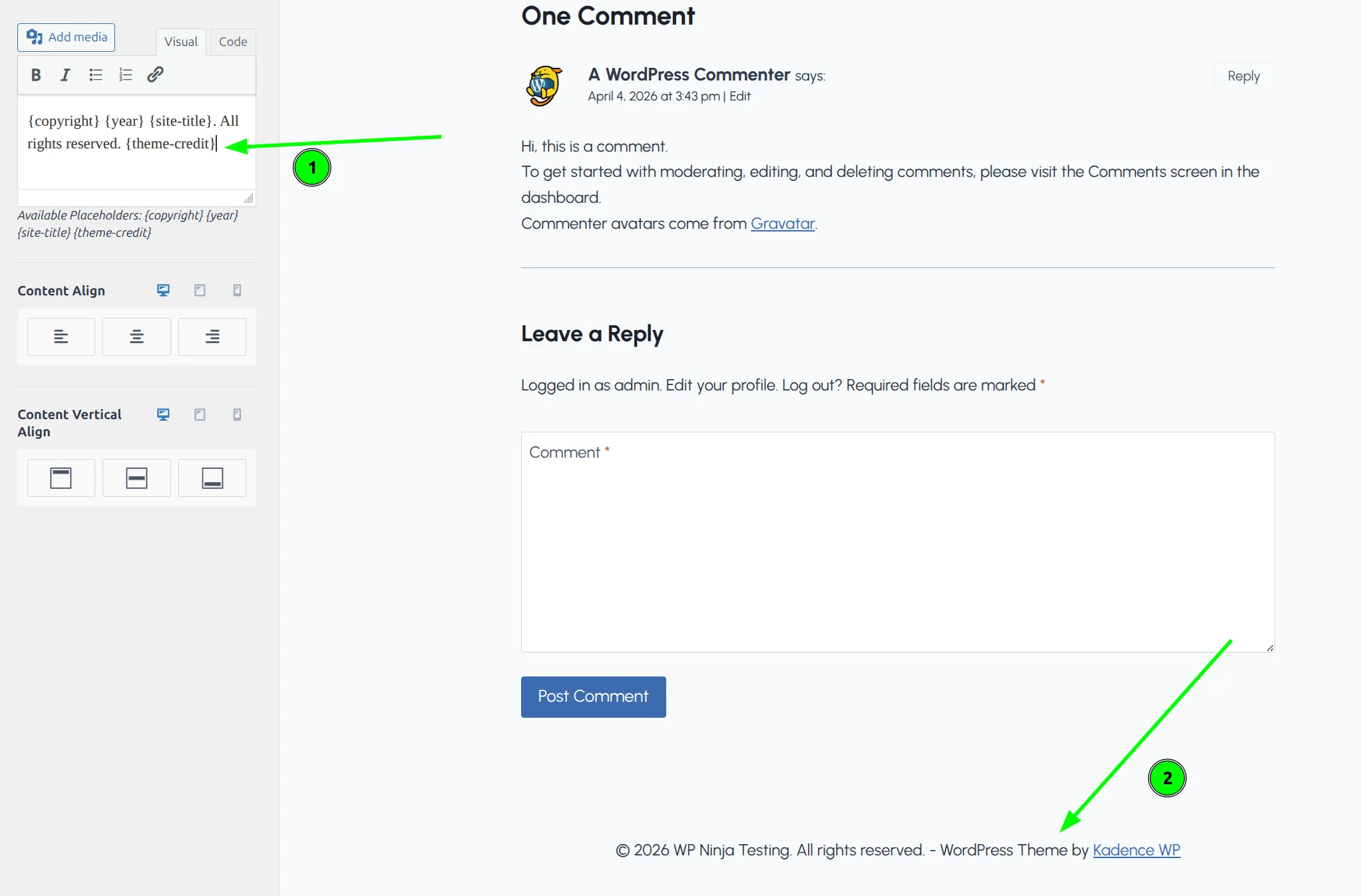
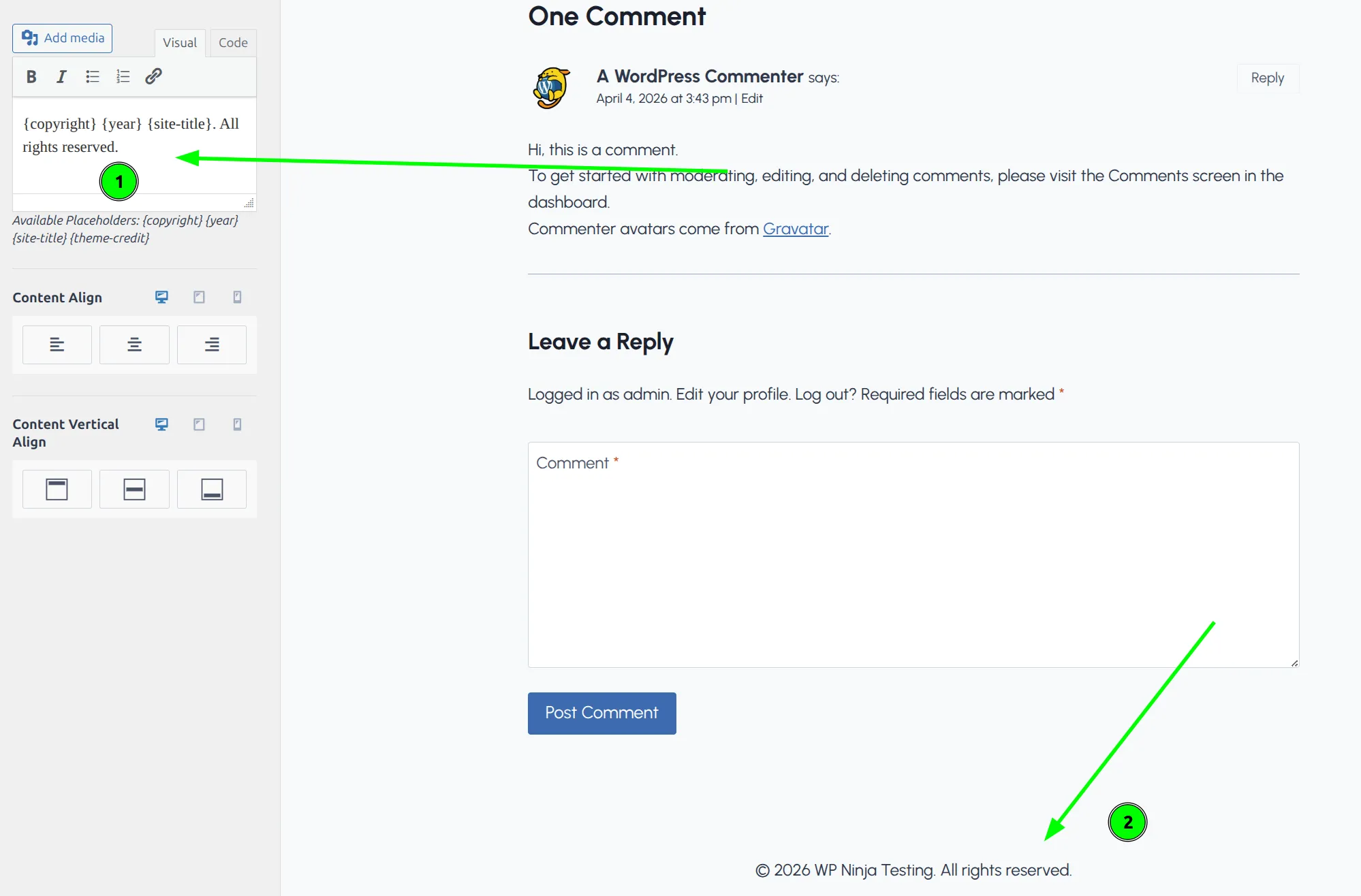
To remove the Kadence credit from your footer, all you do is delete the {theme-credit} tag from the copyright text editor. That’s it. No CSS needed. No Pro upgrade. No child theme. No plugin.
- Open the copyright text editor (Appearance > Customize > Footer > click the HTML element).
- Find
{theme-credit}in the text. - Delete it.
- Click Publish.
The “WordPress Theme by Kadence WP” line disappears from your footer instantly.
I want to be clear about this because I’ve seen at least 3 popular WordPress blogs claim you need Kadence Pro to remove the theme credit. You don’t. I’ve verified this directly in the Kadence source code – the {theme-credit} tag is just a placeholder like any other. Delete it and it’s gone.
Most free WordPress themes force you to keep the “Powered by” credit or hide the removal option behind a paid upgrade. Kadence is one of the few that lets you remove it for free, which is honestly one of the reasons I recommend it to beginners. If you’re customizing your footer, you might also want to set up a transparent header for a more polished look.
Before:
After:
Can I Add Links to the Copyright Area?
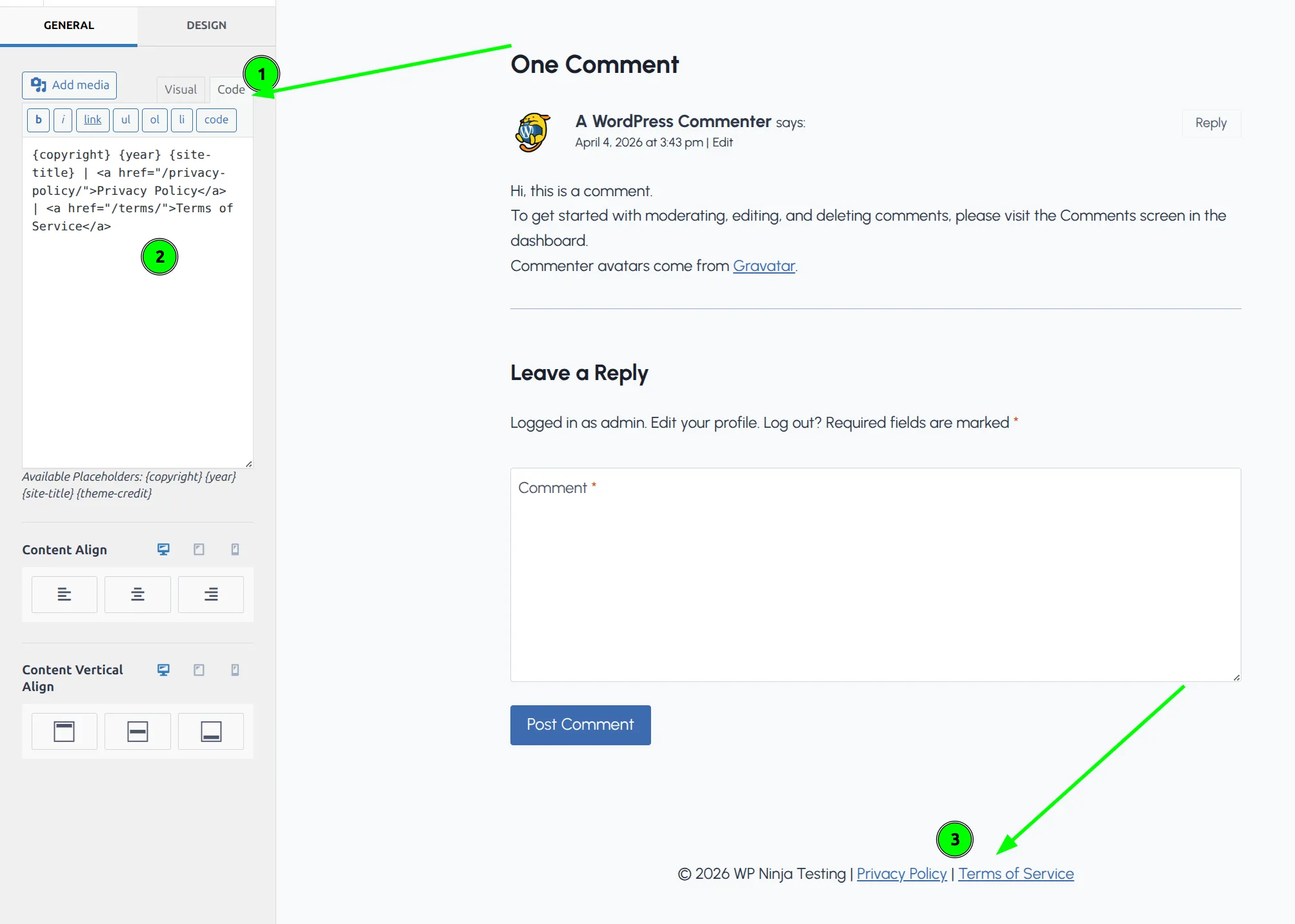
Yes. The copyright text editor accepts HTML, so you can add clickable links directly.
This is especially useful for linking to your Privacy Policy and Terms of Service pages – something most sites need for legal compliance.
Here’s what I use on most of my sites:
{copyright} {year} {site-title} | <a href="/privacy-policy/">Privacy Policy</a> | <a href="/terms/">Terms of Service</a>That renders as: © 2026 The WP Ninja | Privacy Policy | Terms of Service
A few tips for adding links:
- Use relative URLs (starting with
/) instead of full URLs. If you ever move your domain, the links still work. - Keep it to 2-3 links max. The footer copyright area isn’t a navigation menu.
- If you need more footer links, use Kadence’s footer Navigation element instead – it’s designed for menus and handles styling automatically.
Don’t Hard-Code the Year
I see this mistake constantly. Someone types © 2025 My Website instead of using {copyright} {year} My Website. It works fine until January 1st rolls around and your footer still says 2025.
The {year} tag pulls the current year automatically using your server’s date. You never need to touch it again.
And here’s the detail most people miss: the {copyright} tag exists too. Instead of copying and pasting the © symbol (which can sometimes break depending on your database encoding), just use the tag. It always renders correctly.
How Do I Style the Footer Copyright Text?
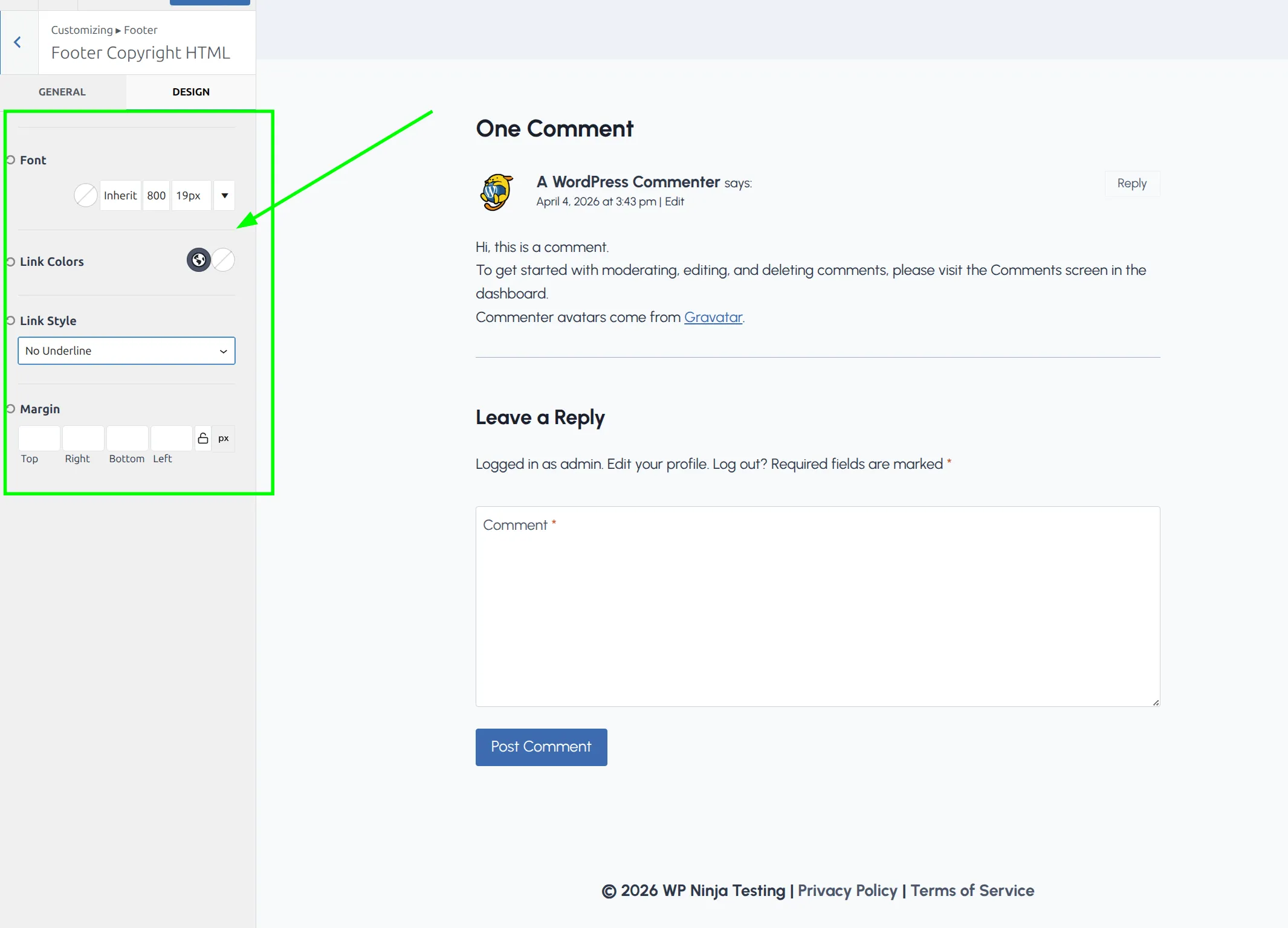
The copyright text inherits your site’s default font settings, but you can customize it further.
- In the same HTML element settings, switch to the “Design” tab.
- You’ll find options for:
- Font family, size, and weight – I usually go 1-2px smaller than body text
- Text color – match or contrast with your footer background
- Link color – important if you added HTML links
- Alignment – center, left, or right
- Margin and padding – adjust spacing around the text
If you notice extra white space in your footer area after making changes, check my guide on fixing extra footer white space in Kadence. And if your footer background is dark, make sure your text color is light enough to read. Sounds obvious, but I’ve seen plenty of sites with dark gray text on a dark footer. Test it by squinting at your screen – if you can’t read it while squinting, your visitors with less-than-perfect vision won’t be able to read it normally.
What About Social Icons in the Footer?
Kadence’s footer builder has a separate Social element you can add alongside the copyright text. It’s not part of the HTML element – it’s its own drag-and-drop block.
To add it:
- In the Customizer footer builder, click an empty slot in the same row as your copyright (or add a new row).
- Select “Social” from the element picker.
- Configure which social networks to show and pick an icon style (filled, outline, or plain).
I usually place social icons in the center column of the footer and copyright text below it. I wrote a full walkthrough on adding social icons to your Kadence footer if you want the step-by-step. You can arrange them however you want using the 3-column footer grid.
Quick Reference: Common Footer Setups
Here are the exact strings for the most common footer configurations:
Clean copyright only:
{copyright} {year} {site-title}Copyright with legal links:
{copyright} {year} {site-title} | <a href="/privacy-policy/">Privacy</a> | <a href="/terms/">Terms</a>Business footer with address:
{copyright} {year} {site-title} | 123 Main St, Springfield | (555) 123-4567Minimal:
{copyright} {site-title}Copy any of these into your copyright editor and adjust the details. All of them work in the free version.
Troubleshooting
| Problem | Cause | Fix |
|---|---|---|
| “Theme by Kadence” still showing | {theme-credit} tag still in the text editor | Delete the tag and click Publish |
| Year shows wrong date | Server timezone misconfigured | Check Settings > General > Timezone in WordPress |
| Links not clickable | HTML stripped or malformed | Make sure you’re using proper <a href="..."> tags |
| Copyright text not appearing | HTML element removed from footer builder | Re-add the HTML element to a footer row slot |
| Changes not showing on live site | Browser or page cache | Clear your caching plugin and browser cache |
| Special characters look broken | Encoding issue | Use {copyright} tag instead of pasting the © symbol directly |
Frequently Asked Questions
Do I need Kadence Pro to change the footer copyright text?
No. Everything I covered in this article – editing the copyright text, removing the theme credit, adding links, and styling the font – works in the free version of Kadence. I’ve tested it on fresh installs with no Pro license.
Will removing the Kadence credit cause any issues?
Not at all. The {theme-credit} tag is just a placeholder like {year} or {site-title}. Deleting it doesn’t break anything or affect your theme updates. I’ve removed it on every site I’ve built with Kadence.
Can I add a second line to the footer copyright area?
Yes. The HTML element supports line breaks. You can press Enter for a new line or use <br> tags in the editor. I’ve used this to put the copyright on one line and legal links on a second line below it.
Does the {year} tag update automatically on January 1st?
It does. The tag pulls the current year from your server’s date. As long as your server clock is correct, the year rolls over automatically. I’d check your WordPress timezone setting under Settings > General to make sure it’s set to your local timezone.
Wrapping Up
Changing your Kadence footer copyright takes about 30 seconds once you know where the setting lives. The key things to remember:
- The copyright editor is at Appearance > Customize > Footer > HTML element
- Delete
{theme-credit}to remove the Kadence credit – no Pro upgrade needed - Use
{year}so you never have to manually update the date - You can add HTML links for Privacy Policy and Terms pages
- Use the Design tab to customize font size, color, and alignment
And if anyone tells you that you need to pay for Kadence Pro just to remove the footer credit, send them here. It’s been free all along.