How to Hide the Header on Specific Pages in Kadence (Free)
Sometimes a page just works better without your site’s header and navigation menu cluttering the top. Landing pages, sales pages, “Link in Bio” pages – they all benefit from a clean, distraction-free layout. And Kadence lets you hide the header on one page without touching a single line of code.
The toggle is tucked into a panel that most beginners never open. But once you know where it is, you can strip the header off any page in about 5 seconds.
I re-tested everything here on Kadence 1.4.5 for this update. The original version of this guide warned that hiding the header also removes your page title – it doesn’t, and I’ll show you what actually happens. It also missed the one page where the toggle silently does nothing.
How Do I Disable the Header on a Single Page?
This is a one-page, one-toggle fix. It won’t affect any other page on your site.
- Open the page in the WordPress block editor.
- Click the Page Settings icon in the top-right toolbar, next to the Save button.
- Scroll down to the bottom of the panel.
- Find Disable Header and switch it on.
- Click Save (or Publish if it’s a new page).
The entire header – logo, navigation menu, the mobile header, everything – disappears from this page. Kadence doesn’t just hide it with CSS. I checked the page source with the switch on, and the header’s code isn’t there at all, so there’s no hidden menu for anyone to tab into.
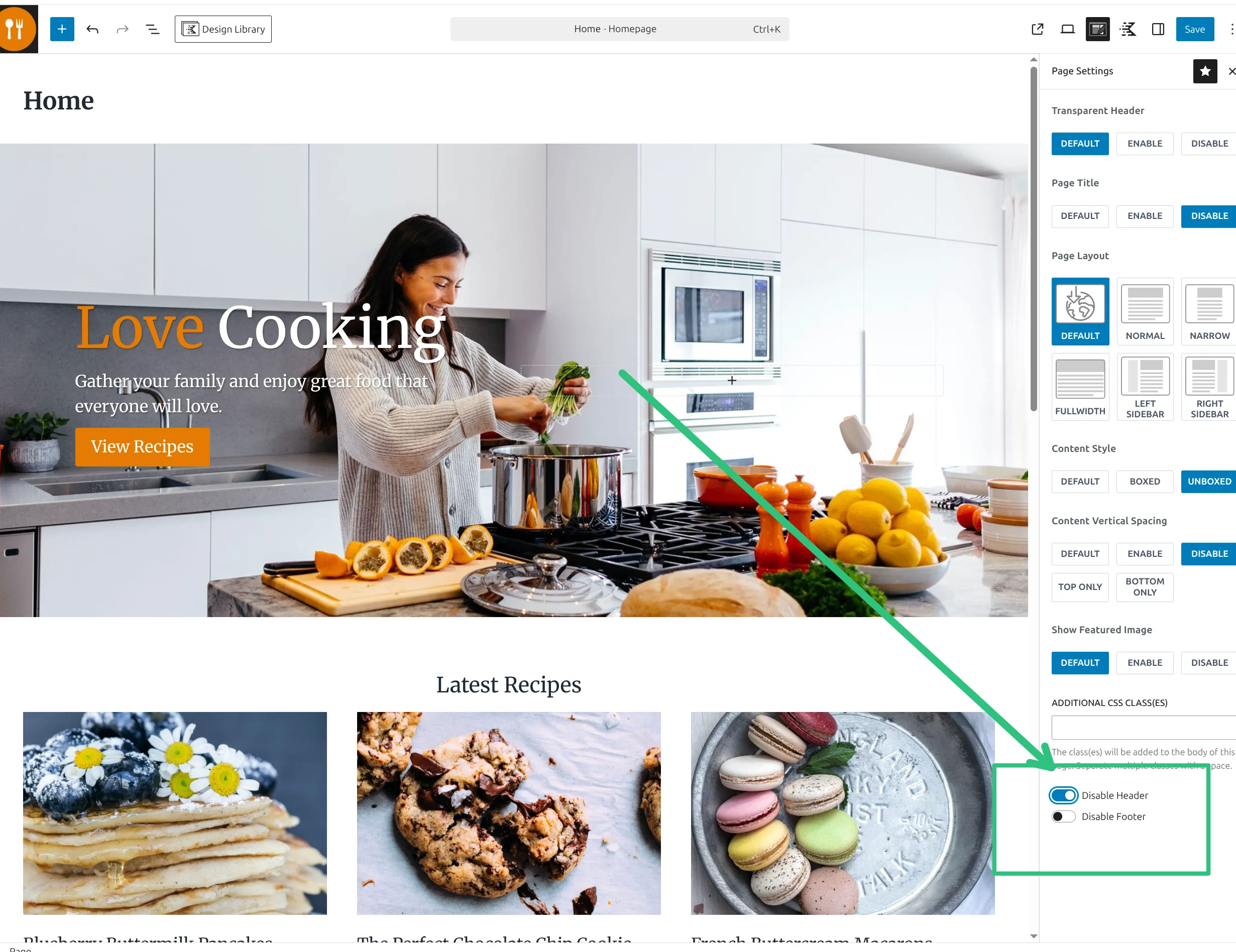
I use this on landing pages. When someone arrives from an ad or an email link, I don’t want them clicking away to my blog or About page. I want them focused on the one action the page is designed for.
Here’s what the front end looks like with the header turned off – no top bar, no logo, no menu. The page starts straight at your content (the black bar in my screenshot is the WordPress admin bar, which only you see while you’re logged in):

How much space do you get back? On a default Kadence header, which is one 80px row, you get those 80px. My test site uses a 3-row header from a starter template, and turning it off freed up 208px on desktop and 60px on a phone.
Can You Hide the Footer Too?
Yes – and it’s in the same panel. Right below Disable Header there’s a Disable Footer switch. Turn that on and the footer disappears too.
Combining both gives you a blank canvas: no header, no footer, no navigation – just your content. That setup works well for:
- Sales pages where every click should go to the buy button
- Coming soon pages during a site launch
- Squeeze pages collecting email signups
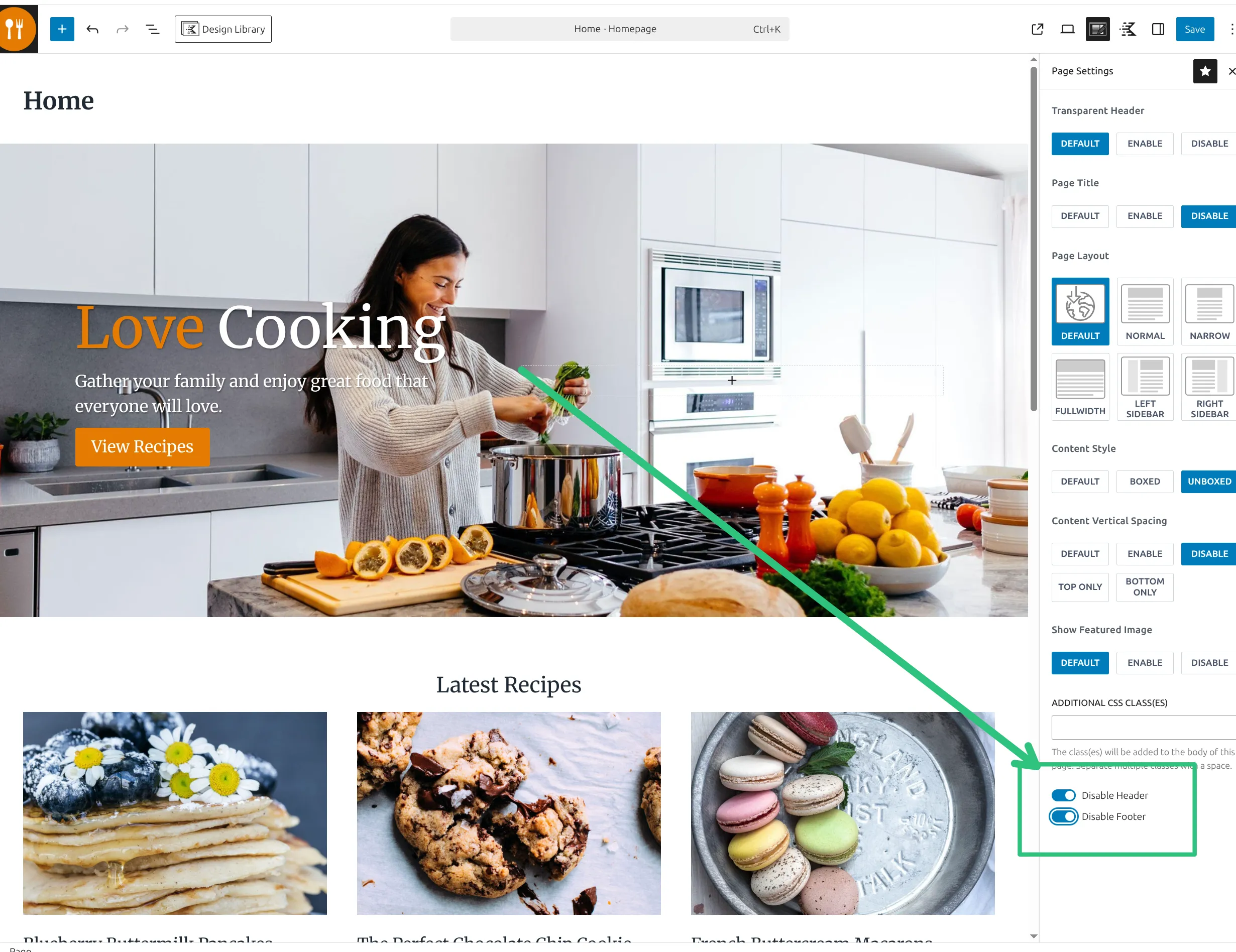
You don’t need a page builder like Elementor or a separate “Canvas” template for this. Kadence gives you the same result with 2 switches that are already built into the free theme.
Does This Work on Posts Too?
Yes. The same switches show up on posts, pages and custom post types – Kadence registers them for every post type. I tested it on a regular blog post and the header vanished exactly the same way. So if you have a special announcement post or a sponsored post with a custom layout, you can strip the header from that one post without touching the rest of your blog.
The one exception: your Blog page. If you’ve set a page as your “Posts page” under Settings > Reading, the Disable Header switch on that page does nothing. I turned it on, saved, and the header was still there. The switch still shows up in the editor, which is what makes it confusing.
Kadence only reads it on single posts, single pages and your homepage – your post listing page is treated as an archive, so the header stays. Your homepage works fine, even if it’s a static page.
Does Hiding the Header Remove Your H1?
No – and the old version of this guide got this wrong. I said hiding the header might take your page title with it. I measured it: with Disable Header on, the page title is still there, and the page still has exactly one H1 heading. In Kadence the header and the page title are 2 separate settings.
So you have a choice to make:
- Keep the page title. Nothing to do. It shows up above your content like on any other page.
- Hide the title too. That’s a separate switch, Page Title, near the top of the same Page Settings panel. Set it to Disable.
If you hide the title, add your own H1 so the page still has a main heading. Add a Heading block near the top of your content and set it to H1. It doesn’t have to match the page title – on a landing page I usually write a headline that sells instead of a generic “Landing Page”.
I cover the title side in more detail in my guide on how to remove the page title in Kadence, including what Google actually says about H1 tags.
How Do I Remove the Header on a Specific Page in WordPress?
If you’re not using Kadence, this gets harder. Most WordPress themes don’t have a built-in “Disable Header” switch. The usual workarounds are:
- CSS: hide the header for one page ID in Appearance > Customize > Additional CSS. The catch is that the class name of the header changes from theme to theme, so you have to find yours with your browser’s Inspect tool first
- Page builder templates: Elementor has a “Canvas” template, but that requires Elementor
- A plugin that hides the header and footer per page – one more plugin to keep updated
On Kadence the CSS route works too, if you ever need it (say, a plugin is getting in the way of the switch). Kadence’s header has the class site-header, and every page has a body class with its ID. I tested this rule in the real Additional CSS box on page 7637, and the whole header disappeared on desktop and on mobile:
.page-id-7637 .site-header {
  display: none;
}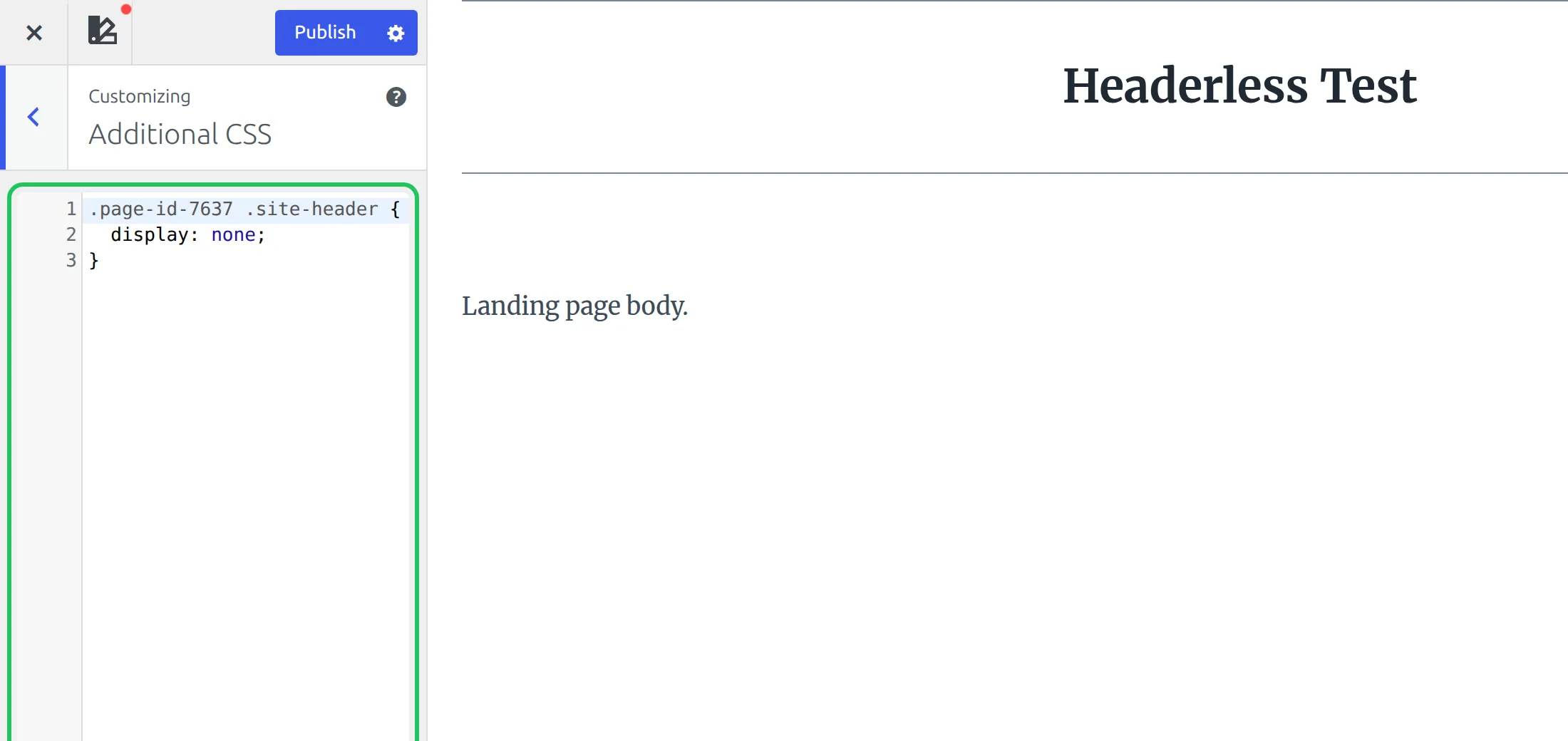
Swap 7637 for your own page ID – it’s the number after post= in the address bar when you edit the page. But the switch is still the better option, because it removes the header from the page code instead of just hiding it.
Kadence’s approach is the cleanest I’ve found: one switch per page, built into the theme, no code, no extra plugins. And if you want to change your sidebar layout on these pages too, the same Page Settings panel has a per-page layout setting.
Free vs. Pro – Do You Need to Upgrade?
For hiding the header, no. Disable Header and Disable Footer are both in the free theme.
Kadence Pro (the Theme Kit Pro plugin) adds one related feature worth knowing about: Conditional Headers. Instead of hiding the header, you build a second header in the Customizer and pick where it shows up – the front page, the blog page, specific pages, or by user role. For example, a simplified header on landing pages and the full menu everywhere else.
But that’s a different job. If you just want the header gone on specific pages, the free switch does exactly that. Don’t spend money on a problem that’s already solved.
5 Use Cases for Headerless Pages
Here are the pages where hiding the header makes the biggest difference:
1. Link in Bio page. Create a page at yoursite.com/links, disable the header and footer, and stack button links vertically. That gives you a free Linktree-style page on your own domain.
2. Landing pages for ads. When you’re paying for traffic from Google or Facebook ads, every navigation link is a potential leak. Removing the header keeps visitors focused on your call-to-action button instead of wandering off to your blog.
3. Sales pages for digital products. Long-form sales pages work best when there’s nothing to click except the buy button. No menu, no footer links, no distractions.
4. Coming soon or maintenance pages. While you’re building your site, a clean page with just your logo and an email signup form looks far more professional than a half-built homepage with a full navigation menu.
5. Email opt-in squeeze pages. Similar to landing pages, but built to collect email addresses. One headline, one form, one button – the header just gets in the way.
What About Transparent Headers?
Hiding the header and making it transparent are 2 different things. A transparent header keeps the navigation visible but removes the background, so your hero image shows through behind the menu. The menu is still there – it just blends into the page design.
You can control this per page too. In the same Page Settings panel, the first setting is Transparent Header, with 3 buttons: Default, Enable and Disable. Default follows your Customizer setting, Enable forces it on for this page, and Disable turns it off. I explain every transparent header setting in my Kadence header settings reference.
Use a transparent header when you want navigation but a cleaner look. Use Disable Header when you want the navigation gone entirely.
Frequently Asked Questions
Can you hide the menu on a WordPress landing page?
Yes. In Kadence, open your landing page in the block editor, click the Page Settings icon (top right), and switch on Disable Header. This removes the entire header – logo, menu, everything – from that one page. No code needed, and it’s free.
How do I use a blank canvas in Kadence?
Switch on both Disable Header and Disable Footer in the Page Settings panel. That gives you a page with just your content – no navigation, no footer widgets, no site branding. I use this for landing pages, sales pages and Link in Bio pages.
Do I need Kadence Pro to hide the header?
No. The Disable Header switch is in the free version of Kadence. Kadence Pro adds Conditional Headers (a different header design for chosen pages), but for simply hiding the header on specific pages, the free theme handles it.
Will hiding the header hurt my SEO?
Not by itself. Your page title, and its H1, stays in place when you hide the header – I measured it. Just keep in mind that a page with no menu also has no navigation links, so make sure the page is linked from somewhere else on your site.
Why isn’t Disable Header working on my blog page?
Because Kadence ignores that switch on the page you’ve set as your “Posts page” in Settings > Reading. It only works on single posts, single pages and your homepage. For the blog page you’d need the CSS method with that page’s ID, or Kadence Pro’s Conditional Headers.
Can I have a different header for just one page?
In the free version you can show the full header, hide it, or switch the transparent header on or off per page. For a fully different header on one page for free, Kadence’s own docs suggest a workaround: turn on Disable Header, then build a header inside the page with the Advanced Header block from the free Kadence Blocks plugin. Kadence Pro’s Conditional Headers does it properly in the Customizer.
How do I hide the header using CSS if the toggle doesn’t work?
Add .page-id-12 .site-header { display: none; } to Appearance > Customize > Additional CSS, replacing 12 with your page ID. I tested this on Kadence 1.4.5 and it hid the whole header on desktop and mobile. But check for a plugin conflict first – the switch should work on its own.
Wrapping Up
Hiding the header on specific Kadence pages is incredibly useful once you know it exists. Most beginners never find it because it’s in the Page Settings panel instead of the Customizer.
Here’s my quick workflow for headerless landing pages:
- Open the page and click the Page Settings icon (top right).
- Switch on Disable Header.
- Switch on Disable Footer (optional, but I usually do).
- Decide on the title: keep it, or set Page Title to Disable and add your own H1 heading.
- Click Save and preview the page.
The whole process takes under a minute. Just remember the one exception: it won’t work on your Blog page.