How to Fix Kadence Customizer Not Saving Changes
You just spent 20 minutes tweaking your colors, fonts, and header layout in the Kadence Customizer. You hit “Publish.” And… nothing happens. Your changes vanish. Or you get some vague “Something went wrong” message that tells you absolutely nothing useful.
I’ve been there. More than once. And after fixing this on my own sites and helping others troubleshoot theirs, I can tell you it almost always comes down to one of 5 things – from quickest fix to deepest dig.
Why Does the Customizer Fail to Save?
Here’s what’s happening behind the scenes. When you click “Publish” in the Customizer, WordPress fires an AJAX request to your server. That request carries all your settings as a big batch of data. The server processes it, saves everything to a single database option called theme_mods_kadence, and sends back a success response.
If anything interrupts that chain – a stale cache, a PHP error, a plugin conflict, or a server limit – the save either fails with an error or fails silently. The silent failures are the worst because you think it saved, but it didn’t.
And here’s a gotcha most people miss: if you leave the Customizer open for 30+ minutes without saving, your WordPress security nonce expires. When you finally hit “Publish,” it fails silently. The fix is simple – refresh the page and make your changes again. Save often.
Fix 1: Clear All Your Caches
This fixes the problem roughly 40% of the time. Seriously.
Old cached files – especially JavaScript files from a previous Kadence version – can conflict with the current Customizer code. Your browser thinks it already has the right files, but they’re outdated.
Here’s what to clear, in order:
- Browser cache – Press Ctrl+Shift+Delete (Cmd+Shift+Delete on Mac), select “Cached images and files,” and clear it
- Site cache – If you’re running WP Rocket, LiteSpeed Cache, W3 Total Cache, or any caching plugin, purge everything
- Server cache – Some hosts like SiteGround, Cloudways, and Kinsta have their own caching layer. Check your hosting dashboard for a “Purge Cache” button
- CDN cache – If you use Cloudflare or another CDN, purge that too
Now reload the Customizer and try saving. If it works, you’re done. If not, keep reading.
Fix 2: Check for PHP Errors
A single PHP error from any plugin on your site can break the Customizer’s AJAX response. The Customizer expects clean JSON back from the server. If a plugin throws a warning or notice, it corrupts that response, and the save fails.
Go to Tools > Site Health in your WordPress dashboard. If you see critical issues or recommended improvements mentioning PHP, that’s your lead.
Quick test: Temporarily switch to a default theme like Twenty Twenty-Four (Appearance > Themes). Open the Customizer. Try saving. If it works fine with the default theme, the problem is specifically with Kadence or a plugin interaction – not your server.
Fix 3: Test for Plugin Conflicts
This is the classic WordPress troubleshooting step, and it catches more issues than you’d expect.
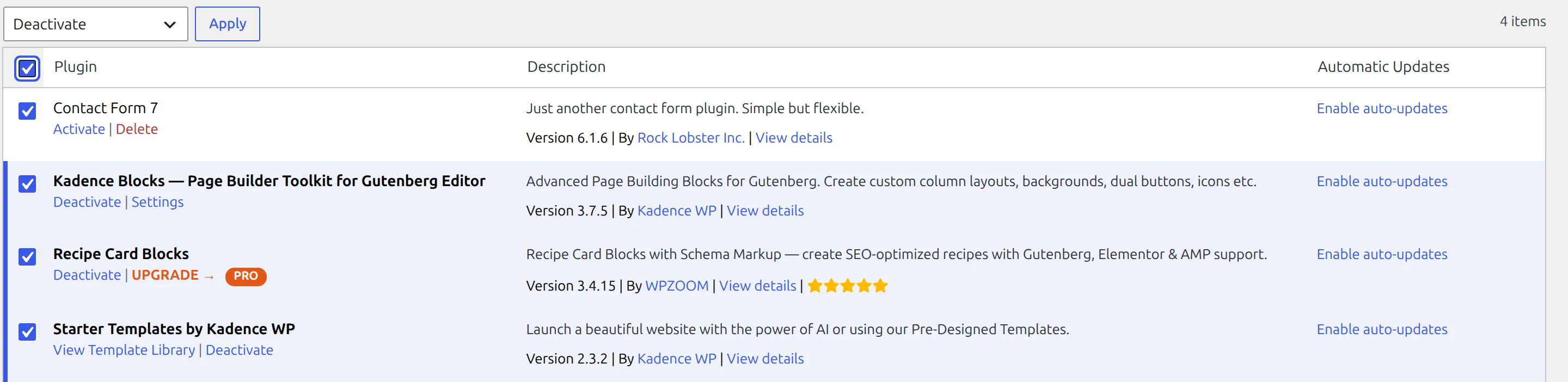
- Go to Plugins > Installed Plugins
- Tick the checkbox in the table header to select everything
- Pick Deactivate from the Bulk actions dropdown and click Apply
- Open the Customizer and try saving
- If it saves, reactivate your plugins one by one, testing the Customizer after each one
The usual suspects? Security plugins (Wordfence, Sucuri), optimization plugins (Autoptimize, Perfmatters), and caching plugins. These often modify AJAX requests or block certain server calls, which breaks the Customizer.
Once you find the culprit, check its settings for any option that filters AJAX requests or modifies script loading. Or contact that plugin’s support – they’ll likely have a known fix.
Fix 4: Check Your PHP Limits (This Is the Big One)
This is the fix that most tutorials skip, and it’s the most common cause of the “Publish does nothing” problem with Kadence specifically.
Think of it like a post office with a 1,000-letter limit. You hand over 1,500 letters, and the clerk takes the first 1,000 and quietly throws away the rest. No error, no warning. 500 letters just disappear.
That’s exactly what happens with a PHP setting called max_input_vars. Kadence stores all its Customizer settings – colors, fonts, header config, footer layout, everything – in one big batch. A well-customized Kadence site can easily send 1,500 to 2,500 variables in a single save. But many hosts set max_input_vars to just 1,000 by default.
The result? PHP silently truncates your data. Some settings save, others don’t. And you get zero error messages.
How to check your current value:
- Go to Tools > Site Health > Info
- Click on Server
- Find
max_input_vars
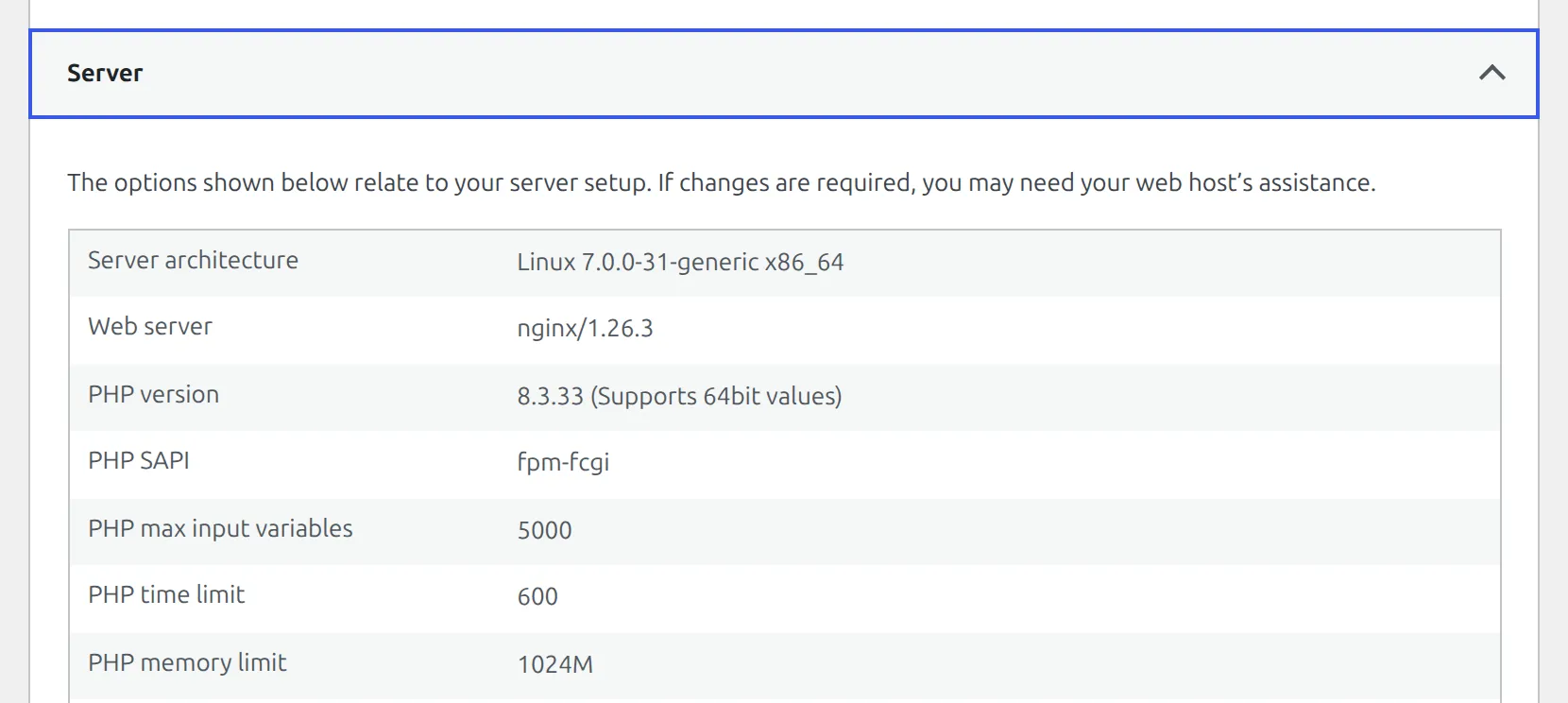
If it’s 1,000 (or lower), that’s almost certainly your problem. You need at least 3,000. If you’re using Kadence Pro with lots of customizations, bump it to 5,000.
How to increase it:
- Shared hosting: Contact your host’s support and ask them to set
max_input_vars = 5000 - cPanel hosting: Go to MultiPHP INI Editor, select your domain, and change the value
- VPS/dedicated: Add
max_input_vars = 5000to yourphp.inifile, then restart PHP
While you’re in the Site Health screen, also check these two settings:
- PHP memory limit – Should be at least 256M
- PHP max execution time – Should be at least 60 seconds
Low values on either of these can cause the Customizer to time out mid-save.
What if the Customizer Loads but Looks Broken?
If your Customizer opens to a blank white panel, shows missing sections, or controls don’t respond when you click them – that’s a different problem. It’s almost always a JavaScript conflict.
Here’s how to check:
- Open the Customizer
- Press F12 to open your browser’s developer tools
- Click the Console tab
- Look for red error messages
Common causes include an outdated plugin loading an old version of jQuery, or a minification plugin combining scripts in a way that breaks things. Update all your plugins first. If the errors persist, the plugin conflict test from Fix 3 will help you find the culprit. This same kind of JavaScript conflict can also trigger JSON response errors in the block editor, or stop the Kadence Design Library loading.
Last Resort Options
If nothing above works, here are 3 more things to try:
Re-save your permalinks. Go to Settings > Permalinks and click “Save Changes” without changing anything. This rebuilds WordPress rewrite rules that the Customizer depends on. It takes 2 seconds and fixes more problems than you’d expect.
Reset Kadence settings. Free Kadence has no reset button – I’ve looked, and the Appearance > Kadence dashboard doesn’t offer one. Every Customizer setting the theme owns lives in a single database row called theme_mods_kadence, and deleting that row is the reset. Install the free Customizer Export/Import plugin, export a backup first, then use its Import to push a clean file back. If you’re comfortable with WP-CLI, wp option delete theme_mods_kadence does the same thing in one line. Either way this wipes your customizations back to defaults, so only do it if you’re prepared to redo your design. It can fix corrupted settings that no other fix touches. If you are starting fresh, re-importing a Kadence starter template gives you a clean base to build on.
Contact Kadence support. Before you do, gather your Site Health info (Tools > Site Health > Info – there’s a “Copy site info to clipboard” button at the top). Include the exact error message you see (or describe the silent failure), and mention which fixes you’ve already tried. Their support team is responsive, and they’ve seen every variation of this problem.
Quick Reference
| Symptom | Most Likely Fix |
|---|---|
| “Something went wrong” error | Clear caches (Fix 1) |
| Changes revert after saving | Increase max_input_vars (Fix 4) |
| Some settings save, others don’t | Increase max_input_vars (Fix 4) |
| Blank or broken Customizer | JavaScript conflict – see “What if the Customizer Loads but Looks Broken?” |
| Save fails after long editing session | Refresh the page (nonce expired) |
Frequently Asked Questions
Does this only happen with Kadence or other themes too?
The max_input_vars problem hits Kadence harder than most themes because Kadence stores more Customizer settings than a typical theme. But cache conflicts, plugin conflicts, and nonce timeouts can happen with any WordPress theme. I’ve seen similar issues with Astra and GeneratePress too.
Will I lose my Customizer settings if I switch themes to test?
No. WordPress stores theme settings separately for each theme. When you switch back to Kadence, all your customizations will still be there. Just don’t delete Kadence from Appearance > Themes while testing – that would remove the settings.
How do I know which plugin is causing the conflict?
The one-by-one reactivation test from Fix 3 is the most reliable method. But if you want a shortcut, start by testing security plugins (Wordfence, Sucuri), optimization plugins (Autoptimize, Perfmatters), and caching plugins first. In my experience, those 3 categories cause about 80% of Customizer conflicts.
Can I edit Kadence settings without the Customizer?
Not through a second visual interface, no. Kadence keeps its header and footer builders in the Customizer in both the free and Pro versions – Pro does not move them into the block editor. What Pro adds is Kadence Elements (Appearance > Kadence > Elements), which lets you build a block-editor layout and hook it into a spot on the page conditionally. That sits alongside the Customizer rather than replacing it. Everything the theme itself controls is stored in one database row, theme_mods_kadence, so a plugin like Customizer Export/Import can edit those settings as a file if you need to work around a broken Customizer.
In my experience, roughly half of all Kadence Customizer save issues come down to max_input_vars being too low. It’s the first thing I check now. Start there, and you’ll save yourself hours of digging.