Why Did My WordPress Blog Posts Disappear? (And How to Fix It)
Your blog page is empty. The posts you wrote last week are gone. It really looks like someone deleted everything.
Take a breath. Your posts are almost certainly still there.
In nearly every case, the posts are sitting in Posts > All Posts, right where they always were. The problem is a setting that tells WordPress to stop displaying them publicly. In the most common case, this is a 2-click fix.
Here’s the checklist I walk through when WordPress blog posts are not showing up on the front end. I re-checked every step on WordPress 7.1.
Why aren’t my WordPress blog posts showing up?
The short answer: WordPress stopped knowing where to put them.
When you install WordPress, your homepage shows your latest posts automatically. But the moment you set a static homepage, WordPress assumes you’ll tell it where the blog should go. Forget that second step and your posts vanish from the front end – even though they’re still in the database.
Log into your dashboard and click Posts > All Posts. If your articles are listed there with “Published” next to them, nothing is lost. You just need to show WordPress where to display them again.
Here are the 5 things I check when posts disappear, in the order I check them:
- A static homepage is set, but no posts page is assigned in Settings > Reading
- Posts are saved as Draft or Private instead of Published
- The permalink rules broke and the blog page or the posts return a 404
- The blog page exists but isn’t linked in the menu anywhere
- A block theme (like Twenty Twenty-Five) is using a template that doesn’t pull posts
The first one is the most common, so let’s start there.
How do I set a specific page to show my blog posts?
This is the fix that catches most people. It takes 3 clicks.
Go to Settings > Reading. You’ll see “Your homepage displays” at the top with 2 radio buttons: “Your latest posts” and “A static page (select below).”
If you picked “A static page” at some point (or your theme’s starter template picked it for you), you’ll see 2 dropdowns underneath: Homepage and Posts page. The Homepage dropdown is probably set to your welcome page. The Posts page dropdown is probably set to “- Select -” and that’s the problem.
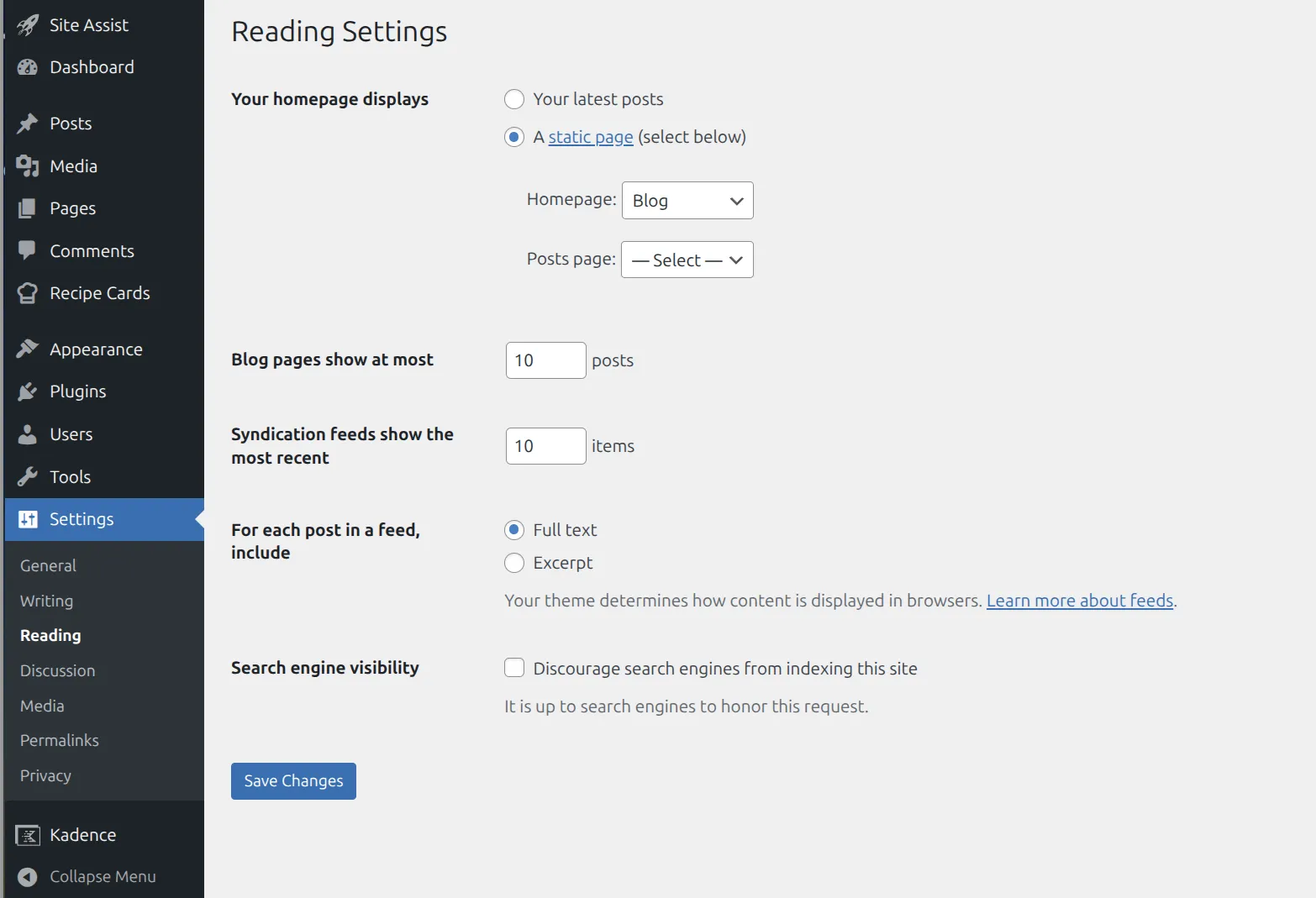
Here’s what to do:
- Create a blank page called “Blog” (or “News” or “Articles”) under Pages > Add New. Don’t add any content. Just publish the empty page.
- Go back to Settings > Reading.
- In the Posts page dropdown, select the “Blog” page you just created.
- Click Save Changes at the bottom.
That’s it. Visit yoursite.com/blog and your posts will be back.
One warning: don’t add content to that page. WordPress replaces whatever is inside the page you assigned as your Posts page with your list of posts. I tested it by typing an intro paragraph into my test site’s Posts page: the front end showed 10 post titles and not one word of the intro.
WordPress even tells you this in the editor. Open the page you picked as your Posts page and a yellow notice sits across the top.
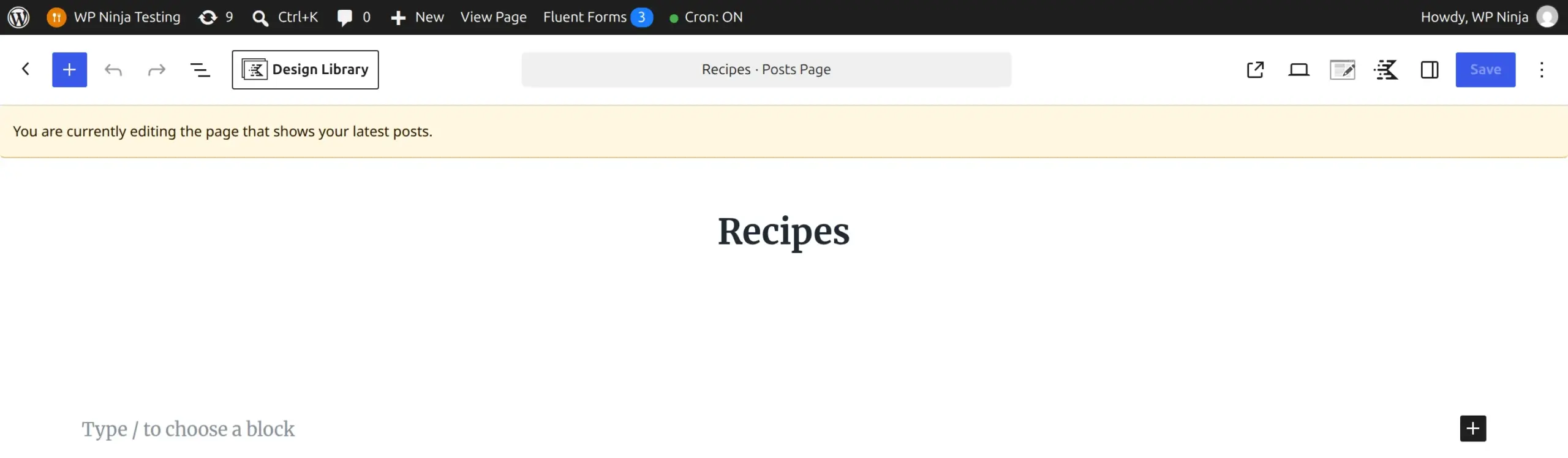
If you want an intro above your posts, a classic theme can’t do it from this page. On a block theme, you add it to the Blog Home template instead (more on templates below).
What if my posts are saved as drafts instead of published?
This one catches me embarrassingly often. I write a post, hit Preview to check it, close the tab, and forget to actually click Publish.
Go to Posts > All Posts. Above the posts list, you’ll see status links such as All, Published, Drafts, Scheduled and Trash (each with a count, and only the ones that have posts in them). Click Drafts and see what’s waiting there.
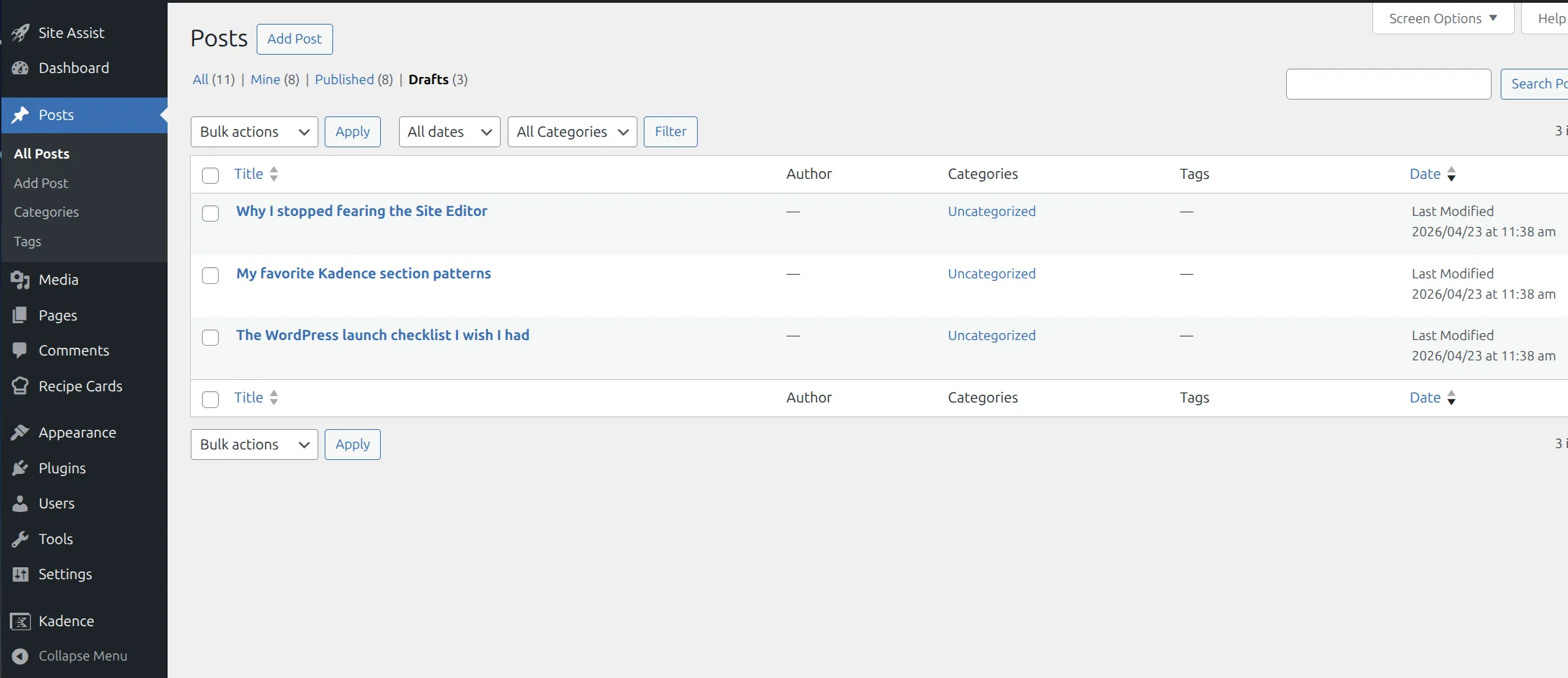
If you see posts in Drafts, they’re not public yet. Hover over the title, click Quick Edit, change the Status dropdown from “Draft” to “Published,” and click Update. Or open the post in the editor and click the blue Publish button in the top right.
Also check Scheduled. A scheduled post has a future publish date, which means WordPress is holding it back until that date arrives. If you set the date wrong (say, 2027 instead of 2026), the post won’t show up for a very long time. Change the date and click Update.
One more sneaky one: the Private status. A Private post is only visible to site admins and editors, so when I’m logged in, it looks fine to me, but readers get a 404. I checked that on my test site with a logged-out browser.
To check, open the post and look at the Status row in the right sidebar. It should say Published, not Private. Click it to change it – WordPress 7.1 lists Draft, Pending, Private, Scheduled and Published there. Once your posts are back on the page, you might notice the layout feels cramped – my guide on changing the blog post container width covers how to give them room to breathe.
How do I check if permalinks broke my blog page?
Sometimes your Blog page loads but clicking any post shows a 404. Or the /blog/ URL returns 404 even though the page exists. That’s a permalinks problem.
Permalinks are the URL structure WordPress uses for your posts (like yoursite.com/my-post-title/). WordPress keeps a list of rewrite rules that turn those addresses into posts, and on Apache servers there’s also a file called .htaccess that sends every address to WordPress in the first place. When either one gets out of sync after a migration or a plugin change, WordPress can’t find your posts.
The fix is weirdly simple. Go to Settings > Permalinks. Don’t change anything. Just click Save Changes at the bottom.
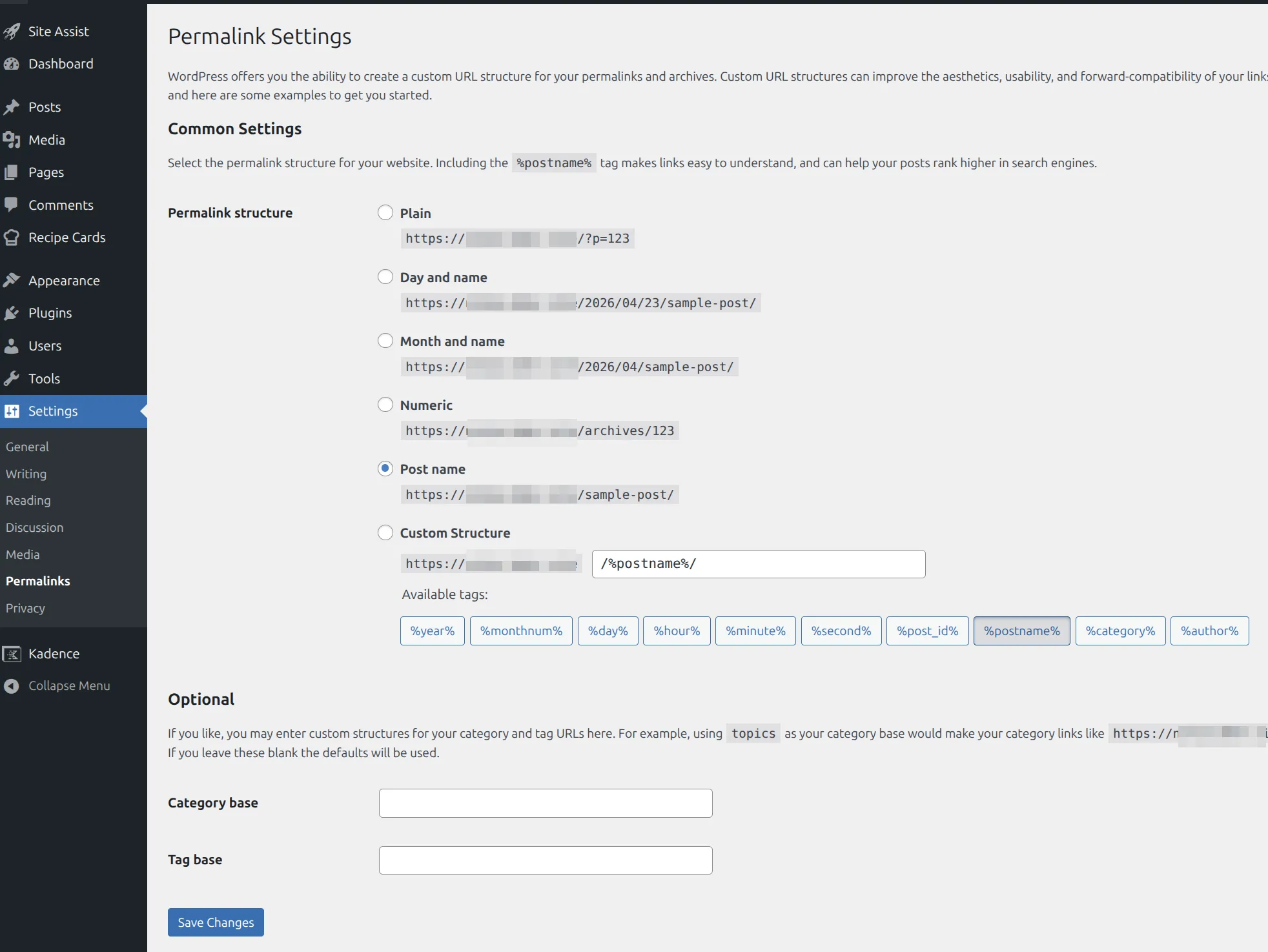
Opening that page rebuilds WordPress’s rewrite rules from scratch, and saving does it again (and rewrites .htaccess on Apache when it can). Your posts and pages should reappear. The full walkthrough is in my guide on fixing WordPress 404 errors on every page.
You may have read that this doesn’t work on Nginx hosts. It does. I broke the rules on my Nginx test site until every post returned 404, opened Settings > Permalinks, and every post came back.
Nginx has no .htaccess, but WordPress’s own rules are the part that goes stale, and those live in your database. If posts still 404 afterwards, clear any page cache – my guide on changes not showing on the live site covers where those caches hide.
What if the blog page isn’t linked in my menu?
Here’s a silly cause that’s easy to miss. Your posts are published and your settings are correct, but there’s no way for visitors to find the blog page from your homepage.
Go to Appearance > Menus (or Appearance > Editor > Navigation on a block theme). Look at your primary menu. If “Blog” isn’t listed, add it: tick the Blog page in the Pages box on the left and click Add to Menu, then Save Menu.
While you’re there, check your homepage content too. Most starter themes include a Latest Posts block that pulls in your articles automatically. If your homepage was built from scratch or switched to a page builder, that block might be gone. Drop one in so visitors see fresh content without hunting.
What if I’m using a block theme with templates?
Block themes (any theme that uses the Site Editor at Appearance > Editor) handle posts differently from classic themes. Twenty Twenty-Four, Twenty Twenty-Five and Ollie are all block themes.
With a block theme, the layout of your blog page comes from a template inside the Site Editor. If you (or a theme update) replaced that template with a custom layout that doesn’t include a Query Loop block, your posts won’t show.
Go to Appearance > Editor > Templates. On Twenty Twenty-Five, the one that shows your posts is called Blog Home – its own description says it “displays the latest posts as either the site homepage or as the Posts page.” If your theme has no Blog Home, the fallback is Index.
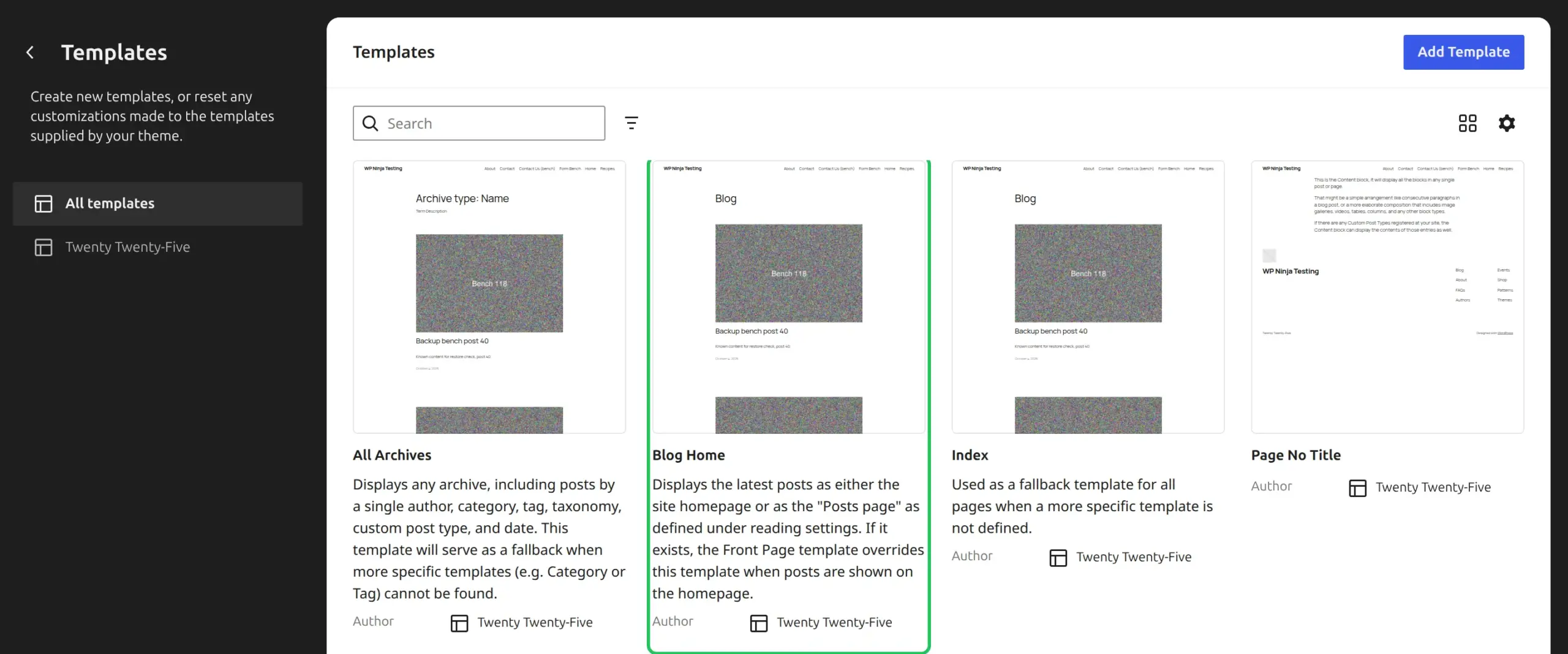
Click the template to edit it. Look for a block called Query Loop – this is the block that actually fetches and displays your posts. If it’s missing, click the + button, search for “Query Loop,” and insert it. Pick a layout pattern when prompted (I usually go with a simple list), then save the template.
If you broke the template and can’t work out what changed, you can reset it. In the Templates list, click the 3-dot menu on the template and choose Reset. That only appears once a template has been customized, and it rolls the template back to what the theme shipped with.
If you’re fuzzy on templates versus patterns, my explainer on WordPress patterns vs template parts sorts that out. And if you miss the old writing experience entirely, my comparison of Classic Editor vs Gutenberg in 2026 walks through when to switch back.
Should I restore from a backup?
Only as a last resort. Before restoring anything, confirm your posts are actually missing from the database – not just missing from public view.
Go to Posts > All Posts and check the count at the top. If you see “25 items” and your titles are listed, the posts exist. Restoring a backup would be overkill and you’d lose any changes made since that backup ran.
Restoring only makes sense if Posts > All Posts shows an empty list or a much lower count than expected. That points to something (a bad migration, database corruption, or a hack) removing data from your database. In that case, restore the database from your backup plugin. If you don’t have a backup yet, that’s the first thing to fix – I tested 6 free options in the best free WordPress backup plugins.
Frequently Asked Questions
Why are my WordPress blog posts not showing up?
Usually it’s a setting, not lost data. The most common cause is a static homepage with no Posts page picked in Settings > Reading. After that, check for posts saved as Draft or Private, stale permalink rules, and a block theme template with no Query Loop.
How do I set a specific page as my blog page?
Go to Settings > Reading, choose “A static page,” pick your blog page in the Posts page dropdown, and click Save Changes. Leave that page empty – WordPress replaces its content with your list of posts.
Why did my published posts disappear from my site?
If they’re still listed under Posts > All Posts, they were hidden, not deleted. Check Settings > Reading first, then each post’s Status row. If the posts list itself is empty, that’s real data loss, and a backup restore is the fix.
How do I check if permalinks broke my blog page?
Open a post from Posts > All Posts with the View link. If it returns a 404 (or your blog page does), open Settings > Permalinks and click Save Changes. That rebuilds the rules on any server, Nginx included.
You didn’t lose your posts
Here’s what I want you to take away from this. When blog posts vanish in WordPress, it’s almost always a configuration issue, not a data loss issue. Your words are still there. You just need to tell WordPress where to put them.
Start with Settings > Reading. If that doesn’t solve it, check draft status, permalinks, your menu, and your block theme templates in that order. One of those 5 checks will bring your posts back.
And once they’re back, install a backup plugin so you never have to second-guess yourself next time. A 5-minute setup now saves you an hour of panic later.